
ESP32 - LED com Encoder Rotativo
Neste tutorial, vamos aprender a programar o ESP32 para controlar o brilho de um LED de acordo com o valor de saída do encoder rotativo.
Hardware Necessário
Or you can buy the following kits:
| 1 | × | DIYables ESP32 Starter Kit (ESP32 included) | |
| 1 | × | DIYables ESP32 S3 Starter Kit (ESP32 S3 included) | |
| 1 | × | DIYables Sensor Kit (18 sensors/displays) |
Divulgação: Alguns dos links desta seção são links de afiliado da Amazon. Podemos receber uma comissão pelas compras feitas por meio desses links, sem custo adicional para você. Agradecemos o seu apoio.
Buy Note: Use the LED Module for easier wiring. It includes an integrated resistor.
Sobre o LED e o Encoder Rotativo
Não conhece o LED e o encoder rotativo, incluindo a pinagem, o funcionamento e a programação deles? Explore os tutoriais completos sobre esses temas abaixo:
Diagrama de Ligação
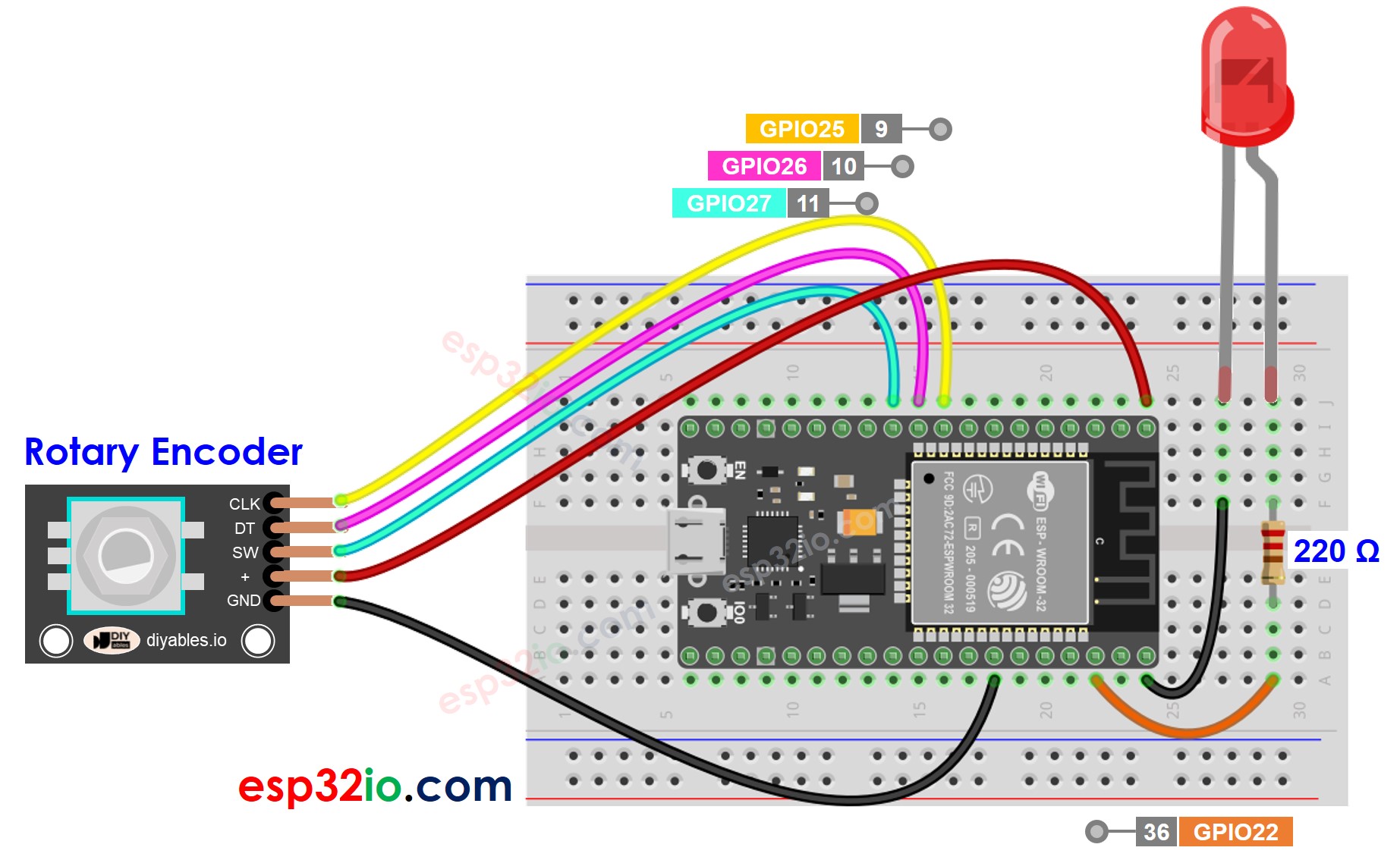
This image is created using Fritzing. Click to enlarge image
Se você não sabe como alimentar o ESP32 e outros componentes, veja as instruções no tutorial a seguir: Como alimentar o ESP32.
Código ESP32
/*
* Este código de ESP32 foi desenvolvido por pt.newbiely.com
* Este código de ESP32 é disponibilizado ao público sem nenhuma restrição.
* Para tutoriais completos e diagramas de ligação, visite:
* https://pt.newbiely.com/tutorials/esp32/esp32-rotary-encoder-led
*/
#include <ESP32Servo.h>
#define CLK_PIN 25 // ESP32 pin GPIO25 connected to the rotary encoder's CLK pin
#define DT_PIN 26 // ESP32 pin GPIO26 connected to the rotary encoder's DT pin
#define SW_PIN 27 // ESP32 pin GPIO27 connected to the rotary encoder's SW pin
#define LED_PIN 22 // ESP32 pin GPIO22 connected to the LED
#define DIRECTION_CW 0 // clockwise direction
#define DIRECTION_CCW 1 // counter-clockwise direction
int counter = 0;
int direction = DIRECTION_CW;
int CLK_state;
int prev_CLK_state;
int brightness = 125; // middle value
void setup() {
Serial.begin(9600);
// configure encoder pins as inputs
pinMode(CLK_PIN, INPUT);
pinMode(DT_PIN, INPUT);
// read the initial state of the rotary encoder's CLK pin
prev_CLK_state = digitalRead(CLK_PIN);
pinMode(LED_PIN, OUTPUT);
}
void loop() {
// read the current state of the rotary encoder's CLK pin
CLK_state = digitalRead(CLK_PIN);
// If the state of CLK is changed, then pulse occurred
// React to only the rising edge (from LOW to HIGH) to avoid double count
if (CLK_state != prev_CLK_state && CLK_state == HIGH) {
// if the DT state is HIGH
// the encoder is rotating in counter-clockwise direction => decrease the counter
if (digitalRead(DT_PIN) == HIGH) {
direction = DIRECTION_CCW;
counter--;
brightness -= 10; // you can change this value
} else {
// the encoder is rotating in clockwise direction => increase the counter
direction = DIRECTION_CW;
counter++;
brightness += 10; // you can change this value
}
if (brightness < 0)
brightness = 0;
else if (brightness > 255)
brightness = 255;
// sets the brightness of LED according to the counter
analogWrite(LED_PIN, brightness);
Serial.print("COUNTER: ");
Serial.print(counter);
Serial.print(" | BRIGHTNESS: ");
Serial.println(brightness);
}
// save last CLK state
prev_CLK_state = CLK_state;
}
Passos Rápidos
- Se esta é a primeira vez que você usa o ESP32, veja como configurar o ambiente para o ESP32 na Arduino IDE.
- Faça a ligação como na imagem acima.
- Conecte a placa ESP32 ao seu PC por meio de um cabo USB Type-C
- Abra a Arduino IDE no seu PC.
- Selecione a placa ESP32 correta (ex.: ESP32 Dev Module) e a porta COM.
- Copie o código acima e abra-o com a Arduino IDE
- Clique no botão Upload na Arduino IDE para carregar o código no ESP32
- Abra o Serial Monitor
- Gire o encoder rotativo
- Observe o brilho do LED
- Veja o resultado no Serial Monitor
8
Serial.println("Hello World!");
Message (Enter to send message to 'ESP32 Dev Module' on 'COM15')
New Line
9600 baud
COUNTER: 1 | BRIGHTNESS: 135
COUNTER: 2 | BRIGHTNESS: 145
COUNTER: 3 | BRIGHTNESS: 155
COUNTER: 4 | BRIGHTNESS: 165
COUNTER: 5 | BRIGHTNESS: 175
COUNTER: 6 | BRIGHTNESS: 185
COUNTER: 7 | BRIGHTNESS: 195
Explicação do Código
Leia a explicação linha por linha nas linhas de comentário do código-fonte!