
Exemplo de Temperature Bluetooth com ESP32 - Tutorial de Exibição de Medidor de Temperatura

Visão Geral

O exemplo Bluetooth Temperature oferece uma exibição dedicada de medidor de temperatura, acessível pelo app DIYables Bluetooth STEM. Projetado para placas ESP32, com suporte a conexões BLE (Bluetooth Low Energy) e Bluetooth Clássico. Envie leituras de temperatura com faixa mínima/máxima configurável e rótulos de unidade — perfeito para termômetros, estações meteorológicas, monitoramento de HVAC e qualquer aplicação de sensoriamento de temperatura.

Este exemplo oferece suporte a dois modos de Bluetooth:

  • ESP32 BLE (Bluetooth Low Energy): Funciona no Android e no iOS
  • ESP32 Bluetooth Clássico: Funciona somente no Android. O iOS não oferece suporte ao Bluetooth Clássico. Use o BLE se precisar de suporte ao iOS.
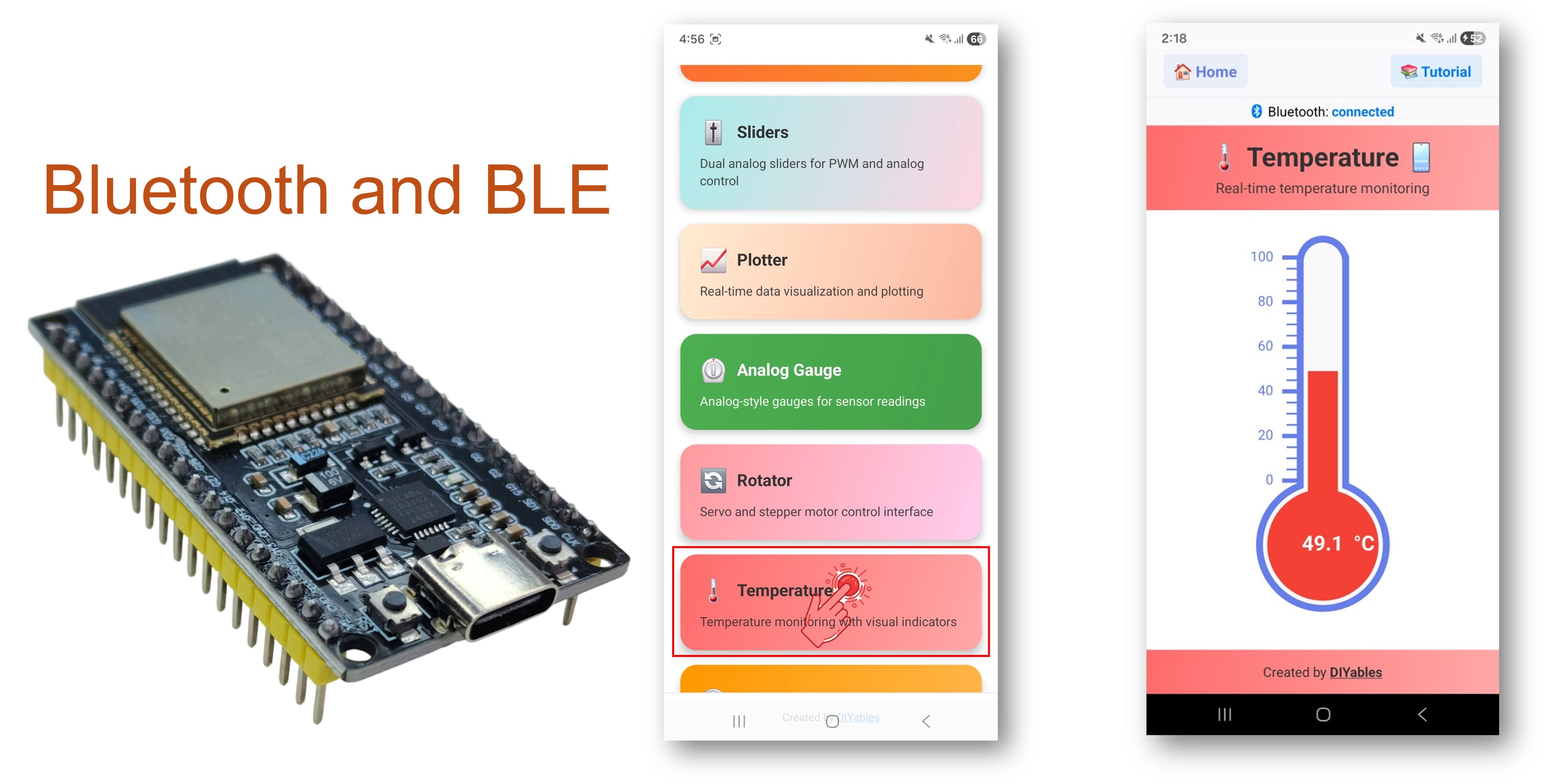
Exemplo de Temperature Bluetooth com ESP32 - Tutorial de Exibição de Medidor de Temperatura

Recursos

  • Medidor de Temperatura: Exibição visual no estilo de termômetro
  • Faixa Configurável: Defina os valores mínimo e máximo de temperatura
  • Unidades Personalizadas: Exiba °C, °F, K ou qualquer texto de unidade personalizado
  • Atualizações em Tempo Real: Envie leituras de temperatura ao vivo
  • Callback de Solicitação: O app pode solicitar a temperatura atual sob demanda
  • BLE e Bluetooth Clássico: Escolha o modo Bluetooth que melhor atende ao seu projeto
  • Multiplataforma: O modo BLE funciona no Android e no iOS; o Bluetooth Clássico funciona no Android
  • Opção de Baixo Consumo: O modo BLE consome menos energia que o Bluetooth Clássico

Código ESP32

Passos Rápidos

Siga estas instruções passo a passo:

  • Se esta é a primeira vez que você usa o ESP32, consulte o tutorial sobre como configurar o ambiente para o ESP32 no Arduino IDE.
  • Conecte a placa ESP32 ao seu computador usando um cabo USB.
  • Abra o Arduino IDE no seu computador.
  • Selecione a placa ESP32 e a porta COM apropriadas.
  • Acesse o ícone Libraries na barra à esquerda do Arduino IDE.
  • Pesquise "DIYables Bluetooth" e encontre a biblioteca DIYables Bluetooth, da DIYables
  • Clique no botão Install para instalar a biblioteca.
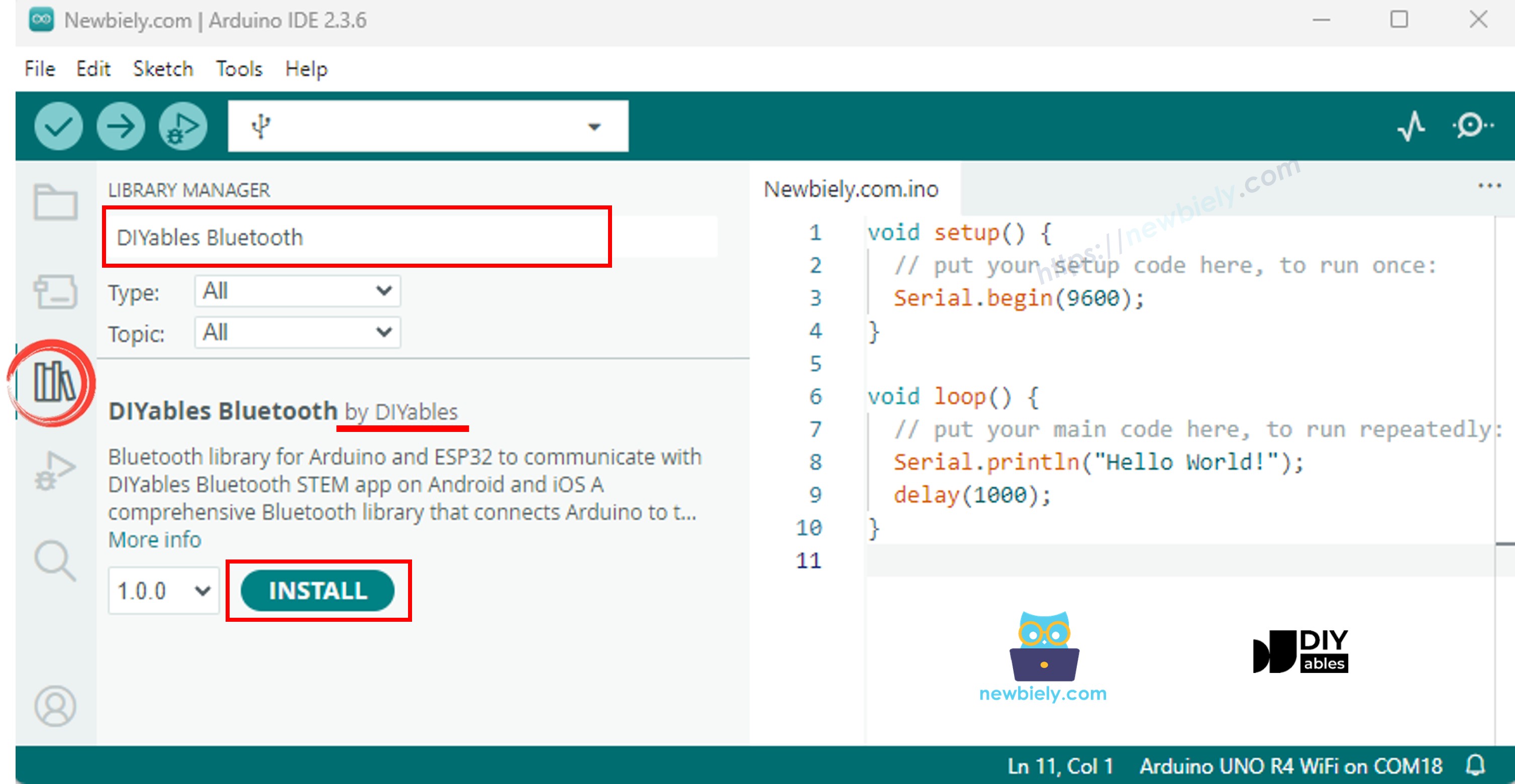
Biblioteca DIYables Bluetooth para ESP32
  • Será solicitado que você instale outras dependências da biblioteca
  • Clique no botão Install All para instalar todas as dependências da biblioteca.
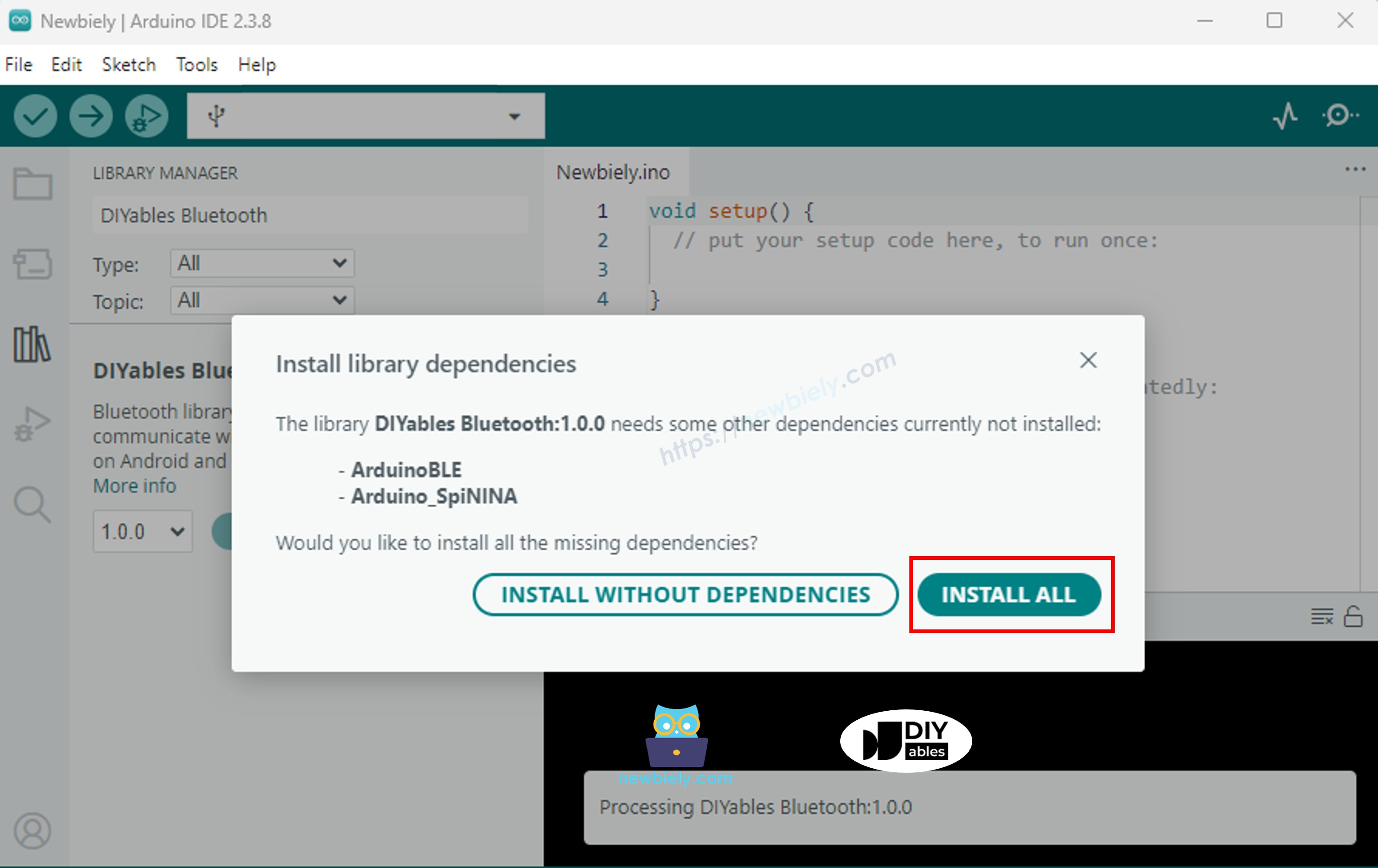
Dependência da biblioteca DIYables Bluetooth para ESP32

Escolha um dos dois modos de Bluetooth abaixo, de acordo com a sua necessidade:

Código ESP32 Bluetooth Clássico (funciona com o app somente no Android)

Observação: O Bluetooth Clássico NÃO é compatível com o iOS. Se você precisa de suporte ao iOS, use o código BLE abaixo.

  • No Arduino IDE, vá em File Examples DIYables Bluetooth Esp32Bluetooth_Temperature, ou copie o código acima e cole no editor do Arduino IDE
/* * DIYables Bluetooth Library - ESP32 Classic Bluetooth Temperature Example * Works with DIYables Bluetooth STEM app on Android * Note: Classic Bluetooth is NOT supported on iOS. Use BLE examples for iOS support. * * This example demonstrates the Bluetooth Temperature feature: * - Display temperature sensor readings * - Configurable temperature range and unit * - Real-time temperature updates * * Compatible Boards: * - ESP32 (all variants with Classic Bluetooth) * - ESP32-WROOM-32 * - ESP32-DevKitC * - ESP32-WROVER * * Note: Select "Huge APP (3MB No OTA/1MB SPIFFS)" partition scheme * in Arduino IDE: Tools > Partition Scheme * * Optional: Temperature sensor (DHT22, DS18B20, or analog thermistor) * * Setup: * 1. Upload the sketch to your ESP32 * 2. Open Serial Monitor (115200 baud) to see connection status * 3. Use DIYables Bluetooth App to connect and view temperature * * Tutorial: https://diyables.io/bluetooth-app * Author: DIYables */ #include <DIYables_BluetoothServer.h> #include <DIYables_BluetoothTemperature.h> #include <platforms/DIYables_Esp32Bluetooth.h> // Create Bluetooth instances DIYables_Esp32Bluetooth bluetooth("ESP32_Temp"); DIYables_BluetoothServer bluetoothServer(bluetooth); // Create Temperature app instance (min=-10°C, max=50°C, unit="°C") DIYables_BluetoothTemperature bluetoothTemperature(-10.0, 50.0, "°C"); // Variables for temperature simulation float currentTemperature = 25.0; unsigned long lastTempUpdate = 0; const unsigned long TEMP_UPDATE_INTERVAL = 2000; // Update every 2 seconds // Simulated temperature sensor reading float readTemperature() { // TODO: Replace with actual sensor reading // Examples: // - DHT22: dht.readTemperature() // - DS18B20: sensors.getTempCByIndex(0) // - Analog thermistor: analogToTemperature(analogRead(34)) // - ESP32 internal temp: temperatureRead() (approximate) // Simulate temperature changes static float offset = 0; offset += random(-10, 11) / 10.0; // Random walk if (offset > 5.0) offset = 5.0; if (offset < -5.0) offset = -5.0; return 25.0 + offset; // Base temperature 25°C with variation } void setup() { Serial.begin(115200); delay(1000); Serial.println("DIYables Bluetooth - ESP32 Temperature Example"); // TODO: Initialize your temperature sensor here // Examples: // dht.begin(); // sensors.begin(); // Initialize Bluetooth server with platform-specific implementation bluetoothServer.begin(); // Add temperature app to server bluetoothServer.addApp(&bluetoothTemperature); // Set up connection event callbacks bluetoothServer.setOnConnected([]() { Serial.println("Bluetooth connected!"); // Send initial temperature reading float temp = readTemperature(); bluetoothTemperature.send(temp); Serial.print("Initial temperature sent: "); Serial.print(temp); Serial.println("°C"); }); bluetoothServer.setOnDisconnected([]() { Serial.println("Bluetooth disconnected!"); }); // Optional: Handle requests for temperature value bluetoothTemperature.onTemperatureRequest([]() { float temp = readTemperature(); bluetoothTemperature.send(temp); Serial.print("Temperature requested - Sent: "); Serial.print(temp); Serial.println("°C"); }); // You can change temperature configuration at runtime: // bluetoothTemperature.setRange(-40.0, 125.0); // Wide range for industrial sensors // bluetoothTemperature.setUnit("°F"); // Change to Fahrenheit Serial.println("Waiting for Bluetooth connection..."); } void loop() { // Handle Bluetooth server communications bluetoothServer.loop(); // Send temperature updates periodically (only when connected) if (bluetooth.isConnected() && millis() - lastTempUpdate >= TEMP_UPDATE_INTERVAL) { lastTempUpdate = millis(); // Read temperature from sensor currentTemperature = readTemperature(); // Send to Bluetooth app bluetoothTemperature.send(currentTemperature); // Print to Serial Monitor Serial.print("Temperature: "); Serial.print(currentTemperature); Serial.println("°C"); } delay(10); }
  • Clique no botão Upload do Arduino IDE para carregar o código no ESP32
  • Abra o Serial Monitor
  • Confira o resultado no Serial Monitor. Ele deve ficar como abaixo:
∞
Newbiely | Arduino IDE 2.3.8
──
☐
✕
File
Edit
Sketch
Tools
Help
ESP32 Dev Module
Newbiely.ino
···
8 Serial.println("Hello World!");
Output
Serial Monitor
Message (Enter to send message to 'ESP32 Dev Module' on 'COM15')
New Line
9600 baud
DIYables Bluetooth - ESP32 Temperature Example Waiting for Bluetooth connection...
Ln 11, Col 1
ESP32 Dev Module on COM15
2

Código ESP32 BLE (funciona com o app no Android e no iOS)

  • No Arduino IDE, vá em File Examples DIYables Bluetooth Esp32BLE_Temperature, ou copie o código acima e cole no editor do Arduino IDE
/* * DIYables Bluetooth Library - ESP32 BLE Temperature Example * Works with DIYables Bluetooth STEM app on Android and iOS * * This example demonstrates the Bluetooth Temperature feature: * - Display temperature sensor readings * - Configurable temperature range and unit * - Real-time temperature updates * * Compatible Boards: * - ESP32-WROOM-32 * - ESP32-DevKitC * - ESP32-WROVER * - ESP32-S3 * - ESP32-C3 * - Any ESP32 board supporting BLE * * Note: Select "Huge APP (3MB No OTA/1MB SPIFFS)" partition scheme * in Arduino IDE: Tools > Partition Scheme * * Optional: Temperature sensor (DHT22, DS18B20, or analog thermistor) * * Setup: * 1. Upload the sketch to your ESP32 * 2. Open Serial Monitor (115200 baud) to see connection status * 3. Use DIYables Bluetooth App to connect and view temperature * * Tutorial: https://diyables.io/bluetooth-app * Author: DIYables */ #include <DIYables_BluetoothServer.h> #include <DIYables_BluetoothTemperature.h> #include <platforms/DIYables_Esp32BLE.h> // BLE Configuration const char* DEVICE_NAME = "ESP32BLE_Temp"; const char* SERVICE_UUID = "19B10000-E8F2-537E-4F6C-D104768A1214"; const char* TX_UUID = "19B10001-E8F2-537E-4F6C-D104768A1214"; const char* RX_UUID = "19B10002-E8F2-537E-4F6C-D104768A1214"; // Create Bluetooth instances DIYables_Esp32BLE bluetooth(DEVICE_NAME, SERVICE_UUID, TX_UUID, RX_UUID); DIYables_BluetoothServer bluetoothServer(bluetooth); // Create Temperature app instance (min=-10°C, max=50°C, unit="°C") DIYables_BluetoothTemperature bluetoothTemperature(-10.0, 50.0, "°C"); // Variables for temperature simulation float currentTemperature = 25.0; unsigned long lastTempUpdate = 0; const unsigned long TEMP_UPDATE_INTERVAL = 2000; // Simulated temperature sensor reading float readTemperature() { // TODO: Replace with actual sensor reading static float offset = 0; offset += random(-10, 11) / 10.0; if (offset > 5.0) offset = 5.0; if (offset < -5.0) offset = -5.0; return 25.0 + offset; } void setup() { Serial.begin(115200); delay(1000); Serial.println("DIYables Bluetooth - ESP32 BLE Temperature Example"); // Initialize Bluetooth server with platform-specific implementation bluetoothServer.begin(); // Add temperature app to server bluetoothServer.addApp(&bluetoothTemperature); // Set up connection event callbacks bluetoothServer.setOnConnected([]() { Serial.println("Bluetooth connected!"); float temp = readTemperature(); bluetoothTemperature.send(temp); Serial.print("Initial temperature sent: "); Serial.print(temp); Serial.println("°C"); }); bluetoothServer.setOnDisconnected([]() { Serial.println("Bluetooth disconnected!"); }); bluetoothTemperature.onTemperatureRequest([]() { float temp = readTemperature(); bluetoothTemperature.send(temp); Serial.print("Temperature requested - Sent: "); Serial.print(temp); Serial.println("°C"); }); Serial.println("Waiting for Bluetooth connection..."); } void loop() { bluetoothServer.loop(); if (bluetooth.isConnected() && millis() - lastTempUpdate >= TEMP_UPDATE_INTERVAL) { lastTempUpdate = millis(); currentTemperature = readTemperature(); bluetoothTemperature.send(currentTemperature); Serial.print("Temperature: "); Serial.print(currentTemperature); Serial.println("°C"); } delay(10); }
  • Clique no botão Upload do Arduino IDE para carregar o código no ESP32
  • Abra o Serial Monitor
  • Confira o resultado no Serial Monitor. Ele deve ficar como abaixo:
∞
Newbiely | Arduino IDE 2.3.8
──
☐
✕
File
Edit
Sketch
Tools
Help
ESP32 Dev Module
Newbiely.ino
···
8 Serial.println("Hello World!");
Output
Serial Monitor
Message (Enter to send message to 'ESP32 Dev Module' on 'COM15')
New Line
9600 baud
DIYables Bluetooth - ESP32 BLE Temperature Example Waiting for Bluetooth connection...
Ln 11, Col 1
ESP32 Dev Module on COM15
2

App para Celular

  • Instale o app DIYables Bluetooth no seu smartphone: Android | iOS
  • Se você estiver usando o código ESP32 Bluetooth Clássico, é preciso parear o ESP32 com o seu celular Android antes de abrir o app:
    • Vá em Configurações > Bluetooth do seu celular
    • Verifique se o Bluetooth está ligado
    • Seu celular vai procurar os dispositivos disponíveis
    • Encontre e toque em "ESP32_Temp" na lista de dispositivos disponíveis
    • Confirme a solicitação de pareamento (não é necessário PIN)
    • Aguarde até aparecer "Paired" abaixo do nome do dispositivo
  • Se você estiver usando o código ESP32 BLE, não é necessário parear. Basta ir para o próximo passo.
  • Abra o app DIYables Bluetooth
  • Ao abrir o app pela primeira vez, ele vai pedir permissões. Conceda as seguintes:
    • Permissão de Dispositivos Próximos (Android 12+) / permissão de Bluetooth (iOS) - necessária para procurar e conectar a dispositivos Bluetooth
    • Permissão de Localização (somente Android 11 e anteriores) - exigida por versões mais antigas do Android para procurar dispositivos BLE
  • Verifique se o Bluetooth está ligado no seu celular
  • Na tela inicial, toque no botão Connect. O app vai procurar dispositivos BLE e Bluetooth Clássico.
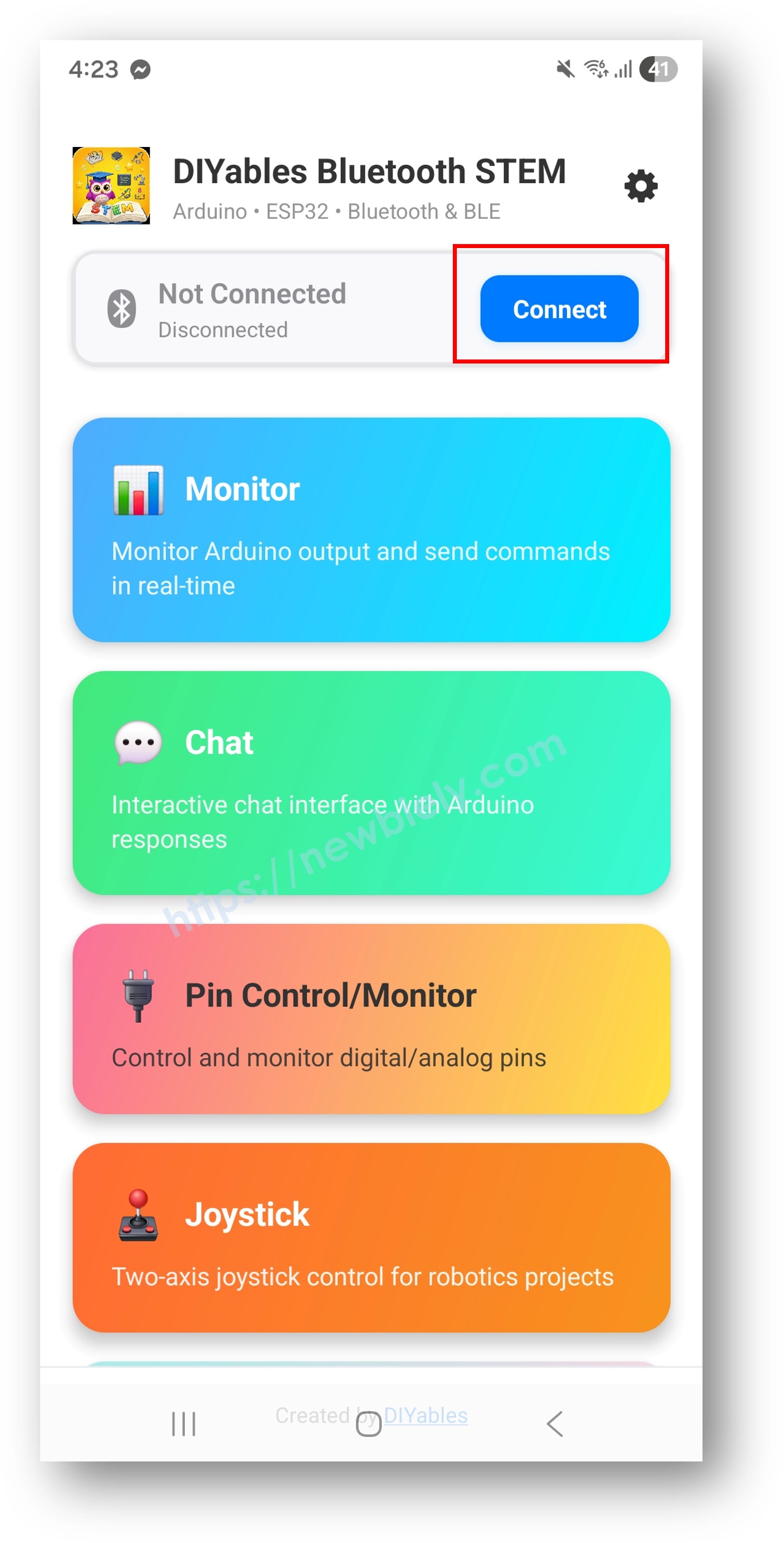
App DIYables Bluetooth - Tela Inicial com Botão de Busca
  • Encontre e toque no seu dispositivo nos resultados da busca para conectar:
    • Para Bluetooth Clássico: toque em "ESP32_Temp"
    • Para BLE: toque em "ESP32BLE_Temp"
  • Depois de conectado, o app volta automaticamente para a tela inicial. Selecione o app Temperature no menu de apps.
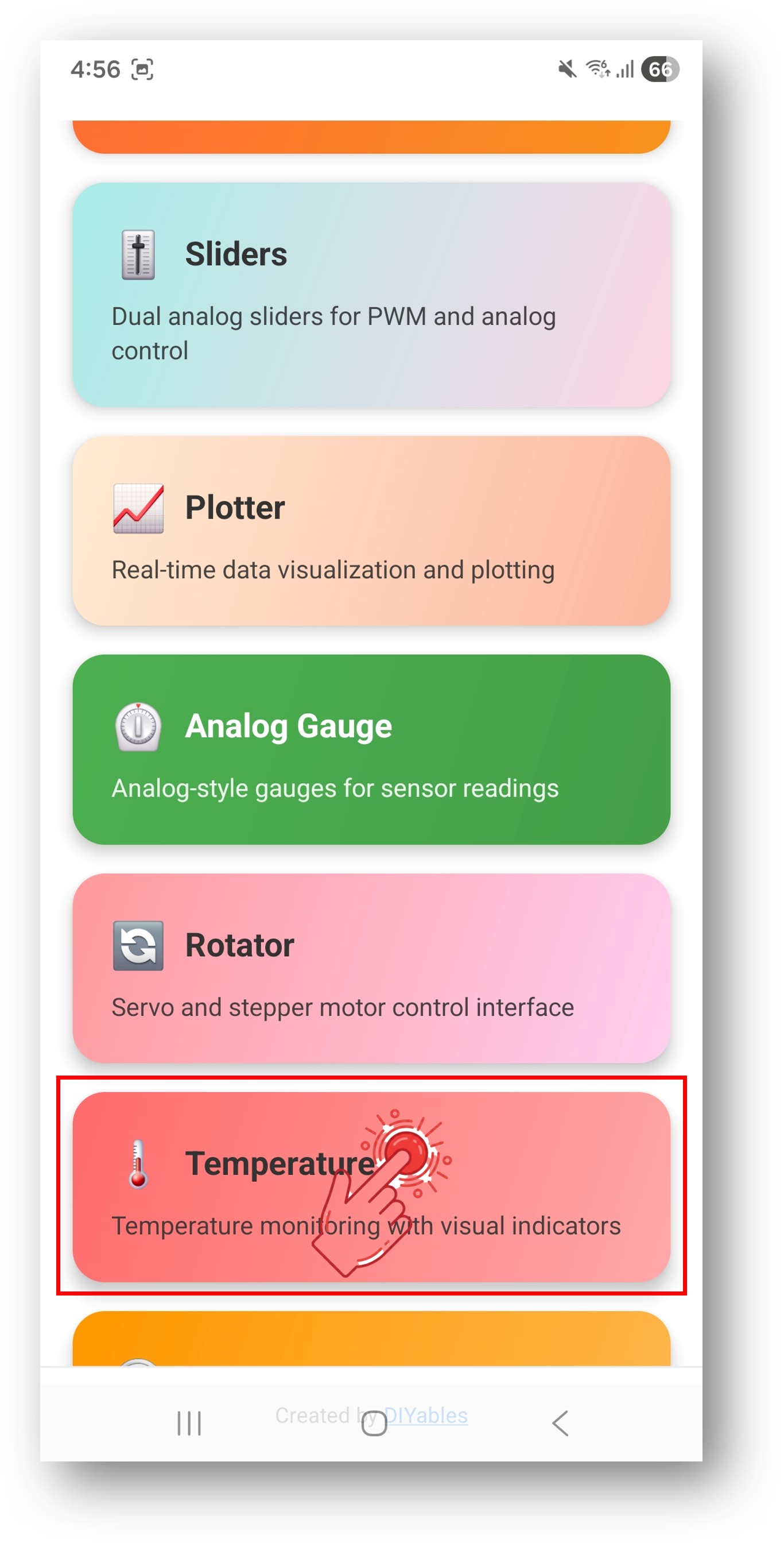
App DIYables Bluetooth - Tela Inicial com o App Temperature

Observação: Você pode tocar no ícone de configurações na tela inicial para ocultar/mostrar apps. Para mais detalhes, consulte o Manual do Usuário do DIYables Bluetooth App.

  • O medidor de temperatura vai exibir a leitura de temperatura atual
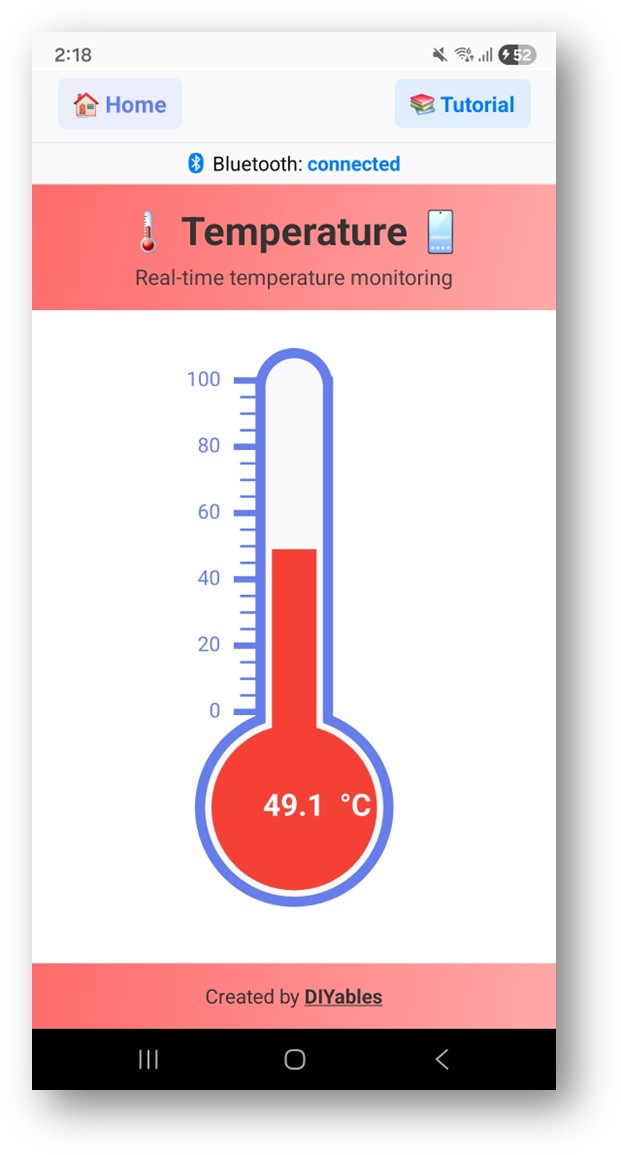
App DIYables Bluetooth - Tela do Medidor de Temperatura

Agora olhe de volta para o Serial Monitor no Arduino IDE. Você verá:

∞
Newbiely | Arduino IDE 2.3.8
──
☐
✕
File
Edit
Sketch
Tools
Help
ESP32 Dev Module
Newbiely.ino
···
8 Serial.println("Hello World!");
Output
Serial Monitor
Message (Enter to send message to 'ESP32 Dev Module' on 'COM15')
New Line
9600 baud
Bluetooth connected! Temperature: 24.5 °C Temperature: 24.8 °C Temperature: 25.1 °C Temperature: 24.9 °C
Ln 11, Col 1
ESP32 Dev Module on COM15
2
  • Veja o medidor de temperatura sendo atualizado em tempo real no app

Personalização Criativa - Adapte o Código ao Seu Projeto

Configure a Faixa e a Unidade de Temperatura

Defina a faixa de exibição e a unidade:

// Constructor: DIYables_BluetoothTemperature(min, max, unit) DIYables_BluetoothTemperature bluetoothTemperature(-10.0, 50.0, "°C"); // Change range at runtime bluetoothTemperature.setRange(-20.0, 60.0); // Change unit bluetoothTemperature.setUnit("°F"); // Read current configuration float minTemp = bluetoothTemperature.getMin(); // Returns -10.0 float maxTemp = bluetoothTemperature.getMax(); // Returns 50.0 String unit = bluetoothTemperature.getUnit(); // Returns "°C"

Enviar o Valor de Temperatura

// Send current temperature reading float temperature = 25.3; bluetoothTemperature.send(temperature); // Send text message bluetoothTemperature.send("Sensor error");

Tratar as Solicitações de Temperatura do App

bluetoothTemperature.onTemperatureRequest([]() { float temp = readTemperature(); bluetoothTemperature.send(temp); Serial.println("App requested temperature: " + String(temp)); });

Tratar Eventos de Conexão

bluetoothServer.setOnConnected([]() { Serial.println("Bluetooth connected!"); // Send current temperature immediately bluetoothTemperature.send(currentTemperature); }); bluetoothServer.setOnDisconnected([]() { Serial.println("Bluetooth disconnected!"); });

Como Usar a Exibição de Temperatura

Interface do App

A interface de temperatura no app DIYables Bluetooth mostra:

  • Medidor de Temperatura: Termômetro visual mostrando a leitura atual
  • Exibição Numérica: Mostra o valor exato da temperatura
  • Rótulo da Unidade: Exibe o texto da unidade configurada
  • Indicadores de Faixa: Mostra o mínimo e o máximo da faixa configurada

Unidades de Temperatura

Configurações comuns:

  • Celsius: DIYables_BluetoothTemperature(-10.0, 50.0, "°C")
  • Fahrenheit: DIYables_BluetoothTemperature(14.0, 122.0, "°F")
  • Kelvin: DIYables_BluetoothTemperature(263.0, 323.0, "K")

Exemplos de Programação

Leitura do Sensor DHT22

#include <DHT.h> #define DHT_PIN 4 #define DHT_TYPE DHT22 DHT dht(DHT_PIN, DHT_TYPE); void setup() { Serial.begin(115200); dht.begin(); // ... Bluetooth setup ... bluetoothTemperature.onTemperatureRequest([]() { float temp = dht.readTemperature(); if (!isnan(temp)) { bluetoothTemperature.send(temp); } }); } void loop() { bluetoothServer.loop(); static unsigned long lastUpdate = 0; if (millis() - lastUpdate >= 2000) { lastUpdate = millis(); float temp = dht.readTemperature(); if (!isnan(temp)) { bluetoothTemperature.send(temp); Serial.println("Temperature: " + String(temp, 1) + " °C"); } } delay(10); }

Sensor One-Wire DS18B20

#include <OneWire.h> #include <DallasTemperature.h> #define ONE_WIRE_PIN 4 OneWire oneWire(ONE_WIRE_PIN); DallasTemperature sensors(&oneWire); void setup() { Serial.begin(115200); sensors.begin(); // ... Bluetooth setup with range matching sensor capability ... // DS18B20 range: -55°C to +125°C bluetoothTemperature.onTemperatureRequest([]() { sensors.requestTemperatures(); float temp = sensors.getTempCByIndex(0); if (temp != DEVICE_DISCONNECTED_C) { bluetoothTemperature.send(temp); } }); } void loop() { bluetoothServer.loop(); static unsigned long lastUpdate = 0; if (millis() - lastUpdate >= 1000) { lastUpdate = millis(); sensors.requestTemperatures(); float temp = sensors.getTempCByIndex(0); if (temp != DEVICE_DISCONNECTED_C) { bluetoothTemperature.send(temp); Serial.println("Temperature: " + String(temp, 1) + " °C"); } else { Serial.println("Sensor disconnected!"); } } delay(10); }

Leitura de Termistor NTC

const int THERMISTOR_PIN = 34; const float SERIES_RESISTOR = 10000.0; const float NOMINAL_RESISTANCE = 10000.0; const float NOMINAL_TEMP = 25.0; const float B_COEFFICIENT = 3950.0; float readThermistor() { int raw = analogRead(THERMISTOR_PIN); float resistance = SERIES_RESISTOR / (4095.0 / raw - 1.0); float steinhart = log(resistance / NOMINAL_RESISTANCE) / B_COEFFICIENT; steinhart += 1.0 / (NOMINAL_TEMP + 273.15); float temperature = 1.0 / steinhart - 273.15; return temperature; } void loop() { bluetoothServer.loop(); static unsigned long lastUpdate = 0; if (millis() - lastUpdate >= 1000) { lastUpdate = millis(); float temp = readThermistor(); bluetoothTemperature.send(temp); Serial.println("Temperature: " + String(temp, 1) + " °C"); } delay(10); }

Exibição em Fahrenheit

// Configure for Fahrenheit display DIYables_BluetoothTemperature bluetoothTemperature(32.0, 122.0, "°F"); float celsiusToFahrenheit(float celsius) { return celsius * 9.0 / 5.0 + 32.0; } void loop() { bluetoothServer.loop(); static unsigned long lastUpdate = 0; if (millis() - lastUpdate >= 2000) { lastUpdate = millis(); float tempC = dht.readTemperature(); if (!isnan(tempC)) { float tempF = celsiusToFahrenheit(tempC); bluetoothTemperature.send(tempF); Serial.println("Temperature: " + String(tempF, 1) + " °F"); } } delay(10); }

Técnicas Avançadas de Programação

Média / Suavização de Temperatura

const int NUM_SAMPLES = 10; float samples[NUM_SAMPLES]; int sampleIndex = 0; bool bufferFull = false; float getSmoothedTemperature(float newReading) { samples[sampleIndex] = newReading; sampleIndex = (sampleIndex + 1) % NUM_SAMPLES; if (sampleIndex == 0) bufferFull = true; int count = bufferFull ? NUM_SAMPLES : sampleIndex; float sum = 0; for (int i = 0; i < count; i++) { sum += samples[i]; } return sum / count; } void loop() { bluetoothServer.loop(); static unsigned long lastUpdate = 0; if (millis() - lastUpdate >= 1000) { lastUpdate = millis(); float rawTemp = readTemperature(); float smoothed = getSmoothedTemperature(rawTemp); bluetoothTemperature.send(smoothed); Serial.println("Raw: " + String(rawTemp, 2) + " Smoothed: " + String(smoothed, 2) + " °C"); } delay(10); }

Detecção de Limite de Alerta

const float HIGH_THRESHOLD = 35.0; const float LOW_THRESHOLD = 5.0; bool alertActive = false; void checkTemperatureAlerts(float temp) { if (temp > HIGH_THRESHOLD && !alertActive) { alertActive = true; bluetoothTemperature.send("HIGH TEMP ALERT!"); Serial.println("⚠️ High temperature alert: " + String(temp, 1) + " °C"); // Activate cooling fan, buzzer, etc. } else if (temp < LOW_THRESHOLD && !alertActive) { alertActive = true; bluetoothTemperature.send("LOW TEMP ALERT!"); Serial.println("⚠️ Low temperature alert: " + String(temp, 1) + " °C"); // Activate heater, etc. } else if (temp > LOW_THRESHOLD && temp < HIGH_THRESHOLD) { alertActive = false; } }

Ideias de Integração de Hardware

DHT22 / DHT11

Conecte a qualquer pino GPIO para leituras de umidade e temperatura. Uma escolha popular para monitoramento em ambientes internos.

Sonda à Prova d'Água DS18B20

Use o protocolo OneWire para medir temperatura à prova d'água. Ótimo para líquidos, solo e aplicações externas.

BME280 / BMP280

Sensor I2C de temperatura, umidade e pressão barométrica. Alta precisão para estações meteorológicas.

Termistor NTC

Sensor analógico de temperatura simples. Baixo custo, funciona com um circuito divisor de tensão.

Termopar (MAX6675 / MAX31855)

Para medição de altas temperaturas (até 1000°C+). Usado em fornos, estufas e aplicações industriais.

BLE vs Bluetooth Clássico - Qual Escolher?

RecursoBLE (Esp32BLE_Temperature)Bluetooth Clássico (Esp32Bluetooth_Temperature)
Suporte ao iOS? Sim? Não
Suporte ao Android? Sim? Sim
Consumo de EnergiaBaixoMaior
Alcance~30-100m~10-100m
Taxa de DadosMenorMaior
Pareamento NecessárioNão (conexão automática)Sim (pareamento manual)
Ideal ParaAlimentado por bateria, multiplataformaAlta taxa de transferência, somente Android

Solução de Problemas

Problemas Comuns

1. Não consigo encontrar o dispositivo no app

  • Verifique se o ESP32 está ligado e se o sketch foi carregado
  • Para BLE: verifique se o Bluetooth e a Localização do seu celular estão ativados
  • Para Bluetooth Clássico: pareie o dispositivo primeiro nas configurações de Bluetooth do celular
  • Verifique se o esquema de partição correto está selecionado (Huge APP)

2. A temperatura mostra 0 ou um valor incorreto

  • Verifique a ligação e as conexões do sensor
  • Verifique o tipo do sensor e a configuração da biblioteca
  • Use o Serial Monitor para confirmar as leituras antes do Bluetooth
  • Para sensores DHT: garanta um resistor de pull-up (4,7k-10k) no pino de dados

3. A temperatura não está atualizando

  • Verifique o intervalo de atualização no loop()
  • Confirme que bluetoothServer.loop() é chamado no loop principal
  • Garanta que o sensor esteja lendo valores válidos (verifique se há NaN)

4. A faixa de exibição do medidor não corresponde

  • Confirme os parâmetros do construtor: DIYables_BluetoothTemperature(min, max, unit)
  • Use setRange() para ajustar dinamicamente
  • Valores de temperatura fora da faixa ainda serão exibidos, mas podem ser cortados

5. A conexão cai com frequência

  • Chegue mais perto do ESP32 (reduza a distância)
  • Para BLE: verifique se há interferência de outros dispositivos BLE
  • Para Bluetooth Clássico: garanta uma fonte de alimentação estável para o ESP32

6. Sketch grande demais / espaço insuficiente

  • No Arduino IDE, vá em Tools > Partition Scheme e selecione "Huge APP (3MB No OTA/1MB SPIFFS)" ou "No OTA (Large APP)"
  • O esquema de partição padrão oferece apenas ~1,2MB para o código do app, o que não é suficiente para as bibliotecas de Bluetooth
  • Essa configuração oferece ~3MB ao sacrificar a partição de OTA (atualização over-the-air)

Dicas de Depuração

Adicione uma depuração completa:

void debugTemperature(float temp) { Serial.println("=== Temperature Debug ==="); Serial.println("Value: " + String(temp, 2) + " " + bluetoothTemperature.getUnit()); Serial.println("Range: " + String(bluetoothTemperature.getMin(), 1) + " - " + String(bluetoothTemperature.getMax(), 1)); Serial.println("In Range: " + String(temp >= bluetoothTemperature.getMin() && temp <= bluetoothTemperature.getMax() ? "Yes" : "No")); Serial.println("========================="); }

Ideias de Projetos

Casa e Ambiente

  • Termômetro de ambiente interno
  • Estação meteorológica externa
  • Monitor de temperatura de geladeira/freezer
  • Monitor de clima de estufa

Cozinha e Alimentos

  • Monitor de temperatura de cozimento
  • Exibição de controlador sous vide
  • Acompanhamento de temperatura de fermentação
  • Termômetro de forno

Indústria e Laboratório

  • Alerta de temperatura de sala de servidores
  • Monitor de processo químico
  • Exibição de temperatura de incubadora
  • Leitura de temperatura de ferro de solda

Água e Aquários

  • Termômetro de aquário
  • Exibição de temperatura de piscina/spa
  • Monitor de aquecedor de água
  • Temperatura da água em hidroponia

Integração com Outros Apps Bluetooth

Combine com o Bluetooth Plotter

Exiba a leitura atual e plote a tendência de temperatura:

void loop() { bluetoothServer.loop(); static unsigned long lastUpdate = 0; if (millis() - lastUpdate >= 2000) { lastUpdate = millis(); float temp = readTemperature(); // Show on temperature gauge bluetoothTemperature.send(temp); // Plot trend over time bluetoothPlotter.send(temp); } delay(10); }

Combine com o Bluetooth Table

Mostre a temperatura junto com outros dados de sensores:

// Temperature gauge for primary reading bluetoothTemperature.send(temp); // Table for detailed breakdown bluetoothTable.sendValueUpdate("Current", String(temp, 1) + " °C"); bluetoothTable.sendValueUpdate("Min Today", String(minTemp, 1) + " °C"); bluetoothTable.sendValueUpdate("Max Today", String(maxTemp, 1) + " °C"); bluetoothTable.sendValueUpdate("Average", String(avgTemp, 1) + " °C");

Próximos Passos

Depois de dominar o exemplo Bluetooth Temperature, experimente:

  1. Bluetooth Analog Gauge - Para exibição de medidor genérico (pressão, velocidade etc.)
  2. Bluetooth Plotter - Para visualizar tendências de temperatura ao longo do tempo
  3. Bluetooth Table - Para exibição de dados de vários sensores
  4. Multiple Bluetooth Apps - Combinando a temperatura com outros displays

Suporte

Para obter mais ajuda:

  • Consulte a documentação de referência da API
  • Fóruns da comunidade Arduino

※ NOSSAS MENSAGENS

  • Fique à vontade para compartilhar o link deste tutorial. Porém, por favor, não use nosso conteúdo em outros sites. Investimos muito esforço e tempo para criar este conteúdo, por favor respeite nosso trabalho!