ESP32 - LED - Piscar Sem Delay

Um dos primeiros programas que os iniciantes executam é piscar um LED. A forma mais simples de piscar um LED é usar a função delay(). Essa função impede o ESP32 de fazer outras coisas. Tudo bem se você quiser piscar apenas um único LED. No entanto, se você quiser piscar mais LEDs ou fazer outras tarefas em paralelo, não pode usar a função delay(). Precisamos de outra solução. Este tutorial ensina como executar várias tarefas sem usar a função delay. Mais especificamente, vamos aprender a piscar um LED e verificar o estado do botão.

Vamos passar pelos três exemplos abaixo e comparar a diferença entre eles.

Este método pode ser aplicado para permitir que o ESP32 execute várias tarefas ao mesmo tempo. Piscar o LED é apenas um exemplo.

Sobre LED e Botão

Temos tutoriais específicos sobre LED e botão. Cada tutorial contém informações detalhadas e instruções passo a passo sobre pinagem do hardware, princípio de funcionamento, ligação ao ESP32, código ESP32... Saiba mais sobre eles nos links a seguir:

Diagrama de Ligação
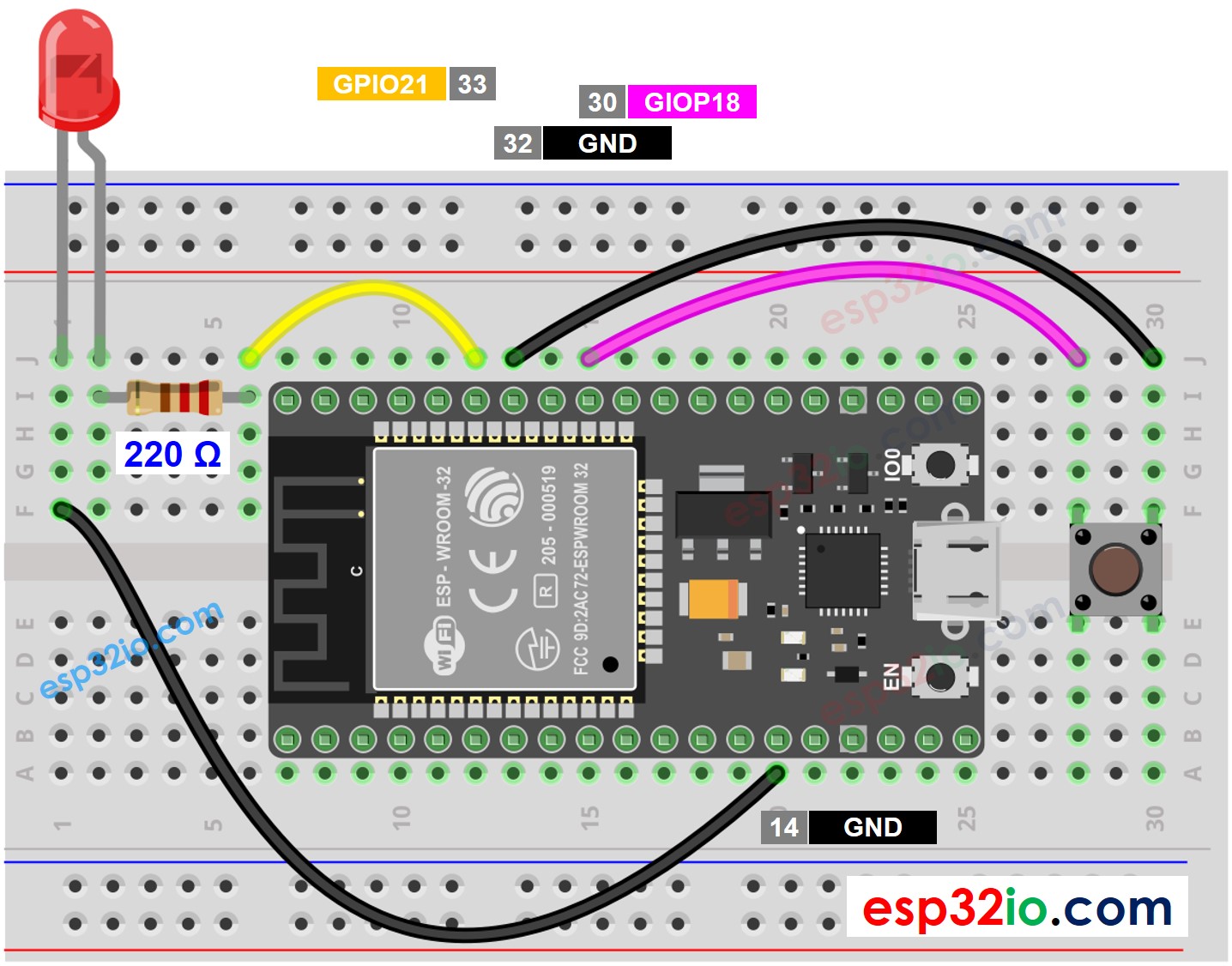
Diagrama de ligação ESP32 LED botão

This image is created using Fritzing. Click to enlarge image

Se você não sabe como alimentar o ESP32 e outros componentes, veja as instruções no tutorial a seguir: Como alimentar o ESP32.

Vamos comparar o código ESP32 que pisca o LED com e sem a função delay()

Código ESP32 - Com Delay

/* * Este código de ESP32 foi desenvolvido por pt.newbiely.com * Este código de ESP32 é disponibilizado ao público sem nenhuma restrição. * Para tutoriais completos e diagramas de ligação, visite: * https://pt.newbiely.com/tutorials/esp32/esp32-led-blink-without-delay */ #define LED_PIN 21 // ESP32 pin GPIO21 connected to LED #define BUTTON_PIN 18 // ESP32 pin GPIO18 connected to button #define BLINK_INTERVAL 1000 // interval at which to blink LED (milliseconds) // Variables will change: int ledState = LOW; // ledState used to set the LED int previousButtonState = LOW; // will store last time button was updated void setup() { Serial.begin(9600); // set the digital pin as output: pinMode(LED_PIN, OUTPUT); // set the digital pin as an input: pinMode(BUTTON_PIN, INPUT_PULLUP); } void loop() { // if the LED is off turn it on and vice-versa: ledState = (ledState == LOW) ? HIGH : LOW; // set the LED with the ledState of the variable: digitalWrite(LED_PIN, ledState); delay(BLINK_INTERVAL); // If button is pressed during this time, Arduino CANNOT detect int currentButtonState = digitalRead(BUTTON_PIN); if (currentButtonState != previousButtonState) { // print out the state of the button: Serial.println(currentButtonState); // save the last state of button previousButtonState = currentButtonState; } // DO OTHER WORKS HERE }

Passos Rápidos

  • Se esta é a primeira vez que você usa o ESP32, veja como configurar o ambiente para o ESP32 na Arduino IDE.
  • Faça a ligação conforme a imagem acima.
  • Conecte a placa ESP32 ao seu PC por meio de um cabo USB Type-C
  • Abra a Arduino IDE no seu PC.
  • Selecione a placa ESP32 correta (por exemplo, ESP32 Dev Module) e a porta COM.
  • Copie o código acima e cole-o na Arduino IDE.
  • Compile e faça upload do código para a placa ESP32 clicando no botão Upload na Arduino IDE
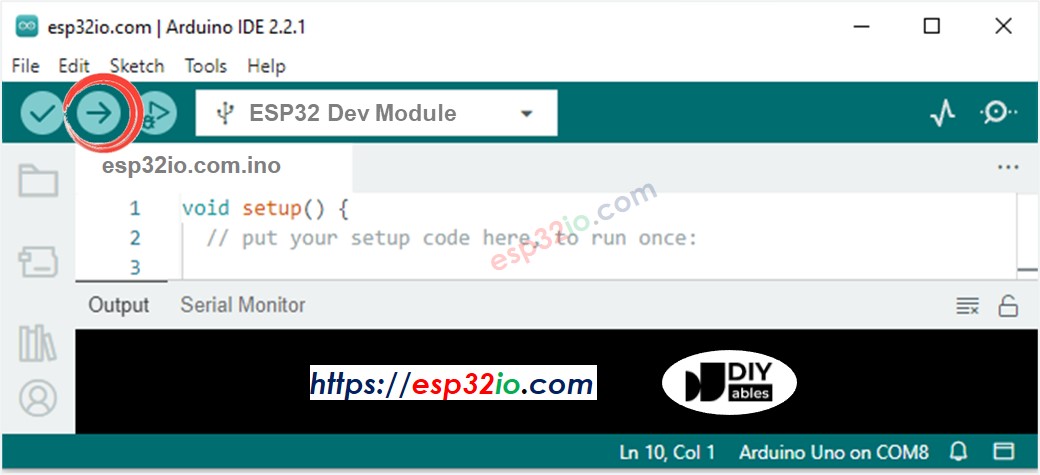
Como fazer upload do código ESP32 na Arduino IDE
  • Abra o Serial Monitor na Arduino IDE
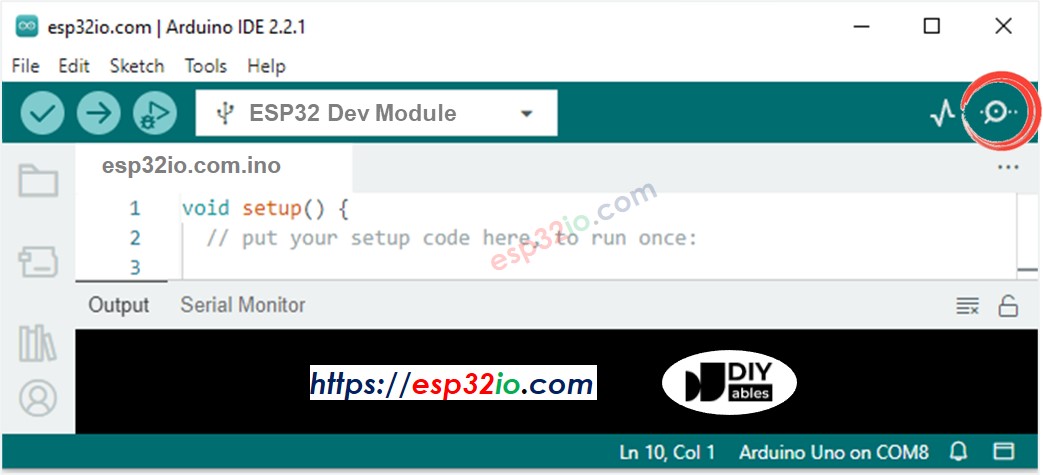
Como abrir o Serial Monitor na Arduino IDE
  • Pressione o botão 4 vezes
  • Veja o LED: o LED alterna entre LIGADO/DESLIGADO periodicamente a cada segundo
  • Veja a saída no Serial Monitor
∞
Newbiely | Arduino IDE 2.3.8
──
☐
✕
File
Edit
Sketch
Tools
Help
ESP32 Dev Module
Newbiely.ino
···
8 Serial.println("Hello World!");
Output
Serial Monitor
Message (Enter to send message to 'ESP32 Dev Module' on 'COM15')
New Line
9600 baud
1 0
Ln 11, Col 1
ESP32 Dev Module on COM15
2
  • No Serial Monitor, você não verá as quatro vezes em que o estado muda para 0 (4 pressionamentos). Isso acontece porque, durante o tempo de delay, o ESP32 NÃO CONSEGUE detectar a mudança.

Código ESP32 - Sem Delay

/* * Este código de ESP32 foi desenvolvido por pt.newbiely.com * Este código de ESP32 é disponibilizado ao público sem nenhuma restrição. * Para tutoriais completos e diagramas de ligação, visite: * https://pt.newbiely.com/tutorials/esp32/esp32-led-blink-without-delay */ #define LED_PIN 21 // ESP32 pin GPIO21 connected to LED #define BUTTON_PIN 18 // ESP32 pin GPIO18 connected to button #define BLINK_INTERVAL 1000 // interval at which to blink LED (milliseconds) // Variables will change: int ledState = LOW; // ledState used to set the LED int previousButtonState = LOW; // will store last time button was updated unsigned long previousMillis = 0; // will store last time LED was updated void setup() { Serial.begin(9600); // set the digital pin as output: pinMode(LED_PIN, OUTPUT); // set the digital pin as an input: pinMode(BUTTON_PIN, INPUT_PULLUP); } void loop() { // check to see if it's time to blink the LED; that is, if the difference // between the current time and last time you blinked the LED is bigger than // the interval at which you want to blink the LED. unsigned long currentMillis = millis(); if (currentMillis - previousMillis >= BLINK_INTERVAL) { // if the LED is off turn it on and vice-versa: ledState = (ledState == LOW) ? HIGH : LOW; // set the LED with the ledState of the variable: digitalWrite(LED_PIN, ledState); // save the last time you blinked the LED previousMillis = currentMillis; } // check button state's change int currentButtonState = digitalRead(BUTTON_PIN); if (currentButtonState != previousButtonState) { // print out the state of the button: Serial.println(currentButtonState); // save the last state of button previousButtonState = currentButtonState; } // DO OTHER WORKS HERE }

Passos Rápidos

  • Se esta é a primeira vez que você usa o ESP32, veja como configurar o ambiente para o ESP32 na Arduino IDE.
  • Execute o código acima e pressione o botão 4 vezes
  • Veja o LED: o LED alterna entre LIGADO/DESLIGADO periodicamente a cada segundo
  • Veja a saída no Serial Monitor
∞
Newbiely | Arduino IDE 2.3.8
──
☐
✕
File
Edit
Sketch
Tools
Help
ESP32 Dev Module
Newbiely.ino
···
8 Serial.println("Hello World!");
Output
Serial Monitor
Message (Enter to send message to 'ESP32 Dev Module' on 'COM15')
New Line
9600 baud
1 0 1 0 1 0 1 0
Ln 11, Col 1
ESP32 Dev Module on COM15
2
  • Todos os pressionamentos foram detectados.

Explicação do Código Linha por Linha

O código ESP32 acima contém explicação linha por linha. Por favor, leia os comentários no código!

Adicionando Mais Tarefas

O código abaixo pisca dois LEDs com intervalos diferentes e verifica o estado do botão.
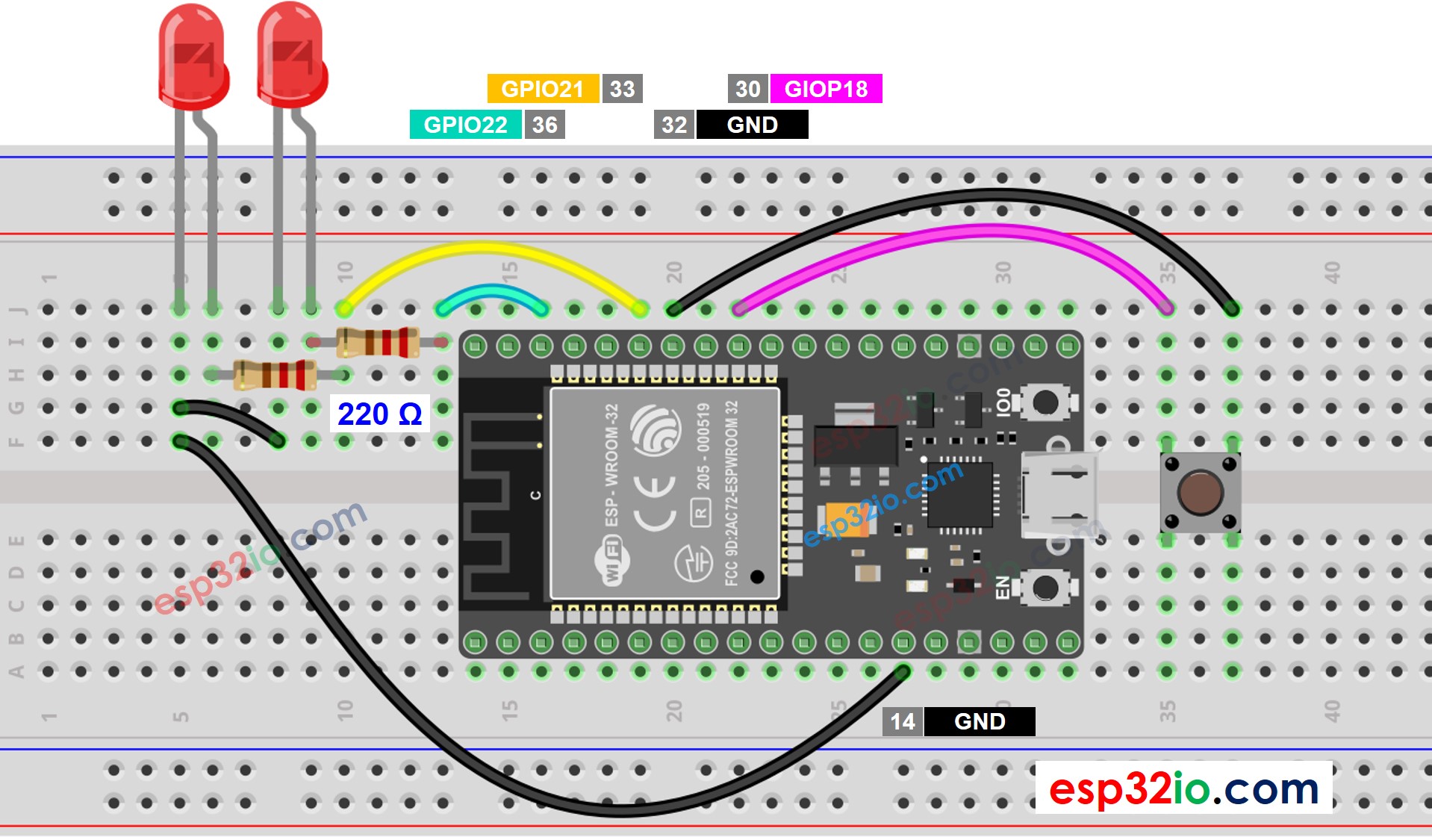
Diagrama de ligação ESP32 dois LEDs e botão

This image is created using Fritzing. Click to enlarge image

/* * Este código de ESP32 foi desenvolvido por pt.newbiely.com * Este código de ESP32 é disponibilizado ao público sem nenhuma restrição. * Para tutoriais completos e diagramas de ligação, visite: * https://pt.newbiely.com/tutorials/esp32/esp32-led-blink-without-delay */ #define LED_PIN_1 22 // ESP32 pin GPIO22 connected to LED #define LED_PIN_2 21 // ESP32 pin GPIO21 connected to LED #define BUTTON_PIN 18 // ESP32 pin GPIO18 connected to button #define BLINK_INTERVAL_1 1000 // interval at which to blink LED 1 (milliseconds) #define BLINK_INTERVAL_2 500 // interval at which to blink LED 2 (milliseconds) // Variables will change: int ledState_1 = LOW; // ledState used to set the LED 1 int ledState_2 = LOW; // ledState used to set the LED 2 int previousButtonState = LOW; // will store last time button was updated unsigned long previousMillis_1 = 0; // will store last time LED 1 was updated unsigned long previousMillis_2 = 0; // will store last time LED 2 was updated void setup() { Serial.begin(9600); // set the digital pin as output: pinMode(LED_PIN_1, OUTPUT); pinMode(LED_PIN_2, OUTPUT); // set the digital pin as an input: pinMode(BUTTON_PIN, INPUT_PULLUP); } void loop() { unsigned long currentMillis = millis(); // check to see if it's time to blink the LED 1 if (currentMillis - previousMillis_1 >= BLINK_INTERVAL_1) { // if the LED is off turn it on and vice-versa: ledState_1 = (ledState_1 == LOW) ? HIGH : LOW; // set the LED with the ledState of the variable: digitalWrite(LED_PIN_1, ledState_1); // save the last time you blinked the LED previousMillis_1 = currentMillis; } // check to see if it's time to blink the LED 2 if (currentMillis - previousMillis_2 >= BLINK_INTERVAL_2) { // if the LED is off turn it on and vice-versa: ledState_2 = (ledState_2 == LOW) ? HIGH : LOW; // set the LED with the ledState of the variable: digitalWrite(LED_PIN_2, ledState_2); // save the last time you blinked the LED previousMillis_2 = currentMillis; } // check button state's change int currentButtonState = digitalRead(BUTTON_PIN); if (currentButtonState != previousButtonState) { // print out the state of the button: Serial.println(currentButtonState); // save the last state of button previousButtonState = currentButtonState; } // DO OTHER WORKS HERE }

Vídeo

Referências da Linguagem

※ NOSSAS MENSAGENS

  • Fique à vontade para compartilhar o link deste tutorial. Porém, por favor, não use nosso conteúdo em outros sites. Investimos muito esforço e tempo para criar este conteúdo, por favor respeite nosso trabalho!