
Exemplo Bluetooth Analog Gauge com ESP32 - Tutorial de Exibição de Medidor Analógico

Visão Geral

O exemplo Bluetooth Analog Gauge oferece uma exibição clássica no estilo de medidor analógico, acessível pelo app DIYables Bluetooth STEM. Projetado para placas ESP32, com suporte a conexões BLE (Bluetooth Low Energy) e Bluetooth Clássico. Envie valores numéricos com faixa e rótulos de unidade configuráveis — perfeito para velocímetros, manômetros, voltímetros e qualquer aplicação que exija uma exibição com mostrador analógico.

Este exemplo suporta dois modos Bluetooth:

  • ESP32 BLE (Bluetooth Low Energy): Funciona no Android e no iOS
  • ESP32 Bluetooth Clássico: Funciona somente no Android. O iOS não suporta o Bluetooth Clássico. Use o BLE se você precisar de suporte ao iOS.
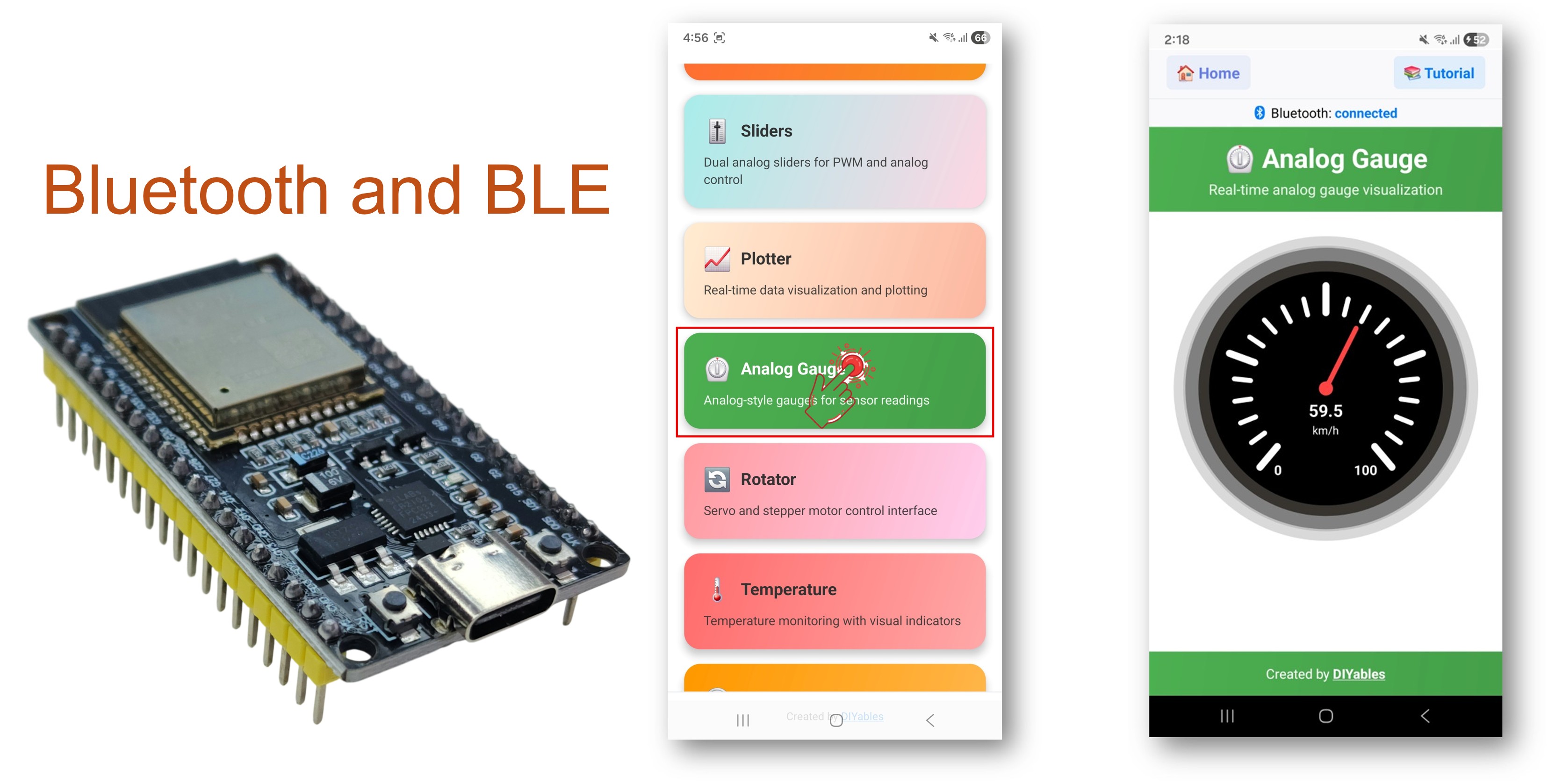
Exemplo Bluetooth Analog Gauge com ESP32 - Tutorial de Exibição de Medidor Analógico

Recursos

  • Exibição de Medidor Analógico: Visualização clássica no estilo de mostrador/medidor
  • Faixa Configurável: Defina os valores mínimo e máximo do medidor
  • Unidades Personalizadas: Exiba km/h, PSI, V, % ou qualquer string de unidade personalizada
  • Atualizações em Tempo Real: Envie leituras ao vivo com movimento suave do ponteiro
  • Callback de Solicitação: O app pode solicitar o valor atual sob demanda
  • BLE e Bluetooth Clássico: Escolha o modo Bluetooth que melhor atende ao seu projeto
  • Multiplataforma: O modo BLE funciona no Android e no iOS; o Bluetooth Clássico funciona no Android
  • Opção de Baixo Consumo: O modo BLE consome menos energia que o Bluetooth Clássico

Código do ESP32

Passos Rápidos

Siga estas instruções passo a passo:

  • Se esta é a primeira vez que você usa o ESP32, consulte o tutorial sobre como configurar o ambiente para ESP32 no Arduino IDE.
  • Conecte a placa ESP32 ao seu computador usando um cabo USB.
  • Abra o Arduino IDE no seu computador.
  • Selecione a placa ESP32 apropriada e a porta COM.
  • Navegue até o ícone Libraries na barra esquerda do Arduino IDE.
  • Pesquise "DIYables Bluetooth" e encontre a biblioteca DIYables Bluetooth da DIYables
  • Clique no botão Install para instalar a biblioteca.
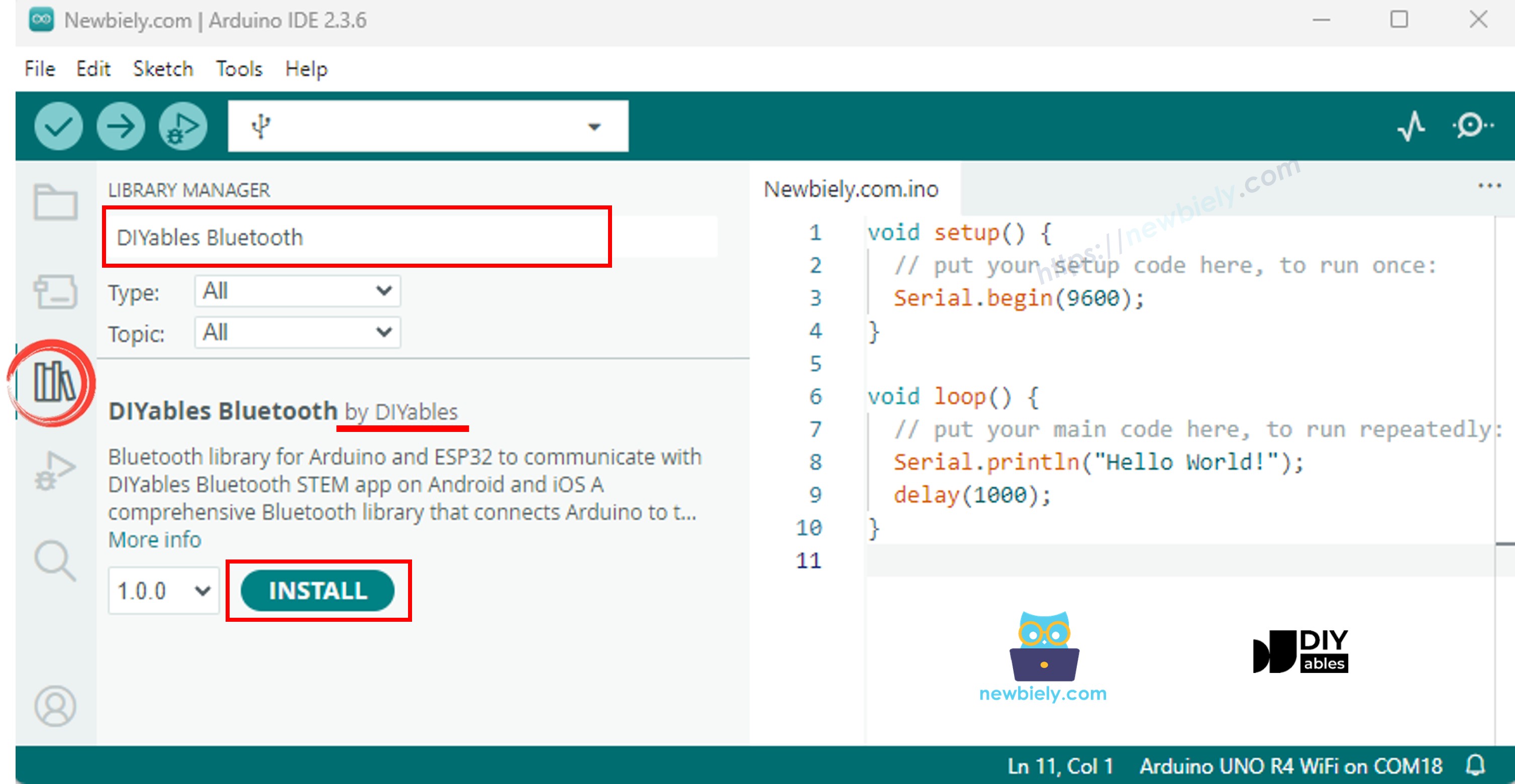
Biblioteca DIYables Bluetooth para ESP32
  • Você será solicitado a instalar algumas outras dependências da biblioteca
  • Clique no botão Install All para instalar todas as dependências da biblioteca.
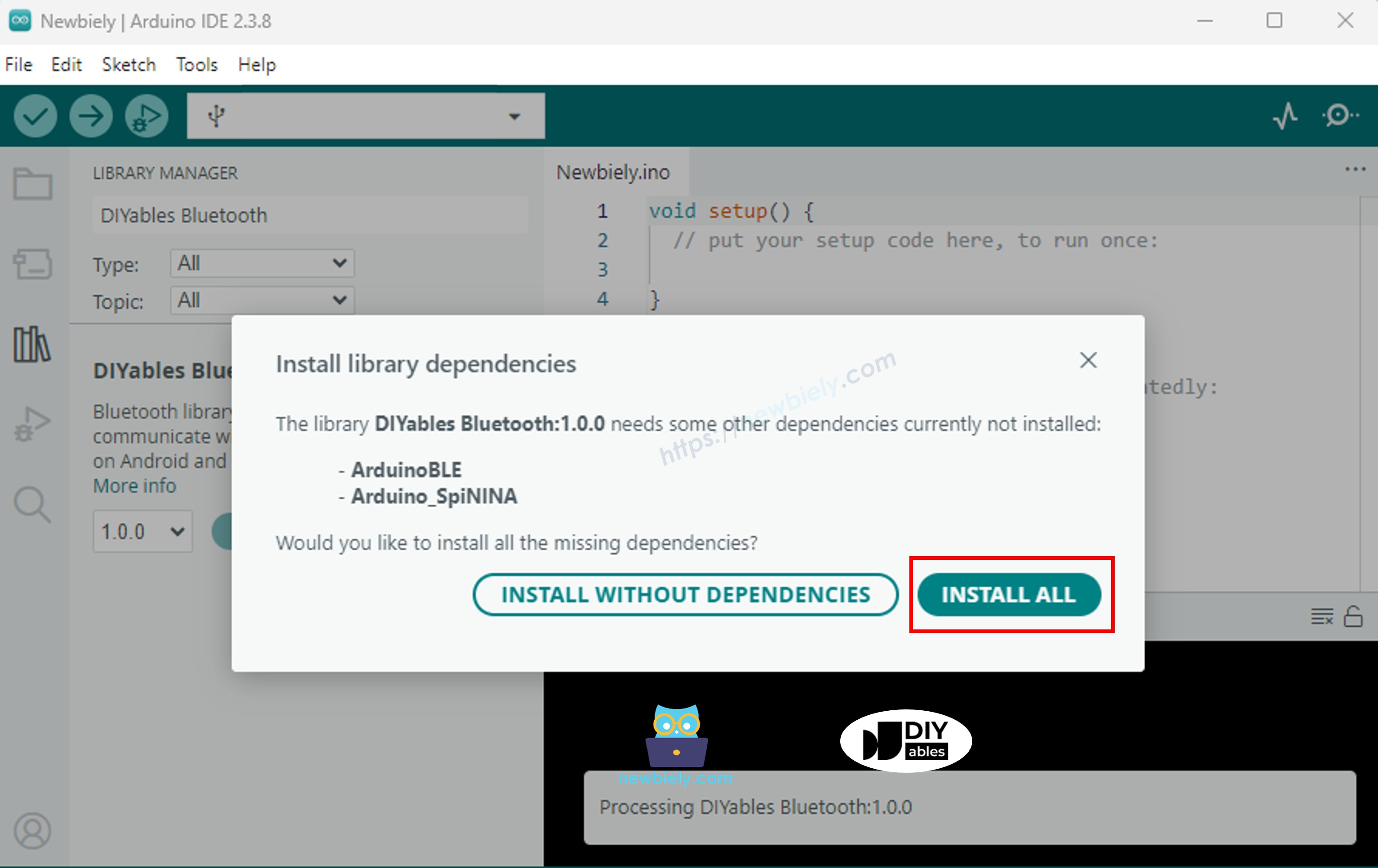
Dependência do DIYables Bluetooth para ESP32

Escolha um dos dois modos Bluetooth abaixo, de acordo com a sua necessidade:

Código do ESP32 para Bluetooth Clássico (funciona com o app somente no Android)

Observação: O Bluetooth Clássico NÃO é suportado no iOS. Se você precisa de suporte ao iOS, use o código BLE abaixo.

  • No Arduino IDE, vá em File Examples DIYables Bluetooth Esp32Bluetooth_AnalogGauge, ou copie o código acima e cole no editor do Arduino IDE
/* * DIYables Bluetooth Library - ESP32 Classic Bluetooth Analog Gauge Example * Works with DIYables Bluetooth STEM app on Android * Note: Classic Bluetooth is NOT supported on iOS. Use BLE examples for iOS support. * * This example demonstrates the Bluetooth Analog Gauge feature: * - Display values on an analog meter/gauge * - Configurable range and unit * - Perfect for sensor monitoring (speed, pressure, voltage, etc.) * * Compatible Boards: * - ESP32 (all variants with Classic Bluetooth) * - ESP32-WROOM-32 * - ESP32-DevKitC * - ESP32-WROVER * * Note: Select "Huge APP (3MB No OTA/1MB SPIFFS)" partition scheme * in Arduino IDE: Tools > Partition Scheme * * Optional: Analog sensor (potentiometer, pressure sensor, etc.) * * Setup: * 1. Upload the sketch to your ESP32 * 2. Open Serial Monitor (115200 baud) to see connection status * 3. Use DIYables Bluetooth App to connect and view the gauge * * Tutorial: https://diyables.io/bluetooth-app * Author: DIYables */ #include <DIYables_BluetoothServer.h> #include <DIYables_BluetoothAnalogGauge.h> #include <platforms/DIYables_Esp32Bluetooth.h> // Create Bluetooth instances DIYables_Esp32Bluetooth bluetooth("ESP32_Gauge"); DIYables_BluetoothServer bluetoothServer(bluetooth); // Create Analog Gauge app instance (min=0, max=100, unit="km/h") DIYables_BluetoothAnalogGauge bluetoothGauge(0.0, 100.0, "km/h"); // Variables for gauge value float currentValue = 0.0; unsigned long lastUpdate = 0; const unsigned long UPDATE_INTERVAL = 200; // Update every 200ms // Optional: Analog input pin for sensor const int ANALOG_PIN = 34; // ESP32 ADC pin // Function to read sensor value float readSensorValue() { // TODO: Replace with actual sensor reading // Examples: // - Pressure sensor: readPressure() // - Voltage sensor: analogRead(34) * (3.3 / 4095.0) // - Speed sensor: calculateSpeed() // Option 1: Read from analog pin and map to gauge range // int rawValue = analogRead(ANALOG_PIN); // return map(rawValue, 0, 4095, 0, 100); // Option 2: Simulated data (sine wave) static float phase = 0; phase += 0.05; if (phase > 2 * PI) phase = 0; return 50 + 50 * sin(phase); // Oscillates between 0-100 } void setup() { Serial.begin(115200); delay(1000); Serial.println("DIYables Bluetooth - ESP32 Analog Gauge Example"); // Optional: Initialize analog pin // pinMode(ANALOG_PIN, INPUT); // Initialize Bluetooth server with platform-specific implementation bluetoothServer.begin(); // Add gauge app to server bluetoothServer.addApp(&bluetoothGauge); // Set up connection event callbacks bluetoothServer.setOnConnected([]() { Serial.println("Bluetooth connected!"); // Send initial value currentValue = readSensorValue(); bluetoothGauge.send(currentValue); Serial.print("Initial value sent: "); Serial.print(currentValue); Serial.print(" "); Serial.println(bluetoothGauge.getUnit()); }); bluetoothServer.setOnDisconnected([]() { Serial.println("Bluetooth disconnected!"); }); // Optional: Handle requests for current value bluetoothGauge.onValueRequest([]() { currentValue = readSensorValue(); bluetoothGauge.send(currentValue); Serial.print("Value requested - Sent: "); Serial.print(currentValue); Serial.print(" "); Serial.println(bluetoothGauge.getUnit()); }); // You can change gauge configuration at runtime: // bluetoothGauge.setRange(0.0, 200.0); // Change range to 0-200 // bluetoothGauge.setUnit("mph"); // Change unit to mph // bluetoothGauge.setRange(0.0, 3.3); // For voltage (0-3.3V on ESP32) // bluetoothGauge.setUnit("V"); Serial.println("Waiting for Bluetooth connection..."); Serial.print("Gauge range: "); Serial.print(bluetoothGauge.getMin()); Serial.print(" - "); Serial.print(bluetoothGauge.getMax()); Serial.print(" "); Serial.println(bluetoothGauge.getUnit()); } void loop() { // Handle Bluetooth server communications bluetoothServer.loop(); // Send gauge updates periodically (only when connected) if (bluetooth.isConnected() && millis() - lastUpdate >= UPDATE_INTERVAL) { lastUpdate = millis(); // Read sensor value currentValue = readSensorValue(); // Send to Bluetooth app bluetoothGauge.send(currentValue); // Print to Serial Monitor Serial.print("Gauge: "); Serial.print(currentValue, 1); Serial.print(" "); Serial.println(bluetoothGauge.getUnit()); } delay(10); }
  • Clique no botão Upload no Arduino IDE para fazer o upload do código para o ESP32
  • Abra o Serial Monitor
  • Veja o resultado no Serial Monitor. Ele deve ser parecido com o abaixo:
∞
Newbiely | Arduino IDE 2.3.8
──
☐
✕
File
Edit
Sketch
Tools
Help
ESP32 Dev Module
Newbiely.ino
···
8 Serial.println("Hello World!");
Output
Serial Monitor
Message (Enter to send message to 'ESP32 Dev Module' on 'COM15')
New Line
9600 baud
DIYables Bluetooth - ESP32 Analog Gauge Example Waiting for Bluetooth connection...
Ln 11, Col 1
ESP32 Dev Module on COM15
2

Código do ESP32 para BLE (funciona com o app no Android e no iOS)

  • No Arduino IDE, vá em File Examples DIYables Bluetooth Esp32BLE_AnalogGauge, ou copie o código acima e cole no editor do Arduino IDE
/* * DIYables Bluetooth Library - ESP32 BLE Analog Gauge Example * Works with DIYables Bluetooth STEM app on Android and iOS * * This example demonstrates the Bluetooth Analog Gauge feature: * - Display values on an analog meter/gauge * - Configurable range and unit * - Perfect for sensor monitoring (speed, pressure, voltage, etc.) * * Compatible Boards: * - ESP32-WROOM-32 * - ESP32-DevKitC * - ESP32-WROVER * - ESP32-S3 * - ESP32-C3 * - Any ESP32 board supporting BLE * * Note: Select "Huge APP (3MB No OTA/1MB SPIFFS)" partition scheme * in Arduino IDE: Tools > Partition Scheme * * Optional: Analog sensor (potentiometer, pressure sensor, etc.) * * Setup: * 1. Upload the sketch to your ESP32 * 2. Open Serial Monitor (115200 baud) to see connection status * 3. Use DIYables Bluetooth App to connect and view the gauge * * Tutorial: https://diyables.io/bluetooth-app * Author: DIYables */ #include <DIYables_BluetoothServer.h> #include <DIYables_BluetoothAnalogGauge.h> #include <platforms/DIYables_Esp32BLE.h> // BLE Configuration const char* DEVICE_NAME = "ESP32BLE_Gauge"; const char* SERVICE_UUID = "19B10000-E8F2-537E-4F6C-D104768A1214"; const char* TX_UUID = "19B10001-E8F2-537E-4F6C-D104768A1214"; const char* RX_UUID = "19B10002-E8F2-537E-4F6C-D104768A1214"; // Create Bluetooth instances DIYables_Esp32BLE bluetooth(DEVICE_NAME, SERVICE_UUID, TX_UUID, RX_UUID); DIYables_BluetoothServer bluetoothServer(bluetooth); // Create Analog Gauge app instance (min=0, max=100, unit="km/h") DIYables_BluetoothAnalogGauge bluetoothGauge(0.0, 100.0, "km/h"); // Variables for gauge value float currentValue = 0.0; unsigned long lastUpdate = 0; const unsigned long UPDATE_INTERVAL = 200; // Update every 200ms // Optional: Analog input pin for sensor const int ANALOG_PIN = 34; // ESP32 ADC pin // Function to read sensor value float readSensorValue() { // TODO: Replace with actual sensor reading // Option 1: Read from analog pin and map to gauge range // int rawValue = analogRead(ANALOG_PIN); // return map(rawValue, 0, 4095, 0, 100); // ESP32 has 12-bit ADC // Option 2: Simulated data (sine wave) static float phase = 0; phase += 0.05; if (phase > 2 * PI) phase = 0; return 50 + 50 * sin(phase); // Oscillates between 0-100 } void setup() { Serial.begin(115200); delay(1000); Serial.println("DIYables Bluetooth - ESP32 BLE Analog Gauge Example"); // Initialize Bluetooth server with platform-specific implementation bluetoothServer.begin(); // Add gauge app to server bluetoothServer.addApp(&bluetoothGauge); // Set up connection event callbacks bluetoothServer.setOnConnected([]() { Serial.println("Bluetooth connected!"); currentValue = readSensorValue(); bluetoothGauge.send(currentValue); Serial.print("Initial value sent: "); Serial.print(currentValue); Serial.print(" "); Serial.println(bluetoothGauge.getUnit()); }); bluetoothServer.setOnDisconnected([]() { Serial.println("Bluetooth disconnected!"); }); bluetoothGauge.onValueRequest([]() { currentValue = readSensorValue(); bluetoothGauge.send(currentValue); Serial.print("Value requested - Sent: "); Serial.print(currentValue); Serial.print(" "); Serial.println(bluetoothGauge.getUnit()); }); Serial.println("Waiting for Bluetooth connection..."); Serial.print("Gauge range: "); Serial.print(bluetoothGauge.getMin()); Serial.print(" - "); Serial.print(bluetoothGauge.getMax()); Serial.print(" "); Serial.println(bluetoothGauge.getUnit()); } void loop() { bluetoothServer.loop(); if (bluetooth.isConnected() && millis() - lastUpdate >= UPDATE_INTERVAL) { lastUpdate = millis(); currentValue = readSensorValue(); bluetoothGauge.send(currentValue); Serial.print("Gauge: "); Serial.print(currentValue, 1); Serial.print(" "); Serial.println(bluetoothGauge.getUnit()); } delay(10); }
  • Clique no botão Upload no Arduino IDE para fazer o upload do código para o ESP32
  • Abra o Serial Monitor
  • Veja o resultado no Serial Monitor. Ele deve ser parecido com o abaixo:
∞
Newbiely | Arduino IDE 2.3.8
──
☐
✕
File
Edit
Sketch
Tools
Help
ESP32 Dev Module
Newbiely.ino
···
8 Serial.println("Hello World!");
Output
Serial Monitor
Message (Enter to send message to 'ESP32 Dev Module' on 'COM15')
New Line
9600 baud
DIYables Bluetooth - ESP32 BLE Analog Gauge Example Waiting for Bluetooth connection...
Ln 11, Col 1
ESP32 Dev Module on COM15
2

App para Celular

  • Instale o DIYables Bluetooth App no seu smartphone: Android | iOS
  • Se você estiver usando o código do ESP32 para Bluetooth Clássico, você precisa parear o ESP32 com o seu celular Android antes de abrir o app:
    • Vá em Settings > Bluetooth no seu celular
    • Certifique-se de que o Bluetooth está ativado
    • Seu celular vai buscar os dispositivos disponíveis
    • Encontre e toque em "ESP32_Gauge" na lista de dispositivos disponíveis
    • Confirme a solicitação de pareamento (não é necessário PIN)
    • Aguarde até aparecer "Paired" abaixo do nome do dispositivo
  • Se você estiver usando o código do ESP32 para BLE, não é necessário parear. Basta ir para a próxima etapa.
  • Abra o DIYables Bluetooth App
  • Ao abrir o app pela primeira vez, ele vai pedir permissões. Conceda as seguintes:
    • Permissão de Dispositivos Próximos (Android 12+) / permissão de Bluetooth (iOS) - necessária para buscar e conectar a dispositivos Bluetooth
    • Permissão de Localização (somente Android 11 e anteriores) - exigida pelas versões mais antigas do Android para buscar dispositivos BLE
  • Certifique-se de que o Bluetooth está ativado no seu celular
  • Na tela inicial, toque no botão Connect. O app vai buscar dispositivos BLE e Bluetooth Clássico.
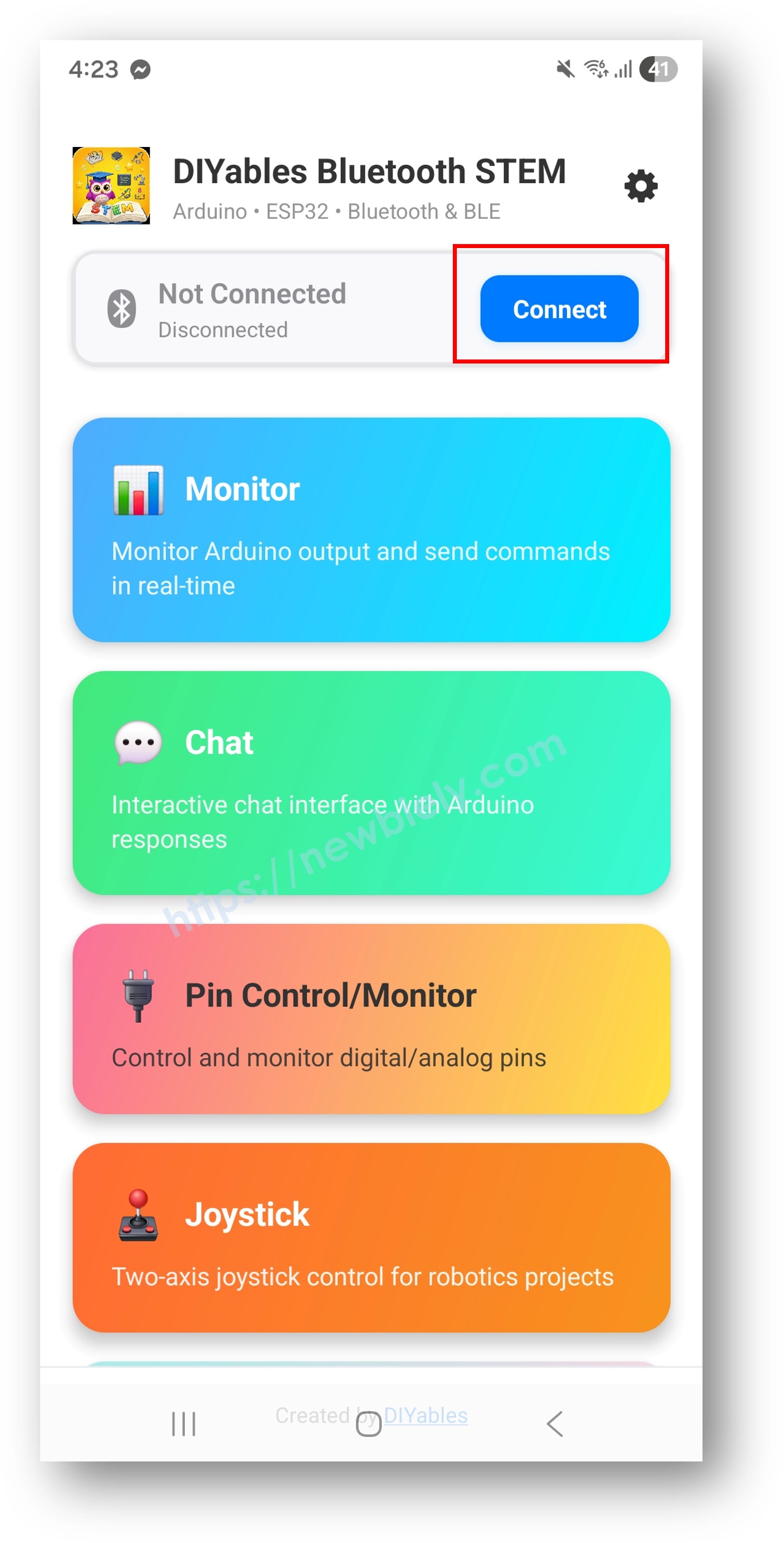
DIYables Bluetooth App - Tela Inicial com o Botão de Busca
  • Encontre e toque no seu dispositivo nos resultados da busca para conectar:
    • Para o Bluetooth Clássico: toque em "ESP32_Gauge"
    • Para o BLE: toque em "ESP32BLE_Gauge"
  • Depois de conectado, o app volta automaticamente para a tela inicial. Selecione o app Analog Gauge no menu de apps.
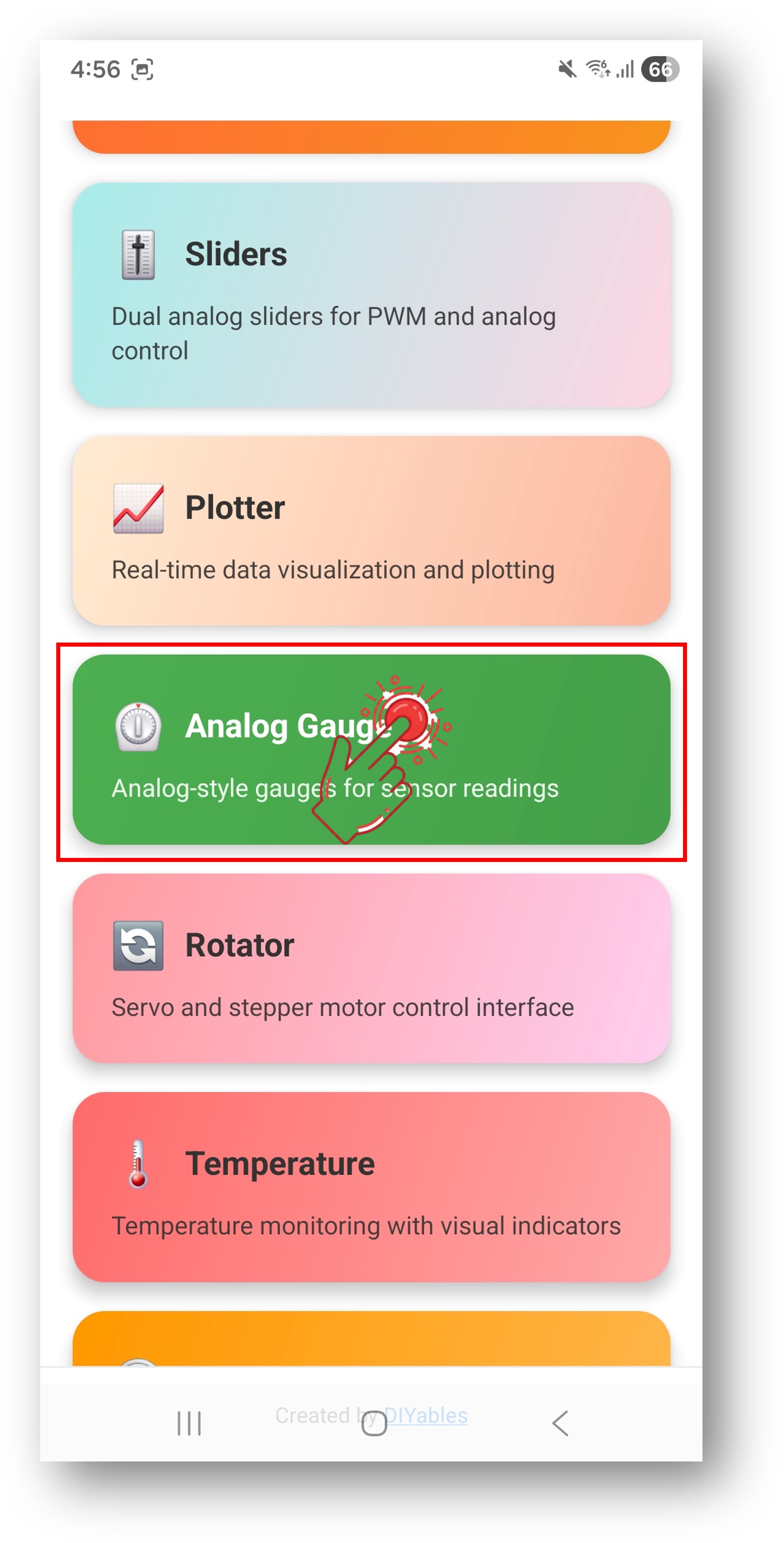
DIYables Bluetooth App - Tela Inicial com o App Analog Gauge

Observação: Você pode tocar no ícone de configurações na tela inicial para ocultar/mostrar apps na tela inicial. Para mais detalhes, veja o Manual do Usuário do DIYables Bluetooth App.

  • O medidor analógico vai exibir o valor atual com um ponteiro em movimento
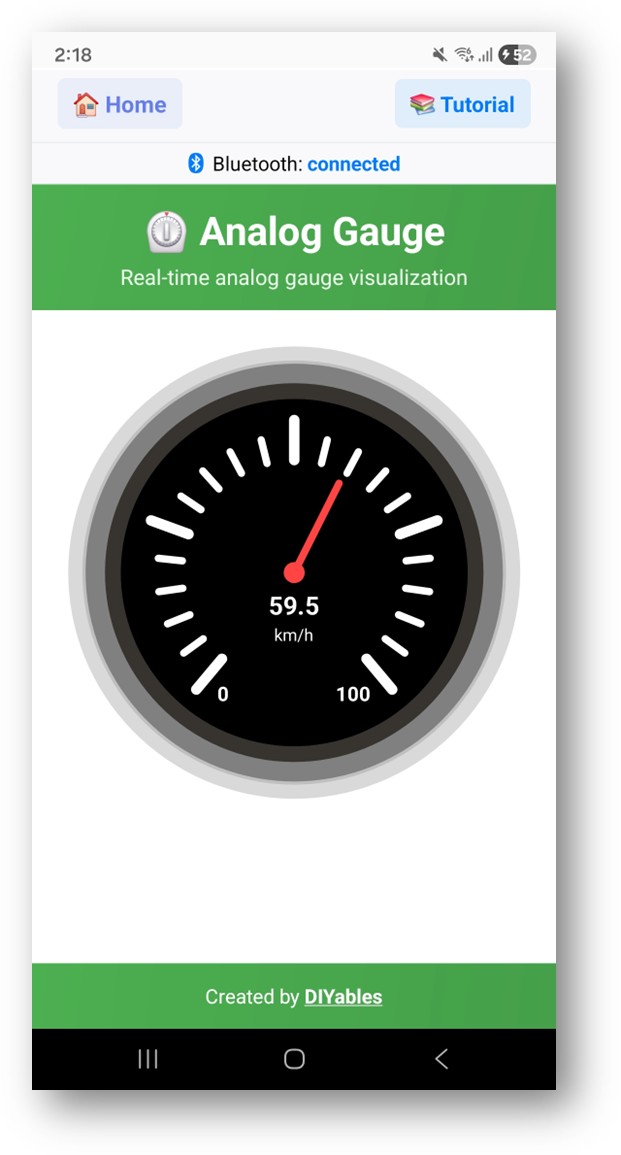
DIYables Bluetooth App - Tela do Analog Gauge

Agora volte ao Serial Monitor no Arduino IDE. Você verá:

∞
Newbiely | Arduino IDE 2.3.8
──
☐
✕
File
Edit
Sketch
Tools
Help
ESP32 Dev Module
Newbiely.ino
···
8 Serial.println("Hello World!");
Output
Serial Monitor
Message (Enter to send message to 'ESP32 Dev Module' on 'COM15')
New Line
9600 baud
Bluetooth connected! Gauge value: 50.0 km/h Gauge value: 75.0 km/h Gauge value: 93.3 km/h Gauge value: 100.0 km/h
Ln 11, Col 1
ESP32 Dev Module on COM15
2
  • Veja o ponteiro do medidor se mover em tempo real no app

Personalização Criativa - Adapte o Código ao Seu Projeto

Configurar a Faixa e a Unidade do Medidor

Defina a faixa de exibição e a unidade:

// Constructor: DIYables_BluetoothAnalogGauge(min, max, unit) DIYables_BluetoothAnalogGauge bluetoothGauge(0.0, 100.0, "km/h"); // Change range at runtime bluetoothGauge.setRange(0.0, 200.0); // Change unit bluetoothGauge.setUnit("MPH"); // Read current configuration float minVal = bluetoothGauge.getMin(); // Returns 0.0 float maxVal = bluetoothGauge.getMax(); // Returns 100.0 String unit = bluetoothGauge.getUnit(); // Returns "km/h"

Enviar o Valor do Medidor

// Send current reading float speed = 72.5; bluetoothGauge.send(speed); // Send text message bluetoothGauge.send("Calibrating...");

Tratar Solicitações de Valor do App

bluetoothGauge.onValueRequest([]() { float currentValue = readSensor(); bluetoothGauge.send(currentValue); Serial.println("App requested value: " + String(currentValue)); });

Tratar Eventos de Conexão

bluetoothServer.setOnConnected([]() { Serial.println("Bluetooth connected!"); bluetoothGauge.send(currentValue); // Send current reading }); bluetoothServer.setOnDisconnected([]() { Serial.println("Bluetooth disconnected!"); });

Como Usar o Medidor Analógico

Interface do App

A interface do medidor analógico no DIYables Bluetooth App mostra:

  • Mostrador/Ponteiro: Medidor analógico clássico com ponteiro em movimento
  • Exibição Numérica: Mostra o valor atual exato
  • Rótulo da Unidade: Exibe a string da unidade configurada
  • Marcações da Escala: Mostra a escala graduada do mínimo ao máximo

Configurações de Unidade Comuns

  • Velocidade: DIYables_BluetoothAnalogGauge(0.0, 200.0, "km/h")
  • Pressão: DIYables_BluetoothAnalogGauge(0.0, 100.0, "PSI")
  • Tensão: DIYables_BluetoothAnalogGauge(0.0, 5.0, "V")
  • Porcentagem: DIYables_BluetoothAnalogGauge(0.0, 100.0, "%")
  • RPM: DIYables_BluetoothAnalogGauge(0.0, 8000.0, "RPM")

Exemplos de Programação

Voltímetro

const int VOLTAGE_PIN = 34; const float VREF = 3.3; const float DIVIDER_RATIO = 5.0; // Voltage divider ratio // Gauge configured for 0-16V range DIYables_BluetoothAnalogGauge bluetoothGauge(0.0, 16.0, "V"); void loop() { bluetoothServer.loop(); static unsigned long lastUpdate = 0; if (millis() - lastUpdate >= 500) { lastUpdate = millis(); int raw = analogRead(VOLTAGE_PIN); float voltage = (raw / 4095.0) * VREF * DIVIDER_RATIO; bluetoothGauge.send(voltage); Serial.println("Voltage: " + String(voltage, 2) + " V"); } delay(10); }

Manômetro (BMP280)

#include <Adafruit_BMP280.h> Adafruit_BMP280 bmp; // Gauge configured for atmospheric pressure range DIYables_BluetoothAnalogGauge bluetoothGauge(900.0, 1100.0, "hPa"); void setup() { Serial.begin(115200); bmp.begin(0x76); // ... Bluetooth setup ... bluetoothGauge.onValueRequest([]() { float pressure = bmp.readPressure() / 100.0; // Pa to hPa bluetoothGauge.send(pressure); }); } void loop() { bluetoothServer.loop(); static unsigned long lastUpdate = 0; if (millis() - lastUpdate >= 1000) { lastUpdate = millis(); float pressure = bmp.readPressure() / 100.0; bluetoothGauge.send(pressure); Serial.println("Pressure: " + String(pressure, 1) + " hPa"); } delay(10); }

Sensor de Corrente (ACS712)

const int CURRENT_PIN = 34; const float SENSITIVITY = 0.185; // ACS712-05B: 185mV/A const float ZERO_CURRENT_VOLTAGE = 2.5; // Gauge configured for 0-5A range DIYables_BluetoothAnalogGauge bluetoothGauge(0.0, 5.0, "A"); void loop() { bluetoothServer.loop(); static unsigned long lastUpdate = 0; if (millis() - lastUpdate >= 200) { lastUpdate = millis(); int raw = analogRead(CURRENT_PIN); float voltage = (raw / 4095.0) * 3.3; float current = abs((voltage - ZERO_CURRENT_VOLTAGE) / SENSITIVITY); bluetoothGauge.send(current); Serial.println("Current: " + String(current, 2) + " A"); } delay(10); }

Velocidade a Partir de um Encoder

volatile unsigned long pulseCount = 0; const int ENCODER_PIN = 2; const float PULSES_PER_REV = 20.0; const float WHEEL_CIRCUMFERENCE = 0.628; // meters (20cm diameter) DIYables_BluetoothAnalogGauge bluetoothGauge(0.0, 50.0, "km/h"); void IRAM_ATTR countPulse() { pulseCount++; } void setup() { Serial.begin(115200); pinMode(ENCODER_PIN, INPUT_PULLUP); attachInterrupt(digitalPinToInterrupt(ENCODER_PIN), countPulse, RISING); // ... Bluetooth setup ... } void loop() { bluetoothServer.loop(); static unsigned long lastCalc = 0; if (millis() - lastCalc >= 500) { unsigned long elapsed = millis() - lastCalc; lastCalc = millis(); noInterrupts(); unsigned long count = pulseCount; pulseCount = 0; interrupts(); float revPerSec = (count / PULSES_PER_REV) / (elapsed / 1000.0); float speedKmh = revPerSec * WHEEL_CIRCUMFERENCE * 3.6; bluetoothGauge.send(speedKmh); Serial.println("Speed: " + String(speedKmh, 1) + " km/h"); } delay(10); }

Técnicas Avançadas de Programação

Movimento Suave do Ponteiro

float displayValue = 0; float targetValue = 0; const float SMOOTHING = 0.1; // 0.0-1.0, lower = smoother void loop() { bluetoothServer.loop(); static unsigned long lastUpdate = 0; if (millis() - lastUpdate >= 50) { // 20 FPS lastUpdate = millis(); targetValue = readSensor(); displayValue += (targetValue - displayValue) * SMOOTHING; bluetoothGauge.send(displayValue); } delay(5); }

Retenção de Pico

float peakValue = 0; unsigned long peakTime = 0; const unsigned long PEAK_HOLD_MS = 3000; // Hold peak for 3 seconds void updateWithPeakHold(float value) { if (value > peakValue) { peakValue = value; peakTime = millis(); } if (millis() - peakTime > PEAK_HOLD_MS) { peakValue = value; // Reset peak } // Send the higher of current or peak bluetoothGauge.send(max(value, peakValue)); }

Escalonamento Automático da Faixa

float autoMin = 0; float autoMax = 100; void autoScale(float value) { bool changed = false; if (value < autoMin) { autoMin = value - 10; changed = true; } if (value > autoMax) { autoMax = value + 10; changed = true; } if (changed) { bluetoothGauge.setRange(autoMin, autoMax); } bluetoothGauge.send(value); }

Ideias de Integração com Hardware

Sensores Analógicos

Qualquer sensor com saída analógica pode acionar o medidor: potenciômetros, sensores de força, sensores flex e muito mais.

Sensores I2C/SPI

Use sensores I2C como o BMP280 (pressão), o INA219 (corrente/potência) ou sensores SPI para medições de alta velocidade.

Sensores de Pulso/Frequência

Encoders de velocidade, medidores de vazão e sensores de RPM, usando contagem baseada em interrupções.

Células de Carga (HX711)

Medição de peso com o amplificador HX711 para balanças de cozinha ou pesagem industrial.

BLE vs Bluetooth Clássico - Qual Escolher?

RecursoBLE (Esp32BLE_AnalogGauge)Bluetooth Clássico (Esp32Bluetooth_AnalogGauge)
Suporte ao iOS? Sim? Não
Suporte ao Android? Sim? Sim
Consumo de EnergiaBaixoMaior
Alcance~30-100m~10-100m
Taxa de DadosMenorMaior
Pareamento NecessárioNão (conexão automática)Sim (pareamento manual)
Melhor ParaDispositivos a bateria, multiplataformaAlta taxa de transferência, somente Android

Solução de Problemas

Problemas Comuns

1. Não consigo encontrar o dispositivo no app

  • Certifique-se de que o ESP32 está ligado e que o sketch foi carregado
  • Para o BLE: Garanta que o Bluetooth e a Localização do seu celular estão ativados
  • Para o Bluetooth Clássico: Pareie o dispositivo primeiro nas configurações de Bluetooth do celular
  • Verifique se o esquema de partição correto está selecionado (Huge APP)

2. O medidor mostra 0 ou um valor incorreto

  • Verifique a ligação e as conexões do sensor
  • Verifique a leitura do sensor primeiro no Serial Monitor
  • Garanta que o valor está dentro da faixa configurada
  • Verifique a configuração de unidade e faixa no construtor

3. O ponteiro do medidor não se move suavemente

  • Aumente a frequência de atualização (intervalo menor na verificação com millis())
  • Aplique suavização/filtragem nas leituras do sensor
  • Verifique se há ruído no sensor ou leituras instáveis

4. Valores fora da faixa do medidor

  • Ajuste a faixa com setRange(min, max) para corresponder à saída do seu sensor
  • Valores fora da faixa serão exibidos, mas podem ser limitados ao mínimo/máximo
  • Considere o escalonamento automático para faixas desconhecidas

5. A conexão cai com frequência

  • Aproxime-se do ESP32 (reduza a distância)
  • Para o BLE: Verifique se há interferência de outros dispositivos BLE
  • Para o Bluetooth Clássico: Garanta uma alimentação estável para o ESP32

6. Sketch grande demais / espaço insuficiente

  • No Arduino IDE, vá em Tools > Partition Scheme e selecione "Huge APP (3MB No OTA/1MB SPIFFS)" ou "No OTA (Large APP)"
  • O esquema de partição padrão oferece apenas ~1,2MB para o código do app, o que não é suficiente para as bibliotecas de Bluetooth
  • Esta configuração oferece ~3MB ao sacrificar a partição de OTA (atualização pelo ar)

Dicas de Depuração

Adicione uma depuração completa:

void debugGauge(float value) { Serial.println("=== Gauge Debug ==="); Serial.println("Value: " + String(value, 2) + " " + bluetoothGauge.getUnit()); Serial.println("Range: " + String(bluetoothGauge.getMin(), 1) + " - " + String(bluetoothGauge.getMax(), 1)); Serial.println("In Range: " + String(value >= bluetoothGauge.getMin() && value <= bluetoothGauge.getMax() ? "Yes" : "No")); float percentage = (value - bluetoothGauge.getMin()) / (bluetoothGauge.getMax() - bluetoothGauge.getMin()) * 100.0; Serial.println("Percentage: " + String(percentage, 1) + "%"); Serial.println("==================="); }

Ideias de Projetos

Veículos e Movimento

  • Velocímetro para carrinho RC ou bicicleta
  • Tacômetro de RPM para motores
  • Medidor de força G para aceleração
  • Indicador de ângulo de inclinação

Elétrica e Energia

  • Voltímetro (monitor de tensão de bateria)
  • Amperímetro (consumo de corrente)
  • Wattímetro (uso de energia)
  • Medidor de nível de bateria

Ambiental

  • Medidor de pressão barométrica
  • Velocidade do vento (anemômetro)
  • Medidor de índice UV
  • Medidor de nível sonoro (dB)

Industrial

  • Exibição de balança de peso
  • Medidor de vazão
  • Indicador de nível de tanque
  • Medidor de torque

Integração com Outros Apps Bluetooth

Combine com o Bluetooth Temperature

Medidor para uma métrica, temperatura para outra:

// Gauge shows pressure bluetoothGauge.send(pressure); // Temperature shows temperature bluetoothTemperature.send(temperature);

Combine com o Bluetooth Table

Medidor para o visual, tabela para os detalhes:

float speed = readSpeed(); bluetoothGauge.send(speed); bluetoothTable.sendValueUpdate("Speed", String(speed, 1) + " km/h"); bluetoothTable.sendValueUpdate("Distance", String(totalDistance, 2) + " km"); bluetoothTable.sendValueUpdate("Max Speed", String(maxSpeed, 1) + " km/h"); bluetoothTable.sendValueUpdate("Avg Speed", String(avgSpeed, 1) + " km/h");

Próximos Passos

Depois de dominar o exemplo Bluetooth Analog Gauge, experimente:

  1. Bluetooth Temperature - Para uma exibição dedicada de temperatura
  2. Bluetooth Plotter - Para a visualização de tendências ao longo do tempo
  3. Bluetooth Table - Para uma exibição estruturada de vários valores
  4. Multiple Bluetooth Apps - Combinando o medidor com outras exibições

Suporte

Para obter ajuda adicional:

  • Consulte a documentação de referência da API
  • Fóruns da comunidade Arduino

※ NOSSAS MENSAGENS

  • Fique à vontade para compartilhar o link deste tutorial. Porém, por favor, não use nosso conteúdo em outros sites. Investimos muito esforço e tempo para criar este conteúdo, por favor respeite nosso trabalho!