Exemplo de Slider Bluetooth com ESP32 - Tutorial de Interface de Controle com Dois Sliders
Visão Geral
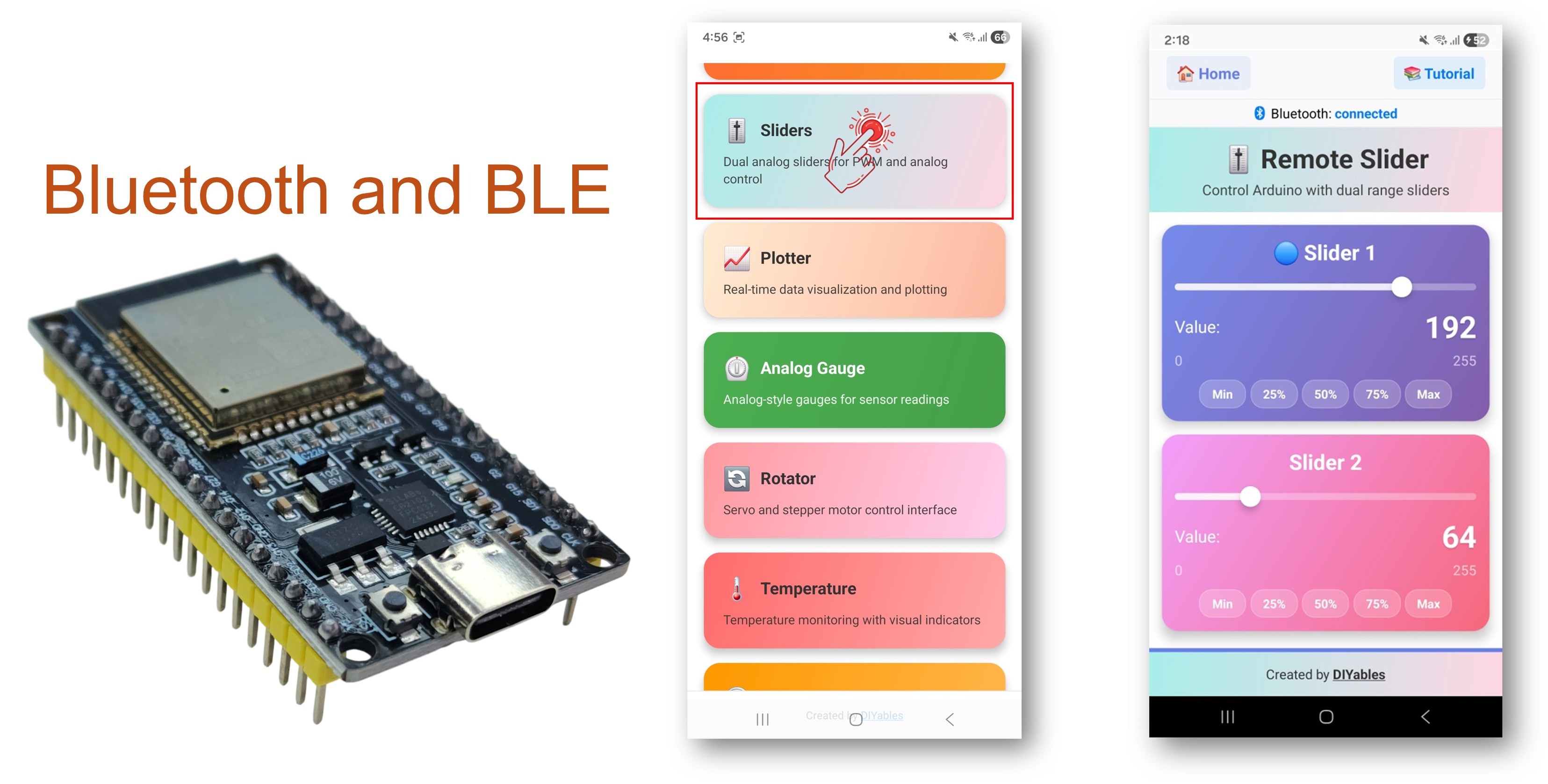
O exemplo Bluetooth Slider oferece dois controles de slider independentes, acessíveis pelo app DIYables Bluetooth STEM. Projetado para placas ESP32, com suporte a conexões BLE (Bluetooth Low Energy) e Bluetooth Clássico. Cada slider oferece valores de 0 a 100, o que os torna perfeitos para controle de PWM, ajuste de brilho, controle de velocidade de motor e qualquer aplicação que precise de valores de controle do tipo analógico.
Este exemplo oferece suporte a dois modos de Bluetooth:
ESP32 BLE (Bluetooth Low Energy): Funciona no Android e no iOS
ESP32 Bluetooth Clássico: Funciona somente no Android. O iOS não oferece suporte ao Bluetooth Clássico. Use o BLE se precisar de suporte ao iOS.
Recursos
Sliders Duplos: Dois controles de slider independentes (faixa de 0 a 100 cada)
Valores em Tempo Real: Atualizações instantâneas de valores via comunicação Bluetooth
Compatível com PWM: Valores (0-100) facilmente mapeados para funções analogWrite()
Feedback Visual: Exibição em tempo real do valor de cada slider no app
BLE e Bluetooth Clássico: Escolha o modo Bluetooth que melhor atende ao seu projeto
Multiplataforma: O modo BLE funciona no Android e no iOS; o Bluetooth Clássico funciona no Android
Opção de Baixo Consumo: O modo BLE consome menos energia que o Bluetooth Clássico
Faixa e Passo Configuráveis: Personalize a faixa e o tamanho do passo do slider em tempo de execução
Divulgação: Alguns dos links desta seção são links de afiliado da Amazon. Podemos receber uma comissão pelas compras feitas por meio desses links, sem custo adicional para você. Agradecemos o seu apoio.
Conecte a placa ESP32 ao seu computador usando um cabo USB.
Abra o Arduino IDE no seu computador.
Selecione a placa ESP32 e a porta COM apropriadas.
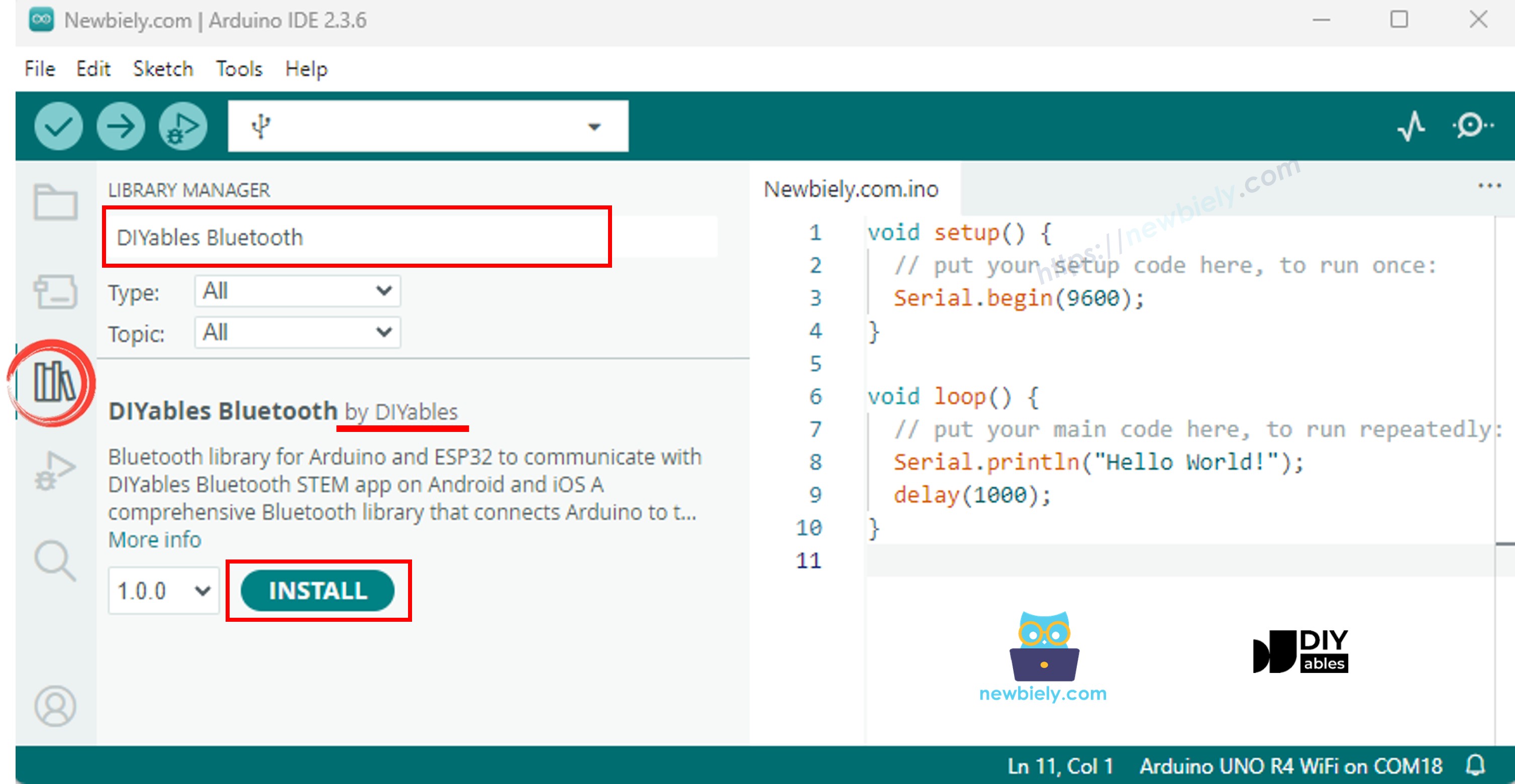
Acesse o ícone Libraries na barra à esquerda do Arduino IDE.
Pesquise "DIYables Bluetooth" e encontre a biblioteca DIYables Bluetooth, da DIYables
Clique no botão Install para instalar a biblioteca.
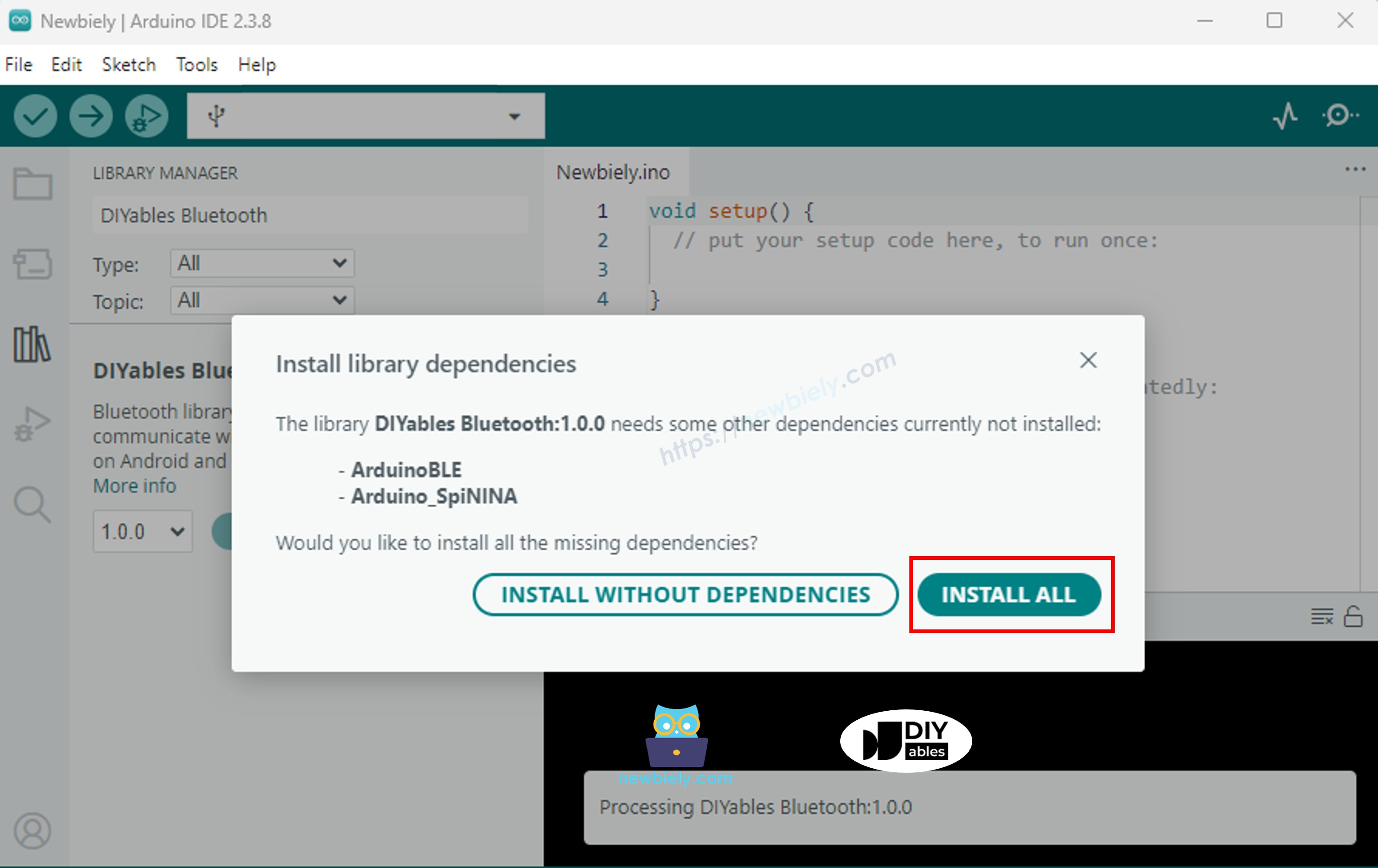
Será solicitado que você instale outras dependências da biblioteca
Clique no botão Install All para instalar todas as dependências da biblioteca.
Escolha um dos dois modos de Bluetooth abaixo, de acordo com a sua necessidade:
Código ESP32 Bluetooth Clássico (funciona com o app somente no Android)
Observação: O Bluetooth Clássico NÃO é compatível com o iOS. Se você precisa de suporte ao iOS, use o código BLE abaixo.
No Arduino IDE, vá em File Examples DIYables Bluetooth Esp32Bluetooth_Slider, ou copie o código acima e cole no editor do Arduino IDE
/* * DIYables Bluetooth Library - ESP32 Classic Bluetooth Slider Example * Works with DIYables Bluetooth STEM app on Android * Note: Classic Bluetooth is NOT supported on iOS. Use BLE examples for iOS support. * * This example demonstrates the Bluetooth Slider feature: * - Control values using sliders (0-100) * - Support for dual sliders * - Configurable range and step * * Compatible Boards: * - ESP32 (all variants with Classic Bluetooth) * - ESP32-WROOM-32 * - ESP32-DevKitC * - ESP32-WROVER * * Note: Select "Huge APP (3MB No OTA/1MB SPIFFS)" partition scheme * in Arduino IDE: Tools > Partition Scheme * * Setup: * 1. Upload the sketch to your ESP32 * 2. Open Serial Monitor (115200 baud) to see connection status * 3. Use DIYables Bluetooth App to connect and control sliders * * Tutorial: https://diyables.io/bluetooth-app * Author: DIYables */#include <DIYables_BluetoothServer.h>#include <DIYables_BluetoothSlider.h>#include <platforms/DIYables_Esp32Bluetooth.h>// Create Bluetooth instancesDIYables_Esp32Bluetooth bluetooth("ESP32_Slider");DIYables_BluetoothServer bluetoothServer(bluetooth);// Create Slider app instance (min=0, max=100, step=1)DIYables_BluetoothSlider bluetoothSlider(0, 100, 1);// Variables to store current slider valuesint currentSlider1 = 0;int currentSlider2 = 0;// PWM output pins (for LED brightness control example)constint PWM_PIN_1 = 16;constint PWM_PIN_2 = 17;// ESP32 LEDC PWM channelsconstint PWM_CHANNEL_1 = 0;constint PWM_CHANNEL_2 = 1;voidsetup() {Serial.begin(115200);delay(1000);Serial.println("DIYables Bluetooth - ESP32 Slider Example");// Initialize PWM using ESP32 LEDC ledcSetup(PWM_CHANNEL_1, 5000, 8); // 5kHz, 8-bit resolution ledcSetup(PWM_CHANNEL_2, 5000, 8); ledcAttachPin(PWM_PIN_1, PWM_CHANNEL_1); ledcAttachPin(PWM_PIN_2, PWM_CHANNEL_2);// Initialize Bluetooth server with platform-specific implementation bluetoothServer.begin();// Add slider app to server bluetoothServer.addApp(&bluetoothSlider);// Set up connection event callbacks bluetoothServer.setOnConnected([]() {Serial.println("Bluetooth connected!");// Send initial slider positions bluetoothSlider.send(currentSlider1, currentSlider2); }); bluetoothServer.setOnDisconnected([]() {Serial.println("Bluetooth disconnected!"); });// Set up slider callback for value changes bluetoothSlider.onSliderValue([](int slider1, int slider2) {// Store the received values currentSlider1 = slider1; currentSlider2 = slider2;// Print slider values (0-100)Serial.print("Slider 1: ");Serial.print(slider1);Serial.print(", Slider 2: ");Serial.println(slider2);// Map slider values (0-100) to PWM range (0-255)int pwm1 = map(slider1, 0, 100, 0, 255);int pwm2 = map(slider2, 0, 100, 0, 255);// Control LED brightness using ESP32 LEDC ledcWrite(PWM_CHANNEL_1, pwm1); ledcWrite(PWM_CHANNEL_2, pwm2);// TODO: Add your control logic here based on slider values// Examples:// - Servo control: myServo.write(map(slider1, 0, 100, 0, 180));// - Motor speed: ledcWrite(MOTOR_CHANNEL, pwm1);// - Volume control: setVolume(slider1);// - Brightness control: setBrightness(slider2); });// Optional: Handle requests for current slider values (when app loads) bluetoothSlider.onGetConfig([]() {// Send the stored slider values back to the app bluetoothSlider.send(currentSlider1, currentSlider2);Serial.print("App requested values - Sent: Slider1=");Serial.print(currentSlider1);Serial.print(", Slider2=");Serial.println(currentSlider2); });// You can change slider configuration at runtime:// bluetoothSlider.setRange(0, 255); // Change range to 0-255// bluetoothSlider.setStep(5); // Change step to 5 (coarser control)Serial.println("Waiting for Bluetooth connection...");}voidloop() {// Handle Bluetooth server communications bluetoothServer.loop();delay(10);}
Clique no botão Upload do Arduino IDE para carregar o código no ESP32
Abra o Serial Monitor
Confira o resultado no Serial Monitor. Ele deve ficar como abaixo:
Newbiely | Arduino IDE 2.3.8
──
☐
✕
File
Edit
Sketch
Tools
Help
ESP32 Dev Module
Newbiely.ino
···
8Serial.println("Hello World!");
Output
Serial Monitor
Message (Enter to send message to 'ESP32 Dev Module' on 'COM15')
New Line
9600 baud
DIYables Bluetooth - ESP32 Slider Example
Waiting for Bluetooth connection...
Ln 11, Col 1
ESP32 Dev Module on COM15
2
Código ESP32 BLE (funciona com o app no Android e no iOS)
No Arduino IDE, vá em File Examples DIYables Bluetooth Esp32BLE_Slider, ou copie o código acima e cole no editor do Arduino IDE
/* * DIYables Bluetooth Library - ESP32 BLE Slider Example * Works with DIYables Bluetooth STEM app on Android and iOS * * This example demonstrates the Bluetooth Slider feature: * - Control values using sliders (0-100) * - Support for dual sliders * - Configurable range and step * * Compatible Boards: * - ESP32-WROOM-32 * - ESP32-DevKitC * - ESP32-WROVER * - ESP32-S3 * - ESP32-C3 * - Any ESP32 board supporting BLE * * Note: Select "Huge APP (3MB No OTA/1MB SPIFFS)" partition scheme * in Arduino IDE: Tools > Partition Scheme * * Setup: * 1. Upload the sketch to your ESP32 * 2. Open Serial Monitor (115200 baud) to see connection status * 3. Use DIYables Bluetooth App to connect and control sliders * * Tutorial: https://diyables.io/bluetooth-app * Author: DIYables */#include <DIYables_BluetoothServer.h>#include <DIYables_BluetoothSlider.h>#include <platforms/DIYables_Esp32BLE.h>// BLE Configurationconst char* DEVICE_NAME = "ESP32BLE_Slider";const char* SERVICE_UUID = "19B10000-E8F2-537E-4F6C-D104768A1214";const char* TX_UUID = "19B10001-E8F2-537E-4F6C-D104768A1214";const char* RX_UUID = "19B10002-E8F2-537E-4F6C-D104768A1214";// Create Bluetooth instancesDIYables_Esp32BLE bluetooth(DEVICE_NAME, SERVICE_UUID, TX_UUID, RX_UUID);DIYables_BluetoothServer bluetoothServer(bluetooth);// Create Slider app instance (min=0, max=100, step=1)DIYables_BluetoothSlider bluetoothSlider(0, 100, 1);// Variables to store current slider valuesint currentSlider1 = 0;int currentSlider2 = 0;// PWM output pinsconstint PWM_PIN_1 = 16;constint PWM_PIN_2 = 17;voidsetup() {Serial.begin(115200);delay(1000);Serial.println("DIYables Bluetooth - ESP32 BLE Slider Example");// Initialize PWM pinspinMode(PWM_PIN_1, OUTPUT);pinMode(PWM_PIN_2, OUTPUT);// Initialize Bluetooth server with platform-specific implementation bluetoothServer.begin();// Add slider app to server bluetoothServer.addApp(&bluetoothSlider);// Set up connection event callbacks bluetoothServer.setOnConnected([]() {Serial.println("Bluetooth connected!"); bluetoothSlider.send(currentSlider1, currentSlider2); }); bluetoothServer.setOnDisconnected([]() {Serial.println("Bluetooth disconnected!"); });// Set up slider callback for value changes bluetoothSlider.onSliderValue([](int slider1, int slider2) { currentSlider1 = slider1; currentSlider2 = slider2;Serial.print("Slider 1: ");Serial.print(slider1);Serial.print(", Slider 2: ");Serial.println(slider2);// Map slider values (0-100) to PWM range (0-255)int pwm1 = map(slider1, 0, 100, 0, 255);int pwm2 = map(slider2, 0, 100, 0, 255);analogWrite(PWM_PIN_1, pwm1);analogWrite(PWM_PIN_2, pwm2);// TODO: Add your control logic here }); bluetoothSlider.onGetConfig([]() { bluetoothSlider.send(currentSlider1, currentSlider2);Serial.print("App requested values - Sent: Slider1=");Serial.print(currentSlider1);Serial.print(", Slider2=");Serial.println(currentSlider2); });Serial.println("Waiting for Bluetooth connection...");}voidloop() { bluetoothServer.loop();delay(10);}
Clique no botão Upload do Arduino IDE para carregar o código no ESP32
Abra o Serial Monitor
Confira o resultado no Serial Monitor. Ele deve ficar como abaixo:
Newbiely | Arduino IDE 2.3.8
──
☐
✕
File
Edit
Sketch
Tools
Help
ESP32 Dev Module
Newbiely.ino
···
8Serial.println("Hello World!");
Output
Serial Monitor
Message (Enter to send message to 'ESP32 Dev Module' on 'COM15')
New Line
9600 baud
DIYables Bluetooth - ESP32 BLE Slider Example
Waiting for Bluetooth connection...
Ln 11, Col 1
ESP32 Dev Module on COM15
2
App para Celular
Instale o app DIYables Bluetooth no seu smartphone: Android | iOS
Se você estiver usando o código ESP32 Bluetooth Clássico, é preciso parear o ESP32 com o seu celular Android antes de abrir o app:
Vá em Configurações > Bluetooth do seu celular
Verifique se o Bluetooth está ligado
Seu celular vai procurar os dispositivos disponíveis
Encontre e toque em "ESP32_Slider" na lista de dispositivos disponíveis
Confirme a solicitação de pareamento (não é necessário PIN)
Aguarde até aparecer "Paired" abaixo do nome do dispositivo
Se você estiver usando o código ESP32 BLE, não é necessário parear. Basta ir para o próximo passo.
Abra o app DIYables Bluetooth
Ao abrir o app pela primeira vez, ele vai pedir permissões. Conceda as seguintes:
Permissão de Dispositivos Próximos (Android 12+) / permissão de Bluetooth (iOS) - necessária para procurar e conectar a dispositivos Bluetooth
Permissão de Localização (somente Android 11 e anteriores) - exigida por versões mais antigas do Android para procurar dispositivos BLE
Verifique se o Bluetooth está ligado no seu celular
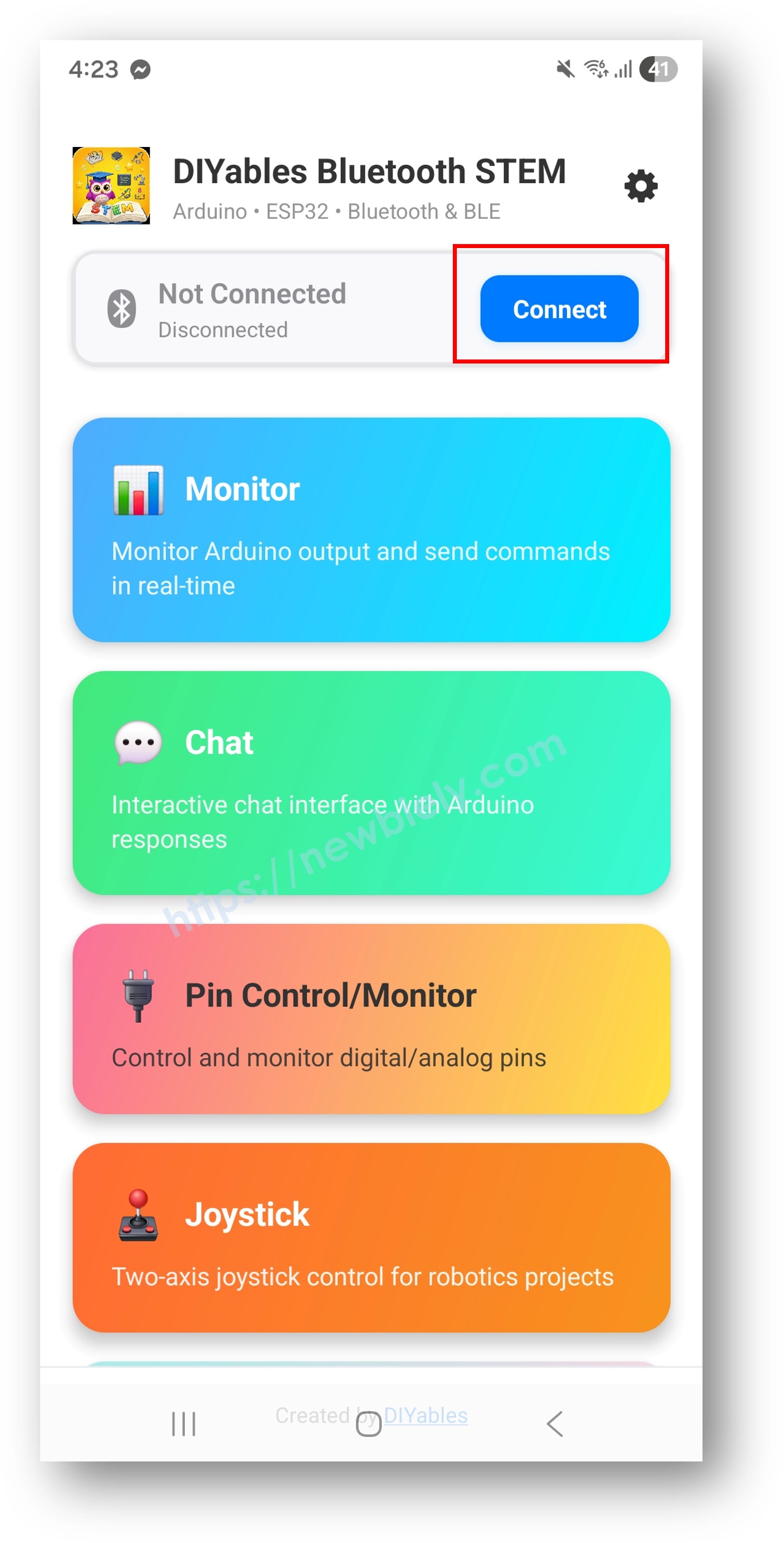
Na tela inicial, toque no botão Connect. O app vai procurar dispositivos BLE e Bluetooth Clássico.
Encontre e toque no seu dispositivo nos resultados da busca para conectar:
Para Bluetooth Clássico: toque em "ESP32_Slider"
Para BLE: toque em "ESP32BLE_Slider"
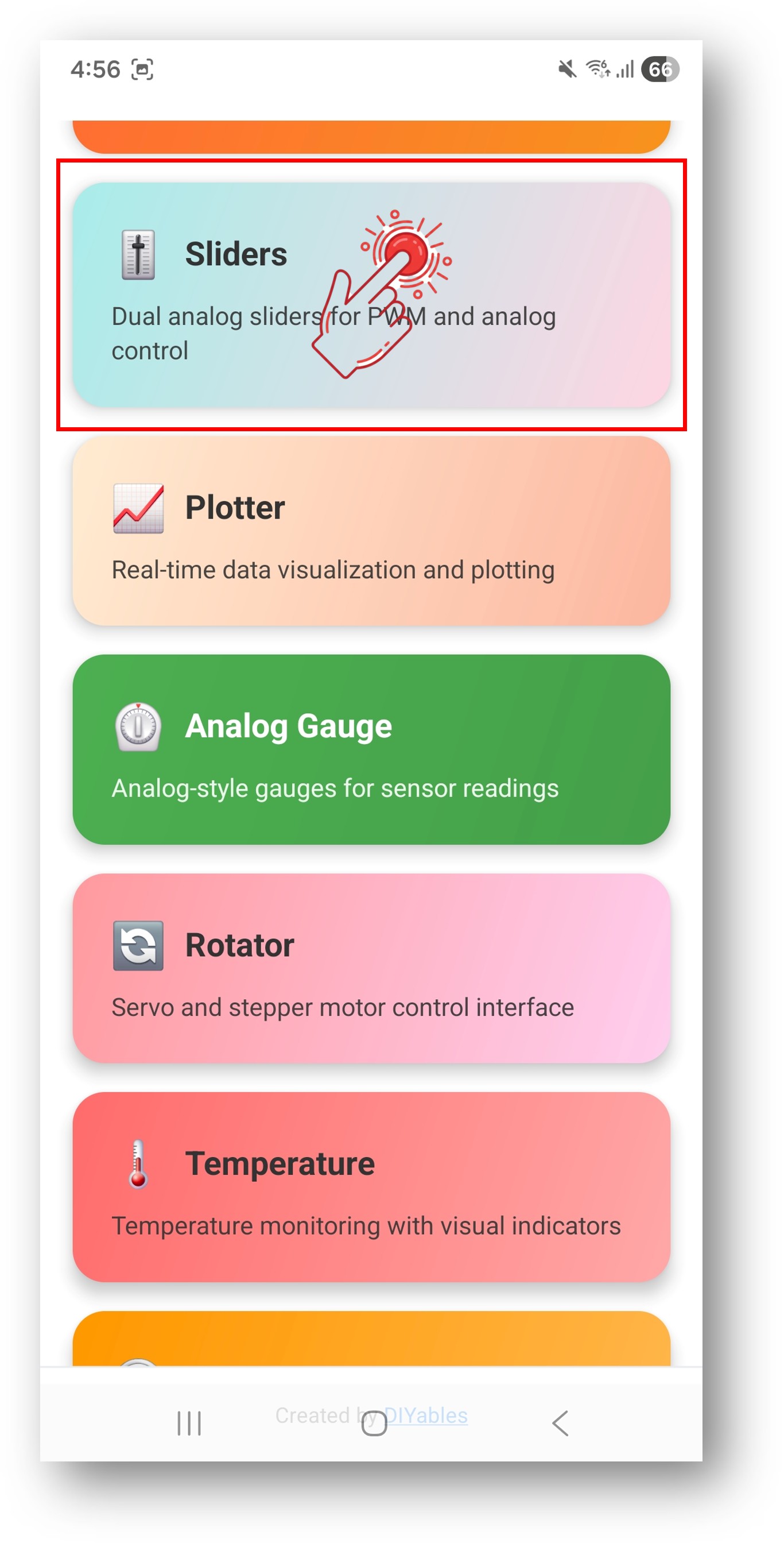
Depois de conectado, o app volta automaticamente para a tela inicial. Selecione o app Slider no menu de apps.
Observação: Você pode tocar no ícone de configurações na tela inicial para ocultar/mostrar apps. Para mais detalhes, consulte o Manual do Usuário do DIYables Bluetooth App.
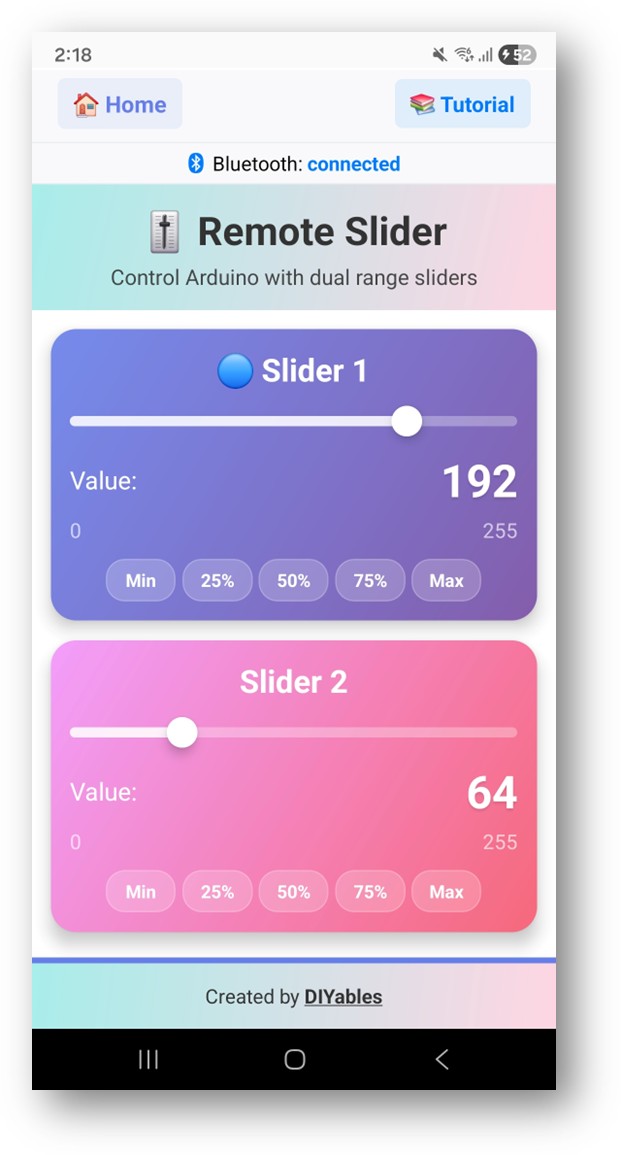
Mova os dois sliders para controlar os valores de PWM (0-100)
Agora olhe de volta para o Serial Monitor no Arduino IDE. Você verá:
Newbiely | Arduino IDE 2.3.8
──
☐
✕
File
Edit
Sketch
Tools
Help
ESP32 Dev Module
Newbiely.ino
···
8Serial.println("Hello World!");
Output
Serial Monitor
Message (Enter to send message to 'ESP32 Dev Module' on 'COM15')
// Create Slider app instance with custom range (min=0, max=255, step=5)DIYables_BluetoothSlider bluetoothSlider(0, 255, 5);// Or change at runtime:bluetoothSlider.setRange(0, 255); // Change range to 0-255bluetoothSlider.setStep(5); // Change step to 5 (coarser control)// Read current configuration:int currentMin = bluetoothSlider.getMin(); // Get current minimum valueint currentMax = bluetoothSlider.getMax(); // Get current maximum valueint currentStep = bluetoothSlider.getStep(); // Get current step value
Tratar a Solicitação de Configuração do App
Quando o app se conecta e abre a tela do Slider, ele solicita a configuração dos sliders ao ESP32. Você pode usar o callback onGetConfig() para enviar os valores atuais dos sliders ao app naquele momento:
bluetoothSlider.onGetConfig([]() {// This is called when the app requests slider configuration// Send current slider values so the app displays them correctly bluetoothSlider.send(currentSlider1, currentSlider2);Serial.println("App requested config - sent current values");});
Enviar Valores para o App
Você pode enviar os valores dos sliders do ESP32 para o app (por exemplo, para atualizar as posições dos sliders no app):
// Send both slider values to the appbluetoothSlider.send(currentSlider1, currentSlider2);// Send a single value (applied to both sliders)bluetoothSlider.send(50);
Tratar Eventos de Conexão
Você pode detectar quando o app se conecta ou se desconecta do ESP32:
// Called when the app connects to ESP32bluetoothServer.setOnConnected([]() {Serial.println("Bluetooth connected!");// Send current slider values to the app bluetoothSlider.send(currentSlider1, currentSlider2);});// Called when the app disconnects from ESP32bluetoothServer.setOnDisconnected([]() {Serial.println("Bluetooth disconnected!");// Optional: stop motors, reset outputs, etc.});// Check connection status anywhere in your codeif (bluetoothServer.isConnected()) {// Do something only when connected}
Como Usar os Sliders
Controles da Interface do App
A interface de sliders no app DIYables Bluetooth oferece:
Slider 1: Primeiro slider de controle, com exibição do valor
Slider 2: Segundo slider de controle, com exibição do valor
Exibição de Valores: Valores numéricos em tempo real dos dois sliders
Faixas de Valores
Cada slider oferece:
Faixa Padrão: 0 a 100
Configurável: A faixa e o passo podem ser personalizados no código
Mapeamento para PWM: Fácil mapeamento para 0-255 em analogWrite()
Exemplos de Programação
Tratador Básico de Slider
voidsetup() {// Set up slider callback for value changes bluetoothSlider.onSliderValue([](int slider1, int slider2) {// Store the received values currentSlider1 = slider1; currentSlider2 = slider2;// Print slider valuesSerial.println("Slider 1: " + String(slider1) + ", Slider 2: " + String(slider2));// Add your control logic here });}
void setupThresholdControl() { bluetoothSlider.onSliderValue([](int slider1, int slider2) { currentSlider1 = slider1; currentSlider2 = slider2;// Threshold-based control for discrete outputsconstint LOW_THRESHOLD = 33;constint MEDIUM_THRESHOLD = 66;// Control digital outputs based on slider 1 thresholdsif (slider1 < LOW_THRESHOLD) {// Low level: Turn off all outputsdigitalWrite(18, LOW);digitalWrite(19, LOW);digitalWrite(21, LOW); } elseif (slider1 < MEDIUM_THRESHOLD) {// Medium level: Turn on first outputdigitalWrite(18, HIGH);digitalWrite(19, LOW);digitalWrite(21, LOW); } else {// High level: Turn on all outputsdigitalWrite(18, HIGH);digitalWrite(19, HIGH);digitalWrite(21, HIGH); }// Use slider 2 for analog PWM controlanalogWrite(16, map(slider2, 0, 100, 0, 255)); });}
O vídeo de demonstração abaixo usa o seguinte código:
/* * Este código de ESP32 foi desenvolvido por pt.newbiely.com * Este código de ESP32 é disponibilizado ao público sem nenhuma restrição. * Para tutoriais completos e diagramas de ligação, visite: * https://pt.newbiely.com/tutorials/esp32/esp32-diyables-bluetooth-app-slider*//* * DIYables Bluetooth Library - ESP32 Classic Bluetooth Slider Example * Works with DIYables Bluetooth STEM app on Android * Note: Classic Bluetooth is NOT supported on iOS. Use BLE examples for iOS support. * * This example demonstrates the Bluetooth Slider feature: * - Control values using sliders (0-100) * - Support for dual sliders * - Configurable range and step * * Compatible Boards: * - ESP32 (all variants with Classic Bluetooth) * - ESP32-WROOM-32 * - ESP32-DevKitC * - ESP32-WROVER * * Note: Select "Huge APP (3MB No OTA/1MB SPIFFS)" partition scheme * in Arduino IDE: Tools > Partition Scheme * * Setup: * 1. Upload the sketch to your ESP32 * 2. Open Serial Monitor (115200 baud) to see connection status * 3. Use DIYables Bluetooth App to connect and control sliders * * Tutorial: https://diyables.io/bluetooth-app * Author: DIYables */#include <DIYables_BluetoothServer.h>#include <DIYables_BluetoothSlider.h>#include <platforms/DIYables_Esp32Bluetooth.h>#include <ESP32Servo.h>Servo servo1, servo2;// Create Bluetooth instancesDIYables_Esp32Bluetooth bluetooth("ESP32_Slider");DIYables_BluetoothServer bluetoothServer(bluetooth);// Create Slider app instance (min=0, max=100, step=1)DIYables_BluetoothSlider bluetoothSlider(0, 100, 1);// Variables to store current slider valuesint currentSlider1 = 0;int currentSlider2 = 0;voidsetup() {Serial.begin(115200);delay(1000);Serial.println("DIYables Bluetooth - ESP32 Slider Example"); servo1.attach(26); servo2.attach(27);// Initialize Bluetooth server with platform-specific implementation bluetoothServer.begin();// Add slider app to server bluetoothServer.addApp(&bluetoothSlider);// Set up connection event callbacks bluetoothServer.setOnConnected([]() {Serial.println("Bluetooth connected!");// Send initial slider positions bluetoothSlider.send(currentSlider1, currentSlider2); }); bluetoothServer.setOnDisconnected([]() {Serial.println("Bluetooth disconnected!"); });// Set up slider callback for value changes bluetoothSlider.onSliderValue([](int slider1, int slider2) { currentSlider1 = slider1; currentSlider2 = slider2;// Map slider values (0-100) to servo angles (0-180°)int angle1 = map(slider1, 0, 100, 0, 180);int angle2 = map(slider2, 0, 100, 0, 180);// Move servos to calculated positions servo1.write(angle1); servo2.write(angle2);Serial.println("Servo1: " + String(angle1) + "°, Servo2: " + String(angle2) + "°"); });// TODO: Add your control logic here based on slider values// Examples:// - Servo control: myServo.write(map(slider1, 0, 100, 0, 180));// - Motor speed: ledcWrite(MOTOR_CHANNEL, pwm1);// - Volume control: setVolume(slider1);// - Brightness control: setBrightness(slider2);// Optional: Handle requests for current slider values (when app loads) bluetoothSlider.onGetConfig([]() {// Send the stored slider values back to the app bluetoothSlider.send(currentSlider1, currentSlider2);Serial.print("App requested values - Sent: Slider1=");Serial.print(currentSlider1);Serial.print(", Slider2=");Serial.println(currentSlider2); });// You can change slider configuration at runtime:// bluetoothSlider.setRange(0, 255); // Change range to 0-255// bluetoothSlider.setStep(5); // Change step to 5 (coarser control)Serial.println("Waiting for Bluetooth connection...");}voidloop() {// Handle Bluetooth server communications bluetoothServer.loop();delay(10);}
Solução de Problemas
Problemas Comuns
1. Não consigo encontrar o dispositivo no app
Verifique se o ESP32 está ligado e se o sketch foi carregado
Para BLE: verifique se o Bluetooth e a Localização do seu celular estão ativados
Para Bluetooth Clássico: pareie o dispositivo primeiro nas configurações de Bluetooth do celular
Verifique se o esquema de partição correto está selecionado (Huge APP)
2. Os sliders não respondem
Verifique o status da conexão Bluetooth no app
Confirme a conexão no Serial Monitor
Tente desconectar e reconectar
3. Os valores não alcançam a faixa completa
Verifique a configuração da faixa do slider: DIYables_BluetoothSlider(min, max, step)
Confirme o mapeamento de valores na função de callback
Verifique no Serial Monitor os valores realmente recebidos
4. A conexão cai com frequência
Chegue mais perto do ESP32 (reduza a distância)
Para BLE: verifique se há interferência de outros dispositivos BLE
Para Bluetooth Clássico: garanta uma fonte de alimentação estável para o ESP32
Verifique no Serial Monitor as mensagens de desconexão/reconexão
5. A saída PWM não funciona
Verifique se os pinos oferecem suporte a PWM na sua variante de ESP32
Para o ESP32: use ledcSetup/ledcAttachPin/ledcWrite para PWM por hardware
Verifique as conexões de hardware e os requisitos da carga
6. Sketch grande demais / espaço insuficiente
No Arduino IDE, vá em Tools > Partition Scheme e selecione "Huge APP (3MB No OTA/1MB SPIFFS)" ou "No OTA (Large APP)"
O esquema de partição padrão oferece apenas ~1,2MB para o código do app, o que não é suficiente para as bibliotecas de Bluetooth
Essa configuração oferece ~3MB ao sacrificar a partição de OTA (atualização over-the-air)
Controle de brilho da iluminação de ambientes via Bluetooth
Interface de mistura de cores RGB
Controle de velocidade de animação de fita LED
Controle sem fio de iluminação de palco
Projetos de Controle de Motores
Velocidade de robô controlada por Bluetooth
Regulagem sem fio da velocidade de ventilador
Controle de vazão de bomba
Velocidade de esteira transportadora
Projetos de Áudio
Controle de volume sem fio
Controle de tom/equalizador
Intensidade de efeitos sonoros
Automação Residencial
Controle de clima sem fio (intensidade de aquecimento/resfriamento)
Controle de posição de persianas via Bluetooth
Controle de vazão de sistema de irrigação
Integração com Outros Apps Bluetooth
Combine com o Bluetooth Joystick
Use sliders para os limites de velocidade e o joystick para a direção:
// Global speed limit from slidersintmaxSpeed = 100;// In Bluetooth Slider callbackbluetoothSlider.onSliderValue([](int slider1, int slider2) {maxSpeed = slider1; // Use slider 1 as global speed limit});// In Bluetooth Joystick callbackbluetoothJoystick.onJoystickValue([](int x, int y) {// Scale joystick values by slider-controlled speed limitint scaledX = map(x, -100, 100, -maxSpeed, maxSpeed);int scaledY = map(y, -100, 100, -maxSpeed, maxSpeed); controlRobot(scaledX, scaledY);});
Combine com o Bluetooth Digital Pins
Use sliders para controlar o PWM e pinos digitais para ligar/desligar:
bluetoothSlider.onSliderValue([](int slider1, int slider2) {// Only apply PWM if corresponding digital pins are ONif (digitalRead(18) == HIGH) {analogWrite(16, map(slider1, 0, 100, 0, 255)); } else {analogWrite(16, 0); }if (digitalRead(19) == HIGH) {analogWrite(17, map(slider2, 0, 100, 0, 255)); } else {analogWrite(17, 0); }});
Próximos Passos
Depois de dominar o exemplo Bluetooth Slider, experimente:
Bluetooth Joystick - Para controle direcional 2D
Bluetooth Digital Pins - Para controle discreto de ligar/desligar
Bluetooth Monitor - Para depurar os valores dos sliders
Multiple Bluetooth Apps - Combinando sliders com outros controles
Fique à vontade para compartilhar o link deste tutorial. Porém, por favor, não use nosso conteúdo em outros sites. Investimos muito esforço e tempo para criar este conteúdo, por favor respeite nosso trabalho!