Exemplo Bluetooth Digital Pins com ESP32 - Tutorial de Interface de Controle e Monitoramento de Pinos
Visão Geral
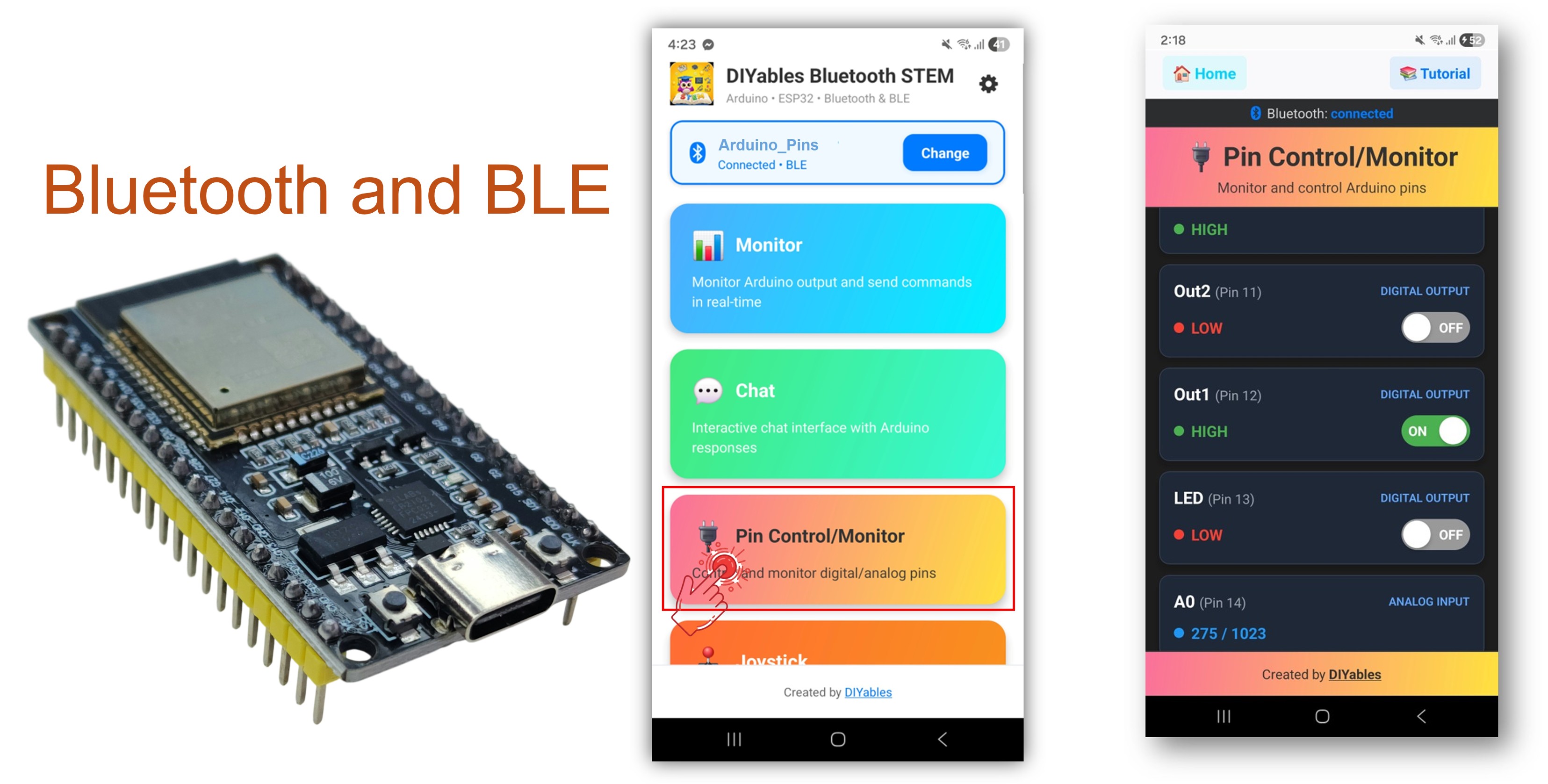
O exemplo Bluetooth Digital Pins oferece controle e monitoramento remotos dos pinos GPIO do ESP32 por meio do app DIYables Bluetooth STEM. Projetado para placas ESP32, com suporte a conexões BLE (Bluetooth Low Energy) e Bluetooth Clássico. Configure os pinos como entradas ou saídas, alterne os pinos de saída, leia os estados das entradas digitais e analógicas e receba notificações em tempo real de mudanças nos pinos — perfeito para automação residencial, controle de relés, monitoramento de botões e leitura de sensores.
Este exemplo suporta dois modos Bluetooth:
ESP32 BLE (Bluetooth Low Energy): Funciona no Android e no iOS
ESP32 Bluetooth Clássico: Funciona somente no Android. O iOS não suporta o Bluetooth Clássico. Use o BLE se você precisar de suporte ao iOS.
Recursos
Controle de Pinos de Saída: Alterne os pinos digitais de saída entre HIGH/LOW pelo app
Monitoramento de Pinos de Entrada: Leia os estados dos pinos de entrada digitais e analógicos
Nomes Personalizados de Pinos: Atribua nomes amigáveis a cada pino (por exemplo, "LED", "Btn1", "A34")
Atualizações em Tempo Real: Notificações automáticas quando os estados dos pinos de entrada mudam
Até 16 Pinos: Suporte a até 16 pinos configuráveis ao mesmo tempo
Modos Mistos: Combine pinos de entrada e de saída na mesma configuração
BLE e Bluetooth Clássico: Escolha o modo Bluetooth que melhor atende ao seu projeto
Multiplataforma: O modo BLE funciona no Android e no iOS; o Bluetooth Clássico funciona no Android
Divulgação: Alguns dos links desta seção são links de afiliado da Amazon. Podemos receber uma comissão pelas compras feitas por meio desses links, sem custo adicional para você. Agradecemos o seu apoio.
Conecte a placa ESP32 ao seu computador usando um cabo USB.
Abra o Arduino IDE no seu computador.
Selecione a placa ESP32 apropriada e a porta COM.
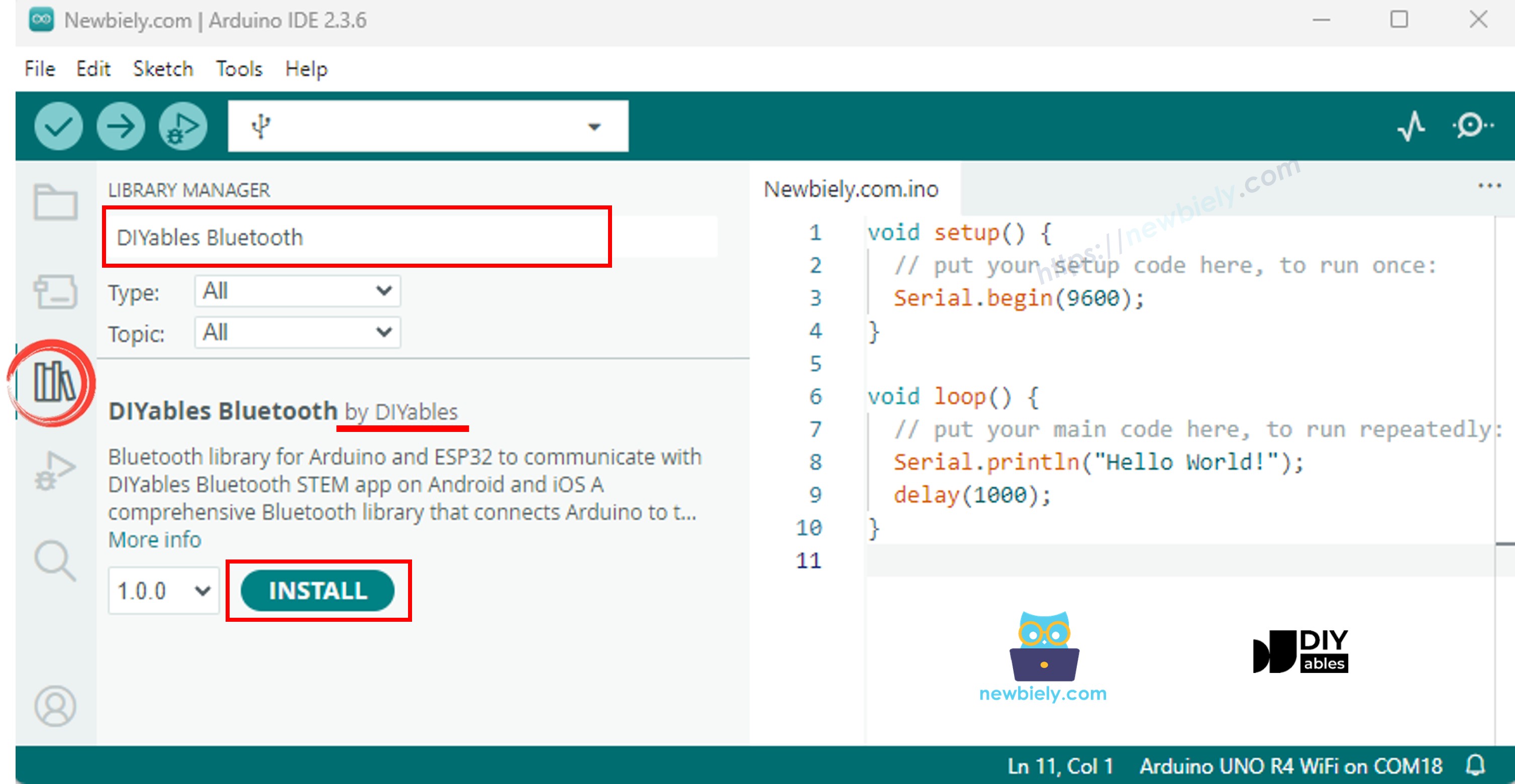
Navegue até o ícone Libraries na barra esquerda do Arduino IDE.
Pesquise "DIYables Bluetooth" e encontre a biblioteca DIYables Bluetooth da DIYables
Clique no botão Install para instalar a biblioteca.
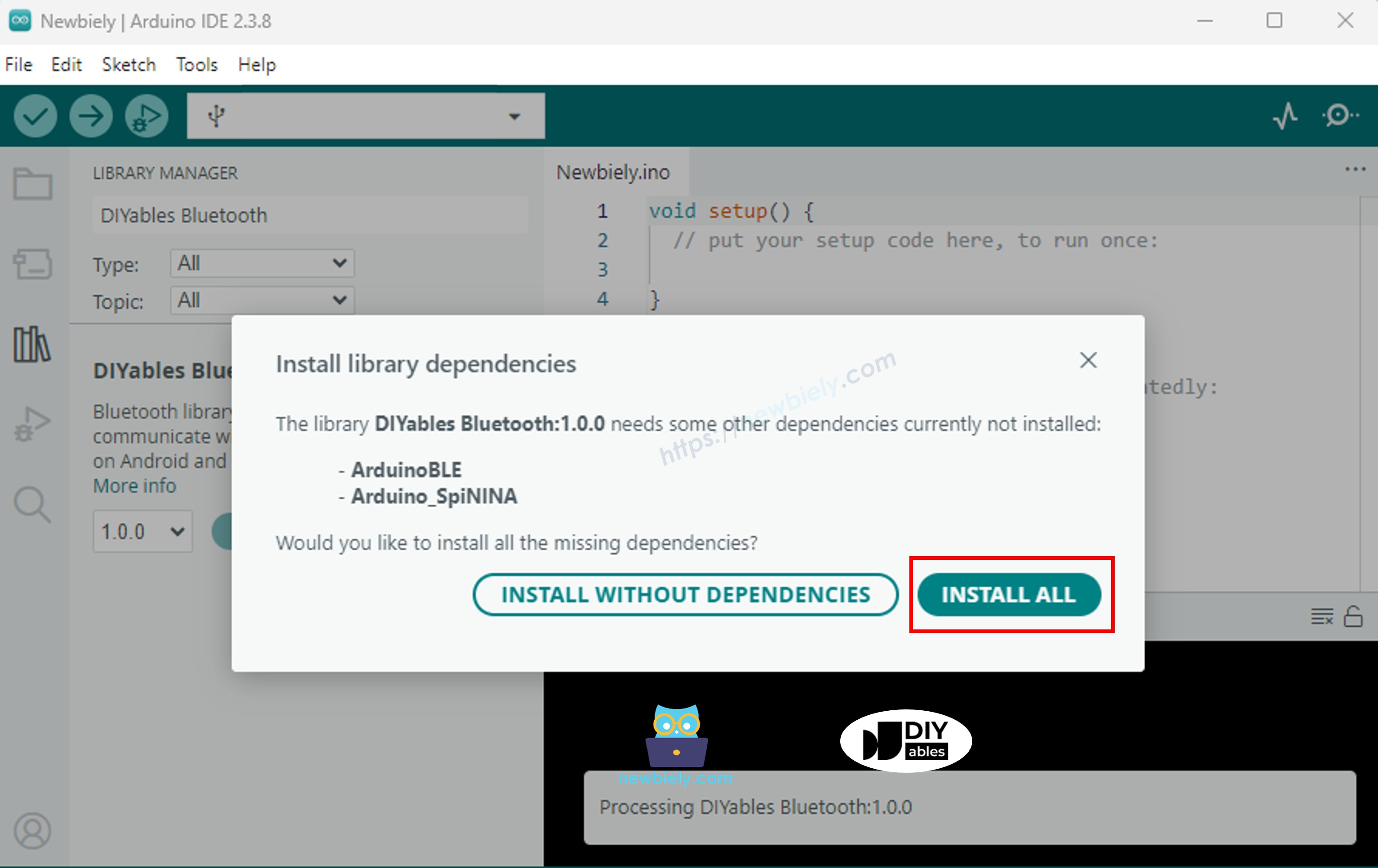
Você será solicitado a instalar algumas outras dependências da biblioteca
Clique no botão Install All para instalar todas as dependências da biblioteca.
Escolha um dos dois modos Bluetooth abaixo, de acordo com a sua necessidade:
Código do ESP32 para Bluetooth Clássico (funciona com o app somente no Android)
Observação: O Bluetooth Clássico NÃO é suportado no iOS. Se você precisa de suporte ao iOS, use o código BLE abaixo.
No Arduino IDE, vá em File Examples DIYables Bluetooth Esp32Bluetooth_PinControl, ou copie o código acima e cole no editor do Arduino IDE
/* * DIYables Bluetooth Library - ESP32 Classic Bluetooth Pin Control Example * Works with DIYables Bluetooth STEM app on Android * Note: Classic Bluetooth is NOT supported on iOS. Use BLE examples for iOS support. * * This example demonstrates the Bluetooth Pin Control/Monitor feature: * - Control digital output pins via Bluetooth * - Monitor digital input pins * - Monitor analog input pins * - Configure pin modes (INPUT/OUTPUT) * * Compatible Boards: * - ESP32 (all variants with Classic Bluetooth) * - ESP32-WROOM-32 * - ESP32-DevKitC * - ESP32-WROVER * * Note: Select "Huge APP (3MB No OTA/1MB SPIFFS)" partition scheme * in Arduino IDE: Tools > Partition Scheme * * Setup: * 1. Upload the sketch to your ESP32 * 2. Open Serial Monitor (115200 baud) to see connection status * 3. Use DIYables Bluetooth App to connect and control pins * * Tutorial: https://diyables.io/bluetooth-app * Author: DIYables */#include <DIYables_BluetoothServer.h>#include <DIYables_BluetoothPinControl.h>#include <platforms/DIYables_Esp32Bluetooth.h>// Create Bluetooth instancesDIYables_Esp32Bluetooth bluetooth("ESP32_Pins");DIYables_BluetoothServer bluetoothServer(bluetooth);// Create Pin Control/Monitor app instanceDIYables_BluetoothPinControl bluetoothPins;// Pin configuration (adjust for your ESP32 board)constint LED_PIN = 2; // Built-in LED on most ESP32 boardsconstint OUTPUT_PIN_1 = 16;constint OUTPUT_PIN_2 = 17;constint INPUT_PIN_1 = 18;constint INPUT_PIN_2 = 19;constint ANALOG_PIN_1 = 34; // ESP32 ADC1 pins (input only)constint ANALOG_PIN_2 = 35;voidsetup() {Serial.begin(115200);delay(1000);Serial.println("DIYables Bluetooth - ESP32 Pin Control/Monitor Example");// Initialize pinspinMode(LED_PIN, OUTPUT);pinMode(OUTPUT_PIN_1, OUTPUT);pinMode(OUTPUT_PIN_2, OUTPUT);pinMode(INPUT_PIN_1, INPUT_PULLUP);pinMode(INPUT_PIN_2, INPUT_PULLUP);// Initialize Bluetooth server with platform-specific implementation bluetoothServer.begin();// Add digital pins app to server bluetoothServer.addApp(&bluetoothPins);// Configure which pins are accessible via Bluetooth with custom names bluetoothPins.enablePin(LED_PIN, BT_PIN_OUTPUT, "LED"); bluetoothPins.enablePin(OUTPUT_PIN_1, BT_PIN_OUTPUT, "Out1"); bluetoothPins.enablePin(OUTPUT_PIN_2, BT_PIN_OUTPUT, "Out2"); bluetoothPins.enablePin(INPUT_PIN_1, BT_PIN_INPUT, "Btn1"); bluetoothPins.enablePin(INPUT_PIN_2, BT_PIN_INPUT, "Btn2"); bluetoothPins.enablePin(ANALOG_PIN_1, BT_PIN_INPUT, "A34"); bluetoothPins.enablePin(ANALOG_PIN_2, BT_PIN_INPUT, "A35");// Set up connection event callbacks bluetoothServer.setOnConnected([]() {Serial.println("Bluetooth connected!"); }); bluetoothServer.setOnDisconnected([]() {Serial.println("Bluetooth disconnected!"); });// Set up callback for pin write commands bluetoothPins.onPinWrite([](int pin, int state) {digitalWrite(pin, state);Serial.print("Pin ");Serial.print(pin);Serial.print(" set to ");Serial.println(state ? "HIGH" : "LOW"); });// Set up callback for pin read commands bluetoothPins.onPinRead([](int pin) -> int {// Read analog pins with analogRead, digital pins with digitalReadint state;if (pin == ANALOG_PIN_1 || pin == ANALOG_PIN_2) { state = analogRead(pin);Serial.print("Analog pin ");Serial.print(pin);Serial.print(" read: ");Serial.println(state); } else { state = digitalRead(pin);Serial.print("Digital pin ");Serial.print(pin);Serial.print(" read: ");Serial.println(state ? "HIGH" : "LOW"); }return state; });// Set up callback for pin mode changes bluetoothPins.onPinModeChange([](int pin, int mode) {pinMode(pin, mode == BT_PIN_OUTPUT ? OUTPUT : INPUT_PULLUP);Serial.print("Pin ");Serial.print(pin);Serial.print(" mode changed to ");Serial.println(mode == BT_PIN_OUTPUT ? "OUTPUT" : "INPUT"); });Serial.println("Waiting for Bluetooth connection...");Serial.print("Enabled pins: ");Serial.println(bluetoothPins.getEnabledPinCount());}voidloop() {// Handle Bluetooth server communications bluetoothServer.loop();// Optional: Monitor input pins and send updatesstaticunsignedlong lastInputCheck = 0;staticint lastInputState1 = HIGH;staticint lastInputState2 = HIGH;staticint lastAnalogState1 = 0;staticint lastAnalogState2 = 0;if (millis() - lastInputCheck >= 100) { lastInputCheck = millis();// Check digital input pin 1int currentState1 = digitalRead(INPUT_PIN_1);if (currentState1 != lastInputState1) { lastInputState1 = currentState1; bluetoothPins.updatePinState(INPUT_PIN_1, currentState1);Serial.print("Input pin ");Serial.print(INPUT_PIN_1);Serial.print(" changed to ");Serial.println(currentState1 ? "HIGH" : "LOW"); }// Check digital input pin 2int currentState2 = digitalRead(INPUT_PIN_2);if (currentState2 != lastInputState2) { lastInputState2 = currentState2; bluetoothPins.updatePinState(INPUT_PIN_2, currentState2);Serial.print("Input pin ");Serial.print(INPUT_PIN_2);Serial.print(" changed to ");Serial.println(currentState2 ? "HIGH" : "LOW"); }// Check analog input 1 (send update if changed by more than 50 - ESP32 has 12-bit ADC)int currentAnalog1 = analogRead(ANALOG_PIN_1);if (abs(currentAnalog1 - lastAnalogState1) > 50) { lastAnalogState1 = currentAnalog1; bluetoothPins.updatePinState(ANALOG_PIN_1, currentAnalog1);Serial.print("Analog pin ");Serial.print(ANALOG_PIN_1);Serial.print(" changed to ");Serial.println(currentAnalog1); }// Check analog input 2 (send update if changed by more than 50)int currentAnalog2 = analogRead(ANALOG_PIN_2);if (abs(currentAnalog2 - lastAnalogState2) > 50) { lastAnalogState2 = currentAnalog2; bluetoothPins.updatePinState(ANALOG_PIN_2, currentAnalog2);Serial.print("Analog pin ");Serial.print(ANALOG_PIN_2);Serial.print(" changed to ");Serial.println(currentAnalog2); } }delay(10);}
Clique no botão Upload no Arduino IDE para fazer o upload do código para o ESP32
Abra o Serial Monitor
Veja o resultado no Serial Monitor. Ele deve ser parecido com o abaixo:
Newbiely | Arduino IDE 2.3.8
──
☐
✕
File
Edit
Sketch
Tools
Help
ESP32 Dev Module
Newbiely.ino
···
8Serial.println("Hello World!");
Output
Serial Monitor
Message (Enter to send message to 'ESP32 Dev Module' on 'COM15')
New Line
9600 baud
DIYables Bluetooth - ESP32 Pin Control/Monitor Example
Waiting for Bluetooth connection...
Enabled pins: 7
Ln 11, Col 1
ESP32 Dev Module on COM15
2
Código do ESP32 para BLE (funciona com o app no Android e no iOS)
No Arduino IDE, vá em File Examples DIYables Bluetooth Esp32BLE_PinControl, ou copie o código acima e cole no editor do Arduino IDE
/* * DIYables Bluetooth Library - ESP32 BLE Pin Control/Monitor Example * Works with DIYables Bluetooth STEM app on Android and iOS * * This example demonstrates the Bluetooth Pin Control/Monitor feature: * - Control digital output pins via Bluetooth * - Monitor digital input pins * - Monitor analog input pins * - Configure pin modes (INPUT/OUTPUT) * * Compatible Boards: * - ESP32-WROOM-32 * - ESP32-DevKitC * - ESP32-WROVER * - ESP32-S3 * - ESP32-C3 * - Any ESP32 board supporting BLE * * Note: Select "Huge APP (3MB No OTA/1MB SPIFFS)" partition scheme * in Arduino IDE: Tools > Partition Scheme * * Setup: * 1. Upload the sketch to your ESP32 * 2. Open Serial Monitor (115200 baud) to see connection status * 3. Use DIYables Bluetooth App to connect and control pins * * Tutorial: https://diyables.io/bluetooth-app * Author: DIYables */#include <DIYables_BluetoothServer.h>#include <DIYables_BluetoothPinControl.h>#include <platforms/DIYables_Esp32BLE.h>// BLE Configurationconst char* DEVICE_NAME = "ESP32BLE_Pins";const char* SERVICE_UUID = "19B10000-E8F2-537E-4F6C-D104768A1214";const char* TX_UUID = "19B10001-E8F2-537E-4F6C-D104768A1214";const char* RX_UUID = "19B10002-E8F2-537E-4F6C-D104768A1214";// Create Bluetooth instancesDIYables_Esp32BLE bluetooth(DEVICE_NAME, SERVICE_UUID, TX_UUID, RX_UUID);DIYables_BluetoothServer bluetoothServer(bluetooth);// Create Pin Control/Monitor app instanceDIYables_BluetoothPinControl bluetoothPins;// Pin configuration (ESP32 GPIOs)constint LED_PIN = 2; // Built-in LEDconstint OUTPUT_PIN_1 = 16;constint OUTPUT_PIN_2 = 17;constint INPUT_PIN_1 = 25;constint INPUT_PIN_2 = 26;constint ANALOG_PIN_1 = 34; // Input-only ADC pinconstint ANALOG_PIN_2 = 35; // Input-only ADC pinvoidsetup() {Serial.begin(115200);delay(1000);Serial.println("DIYables Bluetooth - ESP32 BLE Pin Control/Monitor Example");// Initialize pinspinMode(LED_PIN, OUTPUT);pinMode(OUTPUT_PIN_1, OUTPUT);pinMode(OUTPUT_PIN_2, OUTPUT);pinMode(INPUT_PIN_1, INPUT_PULLUP);pinMode(INPUT_PIN_2, INPUT_PULLUP);// Initialize Bluetooth server with platform-specific implementation bluetoothServer.begin();// Add digital pins app to server bluetoothServer.addApp(&bluetoothPins);// Configure which pins are accessible via Bluetooth with custom names bluetoothPins.enablePin(LED_PIN, BT_PIN_OUTPUT, "LED"); bluetoothPins.enablePin(OUTPUT_PIN_1, BT_PIN_OUTPUT, "Out1"); bluetoothPins.enablePin(OUTPUT_PIN_2, BT_PIN_OUTPUT, "Out2"); bluetoothPins.enablePin(INPUT_PIN_1, BT_PIN_INPUT, "Btn1"); bluetoothPins.enablePin(INPUT_PIN_2, BT_PIN_INPUT, "Btn2"); bluetoothPins.enablePin(ANALOG_PIN_1, BT_PIN_INPUT, "A34"); bluetoothPins.enablePin(ANALOG_PIN_2, BT_PIN_INPUT, "A35");// Set up connection event callbacks bluetoothServer.setOnConnected([]() {Serial.println("Bluetooth connected!"); }); bluetoothServer.setOnDisconnected([]() {Serial.println("Bluetooth disconnected!"); });// Set up callback for pin write commands bluetoothPins.onPinWrite([](int pin, int state) {digitalWrite(pin, state);Serial.print("Pin ");Serial.print(pin);Serial.print(" set to ");Serial.println(state ? "HIGH" : "LOW"); });// Set up callback for pin read commands bluetoothPins.onPinRead([](int pin) -> int {int state;if (pin == ANALOG_PIN_1 || pin == ANALOG_PIN_2) { state = analogRead(pin);Serial.print("Analog pin ");Serial.print(pin);Serial.print(" read: ");Serial.println(state); } else { state = digitalRead(pin);Serial.print("Digital pin ");Serial.print(pin);Serial.print(" read: ");Serial.println(state ? "HIGH" : "LOW"); }return state; });// Set up callback for pin mode changes bluetoothPins.onPinModeChange([](int pin, int mode) {pinMode(pin, mode == BT_PIN_OUTPUT ? OUTPUT : INPUT_PULLUP);Serial.print("Pin ");Serial.print(pin);Serial.print(" mode changed to ");Serial.println(mode == BT_PIN_OUTPUT ? "OUTPUT" : "INPUT"); });Serial.println("Waiting for Bluetooth connection...");Serial.print("Enabled pins: ");Serial.println(bluetoothPins.getEnabledPinCount());}voidloop() { bluetoothServer.loop();staticunsignedlong lastInputCheck = 0;staticint lastInputState1 = HIGH;staticint lastInputState2 = HIGH;staticint lastAnalogState1 = 0;staticint lastAnalogState2 = 0;if (millis() - lastInputCheck >= 100) { lastInputCheck = millis();int currentState1 = digitalRead(INPUT_PIN_1);if (currentState1 != lastInputState1) { lastInputState1 = currentState1; bluetoothPins.updatePinState(INPUT_PIN_1, currentState1);Serial.print("Input pin ");Serial.print(INPUT_PIN_1);Serial.print(" changed to ");Serial.println(currentState1 ? "HIGH" : "LOW"); }int currentState2 = digitalRead(INPUT_PIN_2);if (currentState2 != lastInputState2) { lastInputState2 = currentState2; bluetoothPins.updatePinState(INPUT_PIN_2, currentState2);Serial.print("Input pin ");Serial.print(INPUT_PIN_2);Serial.print(" changed to ");Serial.println(currentState2 ? "HIGH" : "LOW"); }// ESP32 has 12-bit ADC (0-4095)int currentAnalog1 = analogRead(ANALOG_PIN_1);if (abs(currentAnalog1 - lastAnalogState1) > 40) { // ~1% of 4095 lastAnalogState1 = currentAnalog1; bluetoothPins.updatePinState(ANALOG_PIN_1, currentAnalog1);Serial.print("Analog pin ");Serial.print(ANALOG_PIN_1);Serial.print(" changed to ");Serial.println(currentAnalog1); }int currentAnalog2 = analogRead(ANALOG_PIN_2);if (abs(currentAnalog2 - lastAnalogState2) > 40) { lastAnalogState2 = currentAnalog2; bluetoothPins.updatePinState(ANALOG_PIN_2, currentAnalog2);Serial.print("Analog pin ");Serial.print(ANALOG_PIN_2);Serial.print(" changed to ");Serial.println(currentAnalog2); } }delay(10);}
Clique no botão Upload no Arduino IDE para fazer o upload do código para o ESP32
Abra o Serial Monitor
Veja o resultado no Serial Monitor. Ele deve ser parecido com o abaixo:
Newbiely | Arduino IDE 2.3.8
──
☐
✕
File
Edit
Sketch
Tools
Help
ESP32 Dev Module
Newbiely.ino
···
8Serial.println("Hello World!");
Output
Serial Monitor
Message (Enter to send message to 'ESP32 Dev Module' on 'COM15')
New Line
9600 baud
DIYables Bluetooth - ESP32 BLE Pin Control/Monitor Example
Waiting for Bluetooth connection...
Enabled pins: 7
Ln 11, Col 1
ESP32 Dev Module on COM15
2
App para Celular
Instale o DIYables Bluetooth App no seu smartphone: Android | iOS
Se você estiver usando o código do ESP32 para Bluetooth Clássico, você precisa parear o ESP32 com o seu celular Android antes de abrir o app:
Vá em Settings > Bluetooth no seu celular
Certifique-se de que o Bluetooth está ativado
Seu celular vai buscar os dispositivos disponíveis
Encontre e toque em "ESP32_Pins" na lista de dispositivos disponíveis
Confirme a solicitação de pareamento (não é necessário PIN)
Aguarde até aparecer "Paired" abaixo do nome do dispositivo
Se você estiver usando o código do ESP32 para BLE, não é necessário parear. Basta ir para a próxima etapa.
Abra o DIYables Bluetooth App
Ao abrir o app pela primeira vez, ele vai pedir permissões. Conceda as seguintes:
Permissão de Dispositivos Próximos (Android 12+) / permissão de Bluetooth (iOS) - necessária para buscar e conectar a dispositivos Bluetooth
Permissão de Localização (somente Android 11 e anteriores) - exigida pelas versões mais antigas do Android para buscar dispositivos BLE
Certifique-se de que o Bluetooth está ativado no seu celular
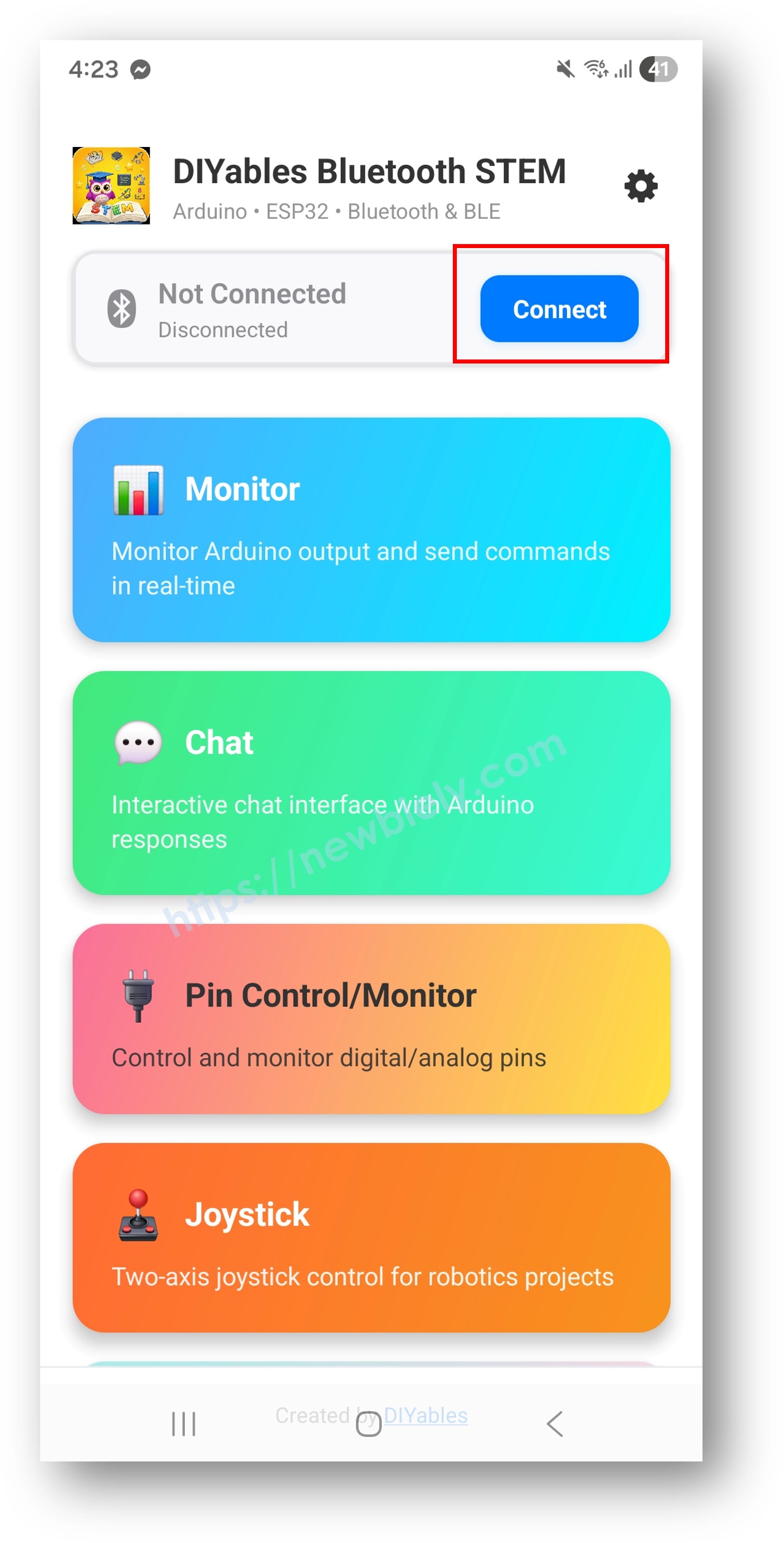
Na tela inicial, toque no botão Connect. O app vai buscar dispositivos BLE e Bluetooth Clássico.
Encontre e toque no seu dispositivo nos resultados da busca para conectar:
Para o Bluetooth Clássico: toque em "ESP32_Pins"
Para o BLE: toque em "ESP32BLE_Pins"
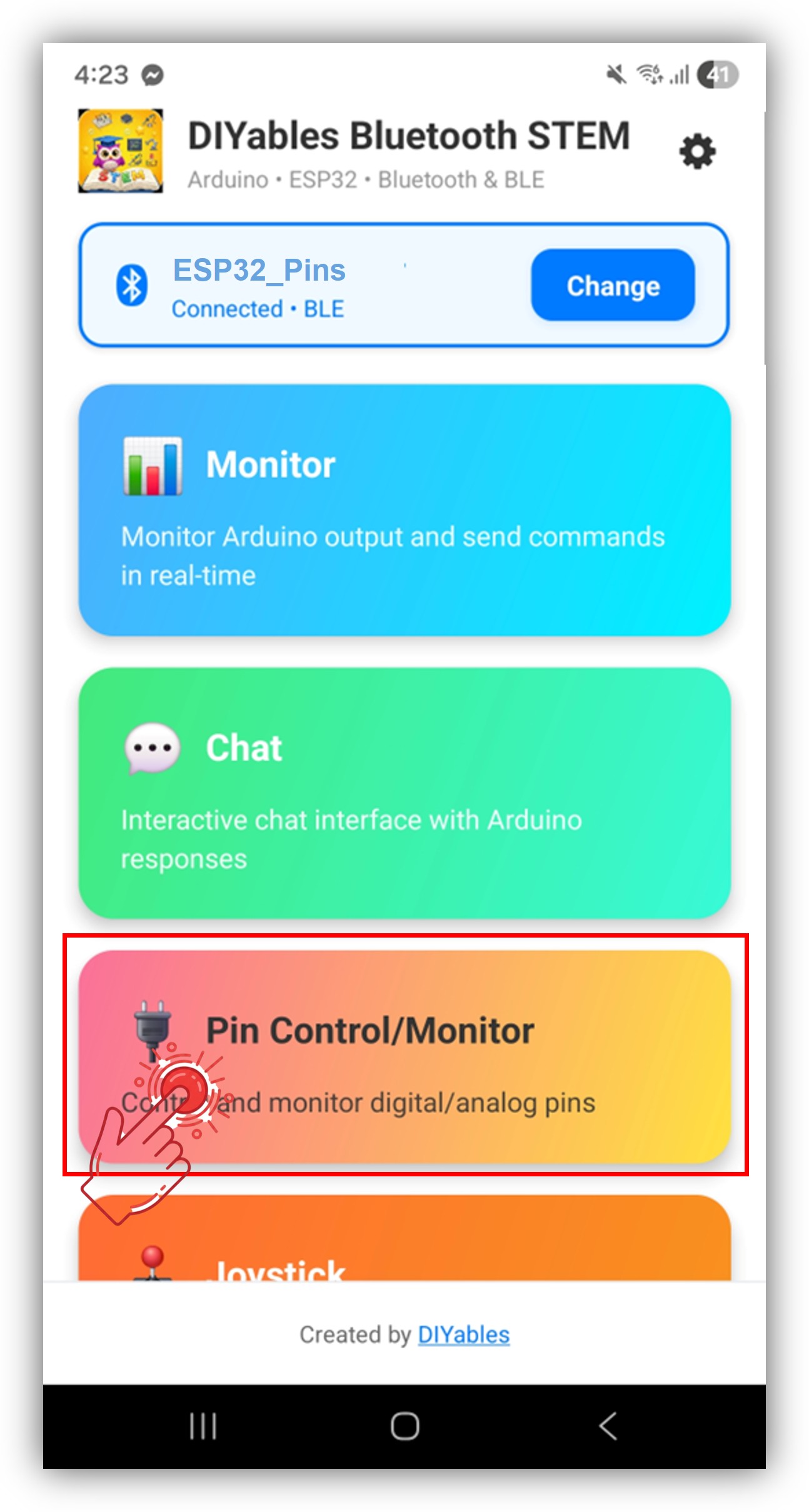
Depois de conectado, o app volta automaticamente para a tela inicial. Selecione o app Digital Pins no menu de apps.
Observação: Você pode tocar no ícone de configurações na tela inicial para ocultar/mostrar apps na tela inicial. Para mais detalhes, veja o Manual do Usuário do DIYables Bluetooth App.
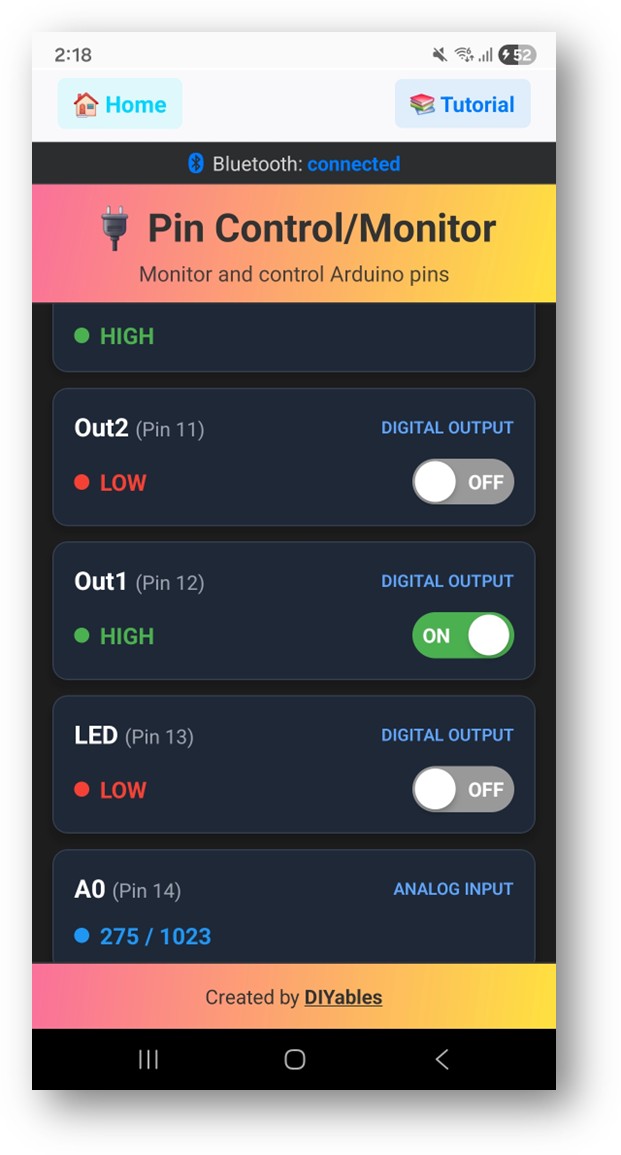
Alterne os pinos de saída tocando neles e veja os pinos de entrada serem atualizados em tempo real
Agora volte ao Serial Monitor no Arduino IDE. Você verá:
Newbiely | Arduino IDE 2.3.8
──
☐
✕
File
Edit
Sketch
Tools
Help
ESP32 Dev Module
Newbiely.ino
···
8Serial.println("Hello World!");
Output
Serial Monitor
Message (Enter to send message to 'ESP32 Dev Module' on 'COM15')
New Line
9600 baud
Bluetooth connected!
Pin 2 set to HIGH
Pin 16 set to LOW
Input pin 18 changed to LOW
Analog pin 34 changed to 2048
Ln 11, Col 1
ESP32 Dev Module on COM15
2
Alterne os pinos no app e observe o feedback em tempo real no Serial Monitor
Personalização Criativa - Adapte o Código ao Seu Projeto
Configurar os Pinos
Habilite os pinos com nomes e modos personalizados:
// Enable individual pins with mode and custom namebluetoothPins.enablePin(2, BT_PIN_OUTPUT, "LED"); // Built-in LEDbluetoothPins.enablePin(16, BT_PIN_OUTPUT, "Relay1"); // Relay controlbluetoothPins.enablePin(17, BT_PIN_OUTPUT, "Relay2"); // Relay controlbluetoothPins.enablePin(18, BT_PIN_INPUT, "Button"); // Button inputbluetoothPins.enablePin(34, BT_PIN_INPUT, "Sensor"); // Analog sensor// Disable a specific pinbluetoothPins.disablePin(17);// Check pin statusbool isEnabled = bluetoothPins.isPinEnabled(2);int mode = bluetoothPins.getPinMode(2);int count = bluetoothPins.getEnabledPinCount();
Tratar Comandos de Escrita nos Pinos
Use o callback onPinWrite() para controlar o hardware quando o app alternar um pino:
bluetoothPins.onPinWrite([](int pin, int state) {digitalWrite(pin, state);Serial.print("Pin ");Serial.print(pin);Serial.print(" set to ");Serial.println(state ? "HIGH" : "LOW");});
Tratar Comandos de Leitura dos Pinos
Use o callback onPinRead() para devolver ao app os estados dos pinos:
bluetoothPins.onPinRead([](int pin) -> int {if (pin == 34 || pin == 35) {// Read analog value for ADC pinsreturnanalogRead(pin); } else {// Read digital value for other pinsreturndigitalRead(pin); }});
Tratar Mudanças de Modo dos Pinos
Use o callback onPinModeChange() para alterar dinamicamente os modos dos pinos:
bluetoothServer.setOnConnected([]() {Serial.println("Bluetooth connected!");});bluetoothServer.setOnDisconnected([]() {Serial.println("Bluetooth disconnected!");// Safety: turn off all outputs when disconnecteddigitalWrite(2, LOW);digitalWrite(16, LOW);digitalWrite(17, LOW);});
Como Usar os Pinos Digitais
Controles da Interface do App
A interface de pinos digitais do DIYables Bluetooth App oferece:
Lista de Pinos: Mostra todos os pinos habilitados com os nomes e os estados atuais
Botões de Alternância: Toque nos pinos de saída para alternar entre HIGH/LOW
Exibição de Entradas: Exibição em tempo real dos estados dos pinos de entrada
Valores Analógicos: Mostra os valores analógicos brutos dos pinos ADC
Modos dos Pinos
BT_PIN_OUTPUT (0): Controla a saída digital — alterne pelo app
BT_PIN_INPUT (1): Monitora a entrada digital ou analógica — exibe o estado atual
Fique à vontade para compartilhar o link deste tutorial. Porém, por favor, não use nosso conteúdo em outros sites. Investimos muito esforço e tempo para criar este conteúdo, por favor respeite nosso trabalho!