
Exemplo ESP32 WebJoystick - Tutorial de Controle com Joystick Virtual

Visão Geral

O exemplo WebJoystick cria uma interface de joystick virtual acessível de qualquer navegador web. Projetado para a plataforma educacional ESP32, com recursos avançados de robótica, controle de motores embutido e integração perfeita com módulos educacionais de robótica. Perfeito para controlar robôs, veículos ou qualquer sistema que precise de entrada de posição 2D.
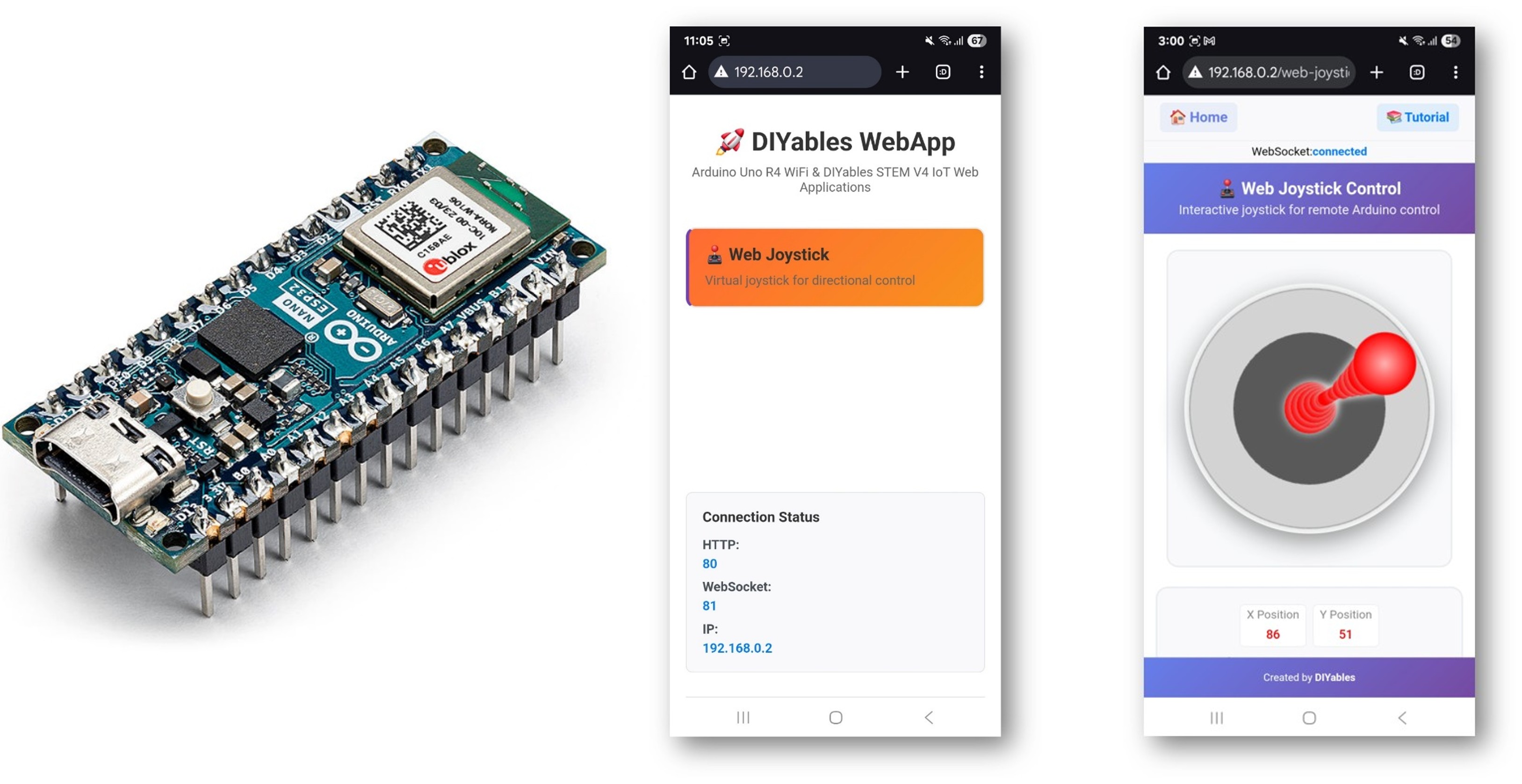
Exemplo Arduino WebJoystick - Tutorial de Controle com Joystick Virtual

Recursos

  • Joystick Virtual: Controle interativo de joystick pela interface web
  • Coordenadas em Tempo Real: Valores X/Y de -100 a +100 para controle preciso
  • Suporte a Toque e Mouse: Funciona em desktop, tablet e celular
  • Retorno Automático Configurável: Opção para o joystick voltar ao centro quando solto
  • Controle de Sensibilidade: Sensibilidade ajustável para evitar atualizações excessivas
  • Feedback Visual: Exibição da posição e dos valores de coordenadas em tempo real
  • Comunicação WebSocket: Resposta instantânea sem recarregar a página
  • Posição Central: Indicador claro da posição central para controle neutro

Instruções de Configuração

Passos Rápidos

Siga estas instruções passo a passo:

  • Se esta é a sua primeira vez usando o ESP32, consulte o tutorial sobre como configurar o ambiente para ESP32 na Arduino IDE.
  • Conecte a placa ESP32 ao seu computador usando um cabo USB.
  • Abra a Arduino IDE no seu computador.
  • Selecione a placa ESP32 apropriada (por exemplo, ESP32 Dev Module) e a porta COM.
  • Vá até o ícone Libraries na barra lateral esquerda da Arduino IDE.
  • Pesquise "DIYables ESP32 WebApps" e encontre a biblioteca DIYables ESP32 WebApps da DIYables
  • Clique no botão Install para instalar a biblioteca.
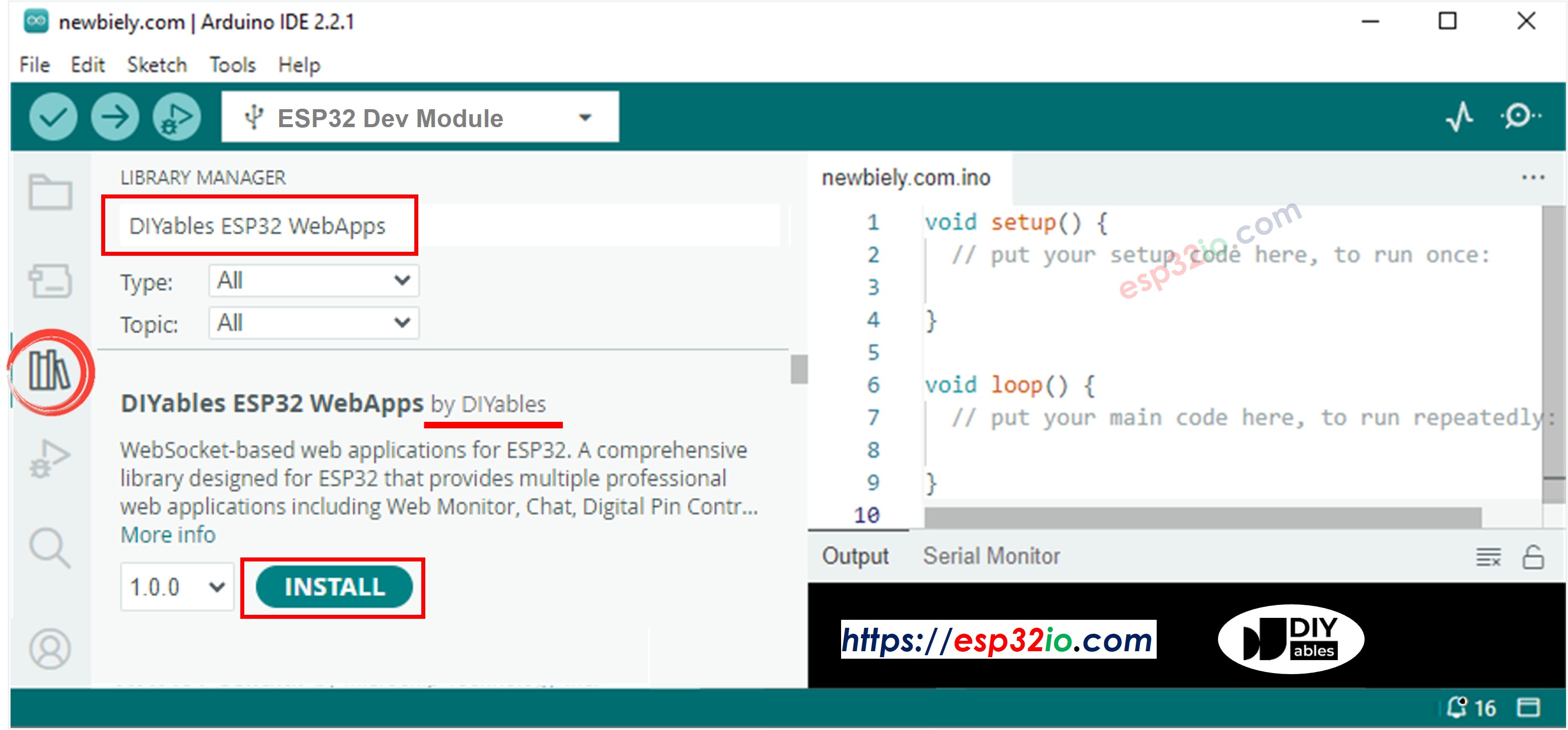
DIYables ESP32 WebApps Library
  • Você será solicitado a instalar algumas outras bibliotecas de dependência
  • Clique no botão Install All para instalar todas as dependências da biblioteca.
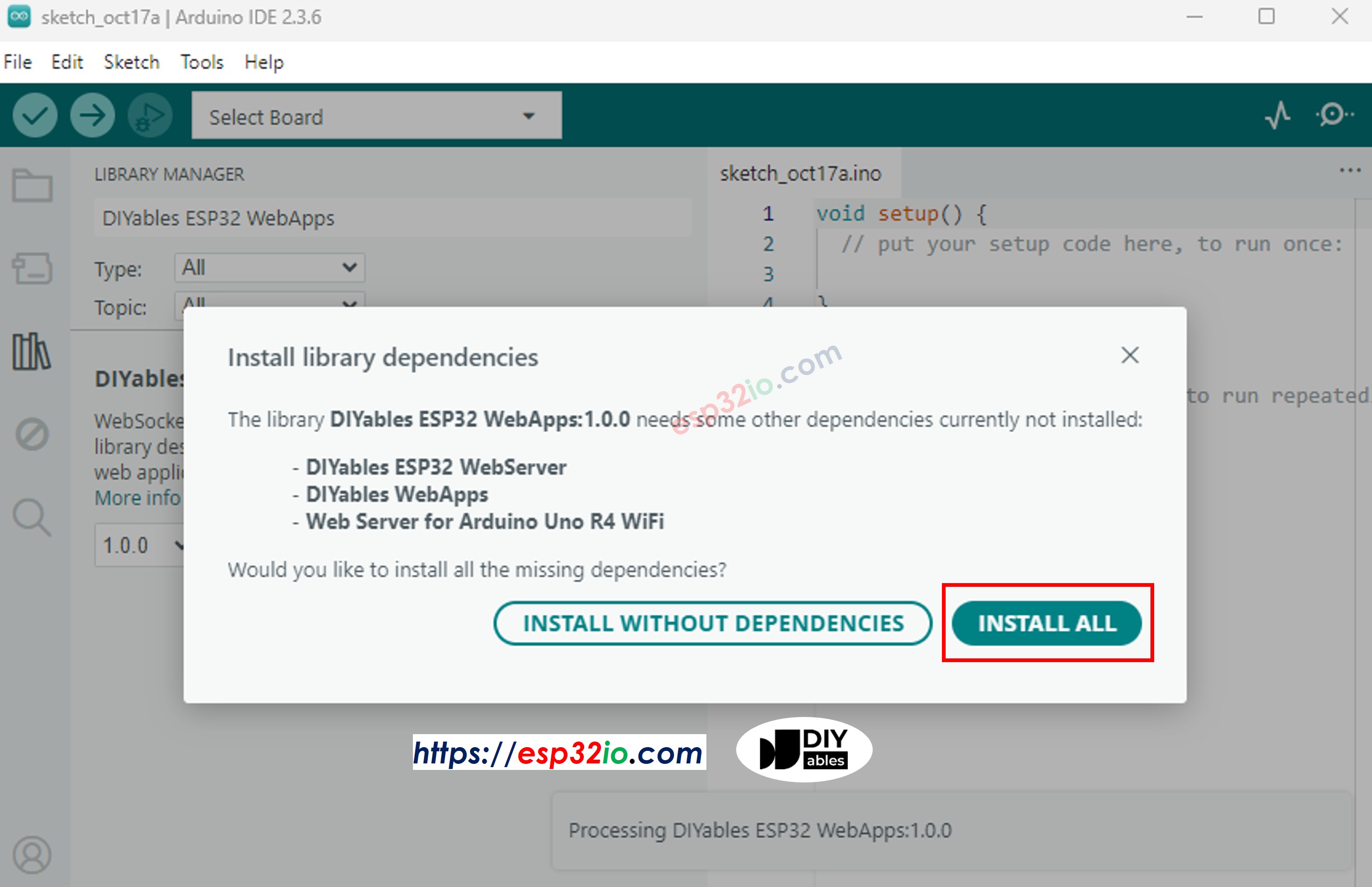
DIYables ESP32 WebApps dependency
  • Na Arduino IDE, vá em File Examples DIYables ESP32 WebApps WebJoystick, ou copie o código acima e cole no editor da Arduino IDE
/* * DIYables WebApp Library - Web Joystick Example * * This example demonstrates the Web Joystick feature: * - Interactive joystick control via web interface * - Real-time X/Y coordinate values (-100 to +100) * - Control pins based on joystick position * * Hardware: ESP32 Boards * * Setup: * 1. Update WiFi credentials below * 2. Upload the sketch to your Arduino * 3. Open Serial Monitor to see the IP address * 4. Navigate to http://[IP_ADDRESS]/webjoystick */ #include <DIYables_ESP32_Platform.h> #include <DIYablesWebApps.h> // WiFi credentials - UPDATE THESE WITH YOUR NETWORK const char WIFI_SSID[] = "YOUR_WIFI_SSID"; const char WIFI_PASSWORD[] = "YOUR_WIFI_PASSWORD"; // Create WebApp server and page instances // MEMORY SAFETY FIX: Use static factory to avoid stack object lifetime issues static ESP32ServerFactory serverFactory; // Static ensures lifetime matches program DIYablesWebAppServer webAppsServer(serverFactory, 80, 81); DIYablesHomePage homePage; // Configure joystick with autoReturn=false and sensitivity=5 (minimum 5% change to trigger updates) DIYablesWebJoystickPage webJoystickPage(false, 5); // Variables to store current joystick values int currentJoystickX = 0; int currentJoystickY = 0; void setup() { Serial.begin(9600); delay(1000); // TODO: initialize your hardware pins here Serial.println("DIYables ESP32 WebApp - Web Joystick Example"); // Add home and web joystick pages webAppsServer.addApp(&homePage); webAppsServer.addApp(&webJoystickPage); // Optional: Add 404 page for better user experience webAppsServer.setNotFoundPage(DIYablesNotFoundPage()); // Start the WebApp server if (!webAppsServer.begin(WIFI_SSID, WIFI_PASSWORD)) { while (1) { Serial.println("Failed to start WebApp server!"); delay(1000); } } // Set up joystick callback for position changes webJoystickPage.onJoystickValueFromWeb([](int x, int y) { // Store the received values currentJoystickX = x; currentJoystickY = y; // Print joystick position values (-100 to +100) Serial.println("Joystick - X: " + String(x) + ", Y: " + String(y)); // TODO: Add your control logic here based on joystick position // Examples: // - Control motors: if (x > 50) { /* move right */ } // - Control servos: servo.write(map(y, -100, 100, 0, 180)); // - Control LEDs: analogWrite(LED_PIN, map(abs(x), 0, 100, 0, 255)); // - Send commands to other devices via Serial, I2C, SPI, etc. }); // Optional: Handle requests for current joystick values (when web page loads) webJoystickPage.onJoystickValueToWeb([]() { // Send the stored joystick values back to the web client webJoystickPage.sendToWebJoystick(currentJoystickX, currentJoystickY); Serial.println("Web client requested values - Sent to Web: X=" + String(currentJoystickX) + ", Y=" + String(currentJoystickY)); }); // You can change configuration at runtime: // webJoystickPage.setAutoReturn(false); // Disable auto-return // webJoystickPage.setSensitivity(10.0); // Only send updates when joystick moves >10% (less sensitive) } void loop() { // Handle WebApp server communications webAppsServer.loop(); // TODO: Add your main application code here delay(10); }
  • Configure as credenciais de WiFi no código atualizando estas linhas:
const char WIFI_SSID[] = "YOUR_WIFI_NETWORK"; const char WIFI_PASSWORD[] = "YOUR_WIFI_PASSWORD";
  • Clique no botão Upload na Arduino IDE para carregar o código no ESP32
  • Abra o Serial Monitor
  • Veja o resultado no Serial Monitor. Ele será parecido com o abaixo
∞
Newbiely | Arduino IDE 2.3.8
──
☐
✕
File
Edit
Sketch
Tools
Help
ESP32 Dev Module
Newbiely.ino
···
8 Serial.println("Hello World!");
Output
Serial Monitor
Message (Enter to send message to 'ESP32 Dev Module' on 'COM15')
New Line
9600 baud
DIYables WebApp - Web Joystick Example INFO: Added app / INFO: Added app /web-joystick DIYables WebApp Library Platform: ESP32 Network connected! IP address: 192.168.0.2 HTTP server started on port 80 Configuring WebSocket server callbacks... WebSocket server started on port 81 WebSocket URL: ws://192.168.0.2:81 WebSocket server started on port 81 ========================================== DIYables WebApp Ready! ========================================== 📱 Web Interface: http://192.168.0.2 🔗 WebSocket: ws://192.168.0.2:81 📋 Available Applications: 🏠 Home Page: http://192.168.0.2/ 🕹️ Web Joystick: http://192.168.0.2/web-joystick ==========================================
Ln 11, Col 1
ESP32 Dev Module on COM15
2
  • Se você não vir nada, reinicie a placa ESP32.
  • Anote o endereço IP exibido e digite esse endereço na barra de endereços de um navegador web no seu celular ou PC.
  • Exemplo: http://192.168.0.2
  • Você verá a home page como na imagem abaixo:
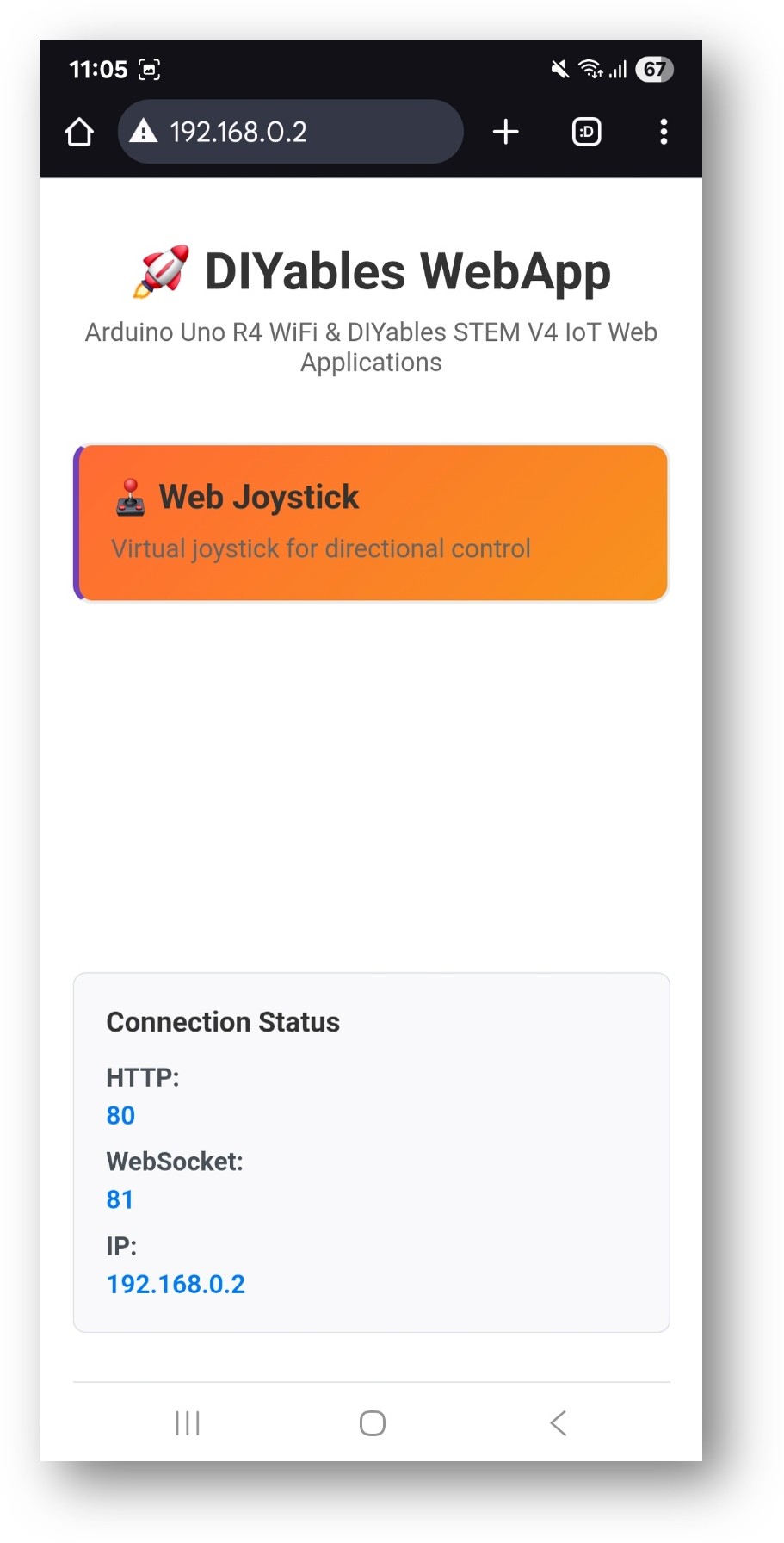
Home page do DIYables WebApp no ESP32 com o app Web Joystick
  • Clique no link Web Joystick e você verá a interface do app Web Joystick como abaixo:
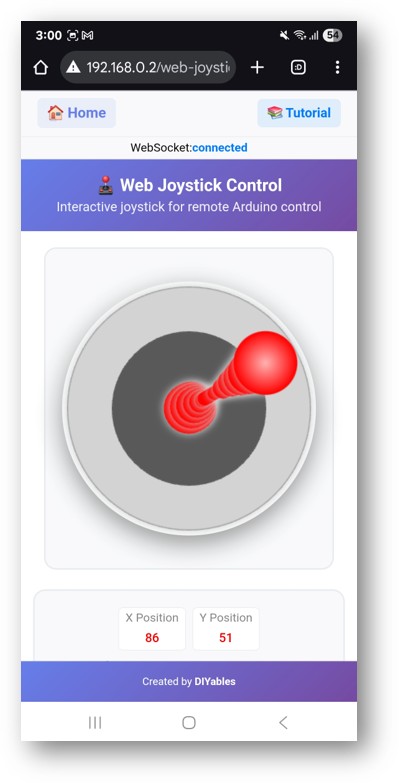
App Web Joystick do DIYables WebApp no ESP32
  • Você também pode acessar a página diretamente pelo endereço IP seguido de /web-joystick. Por exemplo: http://192.168.0.2/web-joystick
  • Experimente controlar o joystick virtual clicando e arrastando na área do joystick e observe os valores das coordenadas X/Y (-100 a +100) no Serial Monitor.

Personalização Criativa - Adapte o Código ao Seu Projeto

2. Configure os Ajustes do Joystick

O joystick pode ser configurado com diferentes parâmetros:

Configuração Básica

// Create joystick with default settings (autoReturn=true, sensitivity=1) DIYablesWebJoystickPage webJoystickPage;

Configuração Avançada

// Create joystick with custom settings // autoReturn=false: Joystick stays at last position when released // sensitivity=5: Only send updates when movement > 5% DIYablesWebJoystickPage webJoystickPage(false, 5);

Como Usar o Joystick

Controles da Interface Web

A interface do joystick oferece:

  • Área do Joystick: Área de controle circular para entrada por toque/mouse
  • Indicador de Posição: Mostra a posição atual do joystick
  • Exibição de Coordenadas: Valores X/Y em tempo real (-100 a +100)
  • Ponto Central: Referência visual para a posição neutra

Operando o Joystick

Desktop (Controle com Mouse)

  1. Clicar e Arrastar: Clique no joystick e arraste para mover
  2. Soltar: O joystick volta ao centro (se autoReturn=true)
  3. Clicar na Posição: Clique direto para definir a posição do joystick

Celular/Tablet (Controle por Toque)

  1. Tocar e Arrastar: Toque no joystick e arraste o dedo para mover
  2. Multitoque: Um único dedo para controle preciso
  3. Soltar: Retorno automático ao centro (se ativado)

Sistema de Coordenadas

O joystick fornece coordenadas em um sistema cartesiano padrão:

  • Eixo X: -100 (totalmente à esquerda) a +100 (totalmente à direita)
  • Eixo Y: -100 (totalmente para baixo) a +100 (totalmente para cima)
  • Centro: X=0, Y=0 (posição neutra)
  • Cantos: As posições diagonais fornecem valores X/Y combinados

Exemplos de Programação

Tratador Básico de Joystick

void setup() { // Set up joystick callback for position changes webJoystickPage.onJoystickValueFromWeb([](int x, int y) { // Store the received values currentJoystickX = x; currentJoystickY = y; // Print joystick position values Serial.println("Joystick - X: " + String(x) + ", Y: " + String(y)); // Add your control logic here }); }

Exemplo de Controle de Motor

// Pin definitions for motor driver const int MOTOR_LEFT_PIN1 = 2; const int MOTOR_LEFT_PIN2 = 3; const int MOTOR_RIGHT_PIN1 = 4; const int MOTOR_RIGHT_PIN2 = 5; const int MOTOR_LEFT_PWM = 9; const int MOTOR_RIGHT_PWM = 10; void setup() { // Configure motor pins pinMode(MOTOR_LEFT_PIN1, OUTPUT); pinMode(MOTOR_LEFT_PIN2, OUTPUT); pinMode(MOTOR_RIGHT_PIN1, OUTPUT); pinMode(MOTOR_RIGHT_PIN2, OUTPUT); pinMode(MOTOR_LEFT_PWM, OUTPUT); pinMode(MOTOR_RIGHT_PWM, OUTPUT); webJoystickPage.onJoystickValueFromWeb([](int x, int y) { controlRobot(x, y); }); } void controlRobot(int x, int y) { // Convert joystick coordinates to motor speeds int leftSpeed = y + x; // Forward/backward + turn left/right int rightSpeed = y - x; // Forward/backward - turn left/right // Constrain speeds to valid range leftSpeed = constrain(leftSpeed, -100, 100); rightSpeed = constrain(rightSpeed, -100, 100); // Control left motor if (leftSpeed > 0) { digitalWrite(MOTOR_LEFT_PIN1, HIGH); digitalWrite(MOTOR_LEFT_PIN2, LOW); analogWrite(MOTOR_LEFT_PWM, map(leftSpeed, 0, 100, 0, 255)); } else if (leftSpeed < 0) { digitalWrite(MOTOR_LEFT_PIN1, LOW); digitalWrite(MOTOR_LEFT_PIN2, HIGH); analogWrite(MOTOR_LEFT_PWM, map(-leftSpeed, 0, 100, 0, 255)); } else { digitalWrite(MOTOR_LEFT_PIN1, LOW); digitalWrite(MOTOR_LEFT_PIN2, LOW); analogWrite(MOTOR_LEFT_PWM, 0); } // Control right motor if (rightSpeed > 0) { digitalWrite(MOTOR_RIGHT_PIN1, HIGH); digitalWrite(MOTOR_RIGHT_PIN2, LOW); analogWrite(MOTOR_RIGHT_PWM, map(rightSpeed, 0, 100, 0, 255)); } else if (rightSpeed < 0) { digitalWrite(MOTOR_RIGHT_PIN1, LOW); digitalWrite(MOTOR_RIGHT_PIN2, HIGH); analogWrite(MOTOR_RIGHT_PWM, map(-rightSpeed, 0, 100, 0, 255)); } else { digitalWrite(MOTOR_RIGHT_PIN1, LOW); digitalWrite(MOTOR_RIGHT_PIN2, LOW); analogWrite(MOTOR_RIGHT_PWM, 0); } }

Exemplo de Controle de Servo

#include <Servo.h> Servo panServo; // X-axis control (left/right) Servo tiltServo; // Y-axis control (up/down) void setup() { // Attach servos to pins panServo.attach(9); tiltServo.attach(10); // Center servos initially panServo.write(90); tiltServo.write(90); webJoystickPage.onJoystickValueFromWeb([](int x, int y) { controlServos(x, y); }); } void controlServos(int x, int y) { // Map joystick coordinates to servo angles int panAngle = map(x, -100, 100, 0, 180); // X controls pan (0-180°) int tiltAngle = map(y, -100, 100, 180, 0); // Y controls tilt (inverted) // Move servos to calculated positions panServo.write(panAngle); tiltServo.write(tiltAngle); Serial.println("Pan: " + String(panAngle) + "°, Tilt: " + String(tiltAngle) + "°"); }

Indicador de Posição com LEDs

// LED pins for position indication const int LED_UP = 2; const int LED_DOWN = 3; const int LED_LEFT = 4; const int LED_RIGHT = 5; const int LED_CENTER = 13; void setup() { // Configure LED pins pinMode(LED_UP, OUTPUT); pinMode(LED_DOWN, OUTPUT); pinMode(LED_LEFT, OUTPUT); pinMode(LED_RIGHT, OUTPUT); pinMode(LED_CENTER, OUTPUT); webJoystickPage.onJoystickValueFromWeb([](int x, int y) { updateLEDIndicators(x, y); }); } void updateLEDIndicators(int x, int y) { // Turn off all LEDs first digitalWrite(LED_UP, LOW); digitalWrite(LED_DOWN, LOW); digitalWrite(LED_LEFT, LOW); digitalWrite(LED_RIGHT, LOW); digitalWrite(LED_CENTER, LOW); // Check if joystick is near center if (abs(x) < 10 && abs(y) < 10) { digitalWrite(LED_CENTER, HIGH); return; } // Activate LEDs based on direction if (y > 20) digitalWrite(LED_UP, HIGH); if (y < -20) digitalWrite(LED_DOWN, HIGH); if (x > 20) digitalWrite(LED_RIGHT, HIGH); if (x < -20) digitalWrite(LED_LEFT, HIGH); }

Configuração Avançada

Alterações de Configuração em Tempo de Execução

void setup() { // Initial setup with default values webJoystickPage.onJoystickValueFromWeb([](int x, int y) { handleJoystickInput(x, y); }); // Change settings at runtime webJoystickPage.setAutoReturn(false); // Disable auto-return webJoystickPage.setSensitivity(10.0); // Reduce sensitivity } void handleJoystickInput(int x, int y) { // Handle different modes based on current settings static bool precisionMode = false; // Toggle precision mode with extreme positions if (abs(x) > 95 && abs(y) > 95) { precisionMode = !precisionMode; if (precisionMode) { webJoystickPage.setSensitivity(1.0); // High sensitivity Serial.println("Precision mode ON"); } else { webJoystickPage.setSensitivity(10.0); // Low sensitivity Serial.println("Precision mode OFF"); } } }

Implementação de Zona Morta

void processJoystickWithDeadZone(int x, int y) { const int DEAD_ZONE = 15; // 15% dead zone around center // Apply dead zone filtering int filteredX = (abs(x) < DEAD_ZONE) ? 0 : x; int filteredY = (abs(y) < DEAD_ZONE) ? 0 : y; // Scale values outside dead zone if (filteredX != 0) { filteredX = map(abs(filteredX), DEAD_ZONE, 100, 0, 100); filteredX = (x < 0) ? -filteredX : filteredX; } if (filteredY != 0) { filteredY = map(abs(filteredY), DEAD_ZONE, 100, 0, 100); filteredY = (y < 0) ? -filteredY : filteredY; } // Use filtered values for control controlDevice(filteredX, filteredY); }

Rampa de Velocidade

class SpeedController { private: int targetX = 0, targetY = 0; int currentX = 0, currentY = 0; unsigned long lastUpdate = 0; const int RAMP_RATE = 5; // Change per update cycle public: void setTarget(int x, int y) { targetX = x; targetY = y; } void update() { if (millis() - lastUpdate > 20) { // Update every 20ms // Ramp X value if (currentX < targetX) { currentX = min(currentX + RAMP_RATE, targetX); } else if (currentX > targetX) { currentX = max(currentX - RAMP_RATE, targetX); } // Ramp Y value if (currentY < targetY) { currentY = min(currentY + RAMP_RATE, targetY); } else if (currentY > targetY) { currentY = max(currentY - RAMP_RATE, targetY); } // Apply ramped values applyControlValues(currentX, currentY); lastUpdate = millis(); } } void applyControlValues(int x, int y) { // Your control logic here with smooth ramped values Serial.println("Ramped - X: " + String(x) + ", Y: " + String(y)); } }; SpeedController speedController; void setup() { webJoystickPage.onJoystickValueFromWeb([](int x, int y) { speedController.setTarget(x, y); }); } void loop() { server.loop(); speedController.update(); // Apply speed ramping }

Exemplos de Integração de Hardware

Controle de Carrinho Robô

void setupRobotCar() { // Motor driver pins pinMode(2, OUTPUT); // Left motor direction 1 pinMode(3, OUTPUT); // Left motor direction 2 pinMode(4, OUTPUT); // Right motor direction 1 pinMode(5, OUTPUT); // Right motor direction 2 pinMode(9, OUTPUT); // Left motor PWM pinMode(10, OUTPUT); // Right motor PWM webJoystickPage.onJoystickValueFromWeb([](int x, int y) { // Tank drive calculation int leftMotor = y + (x / 2); // Forward/back + steering int rightMotor = y - (x / 2); // Forward/back - steering // Constrain to valid range leftMotor = constrain(leftMotor, -100, 100); rightMotor = constrain(rightMotor, -100, 100); // Control motors setMotorSpeed(9, 2, 3, leftMotor); // Left motor setMotorSpeed(10, 4, 5, rightMotor); // Right motor }); } void setMotorSpeed(int pwmPin, int dir1Pin, int dir2Pin, int speed) { if (speed > 0) { digitalWrite(dir1Pin, HIGH); digitalWrite(dir2Pin, LOW); analogWrite(pwmPin, map(speed, 0, 100, 0, 255)); } else if (speed < 0) { digitalWrite(dir1Pin, LOW); digitalWrite(dir2Pin, HIGH); analogWrite(pwmPin, map(-speed, 0, 100, 0, 255)); } else { digitalWrite(dir1Pin, LOW); digitalWrite(dir2Pin, LOW); analogWrite(pwmPin, 0); } }

Controle de Gimbal de Câmera

#include <Servo.h> Servo panServo, tiltServo; int panOffset = 90, tiltOffset = 90; // Center positions void setupCameraGimbal() { panServo.attach(9); tiltServo.attach(10); // Set initial center positions panServo.write(panOffset); tiltServo.write(tiltOffset); webJoystickPage.onJoystickValueFromWeb([](int x, int y) { // Calculate servo positions with offset int panPos = panOffset + map(x, -100, 100, -45, 45); // ±45° range int tiltPos = tiltOffset + map(y, -100, 100, -30, 30); // ±30° range // Constrain to servo limits panPos = constrain(panPos, 0, 180); tiltPos = constrain(tiltPos, 0, 180); // Move servos smoothly panServo.write(panPos); tiltServo.write(tiltPos); }); }

Controle de Cor de LED RGB

const int RED_PIN = 9; const int GREEN_PIN = 10; const int BLUE_PIN = 11; void setupRGBControl() { pinMode(RED_PIN, OUTPUT); pinMode(GREEN_PIN, OUTPUT); pinMode(BLUE_PIN, OUTPUT); webJoystickPage.onJoystickValueFromWeb([](int x, int y) { // Convert joystick position to RGB values int red = map(abs(x), 0, 100, 0, 255); int green = map(abs(y), 0, 100, 0, 255); int blue = map(abs(x + y), 0, 141, 0, 255); // Diagonal distance // Apply quadrant-specific color mixing if (x > 0 && y > 0) { // Upper right: Red + Green = Yellow blue = 0; } else if (x < 0 && y > 0) { // Upper left: Green + Blue = Cyan red = 0; } else if (x < 0 && y < 0) { // Lower left: Blue + Red = Magenta green = 0; } else if (x > 0 && y < 0) { // Lower right: Red only green = blue = 0; } // Set RGB values analogWrite(RED_PIN, red); analogWrite(GREEN_PIN, green); analogWrite(BLUE_PIN, blue); }); }

Solução de Problemas

Problemas Comuns

1. O joystick não responde

  • Verifique o status da conexão WebSocket no console do navegador
  • Confira a conectividade de rede
  • Atualize a página do navegador
  • Verifique o Serial Monitor em busca de erros

2. Movimento brusco ou inconsistente

  • Aumente o valor de sensibilidade para reduzir a frequência de atualização
  • Implemente a filtragem de zona morta
  • Adicione rampa de velocidade para transições suaves
  • Verifique problemas de latência de rede

3. O retorno automático não funciona

  • Verifique a configuração de autoReturn: webJoystickPage.setAutoReturn(true)
  • Confira a compatibilidade do navegador (alguns dispositivos touch variam)
  • Teste com diferentes métodos de entrada (mouse vs toque)

4. Os valores não alcançam a faixa completa

  • Verifique a calibração do joystick na interface web
  • Confira os cálculos de coordenadas no callback
  • Teste com diferentes combinações de navegador/dispositivo

Dicas de Depuração

Adicione depuração abrangente:

void debugJoystickState(int x, int y) { Serial.println("=== Joystick Debug ==="); Serial.println("X: " + String(x) + " (" + String(map(x, -100, 100, 0, 100)) + "%)"); Serial.println("Y: " + String(y) + " (" + String(map(y, -100, 100, 0, 100)) + "%)"); Serial.println("Distance from center: " + String(sqrt(x*x + y*y))); Serial.println("Angle: " + String(atan2(y, x) * 180 / PI) + "°"); Serial.println("====================="); }

Ideias de Projetos

Projetos de Robótica

  • Carrinho robô controlado remotamente
  • Controle de braço robótico
  • Controle de voo de drone (movimentos básicos)
  • Navegação de robô de estimação

Automação Residencial

  • Controle de cortinas inteligentes (abrir/fechar/posição)
  • Controle de pan/tilt de câmera
  • Controle de brilho e cor da luz
  • Controle de velocidade e direção de ventilador

Projetos Educacionais

  • Ferramenta para ensinar sistemas de coordenadas
  • Demonstrações de controle de motores
  • Experimentos de posicionamento de servos
  • Interfaces de controle para jogos

Projetos de Arte e Criatividade

  • Controle de padrões de matriz de LED
  • Controle de visualização musical
  • Controle de robô de desenho
  • Instalações de arte interativas

Integração com Outros Exemplos

Combine com o WebSlider

Use o joystick para a direção e os sliders para velocidade/intensidade:

// Use joystick for direction, sliders for speed limits webJoystickPage.onJoystickValueFromWeb([](int x, int y) { int maxSpeed = getSliderValue(); // From WebSlider int scaledX = map(x, -100, 100, -maxSpeed, maxSpeed); int scaledY = map(y, -100, 100, -maxSpeed, maxSpeed); controlRobot(scaledX, scaledY); });

Combine com o WebDigitalPins

Use as posições do joystick para acionar estados de pinos digitais:

webJoystickPage.onJoystickValueFromWeb([](int x, int y) { // Activate pins based on joystick quadrants webDigitalPinsPage.setPinState(2, x > 50); // Right quadrant webDigitalPinsPage.setPinState(3, x < -50); // Left quadrant webDigitalPinsPage.setPinState(4, y > 50); // Upper quadrant webDigitalPinsPage.setPinState(5, y < -50); // Lower quadrant });

Próximos Passos

Depois de dominar o exemplo WebJoystick, experimente:

  1. WebSlider - Para controle analógico adicional
  2. WebDigitalPins - Para controle discreto ligado/desligado
  3. WebMonitor - Para depurar os valores do joystick
  4. MultipleWebApps - Combinando o joystick com outros controles

Suporte

Para ajuda adicional:

  • Consulte a documentação de Referência da API
  • Visite os tutoriais DIYables: https://esp32io.com/tutorials/diyables-esp32-webapps
  • Fóruns da comunidade ESP32

※ NOSSAS MENSAGENS

  • Fique à vontade para compartilhar o link deste tutorial. Porém, por favor, não use nosso conteúdo em outros sites. Investimos muito esforço e tempo para criar este conteúdo, por favor respeite nosso trabalho!