
Exemplo de Rotator Bluetooth com ESP32 - Tutorial de Interface de Controle com Disco/Botão Giratório

Visão Geral

O exemplo Bluetooth Rotator oferece um controle com disco/botão giratório, acessível pelo app DIYables Bluetooth STEM. Projetado para placas ESP32, com suporte a conexões BLE (Bluetooth Low Energy) e Bluetooth Clássico. O rotator envia valores de ângulo e oferece modos de rotação contínua (0-360°) ou de faixa de ângulo limitada — perfeito para controle de servo, exibição de bússola, botões de volume e qualquer aplicação que precise de entrada rotacional.

Este exemplo oferece suporte a dois modos de Bluetooth:

  • ESP32 BLE (Bluetooth Low Energy): Funciona no Android e no iOS
  • ESP32 Bluetooth Clássico: Funciona somente no Android. O iOS não oferece suporte ao Bluetooth Clássico. Use o BLE se precisar de suporte ao iOS.
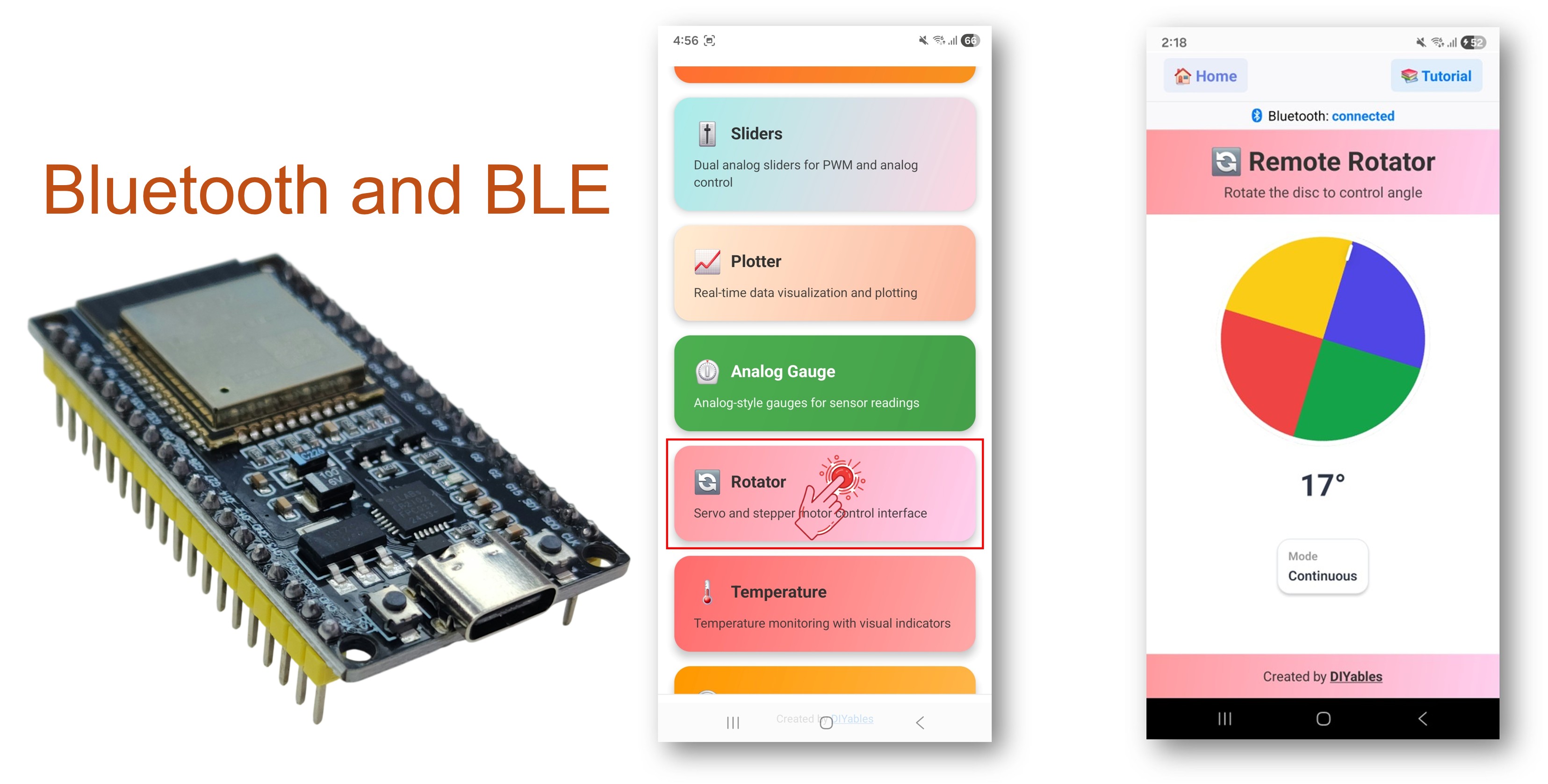
Exemplo de Rotator Bluetooth com ESP32 - Tutorial de Interface de Controle com Disco/Botão Giratório

Recursos

  • Botão Giratório: Toque e arraste para girar o disco na tela
  • Modo Contínuo: Rotação completa de 360° sem limites
  • Modo Limitado: Faixa de ângulo restrita (por exemplo, 0-180° para servos)
  • Saída de Ângulo: Valor de ângulo float enviado em tempo real
  • Compatível com Servo: Mapeamento direto para ângulos de servo (0-180°)
  • BLE e Bluetooth Clássico: Escolha o modo Bluetooth que melhor atende ao seu projeto
  • Multiplataforma: O modo BLE funciona no Android e no iOS; o Bluetooth Clássico funciona no Android
  • Opção de Baixo Consumo: O modo BLE consome menos energia que o Bluetooth Clássico

Código ESP32

Passos Rápidos

Siga estas instruções passo a passo:

  • Se esta é a primeira vez que você usa o ESP32, consulte o tutorial sobre como configurar o ambiente para o ESP32 no Arduino IDE.
  • Conecte a placa ESP32 ao seu computador usando um cabo USB.
  • Abra o Arduino IDE no seu computador.
  • Selecione a placa ESP32 e a porta COM apropriadas.
  • Acesse o ícone Libraries na barra à esquerda do Arduino IDE.
  • Pesquise "DIYables Bluetooth" e encontre a biblioteca DIYables Bluetooth, da DIYables
  • Clique no botão Install para instalar a biblioteca.
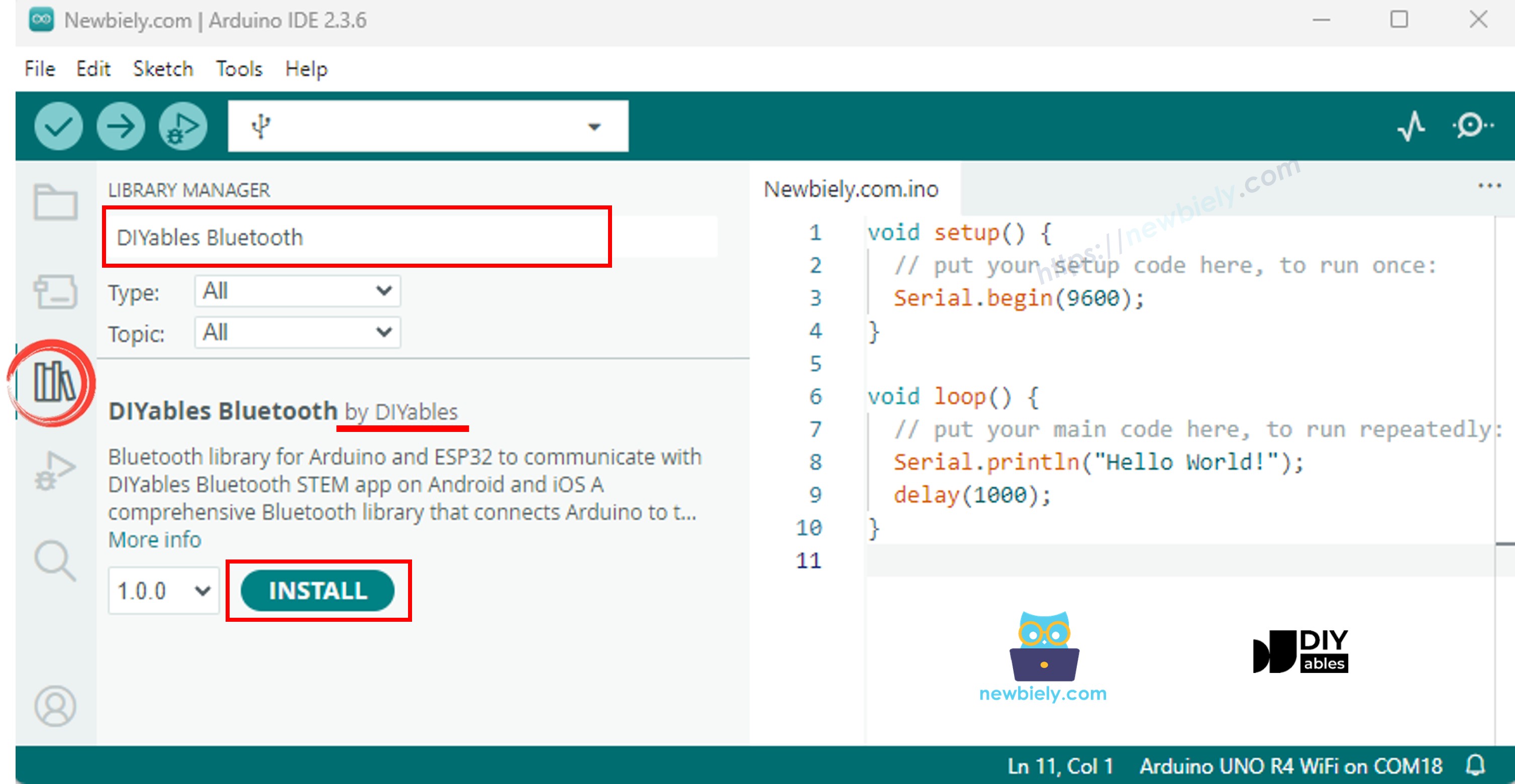
Biblioteca DIYables Bluetooth para ESP32
  • Será solicitado que você instale outras dependências da biblioteca
  • Clique no botão Install All para instalar todas as dependências da biblioteca.
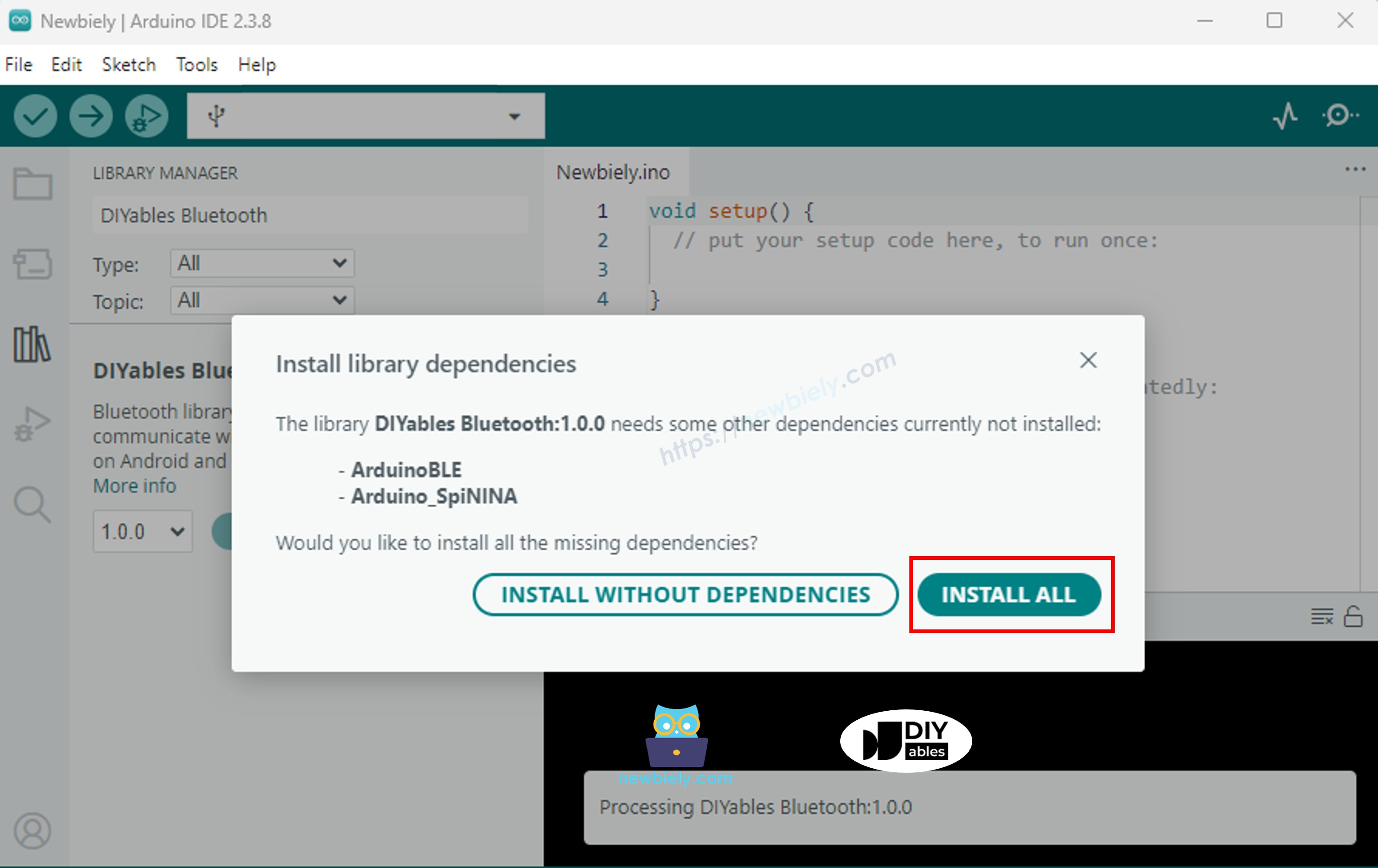
Dependência da biblioteca DIYables Bluetooth para ESP32

Escolha um dos dois modos de Bluetooth abaixo, de acordo com a sua necessidade:

Código ESP32 Bluetooth Clássico (funciona com o app somente no Android)

Observação: O Bluetooth Clássico NÃO é compatível com o iOS. Se você precisa de suporte ao iOS, use o código BLE abaixo.

  • No Arduino IDE, vá em File Examples DIYables Bluetooth Esp32Bluetooth_Rotator, ou copie o código acima e cole no editor do Arduino IDE
/* * DIYables Bluetooth Library - ESP32 Classic Bluetooth Rotator Example * Works with DIYables Bluetooth STEM app on Android * Note: Classic Bluetooth is NOT supported on iOS. Use BLE examples for iOS support. * * This example demonstrates the Bluetooth Rotator feature: * - Rotatable disc/knob control (0-360 degrees) * - Continuous or limited angle range * - Perfect for servo control, compass display, volume knobs * * Compatible Boards: * - ESP32 (all variants with Classic Bluetooth) * - ESP32-WROOM-32 * - ESP32-DevKitC * - ESP32-WROVER * * Note: Select "Huge APP (3MB No OTA/1MB SPIFFS)" partition scheme * in Arduino IDE: Tools > Partition Scheme * * Optional: Servo motor for visual feedback * * Setup: * 1. Upload the sketch to your ESP32 * 2. Open Serial Monitor (115200 baud) to see connection status * 3. Use DIYables Bluetooth App to connect and rotate the knob * * Tutorial: https://diyables.io/bluetooth-app * Author: DIYables */ #include <DIYables_BluetoothServer.h> #include <DIYables_BluetoothRotator.h> #include <platforms/DIYables_Esp32Bluetooth.h> // Create Bluetooth instances DIYables_Esp32Bluetooth bluetooth("ESP32_Rotator"); DIYables_BluetoothServer bluetoothServer(bluetooth); // Create Rotator app instance // Option 1: Continuous mode (0-360, wraps around) // DIYables_BluetoothRotator bluetoothRotator(ROTATOR_MODE_CONTINUOUS); // Option 2: Limited mode (constrained angle range) DIYables_BluetoothRotator bluetoothRotator(ROTATOR_MODE_LIMITED, 0, 180); // Variables to store current angle float currentAngle = 0.0; // Optional: Servo control (uncomment if using ESP32Servo library) // #include <ESP32Servo.h> // Servo myServo; // const int SERVO_PIN = 13; void setup() { Serial.begin(115200); delay(1000); Serial.println("DIYables Bluetooth - ESP32 Rotator Example"); // Optional: Initialize servo // myServo.attach(SERVO_PIN); // myServo.write(0); bluetoothServer.begin(); bluetoothServer.addApp(&bluetoothRotator); bluetoothServer.setOnConnected([]() { Serial.println("Bluetooth connected!"); bluetoothRotator.send(currentAngle); }); bluetoothServer.setOnDisconnected([]() { Serial.println("Bluetooth disconnected!"); }); bluetoothRotator.onRotatorAngle([](float angle) { currentAngle = angle; Serial.print("Rotator angle: "); Serial.print(angle); Serial.println("°"); // TODO: Add your control logic here based on angle // Examples: // - Servo control: myServo.write((int)angle); // - Stepper motor: stepper.moveTo(angleToSteps(angle)); // - LED ring: setLEDPosition(angle); // - Volume control: setVolume(map(angle, 0, 360, 0, 100)); }); Serial.println("Waiting for Bluetooth connection..."); } void loop() { bluetoothServer.loop(); delay(10); }
  • Clique no botão Upload do Arduino IDE para carregar o código no ESP32
  • Abra o Serial Monitor
  • Confira o resultado no Serial Monitor. Ele deve ficar como abaixo:
∞
Newbiely | Arduino IDE 2.3.8
──
☐
✕
File
Edit
Sketch
Tools
Help
ESP32 Dev Module
Newbiely.ino
···
8 Serial.println("Hello World!");
Output
Serial Monitor
Message (Enter to send message to 'ESP32 Dev Module' on 'COM15')
New Line
9600 baud
DIYables Bluetooth - ESP32 Rotator Example Waiting for Bluetooth connection...
Ln 11, Col 1
ESP32 Dev Module on COM15
2

Código ESP32 BLE (funciona com o app no Android e no iOS)

  • No Arduino IDE, vá em File Examples DIYables Bluetooth Esp32BLE_Rotator, ou copie o código acima e cole no editor do Arduino IDE
/* * DIYables Bluetooth Library - ESP32 BLE Rotator Example * Works with DIYables Bluetooth STEM app on Android and iOS * * This example demonstrates the Bluetooth Rotator feature: * - Rotatable disc/knob control (0-360 degrees) * - Continuous or limited angle range * - Perfect for servo control, compass display, volume knobs * * Compatible Boards: * - ESP32-WROOM-32 * - ESP32-DevKitC * - ESP32-WROVER * - ESP32-S3 * - ESP32-C3 * - Any ESP32 board supporting BLE * * Note: Select "Huge APP (3MB No OTA/1MB SPIFFS)" partition scheme * in Arduino IDE: Tools > Partition Scheme * * Optional: Servo motor for visual feedback * * Setup: * 1. Upload the sketch to your ESP32 * 2. Open Serial Monitor (115200 baud) to see connection status * 3. Use DIYables Bluetooth App to connect and rotate the knob * * Tutorial: https://diyables.io/bluetooth-app * Author: DIYables */ #include <DIYables_BluetoothServer.h> #include <DIYables_BluetoothRotator.h> #include <platforms/DIYables_Esp32BLE.h> // BLE Configuration const char* DEVICE_NAME = "ESP32BLE_Rotator"; const char* SERVICE_UUID = "19B10000-E8F2-537E-4F6C-D104768A1214"; const char* TX_UUID = "19B10001-E8F2-537E-4F6C-D104768A1214"; const char* RX_UUID = "19B10002-E8F2-537E-4F6C-D104768A1214"; // Create Bluetooth instances DIYables_Esp32BLE bluetooth(DEVICE_NAME, SERVICE_UUID, TX_UUID, RX_UUID); DIYables_BluetoothServer bluetoothServer(bluetooth); // Create Rotator app instance DIYables_BluetoothRotator bluetoothRotator(ROTATOR_MODE_LIMITED, 0, 180); // Variables to store current angle float currentAngle = 0.0; void setup() { Serial.begin(115200); delay(1000); Serial.println("DIYables Bluetooth - ESP32 BLE Rotator Example"); bluetoothServer.begin(); bluetoothServer.addApp(&bluetoothRotator); bluetoothServer.setOnConnected([]() { Serial.println("Bluetooth connected!"); bluetoothRotator.send(currentAngle); }); bluetoothServer.setOnDisconnected([]() { Serial.println("Bluetooth disconnected!"); }); bluetoothRotator.onRotatorAngle([](float angle) { currentAngle = angle; Serial.print("Rotator angle: "); Serial.print(angle); Serial.println("°"); // TODO: Add your control logic here based on angle }); Serial.println("Waiting for Bluetooth connection..."); } void loop() { bluetoothServer.loop(); delay(10); }
  • Clique no botão Upload do Arduino IDE para carregar o código no ESP32
  • Abra o Serial Monitor
  • Confira o resultado no Serial Monitor. Ele deve ficar como abaixo:
∞
Newbiely | Arduino IDE 2.3.8
──
☐
✕
File
Edit
Sketch
Tools
Help
ESP32 Dev Module
Newbiely.ino
···
8 Serial.println("Hello World!");
Output
Serial Monitor
Message (Enter to send message to 'ESP32 Dev Module' on 'COM15')
New Line
9600 baud
DIYables Bluetooth - ESP32 BLE Rotator Example Waiting for Bluetooth connection...
Ln 11, Col 1
ESP32 Dev Module on COM15
2

App para Celular

  • Instale o app DIYables Bluetooth no seu smartphone: Android | iOS
  • Se você estiver usando o código ESP32 Bluetooth Clássico, é preciso parear o ESP32 com o seu celular Android antes de abrir o app:
    • Vá em Configurações > Bluetooth do seu celular
    • Verifique se o Bluetooth está ligado
    • Seu celular vai procurar os dispositivos disponíveis
    • Encontre e toque em "ESP32_Rotator" na lista de dispositivos disponíveis
    • Confirme a solicitação de pareamento (não é necessário PIN)
    • Aguarde até aparecer "Paired" abaixo do nome do dispositivo
  • Se você estiver usando o código ESP32 BLE, não é necessário parear. Basta ir para o próximo passo.
  • Abra o app DIYables Bluetooth
  • Ao abrir o app pela primeira vez, ele vai pedir permissões. Conceda as seguintes:
    • Permissão de Dispositivos Próximos (Android 12+) / permissão de Bluetooth (iOS) - necessária para procurar e conectar a dispositivos Bluetooth
    • Permissão de Localização (somente Android 11 e anteriores) - exigida por versões mais antigas do Android para procurar dispositivos BLE
  • Verifique se o Bluetooth está ligado no seu celular
  • Na tela inicial, toque no botão Connect. O app vai procurar dispositivos BLE e Bluetooth Clássico.
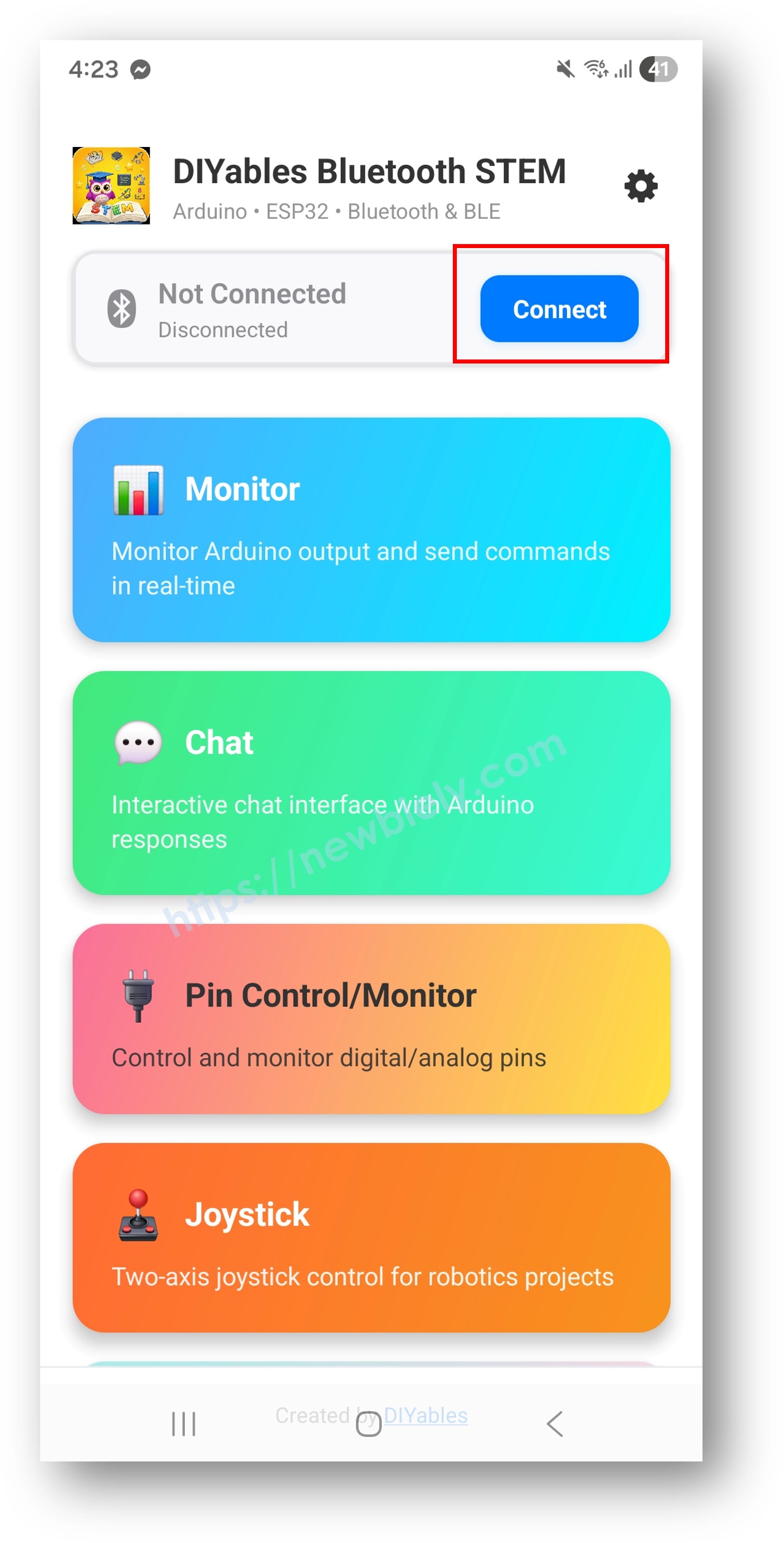
App DIYables Bluetooth - Tela Inicial com Botão de Busca
  • Encontre e toque no seu dispositivo nos resultados da busca para conectar:
    • Para Bluetooth Clássico: toque em "ESP32_Rotator"
    • Para BLE: toque em "ESP32BLE_Rotator"
  • Depois de conectado, o app volta automaticamente para a tela inicial. Selecione o app Rotator no menu de apps.
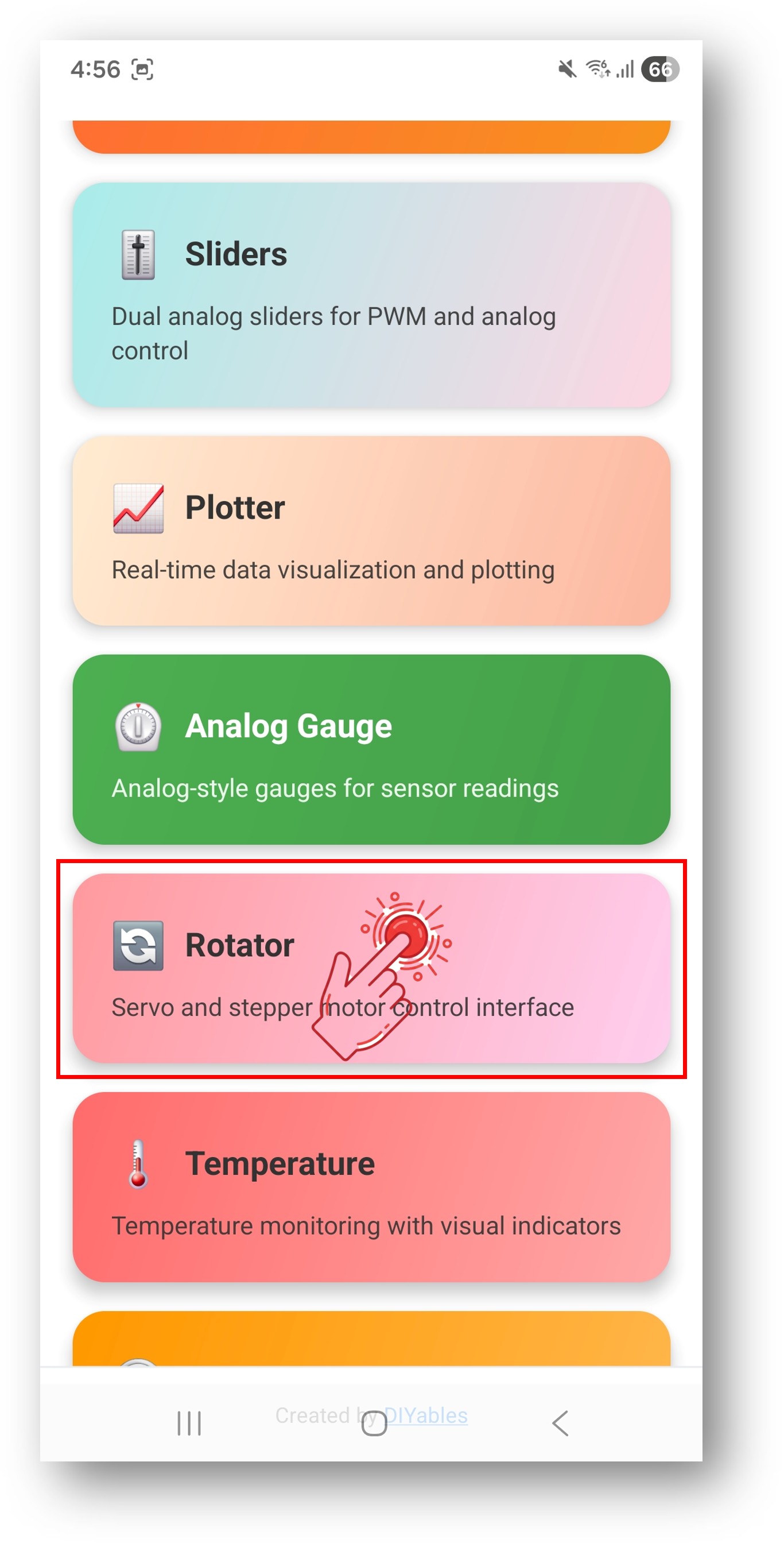
App DIYables Bluetooth - Tela Inicial com o App Rotator

Observação: Você pode tocar no ícone de configurações na tela inicial para ocultar/mostrar apps. Para mais detalhes, consulte o Manual do Usuário do DIYables Bluetooth App.

  • Arraste o botão do rotator para mudar o ângulo
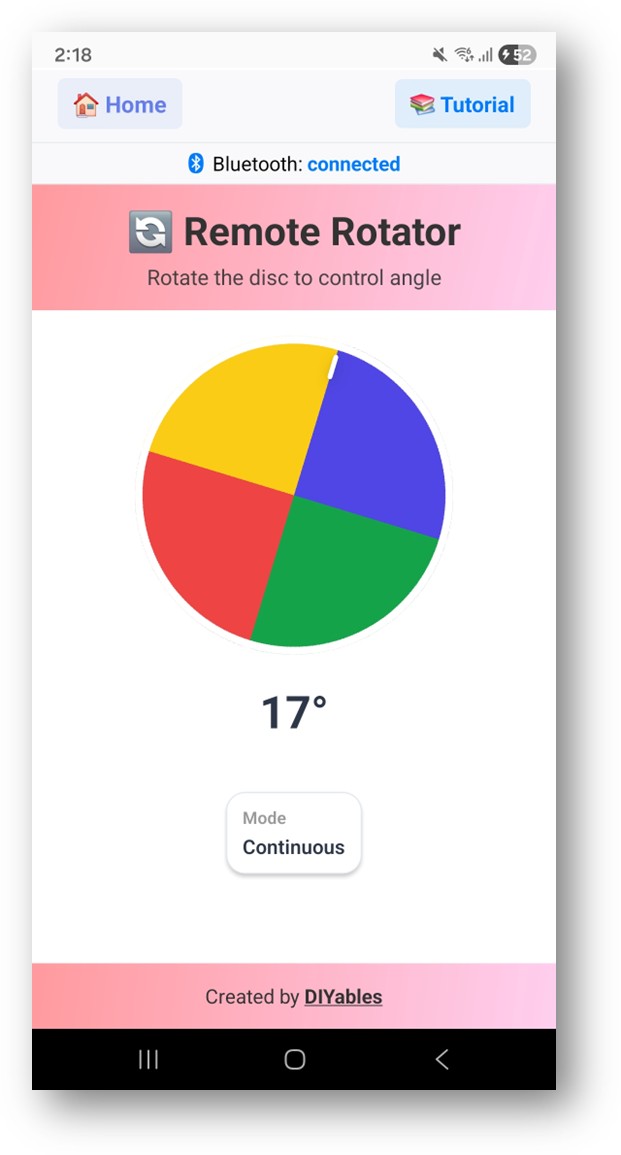
App DIYables Bluetooth - Tela do Rotator

Agora olhe de volta para o Serial Monitor no Arduino IDE. Você verá:

∞
Newbiely | Arduino IDE 2.3.8
──
☐
✕
File
Edit
Sketch
Tools
Help
ESP32 Dev Module
Newbiely.ino
···
8 Serial.println("Hello World!");
Output
Serial Monitor
Message (Enter to send message to 'ESP32 Dev Module' on 'COM15')
New Line
9600 baud
Bluetooth connected! Rotator angle: 45.0° Rotator angle: 90.0° Rotator angle: 135.0° Rotator angle: 180.0°
Ln 11, Col 1
ESP32 Dev Module on COM15
2
  • Gire o botão no app e observe os valores de ângulo em tempo real no Serial Monitor

Personalização Criativa - Adapte o Código ao Seu Projeto

Configure o Modo do Rotator

Defina o modo contínuo ou limitado:

// Option 1: Continuous mode (0-360°, wraps around) DIYables_BluetoothRotator bluetoothRotator(ROTATOR_MODE_CONTINUOUS); // Option 2: Limited mode (constrained angle range) DIYables_BluetoothRotator bluetoothRotator(ROTATOR_MODE_LIMITED, 0, 180); // Change mode at runtime: bluetoothRotator.setRotatorMode(ROTATOR_MODE_LIMITED, 0, 270); // Read current configuration: int mode = bluetoothRotator.getRotatorMode(); float minAngle = bluetoothRotator.getMinAngle(); float maxAngle = bluetoothRotator.getMaxAngle();

Tratar Mudanças de Ângulo

Use o callback onRotatorAngle() para receber os valores de ângulo:

bluetoothRotator.onRotatorAngle([](float angle) { currentAngle = angle; Serial.print("Rotator angle: "); Serial.print(angle); Serial.println("°"); // TODO: Add your control logic here });

Tratar a Solicitação de Configuração do App

bluetoothRotator.onGetConfig([]() { // Send current angle to the app bluetoothRotator.send(currentAngle); Serial.println("App requested config - sent current angle"); });

Enviar Ângulo para o App

Você pode atualizar a posição do rotator a partir do ESP32:

// Send angle value to update the app display bluetoothRotator.send(90.0); // Set rotator to 90° // Send text message bluetoothRotator.send("Calibrated");

Tratar Eventos de Conexão

bluetoothServer.setOnConnected([]() { Serial.println("Bluetooth connected!"); bluetoothRotator.send(currentAngle); // Send current position }); bluetoothServer.setOnDisconnected([]() { Serial.println("Bluetooth disconnected!"); });

Como Usar o Rotator

Controles da Interface do App

A interface do rotator no app DIYables Bluetooth oferece:

  • Disco Giratório: Toque e arraste para girar
  • Exibição do Ângulo: Mostra o valor atual do ângulo
  • Indicador Visual: Marca a posição de rotação atual

Modos do Rotator

  • ROTATOR_MODE_CONTINUOUS (0): Rotação completa de 360°, dá a volta
  • ROTATOR_MODE_LIMITED (1): Restrito à faixa de ângulo mínimo/máximo

Exemplos de Programação

Controle de Servo

#include <ESP32Servo.h> Servo myServo; const int SERVO_PIN = 13; void setup() { myServo.attach(SERVO_PIN); myServo.write(0); // Limited mode: 0-180° matches servo range // bluetoothRotator already configured as (ROTATOR_MODE_LIMITED, 0, 180) bluetoothRotator.onRotatorAngle([](float angle) { currentAngle = angle; myServo.write((int)angle); Serial.print("Servo: "); Serial.print((int)angle); Serial.println("°"); }); }

Botão de Volume/Brilho

const int PWM_PIN = 16; void setup() { pinMode(PWM_PIN, OUTPUT); // Continuous mode: 0-360° mapped to 0-255 bluetoothRotator.setRotatorMode(ROTATOR_MODE_CONTINUOUS); bluetoothRotator.onRotatorAngle([](float angle) { currentAngle = angle; int pwmValue = map((int)angle, 0, 360, 0, 255); analogWrite(PWM_PIN, pwmValue); int percentage = map((int)angle, 0, 360, 0, 100); Serial.print("Volume: "); Serial.print(percentage); Serial.println("%"); }); }

Exibição de Bússola

// Read compass heading from sensor and display on rotator float getCompassHeading() { // TODO: Read from HMC5883L, QMC5883L, or BMM150 // Return heading in degrees 0-360 return 0.0; } void loop() { bluetoothServer.loop(); static unsigned long lastUpdate = 0; if (millis() - lastUpdate >= 500) { lastUpdate = millis(); float heading = getCompassHeading(); bluetoothRotator.send(heading); // Update rotator display } delay(10); }

Controle de Motor de Passo

#include <AccelStepper.h> AccelStepper stepper(AccelStepper::DRIVER, 16, 17); const int STEPS_PER_REV = 200; void setup() { stepper.setMaxSpeed(1000); stepper.setAcceleration(500); bluetoothRotator.onRotatorAngle([](float angle) { currentAngle = angle; // Convert angle to stepper position long targetSteps = (long)(angle / 360.0 * STEPS_PER_REV); stepper.moveTo(targetSteps); Serial.print("Stepper target: "); Serial.print(targetSteps); Serial.println(" steps"); }); } void loop() { bluetoothServer.loop(); stepper.run(); delay(1); }

Técnicas Avançadas de Programação

Ajuste do Ângulo para Incrementos

bluetoothRotator.onRotatorAngle([](float angle) { // Snap to nearest 15° increment float snapped = round(angle / 15.0) * 15.0; currentAngle = snapped; Serial.print("Snapped angle: "); Serial.print(snapped, 0); Serial.println("°"); // Update app to show snapped value bluetoothRotator.send(snapped); });

Controle Baseado em Zonas

bluetoothRotator.onRotatorAngle([](float angle) { currentAngle = angle; // Divide 360° into zones if (angle < 90) { Serial.println("Zone: NORTH"); setColor(0, 0, 255); // Blue } else if (angle < 180) { Serial.println("Zone: EAST"); setColor(0, 255, 0); // Green } else if (angle < 270) { Serial.println("Zone: SOUTH"); setColor(255, 0, 0); // Red } else { Serial.println("Zone: WEST"); setColor(255, 255, 0); // Yellow } });

BLE vs Bluetooth Clássico - Qual Escolher?

RecursoBLE (Esp32BLE_Rotator)Bluetooth Clássico (Esp32Bluetooth_Rotator)
Suporte ao iOS? Sim? Não
Suporte ao Android? Sim? Sim
Consumo de EnergiaBaixoMaior
Alcance~30-100m~10-100m
Taxa de DadosMenorMaior
Pareamento NecessárioNão (conexão automática)Sim (pareamento manual)
Ideal ParaAlimentado por bateria, multiplataformaAlta taxa de transferência, somente Android

Solução de Problemas

Problemas Comuns

1. Não consigo encontrar o dispositivo no app

  • Verifique se o ESP32 está ligado e se o sketch foi carregado
  • Para BLE: verifique se o Bluetooth e a Localização do seu celular estão ativados
  • Para Bluetooth Clássico: pareie o dispositivo primeiro nas configurações de Bluetooth do celular
  • Verifique se o esquema de partição correto está selecionado (Huge APP)

2. O rotator não responde

  • Verifique o status da conexão Bluetooth no app
  • Confirme a conexão no Serial Monitor
  • Tente desconectar e reconectar

3. Os valores de ângulo parecem incorretos

  • Verifique a configuração do modo do rotator (contínuo vs limitado)
  • Confirme as configurações de ângulo mínimo/máximo com getMinAngle() e getMaxAngle()
  • Verifique no Serial Monitor os valores de ângulo realmente recebidos

4. O servo treme em certos ângulos

  • Adicione um pequeno filtro de zona morta para as mudanças de ângulo
  • Use uma fonte de alimentação separada para o servo
  • Adicione um capacitor entre os pinos de alimentação do servo

5. A conexão cai com frequência

  • Chegue mais perto do ESP32 (reduza a distância)
  • Para BLE: verifique se há interferência de outros dispositivos BLE
  • Para Bluetooth Clássico: garanta uma fonte de alimentação estável para o ESP32

6. Sketch grande demais / espaço insuficiente

  • No Arduino IDE, vá em Tools > Partition Scheme e selecione "Huge APP (3MB No OTA/1MB SPIFFS)" ou "No OTA (Large APP)"
  • O esquema de partição padrão oferece apenas ~1,2MB para o código do app, o que não é suficiente para as bibliotecas de Bluetooth
  • Essa configuração oferece ~3MB ao sacrificar a partição de OTA (atualização over-the-air)

Dicas de Depuração

Adicione uma depuração completa:

void debugRotatorValue(float angle) { Serial.println("=== Rotator Debug ==="); Serial.println("Angle: " + String(angle, 1) + "°"); Serial.println("Mode: " + String(bluetoothRotator.getRotatorMode() == ROTATOR_MODE_CONTINUOUS ? "Continuous" : "Limited")); Serial.println("Range: " + String(bluetoothRotator.getMinAngle(), 0) + "° - " + String(bluetoothRotator.getMaxAngle(), 0) + "°"); Serial.println("====================="); }

Ideias de Projetos

Controle de Motores

  • Botão de posição do servo
  • Seletor de ângulo do motor de passo
  • Dial de velocidade do motor
  • Controle de articulação de braço robótico

Projetos de Display

  • Exibição de direção da bússola
  • Ponteiros de relógio analógico
  • Indicador de direção do vento
  • Simulador de medidor de mostrador

Projetos de Áudio

  • Botão de controle de volume
  • Seletor de frequência de tom
  • Controle de banda do equalizador
  • Dial de sintonia de rádio

Projetos de Iluminação

  • Controle de posição de anel de LED
  • Roda de cores (seletor de matiz)
  • Controle de direção de refletor
  • Ângulo de iluminação de palco

Integração com Outros Apps Bluetooth

Combine com o Bluetooth Slider

Use o rotator para o ângulo e o slider para velocidade/intensidade:

float speed = 50; bluetoothSlider.onSliderValue([](int slider1, int slider2) { speed = slider1; }); bluetoothRotator.onRotatorAngle([](float angle) { // Combine angle (direction) with speed (intensity) float radians = angle * PI / 180.0; float x = speed * cos(radians); float y = speed * sin(radians); controlMotors(x, y); });

Combine com o Bluetooth Table

Exiba os dados do rotator em uma tabela estruturada:

bluetoothRotator.onRotatorAngle([](float angle) { bluetoothTable.sendValueUpdate("Angle", String(angle, 1) + "°"); bluetoothTable.sendValueUpdate("Quadrant", String((int)(angle / 90) + 1)); bluetoothTable.sendValueUpdate("Radians", String(angle * PI / 180.0, 3)); });

Próximos Passos

Depois de dominar o exemplo Bluetooth Rotator, experimente:

  1. Bluetooth Joystick - Para controle direcional 2D
  2. Bluetooth Slider - Para controle de valores lineares
  3. Bluetooth Analog Gauge - Para exibição de feedback no estilo de medidor
  4. Multiple Bluetooth Apps - Combinando o rotator com outros controles

Suporte

Para obter mais ajuda:

  • Consulte a documentação de referência da API
  • Fóruns da comunidade Arduino

※ NOSSAS MENSAGENS

  • Fique à vontade para compartilhar o link deste tutorial. Porém, por favor, não use nosso conteúdo em outros sites. Investimos muito esforço e tempo para criar este conteúdo, por favor respeite nosso trabalho!