Exemplo ESP32 WebPlotter - Tutorial de Visualização de Dados em Tempo Real

Visão Geral

O exemplo WebPlotter cria uma interface de visualização de dados em tempo real acessível por qualquer navegador web. Projetado para a plataforma educacional ESP32, com recursos avançados de processamento de dados, plotagem em tempo real e integração perfeita com sistemas de monitoramento de sensores. Perfeito para visualizar dados de sensores, depurar algoritmos ou monitorar o desempenho do sistema em tempo real.

Exemplo Arduino WebPlotter - Tutorial de Visualização de Dados em Tempo Real

Assista a este tutorial em vídeo passo a passo mostrando como usar um sensor DHT com o app Web Plotter:

Recursos

  • Plotagem de Dados em Tempo Real: Visualize os dados do sensor conforme eles chegam do Arduino
  • Várias Séries de Dados: Plote até 8 fluxos de dados diferentes ao mesmo tempo
  • Escala Automática: Escala automática do eixo Y com base na faixa dos dados
  • Interface Interativa: Amplie, desloque e analise as tendências dos dados
  • Comunicação WebSocket: Atualizações instantâneas com latência mínima
  • Design Responsivo: Funciona em desktop, tablet e celular
  • Configuração Personalizável: Títulos do gráfico, rótulos dos eixos e faixas ajustáveis

Instruções de Configuração

Passos Rápidos

Siga estas instruções passo a passo:

  • Se esta é a sua primeira vez usando o ESP32, consulte o tutorial sobre como configurar o ambiente para ESP32 na Arduino IDE.
  • Conecte a placa ESP32 ao seu computador usando um cabo USB.
  • Abra a Arduino IDE no seu computador.
  • Selecione a placa ESP32 apropriada (por exemplo, ESP32 Dev Module) e a porta COM.
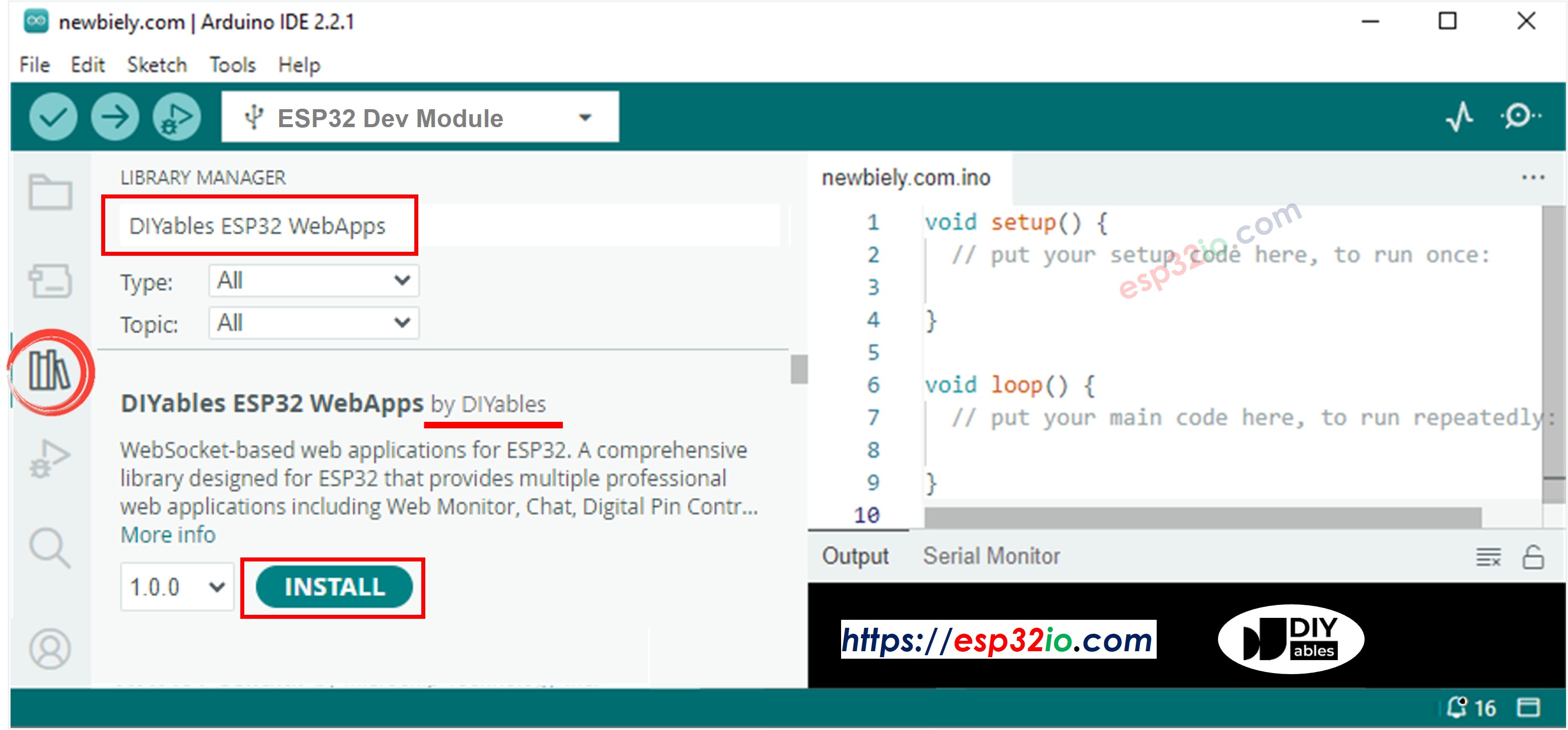
  • Vá até o ícone Libraries na barra lateral esquerda da Arduino IDE.
  • Pesquise "DIYables ESP32 WebApps" e encontre a biblioteca DIYables ESP32 WebApps da DIYables
  • Clique no botão Install para instalar a biblioteca.
DIYables ESP32 WebApps Library
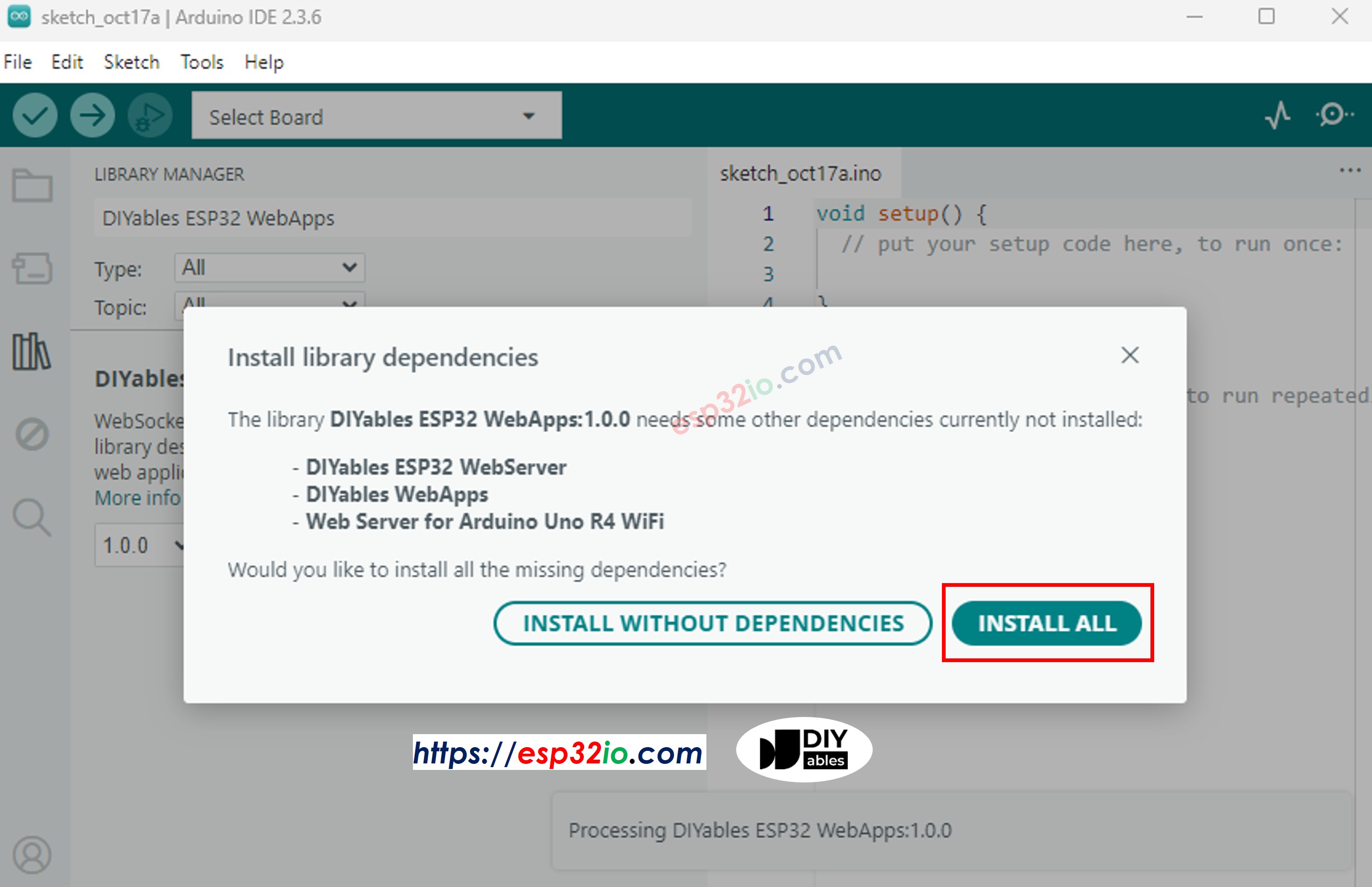
  • Você será solicitado a instalar algumas outras bibliotecas de dependência
  • Clique no botão Install All para instalar todas as dependências da biblioteca.
DIYables ESP32 WebApps dependency
  • Na Arduino IDE, vá em File Examples DIYables ESP32 WebApps WebPlotter, ou copie o código acima e cole no editor da Arduino IDE
/* * DIYables WebApp Library - Web Plotter Example * * This example demonstrates the Web Plotter feature: * - Real-time data visualization * - Multiple data series support * - Auto-scaling Y-axis * - Responsive web interface * - WebSocket communication for instant updates * * Hardware: ESP32 Boards * * Setup: * 1. Update WiFi credentials below * 2. Upload the sketch to your Arduino * 3. Open Serial Monitor to see the IP address * 4. Navigate to http://[IP_ADDRESS]/webplotter */ #include <DIYables_ESP32_Platform.h> #include <DIYablesWebApps.h> // WiFi credentials - UPDATE THESE WITH YOUR NETWORK const char WIFI_SSID[] = "YOUR_WIFI_SSID"; const char WIFI_PASSWORD[] = "YOUR_WIFI_PASSWORD"; // Create WebApp server and page instances ESP32ServerFactory serverFactory; DIYablesWebAppServer webAppsServer(serverFactory, 80, 81); DIYablesHomePage homePage; DIYablesWebPlotterPage webPlotterPage; // Simulation variables unsigned long lastDataTime = 0; const unsigned long DATA_INTERVAL = 1000; // Send data every 1000ms float timeCounter = 0; void setup() { Serial.begin(9600); delay(1000); // TODO: Initialize your hardware pins and sensors here Serial.println("DIYables ESP32 WebApp - Web Plotter Example"); // Add home and web plotter pages webAppsServer.addApp(&homePage); webAppsServer.addApp(&webPlotterPage); // Optional: Add 404 page for better user experience webAppsServer.setNotFoundPage(DIYablesNotFoundPage()); // Configure the plotter webPlotterPage.setPlotTitle("Real-time Data Plotter"); webPlotterPage.setAxisLabels("Time (s)", "Values"); webPlotterPage.enableAutoScale(true); webPlotterPage.setMaxSamples(50); // Start the WebApp server if (!webAppsServer.begin(WIFI_SSID, WIFI_PASSWORD)) { while (1) { Serial.println("Failed to start WebApp server!"); delay(1000); } } // Set up callbacks webPlotterPage.onPlotterDataRequest([]() { Serial.println("Web client requested data"); sendSensorData(); }); Serial.println("\nWebPlotter is ready!"); Serial.println("Usage Instructions:"); Serial.println("1. Connect to the WiFi network"); Serial.println("2. Open your web browser"); Serial.println("3. Navigate to the Arduino's IP address"); Serial.println("4. Click on 'Web Plotter' to view real-time data"); Serial.println("\nGenerating simulated sensor data..."); } void loop() { // Handle web server and WebSocket connections webAppsServer.loop(); // Send sensor data at regular intervals if (millis() - lastDataTime >= DATA_INTERVAL) { lastDataTime = millis(); sendSensorData(); timeCounter += DATA_INTERVAL / 1000.0; // Convert to seconds } } void sendSensorData() { // Generate simulated sensor data // In a real application, replace these with actual sensor readings // Simulated temperature sensor (sine wave with noise) float temperature = 25.0 + 5.0 * sin(timeCounter * 0.5) + random(-100, 100) / 100.0; // Simulated humidity sensor (cosine wave) float humidity = 50.0 + 20.0 * cos(timeCounter * 0.3); // Simulated light sensor (triangle wave) float light = 512.0 + 300.0 * (2.0 * abs(fmod(timeCounter * 0.2, 2.0) - 1.0) - 1.0); // Simulated analog pin reading float analogValue = analogRead(A0); // Send data using different methods: // Method 1: Send individual values (uncomment to use) // webPlotterPage.sendPlotData(temperature); // Method 2: Send multiple values at once webPlotterPage.sendPlotData(temperature, humidity, light / 10.0, analogValue / 100.0); // Method 3: Send array of values (alternative approach) // float values[] = {temperature, humidity, light / 10.0, analogValue / 100.0}; // webPlotterPage.sendPlotData(values, 4); // Method 4: Send raw data string (for custom formatting) // String dataLine = String(temperature, 2) + " " + String(humidity, 1) + " " + String(light / 10.0, 1); // webPlotterPage.sendPlotData(dataLine); // Print to Serial Monitor in Serial Plotter compatible format // Format: Temperature Humidity Light Analog (tab-separated for Serial Plotter) Serial.print(temperature, 1); Serial.print("\t"); Serial.print(humidity, 1); Serial.print("\t"); Serial.print(light / 10.0, 1); Serial.print("\t"); Serial.println(analogValue / 100.0, 2); }
  • Configure as credenciais de WiFi no código atualizando estas linhas:
const char WIFI_SSID[] = "YOUR_WIFI_NETWORK"; const char WIFI_PASSWORD[] = "YOUR_WIFI_PASSWORD";
  • Clique no botão Upload na Arduino IDE para carregar o código no ESP32
  • Abra o Serial Monitor
  • Veja o resultado no Serial Monitor. Ele será parecido com o abaixo
∞
Newbiely | Arduino IDE 2.3.8
──
☐
✕
File
Edit
Sketch
Tools
Help
ESP32 Dev Module
Newbiely.ino
···
8 Serial.println("Hello World!");
Output
Serial Monitor
Message (Enter to send message to 'ESP32 Dev Module' on 'COM15')
New Line
9600 baud
DIYables WebApp - Web Plotter Example INFO: Added app / INFO: Added app /web-plotter DIYables WebApp Library Platform: ESP32 Network connected! IP address: 192.168.0.2 HTTP server started on port 80 Configuring WebSocket server callbacks... WebSocket server started on port 81 WebSocket URL: ws://192.168.0.2:81 WebSocket server started on port 81 ========================================== DIYables WebApp Ready! ========================================== 📱 Web Interface: http://192.168.0.2 🔗 WebSocket: ws://192.168.0.2:81 📋 Available Applications: 🏠 Home Page: http://192.168.0.2/ 📊 Web Plotter: http://192.168.0.2/web-plotter ==========================================
Ln 11, Col 1
ESP32 Dev Module on COM15
2
  • Se você não vir nada, reinicie a placa ESP32.
  • Anote o endereço IP exibido e digite esse endereço na barra de endereços de um navegador web no seu celular ou PC.
  • Exemplo: http://192.168.0.2
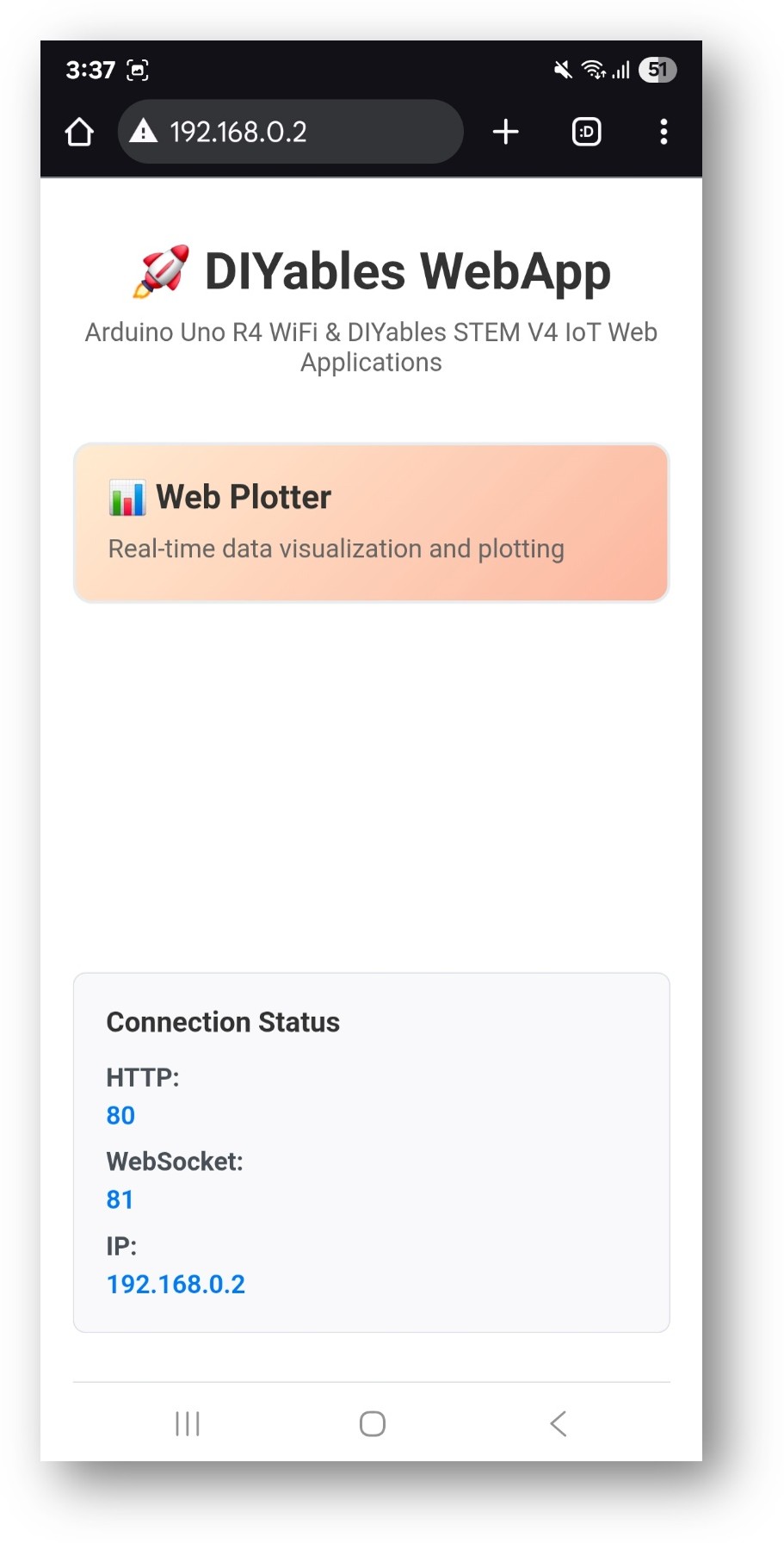
  • Você verá a home page como na imagem abaixo:
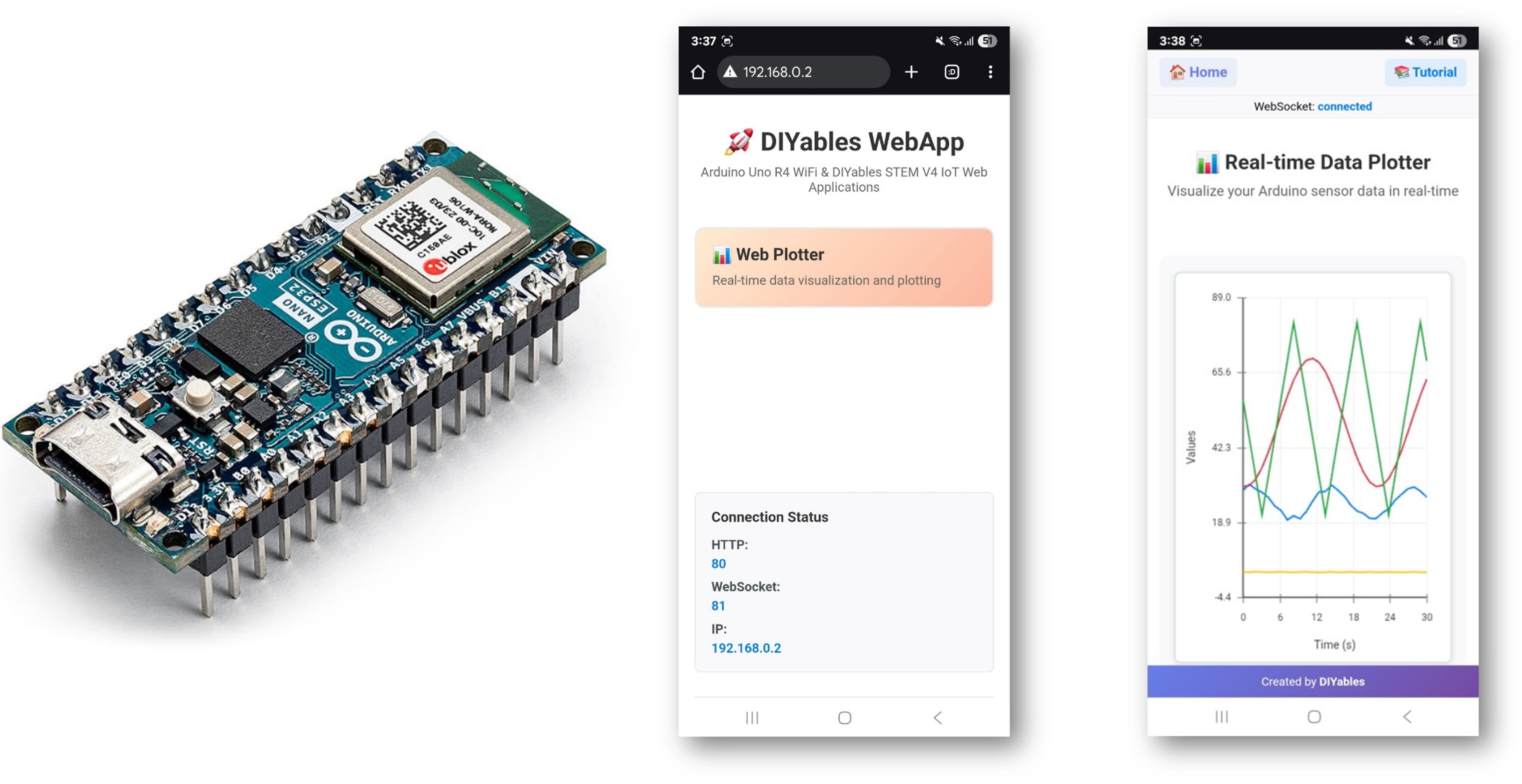
Home page do DIYables WebApp no ESP32 com o app Web Plotter
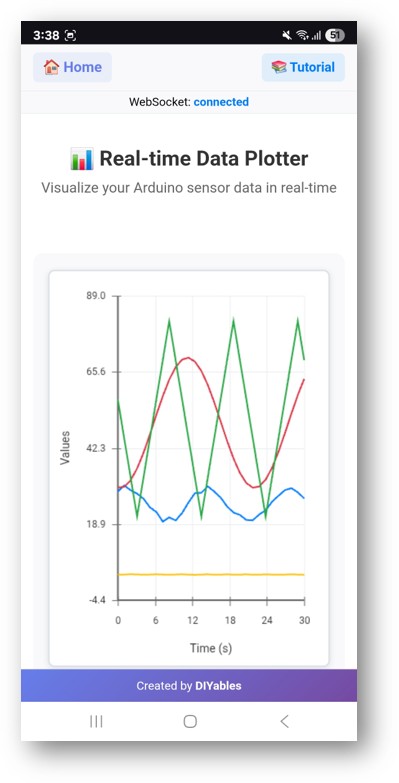
  • Clique no link Web Plotter e você verá a interface do app Web Plotter como abaixo:
App Web Plotter do DIYables WebApp no ESP32
  • Você também pode acessar a página diretamente pelo endereço IP seguido de /web-plotter. Por exemplo: http://192.168.0.2/web-plotter
  • Veja o ESP32 gerar dados de sensor simulados e plotá-los em tempo real. Você verá várias linhas coloridas representando diferentes fluxos de dados.

Personalização Criativa - Visualize Seus Dados de Forma Criativa

Transforme a interface de plotagem para atender aos requisitos exclusivos do seu projeto e crie visualizações de dados impressionantes:

Configuração da Fonte de Dados

Substitua os dados simulados por leituras reais de sensores:

Método 1: Leitura de um Único Sensor

void sendTemperatureData() { float temperature = analogRead(A0) * (5.0 / 1023.0) * 100; // LM35 temperature sensor webPlotterPage.sendPlotData(temperature); }

Método 2: Vários Sensores

void sendMultipleSensors() { float temperature = readTemperature(); float humidity = readHumidity(); float light = analogRead(A1) / 10.0; float pressure = readPressure(); webPlotterPage.sendPlotData(temperature, humidity, light, pressure); }

Método 3: Array de Valores

void sendSensorArray() { float sensors[6] = { analogRead(A0) / 10.0, // Sensor 1 analogRead(A1) / 10.0, // Sensor 2 analogRead(A2) / 10.0, // Sensor 3 digitalRead(2) * 50, // Digital state millis() / 1000.0, // Time counter random(0, 100) // Random data }; webPlotterPage.sendPlotData(sensors, 6); }

Personalização do Gráfico

Aparência Personalizada do Gráfico

void setupCustomPlot() { webPlotterPage.setPlotTitle("Environmental Monitoring Station"); webPlotterPage.setAxisLabels("Time (minutes)", "Sensor Readings"); webPlotterPage.setYAxisRange(0, 100); // Fixed Y-axis range webPlotterPage.setMaxSamples(100); // Show more data points }

Configuração Dinâmica

void setupDynamicPlot() { webPlotterPage.setPlotTitle("Smart Garden Monitor"); webPlotterPage.setAxisLabels("Sample #", "Values"); webPlotterPage.enableAutoScale(true); // Auto-adjust Y-axis // Configure callbacks for interactive features webPlotterPage.onPlotterDataRequest([]() { Serial.println("Client connected - sending initial data"); sendInitialDataBurst(); }); }

Processamento Avançado de Dados

Filtro de Média Móvel

float movingAverage(float newValue) { static float readings[10]; static int index = 0; static float total = 0; total -= readings[index]; readings[index] = newValue; total += readings[index]; index = (index + 1) % 10; return total / 10.0; } void sendFilteredData() { float rawValue = analogRead(A0); float filteredValue = movingAverage(rawValue); webPlotterPage.sendPlotData(rawValue / 10.0, filteredValue / 10.0); }

Registro de Dados com Timestamps

void sendTimestampedData() { unsigned long currentTime = millis() / 1000; float sensorValue = analogRead(A0) / 10.0; // Send time and value as separate data series webPlotterPage.sendPlotData(currentTime, sensorValue); // Also log to Serial for debugging Serial.print("Time: "); Serial.print(currentTime); Serial.print("s, Value: "); Serial.println(sensorValue); }

Exemplos de Integração

Monitoramento Ambiental

#include <DHT.h> #define DHT_PIN 2 #define DHT_TYPE DHT22 DHT dht(DHT_PIN, DHT_TYPE); void sendEnvironmentalData() { float temperature = dht.readTemperature(); float humidity = dht.readHumidity(); float lightLevel = analogRead(A0) / 10.0; if (!isnan(temperature) && !isnan(humidity)) { webPlotterPage.sendPlotData(temperature, humidity, lightLevel); Serial.print("T: "); Serial.print(temperature); Serial.print("°C, H: "); Serial.print(humidity); Serial.print("%, Light: "); Serial.println(lightLevel); } }

Feedback de Controle de Motor

void sendMotorData() { int motorSpeed = analogRead(A0); // Speed potentiometer int currentDraw = analogRead(A1); // Current sensor int motorPosition = digitalRead(2); // Position sensor float speedPercent = (motorSpeed / 1023.0) * 100; float currentAmps = (currentDraw / 1023.0) * 5.0; float positionDegrees = motorPosition * 90; webPlotterPage.sendPlotData(speedPercent, currentAmps, positionDegrees); }

Visualização de Controlador PID

float setpoint = 50.0; float kp = 1.0, ki = 0.1, kd = 0.01; float integral = 0, previousError = 0; void sendPIDData() { float input = analogRead(A0) / 10.0; float error = setpoint - input; integral += error; float derivative = error - previousError; float output = (kp * error) + (ki * integral) + (kd * derivative); previousError = error; // Plot setpoint, input, error, and output webPlotterPage.sendPlotData(setpoint, input, error, output); }

Otimização de Desempenho

Transmissão Eficiente de Dados

unsigned long lastPlotUpdate = 0; const unsigned long PLOT_INTERVAL = 100; // Update every 100ms void efficientDataSending() { if (millis() - lastPlotUpdate >= PLOT_INTERVAL) { lastPlotUpdate = millis(); // Only send data at defined intervals float value1 = analogRead(A0) / 10.0; float value2 = analogRead(A1) / 10.0; webPlotterPage.sendPlotData(value1, value2); } }

Envio Condicional de Dados

float lastSentValue = 0; const float CHANGE_THRESHOLD = 5.0; void sendOnChange() { float currentValue = analogRead(A0) / 10.0; // Only send if value changed significantly if (abs(currentValue - lastSentValue) > CHANGE_THRESHOLD) { webPlotterPage.sendPlotData(currentValue); lastSentValue = currentValue; } }

Ideias de Projetos

Aplicações Científicas

  • Data Logger: Registre temperatura, umidade e pressão ao longo do tempo
  • Análise de Vibração: Monitore dados de acelerômetro em sistemas mecânicos
  • Monitoramento de pH: Acompanhe a qualidade da água em sistemas de aquaponia
  • Eficiência de Painel Solar: Monitore a saída de tensão/corrente em relação à luz solar

Projetos Educacionais

  • Experimentos de Física: Visualize o movimento de um pêndulo e oscilações de molas
  • Laboratório de Química: Monitore taxas de reação e variações de temperatura
  • Estudos de Biologia: Acompanhe sensores de crescimento de plantas e fatores ambientais
  • Matemática: Plote funções matemáticas e saídas de algoritmos

Automação Residencial

  • Monitoramento de Energia: Acompanhe os padrões de consumo de energia
  • Automação de Jardim: Monitore a umidade do solo e os níveis de luz
  • Controle de HVAC: Visualize as tendências de temperatura e umidade
  • Sistema de Segurança: Plote as atividades do sensor de movimento

Robótica e Controle

  • Navegação de Robô: Plote dados de posição e orientação
  • Controle de Motor: Monitore velocidade, torque e eficiência
  • Fusão de Sensores: Combine leituras de vários sensores
  • Planejamento de Trajetória: Visualize algoritmos de movimento do robô

Solução de Problemas

Problemas Comuns

1. Nenhum dado aparece no gráfico

  • Verifique o status da conexão WiFi
  • Confira a conexão WebSocket no console do navegador
  • Garanta que sendPlotData() esteja sendo chamada regularmente
  • Verifique o Serial Monitor em busca de mensagens de erro

2. O gráfico aparece instável ou errático

  • Implemente a filtragem de dados (média móvel)
  • Reduza a frequência de envio de dados
  • Verifique ruído no sensor ou problemas de conexão
  • Confira a estabilidade da fonte de alimentação

3. Problemas de desempenho no navegador

  • Reduza o número máximo de amostras (setMaxSamples())
  • Diminua a taxa de transmissão de dados
  • Feche outras abas do navegador
  • Use a aceleração de hardware do navegador

4. A conexão WebSocket cai

  • Verifique a intensidade do sinal WiFi
  • Confira as configurações do roteador (firewall, bloqueio de portas)
  • Implemente lógica de reconexão em código personalizado
  • Monitore o uso de memória do ESP32

Dicas de Depuração

Ative o Registro Detalhado

void debugPlotterData() { Serial.println("=== Plotter Debug Info ==="); Serial.print("Free RAM: "); Serial.println(freeMemory()); Serial.print("Connected clients: "); Serial.println(server.getConnectedClients()); Serial.print("Data rate: "); Serial.println("Every " + String(DATA_INTERVAL) + "ms"); Serial.println("========================"); }

Geração de Dados de Teste

void generateTestPattern() { static float phase = 0; float sine = sin(phase) * 50 + 50; float cosine = cos(phase) * 30 + 70; float triangle = (phase / PI) * 25 + 25; webPlotterPage.sendPlotData(sine, cosine, triangle); phase += 0.1; if (phase > 2 * PI) phase = 0; }

Recursos Avançados

Formatação Personalizada de Dados

void sendFormattedData() { float temp = 25.5; float humidity = 60.3; // Create custom formatted data string String dataLine = String(temp, 1) + "\t" + String(humidity, 1); webPlotterPage.sendPlotData(dataLine); }

Integração com Outros WebApps

void setupMultipleApps() { // Add multiple web applications server.addApp(new DIYablesHomePage()); server.addApp(new DIYablesWebDigitalPinsPage()); server.addApp(new DIYablesWebSliderPage()); server.addApp(&webPlotterPage); server.addApp(new DIYablesNotFoundPage()); // Configure interactions between apps webSliderPage.onSliderValueFromWeb([](int slider1, int slider2) { // Use slider values to control what gets plotted float scaleFactor = slider1 / 255.0; // ... plotting logic }); }

Controle em Tempo Real com Plotagem

void controlAndPlot() { // Read control inputs int targetSpeed = analogRead(A0); // Control hardware analogWrite(9, targetSpeed / 4); // PWM output // Read feedback int actualSpeed = analogRead(A1); int motorCurrent = analogRead(A2); // Plot target vs actual webPlotterPage.sendPlotData( targetSpeed / 4.0, // Target speed actualSpeed / 4.0, // Actual speed motorCurrent / 10.0 // Current draw ); }

ESP32 Web Plotter com Sensor DHT

Abaixo está o código completo para adaptar este web app com um sensor DHT11:

#include <DIYables_ESP32_Platform.h> #include <DIYablesWebApps.h> #include <DHT.h> #define DHT_PIN 21 #define DHT_TYPE DHT11 DHT dht(DHT_PIN, DHT_TYPE); // WiFi credentials - UPDATE THESE WITH YOUR NETWORK const char WIFI_SSID[] = "YOUR_WIFI_SSID"; const char WIFI_PASSWORD[] = "YOUR_WIFI_PASSWORD"; // Create WebApp server and page instances ESP32ServerFactory serverFactory; DIYablesWebAppServer webAppsServer(serverFactory, 80, 81); DIYablesHomePage homePage; DIYablesWebPlotterPage webPlotterPage; // Simulation variables unsigned long lastDataTime = 0; const unsigned long DATA_INTERVAL = 1000; // Send data every 1000ms float timeCounter = 0; void setup() { Serial.begin(9600); delay(1000); // TODO: Initialize your hardware pins and sensors here dht.begin(); Serial.println("DIYables ESP32 WebApp - Web Plotter Example"); // Add home and web plotter pages webAppsServer.addApp(&homePage); webAppsServer.addApp(&webPlotterPage); // Optional: Add 404 page for better user experience webAppsServer.setNotFoundPage(DIYablesNotFoundPage()); // Configure the plotter webPlotterPage.setPlotTitle("Real-time Data Plotter"); webPlotterPage.setAxisLabels("Time (s)", "Values"); webPlotterPage.enableAutoScale(true); webPlotterPage.setMaxSamples(50); // Start the WebApp server if (!webAppsServer.begin(WIFI_SSID, WIFI_PASSWORD)) { while (1) { Serial.println("Failed to start WebApp server!"); delay(1000); } } // Set up callbacks webPlotterPage.onPlotterDataRequest([]() { Serial.println("Web client requested data"); sendSensorData(); }); Serial.println("\nWebPlotter is ready!"); Serial.println("Usage Instructions:"); Serial.println("1. Connect to the WiFi network"); Serial.println("2. Open your web browser"); Serial.println("3. Navigate to the Arduino's IP address"); Serial.println("4. Click on 'Web Plotter' to view real-time data"); Serial.println("\nGenerating simulated sensor data..."); } void loop() { // Handle web server and WebSocket connections webAppsServer.loop(); // Send sensor data at regular intervals if (millis() - lastDataTime >= DATA_INTERVAL) { lastDataTime = millis(); sendSensorData(); timeCounter += DATA_INTERVAL / 1000.0; // Convert to seconds } delay(10000); } void sendSensorData() { // Generate simulated sensor data // In a real application, replace these with actual sensor readings // Simulated temperature sensor (sine wave with noise) float temperature = 25.0 + 5.0 * sin(timeCounter * 0.5) + random(-100, 100) / 100.0; // Simulated humidity sensor (cosine wave) float humidity = 50.0 + 20.0 * cos(timeCounter * 0.3); // Simulated light sensor (triangle wave) float light = 512.0 + 300.0 * (2.0 * abs(fmod(timeCounter * 0.2, 2.0) - 1.0) - 1.0); // Simulated analog pin reading float analogValue = analogRead(A0); // Send data using different methods: // Method 1: Send individual values (uncomment to use) // webPlotterPage.sendPlotData(temperature); // Method 2: Send multiple values at once webPlotterPage.sendPlotData(temperature, humidity, light / 10.0, analogValue / 100.0); // Method 3: Send array of values (alternative approach) // float values[] = {temperature, humidity, light / 10.0, analogValue / 100.0}; // webPlotterPage.sendPlotData(values, 4); // Method 4: Send raw data string (for custom formatting) // String dataLine = String(temperature, 2) + " " + String(humidity, 1) + " " + String(light / 10.0, 1); // webPlotterPage.sendPlotData(dataLine); // Print to Serial Monitor in Serial Plotter compatible format // Format: Temperature Humidity Light Analog (tab-separated for Serial Plotter) Serial.print(temperature, 1); Serial.print("\t"); Serial.print(humidity, 1); Serial.print("\t"); Serial.print(light / 10.0, 1); Serial.print("\t"); Serial.println(analogValue / 100.0, 2); } void sendEnvironmentalData() { float temperature = dht.readTemperature(); float humidity = dht.readHumidity(); if (!isnan(temperature) && !isnan(humidity)) { webPlotterPage.sendPlotData(temperature, humidity); Serial.print("T: "); Serial.print(temperature); Serial.print("°C, H: "); Serial.println(humidity); } }

Abaixo está um tutorial em vídeo passo a passo mostrando como usar um sensor DHT com o app Web Plotter:

Próximos Passos

Depois de dominar o exemplo WebPlotter, explore:

  1. MultipleWebApps - Combine a plotagem com interfaces de controle
  2. WebMonitor - Adicione recursos de depuração junto com a plotagem
  3. Aplicações Personalizadas - Crie as suas próprias ferramentas de plotagem especializadas
  4. Análise de Dados - Implemente a análise estatística dos dados plotados

Suporte

Para ajuda adicional:

  • Consulte a documentação de Referência da API
  • Visite os tutoriais DIYables: https://esp32io.com/tutorials/diyables-esp32-webapps
  • Fóruns da comunidade ESP32
  • Ferramentas de depuração de WebSocket no console do desenvolvedor do navegador

※ NOSSAS MENSAGENS

  • Fique à vontade para compartilhar o link deste tutorial. Porém, por favor, não use nosso conteúdo em outros sites. Investimos muito esforço e tempo para criar este conteúdo, por favor respeite nosso trabalho!