Exemplo de Table Bluetooth com ESP32 - Tutorial de Interface de Exibição de Dados Estruturados
Visão Geral
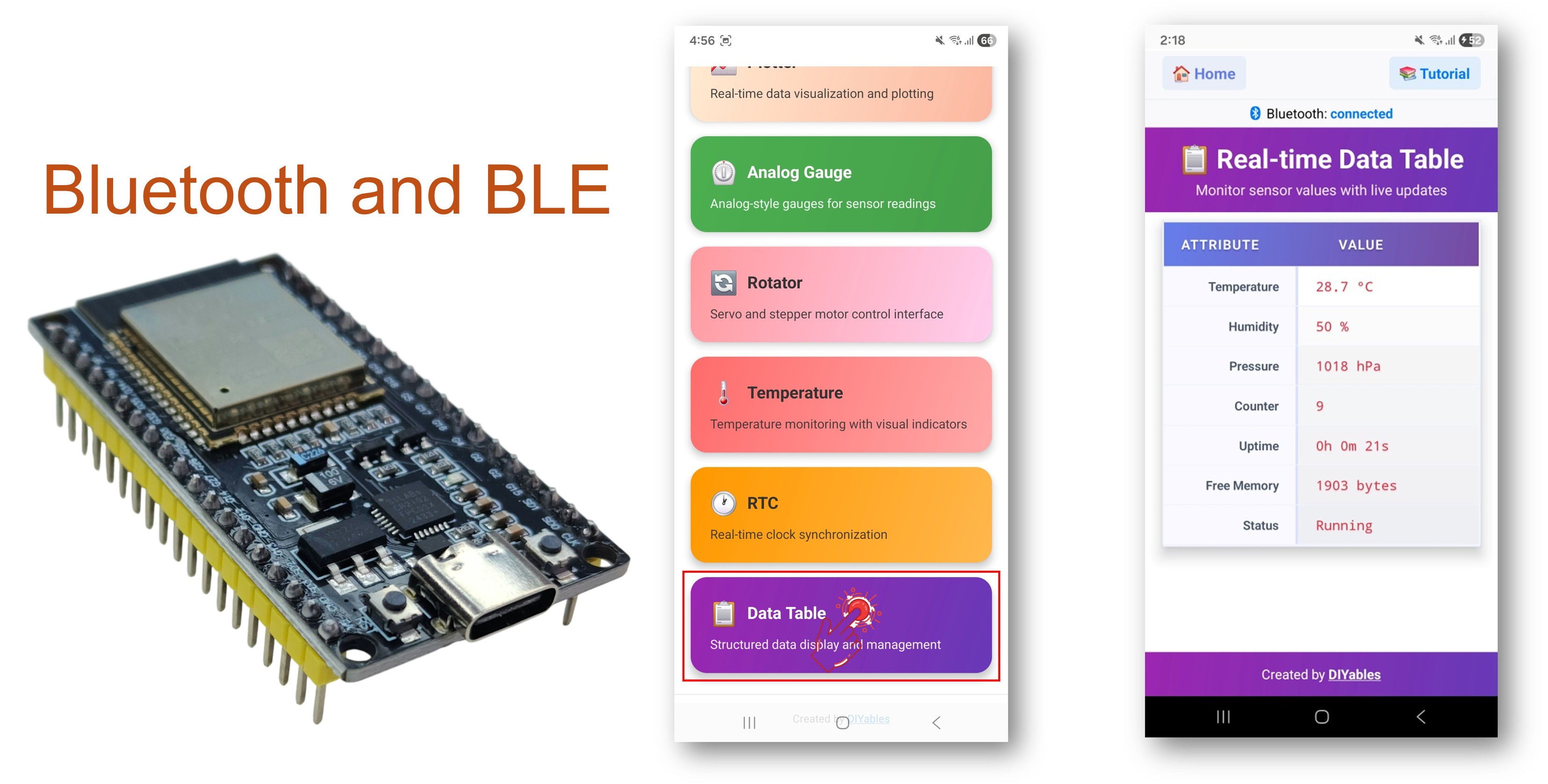
O exemplo Bluetooth Table oferece uma exibição estruturada de dados chave-valor, acessível pelo app DIYables Bluetooth STEM. Projetado para placas ESP32, com suporte a conexões BLE (Bluetooth Low Energy) e Bluetooth Clássico. Defina linhas nomeadas e atualize seus valores em tempo real — perfeito para painéis, painéis de status de sensores, monitores de sistema e qualquer aplicação que precise de uma apresentação organizada dos dados.
Este exemplo oferece suporte a dois modos de Bluetooth:
ESP32 BLE (Bluetooth Low Energy): Funciona no Android e no iOS
ESP32 Bluetooth Clássico: Funciona somente no Android. O iOS não oferece suporte ao Bluetooth Clássico. Use o BLE se precisar de suporte ao iOS.
Recursos
Linhas Estruturadas: Até 20 linhas de atributos nomeados
Atualizações em Tempo Real: Atualize o valor de cada linha individualmente, sem recarregar a tabela inteira
Atributos Nomeados: Cada linha tem um rótulo descritivo (por exemplo, "Temperature", "Status")
Valores Dinâmicos: Envie qualquer valor de texto para cada linha
Sincronização da Estrutura da Tabela: O app solicita a configuração da tabela ao conectar
BLE e Bluetooth Clássico: Escolha o modo Bluetooth que melhor atende ao seu projeto
Multiplataforma: O modo BLE funciona no Android e no iOS; o Bluetooth Clássico funciona no Android
Opção de Baixo Consumo: O modo BLE consome menos energia que o Bluetooth Clássico
Divulgação: Alguns dos links desta seção são links de afiliado da Amazon. Podemos receber uma comissão pelas compras feitas por meio desses links, sem custo adicional para você. Agradecemos o seu apoio.
Conecte a placa ESP32 ao seu computador usando um cabo USB.
Abra o Arduino IDE no seu computador.
Selecione a placa ESP32 e a porta COM apropriadas.
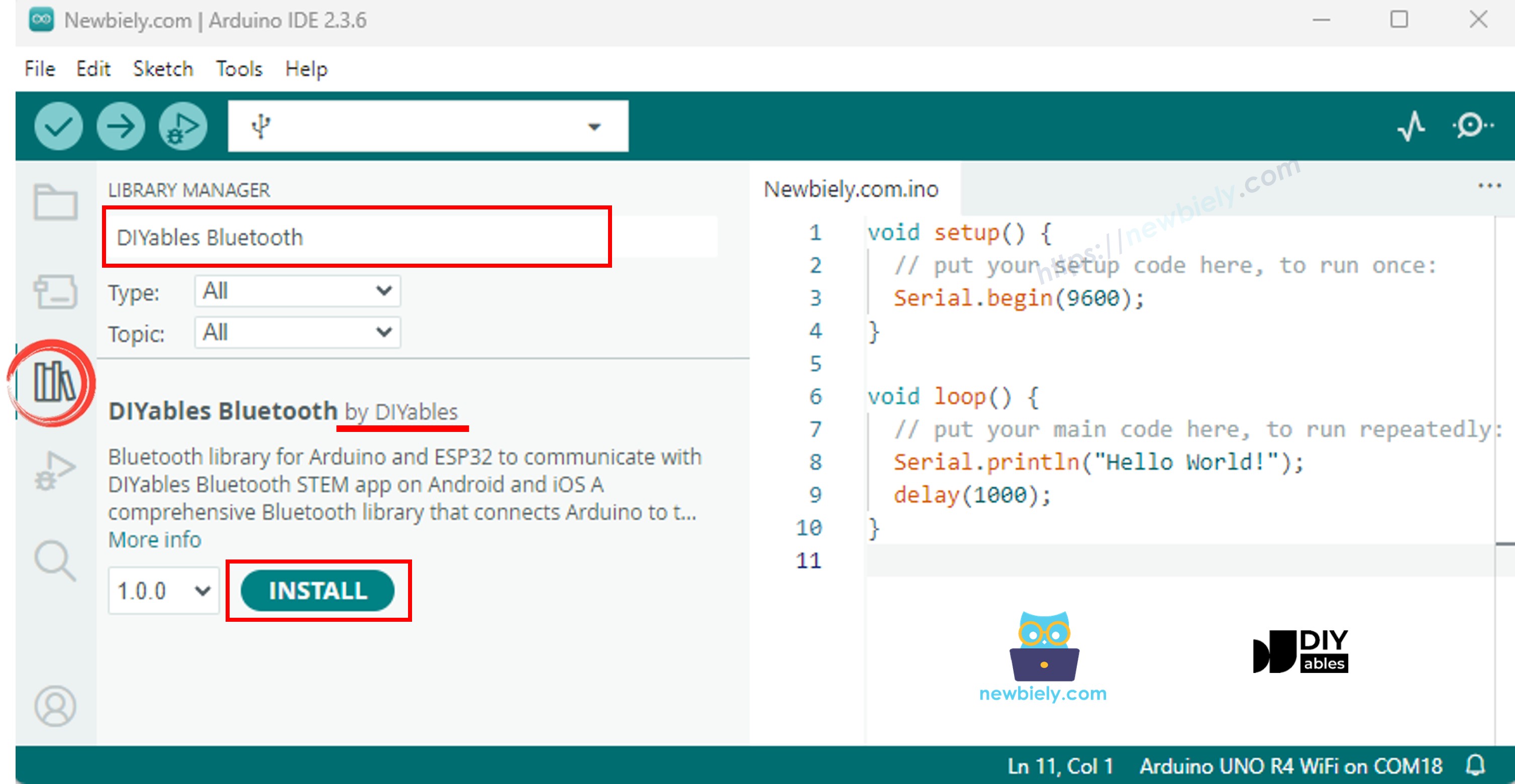
Acesse o ícone Libraries na barra à esquerda do Arduino IDE.
Pesquise "DIYables Bluetooth" e encontre a biblioteca DIYables Bluetooth, da DIYables
Clique no botão Install para instalar a biblioteca.
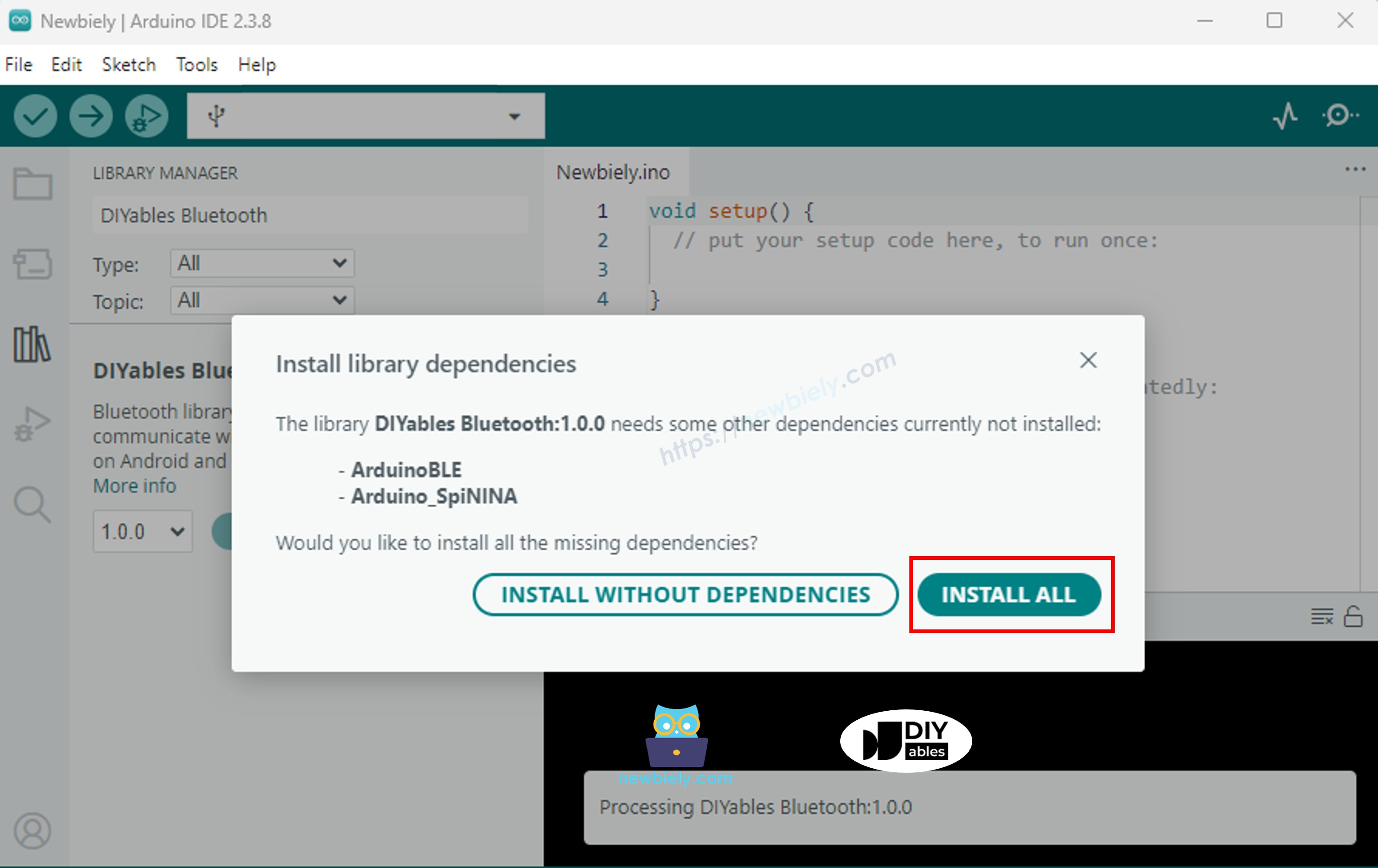
Será solicitado que você instale outras dependências da biblioteca
Clique no botão Install All para instalar todas as dependências da biblioteca.
Escolha um dos dois modos de Bluetooth abaixo, de acordo com a sua necessidade:
Código ESP32 Bluetooth Clássico (funciona com o app somente no Android)
Observação: O Bluetooth Clássico NÃO é compatível com o iOS. Se você precisa de suporte ao iOS, use o código BLE abaixo.
No Arduino IDE, vá em File Examples DIYables Bluetooth Esp32Bluetooth_Table, ou copie o código acima e cole no editor do Arduino IDE
/* * DIYables Bluetooth Library - ESP32 Classic Bluetooth Table Example * Works with DIYables Bluetooth STEM app on Android * Note: Classic Bluetooth is NOT supported on iOS. Use BLE examples for iOS support. * * This example demonstrates the Bluetooth Table feature: * - Display structured data in a two-column table * - Real-time value updates for each row * - Perfect for sensor dashboards and status displays * * Compatible Boards: * - ESP32 (all variants with Classic Bluetooth) * - ESP32-WROOM-32 * - ESP32-DevKitC * - ESP32-WROVER * * Note: Select "Huge APP (3MB No OTA/1MB SPIFFS)" partition scheme * in Arduino IDE: Tools > Partition Scheme * * Setup: * 1. Upload the sketch to your ESP32 * 2. Open Serial Monitor (115200 baud) to see connection status * 3. Use DIYables Bluetooth App to connect and view the table * * Tutorial: https://diyables.io/bluetooth-app * Author: DIYables */#include <DIYables_BluetoothServer.h>#include <DIYables_BluetoothTable.h>#include <platforms/DIYables_Esp32Bluetooth.h>// Create Bluetooth instancesDIYables_Esp32Bluetooth bluetooth("ESP32_Table");DIYables_BluetoothServer bluetoothServer(bluetooth);// Create Table app instanceDIYables_BluetoothTable bluetoothTable;// Variables for demo dataunsignedlong lastUpdate = 0;constunsignedlong UPDATE_INTERVAL = 1000; // Update every secondint counter = 0;voidsetup() {Serial.begin(115200);delay(1000);Serial.println("DIYables Bluetooth - ESP32 Table Example");// Initialize Bluetooth server with platform-specific implementation bluetoothServer.begin();// Add table app to server bluetoothServer.addApp(&bluetoothTable);// Define table structure (add rows with attribute names) bluetoothTable.addRow("Temperature"); bluetoothTable.addRow("Humidity"); bluetoothTable.addRow("Pressure"); bluetoothTable.addRow("Counter"); bluetoothTable.addRow("Uptime"); bluetoothTable.addRow("Free Heap"); bluetoothTable.addRow("CPU Freq"); bluetoothTable.addRow("Status");Serial.print("Table rows defined: ");Serial.println(bluetoothTable.getRowCount());// Set up connection event callbacks bluetoothServer.setOnConnected([]() {Serial.println("Bluetooth connected!");// Send table structure bluetoothTable.sendTableStructure();// Send initial values updateTableValues(); }); bluetoothServer.setOnDisconnected([]() {Serial.println("Bluetooth disconnected!"); });// Optional: Handle requests for table data bluetoothTable.onDataRequest([]() {Serial.println("App requested table data"); bluetoothTable.sendTableStructure(); updateTableValues(); });Serial.println("Waiting for Bluetooth connection...");}void updateTableValues() {// TODO: Replace with actual sensor readings// Simulated temperature (20-30°C)float temperature = 20.0 + random(0, 100) / 10.0; bluetoothTable.sendValueUpdate("Temperature", String(temperature, 1) + " °C");// Simulated humidity (40-60%)int humidity = 40 + random(0, 21); bluetoothTable.sendValueUpdate("Humidity", String(humidity) + " %");// Simulated pressure (1000-1020 hPa)int pressure = 1000 + random(0, 21); bluetoothTable.sendValueUpdate("Pressure", String(pressure) + " hPa");// Counter value bluetoothTable.sendValueUpdate("Counter", String(counter)); counter++;// Uptime (in seconds)unsignedlong uptime = millis() / 1000;String uptimeStr = String(uptime / 3600) + "h " + String((uptime % 3600) / 60) + "m " + String(uptime % 60) + "s"; bluetoothTable.sendValueUpdate("Uptime", uptimeStr);// ESP32-specific: Free heap memory bluetoothTable.sendValueUpdate("Free Heap", String(ESP.getFreeHeap()) + " bytes");// ESP32-specific: CPU frequency bluetoothTable.sendValueUpdate("CPU Freq", String(ESP.getCpuFreqMHz()) + " MHz");// Status bluetoothTable.sendValueUpdate("Status", counter % 2 == 0 ? "Running" : "Active");Serial.println("Table values updated");}voidloop() {// Handle Bluetooth server communications bluetoothServer.loop();// Update table values periodically (only when connected)if (bluetooth.isConnected() && millis() - lastUpdate >= UPDATE_INTERVAL) { lastUpdate = millis(); updateTableValues(); }delay(10);}
Clique no botão Upload do Arduino IDE para carregar o código no ESP32
Abra o Serial Monitor
Confira o resultado no Serial Monitor. Ele deve ficar como abaixo:
Newbiely | Arduino IDE 2.3.8
──
☐
✕
File
Edit
Sketch
Tools
Help
ESP32 Dev Module
Newbiely.ino
···
8Serial.println("Hello World!");
Output
Serial Monitor
Message (Enter to send message to 'ESP32 Dev Module' on 'COM15')
New Line
9600 baud
DIYables Bluetooth - ESP32 Table Example
Waiting for Bluetooth connection...
Ln 11, Col 1
ESP32 Dev Module on COM15
2
Código ESP32 BLE (funciona com o app no Android e no iOS)
No Arduino IDE, vá em File Examples DIYables Bluetooth Esp32BLE_Table, ou copie o código acima e cole no editor do Arduino IDE
/* * DIYables Bluetooth Library - ESP32 BLE Table Example * Works with DIYables Bluetooth STEM app on Android and iOS * * This example demonstrates the Bluetooth Table feature: * - Display structured data in a two-column table * - Real-time value updates for each row * - Perfect for sensor dashboards and status displays * * Compatible Boards: * - ESP32-WROOM-32 * - ESP32-DevKitC * - ESP32-WROVER * - ESP32-S3 * - ESP32-C3 * - Any ESP32 board supporting BLE * * Note: Select "Huge APP (3MB No OTA/1MB SPIFFS)" partition scheme * in Arduino IDE: Tools > Partition Scheme * * Setup: * 1. Upload the sketch to your ESP32 * 2. Open Serial Monitor (115200 baud) to see connection status * 3. Use DIYables Bluetooth App to connect and view the table * * Tutorial: https://diyables.io/bluetooth-app * Author: DIYables */#include <DIYables_BluetoothServer.h>#include <DIYables_BluetoothTable.h>#include <platforms/DIYables_Esp32BLE.h>// BLE Configurationconst char* DEVICE_NAME = "ESP32BLE_Table";const char* SERVICE_UUID = "19B10000-E8F2-537E-4F6C-D104768A1214";const char* TX_UUID = "19B10001-E8F2-537E-4F6C-D104768A1214";const char* RX_UUID = "19B10002-E8F2-537E-4F6C-D104768A1214";// Create Bluetooth instancesDIYables_Esp32BLE bluetooth(DEVICE_NAME, SERVICE_UUID, TX_UUID, RX_UUID);DIYables_BluetoothServer bluetoothServer(bluetooth);// Create Table app instanceDIYables_BluetoothTable bluetoothTable;// Variables for demo dataunsignedlong lastUpdate = 0;constunsignedlong UPDATE_INTERVAL = 1000;int counter = 0;voidsetup() {Serial.begin(115200);delay(1000);Serial.println("DIYables Bluetooth - ESP32 BLE Table Example");// Initialize Bluetooth server with platform-specific implementation bluetoothServer.begin();// Add table app to server bluetoothServer.addApp(&bluetoothTable);// Define table structure bluetoothTable.addRow("Temperature"); bluetoothTable.addRow("Humidity"); bluetoothTable.addRow("Pressure"); bluetoothTable.addRow("Counter"); bluetoothTable.addRow("Uptime"); bluetoothTable.addRow("Free Heap"); bluetoothTable.addRow("Status");Serial.print("Table rows defined: ");Serial.println(bluetoothTable.getRowCount());// Set up connection event callbacks bluetoothServer.setOnConnected([]() {Serial.println("Bluetooth connected!"); bluetoothTable.sendTableStructure(); updateTableValues(); }); bluetoothServer.setOnDisconnected([]() {Serial.println("Bluetooth disconnected!"); }); bluetoothTable.onDataRequest([]() {Serial.println("App requested table data"); bluetoothTable.sendTableStructure(); updateTableValues(); });Serial.println("Waiting for Bluetooth connection...");}void updateTableValues() {float temperature = 20.0 + random(0, 100) / 10.0; bluetoothTable.sendValueUpdate("Temperature", String(temperature, 1) + " °C");int humidity = 40 + random(0, 21); bluetoothTable.sendValueUpdate("Humidity", String(humidity) + " %");int pressure = 1000 + random(0, 21); bluetoothTable.sendValueUpdate("Pressure", String(pressure) + " hPa"); bluetoothTable.sendValueUpdate("Counter", String(counter)); counter++;unsignedlong uptime = millis() / 1000;String uptimeStr = String(uptime / 3600) + "h " + String((uptime % 3600) / 60) + "m " + String(uptime % 60) + "s"; bluetoothTable.sendValueUpdate("Uptime", uptimeStr); bluetoothTable.sendValueUpdate("Free Heap", String(ESP.getFreeHeap()) + " bytes"); bluetoothTable.sendValueUpdate("Status", counter % 2 == 0 ? "Running" : "Active");Serial.println("Table values updated");}voidloop() { bluetoothServer.loop();if (bluetooth.isConnected() && millis() - lastUpdate >= UPDATE_INTERVAL) { lastUpdate = millis(); updateTableValues(); }delay(10);}
Clique no botão Upload do Arduino IDE para carregar o código no ESP32
Abra o Serial Monitor
Confira o resultado no Serial Monitor. Ele deve ficar como abaixo:
Newbiely | Arduino IDE 2.3.8
──
☐
✕
File
Edit
Sketch
Tools
Help
ESP32 Dev Module
Newbiely.ino
···
8Serial.println("Hello World!");
Output
Serial Monitor
Message (Enter to send message to 'ESP32 Dev Module' on 'COM15')
New Line
9600 baud
DIYables Bluetooth - ESP32 BLE Table Example
Waiting for Bluetooth connection...
Ln 11, Col 1
ESP32 Dev Module on COM15
2
App para Celular
Instale o app DIYables Bluetooth no seu smartphone: Android | iOS
Se você estiver usando o código ESP32 Bluetooth Clássico, é preciso parear o ESP32 com o seu celular Android antes de abrir o app:
Vá em Configurações > Bluetooth do seu celular
Verifique se o Bluetooth está ligado
Seu celular vai procurar os dispositivos disponíveis
Encontre e toque em "ESP32_Table" na lista de dispositivos disponíveis
Confirme a solicitação de pareamento (não é necessário PIN)
Aguarde até aparecer "Paired" abaixo do nome do dispositivo
Se você estiver usando o código ESP32 BLE, não é necessário parear. Basta ir para o próximo passo.
Abra o app DIYables Bluetooth
Ao abrir o app pela primeira vez, ele vai pedir permissões. Conceda as seguintes:
Permissão de Dispositivos Próximos (Android 12+) / permissão de Bluetooth (iOS) - necessária para procurar e conectar a dispositivos Bluetooth
Permissão de Localização (somente Android 11 e anteriores) - exigida por versões mais antigas do Android para procurar dispositivos BLE
Verifique se o Bluetooth está ligado no seu celular
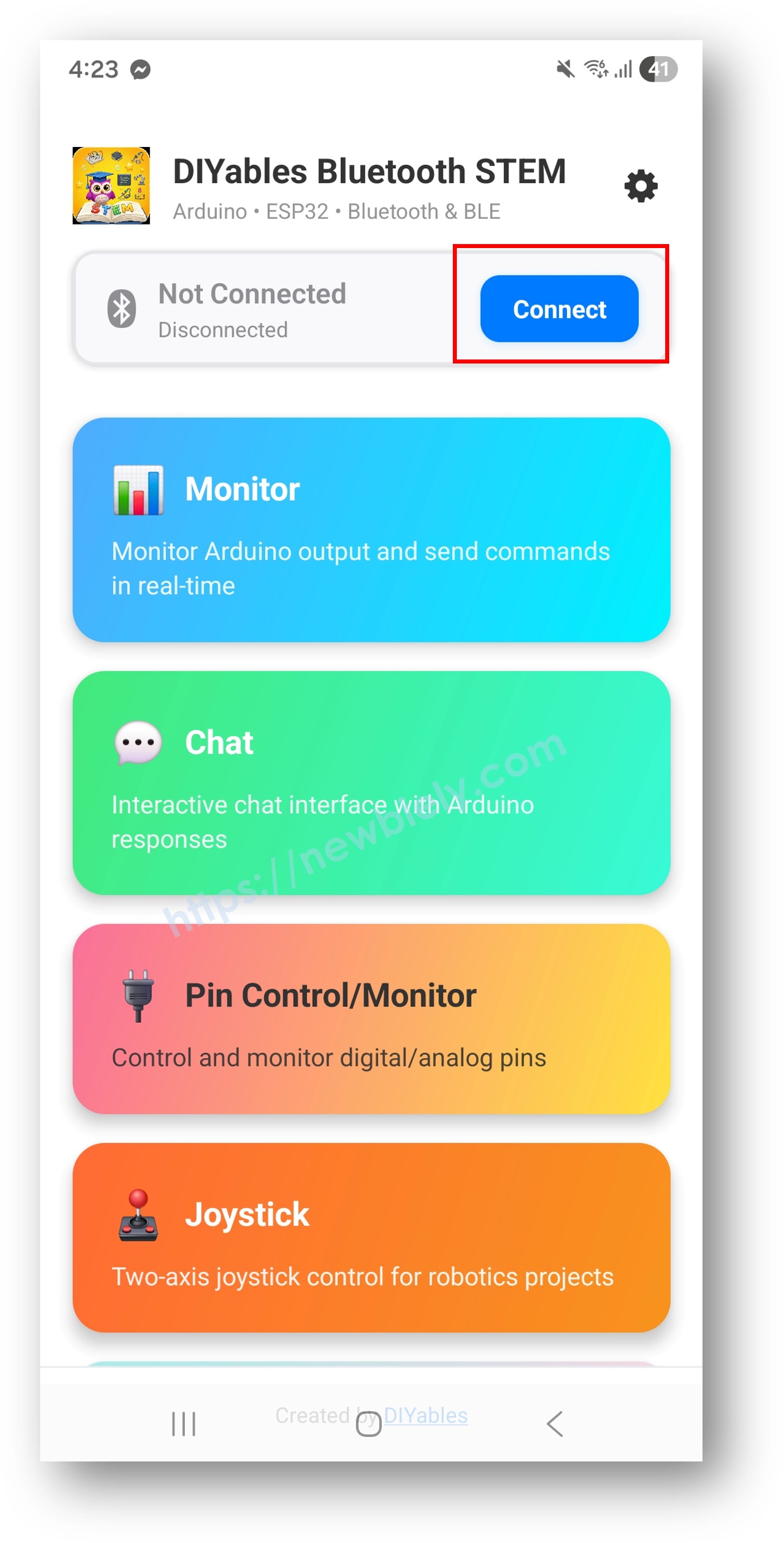
Na tela inicial, toque no botão Connect. O app vai procurar dispositivos BLE e Bluetooth Clássico.
Encontre e toque no seu dispositivo nos resultados da busca para conectar:
Para Bluetooth Clássico: toque em "ESP32_Table"
Para BLE: toque em "ESP32BLE_Table"
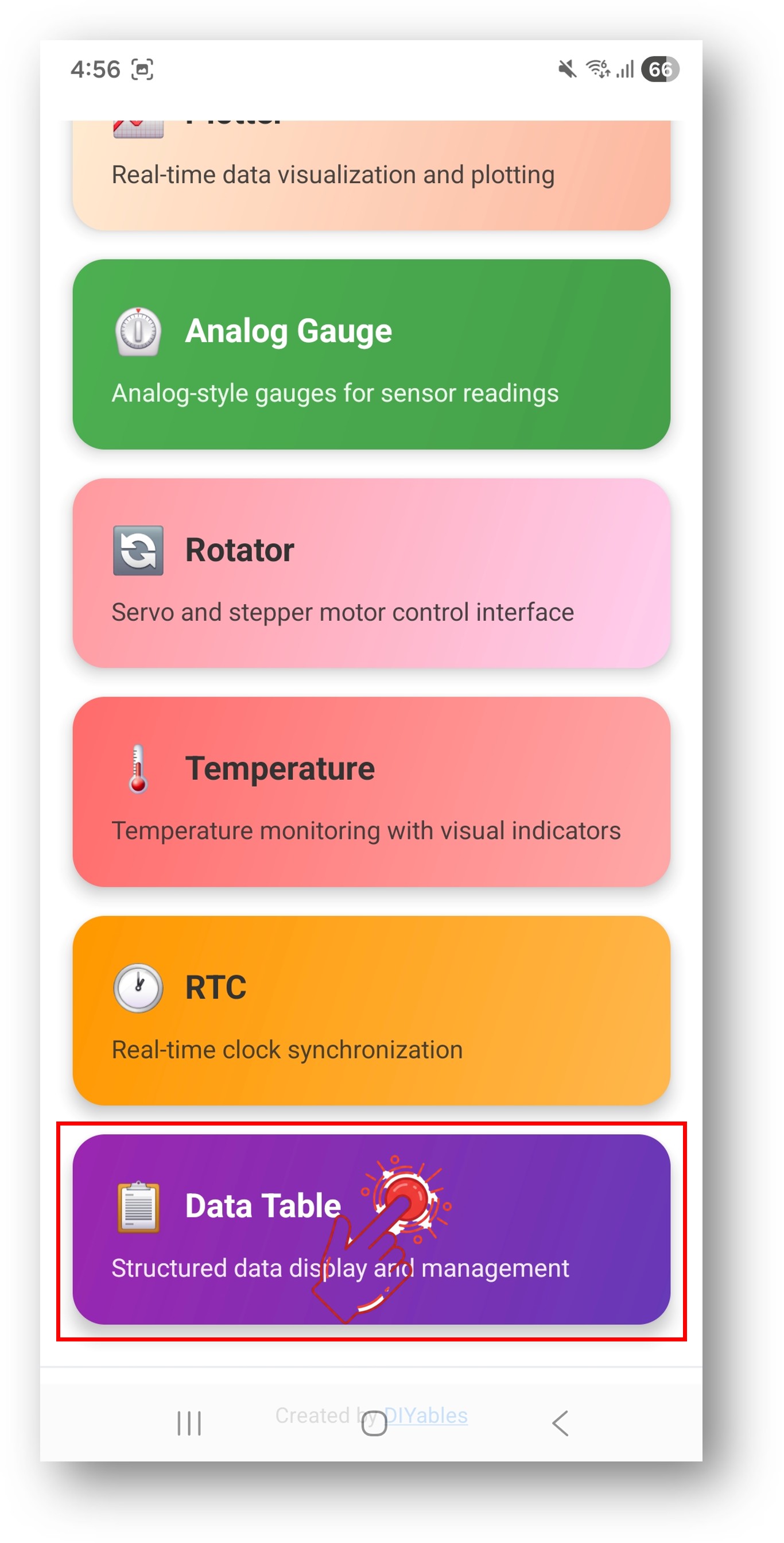
Depois de conectado, o app volta automaticamente para a tela inicial. Selecione o app Table no menu de apps.
Observação: Você pode tocar no ícone de configurações na tela inicial para ocultar/mostrar apps. Para mais detalhes, consulte o Manual do Usuário do DIYables Bluetooth App.
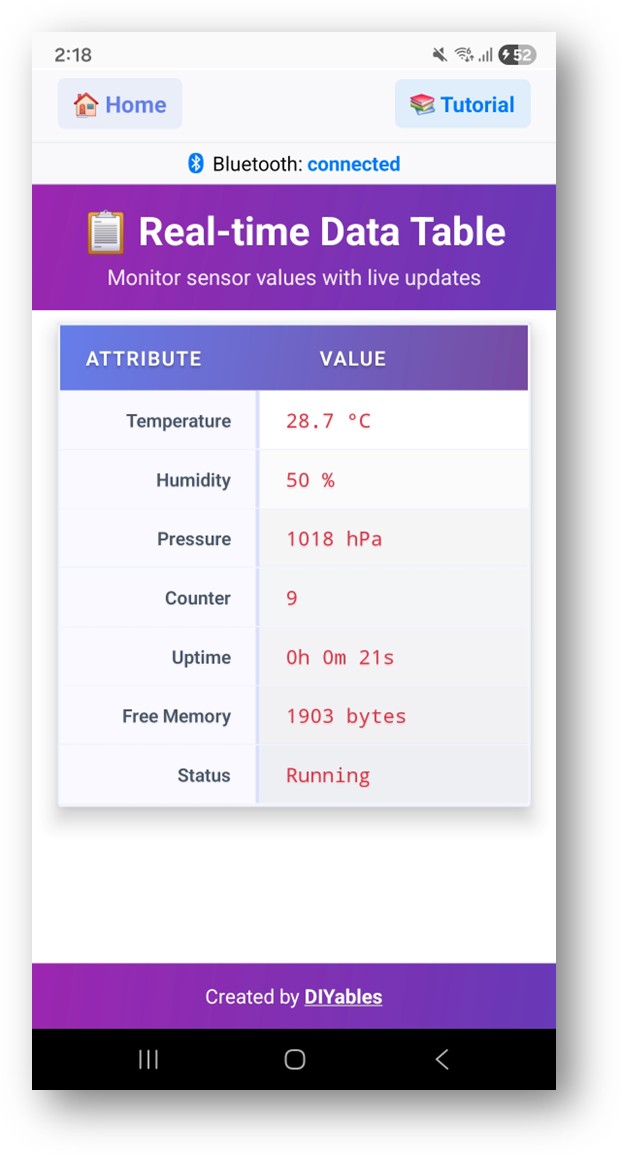
A tabela será preenchida com os nomes dos atributos e seus valores atuais
Agora olhe de volta para o Serial Monitor no Arduino IDE. Você verá:
Newbiely | Arduino IDE 2.3.8
──
☐
✕
File
Edit
Sketch
Tools
Help
ESP32 Dev Module
Newbiely.ino
···
8Serial.println("Hello World!");
Output
Serial Monitor
Message (Enter to send message to 'ESP32 Dev Module' on 'COM15')
New Line
9600 baud
Bluetooth connected!
App requested table data
Sent table structure
Temperature: 25.3
Humidity: 62%
Pressure: 1013 hPa
Counter: 1
Uptime: 0h 0m 5s
Free Heap: 245780
Status: Running
Ln 11, Col 1
ESP32 Dev Module on COM15
2
Veja os valores da tabela sendo atualizados em tempo real no app
Personalização Criativa - Adapte o Código ao Seu Projeto
Defina as Linhas da Tabela
Adicione linhas de atributos à tabela (até 20 linhas no máximo):
// Add rows during setupbluetoothTable.addRow("Temperature");bluetoothTable.addRow("Humidity");bluetoothTable.addRow("Pressure");bluetoothTable.addRow("Status");bluetoothTable.addRow("Uptime");// Check row countint rows = bluetoothTable.getRowCount();Serial.println("Total rows: " + String(rows));// Get attribute name by indexString attr = bluetoothTable.getAttribute(0); // Returns "Temperature"
Atualize os Valores das Linhas
Atualize o valor de cada linha pelo nome do atributo ou pelo índice:
// Update by attribute namebluetoothTable.sendValueUpdate("Temperature", "25.3 °C");bluetoothTable.sendValueUpdate("Humidity", "62%");bluetoothTable.sendValueUpdate("Status", "Running");// Update by row index (0-based)bluetoothTable.sendValueUpdate(0, "25.3 °C"); // First rowbluetoothTable.sendValueUpdate(1, "62%"); // Second row
Tratar as Solicitações de Dados do App
Quando o app se conecta ou solicita uma atualização:
bluetoothTable.onDataRequest([]() {Serial.println("App requested table data"); bluetoothTable.sendTableStructure(); // Send row names// Send current values for all rows bluetoothTable.sendValueUpdate("Temperature", String(temperature, 1) + " °C"); bluetoothTable.sendValueUpdate("Humidity", String(humidity) + "%"); bluetoothTable.sendValueUpdate("Status", "Online");});
Limpar e Reconstruir a Tabela
// Clear all rowsbluetoothTable.clearTable();// Add new rowsbluetoothTable.addRow("Sensor A");bluetoothTable.addRow("Sensor B");// Send updated structure to appbluetoothTable.sendTableStructure();
Fique à vontade para compartilhar o link deste tutorial. Porém, por favor, não use nosso conteúdo em outros sites. Investimos muito esforço e tempo para criar este conteúdo, por favor respeite nosso trabalho!