Exemplo de Monitor Bluetooth com ESP32 - Tutorial de Interface de Serial Monitor em Tempo Real

Visão Geral

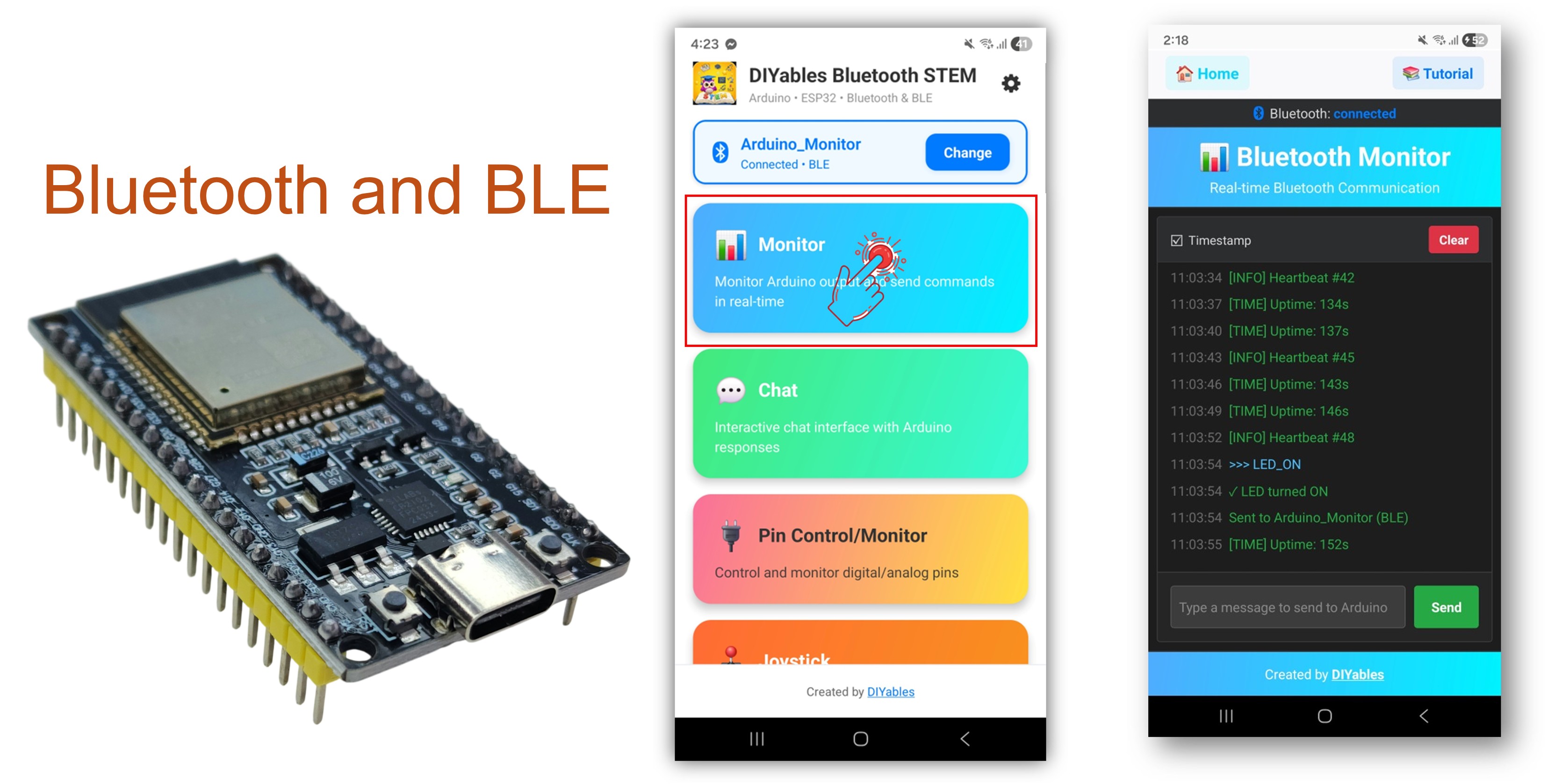
O exemplo Bluetooth Monitor oferece uma interface de serial monitor sem fio, acessível pelo app DIYables Bluetooth STEM. Projetado para placas ESP32, com suporte a conexões BLE (Bluetooth Low Energy) e Bluetooth Clássico. Transmita mensagens de status em tempo real para o app, receba e processe comandos de texto, exiba informações do sistema e depure seus projetos sem fio — perfeito para monitoramento sem cabos, depuração remota e telas de status do sistema.

Este exemplo oferece suporte a dois modos de Bluetooth:

  • ESP32 BLE (Bluetooth Low Energy): Funciona no Android e no iOS
  • ESP32 Bluetooth Clássico: Funciona somente no Android. O iOS não oferece suporte ao Bluetooth Clássico. Use o BLE se precisar de suporte ao iOS.
Exemplo de Monitor Bluetooth com ESP32 - Tutorial de Interface de Serial Monitor em Tempo Real

Recursos

  • Transmissão em Tempo Real: Envie mensagens de status contínuas para a tela do app
  • Processamento de Comandos: Receba e trate comandos de texto vindos do app
  • Monitoramento do Sistema: Exiba uptime, heap livre, informações da CPU e muito mais
  • Controle de LED: Comandos de LED ON/OFF integrados para testes rápidos
  • Atualizações Periódicas: Mensagens automáticas de heartbeat e de status em intervalos configuráveis
  • BLE e Bluetooth Clássico: Escolha o modo Bluetooth que melhor atende ao seu projeto
  • Multiplataforma: O modo BLE funciona no Android e no iOS; o Bluetooth Clássico funciona no Android
  • Opção de Baixo Consumo: O modo BLE consome menos energia que o Bluetooth Clássico

Código ESP32

Passos Rápidos

Siga estas instruções passo a passo:

  • Se esta é a primeira vez que você usa o ESP32, consulte o tutorial sobre como configurar o ambiente para o ESP32 no Arduino IDE.
  • Conecte a placa ESP32 ao seu computador usando um cabo USB.
  • Abra o Arduino IDE no seu computador.
  • Selecione a placa ESP32 e a porta COM apropriadas.
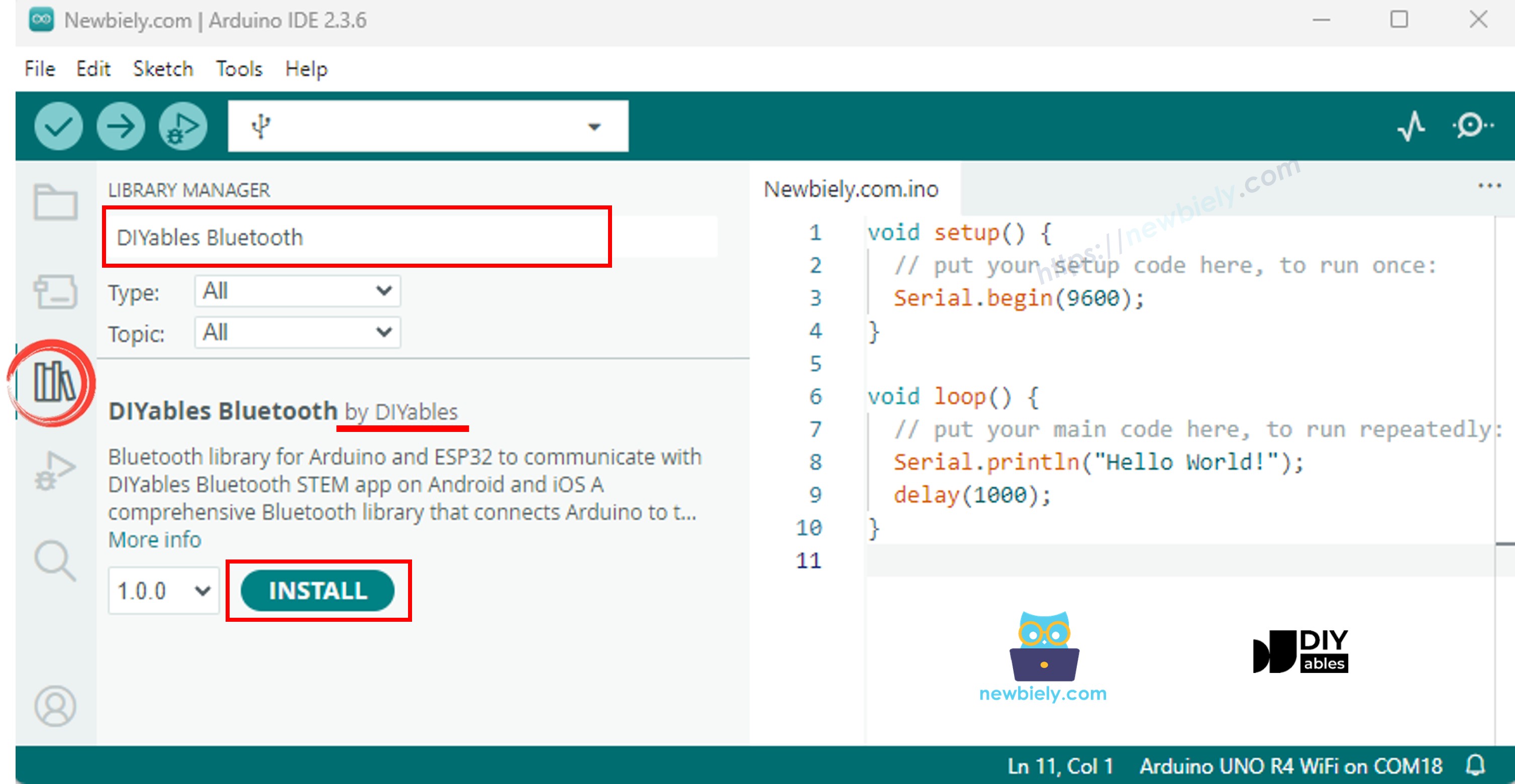
  • Acesse o ícone Libraries na barra à esquerda do Arduino IDE.
  • Pesquise "DIYables Bluetooth" e encontre a biblioteca DIYables Bluetooth, da DIYables
  • Clique no botão Install para instalar a biblioteca.
Biblioteca DIYables Bluetooth para ESP32
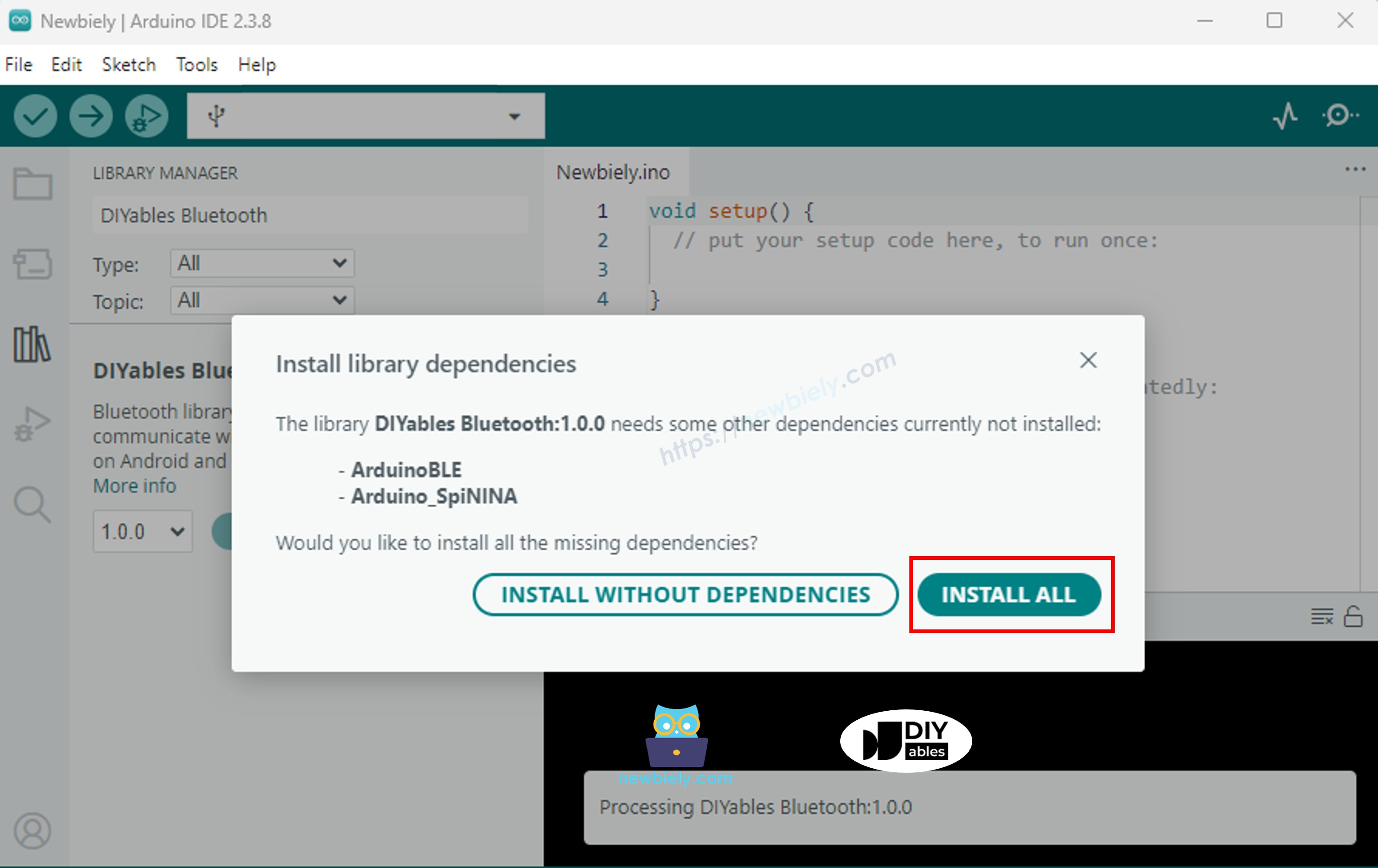
  • Será solicitado que você instale outras dependências da biblioteca
  • Clique no botão Install All para instalar todas as dependências da biblioteca.
Dependência da biblioteca DIYables Bluetooth para ESP32

Escolha um dos dois modos de Bluetooth abaixo, de acordo com a sua necessidade:

Código ESP32 Bluetooth Clássico (funciona com o app somente no Android)

Observação: O Bluetooth Clássico NÃO é compatível com o iOS. Se você precisa de suporte ao iOS, use o código BLE abaixo.

  • No Arduino IDE, vá em File Examples DIYables Bluetooth Esp32Bluetooth_Monitor, ou copie o código acima e cole no editor do Arduino IDE
/* * DIYables Bluetooth Library - ESP32 Classic Bluetooth Monitor Example * Works with DIYables Bluetooth STEM app on Android * Note: Classic Bluetooth is NOT supported on iOS. Use BLE examples for iOS support. * * This example demonstrates the Bluetooth Monitor feature: * - Send real-time status messages to the mobile app * - Display system information and sensor readings * - Receive and process commands from the app * - Perfect for debugging and system monitoring * * Compatible Boards: * - ESP32 (all variants with Classic Bluetooth) * - ESP32-WROOM-32 * - ESP32-DevKitC * - ESP32-WROVER * * Note: Select "Huge APP (3MB No OTA/1MB SPIFFS)" partition scheme * in Arduino IDE: Tools > Partition Scheme * * Setup: * 1. Upload the sketch to your ESP32 * 2. Open Serial Monitor (115200 baud) to see connection status * 3. Use DIYables Bluetooth App to connect and view monitor output * * Tutorial: https://diyables.io/bluetooth-app * Author: DIYables */ #include <DIYables_BluetoothServer.h> #include <DIYables_BluetoothMonitor.h> #include <platforms/DIYables_Esp32Bluetooth.h> // Create Bluetooth instances DIYables_Esp32Bluetooth bluetooth("ESP32_Monitor"); DIYables_BluetoothServer bluetoothServer(bluetooth); // Create Monitor app instance DIYables_BluetoothMonitor bluetoothMonitor; // Variables for demo unsigned long lastUpdate = 0; const unsigned long UPDATE_INTERVAL = 3000; // Send update every 3 seconds int messageCount = 0; bool ledState = false; // ESP32 built-in LED (may vary by board) const int LED_PIN = 2; void setup() { Serial.begin(115200); delay(1000); Serial.println("DIYables Bluetooth - ESP32 Monitor Example"); // Initialize LED pinMode(LED_PIN, OUTPUT); digitalWrite(LED_PIN, LOW); // Initialize Bluetooth server with platform-specific implementation bluetoothServer.begin(); // Add monitor app to server bluetoothServer.addApp(&bluetoothMonitor); // Set up connection event callbacks bluetoothServer.setOnConnected([]() { Serial.println("Bluetooth connected!"); bluetoothMonitor.send("=== ESP32 Monitor Connected ==="); bluetoothMonitor.send("System Ready"); bluetoothMonitor.send("Type HELP for available commands"); bluetoothMonitor.send(""); }); bluetoothServer.setOnDisconnected([]() { Serial.println("Bluetooth disconnected!"); }); // Set up message handler for incoming commands bluetoothMonitor.onMonitorMessage([](const String& message) { Serial.print("Received command: "); Serial.println(message); handleCommand(message); }); Serial.println("Waiting for Bluetooth connection..."); } void handleCommand(const String& cmd) { if (cmd == "HELP") { bluetoothMonitor.send("Available Commands:"); bluetoothMonitor.send(" LED_ON - Turn LED on"); bluetoothMonitor.send(" LED_OFF - Turn LED off"); bluetoothMonitor.send(" STATUS - Show system status"); bluetoothMonitor.send(" HEAP - Show memory info"); bluetoothMonitor.send(" CLEAR - Clear monitor (if supported)"); bluetoothMonitor.send(" HELP - Show this help"); } else if (cmd == "LED_ON") { digitalWrite(LED_PIN, HIGH); ledState = true; bluetoothMonitor.send("✓ LED turned ON"); } else if (cmd == "LED_OFF") { digitalWrite(LED_PIN, LOW); ledState = false; bluetoothMonitor.send("✓ LED turned OFF"); } else if (cmd == "STATUS") { showStatus(); } else if (cmd == "HEAP") { bluetoothMonitor.send("=== Memory Info ==="); bluetoothMonitor.send("Free Heap: " + String(ESP.getFreeHeap()) + " bytes"); bluetoothMonitor.send("Min Free Heap: " + String(ESP.getMinFreeHeap()) + " bytes"); bluetoothMonitor.send("Heap Size: " + String(ESP.getHeapSize()) + " bytes"); bluetoothMonitor.send("==================="); } else if (cmd == "CLEAR") { bluetoothMonitor.send(""); } else { bluetoothMonitor.send("✗ Unknown command: " + cmd); bluetoothMonitor.send("Type HELP for available commands"); } } void showStatus() { bluetoothMonitor.send("=== System Status ==="); // LED Status bluetoothMonitor.send("LED State: " + String(ledState ? "ON" : "OFF")); // Uptime unsigned long uptime = millis() / 1000; bluetoothMonitor.send("Uptime: " + String(uptime / 3600) + "h " + String((uptime % 3600) / 60) + "m " + String(uptime % 60) + "s"); // ESP32-specific info bluetoothMonitor.send("Free Heap: " + String(ESP.getFreeHeap()) + " bytes"); bluetoothMonitor.send("CPU Freq: " + String(ESP.getCpuFreqMHz()) + " MHz"); bluetoothMonitor.send("Chip Model: " + String(ESP.getChipModel())); // Messages sent bluetoothMonitor.send("Messages Sent: " + String(messageCount)); bluetoothMonitor.send("===================="); } void sendPeriodicUpdate() { messageCount++; // Example of different message types if (messageCount % 3 == 0) { bluetoothMonitor.send("[INFO] Heartbeat #" + String(messageCount)); } else if (messageCount % 5 == 0) { bluetoothMonitor.send("[HEAP] Free: " + String(ESP.getFreeHeap()) + " bytes"); } else { bluetoothMonitor.send("[TIME] Uptime: " + String(millis() / 1000) + "s"); } Serial.print("Sent update #"); Serial.println(messageCount); } void loop() { // Handle Bluetooth server communications bluetoothServer.loop(); // Send periodic updates (only when connected) if (bluetooth.isConnected() && millis() - lastUpdate >= UPDATE_INTERVAL) { lastUpdate = millis(); sendPeriodicUpdate(); } delay(10); }
  • Clique no botão Upload do Arduino IDE para carregar o código no ESP32
  • Abra o Serial Monitor
  • Confira o resultado no Serial Monitor. Ele deve ficar como abaixo:
∞
Newbiely | Arduino IDE 2.3.8
──
☐
✕
File
Edit
Sketch
Tools
Help
ESP32 Dev Module
Newbiely.ino
···
8 Serial.println("Hello World!");
Output
Serial Monitor
Message (Enter to send message to 'ESP32 Dev Module' on 'COM15')
New Line
9600 baud
DIYables Bluetooth - ESP32 Monitor Example Waiting for Bluetooth connection...
Ln 11, Col 1
ESP32 Dev Module on COM15
2

Código ESP32 BLE (funciona com o app no Android e no iOS)

  • No Arduino IDE, vá em File Examples DIYables Bluetooth Esp32BLE_Monitor, ou copie o código acima e cole no editor do Arduino IDE
/* * DIYables Bluetooth Library - ESP32 BLE Monitor Example * Works with DIYables Bluetooth STEM app on Android and iOS * * This example demonstrates the Bluetooth Monitor feature: * - Send real-time status messages to the mobile app * - Display system information and sensor readings * - Receive and process commands from the app * - Perfect for debugging and system monitoring * * Compatible Boards: * - ESP32-WROOM-32 * - ESP32-DevKitC * - ESP32-WROVER * - ESP32-S3 * - ESP32-C3 * - Any ESP32 board supporting BLE * * Note: Select "Huge APP (3MB No OTA/1MB SPIFFS)" partition scheme * in Arduino IDE: Tools > Partition Scheme * * Setup: * 1. Upload the sketch to your ESP32 * 2. Open Serial Monitor (115200 baud) to see connection status * 3. Use DIYables Bluetooth App to connect and view monitor output * * Tutorial: https://diyables.io/bluetooth-app * Author: DIYables */ #include <DIYables_BluetoothServer.h> #include <DIYables_BluetoothMonitor.h> #include <platforms/DIYables_Esp32BLE.h> // BLE Configuration const char* DEVICE_NAME = "ESP32BLE_Monitor"; const char* SERVICE_UUID = "19B10000-E8F2-537E-4F6C-D104768A1214"; const char* TX_UUID = "19B10001-E8F2-537E-4F6C-D104768A1214"; const char* RX_UUID = "19B10002-E8F2-537E-4F6C-D104768A1214"; // Create Bluetooth instances DIYables_Esp32BLE bluetooth(DEVICE_NAME, SERVICE_UUID, TX_UUID, RX_UUID); DIYables_BluetoothServer bluetoothServer(bluetooth); // Create Monitor app instance DIYables_BluetoothMonitor bluetoothMonitor; // Variables for demo unsigned long lastUpdate = 0; const unsigned long UPDATE_INTERVAL = 3000; int messageCount = 0; bool ledState = false; void setup() { Serial.begin(115200); delay(1000); Serial.println("DIYables Bluetooth - ESP32 BLE Monitor Example"); // Initialize built-in LED pinMode(2, OUTPUT); // ESP32 built-in LED is usually on GPIO 2 digitalWrite(2, LOW); // Initialize Bluetooth server with platform-specific implementation bluetoothServer.begin(); // Add monitor app to server bluetoothServer.addApp(&bluetoothMonitor); // Set up connection event callbacks bluetoothServer.setOnConnected([]() { Serial.println("Bluetooth connected!"); bluetoothMonitor.send("=== ESP32 BLE Monitor Connected ==="); bluetoothMonitor.send("System Ready"); bluetoothMonitor.send("Type HELP for available commands"); bluetoothMonitor.send(""); }); bluetoothServer.setOnDisconnected([]() { Serial.println("Bluetooth disconnected!"); }); // Set up message handler for incoming commands bluetoothMonitor.onMonitorMessage([](const String& message) { Serial.print("Received command: "); Serial.println(message); handleCommand(message); }); Serial.println("Waiting for Bluetooth connection..."); } void handleCommand(const String& cmd) { if (cmd == "HELP") { bluetoothMonitor.send("Available Commands:"); bluetoothMonitor.send(" LED_ON - Turn LED on"); bluetoothMonitor.send(" LED_OFF - Turn LED off"); bluetoothMonitor.send(" STATUS - Show system status"); bluetoothMonitor.send(" HEAP - Show free heap memory"); bluetoothMonitor.send(" HELP - Show this help"); } else if (cmd == "LED_ON") { digitalWrite(2, HIGH); ledState = true; bluetoothMonitor.send("LED turned ON"); } else if (cmd == "LED_OFF") { digitalWrite(2, LOW); ledState = false; bluetoothMonitor.send("LED turned OFF"); } else if (cmd == "STATUS") { showStatus(); } else if (cmd == "HEAP") { bluetoothMonitor.send("Free heap: " + String(ESP.getFreeHeap()) + " bytes"); } else { bluetoothMonitor.send("Unknown command: " + cmd); bluetoothMonitor.send("Type HELP for available commands"); } } void showStatus() { bluetoothMonitor.send("=== System Status ==="); bluetoothMonitor.send("LED State: " + String(ledState ? "ON" : "OFF")); unsigned long uptime = millis() / 1000; bluetoothMonitor.send("Uptime: " + String(uptime / 3600) + "h " + String((uptime % 3600) / 60) + "m " + String(uptime % 60) + "s"); bluetoothMonitor.send("Free Heap: " + String(ESP.getFreeHeap()) + " bytes"); bluetoothMonitor.send("Messages Sent: " + String(messageCount)); bluetoothMonitor.send("===================="); } void sendPeriodicUpdate() { messageCount++; if (messageCount % 3 == 0) { bluetoothMonitor.send("[INFO] Heartbeat #" + String(messageCount)); } else if (messageCount % 5 == 0) { bluetoothMonitor.send("[HEAP] Free: " + String(ESP.getFreeHeap()) + " bytes"); } else { bluetoothMonitor.send("[TIME] Uptime: " + String(millis() / 1000) + "s"); } Serial.print("Sent update #"); Serial.println(messageCount); } void loop() { bluetoothServer.loop(); if (bluetooth.isConnected() && millis() - lastUpdate >= UPDATE_INTERVAL) { lastUpdate = millis(); sendPeriodicUpdate(); } delay(10); }
  • Clique no botão Upload do Arduino IDE para carregar o código no ESP32
  • Abra o Serial Monitor
  • Confira o resultado no Serial Monitor. Ele deve ficar como abaixo:
∞
Newbiely | Arduino IDE 2.3.8
──
☐
✕
File
Edit
Sketch
Tools
Help
ESP32 Dev Module
Newbiely.ino
···
8 Serial.println("Hello World!");
Output
Serial Monitor
Message (Enter to send message to 'ESP32 Dev Module' on 'COM15')
New Line
9600 baud
DIYables Bluetooth - ESP32 BLE Monitor Example Waiting for Bluetooth connection...
Ln 11, Col 1
ESP32 Dev Module on COM15
2

App para Celular

  • Instale o app DIYables Bluetooth no seu smartphone: Android | iOS
  • Se você estiver usando o código ESP32 Bluetooth Clássico, é preciso parear o ESP32 com o seu celular Android antes de abrir o app:
    • Vá em Configurações > Bluetooth do seu celular
    • Verifique se o Bluetooth está ligado
    • Seu celular vai procurar os dispositivos disponíveis
    • Encontre e toque em "ESP32_Monitor" na lista de dispositivos disponíveis
    • Confirme a solicitação de pareamento (não é necessário PIN)
    • Aguarde até aparecer "Paired" abaixo do nome do dispositivo
  • Se você estiver usando o código ESP32 BLE, não é necessário parear. Basta ir para o próximo passo.
  • Abra o app DIYables Bluetooth
  • Ao abrir o app pela primeira vez, ele vai pedir permissões. Conceda as seguintes:
    • Permissão de Dispositivos Próximos (Android 12+) / permissão de Bluetooth (iOS) - necessária para procurar e conectar a dispositivos Bluetooth
    • Permissão de Localização (somente Android 11 e anteriores) - exigida por versões mais antigas do Android para procurar dispositivos BLE
  • Verifique se o Bluetooth está ligado no seu celular
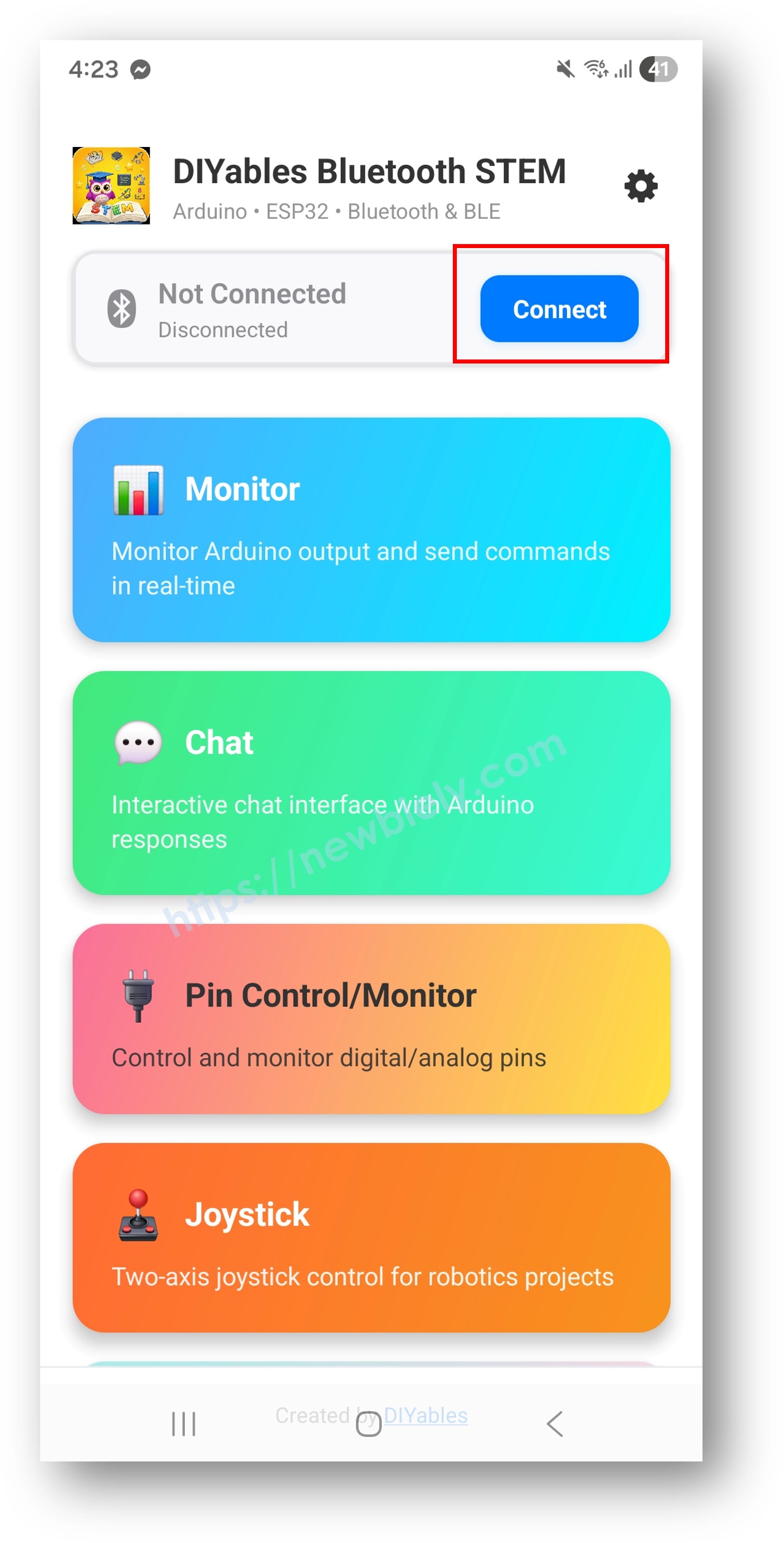
  • Na tela inicial, toque no botão Connect. O app vai procurar dispositivos BLE e Bluetooth Clássico.
App DIYables Bluetooth - Tela Inicial com Botão de Busca
  • Encontre e toque no seu dispositivo nos resultados da busca para conectar:
    • Para Bluetooth Clássico: toque em "ESP32_Monitor"
    • Para BLE: toque em "ESP32BLE_Monitor"
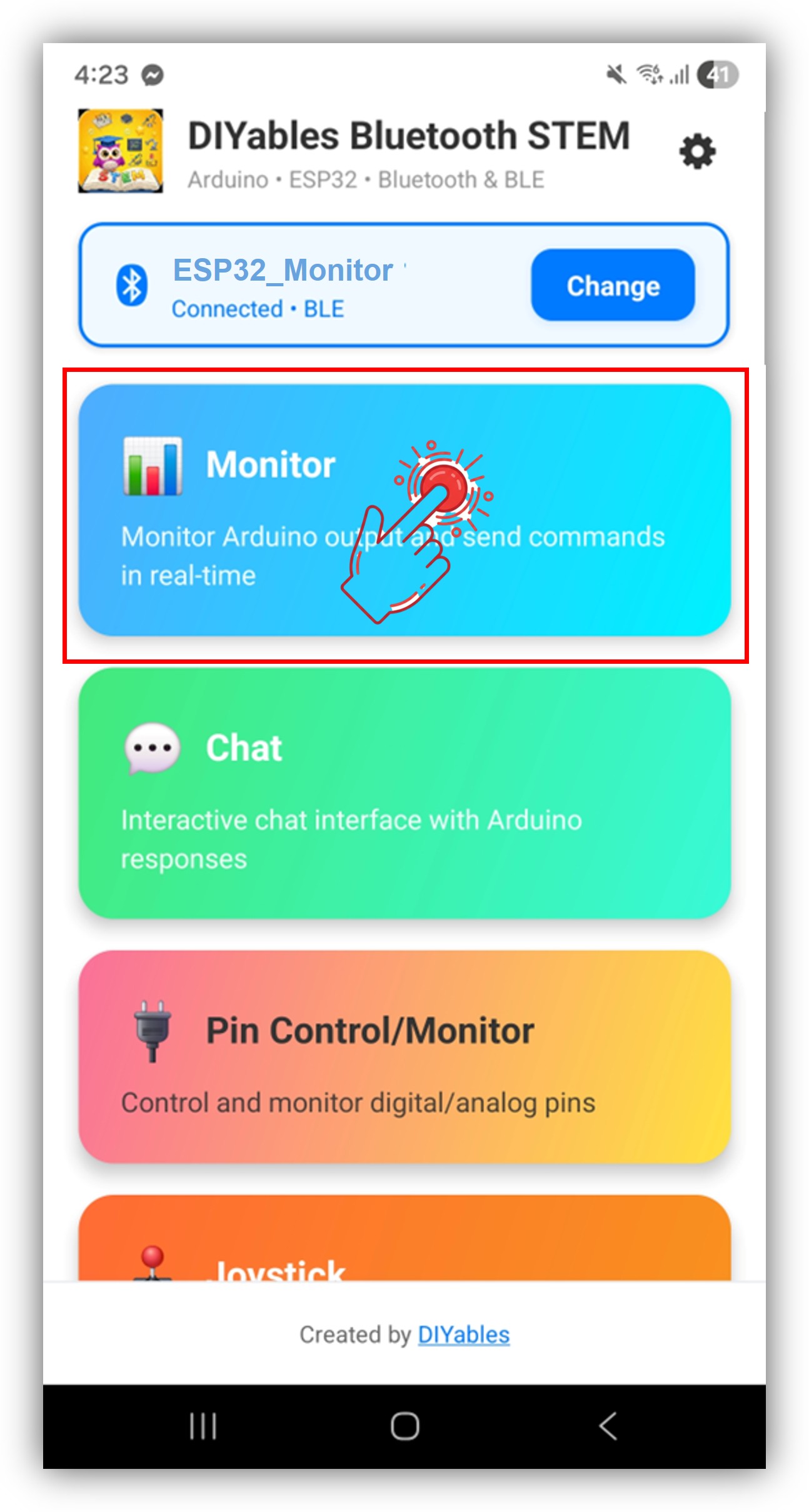
  • Depois de conectado, o app volta automaticamente para a tela inicial. Selecione o app Monitor no menu de apps.
App DIYables Bluetooth - Tela Inicial com o App Monitor

Observação: Você pode tocar no ícone de configurações na tela inicial para ocultar/mostrar apps. Para mais detalhes, consulte o Manual do Usuário do DIYables Bluetooth App.

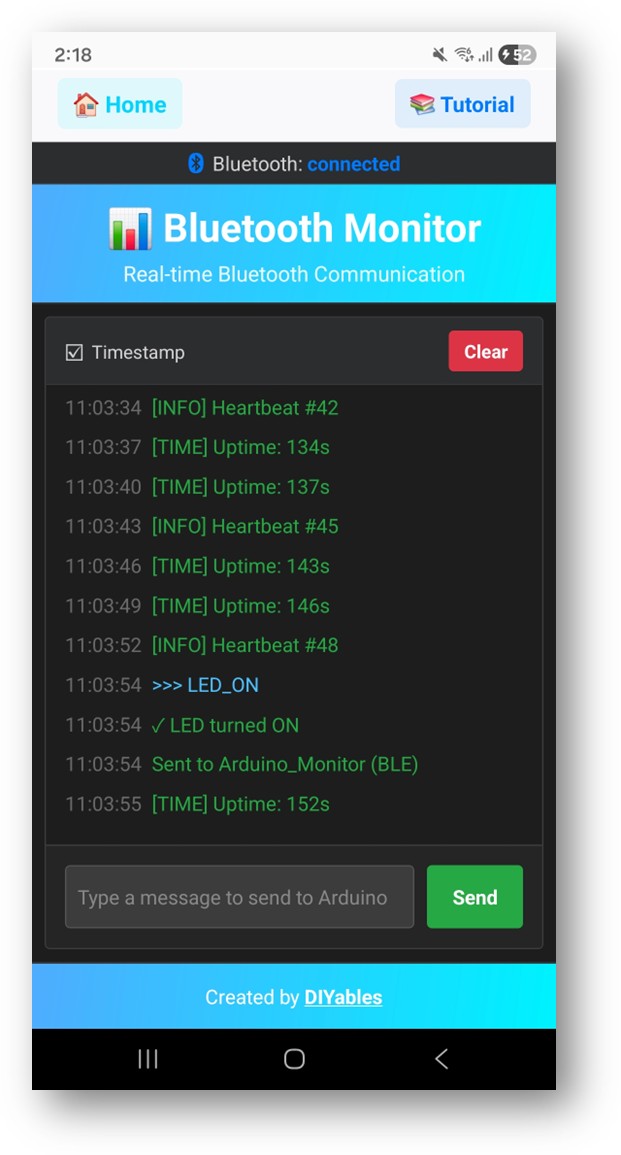
  • Você verá mensagens de status sendo transmitidas na tela do monitor
  • Digite LED_ON no campo de entrada e toque em Send — o LED integrado do ESP32 vai acender, e o monitor exibirá uma mensagem de confirmação
App DIYables Bluetooth - Tela do Monitor

Agora olhe de volta para o Serial Monitor no Arduino IDE. Você verá:

∞
Newbiely | Arduino IDE 2.3.8
──
☐
✕
File
Edit
Sketch
Tools
Help
ESP32 Dev Module
Newbiely.ino
···
8 Serial.println("Hello World!");
Output
Serial Monitor
Message (Enter to send message to 'ESP32 Dev Module' on 'COM15')
New Line
9600 baud
Bluetooth connected! Sent update #1 Sent update #2 Received command: HELP Received command: STATUS
Ln 11, Col 1
ESP32 Dev Module on COM15
2
  • Digite comandos no app (HELP, STATUS, LED_ON, LED_OFF, HEAP) e observe as respostas

Personalização Criativa - Adapte o Código ao Seu Projeto

Enviar Mensagens para o App

Use o método send() para transmitir mensagens de texto para a tela do monitor:

// Send simple messages bluetoothMonitor.send("System initialized"); bluetoothMonitor.send("Sensor reading: 25.3°C"); // Send formatted data bluetoothMonitor.send("[INFO] Heartbeat #" + String(count)); bluetoothMonitor.send("[WARN] Temperature high: " + String(temp) + "°C"); bluetoothMonitor.send("[ERROR] Sensor disconnected"); // Send system information bluetoothMonitor.send("Free Heap: " + String(ESP.getFreeHeap()) + " bytes"); bluetoothMonitor.send("Uptime: " + String(millis() / 1000) + " seconds");

Receber Comandos do App

Use o callback onMonitorMessage() para receber os comandos digitados no app Monitor e reagir a eles:

bluetoothMonitor.onMonitorMessage([](const String& message) { Serial.print("Received command: "); Serial.println(message); if (message == "HELP") { bluetoothMonitor.send("Available Commands:"); bluetoothMonitor.send(" LED_ON - Turn LED on"); bluetoothMonitor.send(" LED_OFF - Turn LED off"); bluetoothMonitor.send(" STATUS - Show system status"); bluetoothMonitor.send(" HEAP - Show memory info"); } else if (message == "LED_ON") { digitalWrite(LED_BUILTIN, HIGH); bluetoothMonitor.send("LED turned ON"); } else if (message == "LED_OFF") { digitalWrite(LED_BUILTIN, LOW); bluetoothMonitor.send("LED turned OFF"); } else if (message == "STATUS") { bluetoothMonitor.send("System is running normally"); bluetoothMonitor.send("Uptime: " + String(millis() / 1000) + "s"); } else if (message == "HEAP") { bluetoothMonitor.send("Free Heap: " + String(ESP.getFreeHeap()) + " bytes"); } else { bluetoothMonitor.send("Unknown command: " + message); } });

Você pode adicionar quantos comandos personalizados precisar, adicionando mais blocos else if. Por exemplo, adicione RELAY_ON / RELAY_OFF para controlar um relé, ou READ para disparar a leitura de um sensor — qualquer palavra que você digitar no app se torna um comando.

Tratar Eventos de Conexão

Você pode detectar quando o app se conecta ou se desconecta do ESP32:

bluetoothServer.setOnConnected([]() { Serial.println("Bluetooth connected!"); bluetoothMonitor.send("=== ESP32 Monitor Connected ==="); bluetoothMonitor.send("System Ready"); bluetoothMonitor.send("Type HELP for available commands"); }); bluetoothServer.setOnDisconnected([]() { Serial.println("Bluetooth disconnected!"); }); if (bluetoothServer.isConnected()) { bluetoothMonitor.send("Status update"); }

Como Usar o Monitor

Controles da Interface do App

A interface do monitor no app DIYables Bluetooth oferece:

  • Exibição de Mensagens: Lista rolável de mensagens recebidas com rolagem automática
  • Entrada de Texto: Digite comandos na parte inferior
  • Botão Send: Toque para enviar o comando digitado ao ESP32

Comandos Integrados

O código de exemplo inclui estes comandos integrados:

  • HELP ? Mostra todos os comandos disponíveis
  • LED_ON ? Acende o LED integrado
  • LED_OFF ? Apaga o LED integrado
  • STATUS ? Mostra o status do sistema (estado do LED, uptime, heap, mensagens enviadas)
  • HEAP ? Mostra informações detalhadas da memória

Exemplos de Programação

Transmissão Básica de Status

unsigned long lastUpdate = 0; const unsigned long UPDATE_INTERVAL = 3000; int messageCount = 0; void loop() { bluetoothServer.loop(); if (bluetooth.isConnected() && millis() - lastUpdate >= UPDATE_INTERVAL) { lastUpdate = millis(); messageCount++; // Rotate between different status messages if (messageCount % 3 == 0) { bluetoothMonitor.send("[INFO] Heartbeat #" + String(messageCount)); } else if (messageCount % 5 == 0) { bluetoothMonitor.send("[HEAP] Free: " + String(ESP.getFreeHeap()) + " bytes"); } else { bluetoothMonitor.send("[TIME] Uptime: " + String(millis() / 1000) + "s"); } } delay(10); }

Registrador de Dados de Sensores

#include <DHT.h> DHT dht(4, DHT22); unsigned long lastSensorRead = 0; const unsigned long SENSOR_INTERVAL = 5000; void setup() { dht.begin(); bluetoothMonitor.onMonitorMessage([](const String& message) { if (message == "READ") { readAndSendSensorData(); } else if (message == "INTERVAL") { bluetoothMonitor.send("Sensor interval: " + String(SENSOR_INTERVAL / 1000) + "s"); } }); } void readAndSendSensorData() { float temp = dht.readTemperature(); float hum = dht.readHumidity(); if (!isnan(temp) && !isnan(hum)) { bluetoothMonitor.send("Temp: " + String(temp, 1) + "°C | Humidity: " + String(hum, 1) + "%"); } else { bluetoothMonitor.send("[ERROR] Failed to read sensor"); } } void loop() { bluetoothServer.loop(); if (bluetooth.isConnected() && millis() - lastSensorRead >= SENSOR_INTERVAL) { lastSensorRead = millis(); readAndSendSensorData(); } delay(10); }

Painel com Vários Sensores

void sendDashboard() { bluetoothMonitor.send("========== DASHBOARD =========="); bluetoothMonitor.send("Temp: " + String(readTemperature(), 1) + "°C"); bluetoothMonitor.send("Humidity: " + String(readHumidity(), 0) + "%"); bluetoothMonitor.send("Light: " + String(analogRead(34))); bluetoothMonitor.send("Battery: " + String(readBatteryVoltage(), 2) + "V"); bluetoothMonitor.send("Heap: " + String(ESP.getFreeHeap()) + " bytes"); unsigned long uptime = millis() / 1000; bluetoothMonitor.send("Uptime: " + String(uptime / 3600) + "h " + String((uptime % 3600) / 60) + "m " + String(uptime % 60) + "s"); bluetoothMonitor.send("==============================="); }

Monitor de Pinos GPIO

const int MONITOR_PINS[] = {16, 17, 18, 19, 21, 22}; const int NUM_PINS = 6; int lastPinStates[6] = {0}; void setup() { for (int i = 0; i < NUM_PINS; i++) { pinMode(MONITOR_PINS[i], INPUT_PULLUP); lastPinStates[i] = digitalRead(MONITOR_PINS[i]); } bluetoothMonitor.onMonitorMessage([](const String& message) { if (message == "PINS") { for (int i = 0; i < NUM_PINS; i++) { int state = digitalRead(MONITOR_PINS[i]); bluetoothMonitor.send("Pin " + String(MONITOR_PINS[i]) + ": " + String(state ? "HIGH" : "LOW")); } } }); } void loop() { bluetoothServer.loop(); // Detect pin changes and report for (int i = 0; i < NUM_PINS; i++) { int state = digitalRead(MONITOR_PINS[i]); if (state != lastPinStates[i]) { lastPinStates[i] = state; if (bluetooth.isConnected()) { bluetoothMonitor.send("[PIN] GPIO " + String(MONITOR_PINS[i]) + " changed to " + String(state ? "HIGH" : "LOW")); } } } delay(10); }

Técnicas Avançadas de Programação

Registro de Logs por Categoria

enum LogLevel { LOG_INFO, LOG_WARN, LOG_ERROR, LOG_DEBUG }; void sendLog(LogLevel level, const String& message) { String prefix; switch (level) { case LOG_INFO: prefix = "[INFO] "; break; case LOG_WARN: prefix = "[WARN] "; break; case LOG_ERROR: prefix = "[ERROR] "; break; case LOG_DEBUG: prefix = "[DEBUG] "; break; } bluetoothMonitor.send(prefix + message); } // Usage: sendLog(LOG_INFO, "System started"); sendLog(LOG_WARN, "Battery low: " + String(voltage, 2) + "V"); sendLog(LOG_ERROR, "Sensor read failed"); sendLog(LOG_DEBUG, "Loop time: " + String(loopTime) + "ms");

Configuração Baseada em Comandos

int sensorInterval = 3000; bool verboseMode = false; bluetoothMonitor.onMonitorMessage([](const String& message) { String cmd = message; cmd.toUpperCase(); if (cmd.startsWith("SET INTERVAL ")) { sensorInterval = cmd.substring(13).toInt() * 1000; bluetoothMonitor.send("Interval set to " + String(sensorInterval / 1000) + "s"); } else if (cmd == "VERBOSE ON") { verboseMode = true; bluetoothMonitor.send("Verbose mode enabled"); } else if (cmd == "VERBOSE OFF") { verboseMode = false; bluetoothMonitor.send("Verbose mode disabled"); } else if (cmd == "CONFIG") { bluetoothMonitor.send("Interval: " + String(sensorInterval / 1000) + "s"); bluetoothMonitor.send("Verbose: " + String(verboseMode ? "ON" : "OFF")); } });

Exemplos de Integração de Hardware

Monitor Watchdog

unsigned long lastLoopTime = 0; unsigned long maxLoopTime = 0; int warningCount = 0; void loop() { unsigned long loopStart = millis(); bluetoothServer.loop(); // Your application code here performTasks(); unsigned long loopTime = millis() - loopStart; if (loopTime > maxLoopTime) { maxLoopTime = loopTime; } if (loopTime > 100) { // Warn if loop takes >100ms warningCount++; if (bluetooth.isConnected()) { bluetoothMonitor.send("[WARN] Slow loop: " + String(loopTime) + "ms"); } } delay(10); }

BLE vs Bluetooth Clássico - Qual Escolher?

RecursoBLE (Esp32BLE_Monitor)Bluetooth Clássico (Esp32Bluetooth_Monitor)
Suporte ao iOS? Sim? Não
Suporte ao Android? Sim? Sim
Consumo de EnergiaBaixoMaior
Alcance~30-100m~10-100m
Taxa de DadosMenorMaior
Pareamento NecessárioNão (conexão automática)Sim (pareamento manual)
Ideal ParaAlimentado por bateria, multiplataformaAlta taxa de transferência, somente Android

Tutorial em Vídeo

O vídeo de demonstração abaixo usa o seguinte código:

/* * Este código de ESP32 foi desenvolvido por pt.newbiely.com * Este código de ESP32 é disponibilizado ao público sem nenhuma restrição. * Para tutoriais completos e diagramas de ligação, visite: * https://pt.newbiely.com/tutorials/esp32/esp32-diyables-bluetooth-app-monitor */ /* * DIYables Bluetooth Library - ESP32 Classic Bluetooth Monitor Example * Works with DIYables Bluetooth STEM app on Android * Note: Classic Bluetooth is NOT supported on iOS. Use BLE examples for iOS support. * * This example demonstrates the Bluetooth Monitor feature: * - Send real-time status messages to the mobile app * - Display system information and sensor readings * - Receive and process commands from the app * - Perfect for debugging and system monitoring * * Compatible Boards: * - ESP32 (all variants with Classic Bluetooth) * - ESP32-WROOM-32 * - ESP32-DevKitC * - ESP32-WROVER * * Note: Select "Huge APP (3MB No OTA/1MB SPIFFS)" partition scheme * in Arduino IDE: Tools > Partition Scheme * * Setup: * 1. Upload the sketch to your ESP32 * 2. Open Serial Monitor (115200 baud) to see connection status * 3. Use DIYables Bluetooth App to connect and view monitor output * * Tutorial: https://diyables.io/bluetooth-app * Author: DIYables */ #include <DIYables_BluetoothServer.h> #include <DIYables_BluetoothMonitor.h> #include <platforms/DIYables_Esp32Bluetooth.h> // Create Bluetooth instances DIYables_Esp32Bluetooth bluetooth("ESP32_Monitor"); DIYables_BluetoothServer bluetoothServer(bluetooth); // Create Monitor app instance DIYables_BluetoothMonitor bluetoothMonitor; // Variables for demo unsigned long lastUpdate = 0; const unsigned long UPDATE_INTERVAL = 3000; // Send update every 3 seconds int messageCount = 0; bool ledState = false; // ESP32 built-in LED (may vary by board) const int LED_PIN = 2; void setup() { Serial.begin(115200); delay(1000); Serial.println("DIYables Bluetooth - ESP32 Monitor Example"); // Initialize LED pinMode(LED_PIN, OUTPUT); digitalWrite(LED_PIN, LOW); // Initialize Bluetooth server with platform-specific implementation bluetoothServer.begin(); // Add monitor app to server bluetoothServer.addApp(&bluetoothMonitor); // Set up connection event callbacks bluetoothServer.setOnConnected([]() { Serial.println("Bluetooth connected!"); bluetoothMonitor.send("=== ESP32 Monitor Connected ==="); bluetoothMonitor.send("System Ready"); bluetoothMonitor.send("Type HELP for available commands"); bluetoothMonitor.send(""); }); bluetoothServer.setOnDisconnected([]() { Serial.println("Bluetooth disconnected!"); }); // Set up message handler for incoming commands bluetoothMonitor.onMonitorMessage([](const String& message) { Serial.print("Received command: "); Serial.println(message); handleCommand(message); }); Serial.println("Waiting for Bluetooth connection..."); } void handleCommand(const String& cmd) { if (cmd == "HELP") { bluetoothMonitor.send("Available Commands:"); bluetoothMonitor.send(" LED_ON - Turn LED on"); bluetoothMonitor.send(" LED_OFF - Turn LED off"); bluetoothMonitor.send(" STATUS - Show system status"); bluetoothMonitor.send(" HEAP - Show memory info"); bluetoothMonitor.send(" CLEAR - Clear monitor (if supported)"); bluetoothMonitor.send(" HELP - Show this help"); } else if (cmd == "LED_ON") { digitalWrite(LED_PIN, HIGH); ledState = true; bluetoothMonitor.send("✓ LED turned ON"); } else if (cmd == "LED_OFF") { digitalWrite(LED_PIN, LOW); ledState = false; bluetoothMonitor.send("✓ LED turned OFF"); } else if (cmd == "STATUS") { showStatus(); } else if (cmd == "HEAP") { bluetoothMonitor.send("=== Memory Info ==="); bluetoothMonitor.send("Free Heap: " + String(ESP.getFreeHeap()) + " bytes"); bluetoothMonitor.send("Min Free Heap: " + String(ESP.getMinFreeHeap()) + " bytes"); bluetoothMonitor.send("Heap Size: " + String(ESP.getHeapSize()) + " bytes"); bluetoothMonitor.send("==================="); } else if (cmd == "CLEAR") { bluetoothMonitor.send(""); } else { bluetoothMonitor.send("✗ Unknown command: " + cmd); bluetoothMonitor.send("Type HELP for available commands"); } } void showStatus() { bluetoothMonitor.send("=== System Status ==="); // LED Status bluetoothMonitor.send("LED State: " + String(ledState ? "ON" : "OFF")); // Uptime unsigned long uptime = millis() / 1000; bluetoothMonitor.send("Uptime: " + String(uptime / 3600) + "h " + String((uptime % 3600) / 60) + "m " + String(uptime % 60) + "s"); // ESP32-specific info bluetoothMonitor.send("Free Heap: " + String(ESP.getFreeHeap()) + " bytes"); bluetoothMonitor.send("CPU Freq: " + String(ESP.getCpuFreqMHz()) + " MHz"); bluetoothMonitor.send("Chip Model: " + String(ESP.getChipModel())); // Messages sent bluetoothMonitor.send("Messages Sent: " + String(messageCount)); bluetoothMonitor.send("===================="); } void sendPeriodicUpdate() { messageCount++; // Example of different message types if (messageCount % 3 == 0) { bluetoothMonitor.send("[INFO] Heartbeat #" + String(messageCount)); } else if (messageCount % 5 == 0) { bluetoothMonitor.send("[HEAP] Free: " + String(ESP.getFreeHeap()) + " bytes"); } else { bluetoothMonitor.send("[TIME] Uptime: " + String(millis() / 1000) + "s"); } Serial.print("Sent update #"); Serial.println(messageCount); } void loop() { // Handle Bluetooth server communications bluetoothServer.loop(); // Send periodic updates (only when connected) if (bluetooth.isConnected() && millis() - lastUpdate >= UPDATE_INTERVAL) { lastUpdate = millis(); sendPeriodicUpdate(); } delay(10); }

Solução de Problemas

Problemas Comuns

1. Não consigo encontrar o dispositivo no app

  • Verifique se o ESP32 está ligado e se o sketch foi carregado
  • Para BLE: verifique se o Bluetooth e a Localização do seu celular estão ativados
  • Para Bluetooth Clássico: pareie o dispositivo primeiro nas configurações de Bluetooth do celular
  • Verifique se o esquema de partição correto está selecionado (Huge APP)

2. As mensagens não aparecem no monitor

  • Verifique o status da conexão Bluetooth no app
  • Verifique a conexão no Serial Monitor
  • Garanta que as mensagens estão sendo enviadas com bluetoothMonitor.send()
  • Tente desconectar e reconectar

3. Os comandos não estão sendo recebidos

  • Verifique se o callback onMonitorMessage() está configurado corretamente
  • Confira no Serial Monitor os comandos recebidos
  • Garanta que a tela do monitor está selecionada no app do celular

4. A conexão cai com frequência

  • Chegue mais perto do ESP32 (reduza a distância)
  • Para BLE: verifique se há interferência de outros dispositivos BLE
  • Para Bluetooth Clássico: garanta uma fonte de alimentação estável para o ESP32
  • Reduza a frequência das mensagens se estiver enviando rápido demais

5. As mensagens aparecem distorcidas ou cortadas

  • Mantenha cada mensagem curta (menos de 200 caracteres)
  • Adicione pequenos atrasos entre envios rápidos
  • Verifique a memória heap livre para problemas de buffer

6. Sketch grande demais / espaço insuficiente

  • No Arduino IDE, vá em Tools > Partition Scheme e selecione "Huge APP (3MB No OTA/1MB SPIFFS)" ou "No OTA (Large APP)"
  • O esquema de partição padrão oferece apenas ~1,2MB para o código do app, o que não é suficiente para as bibliotecas de Bluetooth
  • Essa configuração oferece ~3MB ao sacrificar a partição de OTA (atualização over-the-air)

Dicas de Depuração

Adicione uma depuração completa:

void debugMonitorStatus() { Serial.println("=== Monitor Debug ==="); Serial.println("Connected: " + String(bluetooth.isConnected())); Serial.println("Messages sent: " + String(messageCount)); Serial.println("Free Heap: " + String(ESP.getFreeHeap())); Serial.println("====================="); }

Ideias de Projetos

Projetos de Depuração

  • Substituto sem fio para o serial monitor
  • Visualizador remoto de dados de sensores
  • Inspeção de variáveis em tempo real
  • Monitoramento de desempenho do sistema

Projetos de Monitoramento

  • Exibição de dados de estação meteorológica
  • Status de sistema de automação residencial
  • Monitoramento de sensores industriais
  • Painel de saúde de dispositivos IoT

Projetos de Registro

  • Registrador de eventos com timestamps
  • Gravação de dados de sensores
  • Rastreamento de erros e alertas
  • Análise de desempenho

Projetos Educacionais

  • Aprender comunicação Bluetooth
  • Praticar mensagens no estilo serial
  • Entender o monitoramento de sistemas embarcados
  • Criar ferramentas de depuração personalizadas

Integração com Outros Apps Bluetooth

Combine com o Bluetooth Chat

Use o Monitor para a saída contínua e o Chat para comandos interativos:

// Monitor streams sensor data automatically void loop() { if (bluetooth.isConnected() && millis() - lastUpdate >= 3000) { bluetoothMonitor.send("[SENSOR] " + String(readSensor())); } } // Chat handles interactive commands bluetoothChat.onChatMessage([](const String& message) { if (message == "read") { bluetoothChat.send("Value: " + String(readSensor())); } });

Combine com o Bluetooth Slider

Use o Monitor para exibir os valores do slider em tempo real:

bluetoothSlider.onSliderValue([](int slider1, int slider2) { bluetoothMonitor.send("Slider1=" + String(slider1) + "% Slider2=" + String(slider2) + "%"); bluetoothMonitor.send("PWM1=" + String(map(slider1, 0, 100, 0, 255)) + " PWM2=" + String(map(slider2, 0, 100, 0, 255))); });

Próximos Passos

Depois de dominar o exemplo Bluetooth Monitor, experimente:

  1. Bluetooth Chat - Para mensagens interativas de duas vias
  2. Bluetooth Table - Para exibição de dados estruturados
  3. Bluetooth Plotter - Para visualização gráfica de dados
  4. Multiple Bluetooth Apps - Combinando o monitor com outros controles

Suporte

Para obter mais ajuda:

  • Consulte a documentação de referência da API
  • Fóruns da comunidade Arduino

※ NOSSAS MENSAGENS

  • Fique à vontade para compartilhar o link deste tutorial. Porém, por favor, não use nosso conteúdo em outros sites. Investimos muito esforço e tempo para criar este conteúdo, por favor respeite nosso trabalho!