
ESP32 - Relógio OLED

Neste tutorial, vamos guiar você na criação de um relógio OLED com o ESP32, seguindo estes passos:

Você pode escolher entre dois módulos RTC: DS3231 e DS1307. Para ajudar na sua decisão, veja a comparação em DS3231 vs DS1307.

Este tutorial traz um guia completo para montar um relógio OLED, mostrando a integração do ESP32 com o módulo RTC DS3231 ou DS1307 para exibir a hora exata em uma tela OLED.

Sobre o OLED e os Módulos RTC DS3231 e DS1307

Não conhece o OLED, o DS3231 e o DS1307, incluindo pinagem, funcionamento e programação? Veja abaixo tutoriais completos sobre esses temas:

Instale as Bibliotecas do OLED e do RTC

  • Clique no ícone Libraries na barra esquerda da Arduino IDE.
  • Pesquise “SSD1306” e encontre a biblioteca SSD1306 da Adafruit
  • Clique no botão Install para instalar a biblioteca.
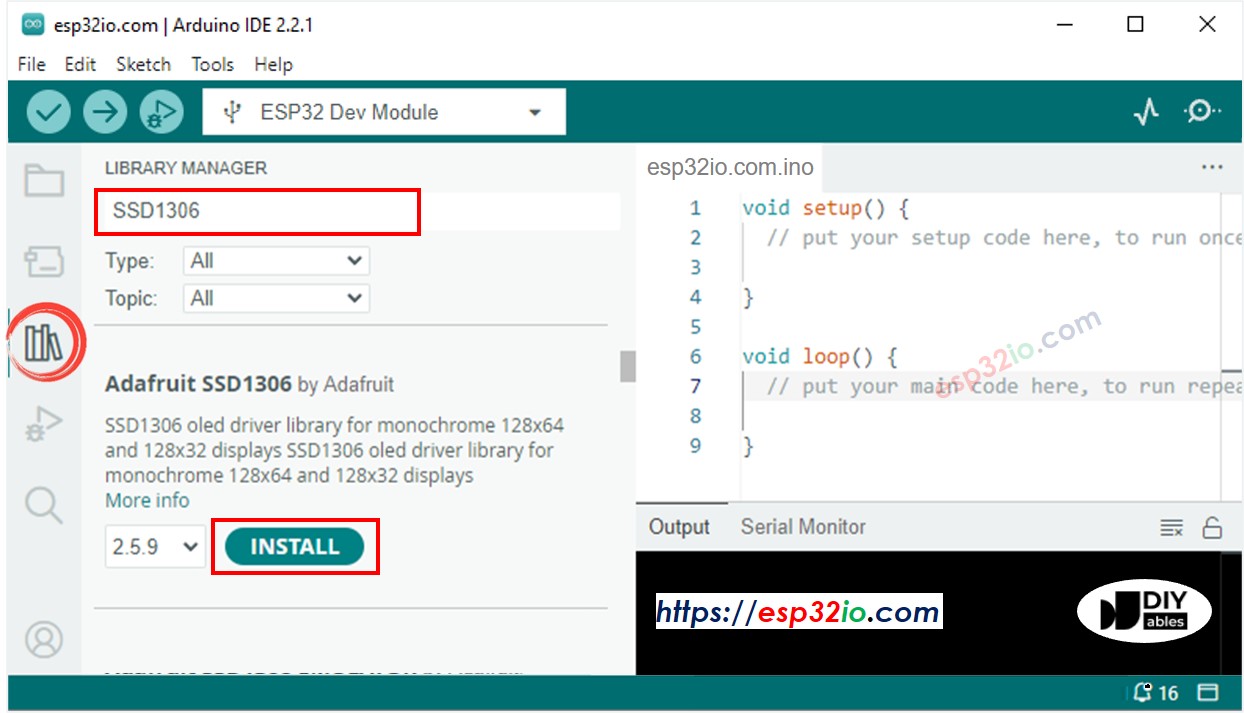
ESP32 OLED library
  • Será pedido que você instale algumas outras dependências da biblioteca
  • Clique no botão Install All para instalar todas as dependências.
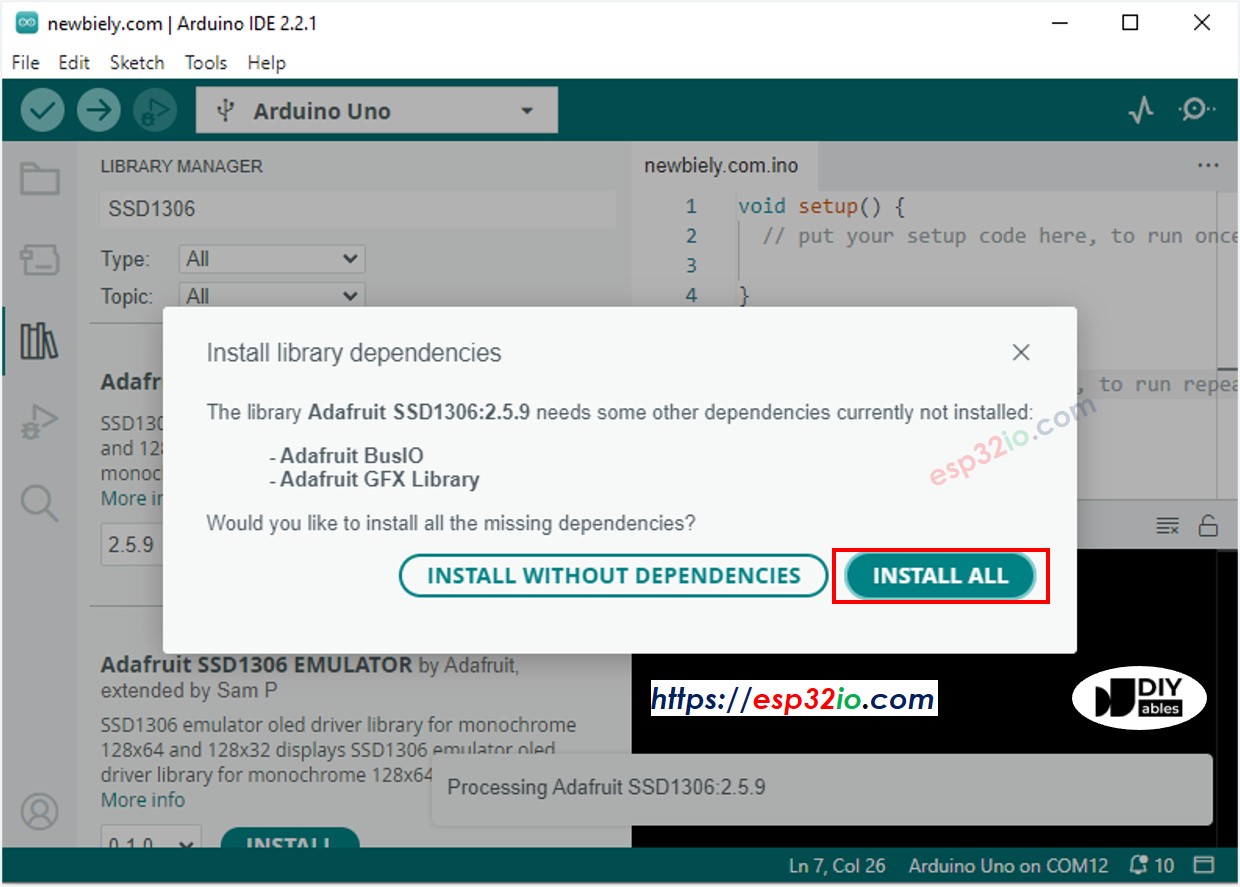
ESP32 Adafruit GFX sensor library
  • Pesquise “RTClib” e encontre a biblioteca RTC da Adafruit
  • Clique no botão Install para instalar a biblioteca RTC.
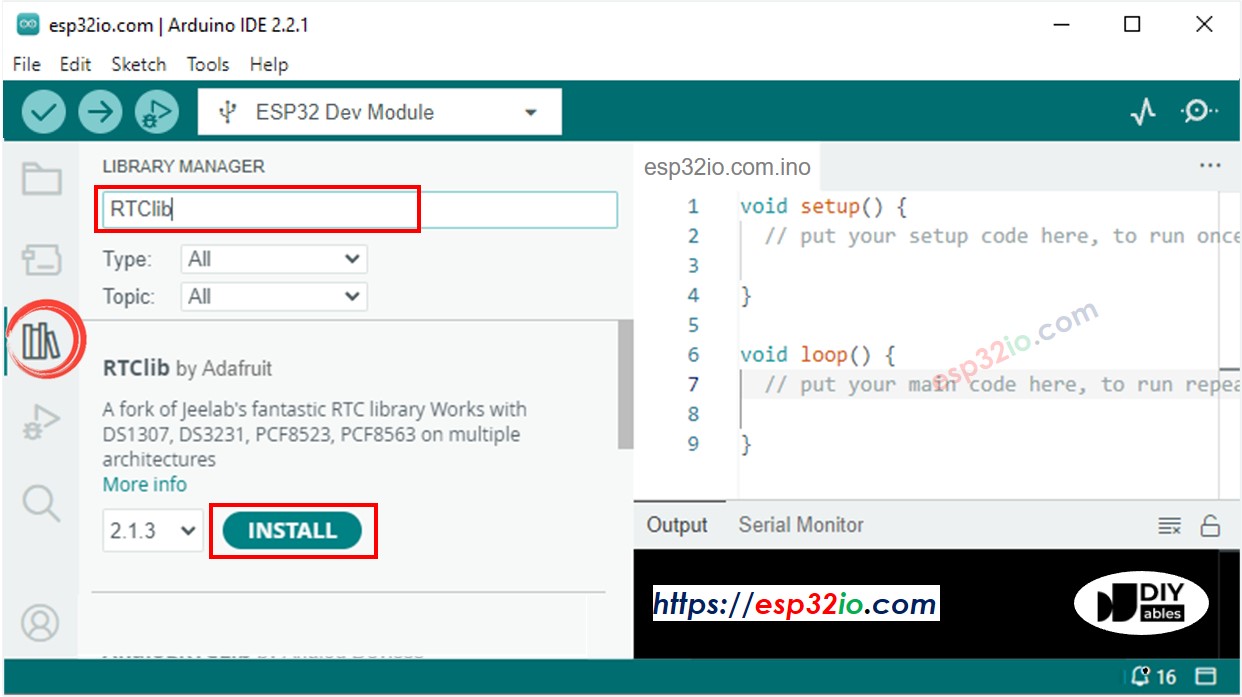
ESP32 RTC library
  • Pode ser que a Arduino IDE peça para instalar as dependências da biblioteca
  • Instale todas as dependências da biblioteca clicando no botão Install All.
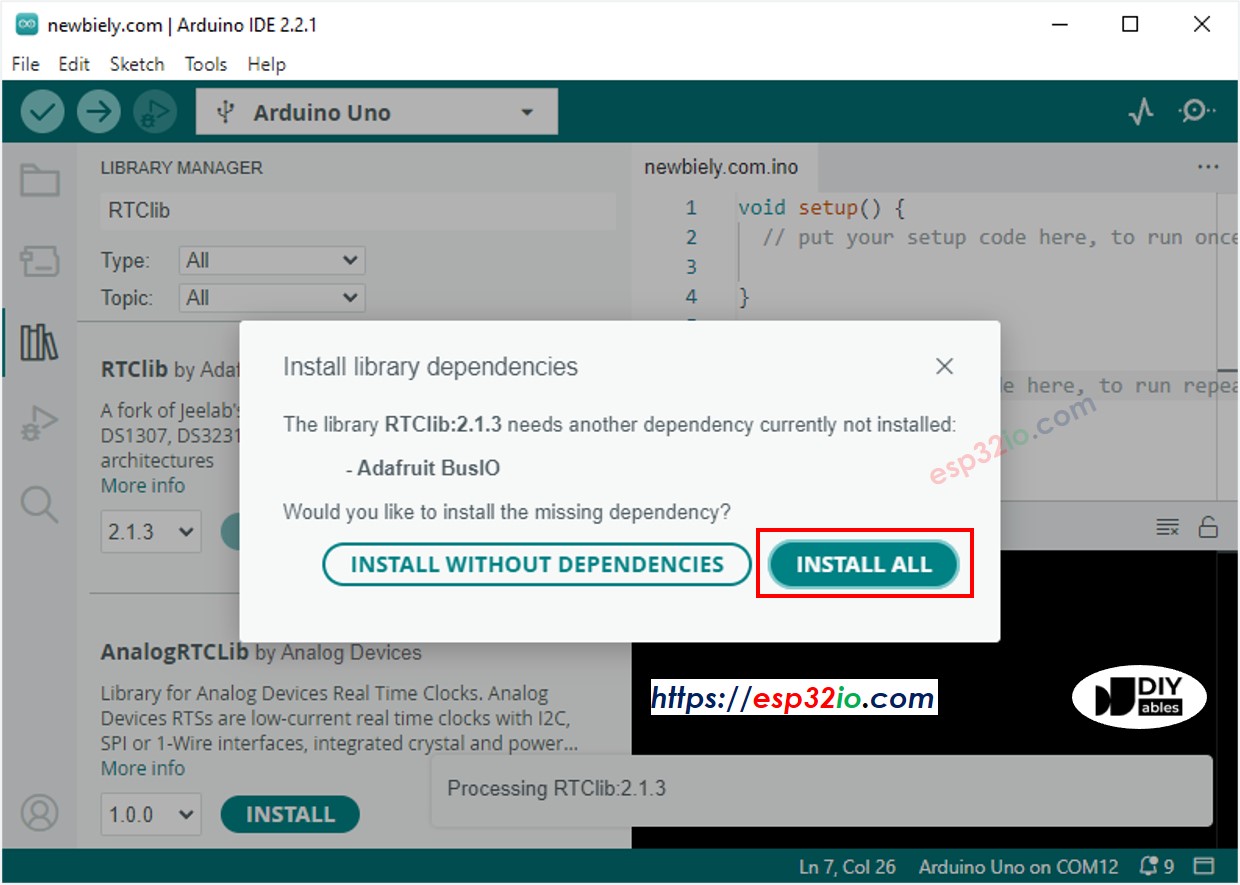
ESP32 Adafruit BusIO library

Lendo a hora do módulo RTC DS3231 e exibindo no OLED

Diagrama de Ligação
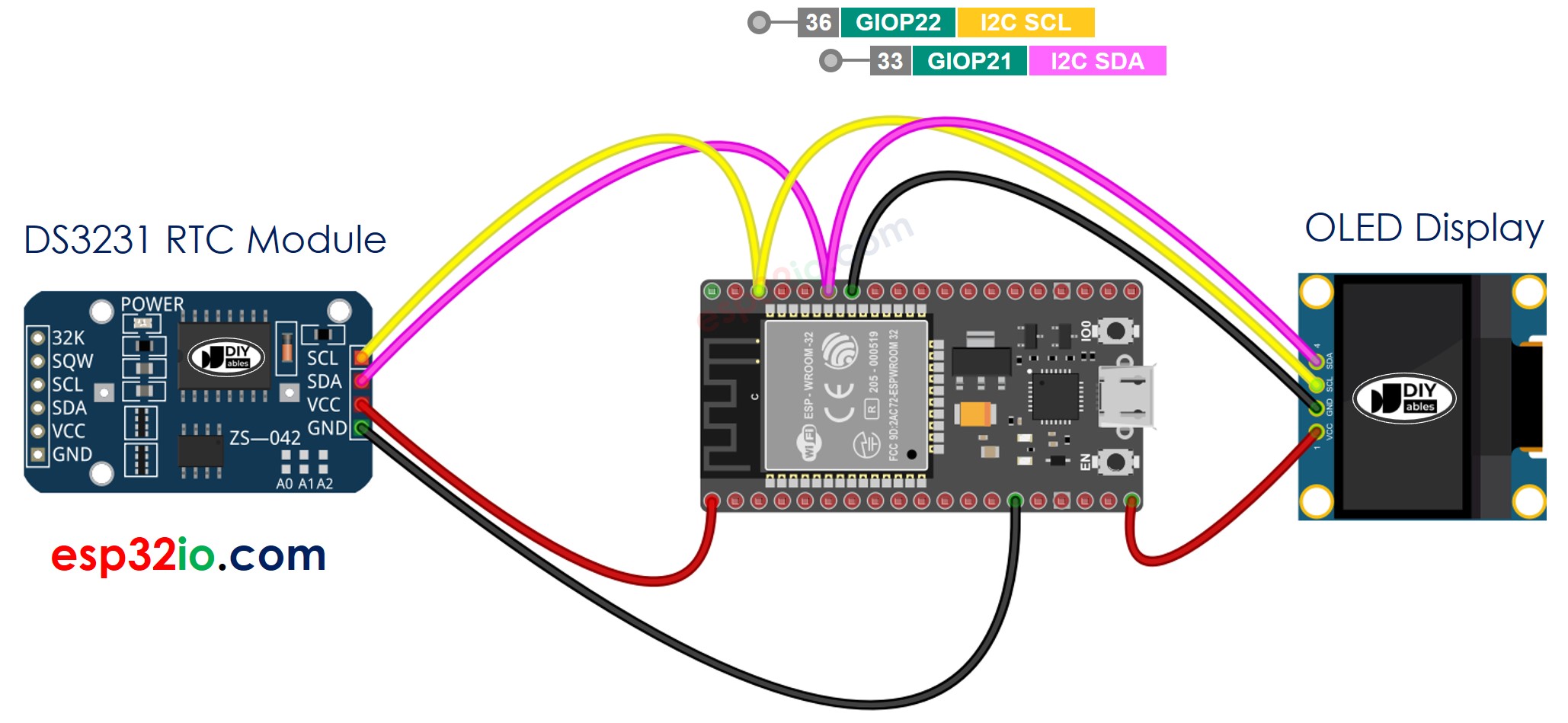
The wiring diagram between ESP32 DS3231 OLED

This image is created using Fritzing. Click to enlarge image

Se você não sabe como alimentar o ESP32 e outros componentes, veja as instruções no tutorial a seguir: Como alimentar o ESP32.

Código ESP32 - DS3231 e OLED

/* * Este código de ESP32 foi desenvolvido por pt.newbiely.com * Este código de ESP32 é disponibilizado ao público sem nenhuma restrição. * Para tutoriais completos e diagramas de ligação, visite: * https://pt.newbiely.com/tutorials/esp32/esp32-oled-clock */ #include <Wire.h> #include <Adafruit_GFX.h> #include <Adafruit_SSD1306.h> #include <RTClib.h> #define SCREEN_WIDTH 128 // OLED display width, in pixels #define SCREEN_HEIGHT 64 // OLED display height, in pixels Adafruit_SSD1306 oled(SCREEN_WIDTH, SCREEN_HEIGHT, &Wire, -1); // // create SSD1306 display object connected to I2C RTC_DS3231 rtc; String time; void setup() { Serial.begin(9600); // initialize OLED display with address 0x3C for 128x64 if (!oled.begin(SSD1306_SWITCHCAPVCC, 0x3C)) { Serial.println(F("SSD1306 allocation failed")); while (true); } delay(2000); // wait for initializing oled.clearDisplay(); // clear display oled.setTextSize(1); // text size oled.setTextColor(WHITE); // text color oled.setCursor(0, 10); // position to display // SETUP RTC MODULE if (! rtc.begin()) { Serial.println("Couldn't find RTC"); Serial.flush(); while (true); } // automatically sets the RTC to the date & time on PC this sketch was compiled rtc.adjust(DateTime(F(__DATE__), F(__TIME__))); time.reserve(10); // to avoid fragmenting memory when using String } void loop() { DateTime now = rtc.now(); time = ""; time += now.hour(); time += ':'; time += now.minute(); time += ':'; time += now.second(); oledDisplayCenter(time); } void oledDisplayCenter(String text) { int16_t x1; int16_t y1; uint16_t width; uint16_t height; oled.getTextBounds(text, 0, 0, &x1, &y1, &width, &height); // display on horizontal and vertical center oled.clearDisplay(); // clear display oled.setCursor((SCREEN_WIDTH - width) / 2, (SCREEN_HEIGHT - height) / 2); oled.println(text); // text to display oled.display(); }

Passos Rápidos

  • Se esta é a primeira vez que você usa o ESP32, veja como configurar o ambiente do ESP32 na Arduino IDE.
  • Faça a ligação como na imagem acima.
  • Conecte a placa ESP32 ao seu PC por um cabo micro USB
  • Abra a Arduino IDE no seu PC.
  • Selecione a placa ESP32 correta (por exemplo, ESP32 Dev Module) e a porta COM.
  • Copie o código acima e abra na Arduino IDE
  • Clique no botão Upload da Arduino IDE para fazer o upload do código para o ESP32
  • Veja o resultado no OLED

Lendo a hora do módulo RTC DS1307 e exibindo no OLED

Diagrama de Ligação
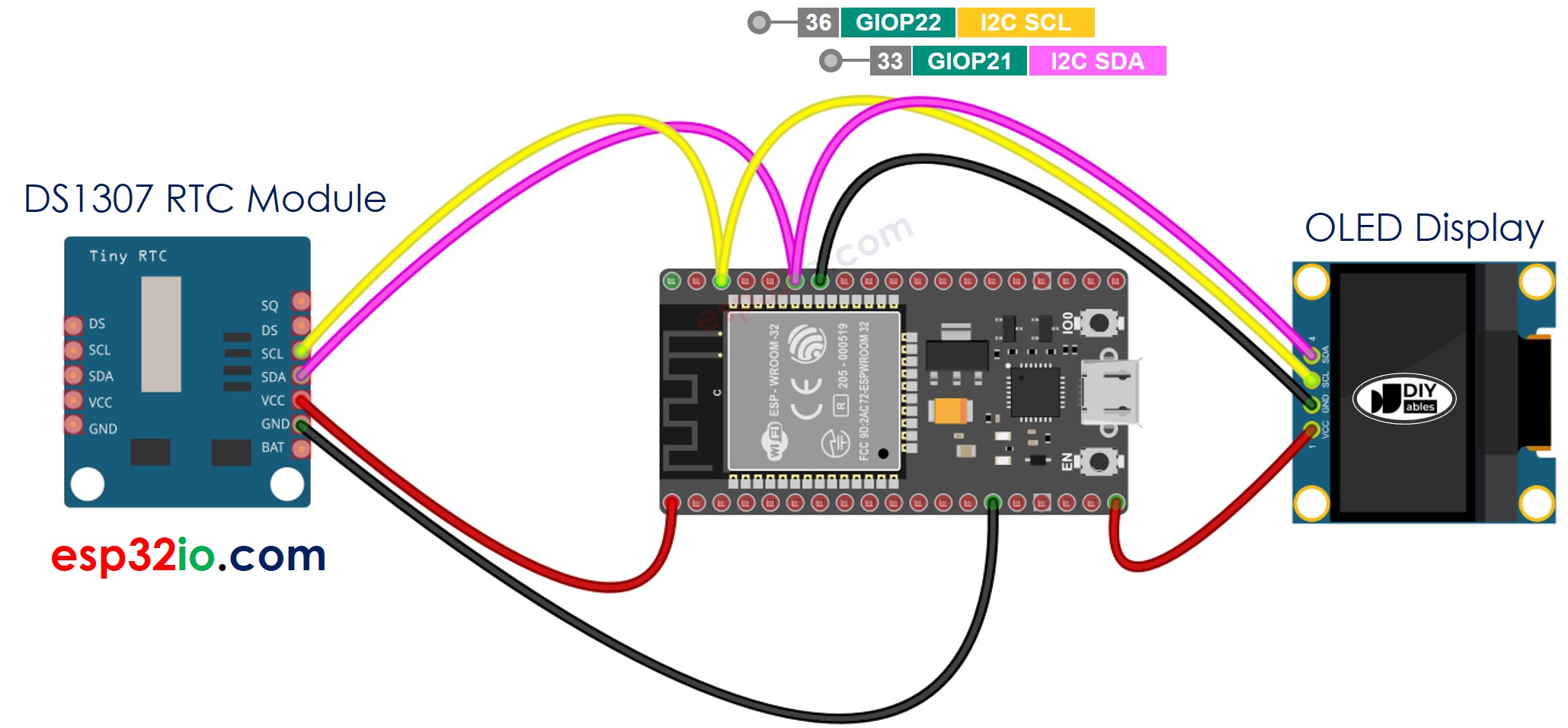
The wiring diagram between ESP32 DS1307 OLED

This image is created using Fritzing. Click to enlarge image

Código ESP32 - DS1307 e OLED

/* * Este código de ESP32 foi desenvolvido por pt.newbiely.com * Este código de ESP32 é disponibilizado ao público sem nenhuma restrição. * Para tutoriais completos e diagramas de ligação, visite: * https://pt.newbiely.com/tutorials/esp32/esp32-oled-clock */ #include <Wire.h> #include <Adafruit_GFX.h> #include <Adafruit_SSD1306.h> #include <RTClib.h> #define SCREEN_WIDTH 128 // OLED display width, in pixels #define SCREEN_HEIGHT 64 // OLED display height, in pixels Adafruit_SSD1306 oled(SCREEN_WIDTH, SCREEN_HEIGHT, &Wire, -1); // // create SSD1306 display object connected to I2C RTC_DS1307 rtc; String time; void setup() { Serial.begin(9600); // initialize OLED display with address 0x3C for 128x64 if (!oled.begin(SSD1306_SWITCHCAPVCC, 0x3C)) { Serial.println(F("SSD1306 allocation failed")); while (true); } delay(2000); // wait for initializing oled.clearDisplay(); // clear display oled.setTextSize(1); // text size oled.setTextColor(WHITE); // text color oled.setCursor(0, 10); // position to display // SETUP RTC MODULE if (! rtc.begin()) { Serial.println("Couldn't find RTC"); Serial.flush(); while (true); } // automatically sets the RTC to the date & time on PC this sketch was compiled rtc.adjust(DateTime(F(__DATE__), F(__TIME__))); time.reserve(10); // to avoid fragmenting memory when using String } void loop() { DateTime now = rtc.now(); time = ""; time += now.hour(); time += ':'; time += now.minute(); time += ':'; time += now.second(); oledDisplayCenter(time); } void oledDisplayCenter(String text) { int16_t x1; int16_t y1; uint16_t width; uint16_t height; oled.getTextBounds(text, 0, 0, &x1, &y1, &width, &height); // display on horizontal and vertical center oled.clearDisplay(); // clear display oled.setCursor((SCREEN_WIDTH - width) / 2, (SCREEN_HEIGHT - height) / 2); oled.println(text); // text to display oled.display(); }

Passos Rápidos

  • Se esta é a primeira vez que você usa o ESP32, veja como configurar o ambiente do ESP32 na Arduino IDE.
  • Faça a ligação como na imagem acima.
  • Conecte a placa ESP32 ao seu PC por um cabo micro USB
  • Abra a Arduino IDE no seu PC.
  • Selecione a placa ESP32 correta (por exemplo, ESP32 Dev Module) e a porta COM.
  • Copie o código acima e abra na Arduino IDE
  • Clique no botão Upload da Arduino IDE para fazer o upload do código para o ESP32
  • Veja o resultado no OLED

Vídeo

※ NOSSAS MENSAGENS

  • Fique à vontade para compartilhar o link deste tutorial. Porém, por favor, não use nosso conteúdo em outros sites. Investimos muito esforço e tempo para criar este conteúdo, por favor respeite nosso trabalho!