
Como começar com o Arduino Uno R4
Neste tutorial, vamos aprender como começar com o Arduino Uno R4 Minima/WiFi. Vamos aprender através dos seguintes passos:
- Instalar o pacote do Arduino Uno R4 Minima/WiFi na Arduino IDE
- Programar o Arduino Uno R4 Minima/WiFi para imprimir Hello World no Serial Monitor
- Programar o Arduino Uno R4 WiFi para criar um servidor web bem simples.
Hardware Necessário
Or you can buy the following kits:
| 1 | × | DIYables Sensor Kit (18 sensors/displays) |
Divulgação: Alguns dos links desta seção são links de afiliado da Amazon. Podemos receber uma comissão pelas compras feitas por meio desses links, sem custo adicional para você. Agradecemos o seu apoio.
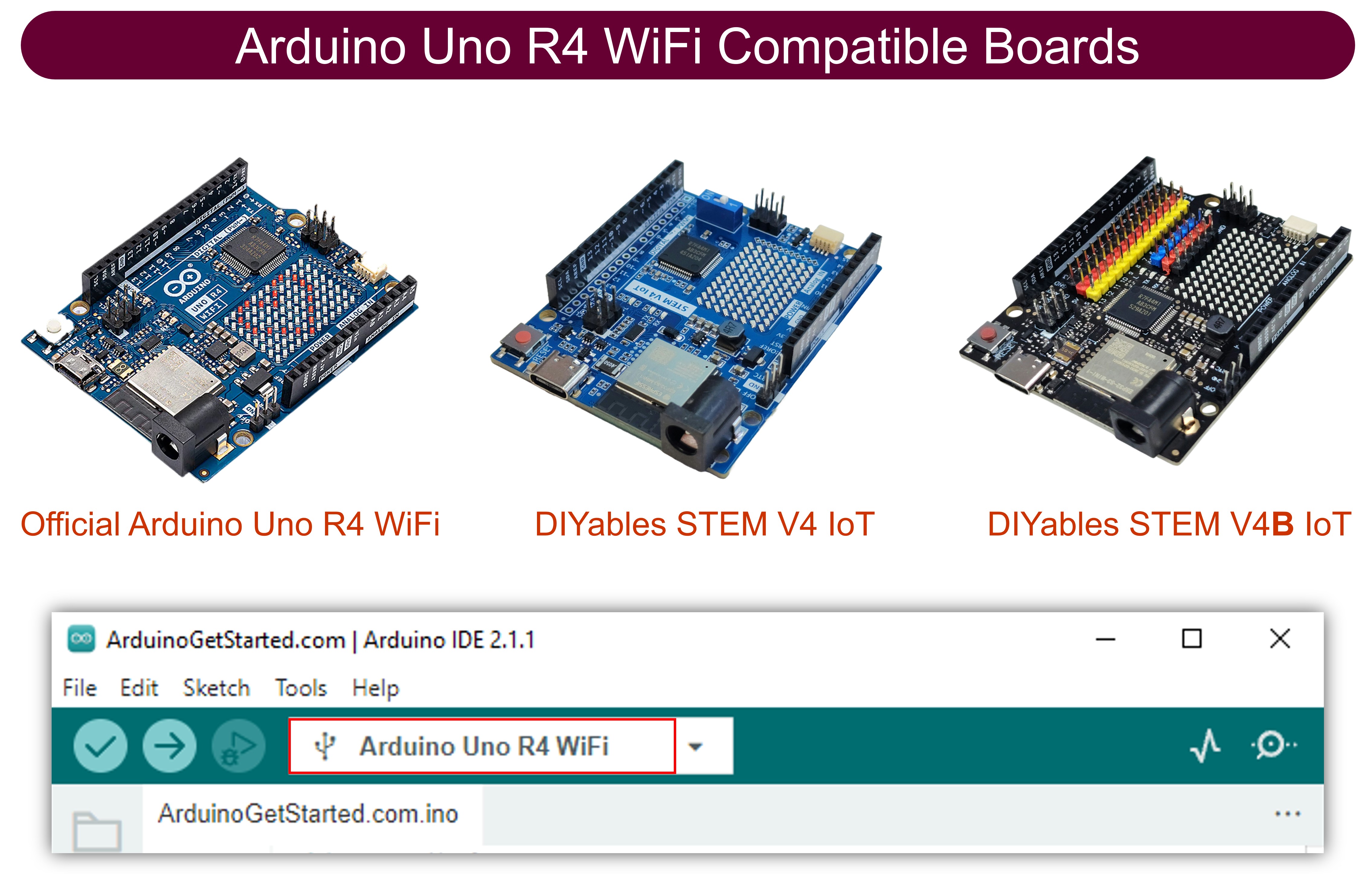
Instalando o Pacote do Arduino Uno R4
Diferente do Arduino Uno R3, para usar o Arduino Uno R4 Minima/WiFi com a Arduino IDE, você precisa instalar as placas Arduino Uno R4 na Arduino IDE. Portanto, primeiro siga os passos para instalar o pacote do Arduino Uno R4 na Arduino IDE:
- Abra a Arduino IDE
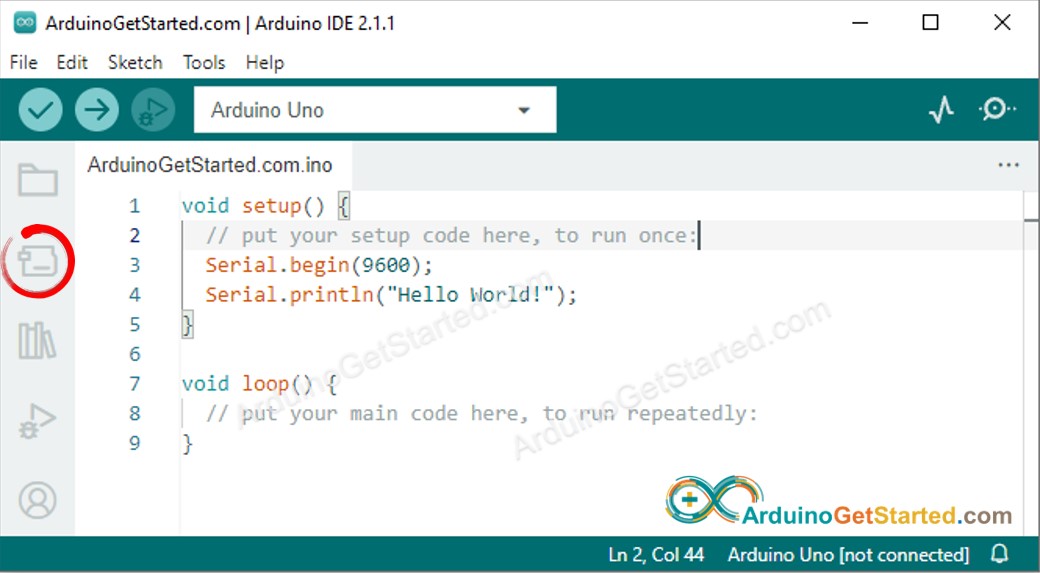
- Vá até o ícone Boards Manager como na imagem abaixo:
- Digite Arduino Uno R4 na caixa de pesquisa como na imagem abaixo:
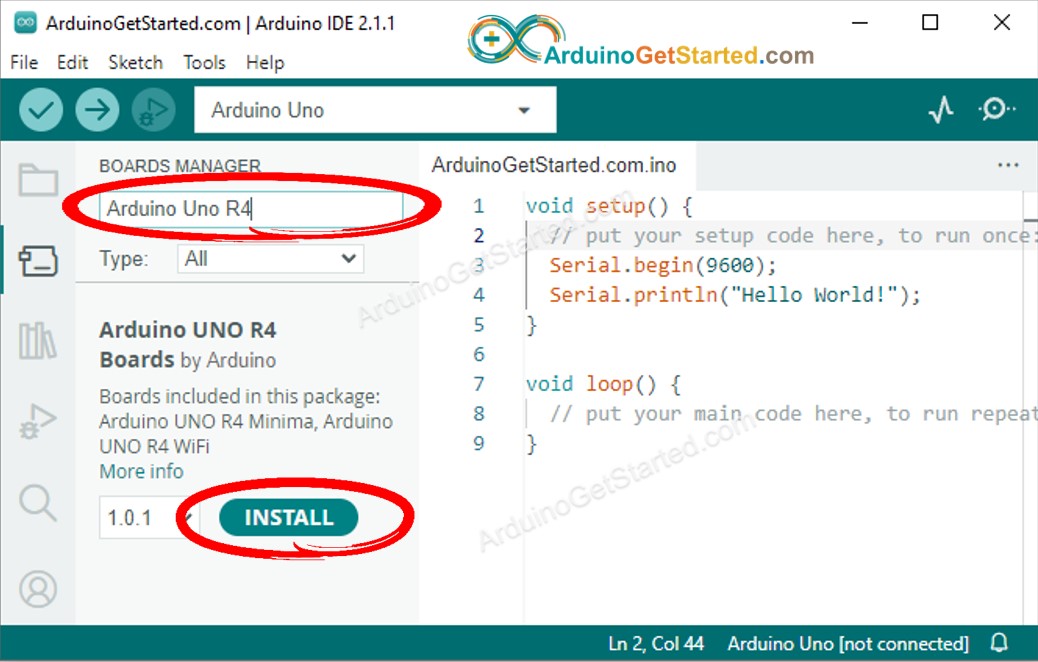
- Clique no botão Install.
Este processo se aplica tanto ao Arduino Uno R4 Minima quanto ao WiFi.
Executando o Programa Hello World
- Conecte o Arduino Uno R4 Minima ou WiFi ao seu PC com um cabo USB Type-C
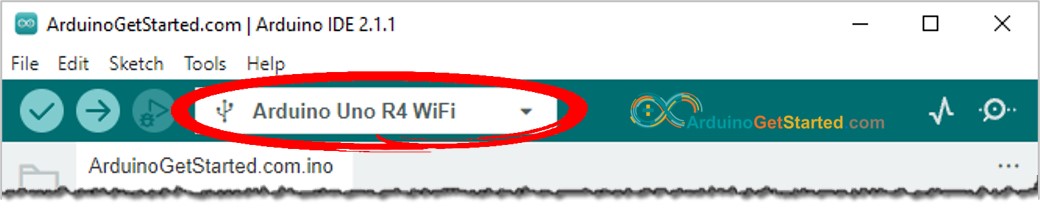
- Na Arduino IDE, selecione a porta COM conectada ao Arduino Uno R4 Minima ou WiFi como na imagem abaixo
- Copie o código Hello World abaixo e cole-o na Arduino IDE
/*
* Este código de Arduino foi desenvolvido por pt.newbiely.com
* Este código de Arduino é disponibilizado ao público sem nenhuma restrição.
* Para tutoriais completos e diagramas de ligação, visite:
* https://pt.newbiely.com/tutorials/arduino/how-to-get-started-with-arduino-uno-r4
*/
void setup() {
// put your setup code here, to run once:
Serial.begin(9600);
}
void loop() {
// put your main code here, to run repeatedly:
Serial.println("Hello World!");
delay(1000);
}
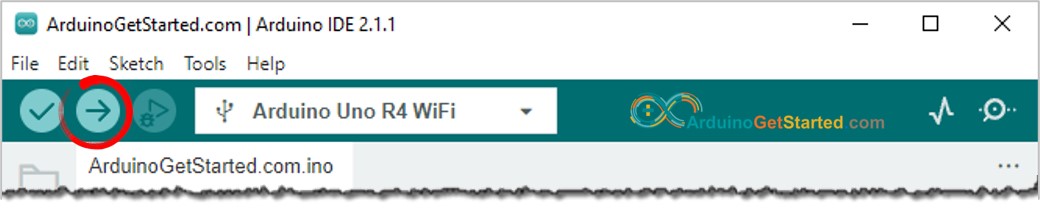
- Clique no botão Upload na Arduino IDE para carregar o código no Arduino
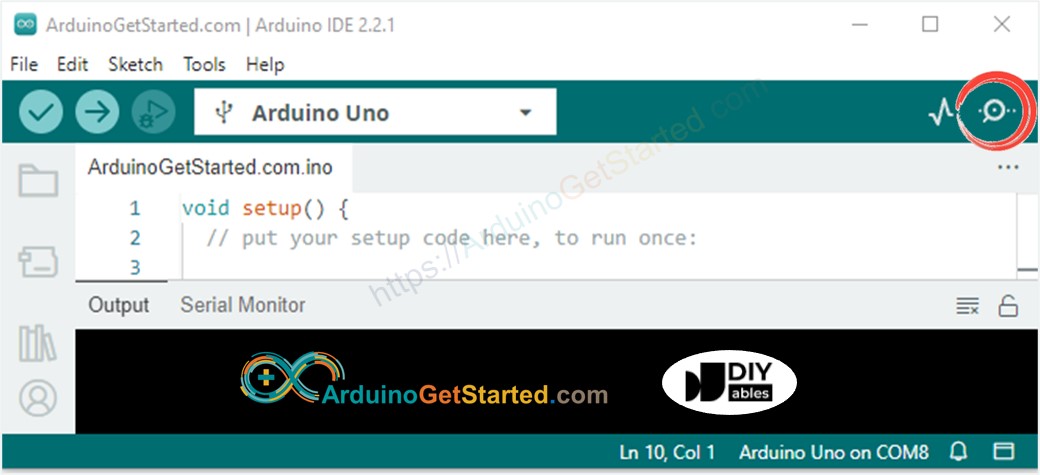
- Abra o Serial Monitor clicando no ícone do Serial Monitor
- Confira o resultado no Serial Monitor, ele fica assim:
8
Serial.println("Hello World!");
Message (Enter to send message to 'Arduino Uno' on 'COM15')
New Line
9600 baud
Hello World!
Hello World!
Hello World!
Hello World!
Hello World!
Hello World!
Executando o Exemplo de Servidor Web para o Arduino Uno R4 WiFi
/*
* Este código de Arduino foi desenvolvido por pt.newbiely.com
* Este código de Arduino é disponibilizado ao público sem nenhuma restrição.
* Para tutoriais completos e diagramas de ligação, visite:
* https://pt.newbiely.com/tutorials/arduino/how-to-get-started-with-arduino-uno-r4
*/
#include "WiFiS3.h"
char ssid[] = "Your_WiFi"; // change your network SSID (name)
char pass[] = "Your_WiFi_password"; // change your network password (use for WPA, or use as key for WEP)
int keyIndex = 0; // your network key index number (needed only for WEP)
int status = WL_IDLE_STATUS;
WiFiServer server(80);
void setup() {
//Initialize serial and wait for port to open:
Serial.begin(9600);
while (!Serial) {
; // wait for serial port to connect. Needed for native USB port only
}
// check for the WiFi module:
if (WiFi.status() == WL_NO_MODULE) {
Serial.println("Communication with WiFi module failed!");
// don't continue
while (true)
;
}
String fv = WiFi.firmwareVersion();
if (fv < WIFI_FIRMWARE_LATEST_VERSION) {
Serial.println("Please upgrade the firmware");
}
// attempt to connect to WiFi network:
while (status != WL_CONNECTED) {
Serial.print("Attempting to connect to SSID: ");
Serial.println(ssid);
// Connect to WPA/WPA2 network. Change this line if using open or WEP network:
status = WiFi.begin(ssid, pass);
// wait 10 seconds for connection:
delay(10000);
}
server.begin();
// you're connected now, so print out the status:
printWifiStatus();
}
void loop() {
// listen for incoming clients
WiFiClient client = server.available();
if (client) {
Serial.println("new client");
// an HTTP request ends with a blank line
boolean currentLineIsBlank = true;
while (client.connected()) {
if (client.available()) {
char c = client.read();
Serial.write(c);
// if you've gotten to the end of the line (received a newline
// character) and the line is blank, the HTTP request has ended,
// so you can send a reply
if (c == '\n' && currentLineIsBlank) {
// send a standard HTTP response header
client.println("HTTP/1.1 200 OK");
client.println("Content-Type: text/html");
client.println("Connection: close"); // the connection will be closed after completion of the response
client.println("Refresh: 5"); // refresh the page automatically every 5 sec
client.println();
client.println("<!DOCTYPE HTML>");
client.println("<html>");
client.print("Hello from Arduino Web Server");
client.println("</html>");
break;
}
if (c == '\n') {
// you're starting a new line
currentLineIsBlank = true;
} else if (c != '\r') {
// you've gotten a character on the current line
currentLineIsBlank = false;
}
}
}
// give the web browser time to receive the data
delay(1);
// close the connection:
client.stop();
Serial.println("client disconnected");
}
}
void printWifiStatus() {
// print your board's IP address:
IPAddress ip = WiFi.localIP();
Serial.print("IP Address: ");
Serial.println(ip);
// print the received signal strength:
long rssi = WiFi.RSSI();
Serial.print("signal strength (RSSI):");
Serial.print(rssi);
Serial.println(" dBm");
}
- Copie o código acima e abra-o na Arduino IDE
- Altere as informações de WiFi (SSID e senha) no código para as suas
- Clique no botão Upload na Arduino IDE para carregar o código no Arduino
- Abra o Serial Monitor
- Veja o resultado no Serial Monitor.
8
Serial.println("Hello World!");
Message (Enter to send message to 'Arduino Uno' on 'COM15')
New Line
9600 baud
Attempting to connect to SSID: Your_WiFi
IP Address: 192.168.0.2
signal strength (RSSI):-39 dBm
- Você verá um endereço IP. Este é o endereço IP do Servidor Web do Arduino
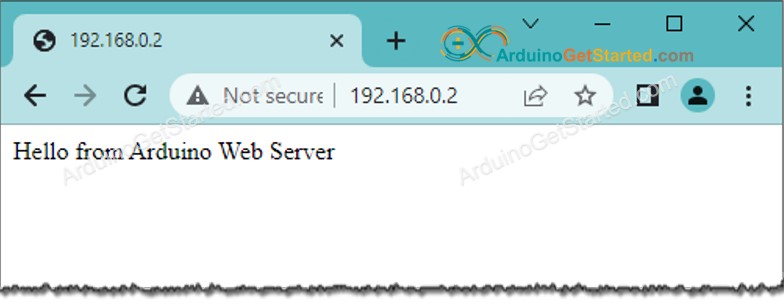
- Copie o endereço IP e cole-o na barra de endereços de um navegador web.
- Você verá a página web da placa Arduino no navegador como abaixo
- Você também verá a saída abaixo no Serial Monitor
8
Serial.println("Hello World!");
Message (Enter to send message to 'Arduino Uno' on 'COM15')
New Line
9600 baud
Attempting to connect to SSID: Your_WiFi
IP Address: 192.168.0.2
signal strength (RSSI):-39 dBm
new client
GET /favicon.ico HTTP/1.1
Host: 192.168.0.2
Connection: keep-alive
User-Agent: Mozilla/5.0 (Windows NT 10.0; Win64; x64) AppleWebKit/537.36 (KHTML, like Gecko) Chrome/114.0.0.0 Safari/537.36
Accept: image/avif,image/webp,image/apng,image/svg+xml,image/*,*/*;q=0.8
Referer: http://192.168.0.2/
Accept-Encoding: gzip, deflate
Accept-Language: en-US,en;q=0.9
client disconnected