
Arduino - Botão - LED
Vamos aprender a:
- Acender o LED se o botão estiver pressionado.
- Apagar o LED se o botão NÃO estiver pressionado.
Vamos aprender a alternar o LED a cada vez que o botão é pressionado no tutorial Arduino - Botão Alterna LED.
Hardware Necessário
Or you can buy the following kits:
| 1 | × | DIYables STEM V3 Starter Kit (Arduino included) | |
| 1 | × | DIYables Sensor Kit (18 sensors/displays) |
Divulgação: Alguns dos links desta seção são links de afiliado da Amazon. Podemos receber uma comissão pelas compras feitas por meio desses links, sem custo adicional para você. Agradecemos o seu apoio.
Buy Note: Use the LED Module for easier wiring. It includes an integrated resistor.
Sobre LED e Botão
Se você não conhece o LED e o botão (pinagem, como funcionam, como programar...), aprenda sobre eles nos seguintes tutoriais:
Diagrama de Ligação
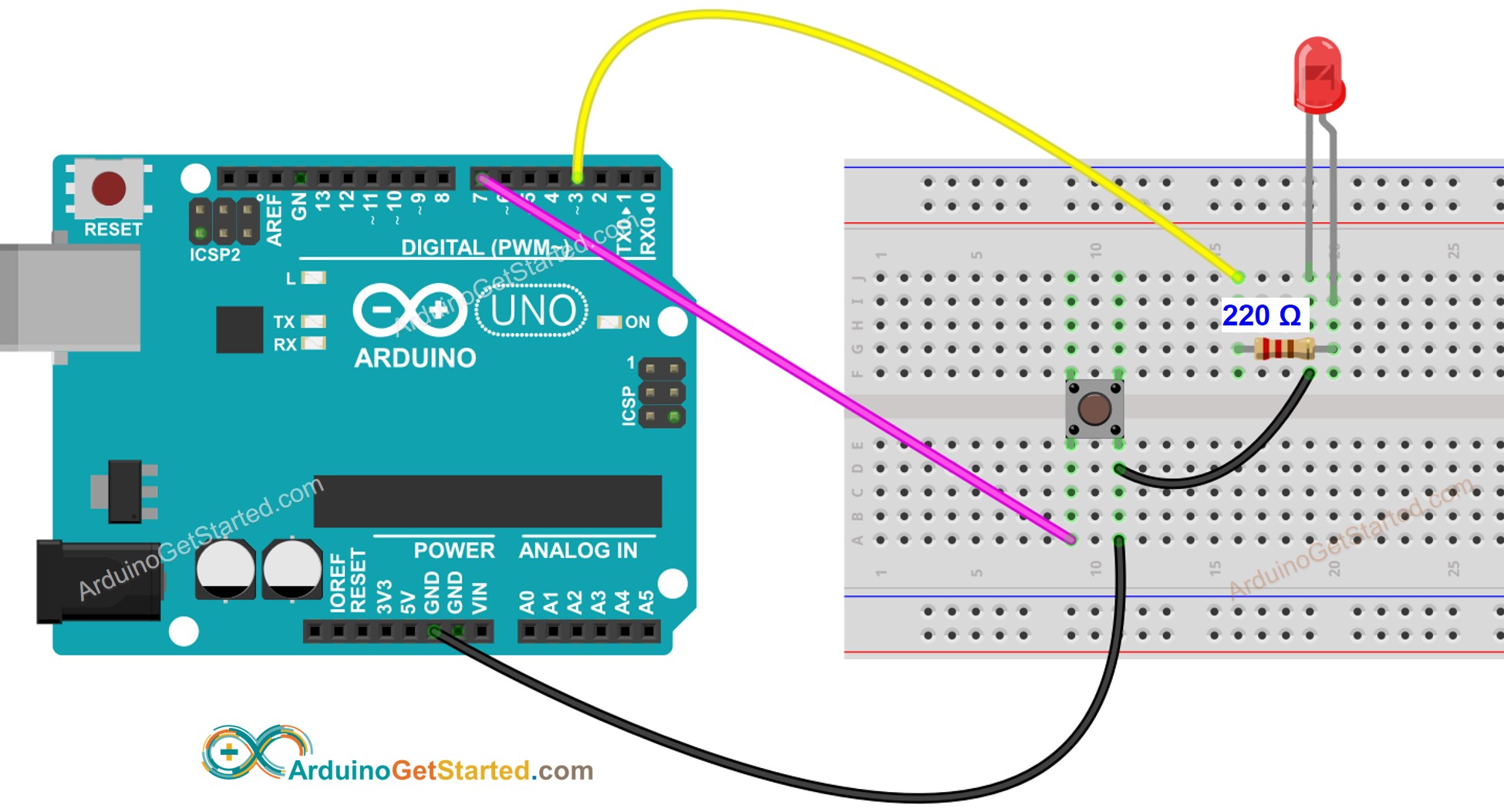
This image is created using Fritzing. Click to enlarge image
Código Arduino
/*
* Este código de Arduino foi desenvolvido por pt.newbiely.com
* Este código de Arduino é disponibilizado ao público sem nenhuma restrição.
* Para tutoriais completos e diagramas de ligação, visite:
* https://pt.newbiely.com/tutorials/arduino/arduino-button-led
*/
// constants won't change. They're used here to set pin numbers:
const int BUTTON_PIN = 7; // the number of the pushbutton pin
const int LED_PIN = 3; // the number of the LED pin
// variables will change:
int buttonState = 0; // variable for reading the pushbutton status
void setup() {
// initialize the LED pin as an output:
pinMode(LED_PIN, OUTPUT);
// initialize the pushbutton pin as an pull-up input:
// the pull-up input pin will be HIGH when the switch is open and LOW when the switch is closed.
pinMode(BUTTON_PIN, INPUT_PULLUP);
}
void loop() {
// read the state of the pushbutton value:
buttonState = digitalRead(BUTTON_PIN);
// control LED according to the state of button
if(buttonState == LOW) // If button is pressing
digitalWrite(LED_PIN, HIGH); // turn on LED
else // otherwise, button is not pressing
digitalWrite(LED_PIN, LOW); // turn off LED
}
Passos Rápidos
- Conecte o Arduino ao PC via cabo USB
- Abra a Arduino IDE, selecione a placa e a porta corretas
- Copie o código acima e abra com a Arduino IDE
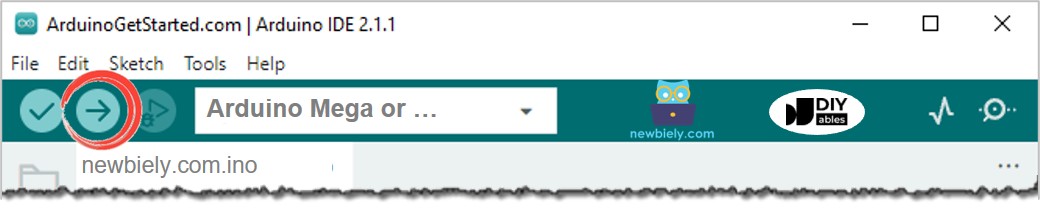
- Clique no botão Upload na Arduino IDE para carregar o código no Arduino
- Pressione e mantenha o botão pressionado por alguns segundos
- Veja a mudança do estado do LED
Explicação do Código
Leia a explicação linha por linha nos comentários do código-fonte!