
Arduino - Relógio OLED
Neste tutorial, vamos aprender a fazer um relógio OLED:
- Lendo a hora (hora, minuto, segundo) do módulo RTC DS3231 e mostrando-a em um OLED
- Lendo a hora (hora, minuto, segundo) do módulo RTC DS1307 e mostrando-a em um OLED
Você pode escolher um dos dois módulos RTC: DS3231 ou DS1307. Veja DS3231 vs DS1307
Hardware Necessário
Or you can buy the following kits:
| 1 | × | DIYables STEM V3 Starter Kit (Arduino included) | |
| 1 | × | DIYables Sensor Kit (18 sensors/displays) |
Divulgação: Alguns dos links desta seção são links de afiliado da Amazon. Podemos receber uma comissão pelas compras feitas por meio desses links, sem custo adicional para você. Agradecemos o seu apoio.
Buy Note: If you want a bigger OLED display, use the 2.42 inch OLED Display 128x64 .
Sobre o OLED e os módulos RTC DS3231 e DS1307
Se você ainda não conhece o OLED, o DS3231 e o DS1307 (pinagem, como funcionam, como programar...), aprenda sobre eles nos tutoriais a seguir:
Instalar as Bibliotecas de OLED e RTC
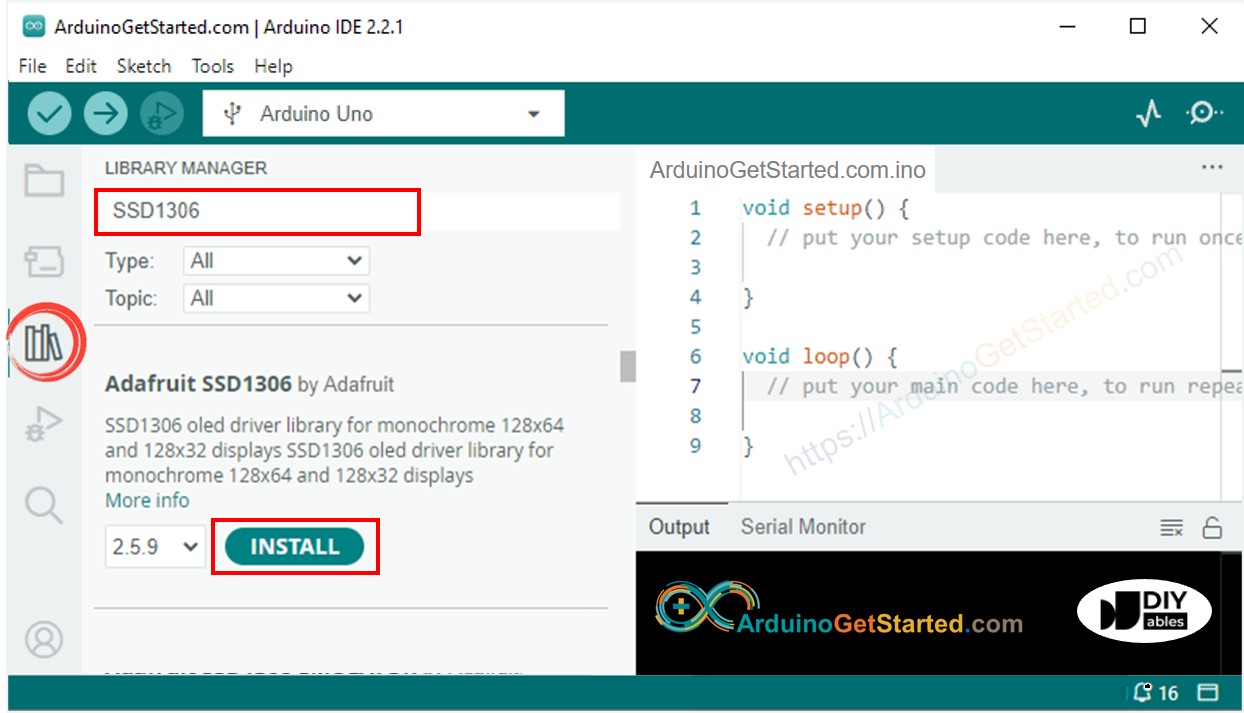
- Vá até o ícone Libraries na barra à esquerda do Arduino IDE.
- Pesquise “SSD1306” e encontre a biblioteca SSD1306 da Adafruit
- Clique no botão Install para instalar a biblioteca.
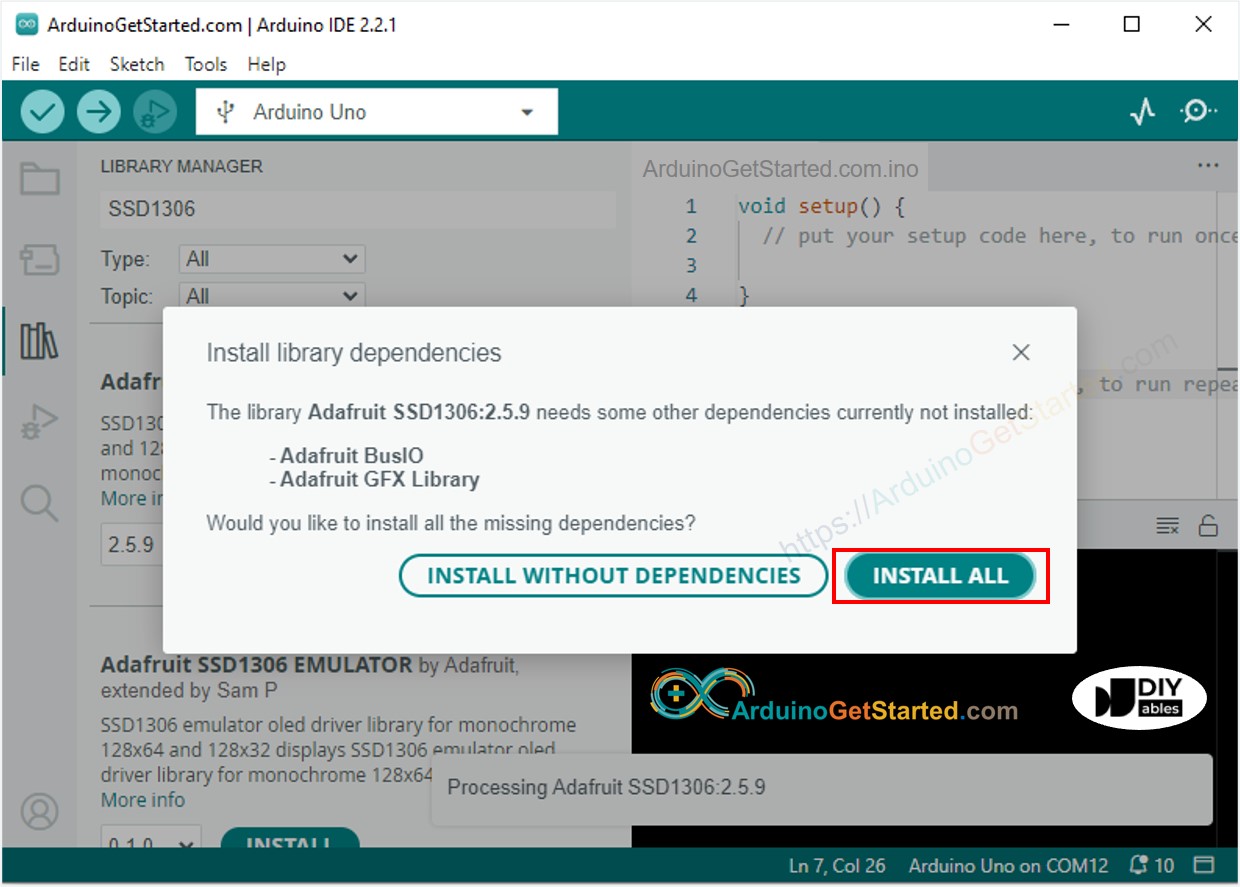
- Será pedido para você instalar algumas outras dependências de biblioteca
- Clique no botão Install All para instalar todas as dependências de biblioteca.
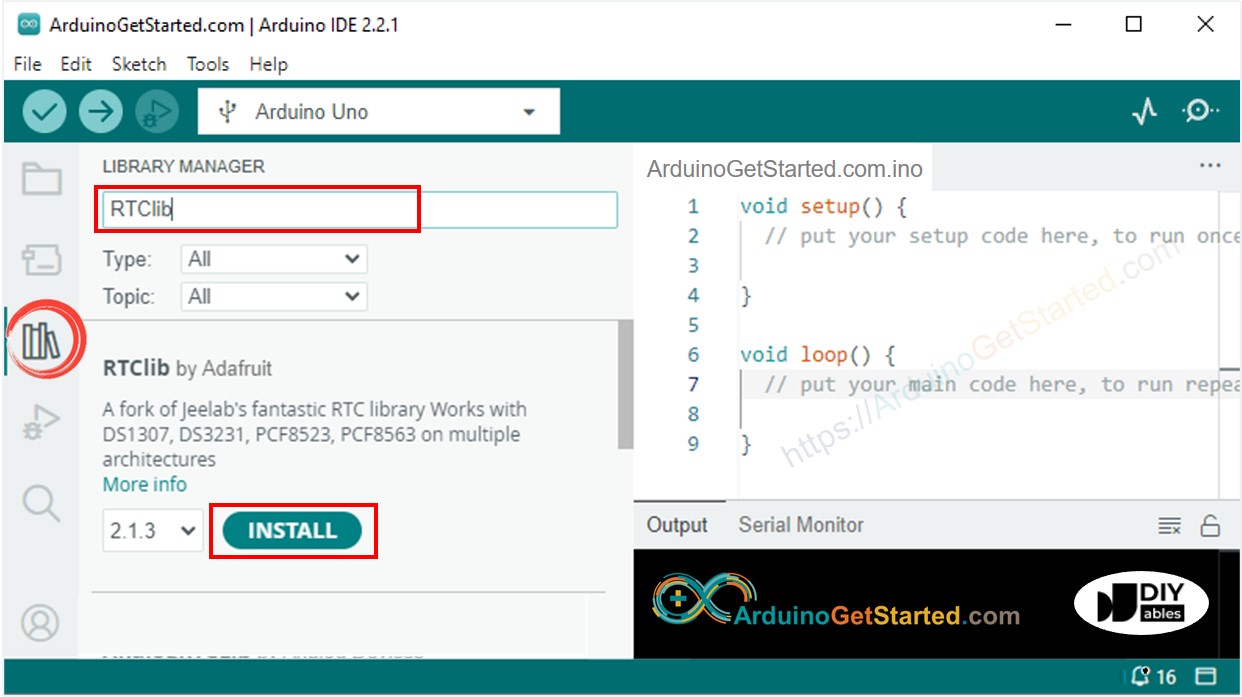
- Pesquise “RTClib” e encontre a biblioteca RTC da Adafruit. Esta biblioteca funciona tanto com o DS3231 quanto com o DS1307
- Clique no botão Install para instalar a biblioteca RTC.
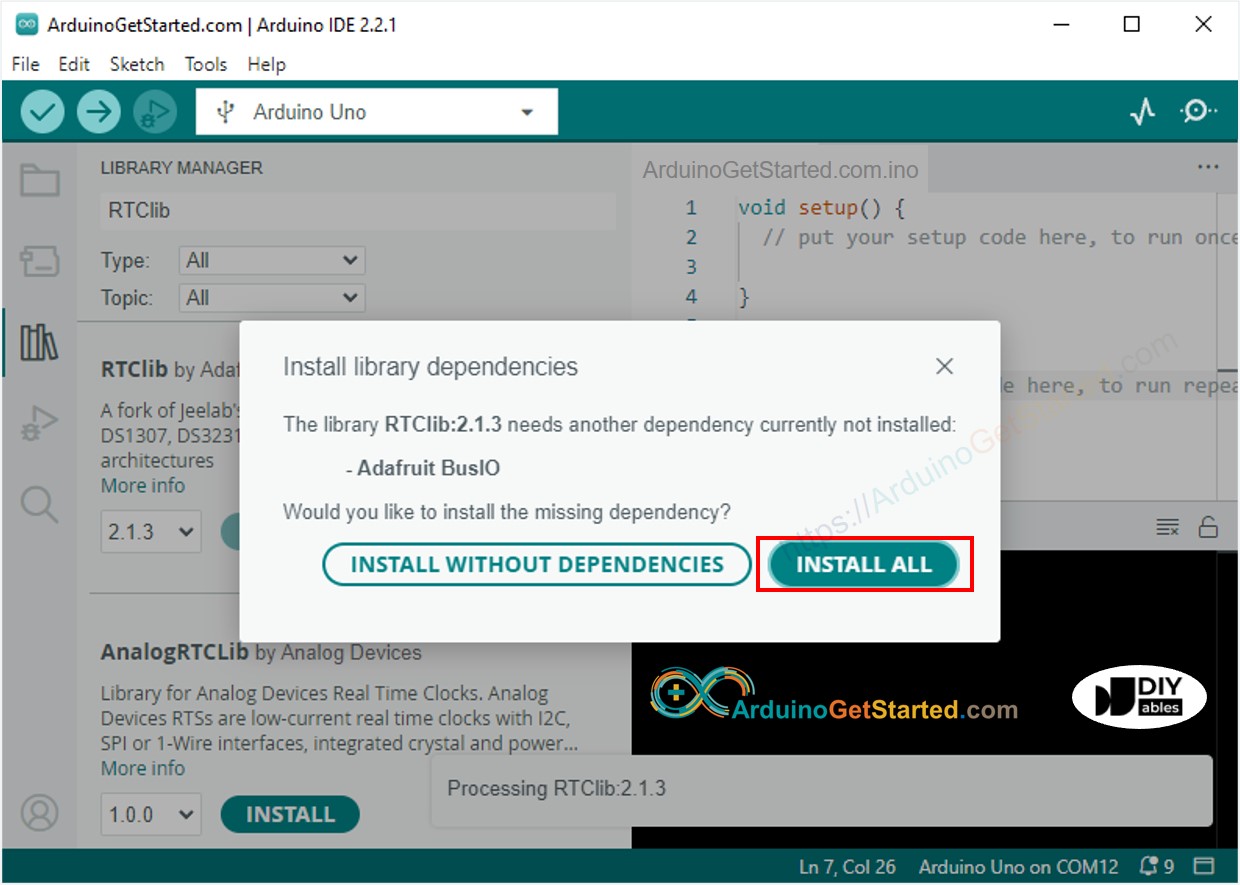
- Pode ser que seja pedido para você instalar algumas outras dependências de biblioteca
- Clique no botão Install All para instalar todas as dependências de biblioteca.
Lendo a hora do módulo RTC DS3231 e mostrando-a no OLED
Diagrama de Ligação
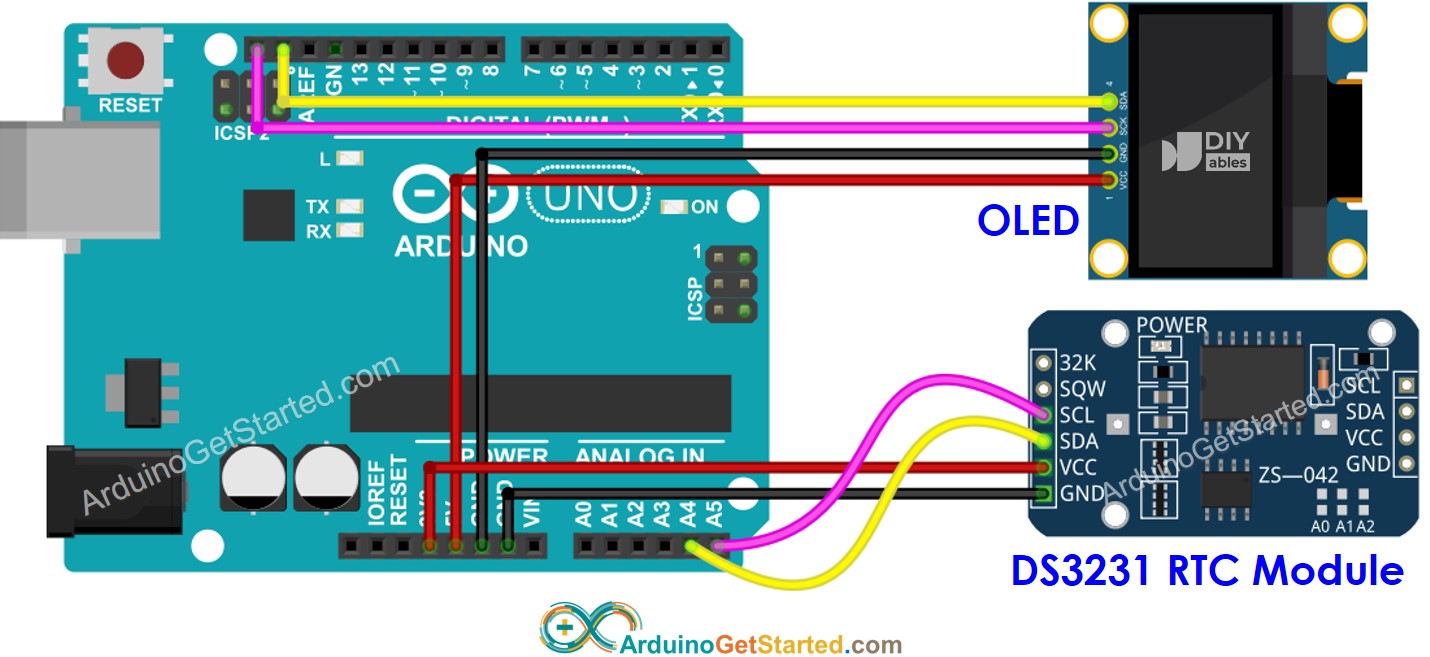
This image is created using Fritzing. Click to enlarge image
Código Arduino - DS3231 e OLED
/*
* Este código de Arduino foi desenvolvido por pt.newbiely.com
* Este código de Arduino é disponibilizado ao público sem nenhuma restrição.
* Para tutoriais completos e diagramas de ligação, visite:
* https://pt.newbiely.com/tutorials/arduino/arduino-oled-clock
*/
#include <Wire.h>
#include <Adafruit_GFX.h>
#include <Adafruit_SSD1306.h>
#include <RTClib.h>
#define SCREEN_WIDTH 128 // OLED display width, in pixels
#define SCREEN_HEIGHT 64 // OLED display height, in pixels
Adafruit_SSD1306 oled(SCREEN_WIDTH, SCREEN_HEIGHT, &Wire, -1); // // create SSD1306 display object connected to I2C
RTC_DS3231 rtc;
String time;
void setup() {
Serial.begin(9600);
// initialize OLED display with address 0x3C for 128x64
if (!oled.begin(SSD1306_SWITCHCAPVCC, 0x3C)) {
Serial.println(F("SSD1306 allocation failed"));
while (true);
}
delay(2000); // wait for initializing
oled.clearDisplay(); // clear display
oled.setTextSize(1); // text size
oled.setTextColor(WHITE); // text color
oled.setCursor(0, 10); // position to display
// SETUP RTC MODULE
if (! rtc.begin()) {
Serial.println("Couldn't find RTC");
Serial.flush();
while (true);
}
// automatically sets the RTC to the date & time on PC this sketch was compiled
rtc.adjust(DateTime(F(__DATE__), F(__TIME__)));
time.reserve(10); // to avoid fragmenting memory when using String
}
void loop() {
DateTime now = rtc.now();
time = "";
time += now.hour();
time += ':';
time += now.minute();
time += ':';
time += now.second();
oledDisplayCenter(time);
}
void oledDisplayCenter(String text) {
int16_t x1;
int16_t y1;
uint16_t width;
uint16_t height;
oled.getTextBounds(text, 0, 0, &x1, &y1, &width, &height);
// display on horizontal and vertical center
oled.clearDisplay(); // clear display
oled.setCursor((SCREEN_WIDTH - width) / 2, (SCREEN_HEIGHT - height) / 2);
oled.println(text); // text to display
oled.display();
}
Passos Rápidos
- Copie o código acima e abra no Arduino IDE
- Clique no botão Upload no Arduino IDE para carregar o código no Arduino
- Veja o resultado no OLED
Lendo a hora do módulo RTC DS1307 e mostrando-a no OLED
Diagrama de Ligação
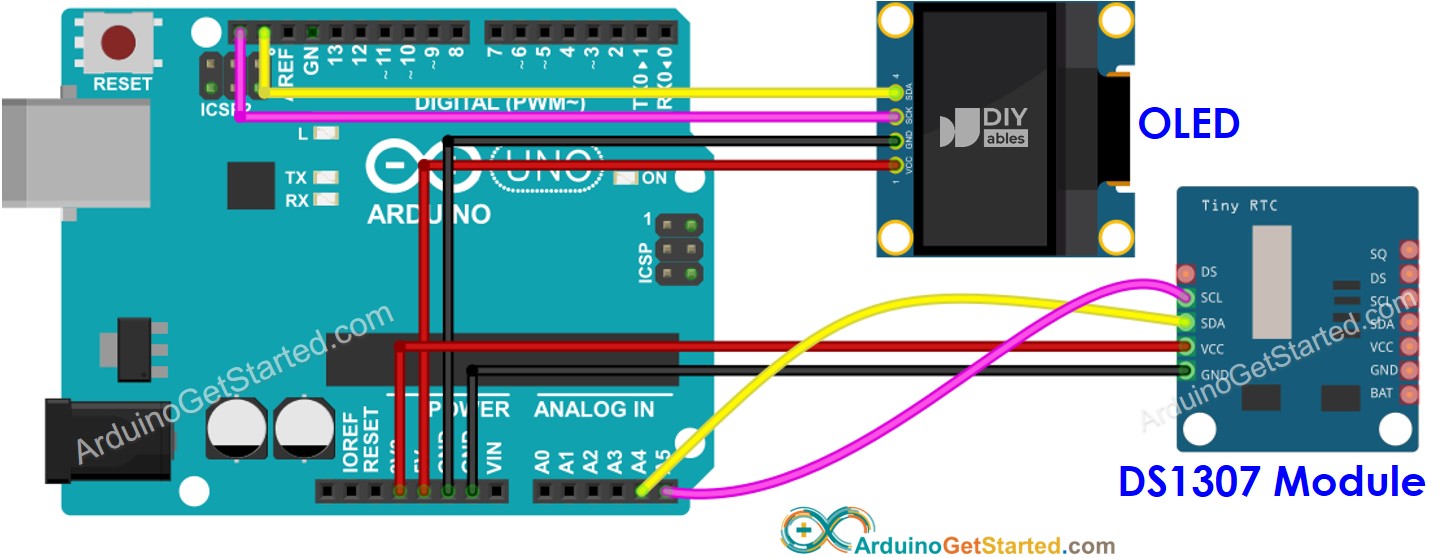
This image is created using Fritzing. Click to enlarge image
Código Arduino - DS1307 e OLED
/*
* Este código de Arduino foi desenvolvido por pt.newbiely.com
* Este código de Arduino é disponibilizado ao público sem nenhuma restrição.
* Para tutoriais completos e diagramas de ligação, visite:
* https://pt.newbiely.com/tutorials/arduino/arduino-oled-clock
*/
#include <Wire.h>
#include <Adafruit_GFX.h>
#include <Adafruit_SSD1306.h>
#include <RTClib.h>
#define SCREEN_WIDTH 128 // OLED display width, in pixels
#define SCREEN_HEIGHT 64 // OLED display height, in pixels
Adafruit_SSD1306 oled(SCREEN_WIDTH, SCREEN_HEIGHT, &Wire, -1); // // create SSD1306 display object connected to I2C
RTC_DS1307 rtc;
String time;
void setup() {
Serial.begin(9600);
// initialize OLED display with address 0x3C for 128x64
if (!oled.begin(SSD1306_SWITCHCAPVCC, 0x3C)) {
Serial.println(F("SSD1306 allocation failed"));
while (true);
}
delay(2000); // wait for initializing
oled.clearDisplay(); // clear display
oled.setTextSize(1); // text size
oled.setTextColor(WHITE); // text color
oled.setCursor(0, 10); // position to display
// SETUP RTC MODULE
if (! rtc.begin()) {
Serial.println("Couldn't find RTC");
Serial.flush();
while (true);
}
// automatically sets the RTC to the date & time on PC this sketch was compiled
rtc.adjust(DateTime(F(__DATE__), F(__TIME__)));
time.reserve(10); // to avoid fragmenting memory when using String
}
void loop() {
DateTime now = rtc.now();
time = "";
time += now.hour();
time += ':';
time += now.minute();
time += ':';
time += now.second();
oledDisplayCenter(time);
}
void oledDisplayCenter(String text) {
int16_t x1;
int16_t y1;
uint16_t width;
uint16_t height;
oled.getTextBounds(text, 0, 0, &x1, &y1, &width, &height);
// display on horizontal and vertical center
oled.clearDisplay(); // clear display
oled.setCursor((SCREEN_WIDTH - width) / 2, (SCREEN_HEIGHT - height) / 2);
oled.println(text); // text to display
oled.display();
}
Passos Rápidos
- Copie o código acima e abra no Arduino IDE
- Clique no botão Upload no Arduino IDE para carregar o código no Arduino
- Veja o resultado no OLED