
Arduino - Botão - Debounce

Quando um botão é pressionado/solto ou quando uma chave é acionada, os iniciantes geralmente pensam, de forma simples, que o estado dele muda de LOW para HIGH ou de HIGH para LOW. Na prática, não é exatamente assim. Por causa das características mecânicas e físicas, o estado do botão (ou da chave) pode alternar entre LOW e HIGH várias vezes. Esse fenômeno é chamado de trepidação (chattering). O fenômeno de trepidação faz com que um único pressionamento possa ser lido como vários pressionamentos, causando mau funcionamento em alguns tipos de aplicação. Este tutorial mostra como eliminar esse fenômeno (o que chamamos de fazer o debounce da entrada).
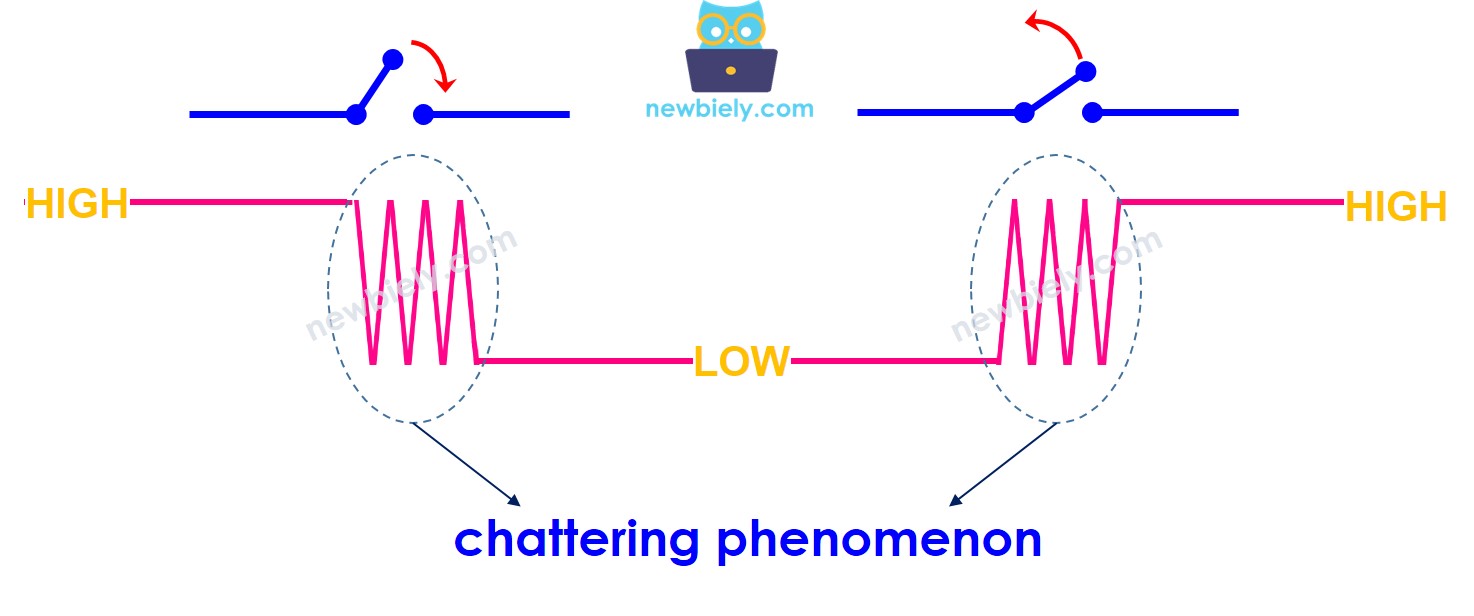
Fenômeno de trepidação no Arduino

Sobre o Botão

Se você ainda não conhece o botão (pinagem, como funciona, como programar ...), aprenda sobre ele nos seguintes tutoriais:

Diagrama de Ligação
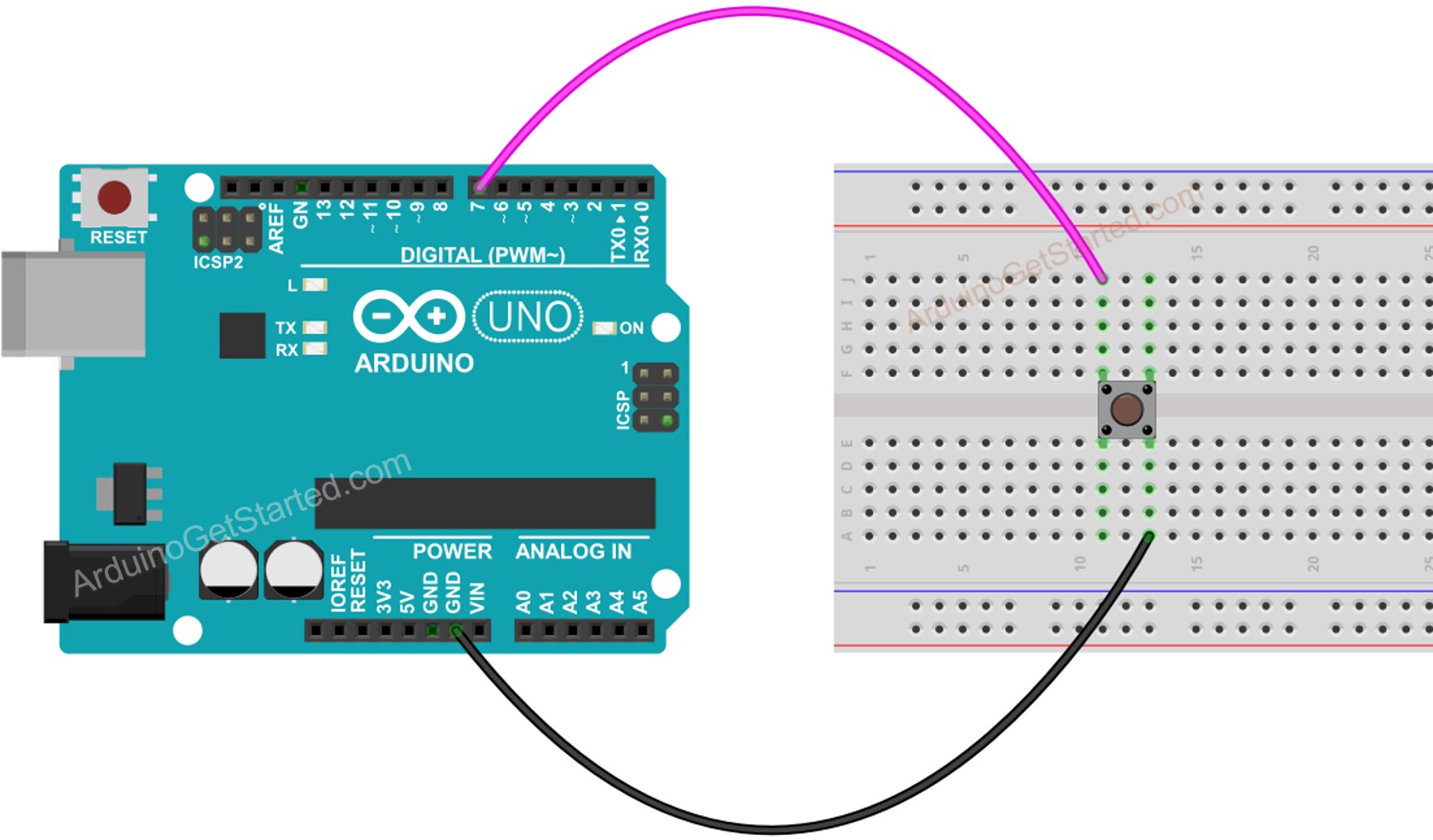
Diagrama de ligação do botão com Arduino

This image is created using Fritzing. Click to enlarge image

Vamos ver e comparar o código Arduino SEM e COM debounce e o comportamento de cada um.

Lendo o Botão sem Debounce

Antes de aprender sobre o debounce, veja o código sem debounce e o comportamento dele.

Passos Rápidos

  • Conecte o Arduino ao PC com o cabo USB
  • Abra o Arduino IDE e selecione a placa e a porta corretas
  • Copie o código abaixo e abra-o no Arduino IDE
/* * Este código de Arduino foi desenvolvido por pt.newbiely.com * Este código de Arduino é disponibilizado ao público sem nenhuma restrição. * Para tutoriais completos e diagramas de ligação, visite: * https://pt.newbiely.com/tutorials/arduino/arduino-button-debounce */ // constants won't change. They're used here to set pin numbers: const int BUTTON_PIN = 7; // the number of the pushbutton pin // Variables will change: int lastState = LOW; // the previous state from the input pin int currentState; // the current reading from the input pin void setup() { // initialize serial communication at 9600 bits per second: Serial.begin(9600); // initialize the pushbutton pin as an pull-up input // the pull-up input pin will be HIGH when the switch is open and LOW when the switch is closed. pinMode(BUTTON_PIN, INPUT_PULLUP); } void loop() { // read the state of the switch/button: currentState = digitalRead(BUTTON_PIN); if(lastState == HIGH && currentState == LOW) Serial.println("The button is pressed"); else if(lastState == LOW && currentState == HIGH) Serial.println("The button is released"); // save the the last state lastState = currentState; }
  • Clique no botão Upload no Arduino IDE para carregar o código no Arduino
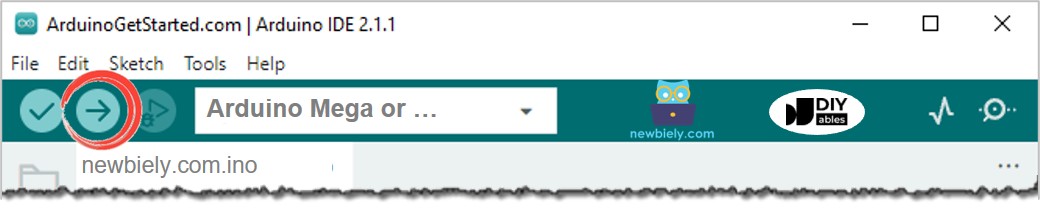
Arduino IDE - Carregar o código
  • Abra o Serial Monitor
  • Mantenha o botão pressionado por alguns segundos e depois solte.
  • Veja o resultado no Serial Monitor
∞
Newbiely | Arduino IDE 2.3.8
──
☐
✕
File
Edit
Sketch
Tools
Help
Arduino Uno
Newbiely.ino
···
8 Serial.println("Hello World!");
Output
Serial Monitor
Message (Enter to send message to 'Arduino Uno' on 'COM15')
New Line
9600 baud
The button is pressed The button is pressed The button is pressed The button is released The button is released
Ln 11, Col 1
Arduino Uno on COM15
2

⇒ Como você pode ver, você pressionou e soltou o botão apenas uma vez. No entanto, o Arduino reconhece isso como vários pressionamentos e solturas.

Lendo o Botão com Debounce

Passos Rápidos

  • Copie o código abaixo e abra-o no Arduino IDE
/* * Este código de Arduino foi desenvolvido por pt.newbiely.com * Este código de Arduino é disponibilizado ao público sem nenhuma restrição. * Para tutoriais completos e diagramas de ligação, visite: * https://pt.newbiely.com/tutorials/arduino/arduino-button-debounce */ // constants won't change. They're used here to set pin numbers: const int BUTTON_PIN = 7; // the number of the pushbutton pin const int DEBOUNCE_DELAY = 50; // the debounce time; increase if the output flickers // Variables will change: int lastSteadyState = LOW; // the previous steady state from the input pin int lastFlickerableState = LOW; // the previous flickerable state from the input pin int currentState; // the current reading from the input pin // the following variables are unsigned longs because the time, measured in // milliseconds, will quickly become a bigger number than can be stored in an int. unsigned long lastDebounceTime = 0; // the last time the output pin was toggled void setup() { // initialize serial communication at 9600 bits per second: Serial.begin(9600); // initialize the pushbutton pin as an pull-up input // the pull-up input pin will be HIGH when the switch is open and LOW when the switch is closed. pinMode(BUTTON_PIN, INPUT_PULLUP); } void loop() { // read the state of the switch/button: currentState = digitalRead(BUTTON_PIN); // check to see if you just pressed the button // (i.e. the input went from LOW to HIGH), and you've waited long enough // since the last press to ignore any noise: // If the switch/button changed, due to noise or pressing: if (currentState != lastFlickerableState) { // reset the debouncing timer lastDebounceTime = millis(); // save the the last flickerable state lastFlickerableState = currentState; } if ((millis() - lastDebounceTime) > DEBOUNCE_DELAY) { // whatever the reading is at, it's been there for longer than the debounce // delay, so take it as the actual current state: // if the button state has changed: if (lastSteadyState == HIGH && currentState == LOW) Serial.println("The button is pressed"); else if (lastSteadyState == LOW && currentState == HIGH) Serial.println("The button is released"); // save the the last steady state lastSteadyState = currentState; } }
  • Clique no botão Upload no Arduino IDE para carregar o código no Arduino
  • Abra o Serial Monitor
  • Mantenha o botão pressionado por alguns segundos e depois solte.
  • Veja o resultado no Serial Monitor
∞
Newbiely | Arduino IDE 2.3.8
──
☐
✕
File
Edit
Sketch
Tools
Help
Arduino Uno
Newbiely.ino
···
8 Serial.println("Hello World!");
Output
Serial Monitor
Message (Enter to send message to 'Arduino Uno' on 'COM15')
New Line
9600 baud
The button is pressed The button is released
Ln 11, Col 1
Arduino Uno on COM15
2

⇒ Como você pode ver, você pressionou e soltou o botão apenas uma vez. O Arduino reconhece isso como um único pressionamento e uma única soltura. A trepidação foi eliminada.

Deixamos Tudo Simples - Código de Debounce de Botão no Arduino com Biblioteca

Para facilitar muito para os iniciantes, principalmente ao usar vários botões, criamos uma biblioteca chamada ezButton. Você pode conhecer a biblioteca ezButton aqui.

Código de Debounce de Botão no Arduino para Um Único Botão

/* * Created by ArduinoGetStarted.com * * This example code is in the public domain * * Tutorial page: https://arduinogetstarted.com/tutorials/arduino-button-library * * This example reads the state of a button with debounce and print it to Serial Monitor. */ #include <ezButton.h> ezButton button(7); // create ezButton object that attach to pin 7; void setup() { Serial.begin(9600); button.setDebounceTime(50); // set debounce time to 50 milliseconds } void loop() { button.loop(); // MUST call the loop() function first if(button.isPressed()) Serial.println("The button is pressed"); if(button.isReleased()) Serial.println("The button is released"); }

Código de Debounce de Botão no Arduino para Vários Botões

/* * Este código de Arduino foi desenvolvido por pt.newbiely.com * Este código de Arduino é disponibilizado ao público sem nenhuma restrição. * Para tutoriais completos e diagramas de ligação, visite: * https://pt.newbiely.com/tutorials/arduino/arduino-button-debounce */ #include <ezButton.h> ezButton button1(6); // create ezButton object that attach to pin 6; ezButton button2(7); // create ezButton object that attach to pin 7; ezButton button3(8); // create ezButton object that attach to pin 8; void setup() { Serial.begin(9600); button1.setDebounceTime(50); // set debounce time to 50 milliseconds button2.setDebounceTime(50); // set debounce time to 50 milliseconds button3.setDebounceTime(50); // set debounce time to 50 milliseconds } void loop() { button1.loop(); // MUST call the loop() function first button2.loop(); // MUST call the loop() function first button3.loop(); // MUST call the loop() function first if(button1.isPressed()) Serial.println("The button 1 is pressed"); if(button1.isReleased()) Serial.println("The button 1 is released"); if(button2.isPressed()) Serial.println("The button 2 is pressed"); if(button2.isReleased()) Serial.println("The button 2 is released"); if(button3.isPressed()) Serial.println("The button 3 is pressed"); if(button3.isReleased()) Serial.println("The button 3 is released"); }

O diagrama de ligação para o código acima:
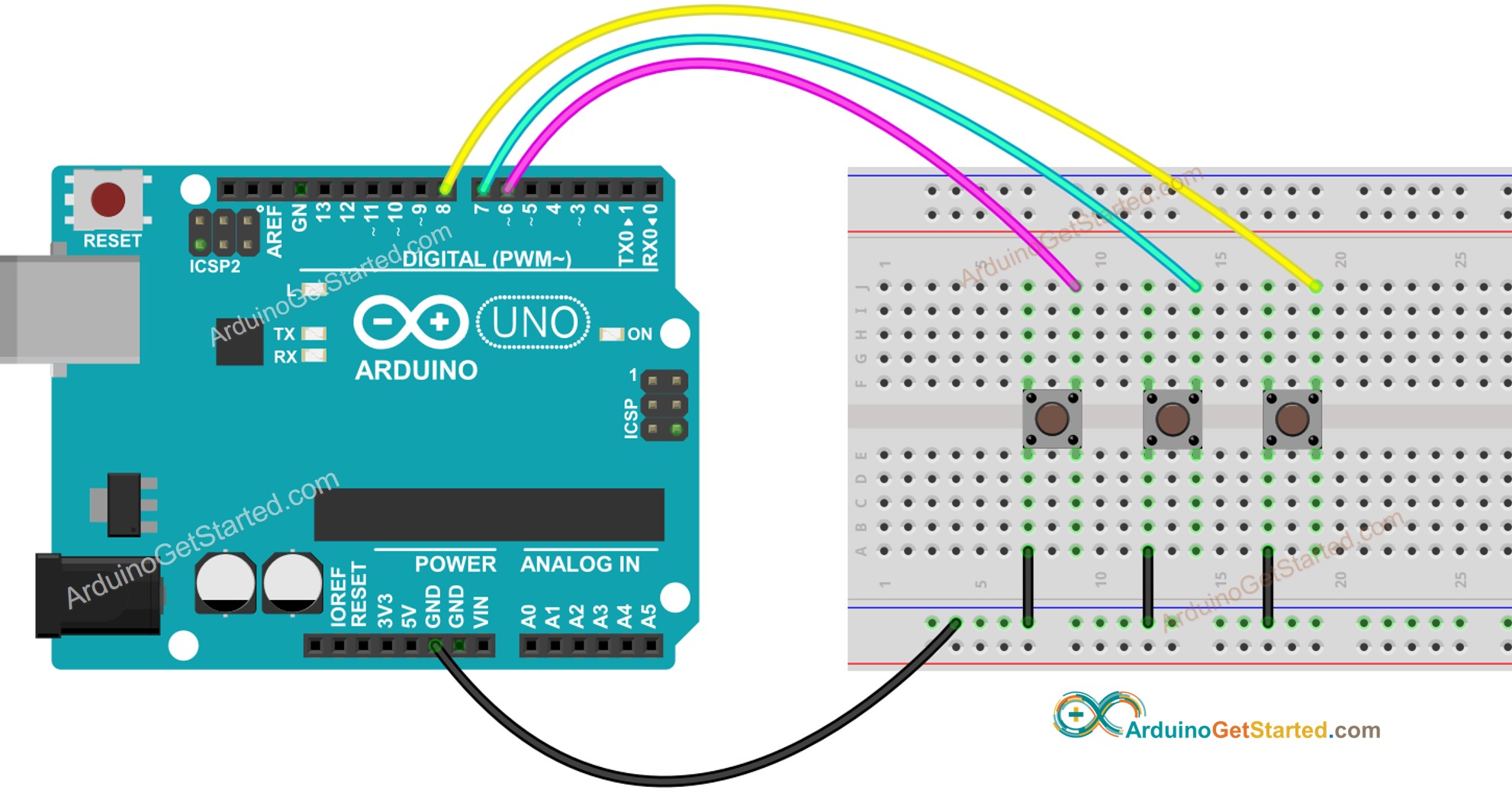
Diagrama de ligação da biblioteca de botão com Arduino

This image is created using Fritzing. Click to enlarge image

Vídeo

Conhecimento Adicional

  • O valor de DEBOUNCE_DELAY depende da aplicação. Aplicações diferentes podem usar valores diferentes.

Extensibilidade

O método de debounce também pode ser aplicado a chaves, sensores de toque ...

※ NOSSAS MENSAGENS

  • Fique à vontade para compartilhar o link deste tutorial. Porém, por favor, não use nosso conteúdo em outros sites. Investimos muito esforço e tempo para criar este conteúdo, por favor respeite nosso trabalho!