Este tutorial ensina você a programar um Arduino para usar vários botões ao mesmo tempo sem usar a função delay(). O tutorial traz o código de duas formas:
Arduino com vários botões com debounce
Arduino com vários botões com debounce usando arrays.
Vamos usar cinco botões como exemplo. Você pode modificar facilmente o código para dois botões, quatro botões ou até mais.
Divulgação: Alguns dos links desta seção são links de afiliado da Amazon. Podemos receber uma comissão pelas compras feitas por meio desses links, sem custo adicional para você. Agradecemos o seu apoio.
Sobre o Botão
Temos um tutorial detalhado sobre o botão, incluindo pinagem do hardware, princípio de funcionamento, ligação com o Arduino e instruções de código. Saiba mais aqui:
Aplicações que precisam detectar mudanças de estado (pressionado/solto)
Felizmente, a biblioteca ezButton simplifica esse processo, gerenciando internamente o debounce e os eventos dos botões. Assim, quem usa a biblioteca não precisa se preocupar em gerenciar marcações de tempo e variáveis. Além disso, usar um array de botões pode deixar o código mais claro e mais curto.
/* * Este código de Arduino foi desenvolvido por pt.newbiely.com * Este código de Arduino é disponibilizado ao público sem nenhuma restrição. * Para tutoriais completos e diagramas de ligação, visite: * https://pt.newbiely.com/tutorials/arduino/arduino-multiple-button*/#include <ezButton.h>#define BUTTON_NUM 5 // the number of buttons#define BUTTON_PIN_1 2 // The Arduino pin connected to the button 1#define BUTTON_PIN_2 3 // The Arduino pin connected to the button 2#define BUTTON_PIN_3 4 // The Arduino pin connected to the button 3#define BUTTON_PIN_4 5 // The Arduino pin connected to the button 4#define BUTTON_PIN_5 6 // The Arduino pin connected to the button 5ezButtonbutton1(BUTTON_PIN_1); // create ezButton object for button 1ezButtonbutton2(BUTTON_PIN_2); // create ezButton object for button 2ezButtonbutton3(BUTTON_PIN_3); // create ezButton object for button 3ezButton button4(BUTTON_PIN_4); // create ezButton object for button 4ezButton button5(BUTTON_PIN_5); // create ezButton object for button 5voidsetup() {Serial.begin(9600);button1.setDebounceTime(100); // set debounce time to 100 millisecondsbutton2.setDebounceTime(100); // set debounce time to 100 millisecondsbutton3.setDebounceTime(100); // set debounce time to 100 milliseconds button4.setDebounceTime(100); // set debounce time to 100 milliseconds button5.setDebounceTime(100); // set debounce time to 100 milliseconds}voidloop() {button1.loop(); // MUST call the loop() function firstbutton2.loop(); // MUST call the loop() function firstbutton3.loop(); // MUST call the loop() function first button4.loop(); // MUST call the loop() function first button5.loop(); // MUST call the loop() function first// get button state after debounceint button1_state = button1.getState(); // the state after debounceint button2_state = button2.getState(); // the state after debounceint button3_state = button3.getState(); // the state after debounceint button4_state = button4.getState(); // the state after debounceint button5_state = button5.getState(); // the state after debounce/* Serial.print("The button 1 state: "); Serial.println(button1_state); Serial.print("The button 2 state: "); Serial.println(button2_state); Serial.print("The button 3 state: "); Serial.println(button3_state); Serial.print("The button 4 state: "); Serial.println(button4_state); Serial.print("The button 5 state: "); Serial.println(button5_state); */if (button1.isPressed())Serial.println("The button 1 is pressed");if (button1.isReleased())Serial.println("The button 1 is released");if (button2.isPressed())Serial.println("The button 2 is pressed");if (button2.isReleased())Serial.println("The button 2 is released");if (button3.isPressed())Serial.println("The button 3 is pressed");if (button3.isReleased())Serial.println("The button 3 is released");if (button4.isPressed())Serial.println("The button 4 is pressed");if (button4.isReleased())Serial.println("The button 4 is released");if (button5.isPressed())Serial.println("The button 5 is pressed");if (button5.isReleased())Serial.println("The button 5 is released");}
Passos Rápidos
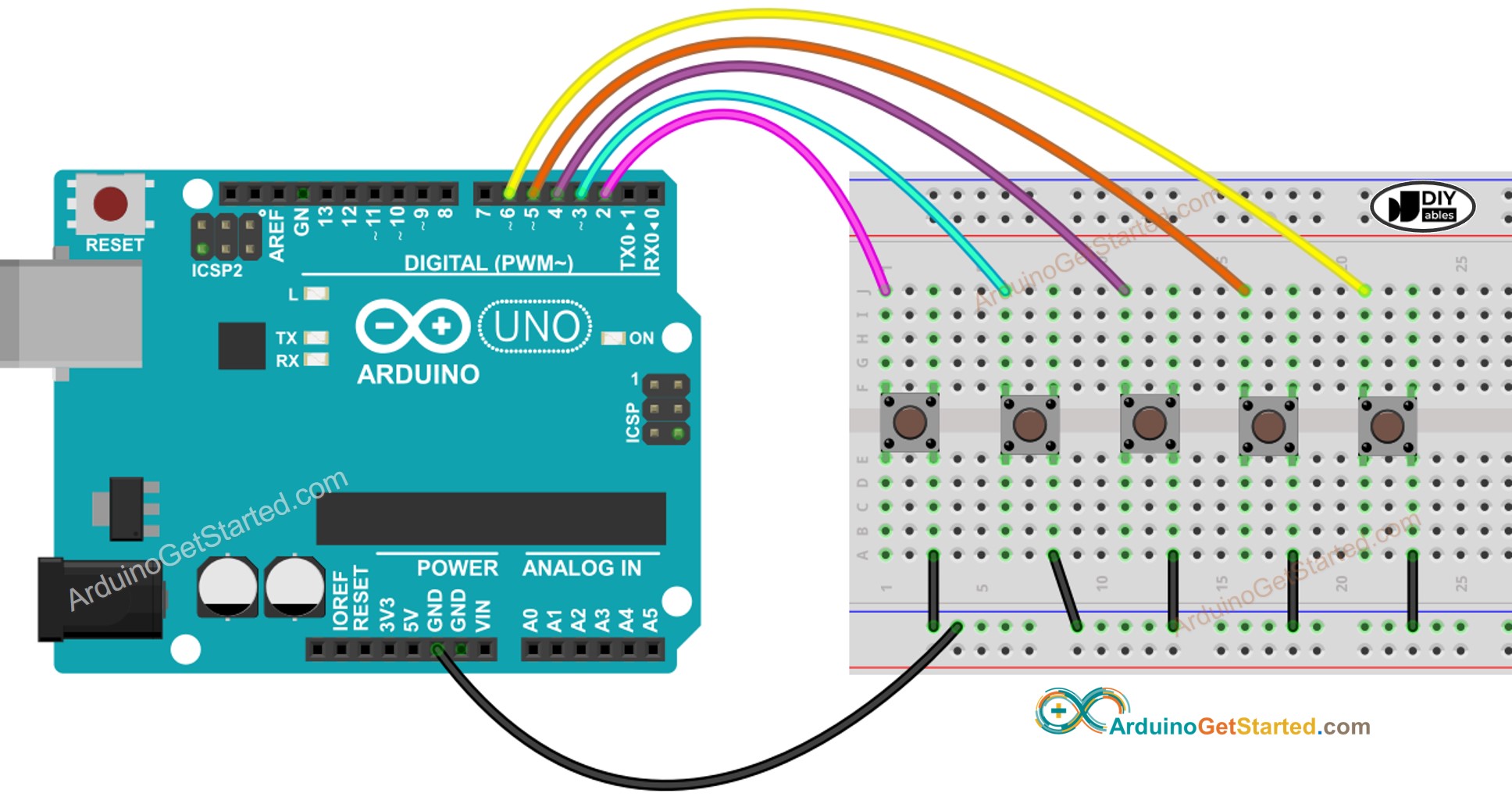
Faça a ligação como na imagem acima.
Conecte a placa Arduino ao seu PC com um cabo USB
Abra o Arduino IDE no seu PC.
Selecione a placa Arduino correta (por exemplo, Arduino Uno) e a porta COM.
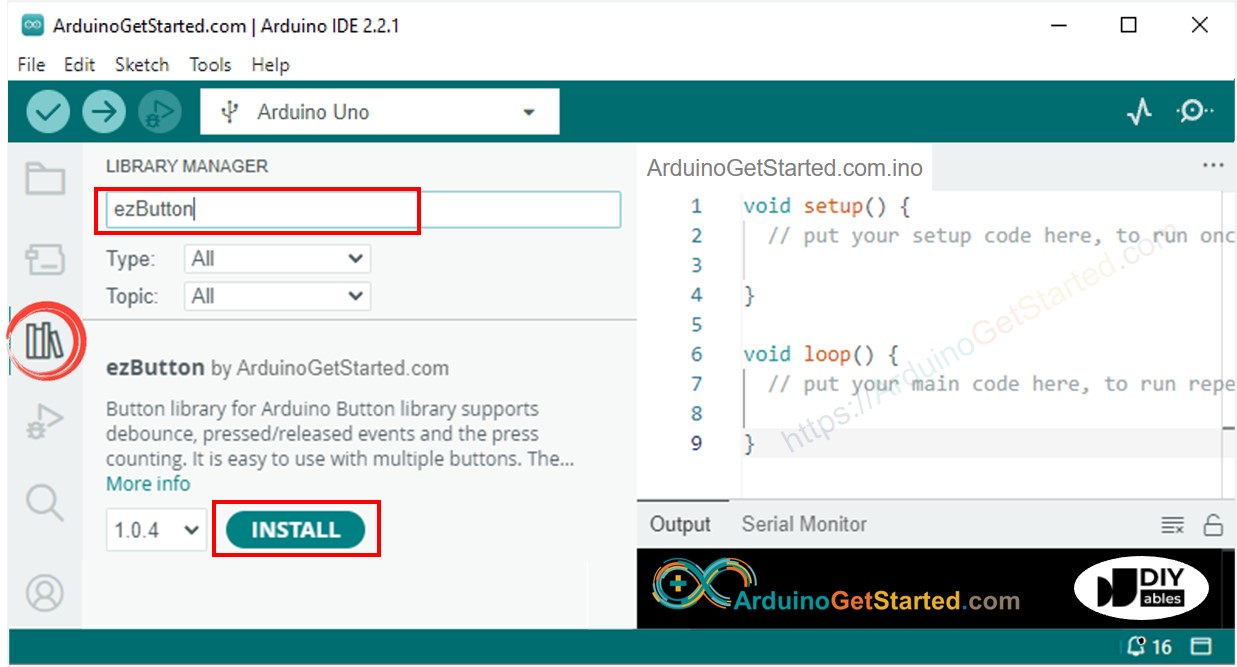
Clique no ícone Libraries na barra à esquerda do Arduino IDE.
Pesquise “ezButton” e encontre a biblioteca de botão da ArduinoGetStarted
Clique no botão Install para instalar a biblioteca ezButton.
Copie o código acima e cole-o no Arduino IDE.
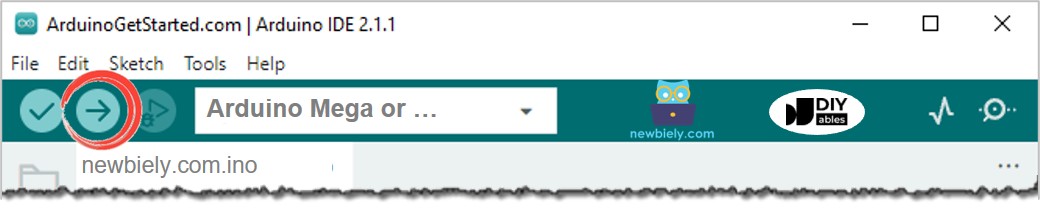
Compile e carregue o código na placa Arduino clicando no botão Upload no Arduino IDE
Abra o Serial Monitor no Arduino IDE
Pressione e solte os botões, um de cada vez
Newbiely | Arduino IDE 2.3.8
──
☐
✕
File
Edit
Sketch
Tools
Help
Arduino Uno
Newbiely.ino
···
8Serial.println("Hello World!");
Output
Serial Monitor
Message (Enter to send message to 'Arduino Uno' on 'COM15')
New Line
9600 baud
The button 1 is pressed
The button 1 is released
The button 2 is pressed
The button 2 is released
The button 3 is pressed
The button 3 is released
The button 4 is pressed
The button 4 is released
The button 5 is pressed
The button 5 is released
Ln 11, Col 1
Arduino Uno on COM15
2
Código Arduino - Vários Botões usando array
Podemos melhorar o código acima usando um array de botões. O código a seguir usa esse array para lidar com os objetos de botão.
/* * Este código de Arduino foi desenvolvido por pt.newbiely.com * Este código de Arduino é disponibilizado ao público sem nenhuma restrição. * Para tutoriais completos e diagramas de ligação, visite: * https://pt.newbiely.com/tutorials/arduino/arduino-multiple-button*/#include <ezButton.h>#define BUTTON_NUM 5 // the number of buttons#define BUTTON_PIN_1 2 // The Arduino pin connected to the button 1#define BUTTON_PIN_2 3 // The Arduino pin connected to the button 2#define BUTTON_PIN_3 4 // The Arduino pin connected to the button 3#define BUTTON_PIN_4 5 // The Arduino pin connected to the button 4#define BUTTON_PIN_5 6 // The Arduino pin connected to the button 5ezButtonbuttonArray[] = {ezButton(BUTTON_PIN_1),ezButton(BUTTON_PIN_2),ezButton(BUTTON_PIN_3),ezButton(BUTTON_PIN_4),ezButton(BUTTON_PIN_5)};voidsetup() {Serial.begin(9600);for (byte i = 0; i < BUTTON_NUM; i++) {buttonArray[i].setDebounceTime(100); // set debounce time to 100 milliseconds }}voidloop() {for (byte i = 0; i < BUTTON_NUM; i++) buttonArray[i].loop(); // MUST call the loop() function firstfor (byte i = 0; i < BUTTON_NUM; i++) {// get button state after debounceint button_state = buttonArray[i].getState(); // the state after debounce/* Serial.print("The button "); Serial.print(i + 1); Serial.print(": "); Serial.println(button_state); */if (buttonArray[i].isPressed()) {Serial.print("The button ");Serial.print(i + 1);Serial.println(" is pressed"); }if (buttonArray[i].isReleased()) {Serial.print("The button ");Serial.print(i + 1);Serial.println(" is released"); } }}
Fique à vontade para compartilhar o link deste tutorial. Porém, por favor, não use nosso conteúdo em outros sites. Investimos muito esforço e tempo para criar este conteúdo, por favor respeite nosso trabalho!