Divulgação: Alguns dos links desta seção são links de afiliado da Amazon. Podemos receber uma comissão pelas compras feitas por meio desses links, sem custo adicional para você. Agradecemos o seu apoio.
Sobre o Módulo Relógio de Tempo Real DS1307
O próprio Arduino tem algumas funções relacionadas ao tempo, como millis() e micros(). No entanto, elas não conseguem fornecer a data e a hora (segundos, minutos, horas, dia, data, mês e ano). Para obter a data e a hora, precisamos usar um módulo Relógio de Tempo Real (RTC), como o DS3231 ou o DS1307. O Módulo DS3231 tem precisão maior que o DS1307. Veja DS3231 vs DS1307
Pinagem
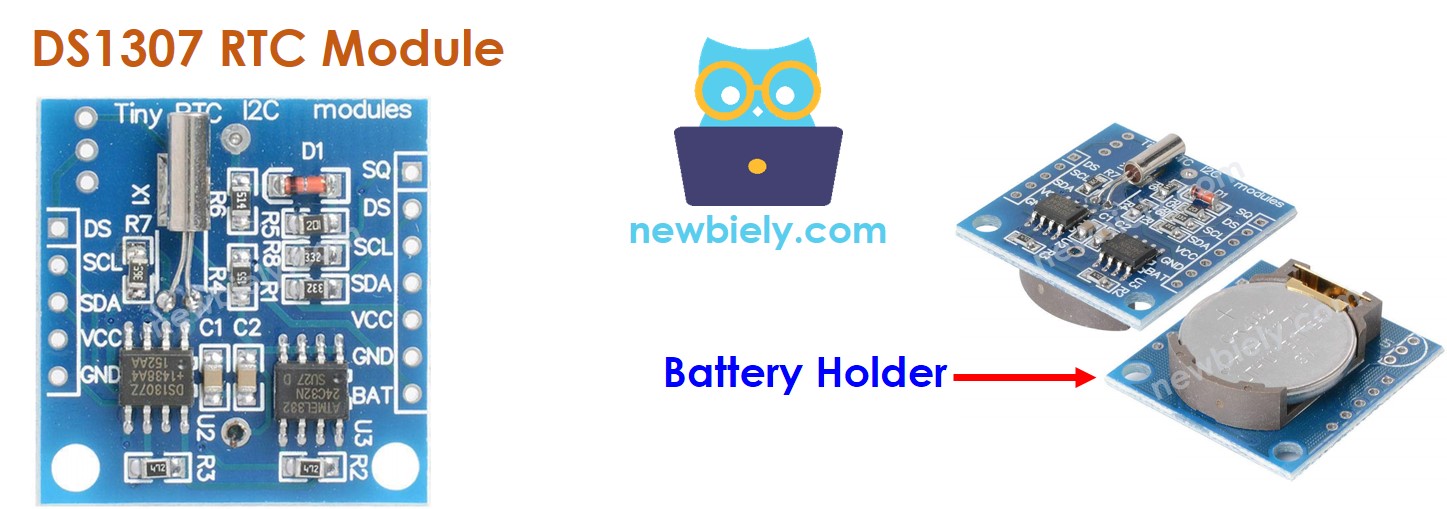
O Módulo Relógio de Tempo Real DS1307 possui 12 pinos. No entanto, para o uso normal, é preciso usar apenas 4 pinos: VCC, GND, SDA, SCL:
Pino SCL: é o pino de clock serial da interface I2C.
Pino SDA: é o pino de dados serial da interface I2C.
Pino VCC: fornece alimentação para o módulo. Pode ser qualquer valor entre 3,3V e 5,5V.
Pino GND: é o pino de terra (ground).
O Módulo DS1307 também tem um suporte para bateria.
Se colocarmos uma bateria CR2032, ela mantém o relógio do módulo funcionando quando a alimentação principal é desligada.
Se não colocarmos a bateria, a informação de hora é perdida quando a alimentação principal é desligada, e você precisa ajustar a hora novamente.
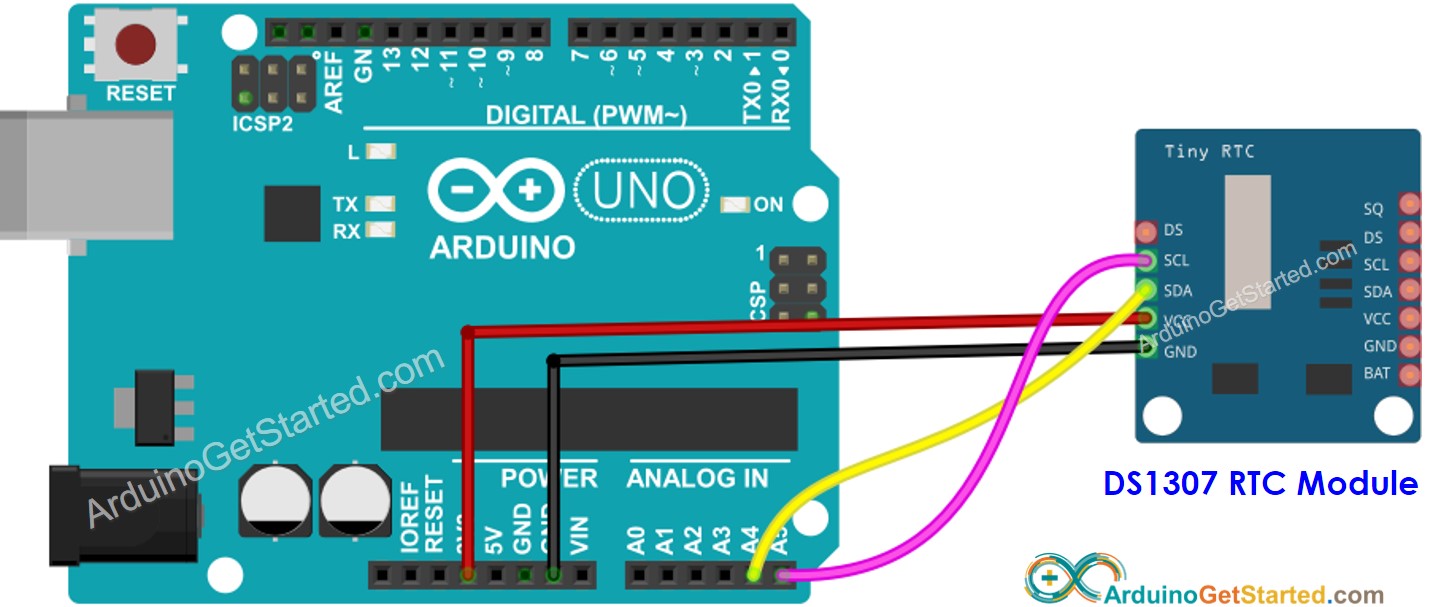
Diagrama de Ligação
This image is created using Fritzing. Click to enlarge image
Arduino - Módulo RTC DS1307
Módulo RTC DS1307
Arduino Uno, Nano
Arduino Mega
Vin
3.3V
3.3V
GND
GND
GND
SDA
A4
20
SCL
A5
21
Como Programar o Módulo RTC DS1307
Inclua a biblioteca:
#include <RTClib.h>
Declare um objeto RTC:
RTC_DS1307 rtc;
Inicialize o RTC:
if (! rtc.begin()) {Serial.println("Couldn't find RTC");while (1);}
Na primeira vez, ajuste o RTC para a data e hora do PC em que o sketch foi compilado
/* * Este código de Arduino foi desenvolvido por pt.newbiely.com * Este código de Arduino é disponibilizado ao público sem nenhuma restrição. * Para tutoriais completos e diagramas de ligação, visite: * https://pt.newbiely.com/tutorials/arduino/arduino-ds1307-rtc-module*/#include <RTClib.h>RTC_DS1307 rtc;char daysOfTheWeek[7][12] = {"Sunday","Monday","Tuesday","Wednesday","Thursday","Friday","Saturday"};voidsetup () {Serial.begin(9600);// SETUP RTC MODULEif (! rtc.begin()) {Serial.println("Couldn't find RTC");Serial.flush();while (1); }// automatically sets the RTC to the date & time on PC this sketch was compiled rtc.adjust(DateTime(F(__DATE__), F(__TIME__)));// manually sets the RTC with an explicit date & time, for example to set// January 21, 2021 at 3am you would call:// rtc.adjust(DateTime(2021, 1, 21, 3, 0, 0));}voidloop () {DateTimenow = rtc.now();Serial.print("Date & Time: ");Serial.print(now.year(), DEC);Serial.print('/');Serial.print(now.month(), DEC);Serial.print('/');Serial.print(now.day(), DEC);Serial.print(" (");Serial.print(daysOfTheWeek[now.dayOfTheWeek()]);Serial.print(") ");Serial.print(now.hour(), DEC);Serial.print(':');Serial.print(now.minute(), DEC);Serial.print(':');Serial.println(now.second(), DEC);delay(1000); // delay 1 seconds}
Passos Rápidos
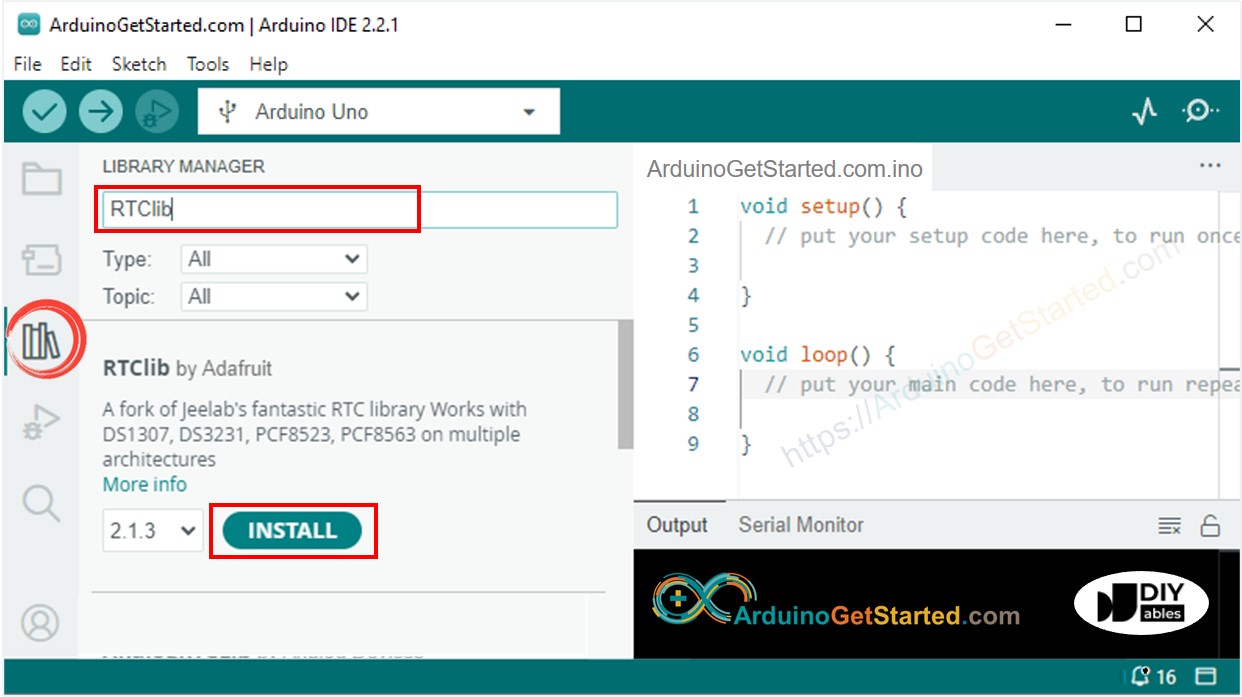
Vá até o ícone Libraries na barra à esquerda do Arduino IDE.
Pesquise “RTClib” e encontre a biblioteca RTC da Adafruit
Clique no botão Install para instalar a biblioteca RTC.
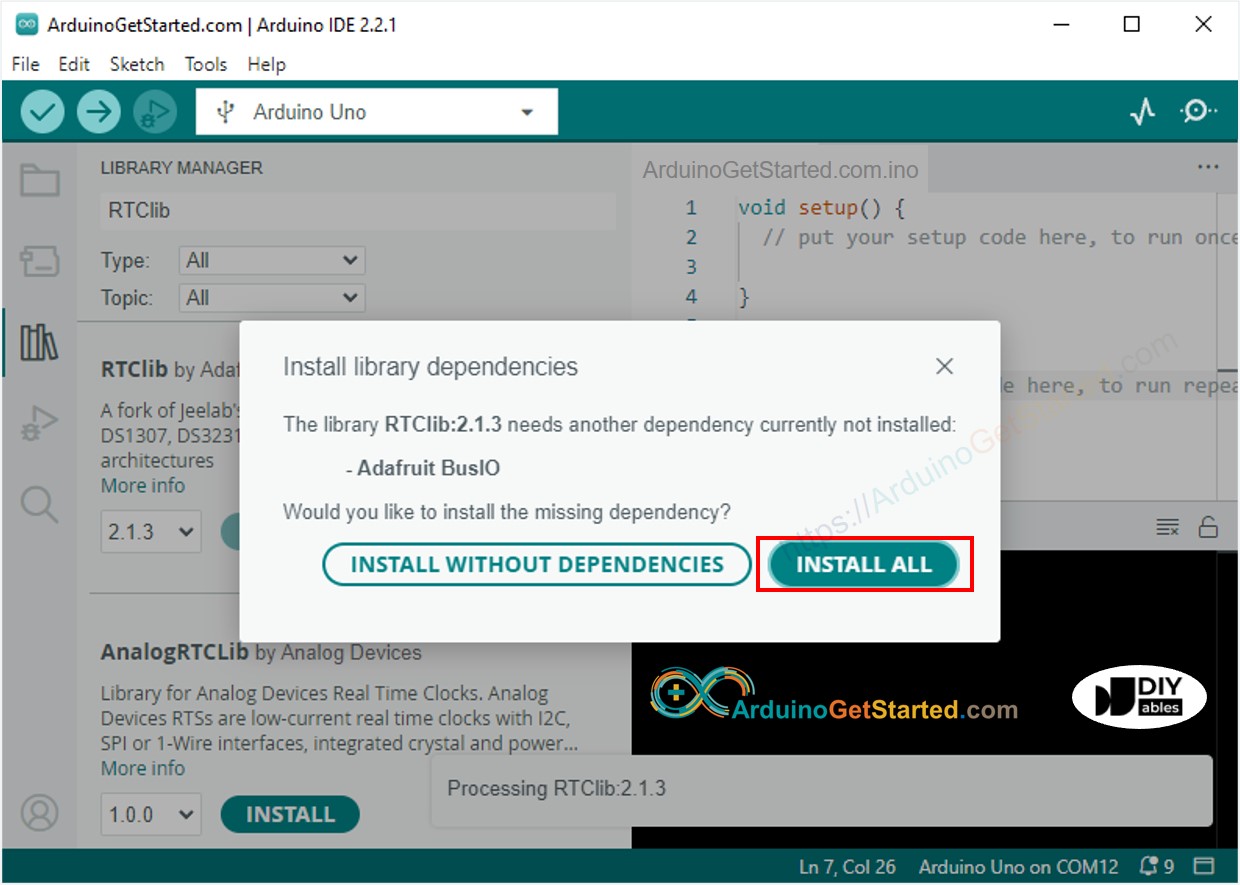
Pode ser que seja pedido para você instalar algumas outras dependências de biblioteca
Clique no botão Install All para instalar todas as dependências de biblioteca.
Copie o código acima e abra no Arduino IDE
Clique no botão Upload no Arduino IDE para carregar o código no Arduino
Abra o Serial Monitor
Veja o resultado no Serial Monitor.
Newbiely | Arduino IDE 2.3.8
──
☐
✕
File
Edit
Sketch
Tools
Help
Arduino Uno
Newbiely.ino
···
8Serial.println("Hello World!");
Output
Serial Monitor
Message (Enter to send message to 'Arduino Uno' on 'COM15')
New Line
9600 baud
Date & Time: 2021/10/6 (Wednesday) 9:9:35
Date & Time: 2021/10/6 (Wednesday) 9:9:36
Date & Time: 2021/10/6 (Wednesday) 9:9:37
Date & Time: 2021/10/6 (Wednesday) 9:9:38
Date & Time: 2021/10/6 (Wednesday) 9:9:39
Date & Time: 2021/10/6 (Wednesday) 9:9:40
Date & Time: 2021/10/6 (Wednesday) 9:9:41
Date & Time: 2021/10/6 (Wednesday) 9:9:42
Date & Time: 2021/10/6 (Wednesday) 9:9:43
Date & Time: 2021/10/6 (Wednesday) 9:9:44
Ln 11, Col 1
Arduino Uno on COM15
2
Código Arduino – Como fazer uma programação diária com o Arduino
/* * Este código de Arduino foi desenvolvido por pt.newbiely.com * Este código de Arduino é disponibilizado ao público sem nenhuma restrição. * Para tutoriais completos e diagramas de ligação, visite: * https://pt.newbiely.com/tutorials/arduino/arduino-ds1307-rtc-module*/// Date and time functions using a DS1307 RTC connected via I2C and Wire lib#include <RTClib.h>// event from 13:50 to 14:10uint8_t DAILY_EVENT_START_HH = 13; // event start time: houruint8_t DAILY_EVENT_START_MM = 50; // event start time: minuteuint8_t DAILY_EVENT_END_HH = 14; // event end time: houruint8_t DAILY_EVENT_END_MM = 10; // event end time: minuteRTC_DS1307 rtc;char daysOfTheWeek[7][12] = {"Sunday","Monday","Tuesday","Wednesday","Thursday","Friday","Saturday"};voidsetup () {Serial.begin(9600);// SETUP RTC MODULEif (! rtc.begin()) {Serial.println("Couldn't find RTC");while (1); }// sets the RTC to the date & time on PC this sketch was compiled rtc.adjust(DateTime(F(__DATE__), F(__TIME__)));// sets the RTC with an explicit date & time, for example to set// January 21, 2021 at 3am you would call:// rtc.adjust(DateTime(2021, 1, 21, 3, 0, 0));}voidloop () {DateTimenow = rtc.now();if (now.hour() >= DAILY_EVENT_START_HH &&now.minute() >= DAILY_EVENT_START_MM &&now.hour() < DAILY_EVENT_END_HH &&now.minute() < DAILY_EVENT_END_MM) {Serial.println("It is on scheduled time");// TODO: write your code" } else {Serial.println("It is NOT on scheduled time"); } printTime(now);}void printTime(DateTime time) {Serial.print("TIME: ");Serial.print(time.year(), DEC);Serial.print('/');Serial.print(time.month(), DEC);Serial.print('/');Serial.print(time.day(), DEC);Serial.print(" (");Serial.print(daysOfTheWeek[time.dayOfTheWeek()]);Serial.print(") ");Serial.print(time.hour(), DEC);Serial.print(':');Serial.print(time.minute(), DEC);Serial.print(':');Serial.println(time.second(), DEC);}
Código Arduino – Como fazer uma programação semanal com o Arduino
/* * Este código de Arduino foi desenvolvido por pt.newbiely.com * Este código de Arduino é disponibilizado ao público sem nenhuma restrição. * Para tutoriais completos e diagramas de ligação, visite: * https://pt.newbiely.com/tutorials/arduino/arduino-ds1307-rtc-module*/// Date and time functions using a DS1307 RTC connected via I2C and Wire lib#include <RTClib.h>// UNCHANGABLE PARAMATERS#define SUNDAY 0#define MONDAY 1#define TUESDAY 2#define WEDNESDAY 3#define THURSDAY 4#define FRIDAY 5#define SATURDAY 6// event on Monday, from 13:50 to 14:10uint8_t WEEKLY_EVENT_DAY = MONDAY;uint8_t WEEKLY_EVENT_START_HH = 13; // event start time: houruint8_t WEEKLY_EVENT_START_MM = 50; // event start time: minuteuint8_t WEEKLY_EVENT_END_HH = 14; // event end time: houruint8_t WEEKLY_EVENT_END_MM = 10; // event end time: minuteRTC_DS1307 rtc;char daysOfTheWeek[7][12] = {"Sunday","Monday","Tuesday","Wednesday","Thursday","Friday","Saturday"};voidsetup () {Serial.begin(9600);// SETUP RTC MODULEif (! rtc.begin()) {Serial.println("Couldn't find RTC");while (1); }// sets the RTC to the date & time on PC this sketch was compiled rtc.adjust(DateTime(F(__DATE__), F(__TIME__)));// sets the RTC with an explicit date & time, for example to set// January 21, 2021 at 3am you would call:// rtc.adjust(DateTime(2021, 1, 21, 3, 0, 0));}voidloop () {DateTimenow = rtc.now();if (now.dayOfTheWeek() == WEEKLY_EVENT_DAY &&now.hour() >= WEEKLY_EVENT_START_HH &&now.minute() >= WEEKLY_EVENT_START_MM &&now.hour() < WEEKLY_EVENT_END_HH &&now.minute() < WEEKLY_EVENT_END_MM) {Serial.println("It is on scheduled time");// TODO: write your code" } else {Serial.println("It is NOT on scheduled time"); } printTime(now);}void printTime(DateTime time) {Serial.print("TIME: ");Serial.print(time.year(), DEC);Serial.print('/');Serial.print(time.month(), DEC);Serial.print('/');Serial.print(time.day(), DEC);Serial.print(" (");Serial.print(daysOfTheWeek[time.dayOfTheWeek()]);Serial.print(") ");Serial.print(time.hour(), DEC);Serial.print(':');Serial.print(time.minute(), DEC);Serial.print(':');Serial.println(time.second(), DEC);}
Código Arduino – Como fazer uma programação em uma data específica com o Arduino
/* * Este código de Arduino foi desenvolvido por pt.newbiely.com * Este código de Arduino é disponibilizado ao público sem nenhuma restrição. * Para tutoriais completos e diagramas de ligação, visite: * https://pt.newbiely.com/tutorials/arduino/arduino-ds1307-rtc-module*/// Date and time functions using a DS1307 RTC connected via I2C and Wire lib#include <RTClib.h>// UNCHANGABLE PARAMATERS#define SUNDAY 0#define MONDAY 1#define TUESDAY 2#define WEDNESDAY 3#define THURSDAY 4#define FRIDAY 5#define SATURDAY 6#define JANUARY 1#define FEBRUARY 2#define MARCH 3#define APRIL 4#define MAY 5#define JUNE 6#define JULY 7#define AUGUST 8#define SEPTEMBER 9#define OCTOBER 10#define NOVEMBER 11#define DECEMBER 12// event from 13:50 August 15, 2021 to 14:10 September 29, 2021DateTime EVENT_START(2021, AUGUST, 15, 13, 50);DateTime EVENT_END(2021, SEPTEMBER, 29, 14, 10);RTC_DS1307 rtc;char daysOfTheWeek[7][12] = {"Sunday","Monday","Tuesday","Wednesday","Thursday","Friday","Saturday"};voidsetup () {Serial.begin(9600);// SETUP RTC MODULEif (! rtc.begin()) {Serial.println("Couldn't find RTC");Serial.flush();while (1); }// sets the RTC to the date & time on PC this sketch was compiled rtc.adjust(DateTime(F(__DATE__), F(__TIME__)));// sets the RTC with an explicit date & time, for example to set// January 21, 2021 at 3am you would call:// rtc.adjust(DateTime(2021, 1, 21, 3, 0, 0));}voidloop () {DateTimenow = rtc.now();if (now.secondstime() >= EVENT_START.secondstime() &&now.secondstime() < EVENT_END.secondstime()) {Serial.println("It is on scheduled time");// TODO: write your code" } else {Serial.println("It is NOT on scheduled time"); } printTime(now);}void printTime(DateTime time) {Serial.print("TIME: ");Serial.print(time.year(), DEC);Serial.print('/');Serial.print(time.month(), DEC);Serial.print('/');Serial.print(time.day(), DEC);Serial.print(" (");Serial.print(daysOfTheWeek[time.dayOfTheWeek()]);Serial.print(") ");Serial.print(time.hour(), DEC);Serial.print(':');Serial.print(time.minute(), DEC);Serial.print(':');Serial.println(time.second(), DEC);}
Vídeo
WARNING
Observe que este tutorial está incompleto. Vamos avisar na nossa página do Facebook quando o tutorial estiver completo. Curta a página para ficar atualizado.
Fique à vontade para compartilhar o link deste tutorial. Porém, por favor, não use nosso conteúdo em outros sites. Investimos muito esforço e tempo para criar este conteúdo, por favor respeite nosso trabalho!