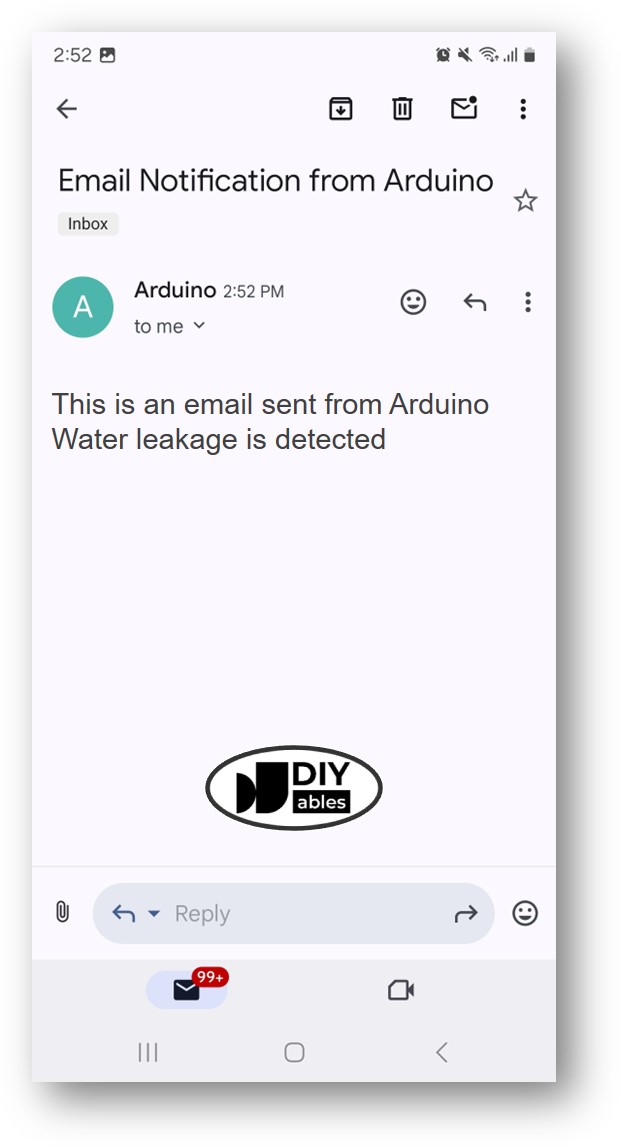
Arduino - Notificação por E-mail de Vazamento de Água
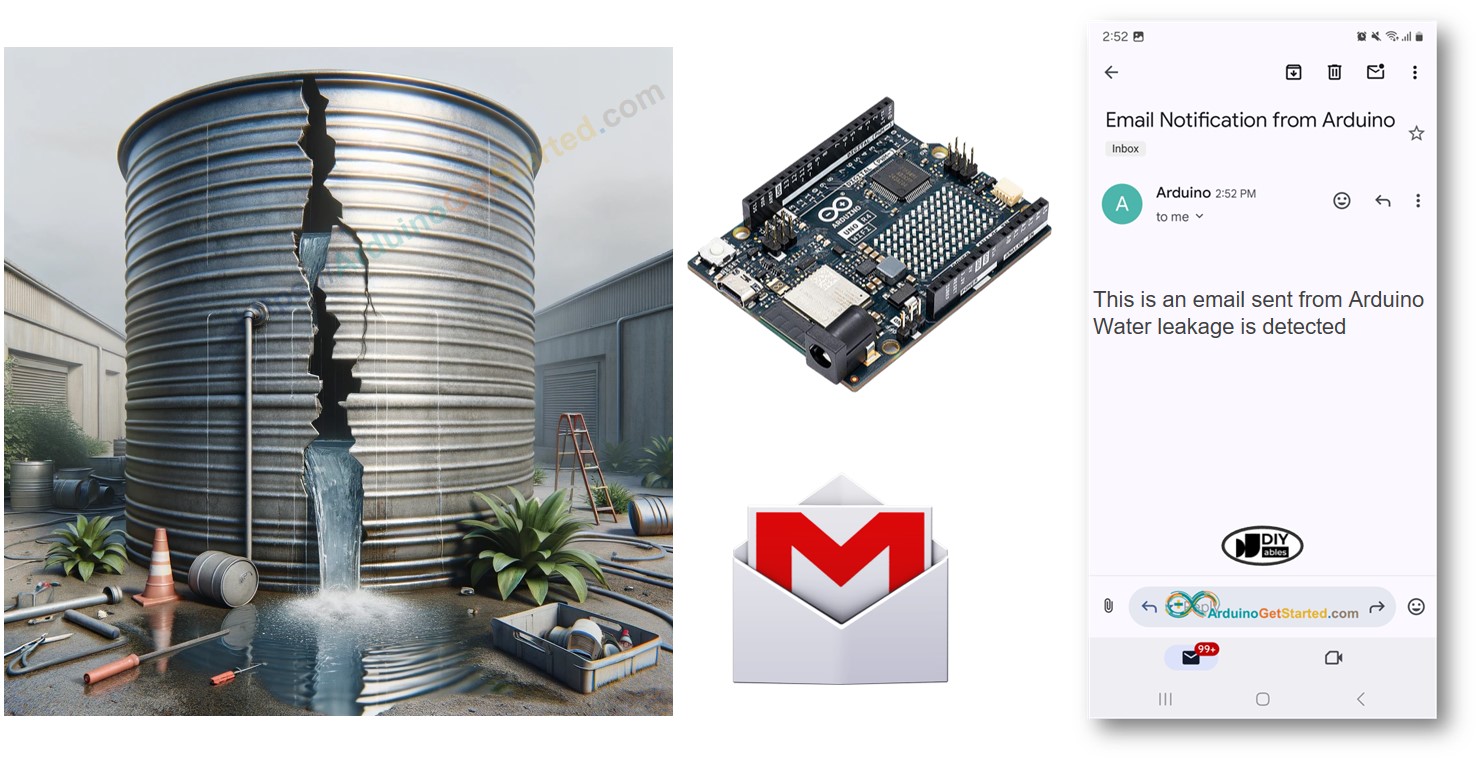
Neste guia, vamos aprender a usar o Arduino para detectar vazamentos de água e enviar alertas por e-mail instantaneamente. Vamos ver como configurar o sensor, mostrar exemplos do código e explicar como se conectar a serviços de e-mail. Isso vai ajudar a proteger sua casa ou escritório contra danos causados pela água. É ótimo para quem gosta de projetos do tipo faça você mesmo e quer melhorar seus sistemas de detecção de vazamento de água.
Divulgação: Alguns dos links desta seção são links de afiliado da Amazon. Podemos receber uma comissão pelas compras feitas por meio desses links, sem custo adicional para você. Agradecemos o seu apoio.
Sobre o Sensor de Água e o Gmail
Oferecemos tutoriais detalhados sobre Sensores de Água e Gmail. Cada guia traz informações completas e passos fáceis de seguir sobre a configuração do hardware, como ele funciona e como conectar e programar o Arduino. Para saber mais, acesse estes links:
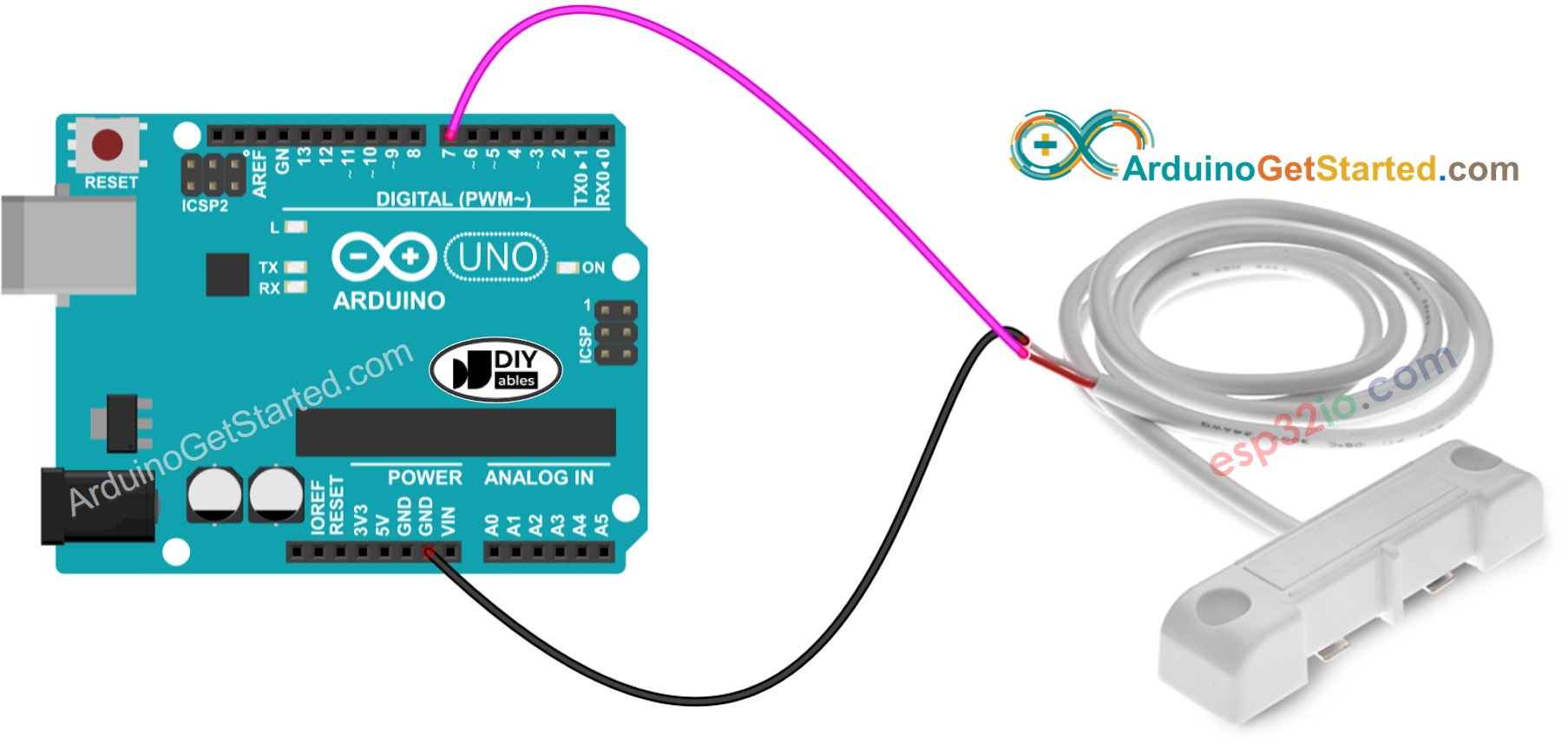
Diagrama de Ligação entre o Sensor de Água e o Arduino
This image is created using Fritzing. Click to enlarge image
Código Arduino
/* * Este código de Arduino foi desenvolvido por pt.newbiely.com * Este código de Arduino é disponibilizado ao público sem nenhuma restrição. * Para tutoriais completos e diagramas de ligação, visite: * https://pt.newbiely.com/tutorials/arduino/arduino-water-leak-email-notification*/#include <WiFiS3.h>#include <ESP_Mail_Client.h>#define WIFI_SSID "YOUR_WIFI_SSID"// CHANGE IT#define WIFI_PASSWORD "YOUR_WIFI_PASSWORD"// CHANGE IT// the sender email credentials#define SENDER_EMAIL "xxxxxx@gmail.com"// CHANGE IT#define SENDER_PASSWORD "xxxx xxxx xxxx xxxx"// CHANGE IT to your Google App password#define RECIPIENT_EMAIL "xxxxxx@gmail.com"// CHANGE IT#define SMTP_HOST "smtp.gmail.com"#define SMTP_PORT 587#define WATER_SENSOR_PIN 7 // Arduino pin D7 connected to water sensor's pinint water_state; // current state of water sensorint prev_water_state; // previous state of water sensorSMTPSessionsmtp;voidsetup() {Serial.begin(9600);WiFi.begin(WIFI_SSID, WIFI_PASSWORD);Serial.print("Connecting to Wi-Fi");while (WiFi.status() != WL_CONNECTED) {Serial.print(".");delay(300); }Serial.println();Serial.print("Connected with IP: ");Serial.println(WiFi.localIP());Serial.println();pinMode(WATER_SENSOR_PIN, INPUT_PULLUP); // set Arduino pin to input pull-up mode water_state = digitalRead(WATER_SENSOR_PIN); // read state}voidloop() { prev_water_state = water_state; // save the last state water_state = digitalRead(WATER_SENSOR_PIN); // read new stateif (prev_water_state == HIGH && water_state == LOW) {Serial.println("Water leakage is detected!");String subject = "Email Notification from Arduino";String textMsg = "This is an email sent from Arduino.\n"; textMsg += "Water leakage is detected"; gmail_send(subject, textMsg); }}void gmail_send(String subject, String textMsg) {// set the network reconnection optionMailClient.networkReconnect(true);smtp.debug(1);smtp.callback(smtpCallback); Session_Config config;// set the session configconfig.server.host_name = SMTP_HOST;config.server.port = SMTP_PORT;config.login.email = SENDER_EMAIL;config.login.password = SENDER_PASSWORD;config.login.user_domain = F("127.0.0.1");config.time.ntp_server = F("pool.ntp.org,time.nist.gov");config.time.gmt_offset = 3;config.time.day_light_offset = 0;// declare the message class SMTP_Message message;// set the message headers message.sender.name = F("Arduino"); message.sender.email = SENDER_EMAIL; message.subject = subject; message.addRecipient(F("To Whom It May Concern"), RECIPIENT_EMAIL); message.text.content = textMsg; message.text.transfer_encoding = "base64"; message.text.charSet = F("utf-8"); message.priority = esp_mail_smtp_priority::esp_mail_smtp_priority_low;// set the custom message header message.addHeader(F("Message-ID: <abcde.fghij@gmail.com>"));// connect to the serverif (!smtp.connect(&config)) {Serial.println("Connection error: ");Serial.print("- Status Code: ");Serial.println(smtp.statusCode());Serial.print("- Error Code: ");Serial.println(smtp.errorCode());Serial.print("- Reason: ");Serial.println(smtp.errorReason().c_str());return; }if (!smtp.isLoggedIn()) {Serial.println("Not yet logged in."); } else {if (smtp.isAuthenticated())Serial.println("Successfully logged in.");elseSerial.println("Connected with no Auth."); }// start sending Email and close the sessionif (!MailClient.sendMail(&smtp, &message)) {Serial.println("Connection error: ");Serial.print("- Status Code: ");Serial.println(smtp.statusCode());Serial.print("- Error Code: ");Serial.println(smtp.errorCode());Serial.print("- Reason: ");Serial.println(smtp.errorReason().c_str()); }}// callback function to get the Email sending statusvoid smtpCallback(SMTP_Status status) {// print the current statusSerial.println(status.info());// print the sending resultif (status.success()) {for (size_t i = 0; i < smtp.sendingResult.size(); i++) {// get the result item SMTP_Result result = smtp.sendingResult.getItem(i);Serial.print("Status: ");if (result.completed)Serial.println("success");elseSerial.println("failed");Serial.print("Recipient: ");Serial.println(result.recipients.c_str());Serial.print("Subject: ");Serial.println(result.subject.c_str()); }Serial.println("----------------\n");// free the memorysmtp.sendingResult.clear(); }}
Fique à vontade para compartilhar o link deste tutorial. Porém, por favor, não use nosso conteúdo em outros sites. Investimos muito esforço e tempo para criar este conteúdo, por favor respeite nosso trabalho!