
Arduino - RTC
Neste tutorial, vamos aprender:
- Como obter data e hora (segundos, minutos, horas, dia, data, mês e ano) usando o Arduino e o Módulo Relógio de Tempo Real DS3231.
- Como fazer um agendamento diário com Arduino
- Como fazer um agendamento semanal com Arduino
- Como fazer um agendamento em uma data específica com Arduino
Hardware Necessário
Or you can buy the following kits:
| 1 | × | DIYables STEM V3 Starter Kit (Arduino included) | |
| 1 | × | DIYables Sensor Kit (18 sensors/displays) |
Divulgação: Alguns dos links desta seção são links de afiliado da Amazon. Podemos receber uma comissão pelas compras feitas por meio desses links, sem custo adicional para você. Agradecemos o seu apoio.
Sobre o Módulo Relógio de Tempo Real DS3231
O próprio Arduino tem algumas funções relacionadas a tempo, como millis() e micros(). No entanto, elas não conseguem fornecer a data e a hora (segundos, minutos, horas, dia, data, mês e ano). Para obter data e hora, precisamos usar um módulo Relógio de Tempo Real (RTC), como o DS3231 ou o DS1307. O Módulo DS3231 tem precisão maior que o DS1307. Veja DS3231 vs DS1307
Pinagem
O Módulo Relógio de Tempo Real DS3231 tem 10 pinos:
- Pino 32K: fornece um clock de referência estável (com compensação de temperatura) e preciso.
- Pino SQW: fornece uma boa onda quadrada de 1Hz, 4kHz, 8kHz ou 32kHz, que pode ser controlada por programação. Ela também pode ser usada como interrupção por condição de alarme em muitas aplicações baseadas em tempo.
- Pino SCL: é o pino de clock serial da interface I2C.
- Pino SDA: é o pino de dados serial da interface I2C.
- Pino VCC: fornece alimentação ao módulo. Pode ser qualquer valor entre 3.3V e 5.5V.
- Pino GND: é o pino de terra.
Para o uso normal, é preciso usar 4 pinos: VCC, GND, SDA, SCL
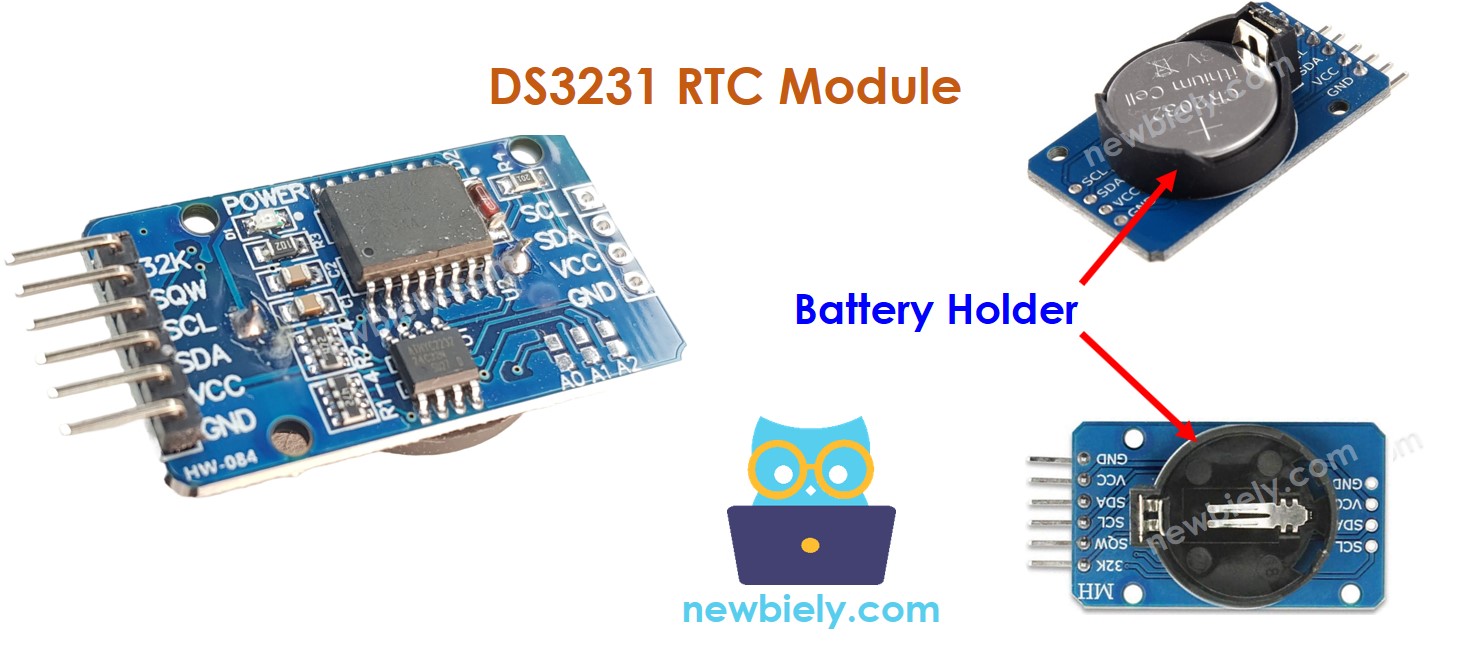
O Módulo DS3231 também tem um suporte para bateria.
- Se colocarmos uma bateria CR2032, ela mantém o relógio do módulo funcionando quando a alimentação principal está desligada.
- Se não colocarmos a bateria, as informações de hora são perdidas quando a alimentação principal é desligada, e você precisa ajustar a hora novamente.
Diagrama de Ligação
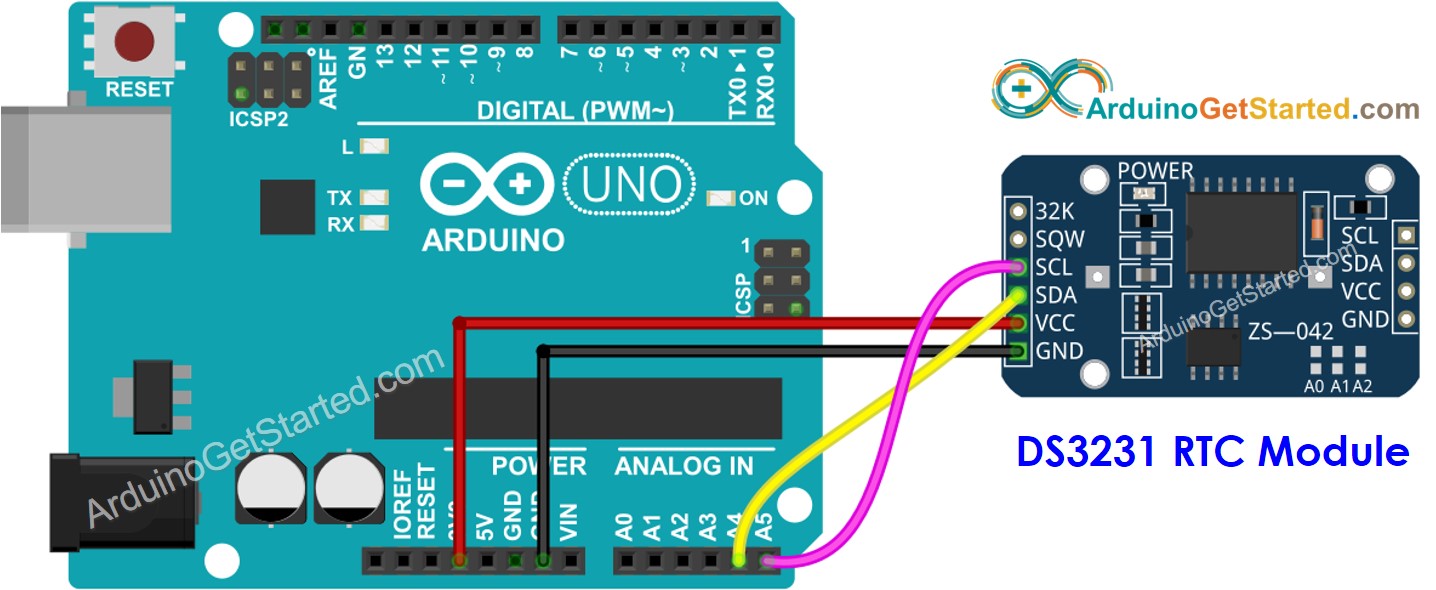
This image is created using Fritzing. Click to enlarge image
Arduino - Módulo RTC DS3231
| Módulo RTC DS3231 | Arduino Uno, Nano | Arduino Mega |
|---|---|---|
| Vin | 3.3V | 3.3V |
| GND | GND | GND |
| SDA | A4 | 20 |
| SCL | A5 | 21 |
Como Programar o Módulo RTC DS3231
- Inclua a biblioteca:
#include <RTClib.h>
- Declare um objeto RTC:
RTC_DS3231 rtc;
- Inicialize o RTC:
if (! rtc.begin()) {
Serial.println("Couldn't find RTC");
while (1);
}
- Na primeira vez, ajuste o RTC para a data e hora do PC em que o sketch foi compilado
rtc.adjust(DateTime(F(__DATE__), F(__TIME__)));
- Leia as informações de data e hora do módulo RTC
DateTime now = rtc.now();
Serial.print("Date & Time: ");
Serial.print(now.year(), DEC);
Serial.print('/');
Serial.print(now.month(), DEC);
Serial.print('/');
Serial.print(now.day(), DEC);
Serial.print(" (");
Serial.print(now.dayOfTheWeek());
Serial.print(") ");
Serial.print(now.hour(), DEC);
Serial.print(':');
Serial.print(now.minute(), DEC);
Serial.print(':');
Serial.println(now.second(), DEC);
Código Arduino – Como obter data e hora
/*
* Este código de Arduino foi desenvolvido por pt.newbiely.com
* Este código de Arduino é disponibilizado ao público sem nenhuma restrição.
* Para tutoriais completos e diagramas de ligação, visite:
* https://pt.newbiely.com/tutorials/arduino/arduino-rtc
*/
#include <RTClib.h>
RTC_DS3231 rtc;
char daysOfTheWeek[7][12] = {
"Sunday",
"Monday",
"Tuesday",
"Wednesday",
"Thursday",
"Friday",
"Saturday"
};
void setup () {
Serial.begin(9600);
// SETUP RTC MODULE
if (! rtc.begin()) {
Serial.println("Couldn't find RTC");
Serial.flush();
while (1);
}
// automatically sets the RTC to the date & time on PC this sketch was compiled
rtc.adjust(DateTime(F(__DATE__), F(__TIME__)));
// manually sets the RTC with an explicit date & time, for example to set
// January 21, 2021 at 3am you would call:
// rtc.adjust(DateTime(2021, 1, 21, 3, 0, 0));
}
void loop () {
DateTime now = rtc.now();
Serial.print("Date & Time: ");
Serial.print(now.year(), DEC);
Serial.print('/');
Serial.print(now.month(), DEC);
Serial.print('/');
Serial.print(now.day(), DEC);
Serial.print(" (");
Serial.print(daysOfTheWeek[now.dayOfTheWeek()]);
Serial.print(") ");
Serial.print(now.hour(), DEC);
Serial.print(':');
Serial.print(now.minute(), DEC);
Serial.print(':');
Serial.println(now.second(), DEC);
delay(1000); // delay 1 seconds
}
Passos Rápidos
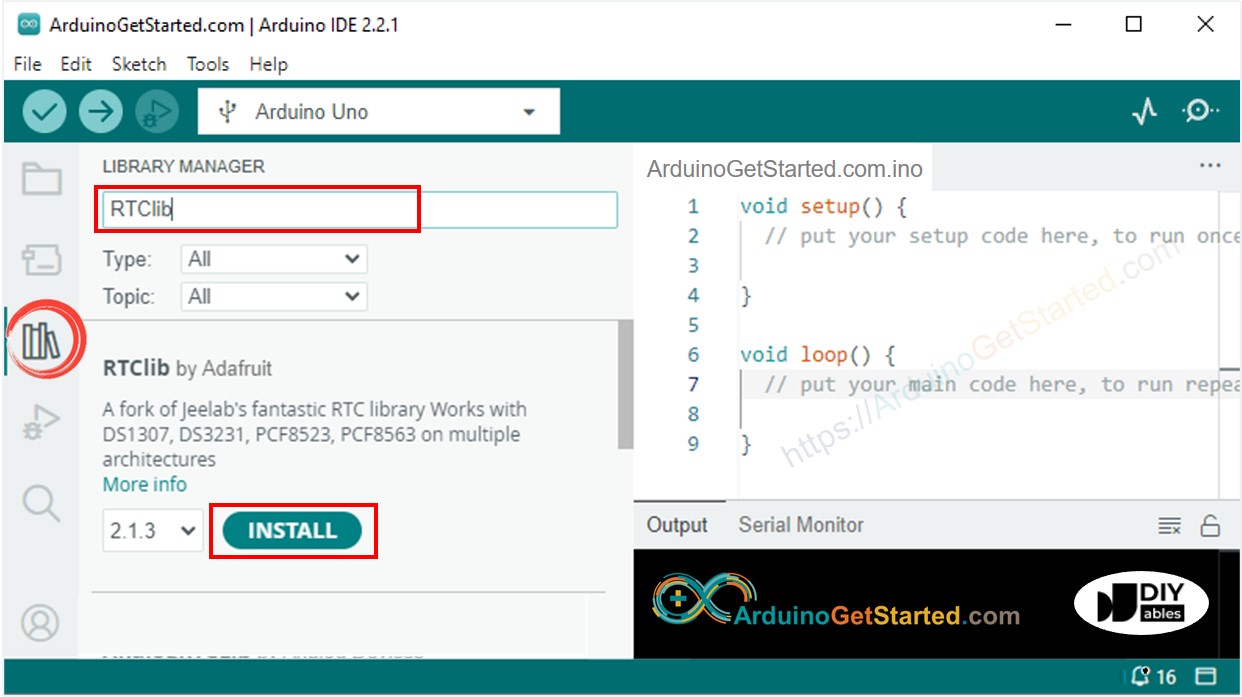
- Vá até o ícone Libraries na barra esquerda da Arduino IDE.
- Pesquise “RTClib” e encontre a biblioteca RTC da Adafruit
- Clique no botão Install para instalar a biblioteca RTC.
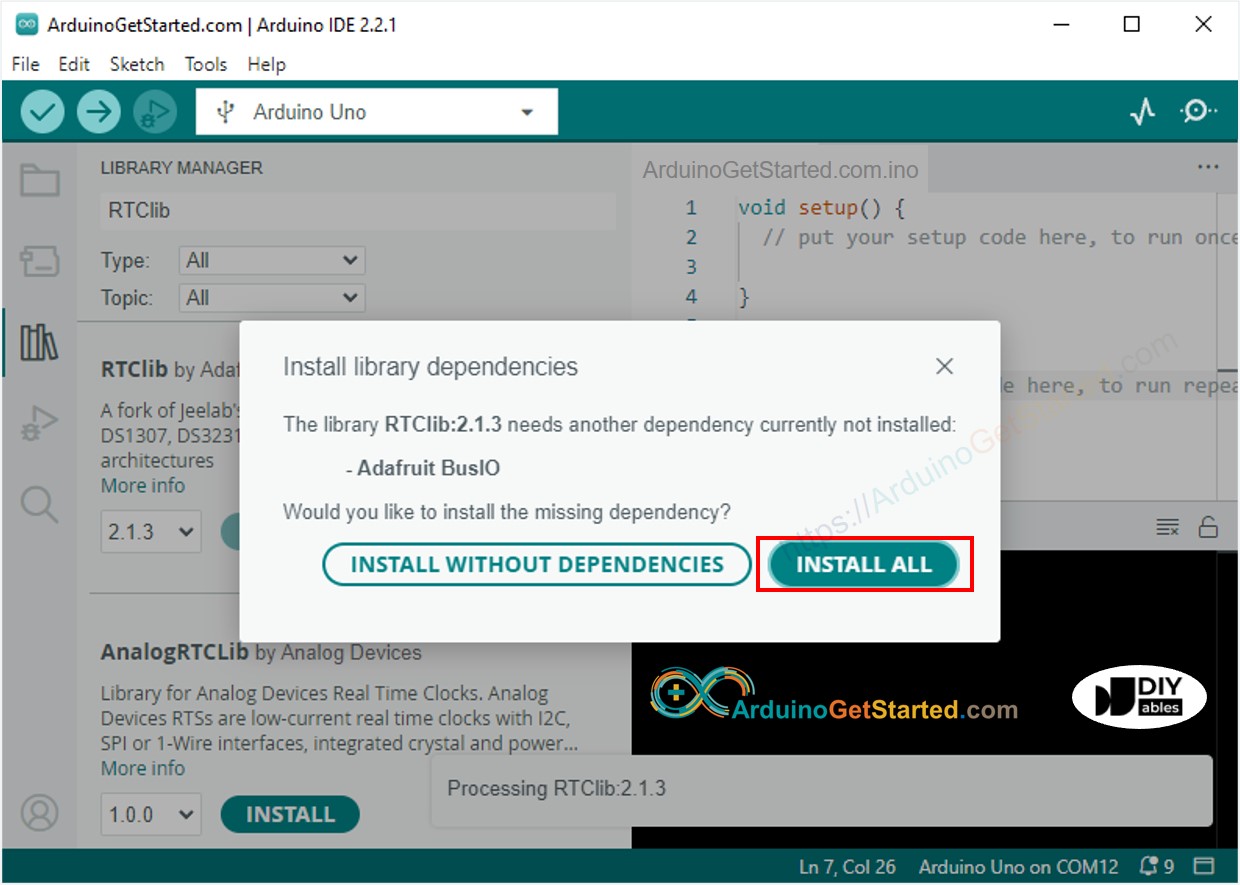
- Pode ser solicitado que você instale algumas outras dependências da biblioteca
- Clique no botão Install All para instalar todas as dependências da biblioteca.
- Copie o código acima e abra-o na Arduino IDE
- Clique no botão Upload na Arduino IDE para carregar o código no Arduino
- Abra o Serial Monitor
- Veja o resultado no Serial Monitor.
8
Serial.println("Hello World!");
Message (Enter to send message to 'Arduino Uno' on 'COM15')
New Line
9600 baud
Date & Time: 2021/10/6 (Wednesday) 11:27:35
Date & Time: 2021/10/6 (Wednesday) 11:27:36
Date & Time: 2021/10/6 (Wednesday) 11:27:37
Date & Time: 2021/10/6 (Wednesday) 11:27:38
Date & Time: 2021/10/6 (Wednesday) 11:27:39
Date & Time: 2021/10/6 (Wednesday) 11:27:40
Date & Time: 2021/10/6 (Wednesday) 11:27:41
Date & Time: 2021/10/6 (Wednesday) 11:27:42
Date & Time: 2021/10/6 (Wednesday) 11:27:43
Date & Time: 2021/10/6 (Wednesday) 11:27:44
Código Arduino – Como fazer um agendamento diário com Arduino
/*
* Este código de Arduino foi desenvolvido por pt.newbiely.com
* Este código de Arduino é disponibilizado ao público sem nenhuma restrição.
* Para tutoriais completos e diagramas de ligação, visite:
* https://pt.newbiely.com/tutorials/arduino/arduino-rtc
*/
// Date and time functions using a DS3231 RTC connected via I2C and Wire lib
#include <RTClib.h>
// event from 13:50 to 14:10
uint8_t DAILY_EVENT_START_HH = 13; // event start time: hour
uint8_t DAILY_EVENT_START_MM = 50; // event start time: minute
uint8_t DAILY_EVENT_END_HH = 14; // event end time: hour
uint8_t DAILY_EVENT_END_MM = 10; // event end time: minute
RTC_DS3231 rtc;
char daysOfTheWeek[7][12] = {
"Sunday",
"Monday",
"Tuesday",
"Wednesday",
"Thursday",
"Friday",
"Saturday"
};
void setup () {
Serial.begin(9600);
// SETUP RTC MODULE
if (! rtc.begin()) {
Serial.println("Couldn't find RTC");
while (1);
}
// sets the RTC to the date & time on PC this sketch was compiled
rtc.adjust(DateTime(F(__DATE__), F(__TIME__)));
// sets the RTC with an explicit date & time, for example to set
// January 21, 2021 at 3am you would call:
// rtc.adjust(DateTime(2021, 1, 21, 3, 0, 0));
}
void loop () {
DateTime now = rtc.now();
if (now.hour() >= DAILY_EVENT_START_HH &&
now.minute() >= DAILY_EVENT_START_MM &&
now.hour() < DAILY_EVENT_END_HH &&
now.minute() < DAILY_EVENT_END_MM) {
Serial.println("It is on scheduled time");
// TODO: write your code"
} else {
Serial.println("It is NOT on scheduled time");
}
printTime(now);
}
void printTime(DateTime time) {
Serial.print("TIME: ");
Serial.print(time.year(), DEC);
Serial.print('/');
Serial.print(time.month(), DEC);
Serial.print('/');
Serial.print(time.day(), DEC);
Serial.print(" (");
Serial.print(daysOfTheWeek[time.dayOfTheWeek()]);
Serial.print(") ");
Serial.print(time.hour(), DEC);
Serial.print(':');
Serial.print(time.minute(), DEC);
Serial.print(':');
Serial.println(time.second(), DEC);
}
Código Arduino – Como fazer um agendamento semanal com Arduino
/*
* Este código de Arduino foi desenvolvido por pt.newbiely.com
* Este código de Arduino é disponibilizado ao público sem nenhuma restrição.
* Para tutoriais completos e diagramas de ligação, visite:
* https://pt.newbiely.com/tutorials/arduino/arduino-rtc
*/
// Date and time functions using a DS3231 RTC connected via I2C and Wire lib
#include <RTClib.h>
// UNCHANGABLE PARAMATERS
#define SUNDAY 0
#define MONDAY 1
#define TUESDAY 2
#define WEDNESDAY 3
#define THURSDAY 4
#define FRIDAY 5
#define SATURDAY 6
// event on Monday, from 13:50 to 14:10
uint8_t WEEKLY_EVENT_DAY = MONDAY;
uint8_t WEEKLY_EVENT_START_HH = 13; // event start time: hour
uint8_t WEEKLY_EVENT_START_MM = 50; // event start time: minute
uint8_t WEEKLY_EVENT_END_HH = 14; // event end time: hour
uint8_t WEEKLY_EVENT_END_MM = 10; // event end time: minute
RTC_DS3231 rtc;
char daysOfTheWeek[7][12] = {
"Sunday",
"Monday",
"Tuesday",
"Wednesday",
"Thursday",
"Friday",
"Saturday"
};
void setup () {
Serial.begin(9600);
// SETUP RTC MODULE
if (! rtc.begin()) {
Serial.println("Couldn't find RTC");
while (1);
}
// sets the RTC to the date & time on PC this sketch was compiled
rtc.adjust(DateTime(F(__DATE__), F(__TIME__)));
// sets the RTC with an explicit date & time, for example to set
// January 21, 2021 at 3am you would call:
// rtc.adjust(DateTime(2021, 1, 21, 3, 0, 0));
}
void loop () {
DateTime now = rtc.now();
if (now.dayOfTheWeek() == WEEKLY_EVENT_DAY &&
now.hour() >= WEEKLY_EVENT_START_HH &&
now.minute() >= WEEKLY_EVENT_START_MM &&
now.hour() < WEEKLY_EVENT_END_HH &&
now.minute() < WEEKLY_EVENT_END_MM) {
Serial.println("It is on scheduled time");
// TODO: write your code"
} else {
Serial.println("It is NOT on scheduled time");
}
printTime(now);
}
void printTime(DateTime time) {
Serial.print("TIME: ");
Serial.print(time.year(), DEC);
Serial.print('/');
Serial.print(time.month(), DEC);
Serial.print('/');
Serial.print(time.day(), DEC);
Serial.print(" (");
Serial.print(daysOfTheWeek[time.dayOfTheWeek()]);
Serial.print(") ");
Serial.print(time.hour(), DEC);
Serial.print(':');
Serial.print(time.minute(), DEC);
Serial.print(':');
Serial.println(time.second(), DEC);
}
Código Arduino – Como fazer um agendamento em uma data específica com Arduino
/*
* Este código de Arduino foi desenvolvido por pt.newbiely.com
* Este código de Arduino é disponibilizado ao público sem nenhuma restrição.
* Para tutoriais completos e diagramas de ligação, visite:
* https://pt.newbiely.com/tutorials/arduino/arduino-rtc
*/
// Date and time functions using a DS3231 RTC connected via I2C and Wire lib
#include <RTClib.h>
// UNCHANGABLE PARAMATERS
#define SUNDAY 0
#define MONDAY 1
#define TUESDAY 2
#define WEDNESDAY 3
#define THURSDAY 4
#define FRIDAY 5
#define SATURDAY 6
#define JANUARY 1
#define FEBRUARY 2
#define MARCH 3
#define APRIL 4
#define MAY 5
#define JUNE 6
#define JULY 7
#define AUGUST 8
#define SEPTEMBER 9
#define OCTOBER 10
#define NOVEMBER 11
#define DECEMBER 12
// event from 13:50 August 15, 2021 to 14:10 September 29, 2021
DateTime EVENT_START(2021, AUGUST, 15, 13, 50);
DateTime EVENT_END(2021, SEPTEMBER, 29, 14, 10);
RTC_DS3231 rtc;
char daysOfTheWeek[7][12] = {
"Sunday",
"Monday",
"Tuesday",
"Wednesday",
"Thursday",
"Friday",
"Saturday"
};
void setup () {
Serial.begin(9600);
// SETUP RTC MODULE
if (! rtc.begin()) {
Serial.println("Couldn't find RTC");
Serial.flush();
while (1);
}
// sets the RTC to the date & time on PC this sketch was compiled
rtc.adjust(DateTime(F(__DATE__), F(__TIME__)));
// sets the RTC with an explicit date & time, for example to set
// January 21, 2021 at 3am you would call:
// rtc.adjust(DateTime(2021, 1, 21, 3, 0, 0));
}
void loop () {
DateTime now = rtc.now();
if (now.secondstime() >= EVENT_START.secondstime() &&
now.secondstime() < EVENT_END.secondstime()) {
Serial.println("It is on scheduled time");
// TODO: write your code"
} else {
Serial.println("It is NOT on scheduled time");
}
printTime(now);
}
void printTime(DateTime time) {
Serial.print("TIME: ");
Serial.print(time.year(), DEC);
Serial.print('/');
Serial.print(time.month(), DEC);
Serial.print('/');
Serial.print(time.day(), DEC);
Serial.print(" (");
Serial.print(daysOfTheWeek[time.dayOfTheWeek()]);
Serial.print(") ");
Serial.print(time.hour(), DEC);
Serial.print(':');
Serial.print(time.minute(), DEC);
Serial.print(':');
Serial.println(time.second(), DEC);
}