Arduino - Sensor de Movimento - Buzzer Piezo
Vamos aprender como usar o Arduino para controlar o buzzer piezo quando um movimento for detectado pelo sensor de movimento HC-SR501. Em detalhes:
Se um movimento for detectado, emitir som
Se nenhum movimento for detectado, parar de emitir som
Se um movimento for detectado, tocar a melodia de uma música
Or you can buy the following kits:
Divulgação: Alguns dos links desta seção são links de afiliado da Amazon. Podemos receber uma comissão pelas compras feitas por meio desses links, sem custo adicional para você. Agradecemos o seu apoio.
Se você não conhece o buzzer piezo e o sensor de movimento (pinagem, como funciona, como programar ...), aprenda sobre eles nos seguintes tutoriais:
Observe que este tutorial usa um buzzer de 3-5V, mas você pode adaptá-lo para um buzzer de 12V. Você pode aprender sobre isso no Arduino - tutorial de Buzzer
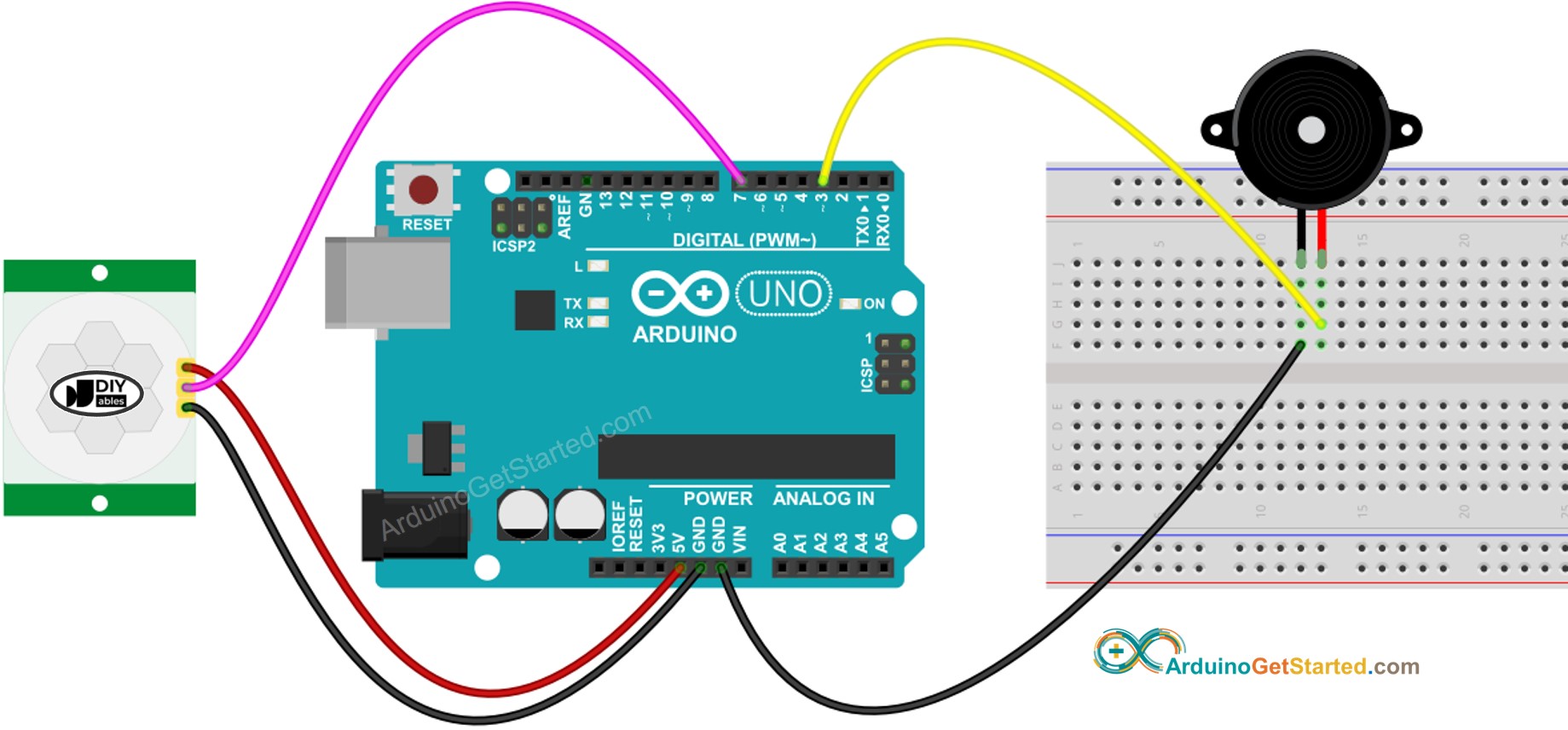
This image is created using Fritzing. Click to enlarge image
| |
|---|
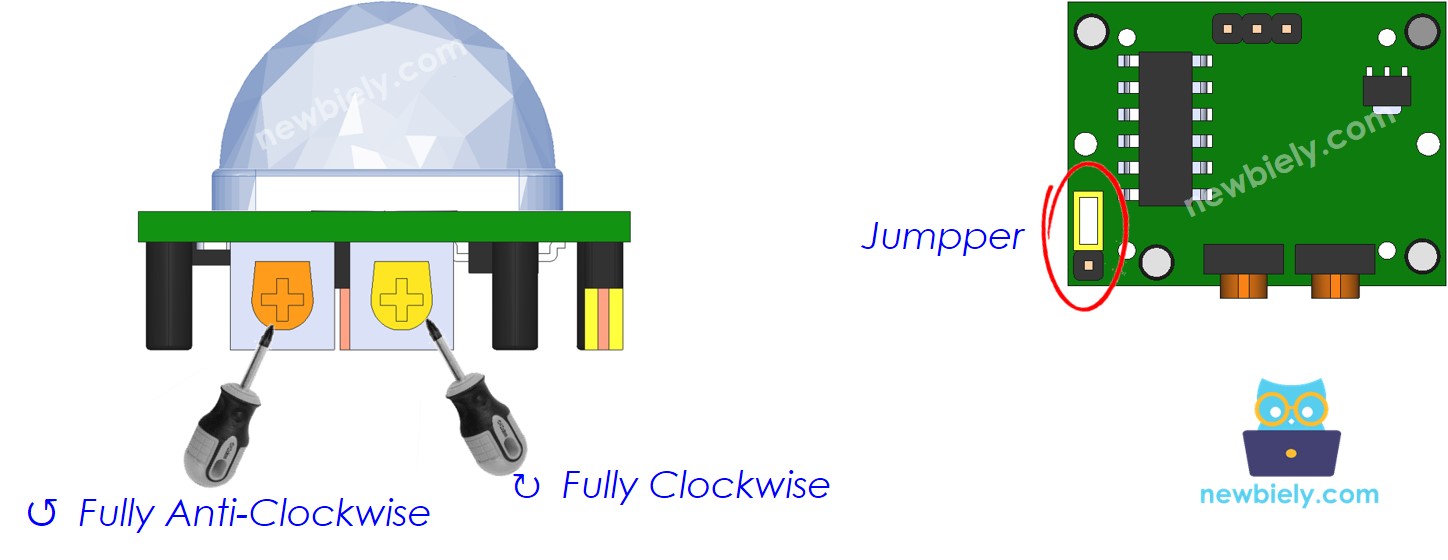
| Ajuste de Tempo de Atraso | Gire-o totalmente no sentido anti-horário. |
| Ajuste de Alcance de Detecção | Gire-o totalmente no sentido horário. |
| Seletor de Disparo Repetido | Coloque o jumper como mostrado na imagem. |
const int MOTION_SENSOR_PIN = 7;
const int BUZZER_PIN = 3;
int motionStateCurrent = LOW;
int motionStatePrevious = LOW;
void setup() {
Serial.begin(9600);
pinMode(MOTION_SENSOR_PIN, INPUT);
pinMode(BUZZER_PIN, OUTPUT);
}
void loop() {
motionStatePrevious = motionStateCurrent;
motionStateCurrent = digitalRead(MOTION_SENSOR_PIN);
if (motionStatePrevious == LOW && motionStateCurrent == HIGH) {
Serial.println("Motion detected!");
digitalWrite(BUZZER_PIN, HIGH);
}
else
if (motionStatePrevious == HIGH && motionStateCurrent == LOW) {
Serial.println("Motion stopped!");
digitalWrite(BUZZER_PIN, LOW);
}
}
Conecte o Arduino ao PC via cabo USB
Abra o Arduino IDE, selecione a placa e a porta corretas
Copie o código acima e abra-o no Arduino IDE
Clique no botão Upload no Arduino IDE para carregar o código no Arduino
Mova sua mão na frente do sensor
Ouça o som do buzzer piezo
Leia a explicação linha por linha nas linhas de comentário do código-fonte!
#include "pitches.h"
const int MOTION_SENSOR_PIN = 7;
const int BUZZER_PIN = 8;
int melody[] = {
NOTE_E5, NOTE_E5, NOTE_E5,
NOTE_E5, NOTE_E5, NOTE_E5,
NOTE_E5, NOTE_G5, NOTE_C5, NOTE_D5,
NOTE_E5,
NOTE_F5, NOTE_F5, NOTE_F5, NOTE_F5,
NOTE_F5, NOTE_E5, NOTE_E5, NOTE_E5, NOTE_E5,
NOTE_E5, NOTE_D5, NOTE_D5, NOTE_E5,
NOTE_D5, NOTE_G5
};
int noteDurations[] = {
8, 8, 4,
8, 8, 4,
8, 8, 8, 8,
2,
8, 8, 8, 8,
8, 8, 8, 16, 16,
8, 8, 8, 8,
4, 4
};
void setup() {
Serial.begin(9600);
pinMode(MOTION_SENSOR_PIN, INPUT);
}
void loop() {
int motionState = digitalRead(MOTION_SENSOR_PIN);
if (motionState == HIGH) {
Serial.println("The motion is detected");
buzzer();
}
}
void buzzer() {
int size = sizeof(noteDurations) / sizeof(int);
for (int thisNote = 0; thisNote < size; thisNote++) {
int noteDuration = 1000 / noteDurations[thisNote];
tone(BUZZER_PIN, melody[thisNote], noteDuration);
int pauseBetweenNotes = noteDuration * 1.30;
delay(pauseBetweenNotes);
noTone(BUZZER_PIN);
}
}
Copie o código acima e abra-o no Arduino IDE
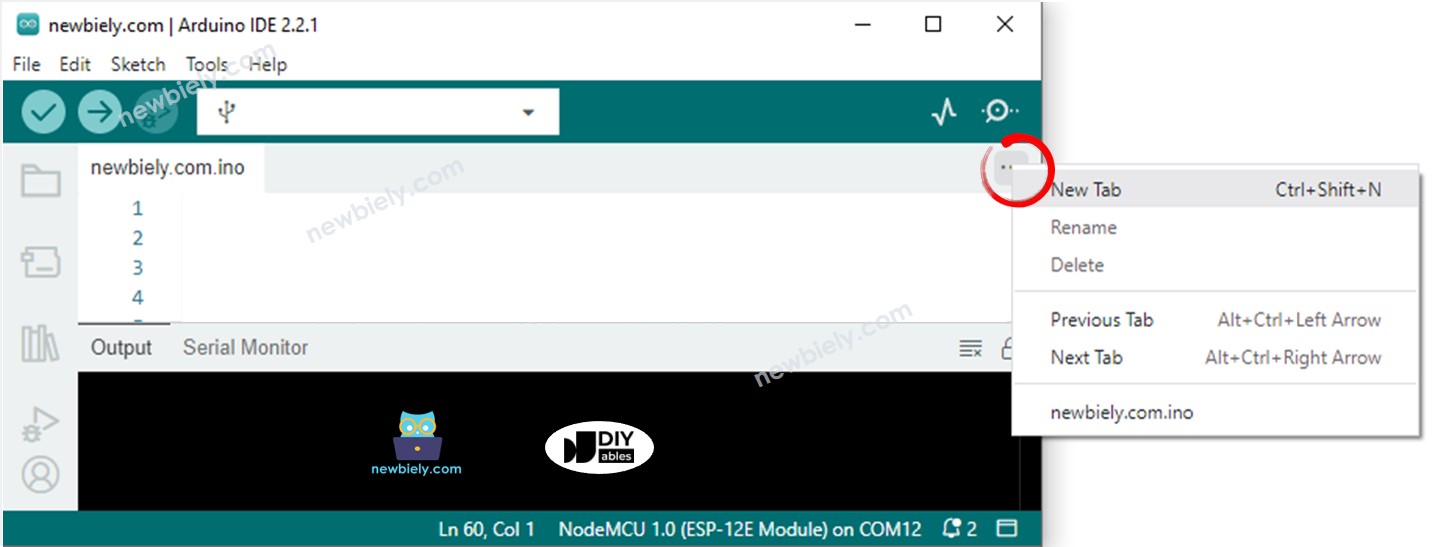
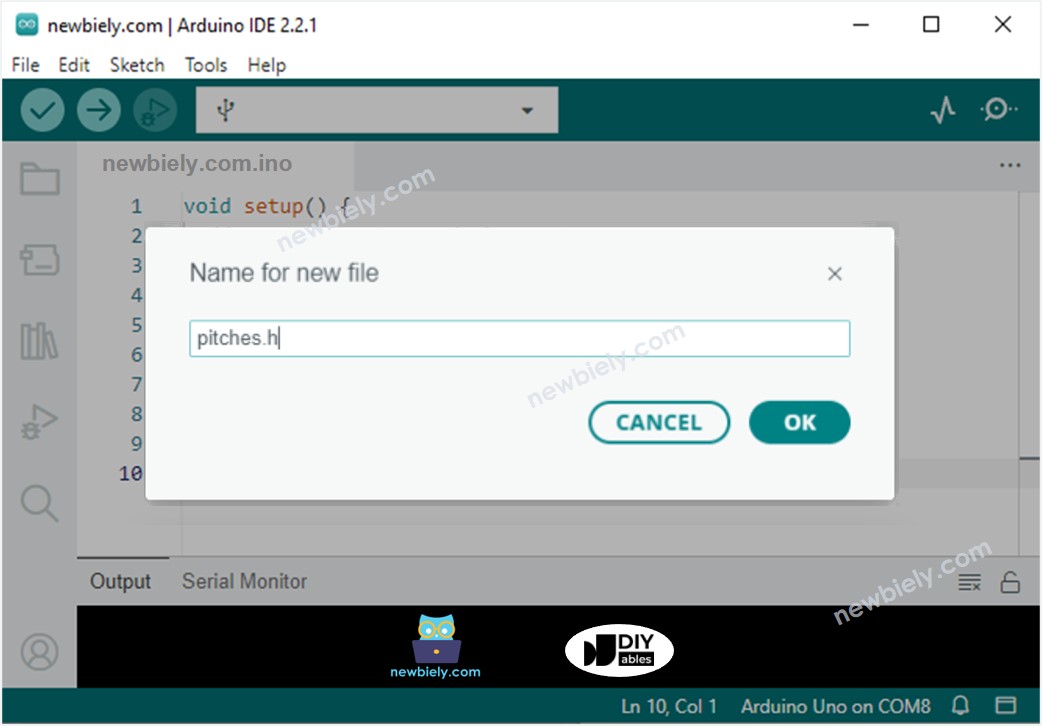
Crie o arquivo pitches.h no Arduino IDE da seguinte forma:
#define NOTE_B0 31
#define NOTE_C1 33
#define NOTE_CS1 35
#define NOTE_D1 37
#define NOTE_DS1 39
#define NOTE_E1 41
#define NOTE_F1 44
#define NOTE_FS1 46
#define NOTE_G1 49
#define NOTE_GS1 52
#define NOTE_A1 55
#define NOTE_AS1 58
#define NOTE_B1 62
#define NOTE_C2 65
#define NOTE_CS2 69
#define NOTE_D2 73
#define NOTE_DS2 78
#define NOTE_E2 82
#define NOTE_F2 87
#define NOTE_FS2 93
#define NOTE_G2 98
#define NOTE_GS2 104
#define NOTE_A2 110
#define NOTE_AS2 117
#define NOTE_B2 123
#define NOTE_C3 131
#define NOTE_CS3 139
#define NOTE_D3 147
#define NOTE_DS3 156
#define NOTE_E3 165
#define NOTE_F3 175
#define NOTE_FS3 185
#define NOTE_G3 196
#define NOTE_GS3 208
#define NOTE_A3 220
#define NOTE_AS3 233
#define NOTE_B3 247
#define NOTE_C4 262
#define NOTE_CS4 277
#define NOTE_D4 294
#define NOTE_DS4 311
#define NOTE_E4 330
#define NOTE_F4 349
#define NOTE_FS4 370
#define NOTE_G4 392
#define NOTE_GS4 415
#define NOTE_A4 440
#define NOTE_AS4 466
#define NOTE_B4 494
#define NOTE_C5 523
#define NOTE_CS5 554
#define NOTE_D5 587
#define NOTE_DS5 622
#define NOTE_E5 659
#define NOTE_F5 698
#define NOTE_FS5 740
#define NOTE_G5 784
#define NOTE_GS5 831
#define NOTE_A5 880
#define NOTE_AS5 932
#define NOTE_B5 988
#define NOTE_C6 1047
#define NOTE_CS6 1109
#define NOTE_D6 1175
#define NOTE_DS6 1245
#define NOTE_E6 1319
#define NOTE_F6 1397
#define NOTE_FS6 1480
#define NOTE_G6 1568
#define NOTE_GS6 1661
#define NOTE_A6 1760
#define NOTE_AS6 1865
#define NOTE_B6 1976
#define NOTE_C7 2093
#define NOTE_CS7 2217
#define NOTE_D7 2349
#define NOTE_DS7 2489
#define NOTE_E7 2637
#define NOTE_F7 2794
#define NOTE_FS7 2960
#define NOTE_G7 3136
#define NOTE_GS7 3322
#define NOTE_A7 3520
#define NOTE_AS7 3729
#define NOTE_B7 3951
#define NOTE_C8 4186
#define NOTE_CS8 4435
#define NOTE_D8 4699
#define NOTE_DS8 4978
Clique no botão Upload no Arduino IDE para carregar o código no Arduino
Mova sua mão na frente do sensor
Ouça a melodia do buzzer piezo
Leia a explicação linha por linha nas linhas de comentário do código-fonte!
※ Nota:
O código acima usa a função delay(). Isso bloqueia o restante do código enquanto a melodia está tocando. Para evitar bloquear o restante do código, use a biblioteca ezBuzzer. Essa biblioteca foi criada para que o buzzer emita bipes ou toque melodias sem bloquear o restante do código.
Abaixo está um tutorial em vídeo passo a passo mostrando como usar o sensor de movimento HC-SR501 com o Arduino. No final do vídeo, você verá como fazer um sistema de porta automática com um servo e um buzzer usando o código abaixo:
#include <Servo.h>
#define SENSOR_PIN 2
#define SERVO_PIN 5
#define BUZZER_PIN 6
Servo servo;
int motion_state = LOW;
int prev_motion_state = LOW;
void setup() {
Serial.begin(9600);
pinMode(SENSOR_PIN, INPUT);
pinMode(BUZZER_PIN, OUTPUT);
servo.attach(SERVO_PIN);
servo.write(0);
noTone(BUZZER_PIN);
}
void beep() {
for (int i = 0; i < 2; i++) {
tone(BUZZER_PIN, 5000); delay(100);
noTone(BUZZER_PIN); delay(100);
}
}
void loop() {
prev_motion_state = motion_state;
motion_state = digitalRead(SENSOR_PIN);
if (prev_motion_state == LOW && motion_state == HIGH) {
Serial.println("Motion detected!");
servo.write(180);
beep();
}
else if (prev_motion_state == HIGH && motion_state == LOW) {
Serial.println("Motion stopped!");
servo.write(0);
beep();
}
}
※ NOSSAS MENSAGENS
Fique à vontade para compartilhar o link deste tutorial. Porém, por favor, não use nosso conteúdo em outros sites. Investimos muito esforço e tempo para criar este conteúdo, por favor respeite nosso trabalho!