
ESP8266 - Display TFT LCD Touch ILI9341 ILI9488 ST7789 com Interface SPI

Este é um guia prático e direto ao ponto para conectar um display TFT SPI a uma placa ESP8266 NodeMCU. O ESP8266 é um microcontrolador compacto com Wi-Fi que roda a 80-160 MHz e opera em 3,3V. Seu barramento SPI de hardware fica nos GPIO13 (MOSI), GPIO14 (SCK) e GPIO12 (MISO) - note que eles NÃO são rotulados como D11/D13/D12 como nas placas Arduino.

Veja o que vamos cobrir:

Este tutorial cobre displays TFT LCD SPI com e sem touch. Ele funciona com painéis de 1,3, 1,54, 2,2, 2,4, 2,8, 3,2 e 3,5 polegadas controlados pelos chips ILI9341, ILI9488 ou ST7789.
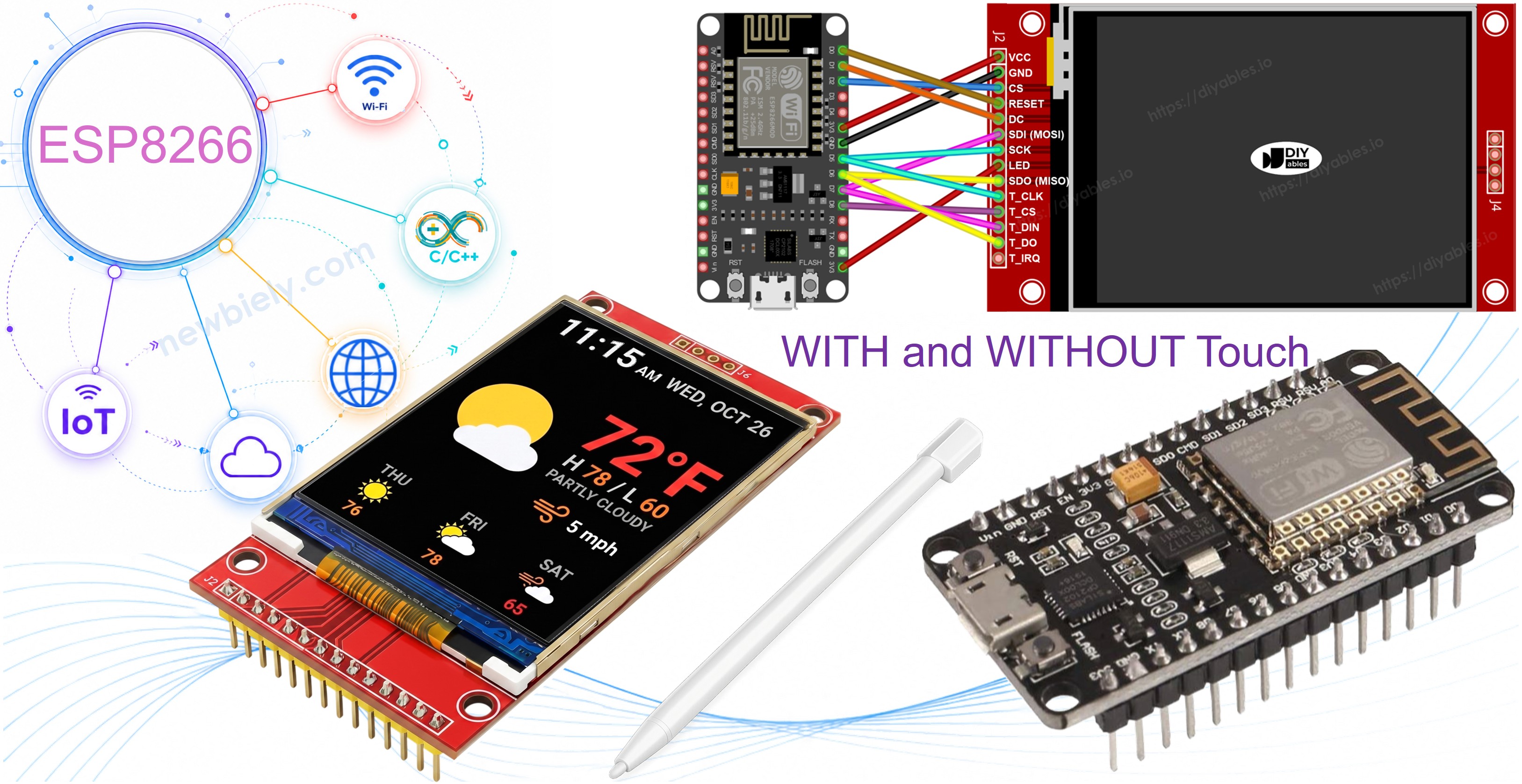
Display TFT SPI com ESP8266 NodeMCU

Hardware Necessário

1×ESP8266 NodeMCU development board
1×USB Cable (Type-A to Micro-B)
1×SPI TFT display module
1×Fios Jumper
1×(Recomendado) Placa de Expansão com Bornes de Parafuso para ESP8266

Or you can buy the following kits:

1×DIYables Sensor Kit (18 sensors/displays)
Divulgação: Alguns dos links desta seção são links de afiliado da Amazon. Podemos receber uma comissão pelas compras feitas por meio desses links, sem custo adicional para você. Agradecemos o seu apoio.

O Display TFT SPI

Os módulos TFT SPI usam um CI driver dedicado para receber comandos de desenho e controlar os pixels do LCD por um link SPI rápido. Três drivers são suportados:

  • ILI9341 - cor RGB565 de 16 bits, SPI de até 40 MHz.
  • ILI9488 - cor RGB666 de 18 bits por SPI, até 24 MHz.
  • ST7789 - cor RGB565 de 16 bits, SPI de até 40 MHz.

Recomendação: Se você ainda não comprou um display, recomendamos o driver ST7789. Ele é amplamente disponível, roda na velocidade SPI total de 40 MHz e é a escolha mais direta para novos projetos.

As chamadas de desenho passam pela API Adafruit GFX: formas, texto, fontes e bitmaps estão todos disponíveis.

Observação: O ESP8266 opera em 3,3V. Conecte o VCC do TFT ao pino 3,3V. NÃO aplique 5V - isso vai danificar a placa.

Aviso sobre pinos de boot: GPIO0, GPIO2 e GPIO15 afetam o modo de boot do ESP8266. Evite usá-los para CS, DC ou RST do TFT para prevenir falhas de upload. GPIO4, GPIO5 e GPIO16 são escolhas seguras.

Pinagem

A maioria dos displays TFT LCD SPI possui os seguintes pinos:

Pinos do display:

Pino Função
VCC Alimentação
GND Terra
CS Chip Select — colocado em LOW para selecionar o display no barramento SPI
DC / RS Seleção de Dados / Comando — HIGH para dados de pixel, LOW para comandos
RST Reset de hardware — opcional; ligue ao 3,3V se não for usado
MOSI / SDI / SDA Entrada de dados SPI (MCU → display)
SCK / CLK Clock SPI
MISO / SDO Saída de dados SPI (display → MCU) — opcional para uso apenas como display
LED / BL / BLK Alimentação da luz de fundo — conecte ao 3,3V ou a um pino PWM para escurecer

Pinos do cartão SD (se sua aplicação precisar acessar o cartão SD):

Pino Função
SD_CS / TF_CS Chip Select do cartão SD
MOSI / SDI MOSI — dados do MCU para o cartão SD
SCK / CLK SCK — clock SPI
MISO / SDO MISO — dados do cartão SD para o MCU

Para displays TFT com suporte a touch, há pinos adicionais de toque (se sua aplicação usar a função de toque e o display a suportar):

Pino Função
T_CS Chip Select do controlador de toque
T_CLK SCK — clock SPI
T_DIN MOSI — dados do MCU para o controlador de toque
T_DO MISO — dados do controlador de toque para o MCU
T_IRQ Interrupção de toque — opcional; sinaliza quando a tela está sendo tocada

Observação: Alguns módulos de display sem touch também expõem os pinos T_CS, T_CLK, T_DIN, T_DO e T_IRQ. Eles não funcionam nessas placas — o CI do controlador de toque não está instalado. Eles aparecem porque a PCB reaproveita o mesmo layout da versão com touch para reduzir variantes de fabricação.
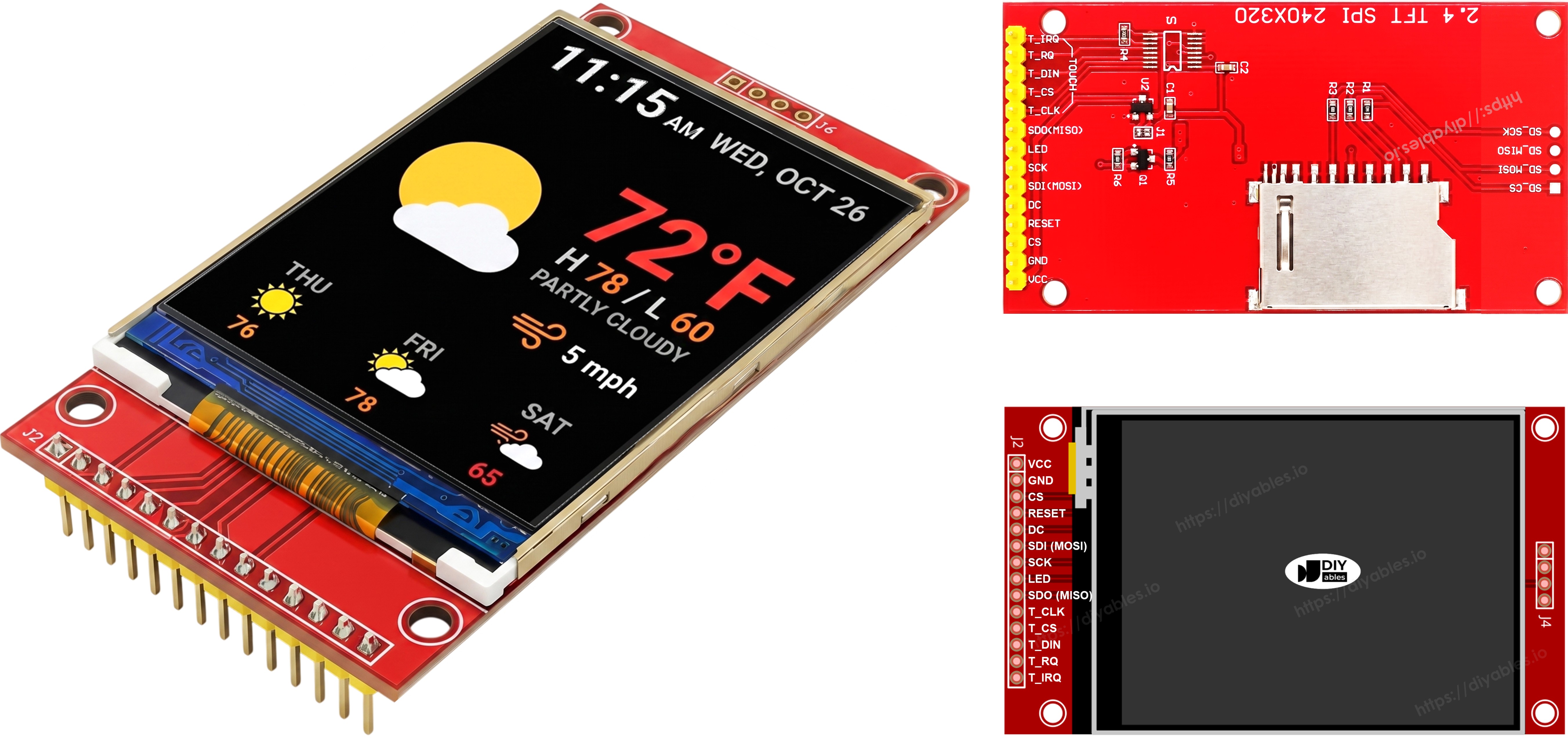
Pinagem do Display TFT SPI

Diagrama de Ligação

Observação — SDO (MISO) é opcional: A linha SDO (MISO) apenas leva dados do display de volta para a placa. Nenhum dos códigos de exemplo deste tutorial lê dados do display, então este pino pode ficar desconectado. Em módulos em que o controlador de toque compartilha o mesmo barramento SPI, uma linha SDO conectada pode interferir na comunicação, por isso é recomendado deixá-la desconectada.

Sem Touch

Conecte MOSI ao D7 (GPIO13), SCK ao D5 (GPIO14), MISO ao D6 (GPIO12) no ESP8266 NodeMCU. CS, DC e RST podem ser quaisquer GPIO disponíveis e seguros para boot — D2 (GPIO4), D1 (GPIO5), D0 (GPIO16) são usados nos exemplos.

Display:

Pino do TFT Pino do ESP8266 NodeMCU Número do GPIO Descrição
VCC 3V3 - Alimentação (somente 3,3V)
GND GND - Terra
CS D2 GPIO4 Chip Select (seguro para boot)
DC / RS D1 GPIO5 Seleção de Dados / Comando (seguro para boot)
RST D0 GPIO16 Reset (seguro para boot, opcional)
MOSI / SDI D7 GPIO13 MOSI do SPI de hardware
SCK D5 GPIO14 Clock do SPI de hardware
MISO / SDO D6 GPIO12 MISO do SPI de hardware (opcional)
LED / BL 3V3 - Alimentação da luz de fundo

Cartão SD (se sua aplicação precisar acessar o cartão SD):

Pino do SD Pino do ESP8266 NodeMCU Número do GPIO Descrição
SD_CS / TF_CS D8 GPIO15 Chip Select do cartão SD (sensível ao boot — veja a observação abaixo)
MOSI / SDI D7 GPIO13 Compartilhado com o MOSI do display (D7/GPIO13)
SCK / CLK D5 GPIO14 Compartilhado com o SCK do display (D5/GPIO14)
MISO / SDO D6 GPIO12 Compartilhado com o MISO do display (D6/GPIO12)

⚠ Observação sobre o pino de boot (SD_CS): O GPIO15 (D8) deve estar em LOW no boot. Ele é usado para o SD_CS nestes exemplos. Módulos SD padrão têm um resistor de pull-down que satisfaz isso automaticamente. Se os uploads pararem de funcionar depois de adicionar o módulo SD, desconecte o fio do SD_CS e tente novamente.
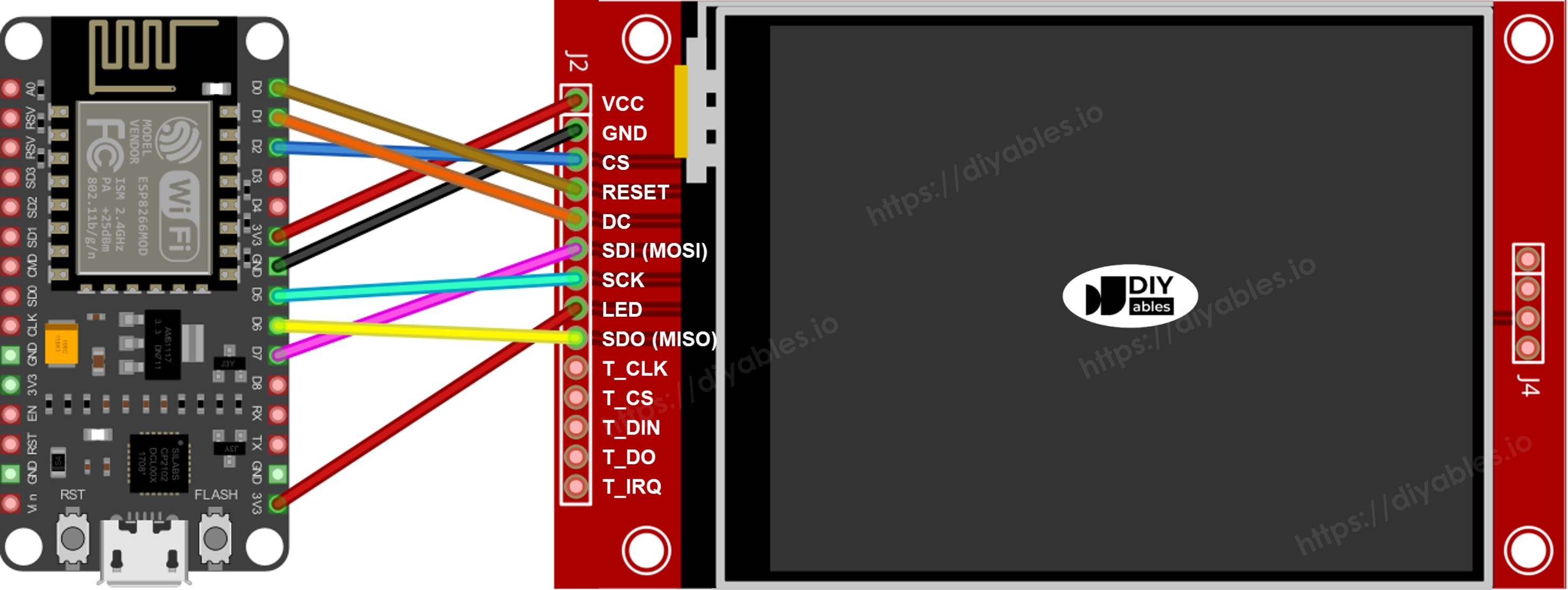
Diagrama de ligação do display TFT SPI com ESP8266 NodeMCU sem touch

This image is created using Fritzing. Click to enlarge image

Para mais informações, veja Pinagem do ESP8266 e como alimentar o ESP8266 e outros componentes.

Com Touch

Conecte o controlador de toque XPT2046 ao barramento SPI do ESP8266 NodeMCU, compartilhando D7 (GPIO13), D5 (GPIO14) e D6 (GPIO12) com o display.

Display:

Pino do TFT Pino do ESP8266 NodeMCU Número do GPIO Descrição
VCC 3V3 - Alimentação (somente 3,3V)
GND GND - Terra
CS D2 GPIO4 Chip Select (seguro para boot)
DC / RS D1 GPIO5 Seleção de Dados / Comando (seguro para boot)
RST D0 GPIO16 Reset (seguro para boot, opcional)
MOSI / SDI D7 GPIO13 MOSI do SPI de hardware
SCK D5 GPIO14 Clock do SPI de hardware
MISO / SDO D6 GPIO12 MISO do SPI de hardware (opcional)
LED / BL 3V3 - Alimentação da luz de fundo

Controlador de toque (se sua aplicação usar a função de toque e o display a suportar):

Pino de Toque Pino do ESP8266 NodeMCU Número do GPIO Descrição
T_CS D3 GPIO0 Chip Select do toque (sensível ao boot — veja a observação abaixo)
T_IRQ D4 GPIO2 Interrupção de toque, opcional (sensível ao boot — veja a observação abaixo)
T_DIN D7 GPIO13 Compartilhado com o MOSI do display (D7/GPIO13)
T_CLK D5 GPIO14 Compartilhado com o SCK do display (D5/GPIO14)
T_DO D6 GPIO12 Compartilhado com o MISO do display (D6/GPIO12)

⚠ Observação sobre a restrição dos pinos de boot: O ESP8266 tem apenas três GPIOs seguros para boot que não fazem parte do barramento SPI de hardware: GPIO4 (D2), GPIO5 (D1) e GPIO16 (D0). Eles já estão ocupados pelos CS, DC e RST do TFT. Todo pino CS adicional (TOUCH_CS, SD_CS) e o TOUCH_IRQ opcional precisam, portanto, usar um dos pinos sensíveis ao boot:

  • GPIO0 / D3 — deve estar em HIGH no boot. Usado para o TOUCH_CS nestes exemplos.
  • GPIO2 / D4 — deve estar em HIGH no boot. Usado para o TOUCH_IRQ nestes exemplos.
  • GPIO15 / D8 — deve estar em LOW no boot. Usado para o SD_CS nestes exemplos.

Esses pinos são totalmente utilizáveis durante a execução. Os resistores embutidos na placa NodeMCU normalmente satisfazem os requisitos de boot. No entanto, se um módulo acionar ativamente um desses pinos no nível errado durante a energização ou o reset, a placa vai iniciar em modo flash em vez de executar o seu sketch. Se os uploads pararem de funcionar depois de adicionar um módulo de toque ou SD, desconecte o fio CS do módulo e tente o upload novamente; depois reconecte.
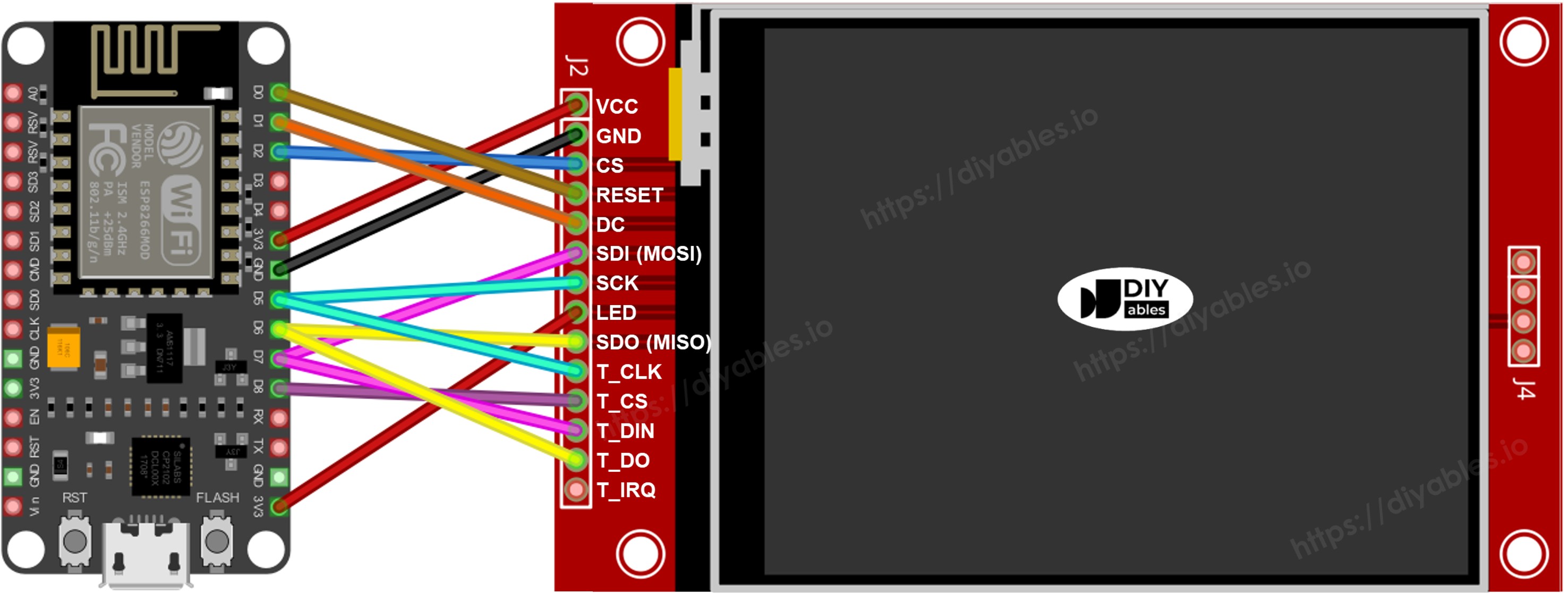
Diagrama de ligação do display TFT SPI com ESP8266 NodeMCU com touch

This image is created using Fritzing. Click to enlarge image

Se o seu MCU tem duas ou mais interfaces SPI de hardware, você pode atribuir cada periférico (display, cartão SD, controlador de toque) ao seu próprio barramento SPI dedicado. Se o seu MCU tem apenas uma interface SPI de hardware, os três periféricos compartilham as mesmas três linhas de dados (MOSI, SCK, MISO) — no ESP8266 elas são D7/GPIO13, D5/GPIO14 e D6/GPIO12. Cada periférico tem seu próprio pino CS, então apenas um fica ativo por vez. A biblioteca DIYables_TFT_SPI gerencia tanto o display quanto o controlador de toque XPT2046 por uma única API — nenhuma biblioteca SPI separada é necessária para o lado do toque.

Instalação da Biblioteca

  1. Conecte o NodeMCU ao seu computador com um cabo USB Micro-B.
  2. Abra a Arduino IDE. Escolha NodeMCU 1.0 (ESP-12E Module) na lista de placas e selecione a porta correta.
  3. Abra o painel Libraries.
  4. Digite "DIYables_TFT_SPI" na barra de pesquisa e encontre a entrada da DIYables.
  5. Clique em Install. Aceite todas as instalações de dependências.
  • Search for DIYables TFT SPI created by DIYables.io and click the Install button.
∞
Newbiely | Arduino IDE 2.3.8
──
☐
✕
File
Edit
Sketch
Tools
Help
Nodemcu 1.0 (ESP-12E Module)
Library Manager
Type:
All
Topic:
All
DIYables TFT SPI by DIYables.io
Works with both touch and non-touch versions of the same SPI TFT modules. Supports ILI9341 (240x320, 16-bit RGB565), ILI9488 (320x480, 18-bit RGB666), and ST7789 (240x320, 16-bit RGB565) displays over SPI. Includes built-in driver for XPT2046 / HR2046 / ADS7843 SPI touch controllers and 4-wire resistive touch panels - no separate touch library required. Use the display-only API for non-touch panels, or add initTouchSPI() to enable touch on modules that include a touch controller. Extends Adafruit GFX for full graphics support. Works with any Arduino-compatible board that has SPI. More info
1.0.3
INSTALL
Newbiely.ino
···
1 void setup() {
Output
Serial Monitor
Ln 1, Col 1
Nodemcu 1.0 (ESP-12E Module) on COM15
1

Código Inicial

Todo sketch de TFT para ESP8266 parte desta base:

#include <DIYables_TFT_SPI.h> #define TFT_CS_PIN D2 // GPIO4 #define TFT_DC_PIN D1 // GPIO5 #define TFT_RST_PIN D0 // GPIO16 // Uncomment the line that matches your driver chip: // DIYables_ILI9341_SPI TFT_display(240, 320, TFT_CS_PIN, TFT_DC_PIN, TFT_RST_PIN); // DIYables_ILI9488_SPI TFT_display(320, 480, TFT_CS_PIN, TFT_DC_PIN, TFT_RST_PIN); DIYables_ST7789_SPI TFT_display(240, 320, TFT_CS_PIN, TFT_DC_PIN, TFT_RST_PIN); void setup() { TFT_display.begin(); TFT_display.setRotation(1); } void loop() { // drawing code here }

Experimente - Desenhar Formas

O exemplo DrawShapes desenha círculos, triângulos, retângulos, retângulos arredondados e linhas usando a API de desenho Adafruit GFX.

/* * Este código de ESP8266 NodeMCU foi desenvolvido por pt.newbiely.com * Este código de ESP8266 NodeMCU é disponibilizado ao público sem nenhuma restrição. * Para tutoriais completos e diagramas de ligação, visite: * https://pt.newbiely.com/tutorials/esp8266/esp8266-tft-lcd-touch-display-spi */ /* Created by DIYables This example code is in the public domain Product page: https://diyables.io */ // ============================================= // Single include brings in the base class plus all driver classes. // ============================================= #include <DIYables_TFT_SPI.h> // ============================================= // Wiring (ESP8266 NodeMCU) // --------------------------------------------- // TFT module ESP8266 NodeMCU // ------------ --------------------------------- // VCC -> 3.3V (NOT 5V!) // GND -> GND // CS -> D2 / GPIO4 (TFT_CS_PIN) boot-safe // RESET -> D0 / GPIO16 (TFT_RST_PIN) boot-safe // DC / RS -> D1 / GPIO5 (TFT_DC_PIN) boot-safe // SDI / MOSI -> D7 / GPIO13 (hardware SPI MOSI) // SCK -> D5 / GPIO14 (hardware SPI SCK) // SDO / MISO -> D6 / GPIO12 (hardware SPI MISO, optional) // LED -> 3.3V (or any GPIO via initBacklight) // ============================================= // ============================================= // SPI pin definitions (adjust for your board) // ============================================= #define TFT_CS_PIN D2 // GPIO4 #define TFT_DC_PIN D1 // GPIO5 #define TFT_RST_PIN D0 // GPIO16 // Panel resolution in native (portrait) orientation - change to match your module #define TFT_WIDTH 240 #define TFT_HEIGHT 320 // MOSI and SCK use default hardware SPI pins (GPIO13 / GPIO14) // ============================================= // Create display object (uncomment matching driver) // ============================================= // DIYables_ILI9341_SPI TFT_display(TFT_WIDTH, TFT_HEIGHT, TFT_CS_PIN, TFT_DC_PIN, TFT_RST_PIN); // DIYables_ILI9488_SPI TFT_display(TFT_WIDTH, TFT_HEIGHT, TFT_CS_PIN, TFT_DC_PIN, TFT_RST_PIN); DIYables_ST7789_SPI TFT_display(TFT_WIDTH, TFT_HEIGHT, TFT_CS_PIN, TFT_DC_PIN, TFT_RST_PIN); #define BLACK DIYables_TFT_SPI::colorRGB(0, 0, 0) #define BLUE DIYables_TFT_SPI::colorRGB(0, 0, 255) #define RED DIYables_TFT_SPI::colorRGB(255, 0, 0) #define GREEN DIYables_TFT_SPI::colorRGB(0, 255, 0) #define ORANGE DIYables_TFT_SPI::colorRGB(255, 165, 0) #define PINK DIYables_TFT_SPI::colorRGB(255, 192, 203) #define VIOLET DIYables_TFT_SPI::colorRGB(148, 0, 211) #define TURQUOISE DIYables_TFT_SPI::colorRGB(64, 224, 208) #define WHITE DIYables_TFT_SPI::colorRGB(255, 255, 255) // Helper to draw a filled diamond void fillDiamond(int cx, int cy, int h, int v, uint16_t color) { int x0 = cx, y0 = cy - v; int x1 = cx + h, y1 = cy; int x2 = cx, y2 = cy + v; int x3 = cx - h, y3 = cy; TFT_display.fillTriangle(x0, y0, x1, y1, x2, y2, color); TFT_display.fillTriangle(x0, y0, x2, y2, x3, y3, color); } void setup() { TFT_display.begin(); TFT_display.setRotation(1); // Landscape } void loop() { TFT_display.fillScreen(WHITE); uint16_t w = TFT_display.width(); uint16_t h = TFT_display.height(); // Scale positions relative to screen size with better spacing int col1 = w / 8; int col2 = w * 3 / 8; int col3 = w * 5 / 8; int col4 = w * 7 / 8; int row1 = h / 4; int row2 = h / 2; int row3 = h * 3 / 4; // Outlined circle TFT_display.drawCircle(col1, row1, 30, RED); // Filled circle TFT_display.fillCircle(col2, row1, 30, RED); // Outlined triangle TFT_display.drawTriangle(col3 - 30, row1 + 25, col3 + 30, row1 + 25, col3, row1 - 25, BLUE); // Filled triangle TFT_display.fillTriangle(col4 - 30, row1 + 25, col4 + 30, row1 + 25, col4, row1 - 25, GREEN); // Outlined rectangle TFT_display.drawRect(col1 - 35, row2 - 20, 70, 40, ORANGE); // Filled rectangle TFT_display.fillRect(col2 - 35, row2 - 20, 70, 40, TURQUOISE); // Outlined round rectangle TFT_display.drawRoundRect(col3 - 35, row2 - 20, 70, 40, 10, VIOLET); // Filled round rectangle TFT_display.fillRoundRect(col4 - 35, row2 - 20, 70, 40, 10, PINK); // Outlined diamond (centered between col1 and col2) int diamond1_x = (col1 + col2) / 2; TFT_display.drawLine(diamond1_x, row3 - 30, diamond1_x + 25, row3, GREEN); TFT_display.drawLine(diamond1_x + 25, row3, diamond1_x, row3 + 30, GREEN); TFT_display.drawLine(diamond1_x, row3 + 30, diamond1_x - 25, row3, GREEN); TFT_display.drawLine(diamond1_x - 25, row3, diamond1_x, row3 - 30, GREEN); // Filled diamond (centered between col3 and col4) int diamond2_x = (col3 + col4) / 2; fillDiamond(diamond2_x, row3, 25, 30, BLUE); delay(10000); }

Execute o Código

  • Ligue o módulo TFT ao NodeMCU usando a tabela acima. Alimente apenas com 3,3V.
  • Conecte o cabo USB Micro-B.
  • Na Arduino IDE, selecione a placa e a porta, cole o código e pressione Upload.
  • O display mostra um padrão repetido de formas coloridas.

Funções de Desenho

Método O Que Desenha Exemplo
begin() Inicializa o display. TFT_display.begin();
setRotation(r) Define a orientação 0-3. TFT_display.setRotation(1);
fillScreen(color) Preenche a tela com uma cor sólida. TFT_display.fillScreen(BLACK);
colorRGB(r,g,b) Cria uma cor de 16 bits a partir de R, G, B. colorRGB(255,200,0)
fillCircle(x,y,r,color) Círculo preenchido. TFT_display.fillCircle(80,80,40,RED);
fillRect(x,y,w,h,color) Retângulo preenchido. TFT_display.fillRect(10,10,80,50,BLUE);
drawFastHLine(x,y,w,color) Linha horizontal (rápida). TFT_display.drawFastHLine(0,120,240,WHITE);

Experimente - Mostrar Texto e Número

O exemplo ShowTextAndNumber renderiza strings e valores numéricos usando o mecanismo de texto Adafruit GFX.

/* * Este código de ESP8266 NodeMCU foi desenvolvido por pt.newbiely.com * Este código de ESP8266 NodeMCU é disponibilizado ao público sem nenhuma restrição. * Para tutoriais completos e diagramas de ligação, visite: * https://pt.newbiely.com/tutorials/esp8266/esp8266-tft-lcd-touch-display-spi */ /* Created by DIYables This example code is in the public domain Product page: https://diyables.io */ // ============================================= // Single include brings in the base class plus all driver classes. // ============================================= #include <DIYables_TFT_SPI.h> // ============================================= // Wiring (ESP8266 NodeMCU) // --------------------------------------------- // TFT module ESP8266 NodeMCU // ------------ --------------------------------- // VCC -> 3.3V (NOT 5V!) // GND -> GND // CS -> D2 / GPIO4 (TFT_CS_PIN) boot-safe // RESET -> D0 / GPIO16 (TFT_RST_PIN) boot-safe // DC / RS -> D1 / GPIO5 (TFT_DC_PIN) boot-safe // SDI / MOSI -> D7 / GPIO13 (hardware SPI MOSI) // SCK -> D5 / GPIO14 (hardware SPI SCK) // SDO / MISO -> D6 / GPIO12 (hardware SPI MISO, optional) // LED -> 3.3V (or any GPIO via initBacklight) // ============================================= // ============================================= // SPI pin definitions (adjust for your board) // ============================================= #define TFT_CS_PIN D2 // GPIO4 #define TFT_DC_PIN D1 // GPIO5 #define TFT_RST_PIN D0 // GPIO16 // Panel resolution in native (portrait) orientation - change to match your module #define TFT_WIDTH 240 #define TFT_HEIGHT 320 // ============================================= // Create display object (uncomment matching driver) // ============================================= // DIYables_ILI9341_SPI TFT_display(TFT_WIDTH, TFT_HEIGHT, TFT_CS_PIN, TFT_DC_PIN, TFT_RST_PIN); // DIYables_ILI9488_SPI TFT_display(TFT_WIDTH, TFT_HEIGHT, TFT_CS_PIN, TFT_DC_PIN, TFT_RST_PIN); DIYables_ST7789_SPI TFT_display(TFT_WIDTH, TFT_HEIGHT, TFT_CS_PIN, TFT_DC_PIN, TFT_RST_PIN); #define MAGENTA DIYables_TFT_SPI::colorRGB(255, 0, 255) #define WHITE DIYables_TFT_SPI::colorRGB(255, 255, 255) void setup() { Serial.begin(9600); Serial.println(F("TFT SPI Display - Show text and numbers")); TFT_display.begin(); TFT_display.setRotation(1); // Landscape TFT_display.fillScreen(WHITE); // Set text color and size TFT_display.setTextColor(MAGENTA); TFT_display.setTextSize(3); // Sample values float temperature = 23.5; float humidity = 78.6; // Display temperature TFT_display.setCursor(20, 20); TFT_display.print("Temperature: "); TFT_display.print(temperature, 1); TFT_display.print(char(247)); TFT_display.println("C"); // Display humidity TFT_display.setCursor(20, 60); TFT_display.print("Humidity: "); TFT_display.print(humidity, 1); TFT_display.print("%"); } void loop() { }

Execute o Código

  • Ligue e faça o upload como acima.
  • O display imprime linhas de texto em tamanhos e cores diferentes.

Funções de Desenho

Método O Que Desenha Exemplo
setTextColor(color) Define a cor de primeiro plano do texto. TFT_display.setTextColor(WHITE);
setTextSize(size) Escala o texto. Tamanho 1 = 6×8 px, tamanho 2 = 12×16 px. TFT_display.setTextSize(2);
setCursor(x, y) Posiciona o cursor de texto no pixel (x, y). TFT_display.setCursor(10, 20);
print(value) Renderiza uma string ou número no cursor. TFT_display.print("NodeMCU!");
println(value) Renderiza e move o cursor para a próxima linha. TFT_display.println(42);

Experimente - Desenhar Imagem

Experimente carregar uma imagem bitmap no display. O exemplo DrawImage renderiza uma imagem RGB565 em cores armazenada na flash de programa como um array PROGMEM const uint16_t dentro de bitmap.h. No ESP8266, os dados PROGMEM ficam na memória flash SPI e são acessados por uma instrução de leitura da flash em vez de desreferência direta de ponteiro. A biblioteca DIYables_TFT_SPI cuida disso de forma transparente.

Coloque o bitmap.h na mesma pasta do sketch antes de compilar.

/* * Este código de ESP8266 NodeMCU foi desenvolvido por pt.newbiely.com * Este código de ESP8266 NodeMCU é disponibilizado ao público sem nenhuma restrição. * Para tutoriais completos e diagramas de ligação, visite: * https://pt.newbiely.com/tutorials/esp8266/esp8266-tft-lcd-touch-display-spi */ /* Created by DIYables This example code is in the public domain Product page: https://diyables.io */ // ============================================= // Single include brings in the base class plus all driver classes. // ============================================= #include <DIYables_TFT_SPI.h> #include "bitmap.h" // ============================================= // Wiring (ESP8266 NodeMCU) // --------------------------------------------- // TFT module ESP8266 NodeMCU // ------------ --------------------------------- // VCC -> 3.3V (NOT 5V!) // GND -> GND // CS -> D2 / GPIO4 (TFT_CS_PIN) boot-safe // RESET -> D0 / GPIO16 (TFT_RST_PIN) boot-safe // DC / RS -> D1 / GPIO5 (TFT_DC_PIN) boot-safe // SDI / MOSI -> D7 / GPIO13 (hardware SPI MOSI) // SCK -> D5 / GPIO14 (hardware SPI SCK) // SDO / MISO -> D6 / GPIO12 (hardware SPI MISO, optional) // LED -> 3.3V (or any GPIO via initBacklight) // ============================================= // ============================================= // SPI pin definitions (adjust for your board) // ============================================= #define TFT_CS_PIN D2 // GPIO4 #define TFT_DC_PIN D1 // GPIO5 #define TFT_RST_PIN D0 // GPIO16 // Panel resolution in native (portrait) orientation - change to match your module #define TFT_WIDTH 240 #define TFT_HEIGHT 320 // ============================================= // Create display object (uncomment matching driver) // ============================================= // DIYables_ILI9341_SPI TFT_display(TFT_WIDTH, TFT_HEIGHT, TFT_CS_PIN, TFT_DC_PIN, TFT_RST_PIN); // DIYables_ILI9488_SPI TFT_display(TFT_WIDTH, TFT_HEIGHT, TFT_CS_PIN, TFT_DC_PIN, TFT_RST_PIN); DIYables_ST7789_SPI TFT_display(TFT_WIDTH, TFT_HEIGHT, TFT_CS_PIN, TFT_DC_PIN, TFT_RST_PIN); #define WHITE DIYables_TFT_SPI::colorRGB(255, 255, 255) int img_width = 120; int img_height = 53; void setup() { Serial.begin(9600); Serial.println(F("TFT SPI Display - Draw Image")); TFT_display.begin(); uint16_t SCREEN_WIDTH = TFT_display.width(); uint16_t SCREEN_HEIGHT = TFT_display.height(); int x = (SCREEN_WIDTH - img_width) / 2; int y = (SCREEN_HEIGHT - img_height) / 2; TFT_display.fillScreen(WHITE); TFT_display.drawRGBBitmap(x, y, myBitmap, img_width, img_height); } void loop() { delay(2000); TFT_display.invertDisplay(true); delay(2000); TFT_display.invertDisplay(false); }

Execute o Código

  • Copie o bitmap.h para a mesma pasta do sketch.
  • Ligue o módulo TFT ao NodeMCU como mostrado acima (GPIO13/14/12 para SPI, GPIO4/5/16 para CS/DC/RST). Use 3,3V para o VCC.
  • Conecte o cabo USB Micro-B.
  • Na Arduino IDE, selecione a placa e a porta, pressione Upload.
  • O display mostra a imagem bitmap carregada da flash de programa.

Funções de Desenho

Método O Que Desenha Exemplo
drawRGBBitmap(x,y,bitmap,w,h) Renderiza um bitmap RGB565 PROGMEM com o canto superior esquerdo em (x, y). Use a palavra-chave PROGMEM no array. TFT_display.drawRGBBitmap(0, 0, myImage, 240, 320);
fillScreen(color) Pinta a tela inteira com uma cor sólida antes de desenhar. TFT_display.fillScreen(BLACK);

Experimente - Desenhar Imagem do Cartão SD

Experimente ler uma imagem de um cartão SD. O exemplo DrawImageSDcard transmite um arquivo binário RGB565 bruto de um cartão micro SD diretamente para o display usando um pequeno buffer. Isso evita manter a imagem inteira no heap de 80 KB do ESP8266.

Ligue o módulo SD ao mesmo barramento SPI: GPIO13 (MOSI), GPIO14 (SCK), GPIO12 (MISO). Os três GPIOs seguros para boot (GPIO4, GPIO5, GPIO16) já são usados para CS, DC e RST do TFT. O SD_CS precisa, portanto, usar um pino sensível ao boot. Os exemplos usam o GPIO15 (D8), que deve estar em LOW no boot — módulos SD padrão têm um resistor de pull-down que satisfaz isso automaticamente. Veja a observação sobre a restrição dos pinos de boot na seção de ligação.

/* * Este código de ESP8266 NodeMCU foi desenvolvido por pt.newbiely.com * Este código de ESP8266 NodeMCU é disponibilizado ao público sem nenhuma restrição. * Para tutoriais completos e diagramas de ligação, visite: * https://pt.newbiely.com/tutorials/esp8266/esp8266-tft-lcd-touch-display-spi */ /* Created by DIYables This example code is in the public domain Product page: https://diyables.io */ // ============================================= // Single include brings in the base class plus all driver classes. // ============================================= #include <DIYables_TFT_SPI.h> #include <SD.h> // ============================================= // Wiring (ESP8266 NodeMCU) // --------------------------------------------- // TFT + SD module ESP8266 NodeMCU // --------------------- --------------------------------- // VCC -> 3.3V (NOT 5V!) // GND -> GND // TFT CS -> D2 / GPIO4 (TFT_CS_PIN) boot-safe // TFT RESET -> D0 / GPIO16 (TFT_RST_PIN) boot-safe // TFT DC / RS -> D1 / GPIO5 (TFT_DC_PIN) boot-safe // SD CS -> D8 / GPIO15 (SD_CS) ⚠ boot-sensitive (must be LOW at boot) // SDI / MOSI (shared)-> D7 / GPIO13 (hardware SPI MOSI) // SDO / MISO (shared)-> D6 / GPIO12 (hardware SPI MISO) // SCK (shared)-> D5 / GPIO14 (hardware SPI SCK) // LED -> 3.3V (or any GPIO via initBacklight) // // NOTE: GPIO15 (D8) must be LOW at boot. Standard SD card modules have an // on-board pull-down that satisfies this automatically. If uploads fail after // connecting the SD module, disconnect D8 from SD_CS and retry uploading. // ============================================= // ============================================= // SPI pin definitions (adjust for your board) // ============================================= #define TFT_CS_PIN D2 // GPIO4 #define TFT_DC_PIN D1 // GPIO5 #define TFT_RST_PIN D0 // GPIO16 // Panel resolution in native (portrait) orientation - change to match your module #define TFT_WIDTH 240 #define TFT_HEIGHT 320 #define SD_CS D8 // GPIO15 (boot-sensitive: must be LOW at boot) // ============================================= // Create display object (uncomment matching driver) // ============================================= // DIYables_ILI9341_SPI TFT_display(TFT_WIDTH, TFT_HEIGHT, TFT_CS_PIN, TFT_DC_PIN, TFT_RST_PIN); // DIYables_ILI9488_SPI TFT_display(TFT_WIDTH, TFT_HEIGHT, TFT_CS_PIN, TFT_DC_PIN, TFT_RST_PIN); DIYables_ST7789_SPI TFT_display(TFT_WIDTH, TFT_HEIGHT, TFT_CS_PIN, TFT_DC_PIN, TFT_RST_PIN); #define WHITE DIYables_TFT_SPI::colorRGB(255, 255, 255) #define BUFFPIXEL 20 File bmpFile; uint16_t SCREEN_WIDTH; uint16_t SCREEN_HEIGHT; // Helper functions to read BMP file header uint16_t read16(File &f) { uint16_t result; result = f.read(); result |= (f.read() << 8); return result; } uint32_t read32(File &f) { uint32_t result; result = f.read(); result |= ((uint32_t)f.read() << 8); result |= ((uint32_t)f.read() << 16); result |= ((uint32_t)f.read() << 24); return result; } int32_t readS32(File &f) { int32_t result; result = f.read(); result |= ((uint32_t)f.read() << 8); result |= ((uint32_t)f.read() << 16); result |= ((uint32_t)f.read() << 24); return result; } bool getBMPDimensions(const char *filename, uint32_t &w, uint32_t &h) { File f = SD.open(filename); if (!f) return false; if (read16(f) != 0x4D42) { f.close(); return false; } read32(f); // file size read32(f); // reserved read32(f); // image offset read32(f); // DIB header size w = read32(f); int32_t sh = readS32(f); h = (sh < 0) ? -sh : sh; f.close(); return true; } void drawBMP(const char *filename, int x, int y) { bmpFile = SD.open(filename); if (!bmpFile) { Serial.println("File not found"); return; } if (read16(bmpFile) != 0x4D42) { Serial.println("Not a BMP file"); bmpFile.close(); return; } uint32_t fileSize = read32(bmpFile); read32(bmpFile); // Reserved uint32_t imageOffset = read32(bmpFile); uint32_t dibHeaderSize = read32(bmpFile); uint32_t bmpWidth = read32(bmpFile); int32_t bmpHeight = readS32(bmpFile); bool topDown = false; if (bmpHeight < 0) { bmpHeight = -bmpHeight; topDown = true; } if (read16(bmpFile) != 1) { Serial.println("Invalid BMP file"); bmpFile.close(); return; } uint16_t depth = read16(bmpFile); if (depth != 24) { Serial.println("Only 24-bit BMP is supported"); bmpFile.close(); return; } if (read32(bmpFile) != 0) { Serial.println("Unsupported BMP compression"); bmpFile.close(); return; } bmpFile.seek(imageOffset); uint8_t sdbuffer[3 * BUFFPIXEL]; uint16_t color; uint32_t rowSize = (bmpWidth * 3 + 3) & ~3; if (x >= SCREEN_WIDTH || y >= SCREEN_HEIGHT) return; uint32_t maxRow = min((uint32_t)bmpHeight, (uint32_t)(SCREEN_HEIGHT - y)); uint32_t maxCol = min(bmpWidth, (uint32_t)(SCREEN_WIDTH - x)); for (uint32_t row = 0; row < maxRow; row++) { int32_t rowPos = topDown ? row : bmpHeight - 1 - row; uint32_t filePosition = imageOffset + rowPos * rowSize; bmpFile.seek(filePosition); for (uint32_t col = 0; col < maxCol; col += BUFFPIXEL) { uint32_t pixelsToRead = min((uint32_t)BUFFPIXEL, maxCol - col); bmpFile.read(sdbuffer, 3 * pixelsToRead); for (uint32_t i = 0; i < pixelsToRead; i++) { uint8_t b = sdbuffer[i * 3]; uint8_t g = sdbuffer[i * 3 + 1]; uint8_t r = sdbuffer[i * 3 + 2]; color = DIYables_TFT_SPI::colorRGB(r, g, b); if ((x + col + i) < SCREEN_WIDTH && (y + row) < SCREEN_HEIGHT) { TFT_display.drawPixel(x + col + i, y + row, color); } } } } bmpFile.close(); Serial.println("BMP drawn"); } void setup() { Serial.begin(9600); if (!SD.begin(SD_CS)) { Serial.println("SD card initialization failed!"); return; } Serial.println("SD card initialized."); TFT_display.begin(); TFT_display.setRotation(1); // Landscape SCREEN_WIDTH = TFT_display.width(); SCREEN_HEIGHT = TFT_display.height(); TFT_display.fillScreen(WHITE); uint32_t imgWidth, imgHeight; if (getBMPDimensions("diyables.bmp", imgWidth, imgHeight)) { int x = (SCREEN_WIDTH - imgWidth) / 2; int y = (SCREEN_HEIGHT - imgHeight) / 2; drawBMP("diyables.bmp", x, y); } else { Serial.println("Failed to get BMP dimensions"); } } void loop() { }

Execute o Código

  • Ligue o módulo SD ao NodeMCU, compartilhando GPIO13/14/12 com o display. Conecte o CS do SD ao D8 (GPIO15), conforme definido no código. O GPIO15 deve estar em LOW no boot — módulos SD padrão satisfazem isso com um pull-down na placa.
  • Copie um arquivo de imagem binário RGB565 bruto para a raiz do cartão SD. As dimensões devem corresponder ao painel.
  • Conecte o cabo USB Micro-B.
  • Na Arduino IDE, selecione a placa e a porta, pressione Upload.
  • O display renderiza a imagem transmitida do cartão SD.

Funções de Desenho

Método O Que Desenha Exemplo
startWrite() Abre uma sessão de escrita SPI direta, ativando o CS do display (GPIO4). TFT_display.startWrite();
setAddrWindow(x0,y0,x1,y1) Define a região retangular que vai receber os dados de pixel. TFT_display.setAddrWindow(0, 0, 239, 319);
pushColors(buf, len) Escreve um buffer de valores de pixel RGB565 no display. Mantenha o buffer pequeno para respeitar os limites do heap. TFT_display.pushColors(buf, 256);
endWrite() Fecha a sessão SPI e libera o CS. TFT_display.endWrite();

Experimente - Usar Fonte Externa

Experimente renderizar texto com uma fonte mais nítida. O exemplo UseExternalFont substitui a fonte embutida de 5×7 pixels por uma fonte personalizada de alta qualidade compatível com a Adafruit GFX. O descritor da fonte é incluído como um arquivo de cabeçalho e ativado com uma única chamada a setFont(). Chame setFont(NULL) para voltar à fonte embutida.

/* * Este código de ESP8266 NodeMCU foi desenvolvido por pt.newbiely.com * Este código de ESP8266 NodeMCU é disponibilizado ao público sem nenhuma restrição. * Para tutoriais completos e diagramas de ligação, visite: * https://pt.newbiely.com/tutorials/esp8266/esp8266-tft-lcd-touch-display-spi */ /* Created by DIYables This example code is in the public domain Product page: https://diyables.io */ // ============================================= // Single include brings in the base class plus all driver classes. // ============================================= #include <DIYables_TFT_SPI.h> #include <Fonts/FreeSansBold12pt7b.h> // ============================================= // Wiring (ESP8266 NodeMCU) // --------------------------------------------- // TFT module ESP8266 NodeMCU // ------------ --------------------------------- // VCC -> 3.3V (NOT 5V!) // GND -> GND // CS -> D2 / GPIO4 (TFT_CS_PIN) boot-safe // RESET -> D0 / GPIO16 (TFT_RST_PIN) boot-safe // DC / RS -> D1 / GPIO5 (TFT_DC_PIN) boot-safe // SDI / MOSI -> D7 / GPIO13 (hardware SPI MOSI) // SCK -> D5 / GPIO14 (hardware SPI SCK) // SDO / MISO -> D6 / GPIO12 (hardware SPI MISO, optional) // LED -> 3.3V (or any GPIO via initBacklight) // ============================================= // ============================================= // SPI pin definitions (adjust for your board) // ============================================= #define TFT_CS_PIN D2 // GPIO4 #define TFT_DC_PIN D1 // GPIO5 #define TFT_RST_PIN D0 // GPIO16 // Panel resolution in native (portrait) orientation - change to match your module #define TFT_WIDTH 240 #define TFT_HEIGHT 320 // ============================================= // Create display object (uncomment matching driver) // ============================================= // DIYables_ILI9341_SPI TFT_display(TFT_WIDTH, TFT_HEIGHT, TFT_CS_PIN, TFT_DC_PIN, TFT_RST_PIN); // DIYables_ILI9488_SPI TFT_display(TFT_WIDTH, TFT_HEIGHT, TFT_CS_PIN, TFT_DC_PIN, TFT_RST_PIN); DIYables_ST7789_SPI TFT_display(TFT_WIDTH, TFT_HEIGHT, TFT_CS_PIN, TFT_DC_PIN, TFT_RST_PIN); #define MAGENTA DIYables_TFT_SPI::colorRGB(255, 0, 255) #define WHITE DIYables_TFT_SPI::colorRGB(255, 255, 255) void setup() { Serial.begin(9600); Serial.println(F("TFT SPI Display - Use external font")); TFT_display.begin(); TFT_display.setFont(&FreeSansBold12pt7b); TFT_display.setRotation(1); // Landscape TFT_display.fillScreen(WHITE); TFT_display.setTextColor(MAGENTA); TFT_display.setTextSize(1); float temperature = 23.5; float humidity = 78.6; TFT_display.setCursor(20, 30); TFT_display.print("Temperature: "); TFT_display.print(temperature, 1); TFT_display.print(char(247)); TFT_display.println("C"); TFT_display.setCursor(20, 70); TFT_display.print("Humidity: "); TFT_display.print(humidity, 1); TFT_display.print("%"); } void loop() { }

Execute o Código

  • Ligue o módulo TFT ao NodeMCU como descrito na seção de ligação. Use 3,3V para o VCC.
  • Conecte o cabo USB Micro-B.
  • Na Arduino IDE, selecione a placa e a porta, pressione Upload.
  • O display renderiza o texto usando a fonte personalizada. A qualidade dos glifos é visivelmente melhor que a da fonte embutida.

Funções de Desenho

Método O Que Desenha Exemplo
setFont(&FontName) Muda para uma fonte GFX personalizada. Passar NULL restaura a fonte embutida de 5×7 pixels. TFT_display.setFont(&FreeSans12pt7b);
setCursor(x, y) Move o cursor de texto para a posição de pixel indicada. TFT_display.setCursor(10, 40);
setTextColor(color) Define a cor de primeiro plano do texto. TFT_display.setTextColor(WHITE);
print(text) Imprime uma string no cursor usando a fonte ativa. TFT_display.print("NodeMCU!");

Experimente - Obter Ponto de Toque

Experimente ler coordenadas brutas de toque. O exemplo TouchGetPoint liga um controlador de toque XPT2046 ao NodeMCU e imprime valores brutos do ADC no Serial Monitor a cada toque. Execute-o antes da etapa de calibração para saber qual é a faixa real do ADC que o seu painel produz.

Ligação: T_CLK→D5 (GPIO14), T_DIN→D7 (GPIO13), T_DO→D6 (GPIO12). Eles compartilham o barramento SPI com o display. T_CS→D3 (GPIO0), T_IRQ→D4 (GPIO2). Observação: GPIO0 e GPIO2 são pinos de modo de boot — eles devem estar em HIGH na energização. Eles são seguros para uso durante a execução. Veja a observação sobre a restrição dos pinos de boot na seção de ligação acima.

/* * Este código de ESP8266 NodeMCU foi desenvolvido por pt.newbiely.com * Este código de ESP8266 NodeMCU é disponibilizado ao público sem nenhuma restrição. * Para tutoriais completos e diagramas de ligação, visite: * https://pt.newbiely.com/tutorials/esp8266/esp8266-tft-lcd-touch-display-spi */ /* Touch Get Point Example ----------------------- This example demonstrates how to read and display touch coordinates using a DIYables SPI TFT display with a 4-wire resistive touch panel. When you touch the screen, the sketch prints the mapped (screen) X and Y coordinates to the Serial Monitor and draws a red dot at the touched location. NOTE: Run the TouchCalibration example first and paste the calibration values into setTouchCalibration() below if the touch coordinates are inaccurate. Created by DIYables This example code is in the public domain Product page: https://diyables.io */ // ============================================= // Single include brings in the base class plus all driver classes. // ============================================= #include <DIYables_TFT_SPI.h> // ============================================= // Wiring (ESP8266 NodeMCU) // --------------------------------------------- // TFT module ESP8266 NodeMCU // ------------ --------------------------------- // VCC -> 3.3V (NOT 5V!) // GND -> GND // CS -> D2 / GPIO4 (TFT_CS_PIN) boot-safe // RESET -> D0 / GPIO16 (TFT_RST_PIN) boot-safe // DC / RS -> D1 / GPIO5 (TFT_DC_PIN) boot-safe // SDI / MOSI -> D7 / GPIO13 (hardware SPI MOSI) // SCK -> D5 / GPIO14 (hardware SPI SCK) // SDO / MISO -> D6 / GPIO12 (hardware SPI MISO, optional) // LED -> 3.3V (or any GPIO via initBacklight) // // XPT2046 / HR2046 / ADS7843 SPI touch controller // (modules with pins: T_CS, T_CLK, T_DIN, T_DO, T_IRQ) // Touch pin ESP8266 NodeMCU // ------------ --------------------------------- // T_CS -> D3 / GPIO0 (TOUCH_CS_PIN) ⚠ boot-sensitive (must be HIGH at boot) // T_IRQ -> D4 / GPIO2 (TOUCH_IRQ_PIN) ⚠ boot-sensitive (must be HIGH at boot) // T_CLK -> D5 / GPIO14 (shared with display SCK) // T_DIN -> D7 / GPIO13 (shared with display MOSI) // T_DO -> D6 / GPIO12 (shared with display MISO) // // NOTE: GPIO0 (D3) and GPIO2 (D4) must be HIGH at power-on. The NodeMCU // board has pull-up resistors that normally satisfy this. If uploads fail // after connecting the touch module, disconnect T_CS/T_IRQ and retry. // ============================================= // ============================================= // SPI pin definitions (adjust for your board) // ============================================= #define TFT_CS_PIN D2 // GPIO4 #define TFT_DC_PIN D1 // GPIO5 #define TFT_RST_PIN D0 // GPIO16 // Panel resolution in native (portrait) orientation - change to match your module #define TFT_WIDTH 240 #define TFT_HEIGHT 320 // MOSI and SCK use default hardware SPI pins (GPIO13 / GPIO14) // ============================================= // Touch pin definitions (XPT2046 / HR2046 SPI touch controller) // ============================================= #define TOUCH_CS_PIN D3 // GPIO0 (boot-sensitive: must be HIGH at boot) #define TOUCH_IRQ_PIN -1 // T_IRQ (any GPIO, or -1 if not connected) // ============================================= // ============================================= // Calibration values. // Run the TouchCalibration example and update these if touch is inaccurate. // Typical raw ranges: // - XPT2046 / HR2046 : ~200..3900 (default below) // - 4-wire resistive : ~100..900 // ============================================= #define TOUCH_LEFT_X 300 #define TOUCH_RIGHT_X 3700 #define TOUCH_TOP_Y 300 #define TOUCH_BOT_Y 3700 // ============================================= // Create display object (uncomment matching driver) // ============================================= // DIYables_ILI9341_SPI TFT_display(TFT_WIDTH, TFT_HEIGHT, TFT_CS_PIN, TFT_DC_PIN, TFT_RST_PIN); // DIYables_ILI9488_SPI TFT_display(TFT_WIDTH, TFT_HEIGHT, TFT_CS_PIN, TFT_DC_PIN, TFT_RST_PIN); DIYables_ST7789_SPI TFT_display(TFT_WIDTH, TFT_HEIGHT, TFT_CS_PIN, TFT_DC_PIN, TFT_RST_PIN); #define RED DIYables_TFT_SPI::colorRGB(255, 0, 0) #define WHITE DIYables_TFT_SPI::colorRGB(255, 255, 255) void setup() { Serial.begin(9600); TFT_display.begin(); TFT_display.setRotation(0); TFT_display.fillScreen(WHITE); TFT_display.initTouchSPI(TOUCH_CS_PIN, TOUCH_IRQ_PIN); // If touch X is mirrored on your board, uncomment: //TFT_display.setTouchInvertX(true); // If touch Y is mirrored on your board, uncomment: //TFT_display.setTouchInvertY(false); TFT_display.setTouchCalibration(TOUCH_LEFT_X, TOUCH_RIGHT_X, TOUCH_TOP_Y, TOUCH_BOT_Y); Serial.println("Touch the screen to see coordinates."); } void loop() { int x, y; if (TFT_display.getTouch(x, y)) { Serial.print("Touch at: "); Serial.print(x); Serial.print(", "); Serial.println(y); TFT_display.fillCircle(x, y, 4, RED); delay(200); } }

Execute o Código

  • Ligue o XPT2046 ao NodeMCU. T_CLK→D5 (GPIO14), T_DIN→D7 (GPIO13), T_DO→D6 (GPIO12), T_CS→D3 (GPIO0), T_IRQ→D4 (GPIO2). GPIO0 e GPIO2 devem estar em HIGH na energização — veja a observação sobre pinos de boot na seção de ligação.
  • Conecte o cabo USB Micro-B.
  • Na Arduino IDE, selecione a placa e a porta, pressione Upload.
  • Abra o Serial Monitor a 9600 baud. Toque no display para ver os valores brutos de X, Y e pressão Z.

Funções de Desenho

Método O Que Desenha Exemplo
initTouchSPI(cs, irq) Inicializa o XPT2046 no barramento SPI compartilhado. Passe -1 em irq se o pino de interrupção não estiver ligado. TFT_display.initTouchSPI(0, 2);
readTouchRaw(x, y, z) Retorna os valores brutos do ADC do toque sem calibração. Retorna true quando a tela está pressionada. TFT_display.readTouchRaw(x, y, z);

Experimente - Desenhar com Toque

Experimente desenhar na tela com o dedo. O exemplo TouchDraw usa coordenadas calibradas do XPT2046 para pintar pequenos pontos coloridos onde o dedo toca. Arraste pelo display para produzir um traço pintado contínuo.

/* * Este código de ESP8266 NodeMCU foi desenvolvido por pt.newbiely.com * Este código de ESP8266 NodeMCU é disponibilizado ao público sem nenhuma restrição. * Para tutoriais completos e diagramas de ligação, visite: * https://pt.newbiely.com/tutorials/esp8266/esp8266-tft-lcd-touch-display-spi */ /* Touch Draw Lines Example ------------------------- Draws lines on the screen following the pen. - Touch and drag on the screen to draw. - Lift the pen to stop drawing. - Touch again to start a new line from the last point. NOTE: Run the TouchCalibration example and update setTouchCalibration() below if the touch coordinates are inaccurate. Created by DIYables This example code is in the public domain Product page: https://diyables.io */ // ============================================= // Single include brings in the base class plus all driver classes. // ============================================= #include <DIYables_TFT_SPI.h> // ============================================= // Wiring (ESP8266 NodeMCU) // --------------------------------------------- // TFT module ESP8266 NodeMCU // ------------ --------------------------------- // VCC -> 3.3V (NOT 5V!) // GND -> GND // CS -> D2 / GPIO4 (TFT_CS_PIN) boot-safe // RESET -> D0 / GPIO16 (TFT_RST_PIN) boot-safe // DC / RS -> D1 / GPIO5 (TFT_DC_PIN) boot-safe // SDI / MOSI -> D7 / GPIO13 (hardware SPI MOSI) // SCK -> D5 / GPIO14 (hardware SPI SCK) // SDO / MISO -> D6 / GPIO12 (hardware SPI MISO, optional) // LED -> 3.3V (or any GPIO via initBacklight) // // XPT2046 / HR2046 / ADS7843 SPI touch controller // (modules with pins: T_CS, T_CLK, T_DIN, T_DO, T_IRQ) // Touch pin ESP8266 NodeMCU // ------------ --------------------------------- // T_CS -> D3 / GPIO0 (TOUCH_CS_PIN) ⚠ boot-sensitive (must be HIGH at boot) // T_IRQ -> D4 / GPIO2 (TOUCH_IRQ_PIN) ⚠ boot-sensitive (must be HIGH at boot) // T_CLK -> D5 / GPIO14 (shared with display SCK) // T_DIN -> D7 / GPIO13 (shared with display MOSI) // T_DO -> D6 / GPIO12 (shared with display MISO) // // NOTE: GPIO0 (D3) and GPIO2 (D4) must be HIGH at power-on. The NodeMCU // board has pull-up resistors that normally satisfy this. If uploads fail // after connecting the touch module, disconnect T_CS/T_IRQ and retry. // ============================================= // ============================================= // SPI pin definitions (adjust for your board) // ============================================= #define TFT_CS_PIN D2 // GPIO4 #define TFT_DC_PIN D1 // GPIO5 #define TFT_RST_PIN D0 // GPIO16 // Panel resolution in native (portrait) orientation - change to match your module #define TFT_WIDTH 240 #define TFT_HEIGHT 320 // ============================================= // Touch pin definitions (XPT2046 / HR2046 SPI touch controller) // ============================================= #define TOUCH_CS_PIN D3 // GPIO0 (boot-sensitive: must be HIGH at boot) #define TOUCH_IRQ_PIN -1 // T_IRQ (any GPIO, or -1 if not connected) // ============================================= // ============================================= // Calibration values. // Run the TouchCalibration example and update these if touch is inaccurate. // Typical raw ranges: // - XPT2046 / HR2046 : ~200..3900 (default below) // - 4-wire resistive : ~100..900 // ============================================= #define TOUCH_LEFT_X 300 #define TOUCH_RIGHT_X 3700 #define TOUCH_TOP_Y 300 #define TOUCH_BOT_Y 3700 // ============================================= // Create display object (uncomment matching driver) // ============================================= // DIYables_ILI9341_SPI TFT_display(TFT_WIDTH, TFT_HEIGHT, TFT_CS_PIN, TFT_DC_PIN, TFT_RST_PIN); // DIYables_ILI9488_SPI TFT_display(TFT_WIDTH, TFT_HEIGHT, TFT_CS_PIN, TFT_DC_PIN, TFT_RST_PIN); DIYables_ST7789_SPI TFT_display(TFT_WIDTH, TFT_HEIGHT, TFT_CS_PIN, TFT_DC_PIN, TFT_RST_PIN); #define RED DIYables_TFT_SPI::colorRGB(255, 0, 0) #define WHITE DIYables_TFT_SPI::colorRGB(255, 255, 255) #define PEN_RADIUS 3 void setup() { TFT_display.begin(); TFT_display.setRotation(0); TFT_display.fillScreen(WHITE); TFT_display.initTouchSPI(TOUCH_CS_PIN, TOUCH_IRQ_PIN); // If touch X is mirrored on your board, uncomment: //TFT_display.setTouchInvertX(true); // If touch Y is mirrored on your board, uncomment: //TFT_display.setTouchInvertY(false); TFT_display.setTouchCalibration(TOUCH_LEFT_X, TOUCH_RIGHT_X, TOUCH_TOP_Y, TOUCH_BOT_Y); } void loop() { int x, y; if (TFT_display.getTouch(x, y)) { TFT_display.fillCircle(x, y, PEN_RADIUS, RED); } }

Execute o Código

  • Ligue o XPT2046 ao NodeMCU como descrito na seção Obter Ponto de Toque acima.
  • Conecte o cabo USB Micro-B.
  • Na Arduino IDE, selecione a placa e a porta, pressione Upload.
  • Arraste o dedo pelo display para desenhar.

Funções de Desenho

Método O Que Desenha Exemplo
initTouchSPI(cs, irq) Inicializa o XPT2046 no barramento SPI compartilhado. TFT_display.initTouchSPI(0, 2);
setTouchCalibration(minX,maxX,minY,maxY) Mapeia os valores brutos do ADC para coordenadas de pixel da tela. Obtenha esses números no exemplo TouchCalibration. TFT_display.setTouchCalibration(200, 3800, 300, 3700);
setTouchInvertX(invert) / setTouchInvertY(invert) Inverte o eixo do toque quando X ou Y está espelhado no seu painel ou lote específico. Chame ANTES de setTouchCalibration(). TFT_display.setTouchInvertY(true);
getTouch(x, y) Retorna as coordenadas de toque calibradas em pixels da tela. Retorna true enquanto a tela está pressionada. if (TFT_display.getTouch(x, y)) { ... }
fillCircle(x, y, r, color) Desenha um ponto na posição do toque para formar o traço. TFT_display.fillCircle(x, y, 3, RED);

Experimente - Botão de Toque

Experimente criar botões de toque na tela. O exemplo TouchButton desenha botões retangulares coloridos no display e compara as coordenadas de toque calibradas com a área de cada botão a cada loop. Um toque confirmado destaca o botão e aciona a ação.

O T_IRQ não precisa estar conectado neste exemplo. Passe -1 como argumento irq para fazer polling sem um pino de interrupção.

/* * Este código de ESP8266 NodeMCU foi desenvolvido por pt.newbiely.com * Este código de ESP8266 NodeMCU é disponibilizado ao público sem nenhuma restrição. * Para tutoriais completos e diagramas de ligação, visite: * https://pt.newbiely.com/tutorials/esp8266/esp8266-tft-lcd-touch-display-spi */ /* Touch Button Press/Release Example ------------------------------------ This example shows how to detect press and release events on a rectangular button using a DIYables SPI TFT display with a 4-wire resistive touch panel. When you touch inside the button, it changes colour and shows "PRESSED". When you release, it returns to its original state. NOTE: Run the TouchCalibration example and update setTouchCalibration() below if the touch coordinates are inaccurate. Created by DIYables This example code is in the public domain Product page: https://diyables.io */ // ============================================= // Single include brings in the base class plus all driver classes. // ============================================= #include <DIYables_TFT_SPI.h> // ============================================= // Wiring (ESP8266 NodeMCU) // --------------------------------------------- // TFT module ESP8266 NodeMCU // ------------ --------------------------------- // VCC -> 3.3V (NOT 5V!) // GND -> GND // CS -> D2 / GPIO4 (TFT_CS_PIN) boot-safe // RESET -> D0 / GPIO16 (TFT_RST_PIN) boot-safe // DC / RS -> D1 / GPIO5 (TFT_DC_PIN) boot-safe // SDI / MOSI -> D7 / GPIO13 (hardware SPI MOSI) // SCK -> D5 / GPIO14 (hardware SPI SCK) // SDO / MISO -> D6 / GPIO12 (hardware SPI MISO, optional) // LED -> 3.3V (or any GPIO via initBacklight) // // XPT2046 / HR2046 / ADS7843 SPI touch controller // (modules with pins: T_CS, T_CLK, T_DIN, T_DO, T_IRQ) // Touch pin ESP8266 NodeMCU // ------------ --------------------------------- // T_CS -> D3 / GPIO0 (TOUCH_CS_PIN) ⚠ boot-sensitive (must be HIGH at boot) // T_IRQ not connected (-1) // T_CLK -> D5 / GPIO14 (shared with display SCK) // T_DIN -> D7 / GPIO13 (shared with display MOSI) // T_DO -> D6 / GPIO12 (shared with display MISO) // // NOTE: GPIO0 (D3) must be HIGH at power-on. The NodeMCU board has a // pull-up resistor that normally satisfies this. If uploads fail after // connecting the touch module, disconnect T_CS and retry. // ============================================= // ============================================= // SPI pin definitions (adjust for your board) // ============================================= #define TFT_CS_PIN D2 // GPIO4 #define TFT_DC_PIN D1 // GPIO5 #define TFT_RST_PIN D0 // GPIO16 // Panel resolution in native (portrait) orientation - change to match your module #define TFT_WIDTH 240 #define TFT_HEIGHT 320 // ============================================= // Touch pin definitions (XPT2046 / HR2046 SPI touch controller) // ============================================= #define TOUCH_CS_PIN D3 // GPIO0 (boot-sensitive: must be HIGH at boot) #define TOUCH_IRQ_PIN -1 // T_IRQ not connected (polling mode) // ============================================= // ============================================= // Calibration values. // Run the TouchCalibration example and update these if touch is inaccurate. // Typical raw ranges: // - XPT2046 / HR2046 : ~200..3900 (default below) // - 4-wire resistive : ~100..900 // ============================================= #define TOUCH_LEFT_X 300 #define TOUCH_RIGHT_X 3700 #define TOUCH_TOP_Y 300 #define TOUCH_BOT_Y 3700 // ============================================= // Create display object (uncomment matching driver) // ============================================= // DIYables_ILI9341_SPI TFT_display(TFT_WIDTH, TFT_HEIGHT, TFT_CS_PIN, TFT_DC_PIN, TFT_RST_PIN); // DIYables_ILI9488_SPI TFT_display(TFT_WIDTH, TFT_HEIGHT, TFT_CS_PIN, TFT_DC_PIN, TFT_RST_PIN); DIYables_ST7789_SPI TFT_display(TFT_WIDTH, TFT_HEIGHT, TFT_CS_PIN, TFT_DC_PIN, TFT_RST_PIN); #define BLACK DIYables_TFT_SPI::colorRGB( 0, 0, 0) #define WHITE DIYables_TFT_SPI::colorRGB(255, 255, 255) #define GRAY DIYables_TFT_SPI::colorRGB(128, 128, 128) #define RED DIYables_TFT_SPI::colorRGB(255, 0, 0) #define BUTTON_X 30 #define BUTTON_Y 100 #define BUTTON_W 180 #define BUTTON_H 60 #define DEBOUNCE_DELAY 50 bool lastPressed = false; bool stablePressed = false; unsigned long lastDebounceTime = 0; void drawButton(bool pressed) { uint16_t bg = pressed ? GRAY : RED; TFT_display.fillRect(BUTTON_X, BUTTON_Y, BUTTON_W, BUTTON_H, bg); TFT_display.drawRect(BUTTON_X, BUTTON_Y, BUTTON_W, BUTTON_H, BLACK); TFT_display.setTextColor(WHITE, bg); TFT_display.setTextSize(3); TFT_display.setCursor(BUTTON_X + 10, BUTTON_Y + 16); TFT_display.print(pressed ? "PRESSED" : " PRESS "); } void setup() { Serial.begin(9600); TFT_display.begin(); TFT_display.setRotation(0); TFT_display.fillScreen(WHITE); TFT_display.initTouchSPI(TOUCH_CS_PIN, TOUCH_IRQ_PIN); // If touch X is mirrored on your board, uncomment: //TFT_display.setTouchInvertX(true); // If touch Y is mirrored on your board, uncomment: //TFT_display.setTouchInvertY(false); TFT_display.setTouchCalibration(TOUCH_LEFT_X, TOUCH_RIGHT_X, TOUCH_TOP_Y, TOUCH_BOT_Y); drawButton(false); } void loop() { int x, y; bool pressed = false; if (TFT_display.getTouch(x, y)) { if (x >= BUTTON_X && x < (BUTTON_X + BUTTON_W) && y >= BUTTON_Y && y < (BUTTON_Y + BUTTON_H)) { pressed = true; } } if (pressed != lastPressed) { lastDebounceTime = millis(); } lastPressed = pressed; if ((millis() - lastDebounceTime) > DEBOUNCE_DELAY) { if (pressed != stablePressed) { stablePressed = pressed; drawButton(stablePressed); Serial.println(stablePressed ? "Button PRESSED" : "Button RELEASED"); } } }

Execute o Código

  • Conecte o T_CS ao D3 (GPIO0). O T_IRQ pode ficar desconectado (passe -1). O GPIO0 deve estar em HIGH na energização — veja a observação sobre pinos de boot na seção de ligação.
  • Conecte o cabo USB Micro-B.
  • Na Arduino IDE, selecione a placa e a porta, pressione Upload.
  • Toque nos botões do display. Cada botão deve ser destacado e acionar sua ação.

Funções de Desenho

Método O Que Desenha Exemplo
initTouchSPI(cs, irq) Inicializa o XPT2046. Passe -1 em irq para usar o modo de polling. TFT_display.initTouchSPI(0, -1);
setTouchCalibration(minX,maxX,minY,maxY) Aplica a calibração para que getTouch() retorne coordenadas em pixels do display. TFT_display.setTouchCalibration(200, 3800, 300, 3700);
setTouchInvertX(invert) / setTouchInvertY(invert) Inverte o eixo do toque quando X ou Y está espelhado no seu painel ou lote específico. Chame ANTES de setTouchCalibration(). TFT_display.setTouchInvertY(true);
getTouch(x, y) Obtém a posição de toque calibrada. Retorna true enquanto a tela está pressionada. if (TFT_display.getTouch(x, y)) { ... }
fillRect(x, y, w, h, color) Desenha um botão como um retângulo sólido colorido. TFT_display.fillRect(10, 10, 100, 50, BLUE);

Experimente - Calibração do Toque

Experimente calibrar o seu painel de toque. O exemplo TouchCalibration guia você a tocar cada canto da tela em sequência. Os valores mínimo e máximo brutos do ADC para X e Y são impressos no Serial Monitor. Anote esses quatro números — eles são as constantes de calibração para setTouchCalibration() em todos os outros sketches de toque.

/* * Este código de ESP8266 NodeMCU foi desenvolvido por pt.newbiely.com * Este código de ESP8266 NodeMCU é disponibilizado ao público sem nenhuma restrição. * Para tutoriais completos e diagramas de ligação, visite: * https://pt.newbiely.com/tutorials/esp8266/esp8266-tft-lcd-touch-display-spi */ /* Touch Screen Calibration Example --------------------------------- This example measures the raw touch coordinates at all four screen corners and prints ready-to-use calibration values to the Serial Monitor. It uses readTouchRaw() directly - it does NOT rely on getTouch() or any existing calibration values, so it works even when touch is completely broken. INSTRUCTIONS: 1. Upload this sketch to your board. 2. Open the Serial Monitor (Ctrl+Shift+M) and set baud rate to 9600. 3. The screen shows a blinking red dot in each corner, numbered 1-4: 1 = Top-left 2 = Top-right 3 = Bottom-right 4 = Bottom-left 4. Press and HOLD firmly on the blinking dot. Keep holding until the Serial Monitor prints "Captured!" for that corner. 5. Release, then wait for the next dot to appear and repeat. 6. After all 4 corners, the Serial Monitor prints the calibration values and a ready-to-use setTouchCalibration() call. Copy it into your sketch. NOTE: While waiting, the Serial Monitor continuously prints the live raw Z/X/Y readings so you can confirm that touch is being detected. Created by DIYables This example code is in the public domain Product page: https://diyables.io */ // ============================================= // Single include brings in the base class plus all driver classes. // ============================================= #include <DIYables_TFT_SPI.h> // ============================================= // Wiring (ESP8266 NodeMCU) // --------------------------------------------- // TFT module ESP8266 NodeMCU // ------------ --------------------------------- // VCC -> 3.3V (NOT 5V!) // GND -> GND // CS -> D2 / GPIO4 (TFT_CS_PIN) boot-safe // RESET -> D0 / GPIO16 (TFT_RST_PIN) boot-safe // DC / RS -> D1 / GPIO5 (TFT_DC_PIN) boot-safe // SDI / MOSI -> D7 / GPIO13 (hardware SPI MOSI) // SCK -> D5 / GPIO14 (hardware SPI SCK) // SDO / MISO -> D6 / GPIO12 (hardware SPI MISO, optional) // LED -> 3.3V (or any GPIO via initBacklight) // // XPT2046 / HR2046 / ADS7843 SPI touch controller // (modules with pins: T_CS, T_CLK, T_DIN, T_DO, T_IRQ) // Touch pin ESP8266 NodeMCU // ------------ --------------------------------- // T_CS -> D3 / GPIO0 (TOUCH_CS_PIN) ⚠ boot-sensitive (must be HIGH at boot) // T_IRQ -> D4 / GPIO2 (TOUCH_IRQ_PIN) ⚠ boot-sensitive (must be HIGH at boot) // T_CLK -> D5 / GPIO14 (shared with display SCK) // T_DIN -> D7 / GPIO13 (shared with display MOSI) // T_DO -> D6 / GPIO12 (shared with display MISO) // // NOTE: GPIO0 (D3) and GPIO2 (D4) must be HIGH at power-on. The NodeMCU // board has pull-up resistors that normally satisfy this. If uploads fail // after connecting the touch module, disconnect T_CS/T_IRQ and retry. // ============================================= // ============================================= // SPI pin definitions (adjust for your board) // ============================================= #define TFT_CS_PIN D2 // GPIO4 #define TFT_DC_PIN D1 // GPIO5 #define TFT_RST_PIN D0 // GPIO16 // Panel resolution in native (portrait) orientation - change to match your module #define TFT_WIDTH 240 #define TFT_HEIGHT 320 // ============================================= // Touch pin definitions (XPT2046 / HR2046 SPI touch controller) // ============================================= #define TOUCH_CS_PIN D3 // GPIO0 (boot-sensitive: must be HIGH at boot) #define TOUCH_IRQ_PIN -1 // T_IRQ (any GPIO, or -1 if not connected) // ============================================= // ============================================= // Create display object (uncomment matching driver) // ============================================= // DIYables_ILI9341_SPI TFT_display(TFT_WIDTH, TFT_HEIGHT, TFT_CS_PIN, TFT_DC_PIN, TFT_RST_PIN); // DIYables_ILI9488_SPI TFT_display(TFT_WIDTH, TFT_HEIGHT, TFT_CS_PIN, TFT_DC_PIN, TFT_RST_PIN); DIYables_ST7789_SPI TFT_display(TFT_WIDTH, TFT_HEIGHT, TFT_CS_PIN, TFT_DC_PIN, TFT_RST_PIN); // Minimum pressure to count as a valid touch. #define TOUCH_Z_MIN 10 // How many consecutive valid samples required before a corner is accepted. #define SAMPLES_NEEDED 10 // Delay between samples (ms). #define SAMPLE_DELAY_MS 30 #define DOT_RADIUS 12 #define BLACK DIYables_TFT_SPI::colorRGB( 0, 0, 0) #define WHITE DIYables_TFT_SPI::colorRGB(255, 255, 255) #define RED DIYables_TFT_SPI::colorRGB(255, 0, 0) // Corner pixel positions - filled in setup() once display size is known. // Order: 0=top-left, 1=top-right, 2=bottom-right, 3=bottom-left int cx[4], cy[4]; // Captured averaged raw values per corner. int cap_x[4], cap_y[4]; // ----------------------------------------------------------------------- void drawDot(int corner, bool on) { uint16_t color = on ? RED : WHITE; TFT_display.fillCircle(cx[corner], cy[corner], DOT_RADIUS, color); TFT_display.setTextSize(2); TFT_display.setTextColor(BLACK, color); TFT_display.setCursor(cx[corner] - 6, cy[corner] - 8); TFT_display.print(corner + 1); } void captureCorner(int corner) { const char* names[] = { "Top-left", "Top-right", "Bottom-right", "Bottom-left" }; Serial.println(); Serial.print("Corner "); Serial.print(corner + 1); Serial.print(" ("); Serial.print(names[corner]); Serial.println(")"); Serial.println(" Press and HOLD firmly on the blinking dot."); Serial.println(" Keep holding until you see 'Captured!'"); unsigned long lastBlink = 0; unsigned long lastPrint = 0; bool dotOn = false; int goodSamples = 0; long sumX = 0, sumY = 0; while (true) { // Blink the dot if (millis() - lastBlink > 400) { lastBlink = millis(); dotOn = !dotOn; drawDot(corner, dotOn); } int raw_x, raw_y, z; TFT_display.readTouchRaw(raw_x, raw_y, z); // Print live readings every 500 ms if (millis() - lastPrint > 500) { lastPrint = millis(); Serial.print(" Z="); Serial.print(z); Serial.print(" X="); Serial.print(raw_x); Serial.print(" Y="); Serial.println(raw_y); } if (z >= TOUCH_Z_MIN) { sumX += raw_x; sumY += raw_y; goodSamples++; if (goodSamples >= SAMPLES_NEEDED) { cap_x[corner] = sumX / goodSamples; cap_y[corner] = sumY / goodSamples; Serial.print(" Captured! raw_x="); Serial.print(cap_x[corner]); Serial.print(" raw_y="); Serial.println(cap_y[corner]); drawDot(corner, false); delay(500); return; } } else { goodSamples = 0; sumX = 0; sumY = 0; } delay(SAMPLE_DELAY_MS); } } // ----------------------------------------------------------------------- void setup() { Serial.begin(9600); TFT_display.begin(); TFT_display.setRotation(0); // Always calibrate in rotation 0 TFT_display.fillScreen(WHITE); TFT_display.initTouchSPI(TOUCH_CS_PIN, TOUCH_IRQ_PIN); // If touch X is mirrored on your board, uncomment the line below // BEFORE calibrating (so the printed values match your panel): //TFT_display.setTouchInvertX(true); // If touch Y is mirrored on your board, uncomment: //TFT_display.setTouchInvertY(false); int w = TFT_display.width(); int h = TFT_display.height(); int m = DOT_RADIUS + 4; cx[0] = m; cy[0] = m; cx[1] = w - m; cy[1] = m; cx[2] = w - m; cy[2] = h - m; cx[3] = m; cy[3] = h - m; Serial.println("=== Touch Calibration ==="); for (int i = 0; i < 4; i++) { captureCorner(i); } // Derive calibration values from the four corners int min_x = (cap_x[0] + cap_x[3]) / 2; // left edge int max_x = (cap_x[1] + cap_x[2]) / 2; // right edge int min_y = (cap_y[0] + cap_y[1]) / 2; // top edge int max_y = (cap_y[2] + cap_y[3]) / 2; // bottom edge Serial.println(); Serial.println("=== Calibration Results ==="); Serial.print(" Left X (min_x): "); Serial.println(min_x); Serial.print(" Right X (max_x): "); Serial.println(max_x); Serial.print(" Top Y (min_y): "); Serial.println(min_y); Serial.print(" Bot Y (max_y): "); Serial.println(max_y); Serial.println(); Serial.println("Copy this line into your sketch:"); Serial.print(" TFT_display.setTouchCalibration("); Serial.print(min_x); Serial.print(", "); Serial.print(max_x); Serial.print(", "); Serial.print(min_y); Serial.print(", "); Serial.print(max_y); Serial.println(");"); TFT_display.fillScreen(WHITE); TFT_display.setTextColor(BLACK); TFT_display.setTextSize(2); TFT_display.setCursor(10, 10); TFT_display.println("Done! Check"); TFT_display.setCursor(10, 35); TFT_display.println("Serial Monitor"); } void loop() {}

Execute o Código

  • Ligue o XPT2046 ao NodeMCU como descrito na seção Obter Ponto de Toque.
  • Conecte o cabo USB Micro-B.
  • Na Arduino IDE, selecione a placa e a porta, pressione Upload.
  • Abra o Serial Monitor a 9600 baud. Toque em cada canto do display quando solicitado.
  • Anote os quatro valores impressos e cole-os em setTouchCalibration() em todos os outros sketches de toque.

Funções de Desenho

Método O Que Desenha Exemplo
initTouchSPI(cs, irq) Inicializa o controlador XPT2046. TFT_display.initTouchSPI(0, 2);
readTouchRaw(x, y, z) Lê os valores brutos do ADC usados para determinar a faixa de calibração. TFT_display.readTouchRaw(x, y, z);
setTouchCalibration(minX,maxX,minY,maxY) Armazena os valores de calibração para que getTouch() mapeie as leituras brutas para as posições de pixel corretas. TFT_display.setTouchCalibration(200, 3800, 300, 3700);
setTouchInvertX(invert) / setTouchInvertY(invert) Inverte o eixo do toque quando X ou Y está espelhado no seu painel ou lote específico. Chame ANTES de executar a calibração para que os valores armazenados correspondam ao seu painel. TFT_display.setTouchInvertY(true);

Experimente - SPI Personalizado

Experimente executar o display usando a referência explícita ao barramento SPI. O ESP8266 tem um barramento SPI de hardware nos GPIO13 (MOSI), GPIO14 (SCK), GPIO12 (MISO). O exemplo CustomSPI mostra como passar &SPI explicitamente ao construtor e como reduzir a frequência do clock SPI — útil quando os fios entre o NodeMCU e o display são longos ou quando o display apresenta falhas na velocidade padrão.

/* * Este código de ESP8266 NodeMCU foi desenvolvido por pt.newbiely.com * Este código de ESP8266 NodeMCU é disponibilizado ao público sem nenhuma restrição. * Para tutoriais completos e diagramas de ligação, visite: * https://pt.newbiely.com/tutorials/esp8266/esp8266-tft-lcd-touch-display-spi */ /* Created by DIYables This example code is in the public domain Product page: https://diyables.io This example demonstrates how to use a custom (non-default) SPI bus with the DIYables TFT SPI library. This is useful on boards that have multiple SPI interfaces, such as: - ESP32: HSPI / VSPI - Arduino Giga / Portenta: SPI1 - Raspberry Pi Pico: SPI1 Note: The ESP8266 NodeMCU has only ONE hardware SPI bus (GPIO13/14/12). This example passes &SPI explicitly to the constructor and shows how to reduce the SPI clock frequency — useful when wires are long or when the display glitches at the default speed. */ // ============================================= // Single include brings in the base class plus all driver classes. // ============================================= #include <DIYables_TFT_SPI.h> // ============================================= // Wiring (ESP8266 NodeMCU - default SPI bus) // --------------------------------------------- // TFT module ESP8266 NodeMCU // ------------ --------------------------------- // VCC -> 3.3V (NOT 5V!) // GND -> GND // CS -> D2 / GPIO4 (TFT_CS_PIN) boot-safe // RESET -> D0 / GPIO16 (TFT_RST_PIN) boot-safe // DC / RS -> D1 / GPIO5 (TFT_DC_PIN) boot-safe // SDI / MOSI -> D7 / GPIO13 (hardware SPI MOSI) // SCK -> D5 / GPIO14 (hardware SPI SCK) // SDO / MISO -> D6 / GPIO12 (hardware SPI MISO, optional) // LED -> 3.3V (or any GPIO via initBacklight) // ============================================= // ============================================= // SPI pin definitions (adjust for your board) // ============================================= #define TFT_CS_PIN D2 // GPIO4 #define TFT_DC_PIN D1 // GPIO5 #define TFT_RST_PIN D0 // GPIO16 // Panel resolution in native (portrait) orientation - change to match your module #define TFT_WIDTH 240 #define TFT_HEIGHT 320 // ============================================= // Select SPI bus // The ESP8266 has only one hardware SPI bus, so &SPI is the only option. // ============================================= #define MY_SPI &SPI // ============================================= // Create display object with custom SPI bus // (uncomment matching driver) // ============================================= // DIYables_ILI9341_SPI TFT_display(TFT_WIDTH, TFT_HEIGHT, TFT_CS_PIN, TFT_DC_PIN, TFT_RST_PIN, MY_SPI); // DIYables_ILI9488_SPI TFT_display(TFT_WIDTH, TFT_HEIGHT, TFT_CS_PIN, TFT_DC_PIN, TFT_RST_PIN, MY_SPI); DIYables_ST7789_SPI TFT_display(TFT_WIDTH, TFT_HEIGHT, TFT_CS_PIN, TFT_DC_PIN, TFT_RST_PIN, MY_SPI); #define BLACK DIYables_TFT_SPI::colorRGB(0, 0, 0) #define WHITE DIYables_TFT_SPI::colorRGB(255, 255, 255) #define RED DIYables_TFT_SPI::colorRGB(255, 0, 0) #define GREEN DIYables_TFT_SPI::colorRGB(0, 255, 0) #define BLUE DIYables_TFT_SPI::colorRGB(0, 0, 255) void setup() { Serial.begin(9600); TFT_display.begin(); TFT_display.setRotation(1); // Landscape TFT_display.fillScreen(BLACK); uint16_t w = TFT_display.width(); uint16_t h = TFT_display.height(); // Draw a simple test pattern TFT_display.fillRect(0, 0, w / 3, h, RED); TFT_display.fillRect(w / 3, 0, w / 3, h, GREEN); TFT_display.fillRect(w * 2 / 3, 0, w / 3, h, BLUE); TFT_display.setTextColor(WHITE); TFT_display.setTextSize(2); TFT_display.setCursor(10, h / 2 - 10); TFT_display.print("Custom SPI bus OK"); } void loop() { // Nothing to do }

Execute o Código

  • Ligue o display TFT ao NodeMCU como descrito na seção de ligação. GPIO13/14/12 para dados, GPIO4/5/16 para CS/DC/RST.
  • Conecte o cabo USB Micro-B.
  • Na Arduino IDE, selecione a placa e a porta, pressione Upload.
  • O display inicia no barramento SPI configurado e mostra um padrão de teste de barras de cores para confirmar que está funcionando.

Funções de Desenho

Método O Que Desenha Exemplo
DIYables_ILI9341_SPI(w,h,cs,dc,rst,spi) Construtor que aceita um ponteiro SPIClass explícito. Omita o último argumento para usar &SPI por padrão. DIYables_ILI9341_SPI tft(240, 320, 4, 5, 16, &SPI);
begin() Inicializa o display no barramento SPI configurado. TFT_display.begin();

Solução de Problemas

  • Tela em branco -- Confirme que o VCC é 3,3V (não 5V). Verifique MOSI (GPIO13), SCK (GPIO14), CS (GPIO4), DC (GPIO5).
  • A placa não aceita upload depois de adicionar touch ou SD -- GPIO0 (T_CS), GPIO2 (T_IRQ) e GPIO15 (SD_CS) são pinos de modo de boot. Se um módulo acionar um deles no nível errado na energização, o ESP8266 inicia em modo flash em vez do seu sketch. Desconecte o fio CS do módulo, pressione Upload, aguarde "Connecting..." e depois reconecte.
  • A placa não aceita upload (apenas display) -- CS/DC/RST do TFT usam GPIOs seguros para boot (GPIO4/5/16) e não devem causar problemas de upload. Confirme que nenhum outro módulo está conectado ao GPIO0, GPIO2 ou GPIO15.
  • Display embaralhado -- Apenas um construtor de driver deve estar descomentado. Certifique-se de que ele corresponde ao seu painel.
  • Touch não responde -- Execute primeiro o exemplo TouchCalibration e copie os valores impressos para o seu sketch.
  • Cores erradas -- Verifique se MOSI e SCK do SPI não estão trocados.

Suporte de Plataformas

A biblioteca usa apenas APIs padrão do Arduino e a configuração architectures=* significa que ela compila para ESP8266 e todas as outras plataformas compatíveis com Arduino.

※ NOSSAS MENSAGENS

  • Fique à vontade para compartilhar o link deste tutorial. Porém, por favor, não use nosso conteúdo em outros sites. Investimos muito esforço e tempo para criar este conteúdo, por favor respeite nosso trabalho!