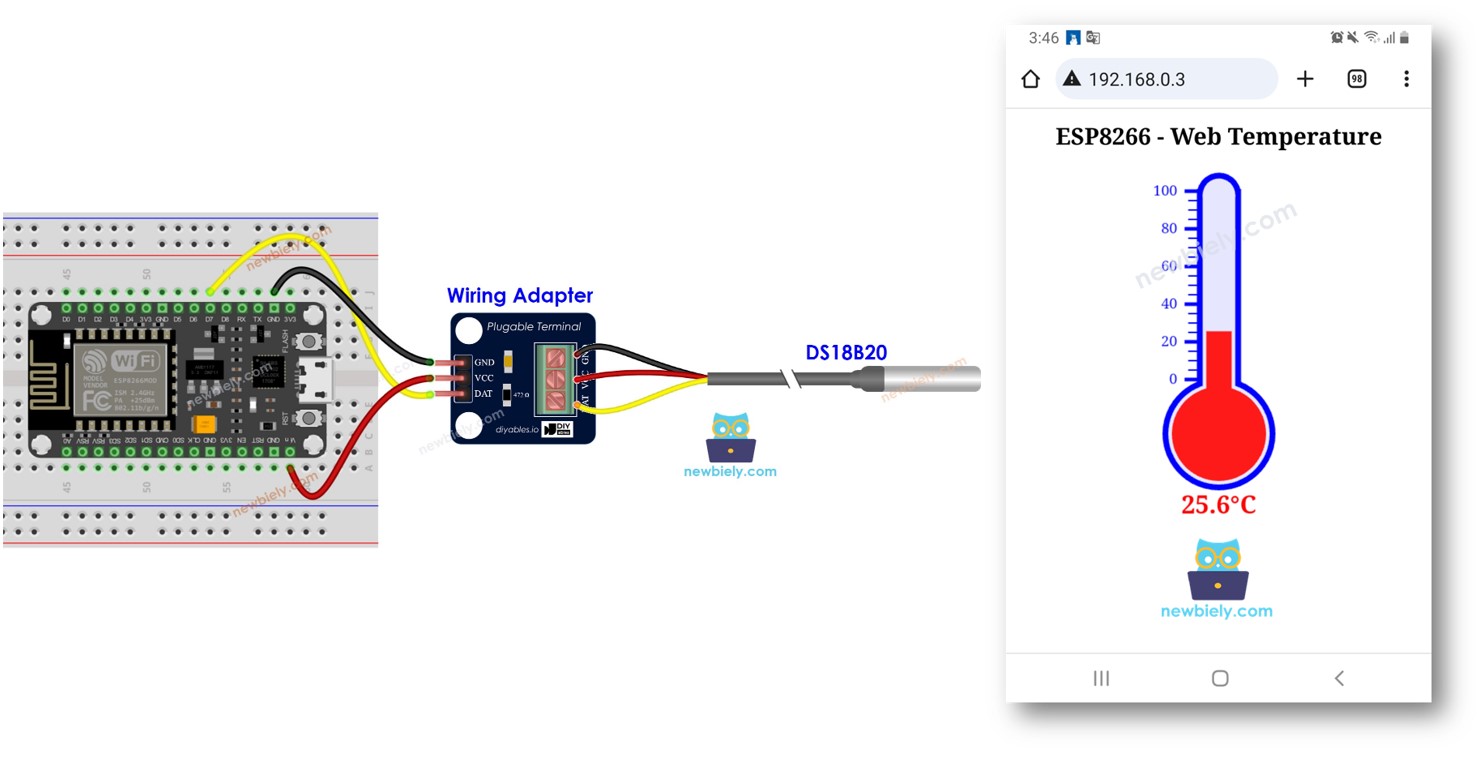
Este tutorial ensina como programar o ESP8266 para se tornar um servidor web, permitindo que você acesse dados de temperatura por uma interface web. Usando um sensor de temperatura DS18B20 conectado, você pode verificar facilmente a temperatura atual usando o seu celular ou PC para visitar a página web servida pelo ESP8266. Veja uma breve visão geral de como funciona:
O ESP8266 é programado como um servidor web.
Você digita o endereço IP do ESP8266 em um navegador no seu celular ou PC.
O ESP8266 responde à requisição do navegador com uma página web que contém a temperatura lida do sensor DS18B20.
Vamos ver dois códigos de exemplo:
Código ESP8266 que fornece uma página web muito simples que mostra a temperatura do sensor DS18B20. Isso facilita o entendimento de como funciona. O conteúdo HTML está embutido no código do ESP8266
Código ESP8266 que fornece uma página web gráfica que mostra a temperatura do sensor DS18B20, com o conteúdo HTML separado do código do ESP8266.
Divulgação: Alguns dos links desta seção são links de afiliado da Amazon. Podemos receber uma comissão pelas compras feitas por meio desses links, sem custo adicional para você. Agradecemos o seu apoio.
Buy Note: Many DS18B20 sensors available in the market are unreliable. We strongly recommend buying the sensor from the DIYables brand using the link provided above. We tested it, and it worked reliably.
Sobre o Servidor Web ESP8266 e o Sensor de Temperatura DS18B20
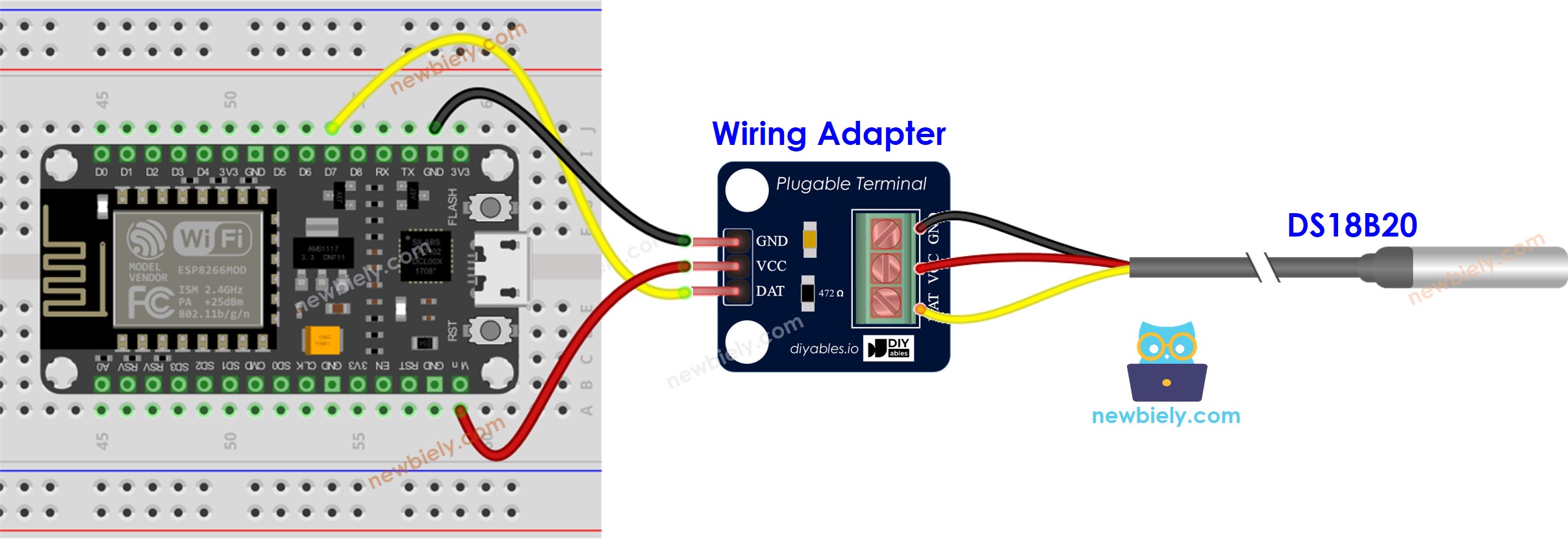
Se você não conhece o Servidor Web ESP8266 e o sensor de temperatura DS18B20 (pinagem, como funciona, como programar ...), aprenda sobre eles nos tutoriais a seguir:
/* * Este código de ESP8266 NodeMCU foi desenvolvido por pt.newbiely.com * Este código de ESP8266 NodeMCU é disponibilizado ao público sem nenhuma restrição. * Para tutoriais completos e diagramas de ligação, visite: * https://pt.newbiely.com/tutorials/esp8266/esp8266-temperature-via-web*/#include <ESP8266WiFi.h>#include <ESP8266WebServer.h>#include <OneWire.h>#include <DallasTemperature.h>#define SENSOR_PIN D7 // The ESP8266 pin connected to DS18B20 sensor's DATA pinconst char* ssid = "YOUR_WIFI_SSID"; // CHANGE ITconst char* password = "YOUR_WIFI_PASSWORD"; // CHANGE ITOneWire oneWire(SENSOR_PIN); // setup a oneWire instanceDallasTemperature DS18B20(&oneWire); // pass oneWire to DallasTemperature libraryESP8266WebServer server(80); // Web server on port 80floatgetTemperature() { DS18B20.requestTemperatures(); // send the command to get temperaturesfloat temperature_C = DS18B20.getTempCByIndex(0); // read temperature in °Creturn temperature_C;}voidsetup() {Serial.begin(9600); DS18B20.begin(); // initialize the DS18B20 sensor// Connect to Wi-FiWiFi.begin(ssid, password);while (WiFi.status() != WL_CONNECTED) {delay(1000);Serial.println("Connecting to WiFi..."); }Serial.println("Connected to WiFi");// Print the ESP8266's IP address Serial.print("ESP8266 Web Server's IP address: "); Serial.println(WiFi.localIP());// Define a route to serve the HTML page server.on("/", HTTP_GET, []() {Serial.println("ESP8266 Web Server: New request received:"); // for debuggingSerial.println("GET /"); // for debugging// get temperature from sensorfloat temperature = getTemperature();// Format the temperature with two decimal placesString temperatureStr = String(temperature, 2);String html = "<!DOCTYPE HTML>"; html += "<html>"; html += "<head>"; html += "<link rel=\"icon\" href=\"data:,\">"; html += "</head>"; html += "<p>"; html += "Temperature: <span style=\"color: red;\">"; html += temperature; html += "°C</span>"; html += "</p>"; html += "</html>"; server.send(200, "text/html", html); });// Start the server server.begin();}voidloop() {// Handle client requests server.handleClient();// Your code here}
Passos Rápidos
Para começar com o ESP8266 na Arduino IDE, siga estes passos:
Conecte a placa ESP8266 ao seu computador usando um cabo USB.
Abra a Arduino IDE no seu computador.
Escolha a placa ESP8266 correta, como (por exemplo, NodeMCU 1.0 (ESP-12E Module)), e a respectiva porta COM.
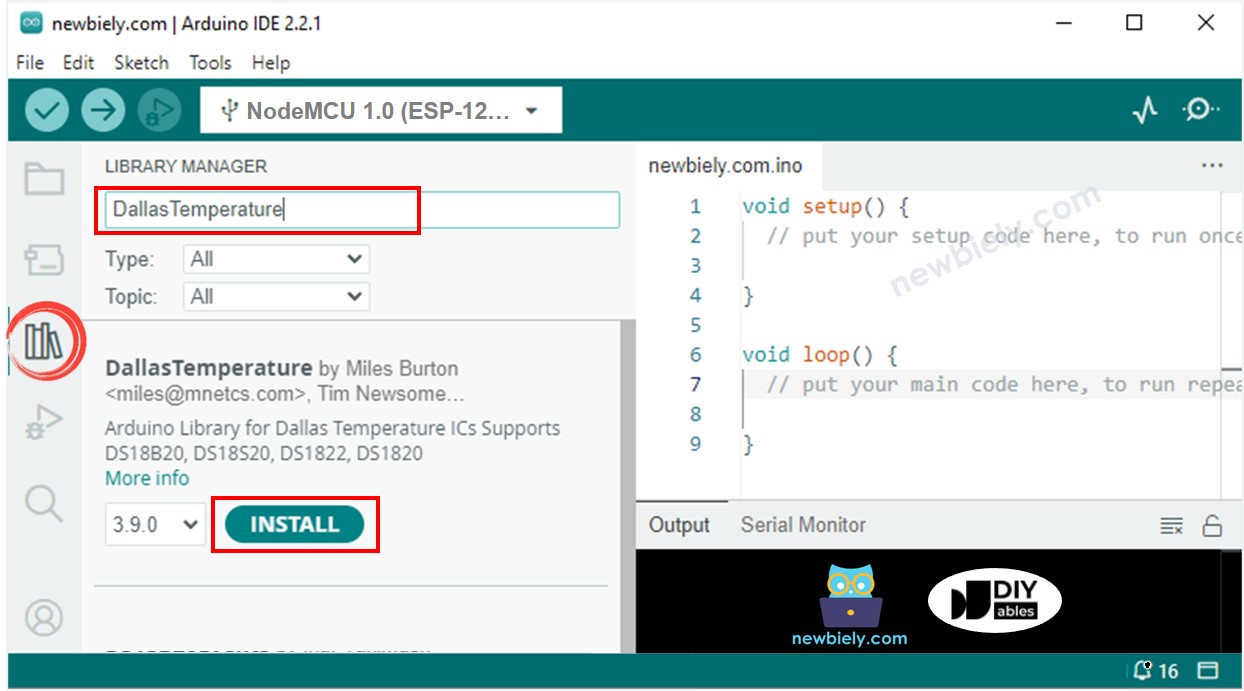
Clique no ícone Libraries na barra à esquerda da Arduino IDE.
Digite “Dallas” na caixa de pesquisa e procure a biblioteca DallasTemperature de Miles Burton.
Clique no botão Install para instalar a biblioteca DallasTemperature.
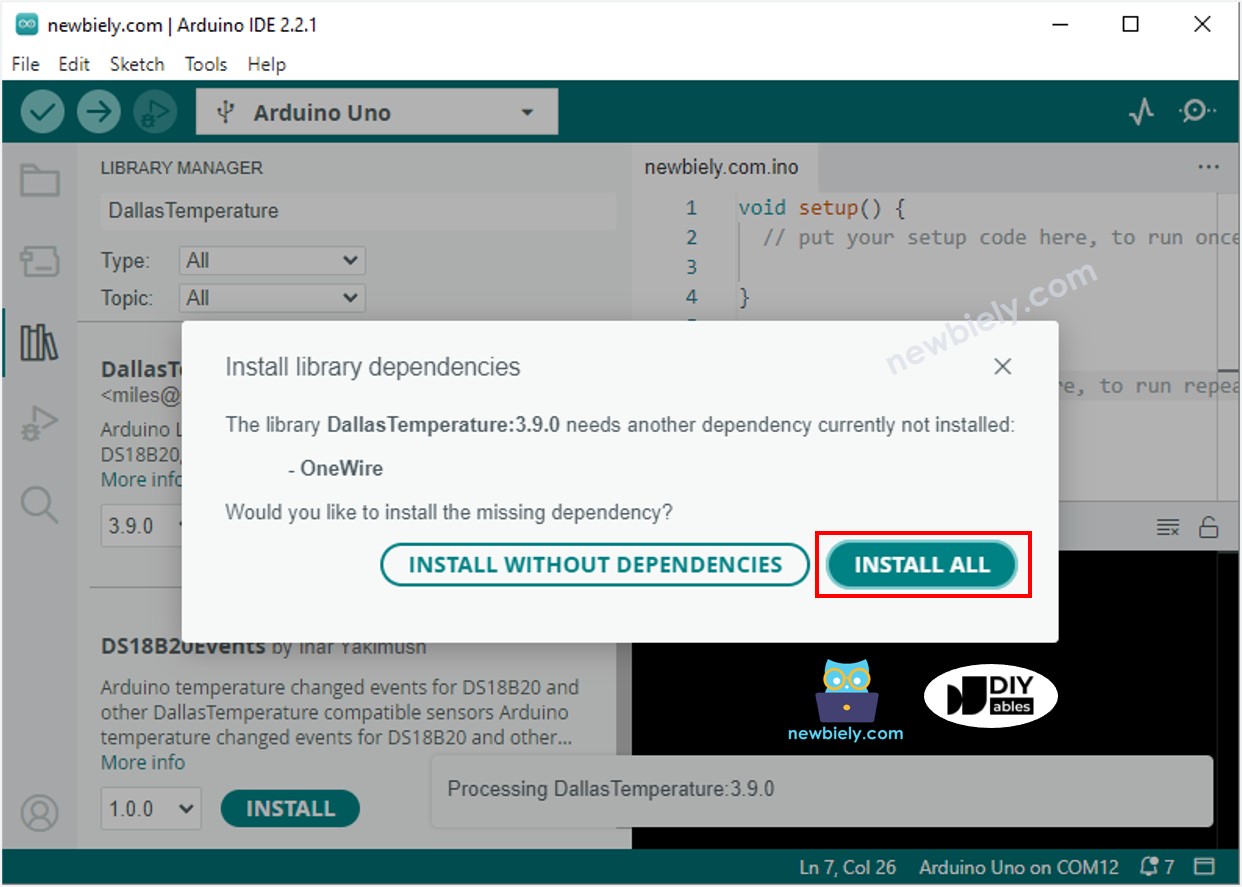
Você será solicitado a instalar a dependência. Clique no botão Install All para instalar a biblioteca OneWire.
Copie o código acima e abra-o com a Arduino IDE
Altere as informações de WiFi (SSID e senha) no código para as suas
Clique no botão Upload da Arduino IDE para fazer upload do código para o ESP8266
Abra o Serial Monitor
Confira o resultado no Serial Monitor.
Newbiely | Arduino IDE 2.3.8
──
☐
✕
File
Edit
Sketch
Tools
Help
Nodemcu 1.0 (ESP-12E Module)
Newbiely.ino
···
8Serial.println("Hello World!");
Output
Serial Monitor
Message (Enter to send message to 'Nodemcu 1.0 (ESP-12E Module)' on 'COM15')
New Line
9600 baud
Connecting to WiFi...
Connected to WiFi
ESP8266 Web Server's IP address: 192.168.0.5
Ln 11, Col 1
Nodemcu 1.0 (ESP-12E Module) on COM15
2
Você encontrará um endereço IP. Digite esse endereço IP na barra de endereços de um navegador no seu celular ou PC.
Você verá a seguinte saída no Serial Monitor.
Newbiely | Arduino IDE 2.3.8
──
☐
✕
File
Edit
Sketch
Tools
Help
Nodemcu 1.0 (ESP-12E Module)
Newbiely.ino
···
8Serial.println("Hello World!");
Output
Serial Monitor
Message (Enter to send message to 'Nodemcu 1.0 (ESP-12E Module)' on 'COM15')
New Line
9600 baud
Connecting to WiFi...
Connected to WiFi
ESP8266 Web Server's IP address: 192.168.0.5
ESP8266 Web Server: New request received:
GET /
Ln 11, Col 1
Nodemcu 1.0 (ESP-12E Module) on COM15
2
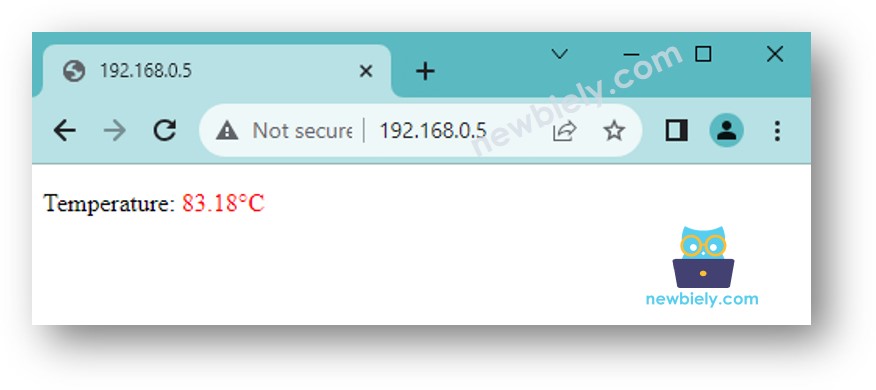
Você verá uma página web muito simples da placa ESP8266 no navegador, como abaixo:
※ Nota:
Com o código fornecido acima, para obter a atualização da temperatura, você precisa recarregar a página no navegador. Em uma próxima parte, vamos aprender como fazer a página web atualizar o valor da temperatura em segundo plano, sem recarregar a página.
Código ESP8266 - Página Web Gráfica
Como uma página web gráfica contém uma grande quantidade de conteúdo HTML, embuti-la no código do ESP8266 como antes se torna inconveniente. Para resolver isso, precisamos separar o código do ESP8266 e o código HTML em arquivos diferentes:
O código do ESP8266 será colocado em um arquivo .ino.
O código HTML (incluindo HTML, CSS e Javascript) será colocado em um arquivo .h.
Para detalhes de como separar o código HTML do código do ESP8266, consulte o tutorial ESP8266 - Web Server.
Passos Rápidos
Abra a Arduino IDE e crie um novo sketch. Dê um nome a ele, por exemplo, newbiely.com.ino
Copie o código abaixo e abra-o com a Arduino IDE
/* * Este código de ESP8266 NodeMCU foi desenvolvido por pt.newbiely.com * Este código de ESP8266 NodeMCU é disponibilizado ao público sem nenhuma restrição. * Para tutoriais completos e diagramas de ligação, visite: * https://pt.newbiely.com/tutorials/esp8266/esp8266-temperature-via-web*/#include <ESP8266WiFi.h>#include <ESP8266WebServer.h>#include"index.h"// Include the index.h file#include <OneWire.h>#include <DallasTemperature.h>#define SENSOR_PIN D7 // The ESP8266 pin connected to DS18B20 sensor's DATA pinconst char* ssid = "YOUR_WIFI_SSID"; // CHANGE ITconst char* password = "YOUR_WIFI_PASSWORD"; // CHANGE ITOneWire oneWire(SENSOR_PIN); // setup a oneWire instanceDallasTemperature DS18B20(&oneWire); // pass oneWire to DallasTemperature libraryESP8266WebServer server(80); // Web server on port 80floatgetTemperature() { DS18B20.requestTemperatures(); // send the command to get temperaturesfloat temperature_C = DS18B20.getTempCByIndex(0); // read temperature in °Creturn temperature_C;}voidsetup() {Serial.begin(9600); DS18B20.begin(); // initialize the DS18B20 sensor// Connect to Wi-FiWiFi.begin(ssid, password);while (WiFi.status() != WL_CONNECTED) {delay(1000);Serial.println("Connecting to WiFi..."); }Serial.println("Connected to WiFi");// Print the ESP8266's IP address Serial.print("ESP8266 Web Server's IP address: "); Serial.println(WiFi.localIP());// Serve the HTML page from the file server.on("/", HTTP_GET, []() {Serial.println("ESP8266 Web Server: New request received:"); // for debuggingSerial.println("GET /"); // for debugging server.send(200, "text/html", webpage); // webpage is from index.h file });// Define a route to get the temperature data server.on("/temperature", HTTP_GET, []() {Serial.println("ESP8266 Web Server: New request received:"); // for debuggingSerial.println("GET /temperature"); // for debuggingfloat temperature = getTemperature();// Format the temperature with two decimal placesString temperatureStr = String(temperature, 2); server.send(200, "text/plain", temperatureStr); });// Start the server server.begin();}voidloop() {// Handle client requests server.handleClient();// Your code here}
Altere as informações de WiFi (SSID e senha) no código para as suas
Crie o arquivo index.h na Arduino IDE da seguinte forma:
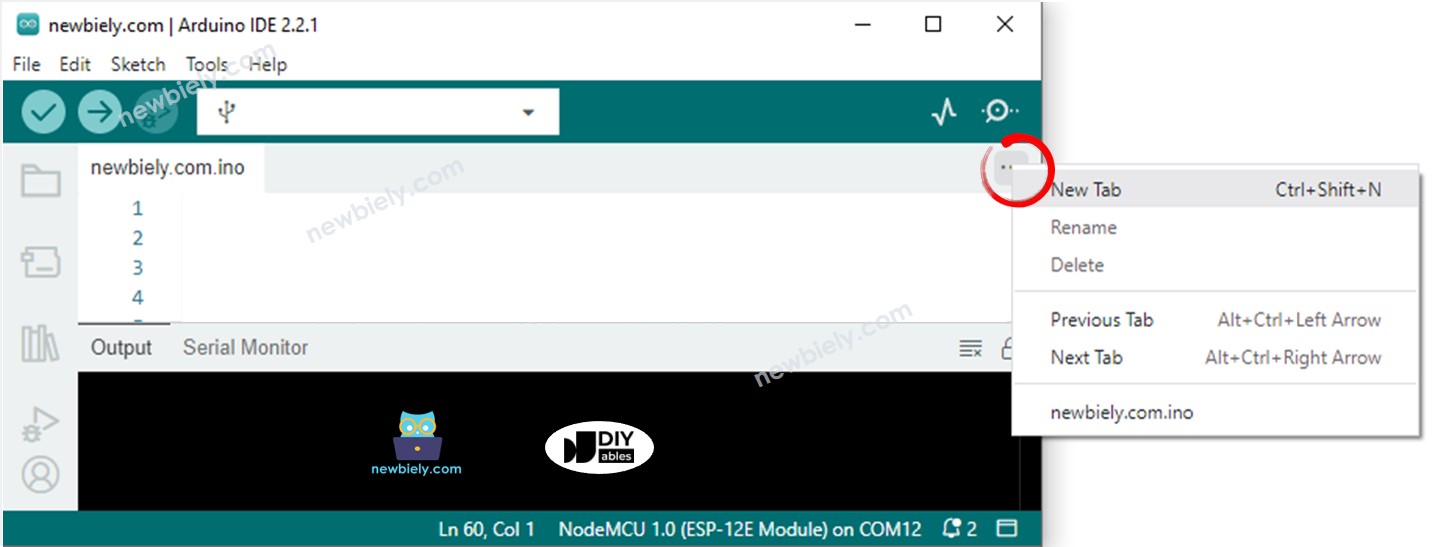
Clique no botão logo abaixo do ícone do Serial Monitor e escolha New Tab, ou use as teclas Ctrl+Shift+N.
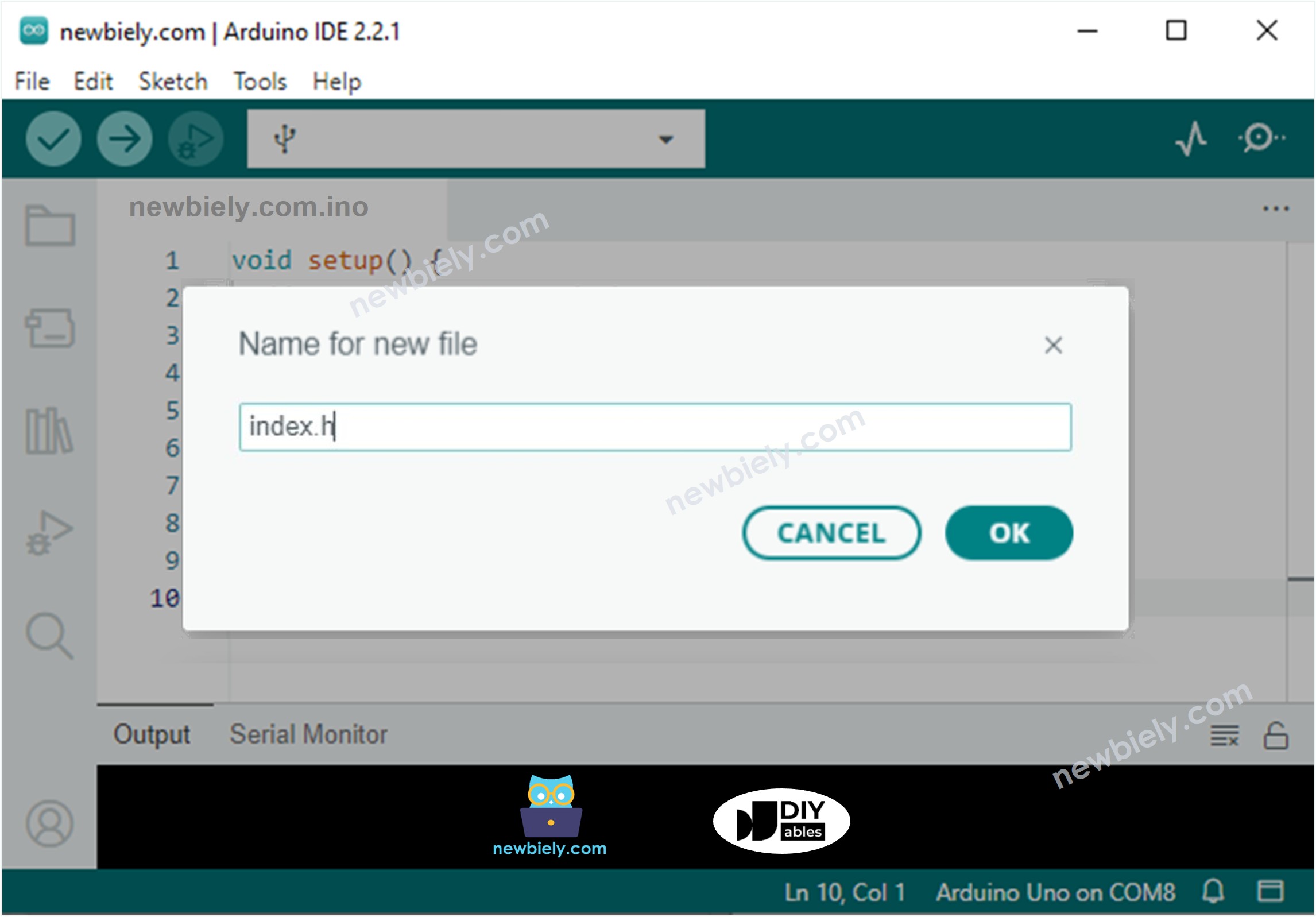
Dê ao arquivo o nome index.h e clique no botão OK
Copie o código abaixo e cole no index.h.
/* * Este código de ESP8266 NodeMCU foi desenvolvido por pt.newbiely.com * Este código de ESP8266 NodeMCU é disponibilizado ao público sem nenhuma restrição. * Para tutoriais completos e diagramas de ligação, visite: * https://pt.newbiely.com/tutorials/esp8266/esp8266-temperature-via-web*/#ifndef WEBPAGE_H#define WEBPAGE_Hconst char* webpage = R"=====(<!DOCTYPE html><html><head><title>ESP8266 - Web Temperature</title><meta name="viewport" content="width=device-width, initial-scale=0.7, maximum-scale=0.7"><meta charset="utf-8"><link rel="icon" href="https://diyables.io/images/page/diyables.svg"><style>body { font-family: "Georgia"; text-align: center; font-size: width/2pt;}h1 { font-weight: bold; font-size: width/2pt;}h2 { font-weight: bold; font-size: width/2pt;}button { font-weight: bold; font-size: width/2pt;}</style><script>var cvs_width = 200, cvs_height = 450;function init() { var canvas = document.getElementById("cvs"); canvas.width = cvs_width; canvas.height = cvs_height + 50; var ctx = canvas.getContext("2d"); ctx.translate(cvs_width/2, cvs_height - 80); fetchTemperature(); setInterval(fetchTemperature, 4000); // Update temperature every 4 seconds}function fetchTemperature() { fetch("/temperature") .then(response => response.text()) .then(data => {update_view(data);});}function update_view(temp) { var canvas = document.getElementById("cvs"); var ctx = canvas.getContext("2d"); var radius = 70; var offset = 5; var width = 45; var height = 330; ctx.clearRect(-cvs_width/2, -cvs_height + 80, cvs_width, cvs_height + 50); ctx.strokeStyle="blue"; ctx.fillStyle="blue";//5-step Degree var x = -width/2; ctx.lineWidth=2;for (var i = 0; i <= 100; i+=5) { var y = -(height - radius)*i/100 - radius - 5; ctx.beginPath(); ctx.lineTo(x, y); ctx.lineTo(x - 20, y); ctx.stroke(); }//20-step Degree ctx.lineWidth=5;for (var i = 0; i <= 100; i+=20) { var y = -(height - radius)*i/100 - radius - 5; ctx.beginPath(); ctx.lineTo(x, y); ctx.lineTo(x - 25, y); ctx.stroke(); ctx.font="20px Georgia"; ctx.textBaseline="middle"; ctx.textAlign="right"; ctx.fillText(i.toString(), x - 35, y); }// shape ctx.lineWidth=16; ctx.beginPath(); ctx.arc(0, 0, radius, 0, 2 * Math.PI); ctx.stroke(); ctx.beginPath(); ctx.rect(-width/2, -height, width, height); ctx.stroke(); ctx.beginPath(); ctx.arc(0, -height, width/2, 0, 2 * Math.PI); ctx.stroke(); ctx.fillStyle="#e6e6ff"; ctx.beginPath(); ctx.arc(0, 0, radius, 0, 2 * Math.PI); ctx.fill(); ctx.beginPath(); ctx.rect(-width/2, -height, width, height); ctx.fill(); ctx.beginPath(); ctx.arc(0, -height, width/2, 0, 2 * Math.PI); ctx.fill(); ctx.fillStyle="#ff1a1a"; ctx.beginPath(); ctx.arc(0, 0, radius - offset, 0, 2 * Math.PI); ctx.fill(); temp = Math.round(temp * 100) / 100; var y = (height - radius)*temp/100.0 + radius + 5; ctx.beginPath(); ctx.rect(-width/2 + offset, -y, width - 2*offset, y); ctx.fill(); ctx.fillStyle="red"; ctx.font="bold 34px Georgia"; ctx.textBaseline="middle"; ctx.textAlign="center"; ctx.fillText(temp.toString() + "°C", 0, 100);}window.onload = init;</script></head><body><h1>ESP8266 - Web Temperature</h1><canvas id="cvs"></canvas></body></html>)=====";#endif
Agora você tem o código em dois arquivos: newbiely.com.ino e index.h
Clique no botão Upload da Arduino IDE para fazer upload do código para o ESP8266
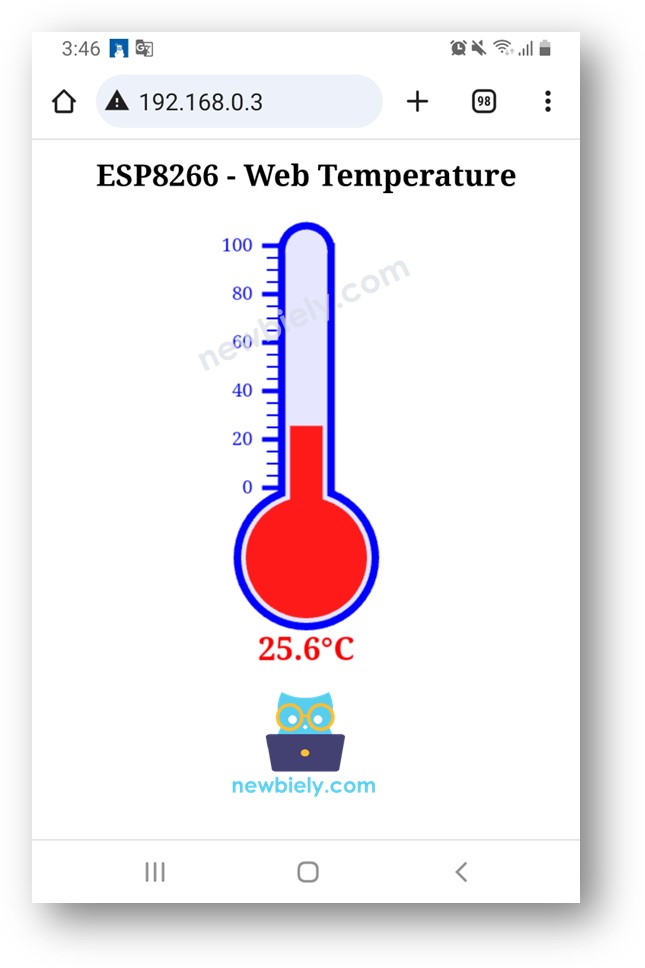
Acesse a página web da placa ESP8266 pelo navegador no seu PC ou celular como antes. Você a verá como abaixo:
※ Nota:
Se você modificar o conteúdo HTML no index.h e não mexer em nada no arquivo newbiely.com.ino, quando você compilar e fizer upload do código para o ESP8266, a Arduino IDE não vai atualizar o conteúdo HTML.
Para fazer a Arduino IDE atualizar o conteúdo HTML nesse caso, faça uma alteração no arquivo newbiely.com.ino (por exemplo, adicionar uma linha vazia, adicionar um comentário....)
Fique à vontade para compartilhar o link deste tutorial. Porém, por favor, não use nosso conteúdo em outros sites. Investimos muito esforço e tempo para criar este conteúdo, por favor respeite nosso trabalho!