
ESP8266 - Relógio OLED

Este tutorial ensina você a criar um relógio OLED usando ESP8266, módulo RTC e display OLED. O tutorial traz instruções para os módulos RTC DS3231 e DS1307. Em detalhes:

Você pode escolher um dos dois módulos RTC: DS3231 e DS1307. Para mais informações, consulte DS3231 vs DS1307.

Sobre o OLED e os módulos RTC DS3231 e DS1307

Se você não conhece o OLED, o DS3231 e o DS1307 (pinagem, funcionalidade, programação ...), os tutoriais a seguir podem ajudar:

Instalar as Bibliotecas do OLED e do RTC

  • Clique no ícone Libraries na barra à esquerda da Arduino IDE.
  • Pesquise por “SSD1306” e localize a biblioteca SSD1306 da Adafruit.
  • Em seguida, pressione o botão Install para concluir a instalação.
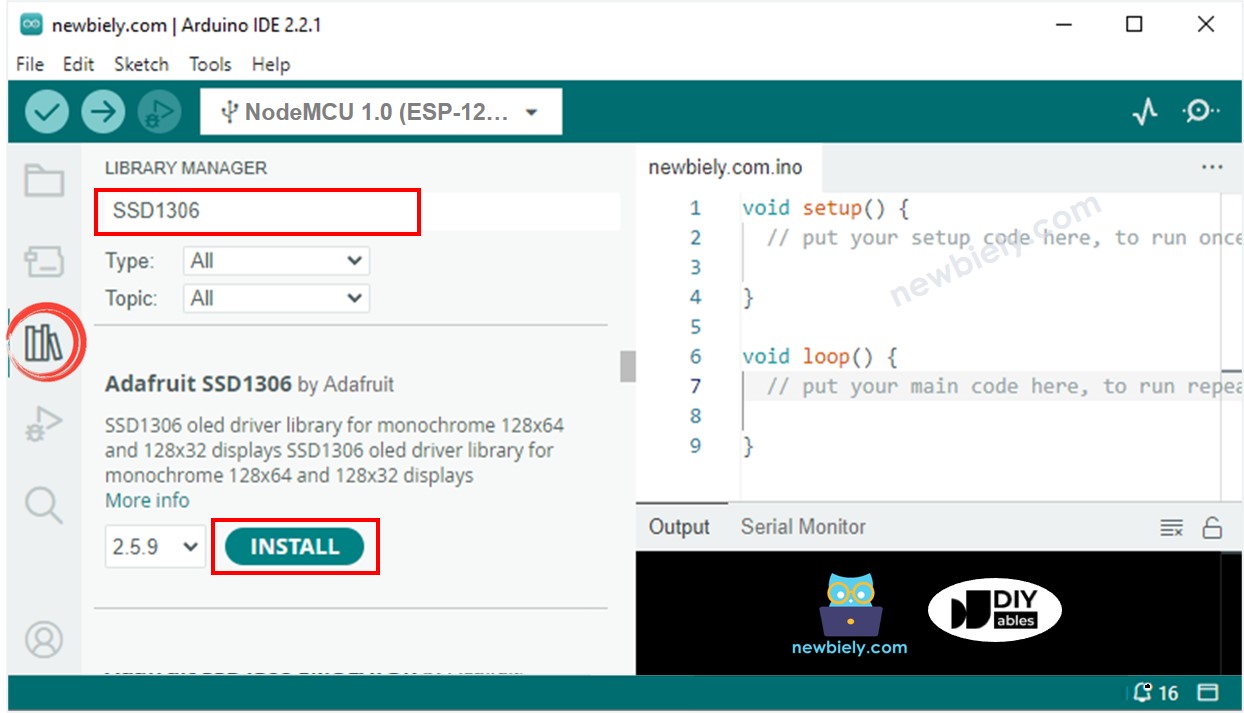
ESP8266 NodeMCU OLED library
  • Você será solicitado a instalar dependências adicionais da biblioteca.
  • Para instalar todas de uma vez, clique no botão Install All.
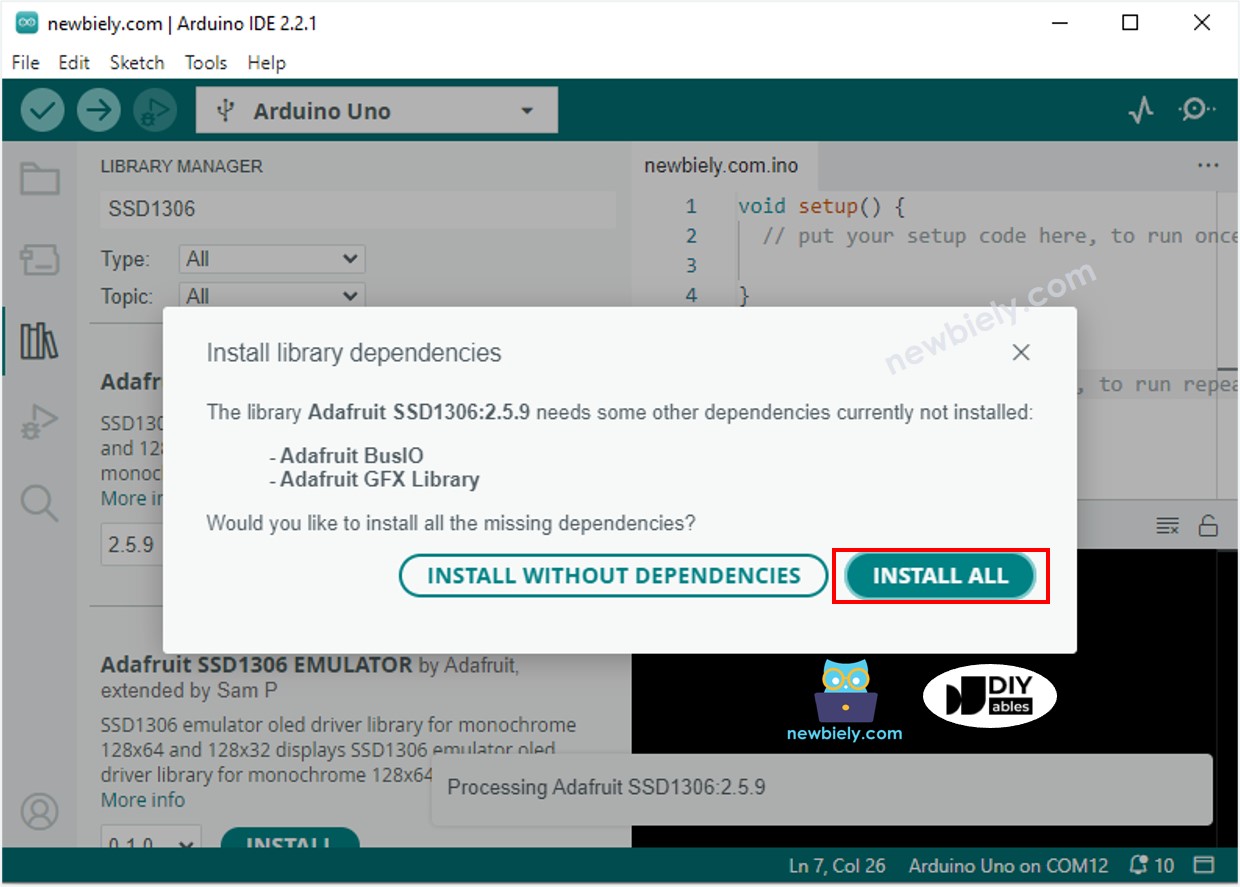
ESP8266 NodeMCU Adafruit GFX sensor library
  • Pesquise por “RTClib” e localize a biblioteca RTC da Adafruit. Essa biblioteca é compatível com o DS3231 e o DS1307.
  • Pressione o botão Install para instalar a biblioteca RTC.
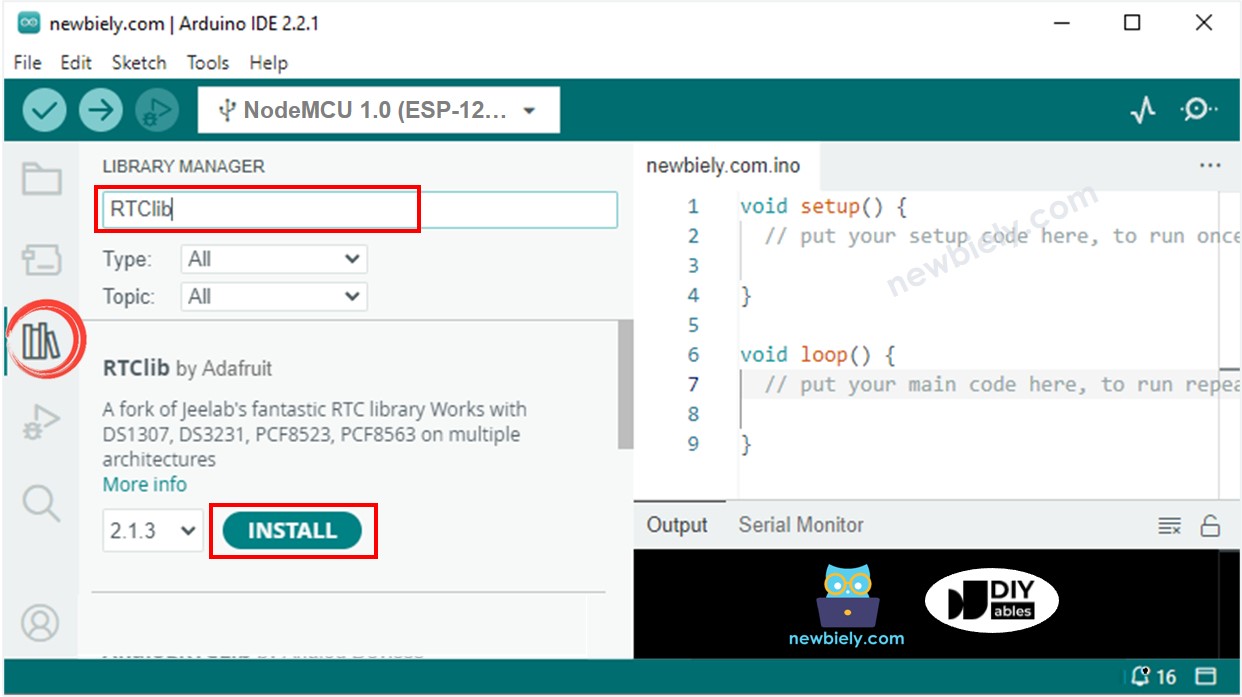
ESP8266 NodeMCU RTC library

Lendo a hora do módulo RTC DS3231 e exibindo no OLED

Diagrama de Ligação
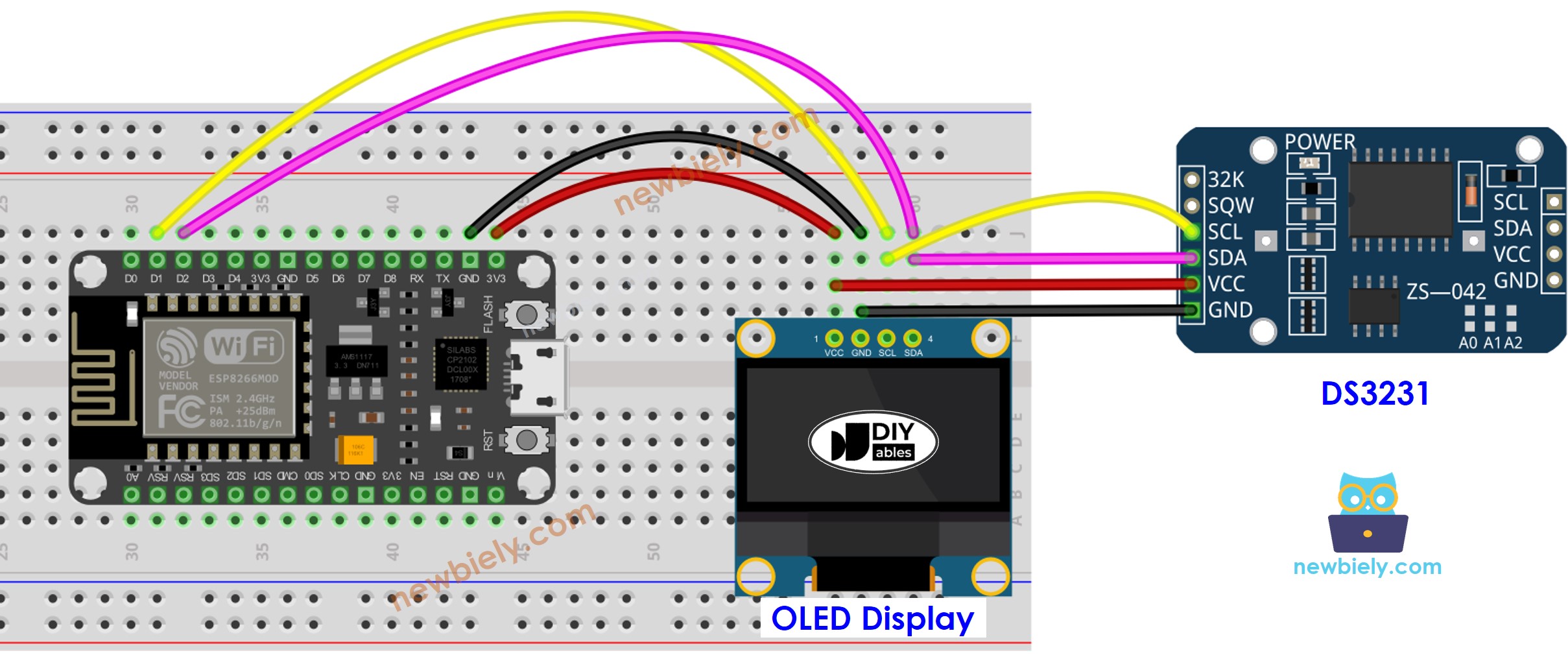
The wiring diagram between ESP8266 NodeMCU and DS3231 OLED

This image is created using Fritzing. Click to enlarge image

Para mais informações, veja Pinagem do ESP8266 e como alimentar o ESP8266 e outros componentes.

Código ESP8266 - DS3231 e OLED

/* * Este código de ESP8266 NodeMCU foi desenvolvido por pt.newbiely.com * Este código de ESP8266 NodeMCU é disponibilizado ao público sem nenhuma restrição. * Para tutoriais completos e diagramas de ligação, visite: * https://pt.newbiely.com/tutorials/esp8266/esp8266-oled-clock */ #include <Wire.h> #include <Adafruit_GFX.h> #include <Adafruit_SSD1306.h> #include <RTClib.h> #define OLED_WIDTH 128 // OLED display width, in pixels #define OLED_HEIGHT 64 // OLED display height, in pixels Adafruit_SSD1306 oled(OLED_WIDTH, OLED_HEIGHT, &Wire, -1); // // create SSD1306 display object connected to I2C RTC_DS3231 rtc; String time; void setup() { Serial.begin(9600); // initialize OLED display with address 0x3C for 128x64 if (!oled.begin(SSD1306_SWITCHCAPVCC, 0x3C)) { Serial.println(F("SSD1306 allocation failed")); while (true); } delay(2000); // wait for initializing oled.clearDisplay(); // clear display oled.setTextSize(1); // text size oled.setTextColor(WHITE); // text color oled.setCursor(0, 10); // position to display // SETUP RTC MODULE if (! rtc.begin()) { Serial.println("Couldn't find RTC"); Serial.flush(); while (true); } // automatically sets the RTC to the date & time on PC this sketch was compiled rtc.adjust(DateTime(F(__DATE__), F(__TIME__))); time.reserve(10); // to avoid fragmenting memory when using String } void loop() { DateTime now = rtc.now(); time = ""; time += now.hour(); time += ':'; time += now.minute(); time += ':'; time += now.second(); oled_display_center(time); } void oled_display_center(String text) { int16_t x1; int16_t y1; uint16_t width; uint16_t height; oled.getTextBounds(text, 0, 0, &x1, &y1, &width, &height); // center the display both horizontally and vertically oled.clearDisplay(); // clear display oled.setCursor((OLED_WIDTH - width) / 2, (OLED_HEIGHT - height) / 2); oled.println(text); // text to display oled.display(); }

Passos Rápidos

Para começar com o ESP8266 na Arduino IDE, siga estes passos:

  • Veja o tutorial como configurar o ambiente para o ESP8266 na Arduino IDE se esta for a sua primeira vez usando o ESP8266.
  • Ligue os componentes conforme mostrado no diagrama.
  • Conecte a placa ESP8266 ao seu computador usando um cabo USB.
  • Abra a Arduino IDE no seu computador.
  • Escolha a placa ESP8266 correta, como (por exemplo, NodeMCU 1.0 (ESP-12E Module)), e a respectiva porta COM.
  • Copie o código e abra-o na Arduino IDE.
  • Clique no botão Upload na Arduino IDE para enviar o código ao ESP8266.
  • Coloque o sensor em água quente e fria, ou segure-o na mão.
  • Confira o resultado no OLED.

Lendo a hora do módulo RTC DS1307 e exibindo no OLED

Diagrama de Ligação
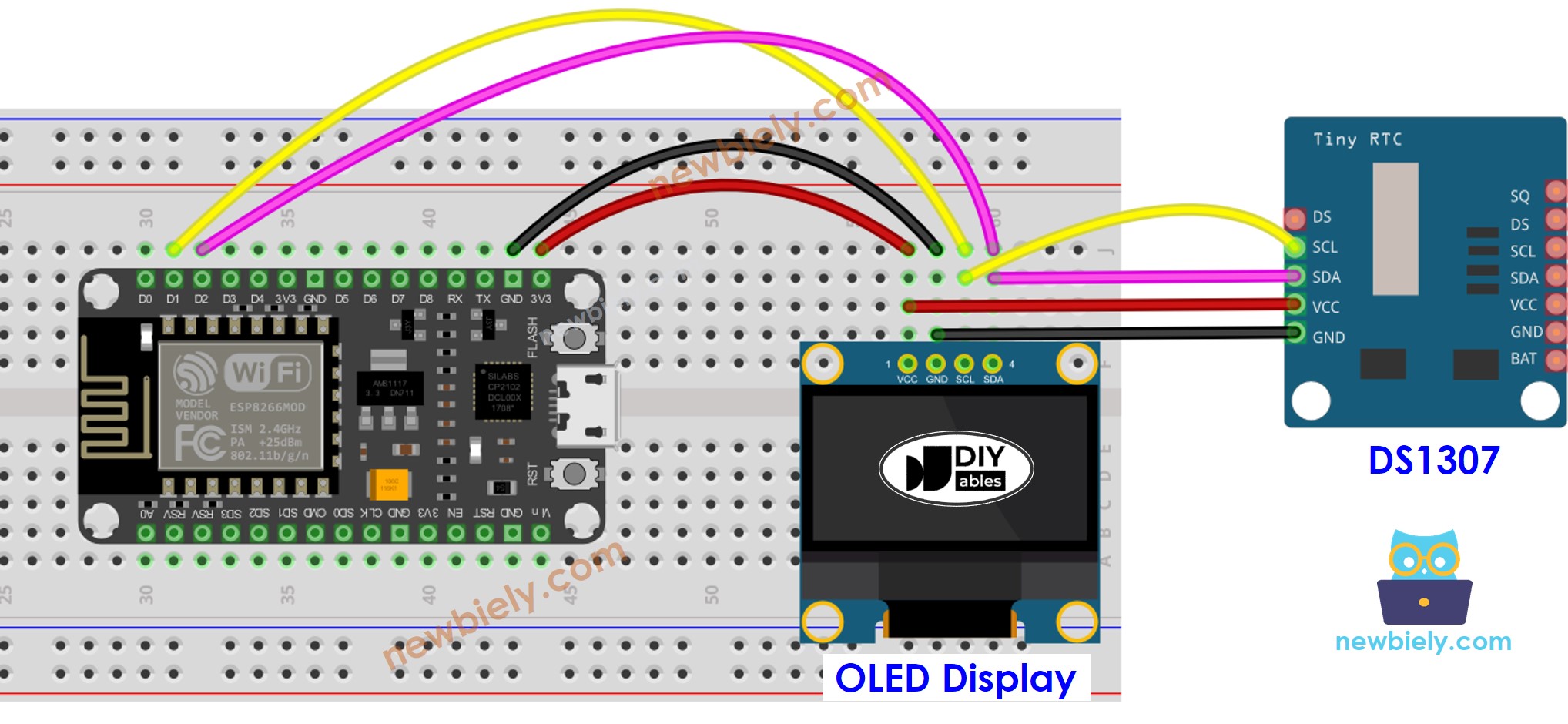
The wiring diagram between ESP8266 NodeMCU and DS1307 OLED

This image is created using Fritzing. Click to enlarge image

Código ESP8266 - DS1307 e OLED

/* * Este código de ESP8266 NodeMCU foi desenvolvido por pt.newbiely.com * Este código de ESP8266 NodeMCU é disponibilizado ao público sem nenhuma restrição. * Para tutoriais completos e diagramas de ligação, visite: * https://pt.newbiely.com/tutorials/esp8266/esp8266-oled-clock */ #include <Wire.h> #include <Adafruit_GFX.h> #include <Adafruit_SSD1306.h> #include <RTClib.h> #define OLED_WIDTH 128 // OLED display width, in pixels #define OLED_HEIGHT 64 // OLED display height, in pixels Adafruit_SSD1306 oled(OLED_WIDTH, OLED_HEIGHT, &Wire, -1); // // create SSD1306 display object connected to I2C RTC_DS1307 rtc; String time; void setup() { Serial.begin(9600); // initialize OLED display with address 0x3C for 128x64 if (!oled.begin(SSD1306_SWITCHCAPVCC, 0x3C)) { Serial.println(F("SSD1306 allocation failed")); while (true); } delay(2000); // wait for initializing oled.clearDisplay(); // clear display oled.setTextSize(1); // text size oled.setTextColor(WHITE); // text color oled.setCursor(0, 10); // position to display // SETUP RTC MODULE if (! rtc.begin()) { Serial.println("Couldn't find RTC"); Serial.flush(); while (true); } // automatically sets the RTC to the date & time on PC this sketch was compiled rtc.adjust(DateTime(F(__DATE__), F(__TIME__))); time.reserve(10); // to avoid fragmenting memory when using String } void loop() { DateTime now = rtc.now(); time = ""; time += now.hour(); time += ':'; time += now.minute(); time += ':'; time += now.second(); oled_display_center(time); } void oled_display_center(String text) { int16_t x1; int16_t y1; uint16_t width; uint16_t height; oled.getTextBounds(text, 0, 0, &x1, &y1, &width, &height); // center the display both horizontally and vertically oled.clearDisplay(); // clear display oled.setCursor((OLED_WIDTH - width) / 2, (OLED_HEIGHT - height) / 2); oled.println(text); // text to display oled.display(); }

Passos Rápidos

  • Ligue os componentes conforme mostrado no diagrama.
  • Conecte a placa ESP8266 ao seu computador usando um cabo USB.
  • Abra a Arduino IDE no seu computador.
  • Escolha a placa ESP8266 correta, como (por exemplo, NodeMCU 1.0 (ESP-12E Module)), e a respectiva porta COM.
  • Copie o código e abra-o na Arduino IDE.
  • Clique no botão Upload para transferir o código para o ESP8266.
  • Coloque o sensor em água quente e fria ou segure-o na mão.
  • Confira o resultado no OLED.

Vídeo

※ NOSSAS MENSAGENS

  • Fique à vontade para compartilhar o link deste tutorial. Porém, por favor, não use nosso conteúdo em outros sites. Investimos muito esforço e tempo para criar este conteúdo, por favor respeite nosso trabalho!