ESP8266 - Sensor de Temperatura e Umidade - OLED
Este tutorial ensina você a usar o ESP8266 para ler a temperatura e a umidade do sensor DHT11/DHT22 e exibi-las em um OLED.
Você pode usar o sensor DHT22 no lugar do sensor DHT11.
Or you can buy the following kits:
Divulgação: Alguns dos links desta seção são links de afiliado da Amazon. Podemos receber uma comissão pelas compras feitas por meio desses links, sem custo adicional para você. Agradecemos o seu apoio.
Buy Note: If you want a bigger OLED display, use the 2.42 inch OLED Display 128x64 .
Se você não conhece o display OLED e o sensor de temperatura e umidade DHT11 e DHT22 (incluindo pinagem, funcionamento, programação etc.), os tutoriais a seguir podem ajudar:
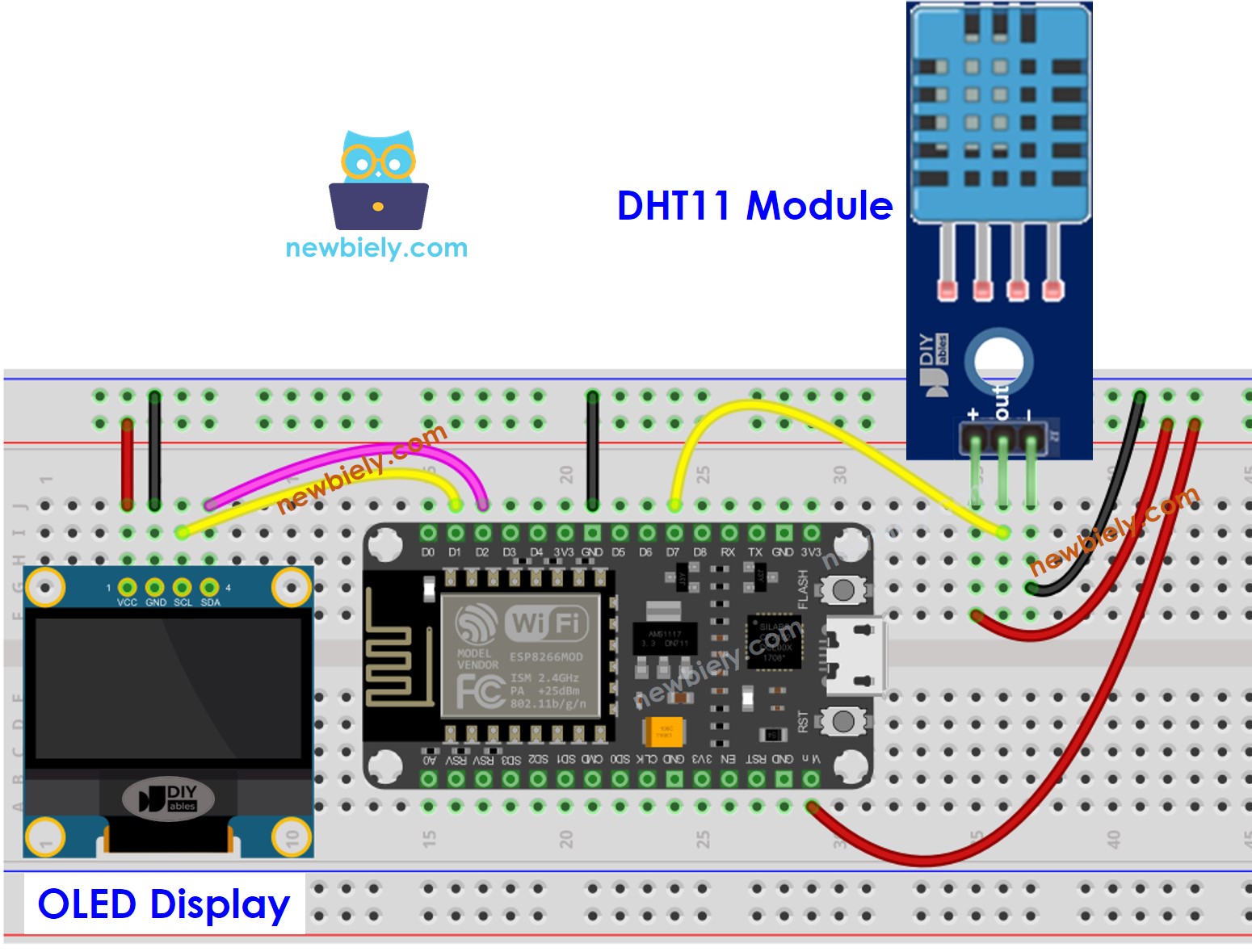
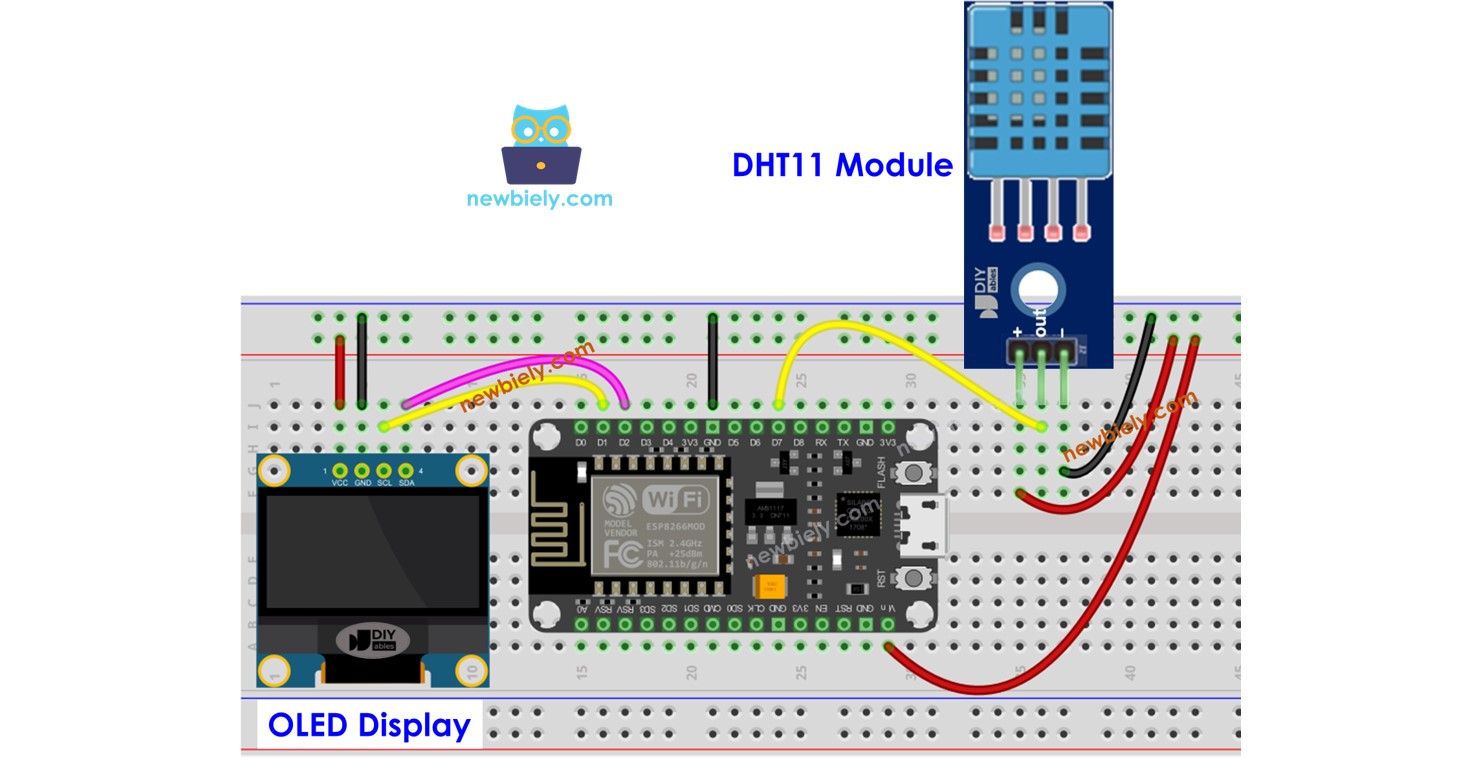
This image is created using Fritzing. Click to enlarge image
Para mais informações, veja Pinagem do ESP8266 e como alimentar o ESP8266 e outros componentes.
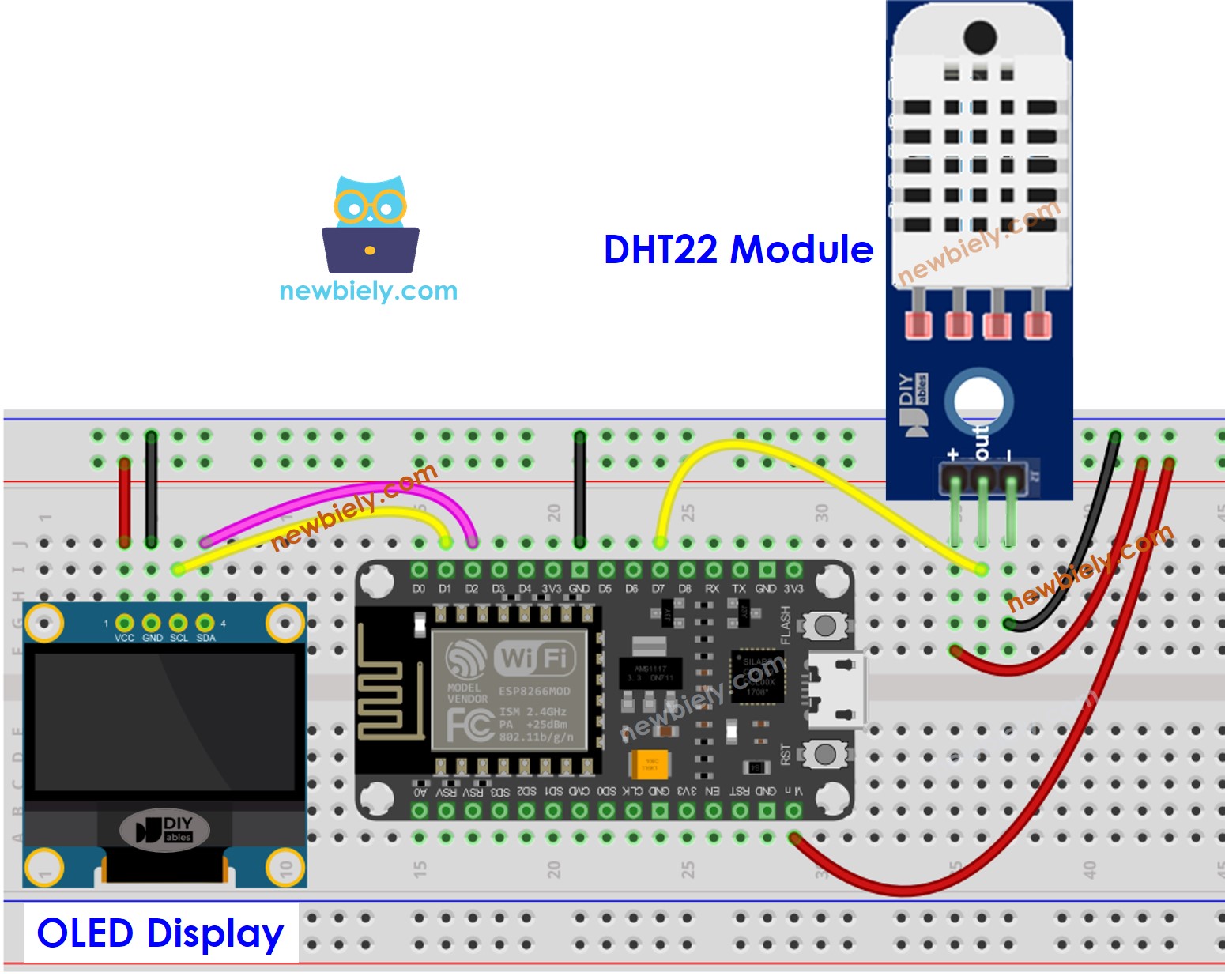
This image is created using Fritzing. Click to enlarge image
#include <Wire.h>
#include <Adafruit_GFX.h>
#include <Adafruit_SSD1306.h>
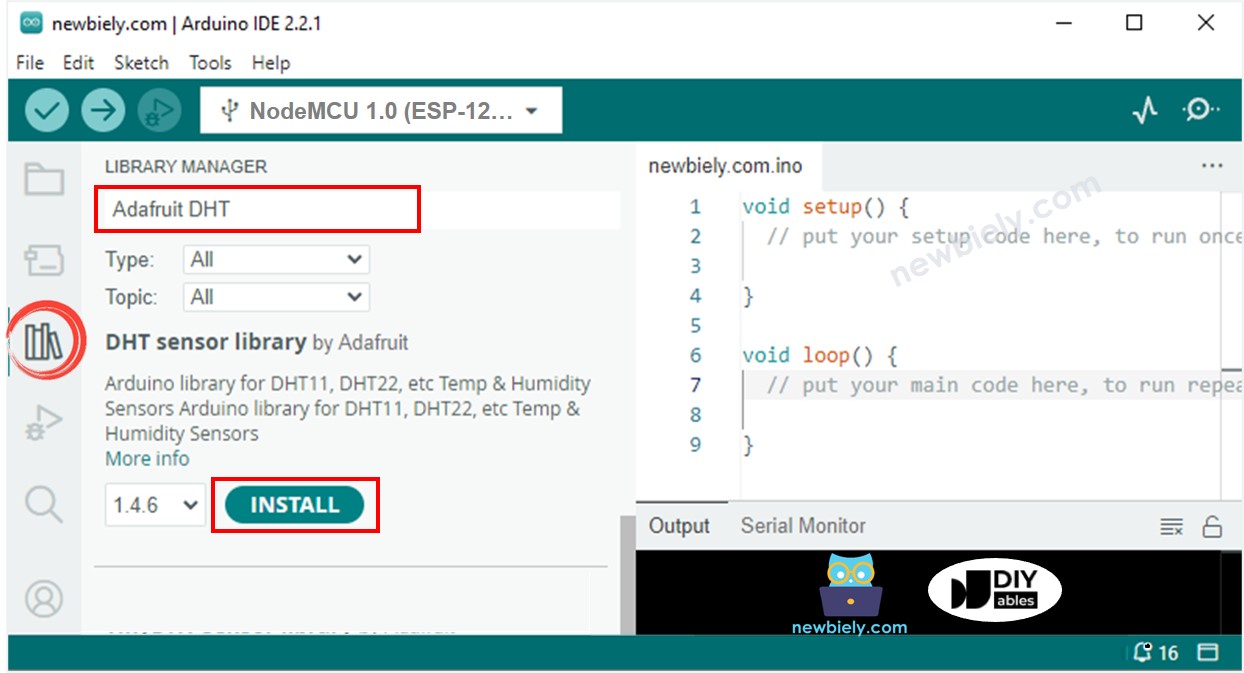
#include <DHT.h>
#define OLED_WIDTH 128
#define OLED_HEIGHT 64
#define DHT_PIN 2
#define DHT_TYPE DHT11
Adafruit_SSD1306 oled(OLED_WIDTH, OLED_HEIGHT, &Wire, -1);
DHT dht(DHT_PIN, DHT_TYPE);
String temperature;
String humidity;
void setup() {
Serial.begin(9600);
if (!oled.begin(SSD1306_SWITCHCAPVCC, 0x3C)) {
Serial.println(F("SSD1306 allocation failed"));
while (true)
;
}
delay(2000);
oled.clearDisplay();
oled.setTextSize(3);
oled.setTextColor(WHITE);
oled.setCursor(0, 10);
dht.begin();
temperature.reserve(10);
humidity.reserve(10);
}
void loop() {
float humi = dht.readHumidity();
float tempC = dht.readTemperature();
if (isnan(humi) || isnan(tempC)) {
temperature = "Failed";
humidity = "Failed";
} else {
temperature = String(tempC, 1);
temperature += char(247);
temperature += "C";
humidity = String(humi, 1);
humidity += "%";
}
Serial.print(tempC);
Serial.print("°C | " );
Serial.print(humi);
Serial.println("%");
oledDisplayCenter(temperature, humidity);
}
void oledDisplayCenter(String temperature, String humidity) {
int16_t x1;
int16_t y1;
uint16_t width_T;
uint16_t height_T;
uint16_t width_H;
uint16_t height_H;
oled.getTextBounds(temperature, 0, 0, &x1, &y1, &width_T, &height_T);
oled.getTextBounds(temperature, 0, 0, &x1, &y1, &width_H, &height_H);
oled.clearDisplay();
oled.setCursor((SCREEN_WIDTH - width_T) / 2, SCREEN_HEIGHT / 2 - height_T - 5);
oled.println(temperature);
oled.setCursor((SCREEN_WIDTH - width_H) / 2, SCREEN_HEIGHT / 2 + 5);
oled.println(humidity);
oled.display();
}
Para começar com o ESP8266 no Arduino IDE, siga estes passos:
Ligue os componentes como mostrado no diagrama.
Conecte a placa ESP8266 ao seu computador usando um cabo USB.
Abra o Arduino IDE no seu computador.
Escolha a placa ESP8266 correta, como (por exemplo, NodeMCU 1.0 (ESP-12E Module)), e a respectiva porta COM.
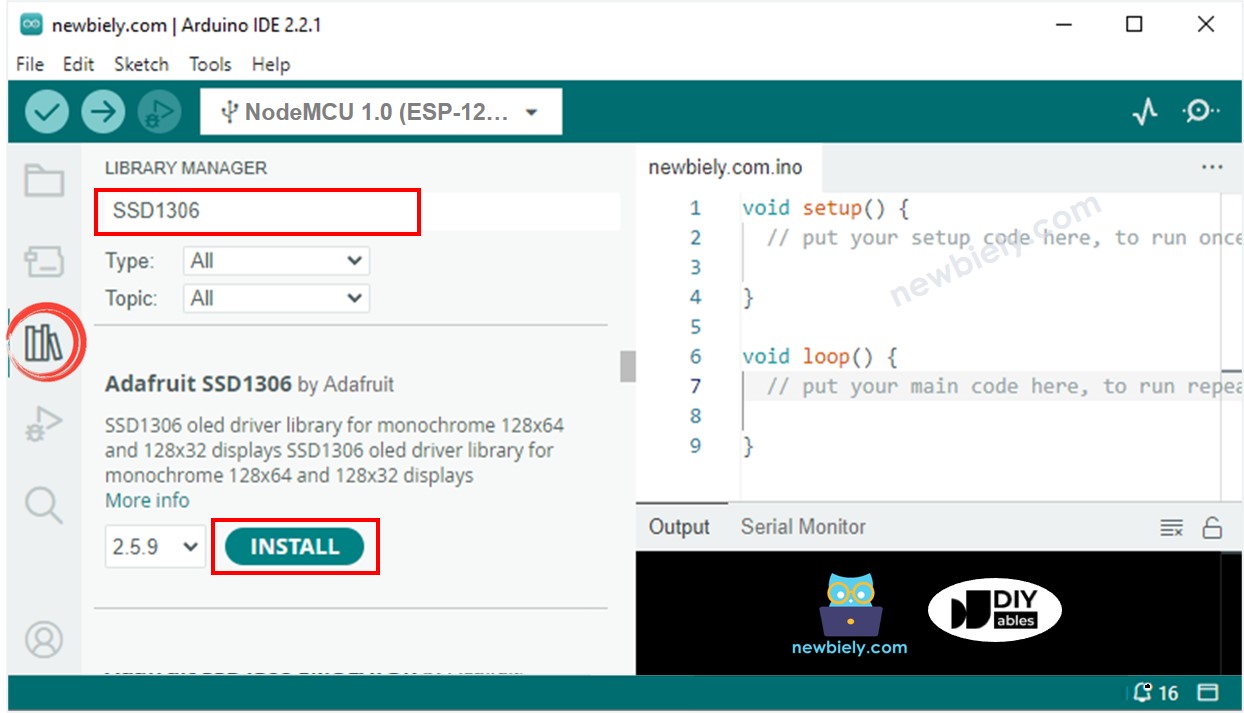
Clique no ícone Libraries na barra à esquerda do Arduino IDE.
Pesquise por “SSD1306” e localize a biblioteca SSD1306 da Adafruit.
Em seguida, pressione o botão Install para concluir a instalação.
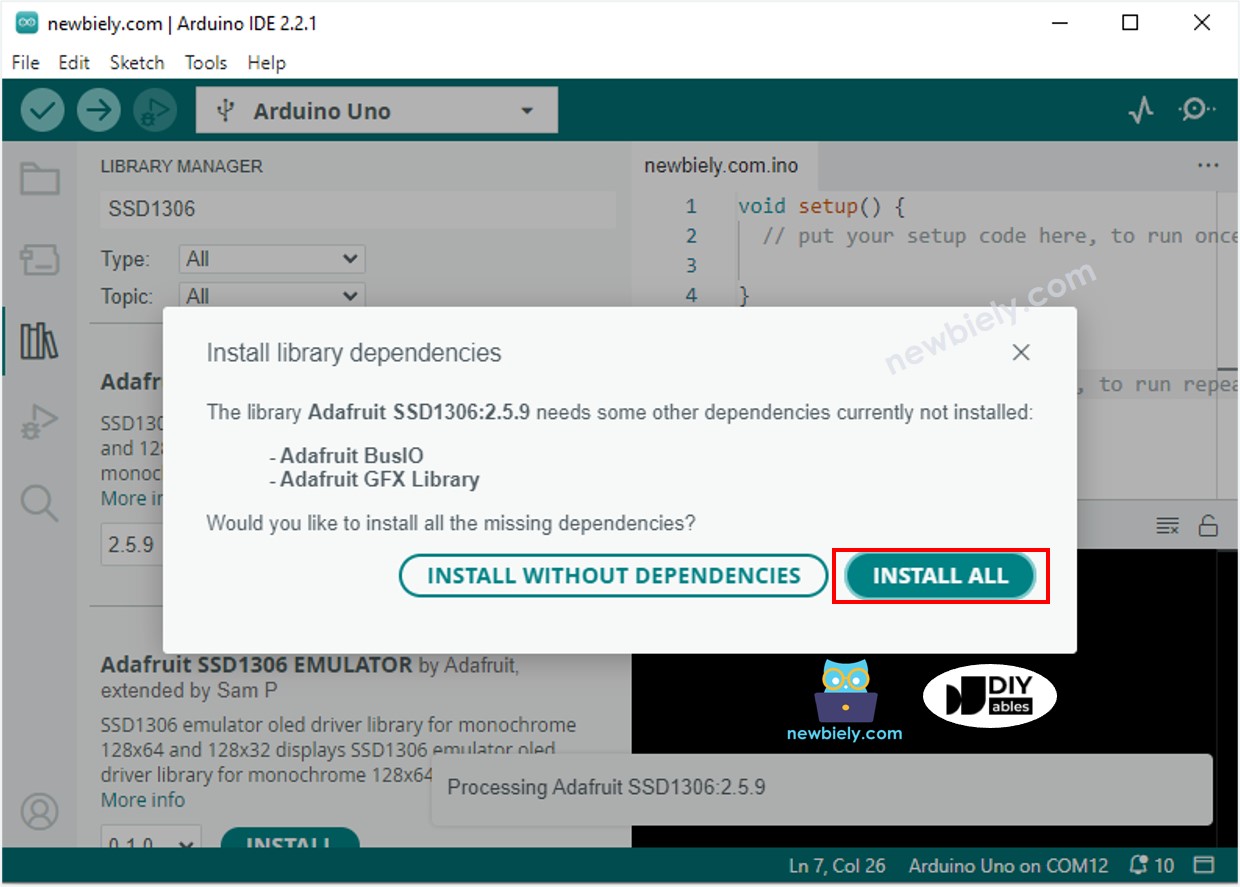
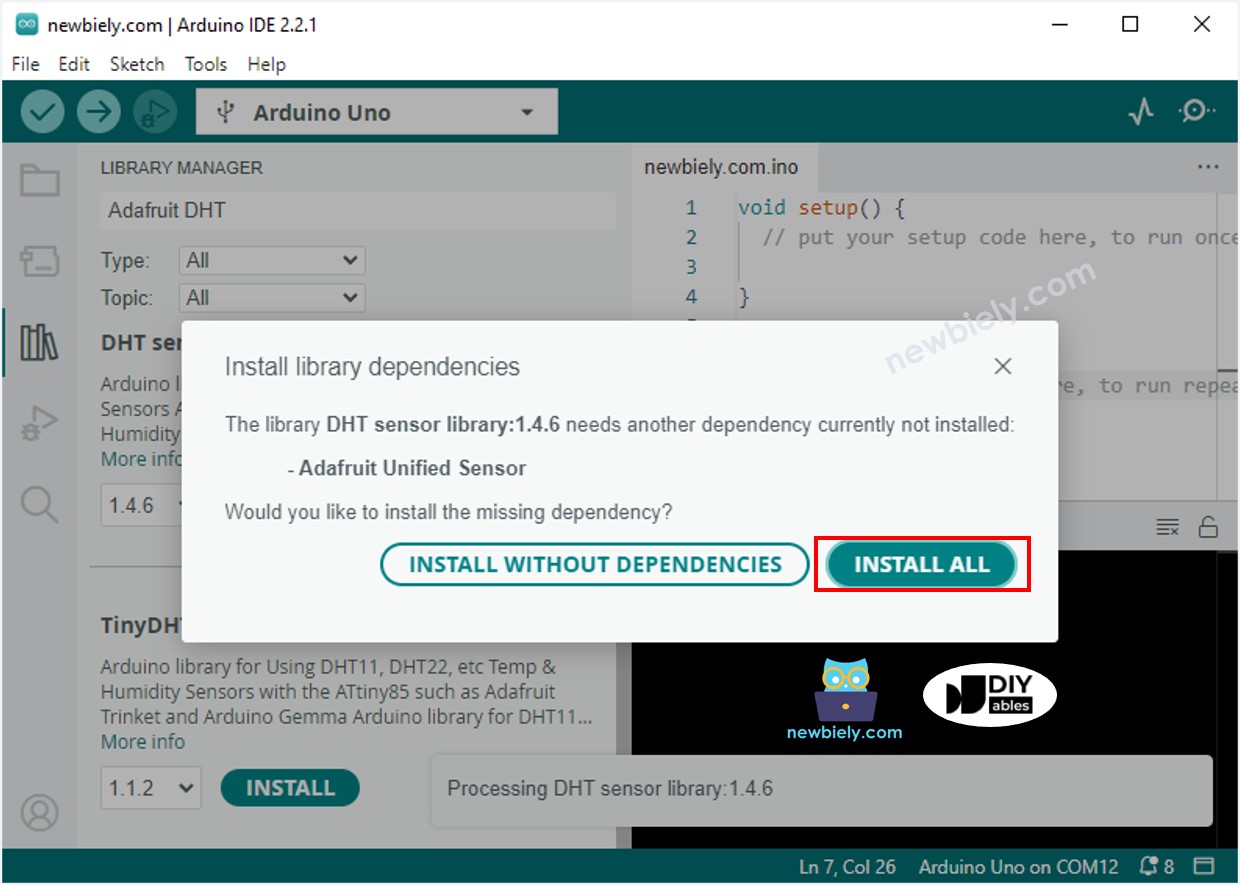
Você será solicitado a instalar dependências adicionais de bibliotecas.
Para instalar todas elas, clique no botão Install All.
Copie o código e abra-o com o Arduino IDE.
Clique no botão Upload no Arduino IDE para compilar e fazer upload do código para o ESP8266.
Coloque o sensor em água quente e fria, ou segure-o na mão.
Veja o resultado no display OLED e no Serial Monitor.
※ Nota:
O código em questão centraliza o texto horizontal e verticalmente em um display OLED.
#include <Wire.h>
#include <Adafruit_GFX.h>
#include <Adafruit_SSD1306.h>
#include <DHT.h>
#define OLED_WIDTH 128
#define OLED_HEIGHT 64
#define DHT_PIN 2
#define DHT_TYPE DHT22
Adafruit_SSD1306 oled(OLED_WIDTH, OLED_HEIGHT, &Wire, -1);
DHT dht(DHT_PIN, DHT_TYPE);
String temperature;
String humidity;
void setup() {
Serial.begin(9600);
if (!oled.begin(SSD1306_SWITCHCAPVCC, 0x3C)) {
Serial.println(F("SSD1306 allocation failed"));
while (true)
;
}
delay(2000);
oled.clearDisplay();
oled.setTextSize(3);
oled.setTextColor(WHITE);
oled.setCursor(0, 10);
dht.begin();
temperature.reserve(10);
humidity.reserve(10);
}
void loop() {
float humi = dht.readHumidity();
float tempC = dht.readTemperature();
if (isnan(humi) || isnan(tempC)) {
temperature = "Failed";
humidity = "Failed";
} else {
temperature = String(tempC, 1);
temperature += char(247);
temperature += "C";
humidity = String(humi, 1);
humidity += "%";
Serial.print(tempC);
Serial.print("°C | " );
Serial.print(humi);
Serial.println("%");
}
oledDisplayCenter(temperature, humidity);
}
void oledDisplayCenter(String temperature, String humidity) {
int16_t x1;
int16_t y1;
uint16_t width_T;
uint16_t height_T;
uint16_t width_H;
uint16_t height_H;
oled.getTextBounds(temperature, 0, 0, &x1, &y1, &width_T, &height_T);
oled.getTextBounds(temperature, 0, 0, &x1, &y1, &width_H, &height_H);
oled.clearDisplay();
oled.setCursor((SCREEN_WIDTH - width_T) / 2, SCREEN_HEIGHT / 2 - height_T - 5);
oled.println(temperature);
oled.setCursor((SCREEN_WIDTH - width_H) / 2, SCREEN_HEIGHT / 2 + 5);
oled.println(humidity);
oled.display();
}
※ Nota:
O código para o DHT11 e o DHT22 é o mesmo, exceto por uma única linha. A biblioteca para ambos também é a mesma.
※ NOSSAS MENSAGENS
Fique à vontade para compartilhar o link deste tutorial. Porém, por favor, não use nosso conteúdo em outros sites. Investimos muito esforço e tempo para criar este conteúdo, por favor respeite nosso trabalho!