Exemplo Arduino WebDigitalPins - Tutorial de Interface de Controle de Pinos Digitais

Visão Geral

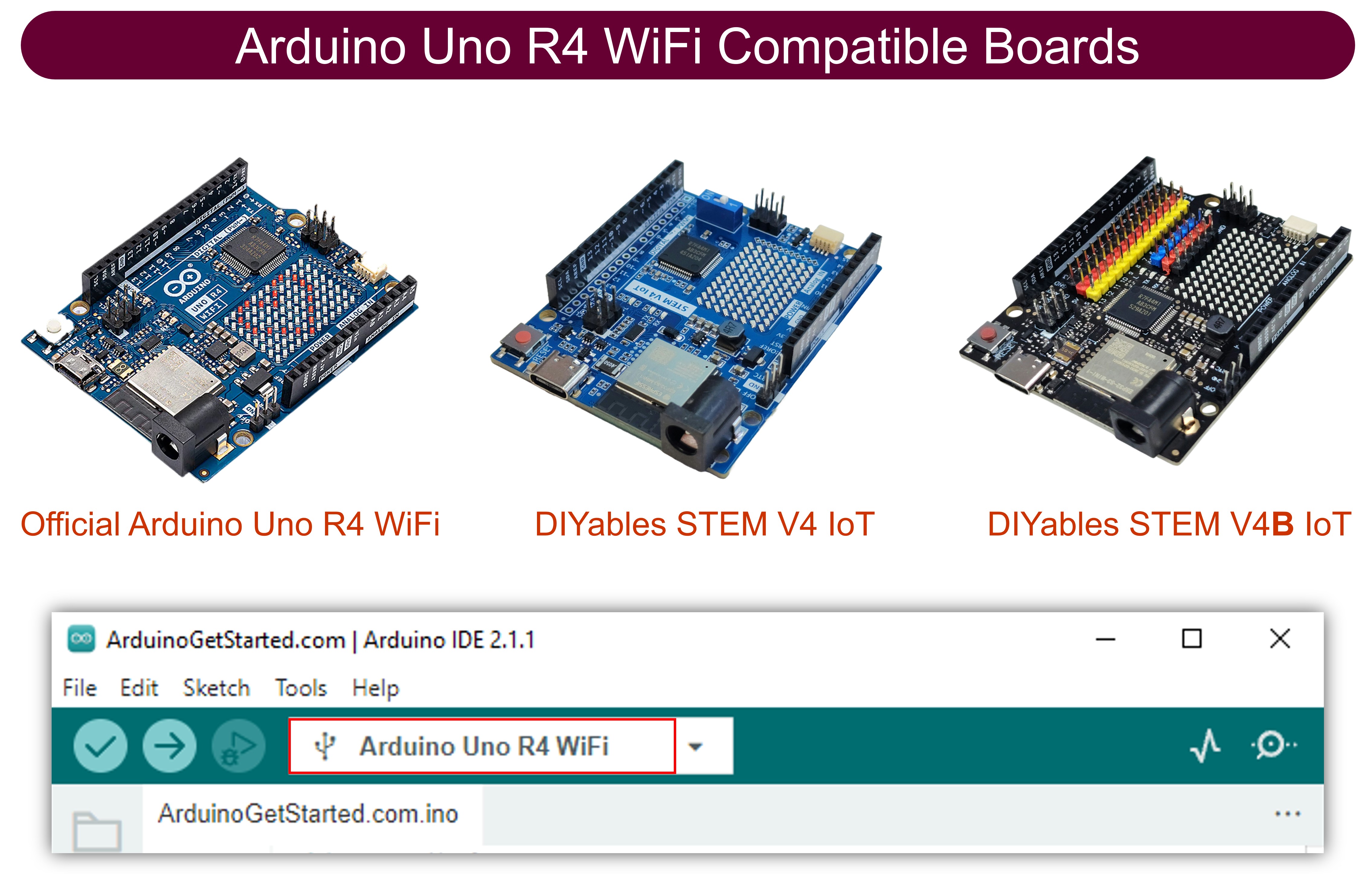
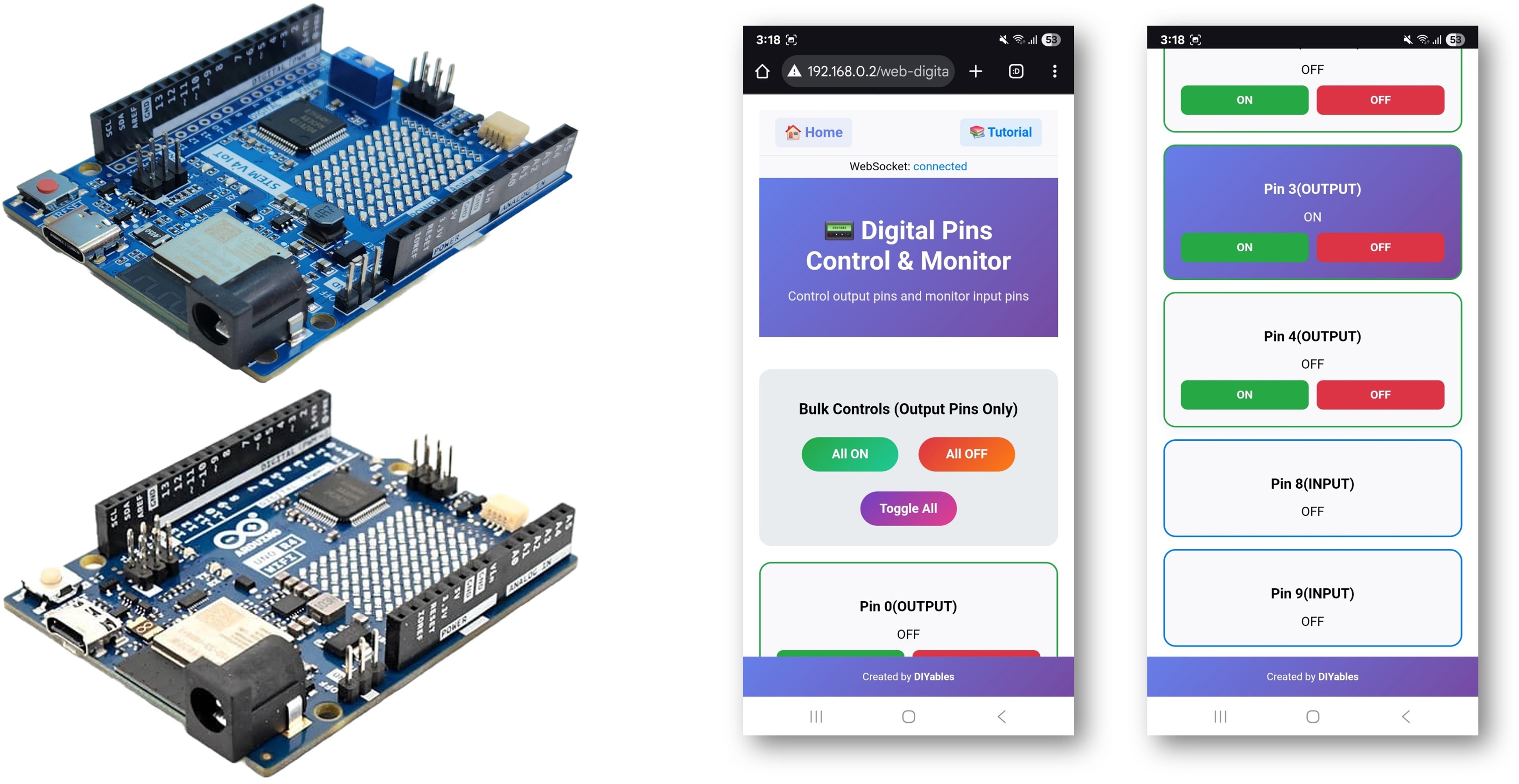
O exemplo WebDigitalPins oferece uma interface web para controlar e monitorar todos os pinos digitais do seu Arduino. Projetado para a plataforma educacional Arduino Uno R4 WiFi e DIYables STEM V4 IoT, com recursos GPIO avançados, configurações de pinos estendidas e recursos educacionais integrados para aprender eletrônica digital. Você pode ligar/desligar pinos, monitorar o estado deles em tempo real e executar operações em lote por meio de uma interface web intuitiva.
Exemplo Arduino WebDigitalPins - Tutorial de Interface de Controle de Pinos Digitais

Recursos

  • Controle Individual de Pinos: Controle cada pino digital (0-13) separadamente
  • Status em Tempo Real: Monitore o estado dos pinos com indicadores visuais
  • Operações em Lote: Controle todos os pinos de uma vez (All ON, All OFF, Toggle All)
  • Configuração de Pinos: Defina os pinos como entrada (Input) ou saída (Output) pela interface web
  • Retorno Visual: Botões coloridos mostram o estado dos pinos (verde=ON, vermelho=OFF)
  • Design Responsivo: Funciona em desktop, tablet e celular
  • Comunicação WebSocket: Atualizações instantâneas sem recarregar a página
  • Plataforma Extensível: Atualmente implementada para o Arduino Uno R4 WiFi, mas pode ser estendida para outras plataformas de hardware. Veja DIYables_WebApps_ESP32

Instruções de Configuração

Passos Rápidos

Siga estas instruções passo a passo:

  • Se esta é a sua primeira vez usando o Arduino Uno R4 WiFi/DIYables STEM V4 IoT, consulte o tutorial sobre como configurar o ambiente para o Arduino Uno R4 WiFi/DIYables STEM V4 IoT no Arduino IDE.
  • Conecte a placa Arduino Uno R4/DIYables STEM V4 IoT ao seu computador usando um cabo USB.
  • Abra o Arduino IDE no seu computador.
  • Selecione a placa Arduino Uno R4 apropriada (por exemplo, Arduino Uno R4 WiFi) e a porta COM.
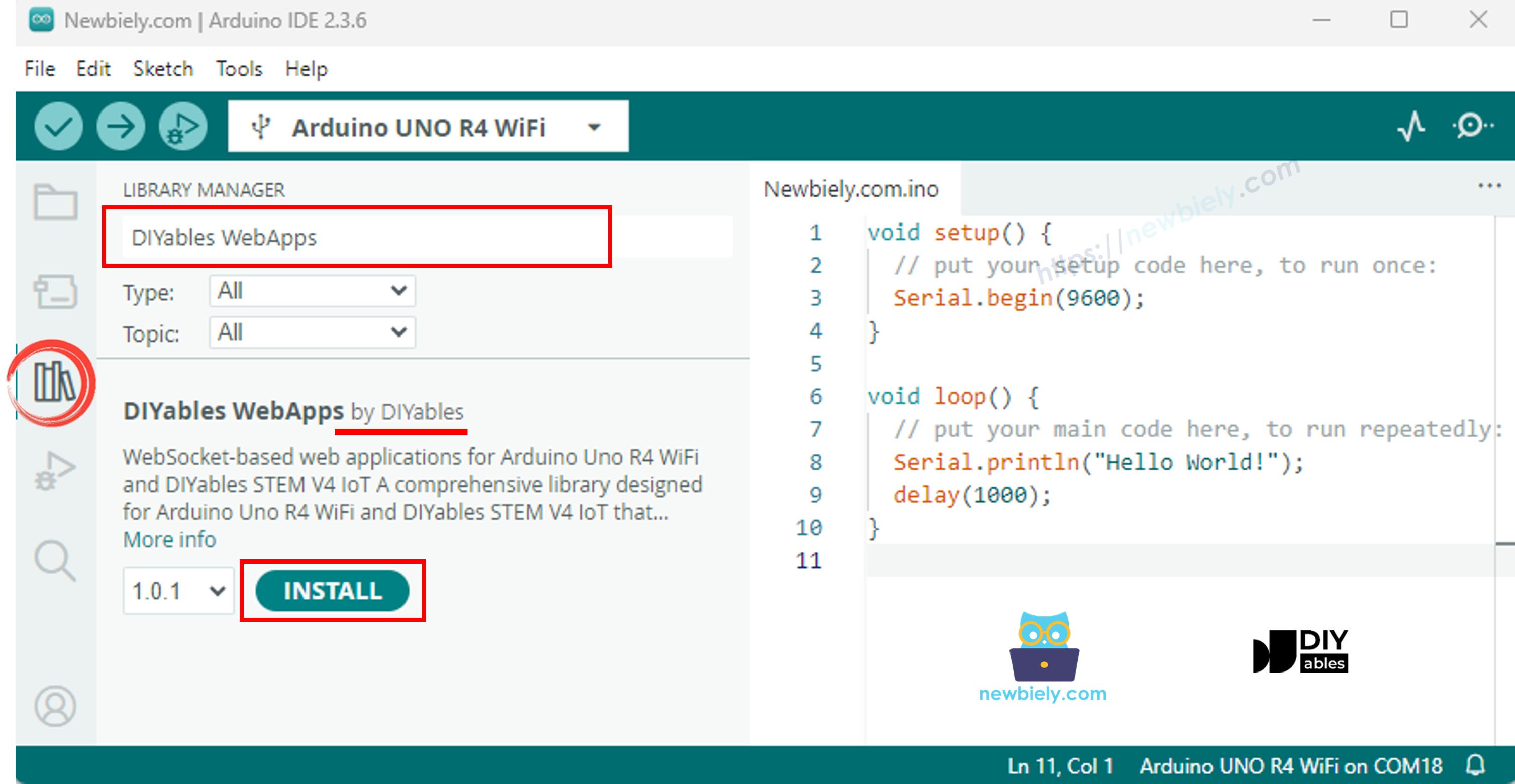
  • Navegue até o ícone Libraries na barra esquerda do Arduino IDE.
  • Pesquise "DIYables WebApps" e encontre a biblioteca DIYables WebApps, da DIYables
  • Clique no botão Install para instalar a biblioteca.
Biblioteca DIYables WebApps para Arduino UNO R4
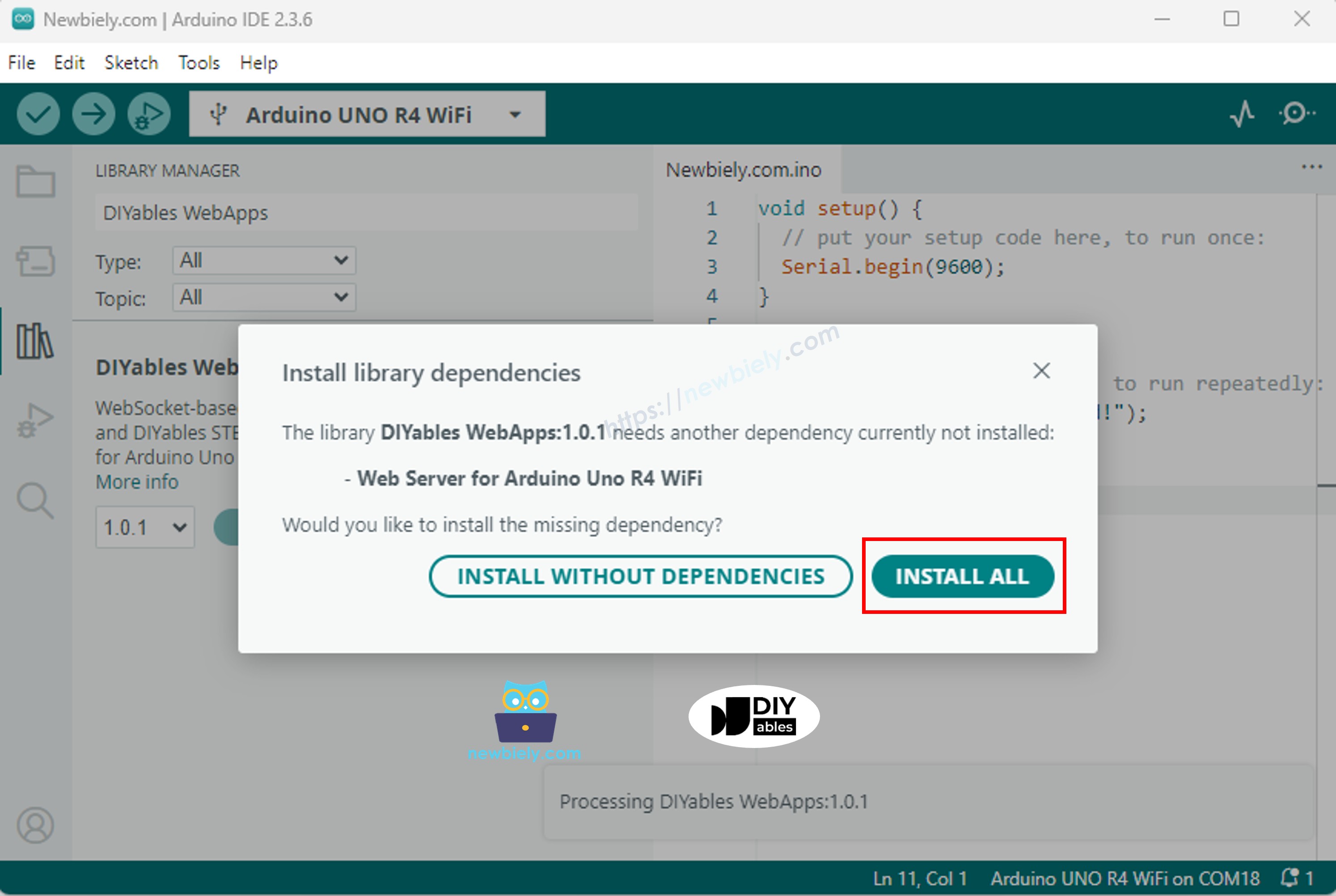
  • Você será perguntado se quer instalar outras bibliotecas das quais ela depende
  • Clique no botão Install All para instalar todas as dependências da biblioteca.
Dependências da biblioteca DIYables WebApps para Arduino UNO R4
  • No Arduino IDE, vá em File Examples DIYables WebApps WebDigitalPins para abrir o exemplo, ou copie o código acima e cole no editor do Arduino IDE
/* * DIYables WebApp Library - Web Digital Pins Example * * This example demonstrates the Web Digital Pins feature with automatic command handling: * - Control output pins 0-13 via web interface * - Monitor input pins 0-13 in real-time * - Individual pin ON/OFF control for outputs * - Real-time pin status feedback for inputs * - Bulk operations (All ON, All OFF, Toggle All) for outputs * * Hardware: Arduino Uno R4 WiFi or DIYables STEM V4 IoT * * Setup: * 1. Update WiFi credentials below * 2. Upload the sketch to your Arduino * 3. Open Serial Monitor to see the IP address * 4. Navigate to http://[IP_ADDRESS]/webdigitalpins */ #include <DIYablesWebApps.h> // WiFi credentials - UPDATE THESE WITH YOUR NETWORK const char WIFI_SSID[] = "YOUR_WIFI_SSID"; const char WIFI_PASSWORD[] = "YOUR_WIFI_PASSWORD"; // Create WebApp server and page instances using platform abstraction UnoR4ServerFactory serverFactory; DIYablesWebAppServer webAppsServer(serverFactory, 80, 81); DIYablesHomePage homePage; DIYablesWebDigitalPinsPage webDigitalPinsPage; // Array to store the state of each digital pin (0-13). Index corresponds to pin number. int pinStates[16] = { 0 }; // Initialize all states to LOW (0) void setup() { Serial.begin(9600); delay(1000); Serial.println("DIYables WebApp - Web Digital Pins Example"); // Add home and digital pins pages webAppsServer.addApp(&homePage); webAppsServer.addApp(&webDigitalPinsPage); // Optional: Add 404 page for better user experience webAppsServer.setNotFoundPage(DIYablesNotFoundPage()); // Pin Configuration Examples: // Method 1: Enable specific pins individually for output control webDigitalPinsPage.enablePin(0, WEB_PIN_OUTPUT); // Enable pin 0 (TX - use with caution) webDigitalPinsPage.enablePin(1, WEB_PIN_OUTPUT); // Enable pin 1 (RX - use with caution) webDigitalPinsPage.enablePin(2, WEB_PIN_OUTPUT); webDigitalPinsPage.enablePin(3, WEB_PIN_OUTPUT); webDigitalPinsPage.enablePin(4, WEB_PIN_OUTPUT); //webDigitalPinsPage.enablePin(5, WEB_PIN_OUTPUT); // Comment/uncomment to disable/enable //webDigitalPinsPage.enablePin(6, WEB_PIN_OUTPUT); // Comment/uncomment to disable/enable webDigitalPinsPage.enablePin(13, WEB_PIN_OUTPUT); // Enable pin 13 (built-in LED) // Method 2: Enable pins for input monitoring webDigitalPinsPage.enablePin(8, WEB_PIN_INPUT); webDigitalPinsPage.enablePin(9, WEB_PIN_INPUT); //webDigitalPinsPage.enablePin(10, WEB_PIN_INPUT); // Comment/uncomment to disable/enable //webDigitalPinsPage.enablePin(11, WEB_PIN_INPUT); // Comment/uncomment to disable/enable // Method 3: Enable all pins at once (uncomment to use) // for (int pin = 0; pin <= 13; pin++) { // webDigitalPinsPage.enablePin(pin, WEB_PIN_OUTPUT); // or WEB_PIN_INPUT as needed // } // Method 4: Enable pins in a range using for loop (uncomment to use) // for (int pin = 7; pin <= 11; pin++) { // webDigitalPinsPage.enablePin(pin, WEB_PIN_OUTPUT); // or WEB_PIN_INPUT as needed // } // Initialize enabled pins int outputPins[] = { 0, 1, 2, 3, 4, 13 }; // Note: Pins 0,1 are TX/RX - use with caution for (int i = 0; i < 6; i++) { int pin = outputPins[i]; pinMode(pin, OUTPUT); digitalWrite(pin, LOW); pinStates[pin] = LOW; } int inputPins[] = { 8, 9 }; for (int i = 0; i < 2; i++) { int pin = inputPins[i]; pinMode(pin, INPUT); // Use INPUT_PULLUP if needed pinStates[pin] = digitalRead(pin); } // Start the WebApp server if (!webAppsServer.begin(WIFI_SSID, WIFI_PASSWORD)) { while (1) { Serial.println("Failed to start WebApp server!"); delay(1000); } } // Return the current state to display on Web App webDigitalPinsPage.onPinRead([](int pin) { return pinStates[pin]; // Return the current state of the pin // You can implement custom read logic here if needed }); // Handle the control request from Web App (for output pins) webDigitalPinsPage.onPinWrite([](int pin, int state) { digitalWrite(pin, state); pinStates[pin] = state; // You can implement custom control logic here if needed }); // Handle pin mode change requests (optional) webDigitalPinsPage.onPinModeChange([](int pin, int mode) { if (mode == WEB_PIN_OUTPUT) { pinMode(pin, OUTPUT); digitalWrite(pin, LOW); pinStates[pin] = LOW; } else if (mode == WEB_PIN_INPUT) { pinMode(pin, INPUT); // or INPUT_PULLUP as needed pinStates[pin] = digitalRead(pin); } // You can implement custom mode change logic here if needed }); } void loop() { // Handle WebApp server communications webAppsServer.loop(); // Monitor input pins for real-time updates static unsigned long lastInputCheck = 0; if (millis() - lastInputCheck > 100) { // Check every 100ms lastInputCheck = millis(); // Check input pins for changes and send real-time updates int inputPins[] = { 8, 9 }; for (int i = 0; i < 2; i++) { int pin = inputPins[i]; int currentState = digitalRead(pin); if (currentState != pinStates[pin]) { pinStates[pin] = currentState; // Send real-time update to web clients webDigitalPinsPage.updatePinState(pin, currentState); } } } // Add your main application code here delay(10); }
  • Configure as credenciais do WiFi no código atualizando estas linhas:
const char WIFI_SSID[] = "YOUR_WIFI_NETWORK"; const char WIFI_PASSWORD[] = "YOUR_WIFI_PASSWORD";
  • Clique no botão Upload no Arduino IDE para carregar o código no Arduino UNO R4/DIYables STEM V4 IoT
  • Abra o Serial Monitor
  • Veja o resultado no Serial Monitor. Ele deve ficar parecido com o abaixo
∞
Newbiely | Arduino IDE 2.3.8
──
☐
✕
File
Edit
Sketch
Tools
Help
Arduino Uno R4 WiFi
Newbiely.ino
···
8 Serial.println("Hello World!");
Output
Serial Monitor
Message (Enter to send message to 'Arduino Uno R4 WiFi' on 'COM15')
New Line
9600 baud
WebSocket client connected from: 192.168.0.5 New WebSocket connection established WebSocket message received: SLIDER:GET_VALUES WebSocket client connected from: 192.168.0.5 New WebSocket connection established WebSocket message received: SLIDER:64,128 DIYables WebApp - Web Digital Pins Example INFO: Added app / INFO: Added app /web-digital-pins DEBUG: Enabling pin 0 with mode OUTPUT DEBUG: Enabling pin 1 with mode OUTPUT DEBUG: Enabling pin 2 with mode OUTPUT DEBUG: Enabling pin 3 with mode OUTPUT DEBUG: Enabling pin 4 with mode OUTPUT DEBUG: Enabling pin 13 with mode OUTPUT DEBUG: Enabling pin 8 with mode INPUT DEBUG: Enabling pin 9 with mode INPUT DIYables WebApp Library Platform: Arduino Uno R4 WiFi Network connected! IP address: 192.168.0.2 HTTP server started on port 80 Configuring WebSocket server callbacks... WebSocket server started on port 81 WebSocket URL: ws://192.168.0.2:81 WebSocket server started on port 81 ========================================== DIYables WebApp Ready! ========================================== 📱 Web Interface: http://192.168.0.2 🔗 WebSocket: ws://192.168.0.2:81 📋 Available Applications: 🏠 Home Page: http://192.168.0.2/ 📟 Digital Pins: http://192.168.0.2/web-digital-pins ==========================================
Ln 11, Col 1
Arduino Uno R4 WiFi on COM15
2
  • Se você não vir nada, reinicie a placa Arduino.
  • Anote o endereço IP exibido e digite esse endereço na barra de endereços de um navegador web no seu celular ou PC.
  • Exemplo: http://192.168.0.2
  • Você verá a home page como na imagem abaixo:
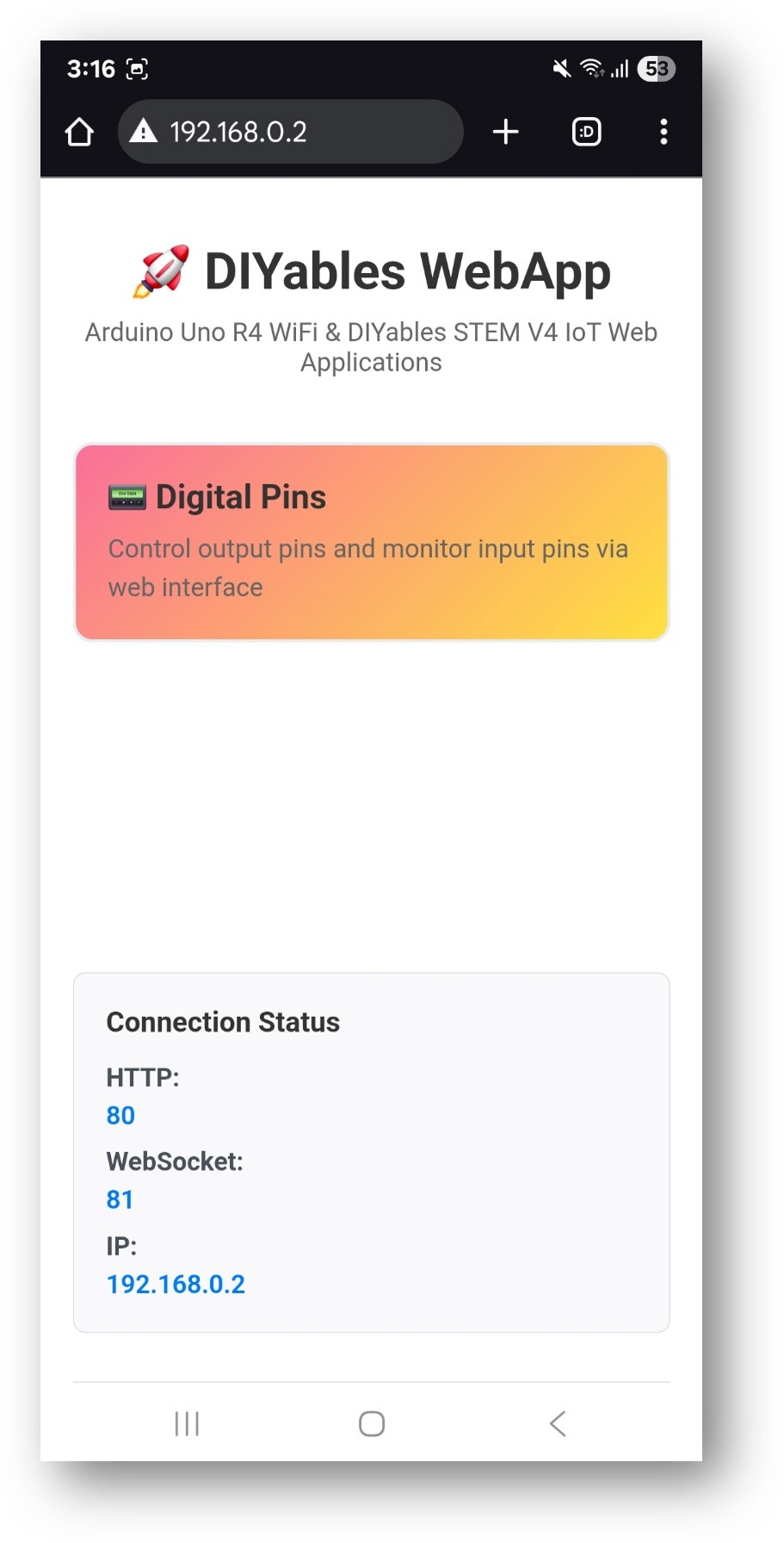
Home page do DIYables WebApp para Arduino UNO R4 com o app Web Digital Pins
  • Clique no link Web Digital Pins e você verá a interface do app Web Digital Pins como abaixo:
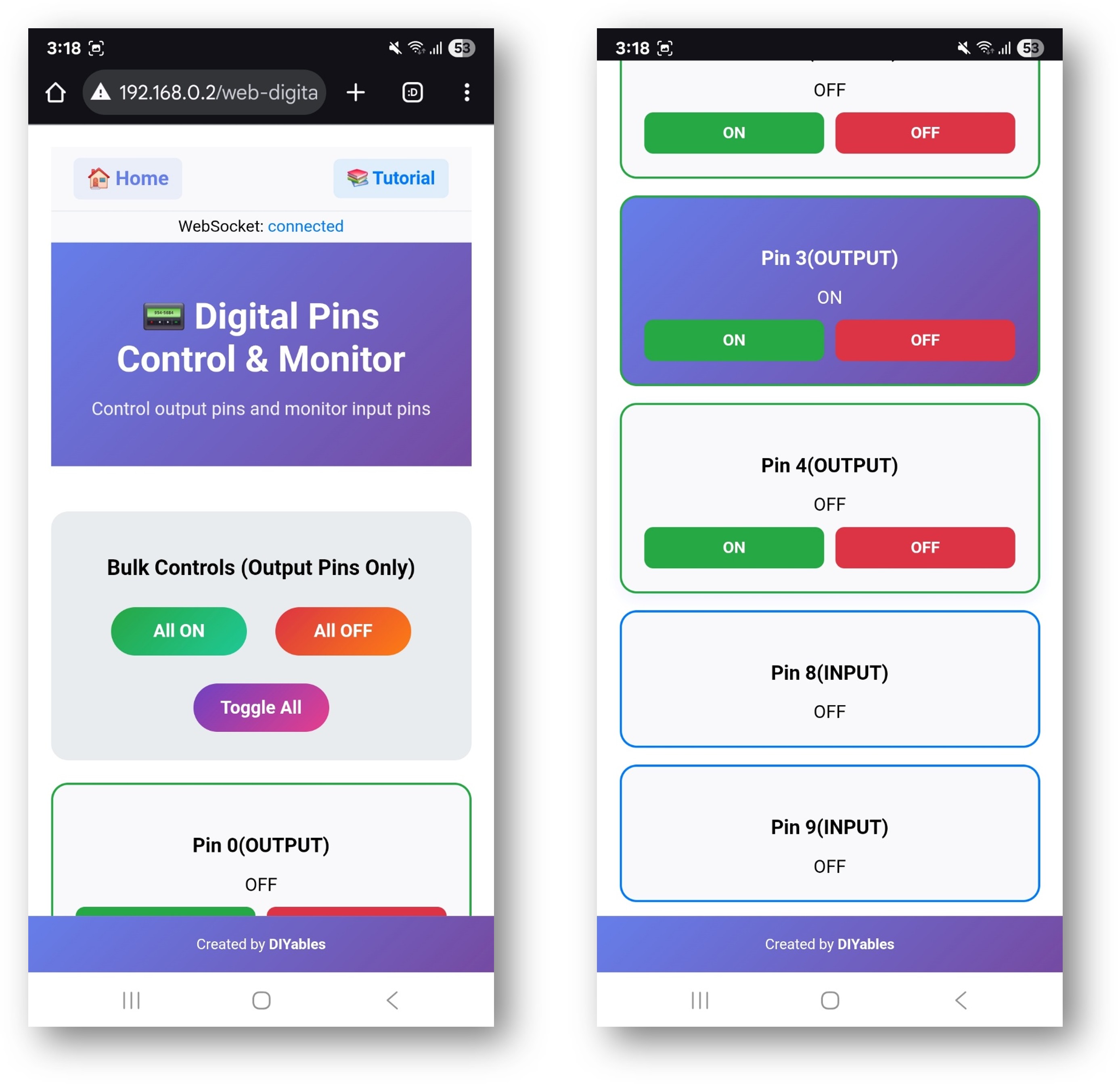
App Web Digital Pins do DIYables WebApp para Arduino UNO R4
  • Você também pode acessar a página diretamente pelo endereço IP seguido de /web-digital-pins. Por exemplo: http://192.168.0.2/web-digital-pins
  • Tente controlar os pinos digitais clicando nos botões dos pinos para ligá-los/desligá-los (ON/OFF) e observe o LED integrado (pino 13) respondendo aos seus comandos.

Personalização Criativa - Adapte o Código ao Seu Projeto

O exemplo mostra diferentes maneiras de configurar os pinos para atender às necessidades do seu projeto criativo:

2. Configure os Pinos

O exemplo mostra diferentes maneiras de configurar os pinos:

Método 1: Ativar Pinos Específicos

// Enable individual pins for output control webDigitalPinsPage.enablePin(2, WEB_PIN_OUTPUT); // Pin 2 as output webDigitalPinsPage.enablePin(3, WEB_PIN_OUTPUT); // Pin 3 as output webDigitalPinsPage.enablePin(4, WEB_PIN_INPUT); // Pin 4 as input

Método 2: Ativar Faixas de Pinos

// Enable a range of pins for output control webDigitalPinsPage.enableOutputPins(2, 13); // Pins 2-13 as outputs

Método 3: Ativar Todos os Pinos

// Enable all pins 0-13 for control (use with caution for pins 0,1) webDigitalPinsPage.enableAllPins();

4. Faça o Upload do Sketch

  1. Selecione a sua placa Arduino: Tools → Board → Arduino UNO R4 WiFi
  2. Selecione a porta correta: Tools → Port → [Your Arduino Port]
  3. Clique no botão Upload

5. Obtenha o Endereço IP

  1. Abra Tools → Serial Monitor
  2. Defina a taxa de transmissão (baud rate) para 9600
  3. Aguarde o Arduino se conectar ao WiFi
  4. Anote o endereço IP exibido (por exemplo, 192.168.1.100)

6. Acesse a Interface de Pinos Digitais

Abra o seu navegador web e vá para:

http://[ARDUINO_IP_ADDRESS]/digital-pins

Exemplo: http://192.168.1.100/digital-pins

Como Usar

Interface de Controle de Pinos

A interface web exibe todos os pinos configurados com:

  • Número do Pino: Mostra qual pino do Arduino (0-13)
  • Estado Atual: Indicador ON (verde) ou OFF (vermelho)
  • Botão de Controle: Clique para alternar o estado do pino
  • Tipo do Pino: Mostra se está configurado como entrada (Input) ou saída (Output)

Controle Individual de Pinos

  1. Ligar o Pino (ON): Clique no botão do pino quando ele mostrar "OFF"
  2. Desligar o Pino (OFF): Clique no botão do pino quando ele mostrar "ON"
  3. Monitorar o Estado: Os botões dos pinos se atualizam automaticamente para mostrar o estado atual

Operações em Lote

Use os botões de controle em lote para controlar vários pinos de uma vez:

All ON

  • Coloca todos os pinos de saída configurados em estado HIGH
  • Os pinos de entrada não são afetados
  • Útil para testar todos os dispositivos conectados

All OFF

  • Coloca todos os pinos de saída configurados em estado LOW
  • Os pinos de entrada não são afetados
  • Forma segura de desativar todas as saídas

Toggle All

  • Inverte o estado de todos os pinos de saída
  • Pinos ON viram OFF e pinos OFF viram ON
  • Cria efeitos de iluminação interessantes

Monitoramento em Tempo Real

  • Os estados dos pinos são atualizados automaticamente via WebSocket
  • As mudanças feitas no código aparecem na interface web
  • Vários usuários podem monitorar o mesmo Arduino ao mesmo tempo

Conexões de Hardware

Exemplos de Pinos de Saída

Controle de LED

Arduino Pin → LED (with resistor) → Ground Pin 2 → LED Anode → 220Ω Resistor → Ground Pin 3 → LED Anode → 220Ω Resistor → Ground

Controle de Relé

Arduino Pin → Relay Input Pin 4 → Relay IN1 Pin 5 → Relay IN2

Controle de Motor (via Driver de Motor)

Arduino Pin → Motor Driver Input Pin 6 → Motor Driver IN1 Pin 7 → Motor Driver IN2 Pin 9 → Motor Driver ENA (PWM)

Exemplos de Pinos de Entrada

Entrada de Chave

Switch → Arduino Pin (with pull-up resistor) Switch → Pin 8 → 10kΩ resistor → 5V → GND

Entrada de Sensor

Sensor Signal → Arduino Pin PIR Sensor → Pin 10 Ultrasonic → Pin 11 (Echo)

Personalização do Código

Adicionando Callbacks de Mudança de Pino

Monitore quando os pinos mudam de estado:

void setup() { // Set callback for pin state changes webDigitalPinsPage.onPinChange([](int pin, bool state) { Serial.print("Pin "); Serial.print(pin); Serial.print(" changed to: "); Serial.println(state ? "HIGH" : "LOW"); // Add your custom logic here if (pin == 13 && state == HIGH) { Serial.println("Built-in LED turned ON!"); } }); }

Inicialização Personalizada de Pinos

Defina pinos específicos nos estados desejados na inicialização:

void setup() { // Initialize pins to specific states webDigitalPinsPage.setPinState(2, HIGH); // Turn on pin 2 webDigitalPinsPage.setPinState(3, LOW); // Turn off pin 3 // Configure pin modes pinMode(4, INPUT_PULLUP); // Pin 4 as input with pull-up pinMode(5, OUTPUT); // Pin 5 as output }

Lendo Pinos de Entrada

Monitore os pinos de entrada no seu loop principal:

void loop() { static unsigned long lastRead = 0; if (millis() - lastRead > 1000) { // Read every second // Read input pins and update web interface for (int pin = 0; pin <= 13; pin++) { if (webDigitalPinsPage.isPinEnabled(pin) && webDigitalPinsPage.getPinMode(pin) == WEB_PIN_INPUT) { bool currentState = digitalRead(pin); webDigitalPinsPage.updatePinState(pin, currentState); } } lastRead = millis(); } }

Recursos Avançados

Grupos de Pinos

Crie grupos lógicos de pinos para funções relacionadas:

// Define pin groups const int LED_PINS[] = {2, 3, 4, 5}; const int RELAY_PINS[] = {6, 7, 8, 9}; void controlLEDGroup(bool state) { for (int pin : LED_PINS) { webDigitalPinsPage.setPinState(pin, state); } } void controlRelayGroup(bool state) { for (int pin : RELAY_PINS) { webDigitalPinsPage.setPinState(pin, state); } }

Geração de Padrões

Crie padrões ou sequências de iluminação:

void runLightPattern() { static unsigned long lastChange = 0; static int currentPin = 2; if (millis() - lastChange > 500) { // Change every 500ms // Turn off all pins for (int pin = 2; pin <= 13; pin++) { webDigitalPinsPage.setPinState(pin, LOW); } // Turn on current pin webDigitalPinsPage.setPinState(currentPin, HIGH); // Move to next pin currentPin++; if (currentPin > 13) currentPin = 2; lastChange = millis(); } }

Integração com Controle PWM

Combine com controle analógico para recursos avançados:

void setup() { // Enable digital pins for on/off control webDigitalPinsPage.enablePin(9, WEB_PIN_OUTPUT); webDigitalPinsPage.enablePin(10, WEB_PIN_OUTPUT); // Set PWM pins for brightness control analogWrite(9, 128); // 50% brightness analogWrite(10, 255); // 100% brightness }

Considerações de Segurança

Diretrizes de Uso dos Pinos

Pinos 0 e 1 (TX/RX)

  • Usados para comunicação Serial
  • Evite usar, a menos que seja absolutamente necessário
  • Podem interferir na programação e na depuração

Pino 13 (LED integrado)

  • Seguro para usar em testes
  • O LED integrado dá retorno visual
  • Bom para os testes iniciais

Pinos 2-12

  • Seguros para I/O digital em geral
  • Recomendados para a maioria das aplicações
  • Sem considerações especiais

Limitações de Corrente

Corrente Máxima por Pino: 40mA

  • Use resistores limitadores de corrente com LEDs
  • Use transistores ou relés para cargas de alta corrente
  • Considere o consumo total de corrente

Níveis de Tensão: lógica de 3.3V

  • O Arduino Uno R4 WiFi usa lógica de 3.3V
  • Garanta que os dispositivos conectados sejam compatíveis
  • Use conversores de nível (level shifters) para dispositivos de 5V, se necessário

Tutorial em Vídeo

O vídeo de demonstração abaixo usa o seguinte código:

/* * Este código de Arduino UNO R4 foi desenvolvido por pt.newbiely.com * Este código de Arduino UNO R4 é disponibilizado ao público sem nenhuma restrição. * Para tutoriais completos e diagramas de ligação, visite: * https://pt.newbiely.com/tutorials/arduino-uno-r4/diyables-web-apps-web-digital-pins */ /* * DIYables WebApp Library - Web Digital Pins Example * * This example demonstrates the Web Digital Pins feature with automatic command handling: * - Control output pins 0-13 via web interface * - Monitor input pins 0-13 in real-time * - Individual pin ON/OFF control for outputs * - Real-time pin status feedback for inputs * - Bulk operations (All ON, All OFF, Toggle All) for outputs * * Hardware: Arduino Uno R4 WiFi or DIYables STEM V4 IoT * * Setup: * 1. Update WiFi credentials below * 2. Upload the sketch to your Arduino * 3. Open Serial Monitor to see the IP address * 4. Navigate to http://[IP_ADDRESS]/webdigitalpins */ #include <DIYablesWebApps.h> // WiFi credentials - UPDATE THESE WITH YOUR NETWORK const char WIFI_SSID[] = "YOUR_WIFI_SSID"; const char WIFI_PASSWORD[] = "YOUR_WIFI_PASSWORD"; // Create WebApp server and page instances using platform abstraction UnoR4ServerFactory serverFactory; DIYablesWebAppServer webAppsServer(serverFactory, 80, 81); DIYablesHomePage homePage; DIYablesWebDigitalPinsPage webDigitalPinsPage; // Array to store the state of each digital pin (0-13). Index corresponds to pin number. int pinStates[16] = { 0 }; // Initialize all states to LOW (0) bool buzzerOn = false; void setup() { Serial.begin(9600); delay(1000); Serial.println("DIYables WebApp - Web Digital Pins Example"); // Add home and digital pins pages webAppsServer.addApp(&homePage); webAppsServer.addApp(&webDigitalPinsPage); // Optional: Add 404 page for better user experience webAppsServer.setNotFoundPage(DIYablesNotFoundPage()); // Pin Configuration Examples: // // Method 1: Enable specific pins individually for output control // webDigitalPinsPage.enablePin(0, WEB_PIN_OUTPUT); // Enable pin 0 (TX - use with caution) // webDigitalPinsPage.enablePin(1, WEB_PIN_OUTPUT); // Enable pin 1 (RX - use with caution) // webDigitalPinsPage.enablePin(2, WEB_PIN_OUTPUT); // webDigitalPinsPage.enablePin(3, WEB_PIN_OUTPUT); // webDigitalPinsPage.enablePin(4, WEB_PIN_OUTPUT); // //webDigitalPinsPage.enablePin(5, WEB_PIN_OUTPUT); // Comment/uncomment to disable/enable // //webDigitalPinsPage.enablePin(6, WEB_PIN_OUTPUT); // Comment/uncomment to disable/enable // webDigitalPinsPage.enablePin(13, WEB_PIN_OUTPUT); // Enable pin 13 (built-in LED) // // Method 2: Enable pins for input monitoring // webDigitalPinsPage.enablePin(8, WEB_PIN_INPUT); // webDigitalPinsPage.enablePin(9, WEB_PIN_INPUT); //webDigitalPinsPage.enablePin(10, WEB_PIN_INPUT); // Comment/uncomment to disable/enable //webDigitalPinsPage.enablePin(11, WEB_PIN_INPUT); // Comment/uncomment to disable/enable // Method 3: Enable all pins at once (uncomment to use) // for (int pin = 0; pin <= 13; pin++) { // webDigitalPinsPage.enablePin(pin, WEB_PIN_OUTPUT); // or WEB_PIN_INPUT as needed // } // Method 4: Enable pins in a range using for loop (uncomment to use) for (int pin = 8; pin <= 11; pin++) { webDigitalPinsPage.enablePin(pin, WEB_PIN_OUTPUT); // or WEB_PIN_INPUT as needed } // Initialize enabled pins int outputPins[] = { 8,9,10,11 }; // Note: Pins 0,1 are TX/RX - use with caution for (int i = 0; i < 4; i++) { int pin = outputPins[i]; pinMode(pin, OUTPUT); digitalWrite(pin, LOW); pinStates[pin] = LOW; } // int inputPins[] = { 8, 9 }; // for (int i = 0; i < 2; i++) { // int pin = inputPins[i]; // pinMode(pin, INPUT); // Use INPUT_PULLUP if needed // pinStates[pin] = digitalRead(pin); // } // Start the WebApp server if (!webAppsServer.begin(WIFI_SSID, WIFI_PASSWORD)) { while (1) { Serial.println("Failed to start WebApp server!"); delay(1000); } } // Return the current state to display on Web App webDigitalPinsPage.onPinRead([](int pin) { return pinStates[pin]; // Return the current state of the pin // You can implement custom read logic here if needed }); // Handle the control request from Web App (for output pins) webDigitalPinsPage.onPinWrite([](int pin, int state) { if(pin == 8){ buzzerOn = state; } else{ digitalWrite(pin, state); } //digitalWrite(pin, state); pinStates[pin] = state; // You can implement custom control logic here if needed }); // Handle pin mode change requests (optional) webDigitalPinsPage.onPinModeChange([](int pin, int mode) { if (mode == WEB_PIN_OUTPUT) { pinMode(pin, OUTPUT); digitalWrite(pin, LOW); pinStates[pin] = LOW; } else if (mode == WEB_PIN_INPUT) { pinMode(pin, INPUT); // or INPUT_PULLUP as needed pinStates[pin] = digitalRead(pin); } // You can implement custom mode change logic here if needed }); } void loop() { // Handle WebApp server communications webAppsServer.loop(); if(buzzerOn){ tone(8, 3000); } else{ noTone(8); } // Monitor input pins for real-time updates static unsigned long lastInputCheck = 0; if (millis() - lastInputCheck > 100) { // Check every 100ms lastInputCheck = millis(); // Check input pins for changes and send real-time updates int inputPins[] = { 2,3 }; for (int i = 0; i < 2; i++) { int pin = inputPins[i]; int currentState = digitalRead(pin); if (currentState != pinStates[pin]) { pinStates[pin] = currentState; // Send real-time update to web clients webDigitalPinsPage.updatePinState(pin, currentState); } } } // Add your main application code here delay(100); }

Solução de Problemas

Problemas Comuns

1. O pino não responde

  • Verifique se o pino está ativado no código
  • Confirme as conexões de hardware
  • Verifique se há curtos-circuitos
  • Confirme o modo do pino (INPUT/OUTPUT)

2. A interface web não atualiza

  • Verifique o status da conexão WebSocket
  • Atualize a página do navegador
  • Confirme a conectividade de rede
  • Verifique o Serial Monitor em busca de erros

3. As operações em lote não funcionam

  • Garanta que os pinos estejam configurados como saídas
  • Verifique se há limitações de hardware
  • Confirme a capacidade da fonte de alimentação
  • Monitore condições de sobrecorrente

4. Os pinos de entrada mostram estados errados

  • Verifique se há resistores de pull-up/pull-down adequados
  • Confirme os níveis do sinal de entrada
  • Verifique se há interferência eletromagnética
  • Confirme a configuração do pino

Dicas de Depuração

Ative a saída de depuração:

void debugPinStates() { Serial.println("=== Pin States ==="); for (int pin = 0; pin <= 13; pin++) { if (webDigitalPinsPage.isPinEnabled(pin)) { Serial.print("Pin "); Serial.print(pin); Serial.print(": "); Serial.print(digitalRead(pin) ? "HIGH" : "LOW"); Serial.print(" ("); Serial.print(webDigitalPinsPage.getPinMode(pin) == WEB_PIN_OUTPUT ? "OUTPUT" : "INPUT"); Serial.println(")"); } } Serial.println("=================="); }

Ideias de Projetos

Automação Residencial

  • Controle as luzes dos cômodos
  • Acione persianas de janela
  • Controle sistemas de aquecimento/refrigeração
  • Integração com sistema de segurança

Automação de Jardim

  • Controle de sistema de irrigação
  • Gerenciamento de luz de cultivo
  • Regulação de temperatura
  • Controle de umidade

Controle de Oficina

  • Controle de energia das ferramentas
  • Gerenciamento da iluminação
  • Sistema de ventilação
  • Intertravamentos de segurança

Projetos Educacionais

  • Demonstrações de portas lógicas
  • Simulação de semáforo
  • Projetos de sistema de alarme
  • Experimentos de controle remoto

Exemplos de Integração

Iluminação Ativada por Movimento

void setup() { webDigitalPinsPage.enablePin(2, WEB_PIN_OUTPUT); // LED webDigitalPinsPage.enablePin(3, WEB_PIN_INPUT); // PIR sensor pinMode(3, INPUT); } void loop() { if (digitalRead(3) == HIGH) { // Motion detected webDigitalPinsPage.setPinState(2, HIGH); // Turn on LED delay(5000); // Keep on for 5 seconds webDigitalPinsPage.setPinState(2, LOW); // Turn off LED } }

Ventilador Controlado por Temperatura

void loop() { float temperature = getTemperature(); // Your temperature reading function if (temperature > 25.0) { webDigitalPinsPage.setPinState(4, HIGH); // Turn on fan } else { webDigitalPinsPage.setPinState(4, LOW); // Turn off fan } }

Próximos Passos

Depois de dominar o exemplo WebDigitalPins, experimente:

  1. WebSlider - Para controle PWM e analógico
  2. WebJoystick - Para controle direcional
  3. WebMonitor - Para depuração e monitoramento
  4. MultipleWebApps - Combinando todos os recursos

Suporte

Para obter mais ajuda:

  • Consulte a documentação de Referência da API
  • Visite os tutoriais da DIYables: https://newbiely.com/tutorials/arduino-uno-r4/arduino-uno-r4-diyables-webapps
  • Fóruns da comunidade Arduino

※ NOSSAS MENSAGENS

  • Fique à vontade para compartilhar o link deste tutorial. Porém, por favor, não use nosso conteúdo em outros sites. Investimos muito esforço e tempo para criar este conteúdo, por favor respeite nosso trabalho!