
Arduino UNO R4 - Matriz de LED Integrada
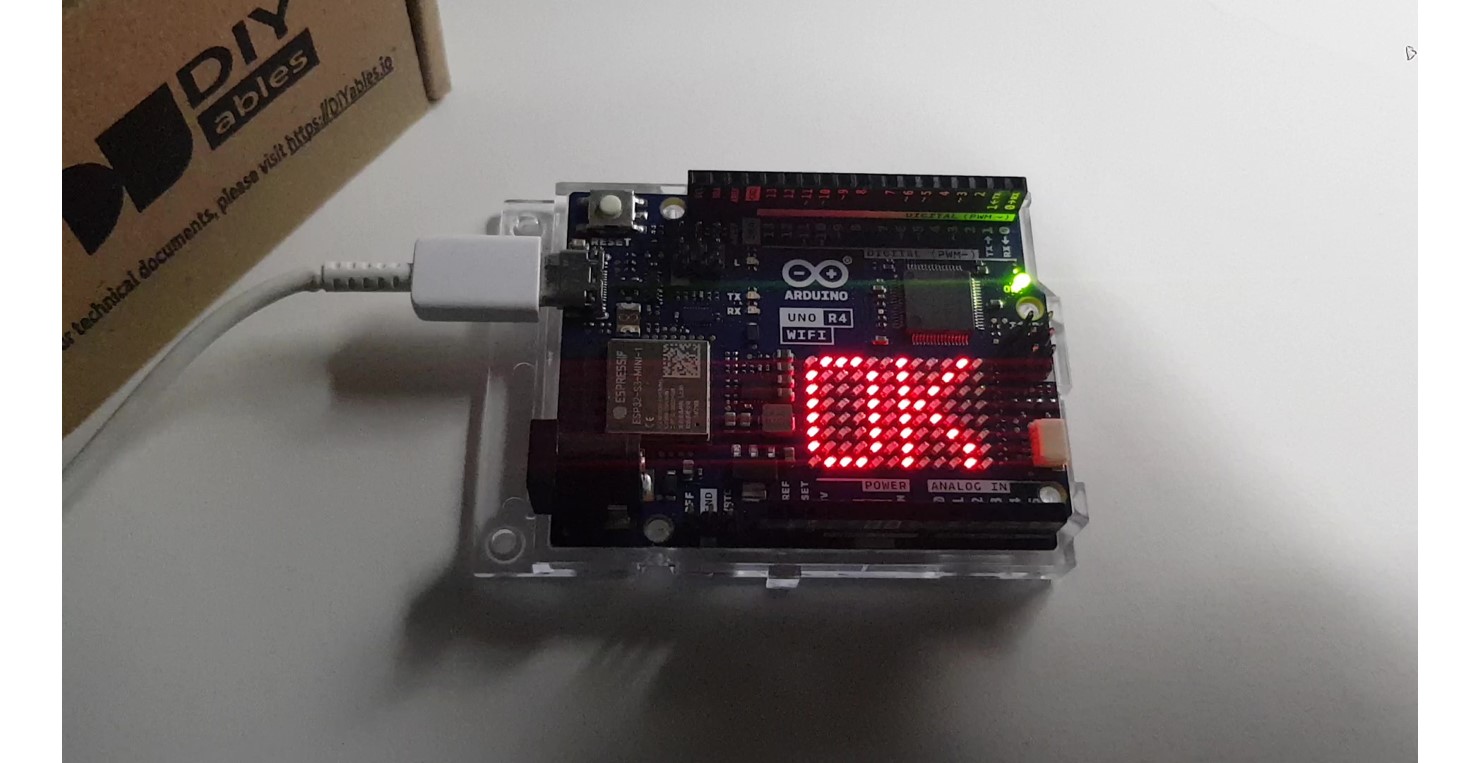
O Arduino Uno R4 WiFi vem com uma matriz de LED 12x8 integrada. Neste tutorial, vamos explorar como usar a matriz de LED integrada para exibir números e caracteres. Especificamente, vamos cobrir o seguinte:
- Programar o Arduino Uno R4 WiFi para exibir dígitos únicos (0-9) ou caracteres (A-Z) em uma posição ajustável.
- Programar o Arduino Uno R4 WiFi para exibir dois dígitos ou caracteres ao mesmo tempo.
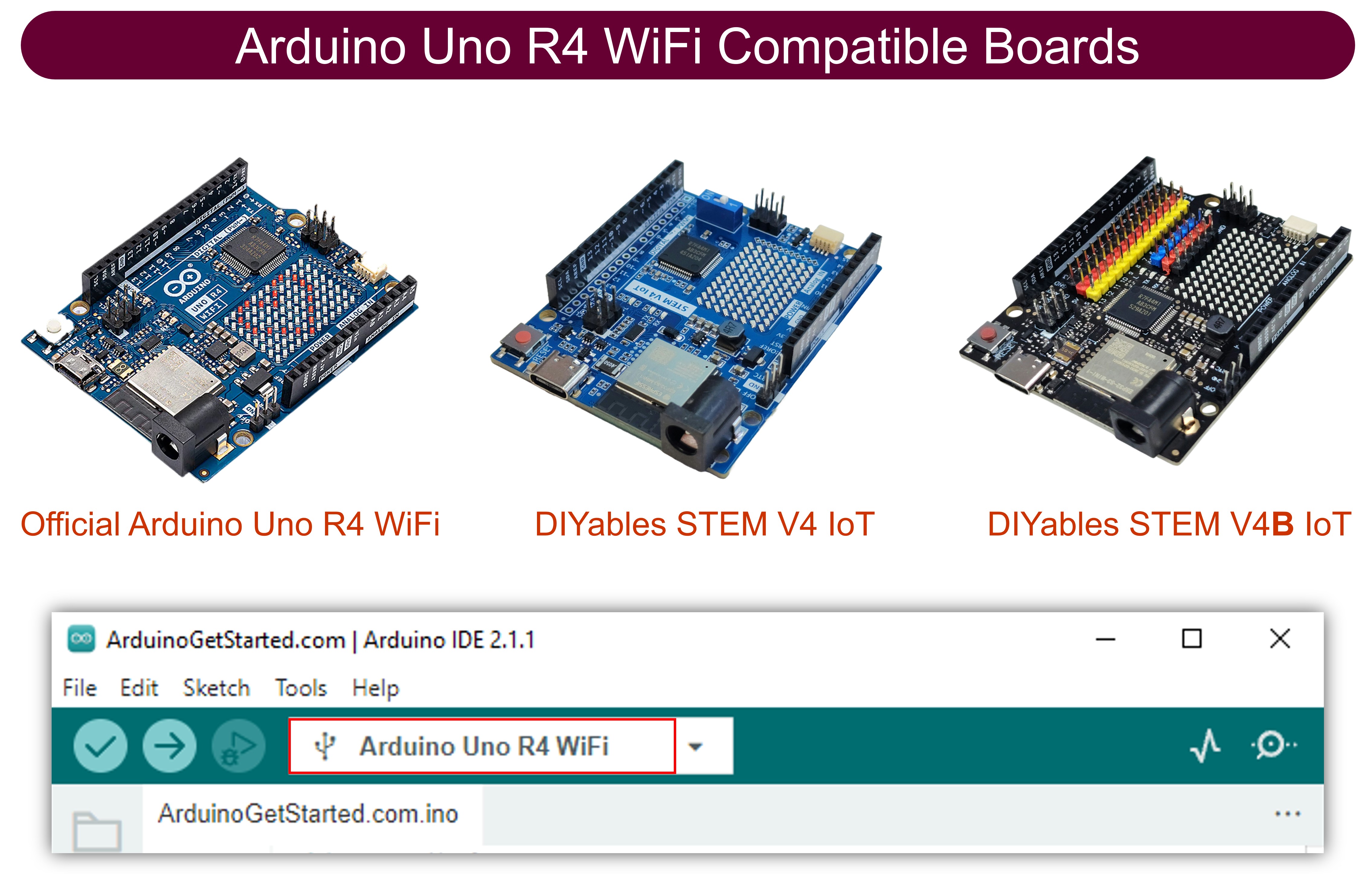
Para informações sobre como usar o Arduino R4 com módulos externos de matriz de LED, consulte o tutorial Arduino UNO R4 - Matriz de LED.
Hardware Necessário
Or you can buy the following kits:
| 1 | × | DIYables STEM V4 IoT Starter Kit (Arduino included) | |
| 1 | × | DIYables STEM V4B IoT Starter Kit (Arduino included) | |
| 1 | × | DIYables Sensor Kit (18 sensors/displays) |
Divulgação: Alguns dos links desta seção são links de afiliado da Amazon. Podemos receber uma comissão pelas compras feitas por meio desses links, sem custo adicional para você. Agradecemos o seu apoio.
Demonstração
Código Arduino - Exibe dígitos (0-9) ou caracteres (A-Z)
O código abaixo exibe em sequência os dígitos de 0 a 9 e os caracteres de A a Z, um por um, no centro da matriz de LED.
/*
* Este código de Arduino UNO R4 foi desenvolvido por pt.newbiely.com
* Este código de Arduino UNO R4 é disponibilizado ao público sem nenhuma restrição.
* Para tutoriais completos e diagramas de ligação, visite:
* https://pt.newbiely.com/tutorials/arduino-uno-r4/arduino-uno-r4-built-in-led-matrix
*/
#include "Arduino_LED_Matrix.h"
#include "fonts.h"
ArduinoLEDMatrix matrix;
uint8_t frame[8][12] = {
{ 0, 0, 0, 0, 0, 0, 0, 0, 0, 0, 0, 0 },
{ 0, 0, 0, 0, 0, 0, 0, 0, 0, 0, 0, 0 },
{ 0, 0, 0, 0, 0, 0, 0, 0, 0, 0, 0, 0 },
{ 0, 0, 0, 0, 0, 0, 0, 0, 0, 0, 0, 0 },
{ 0, 0, 0, 0, 0, 0, 0, 0, 0, 0, 0, 0 },
{ 0, 0, 0, 0, 0, 0, 0, 0, 0, 0, 0, 0 },
{ 0, 0, 0, 0, 0, 0, 0, 0, 0, 0, 0, 0 },
{ 0, 0, 0, 0, 0, 0, 0, 0, 0, 0, 0, 0 }
};
void setup() {
// put your setup code here, to run once:
Serial.begin(115200);
delay(1500);
matrix.begin();
}
void loop() {
for (char c = '0'; c <= '9'; c++) {
clear_frame();
add_to_frame(c, 4);
display_frame();
delay(1000);
}
for (char c = 'A'; c <= 'Z'; c++) {
clear_frame();
add_to_frame(c, 4);
display_frame();
delay(1000);
}
}
void clear_frame() {
for (int row = 0; row < 8; row++) {
for (int col = 0; col < 12; col++) {
frame[row][col] = 0;
}
}
}
void display_frame() {
matrix.renderBitmap(frame, 8, 12);
}
void add_to_frame(char c, int pos) {
int index = -1;
if (c >= '0' && c <= '9')
index = c - '0';
else if (c >= 'A' && c <= 'Z')
index = c - 'A' + 10;
else {
Serial.println("WARNING: unsupported character");
return;
}
for (int row = 0; row < 8; row++) {
uint32_t temp = fonts[index][row] << (7 - pos);
for (int col = 0; col < 12; col++) {
frame[row][col] |= (temp >> (11 - col)) & 1;
}
}
}
Passos Rápidos
- Se esta é a primeira vez que você usa o Arduino Uno R4, veja como configurar o ambiente para o Arduino Uno R4 na Arduino IDE.
- Copie o código acima e abra-o com a Arduino IDE
- Crie o arquivo fonts.h na Arduino IDE da seguinte forma:
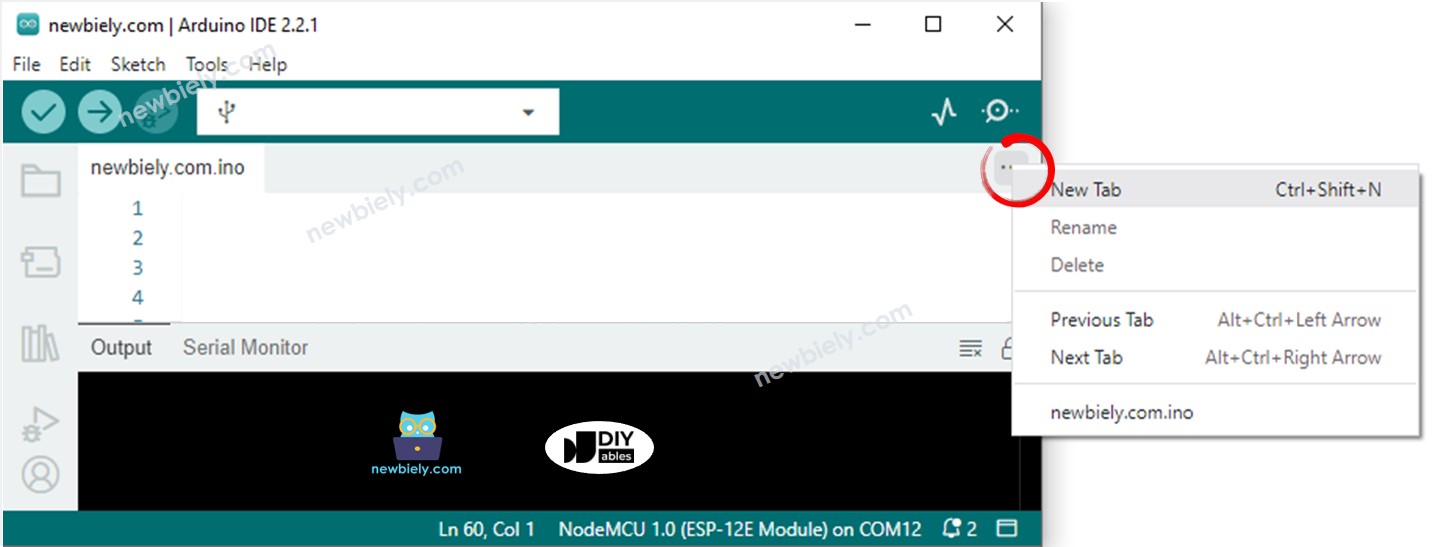
- Clique no botão logo abaixo do ícone do Serial Monitor e escolha "New Tab", ou use Ctrl+Shift+N.
- Dê ao arquivo o nome fonts.h e clique no botão OK
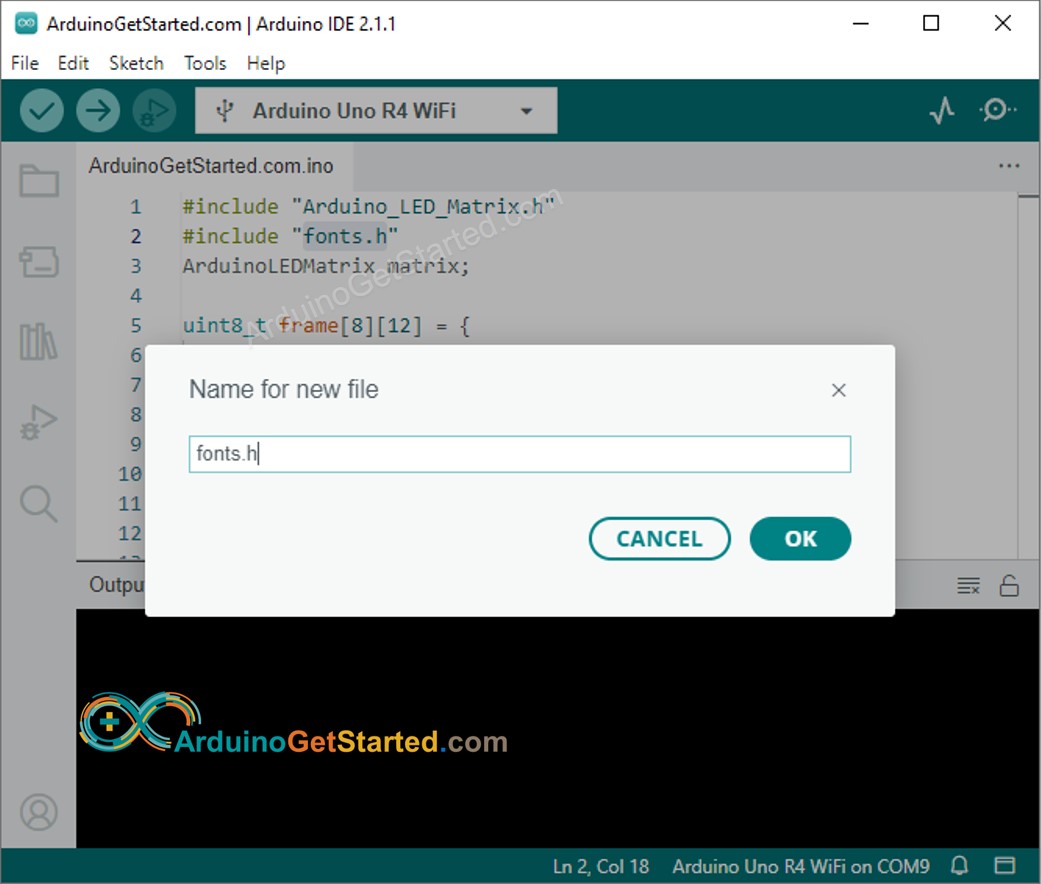
- Copie o código abaixo e cole-o nesse arquivo.
/*
* Este código de Arduino UNO R4 foi desenvolvido por pt.newbiely.com
* Este código de Arduino UNO R4 é disponibilizado ao público sem nenhuma restrição.
* Para tutoriais completos e diagramas de ligação, visite:
* https://pt.newbiely.com/tutorials/arduino-uno-r4/arduino-uno-r4-built-in-led-matrix
*/
uint8_t fonts[36][8] = {
{
// 0
0b01110,
0b10001,
0b10001,
0b10001,
0b10001,
0b10001,
0b10001,
0b01110,
},
{
// 1
0b00110,
0b01110,
0b10110,
0b00110,
0b00110,
0b00110,
0b00110,
0b11111,
},
{
// 2
0b11110,
0b00001,
0b00010,
0b00100,
0b01000,
0b10000,
0b10000,
0b11111,
},
{
// 3
0b11110,
0b00001,
0b00010,
0b00100,
0b00110,
0b00001,
0b00001,
0b11110,
},
{
// 4
0b00010,
0b00110,
0b01010,
0b10010,
0b11111,
0b00010,
0b00010,
0b00010,
},
{
// 5
0b11111,
0b10000,
0b10000,
0b11110,
0b00001,
0b00001,
0b10001,
0b01110,
},
{
// 6
0b01110,
0b10000,
0b10000,
0b11110,
0b10001,
0b10001,
0b10001,
0b01110,
},
{
// 7
0b11111,
0b00001,
0b00010,
0b00100,
0b01000,
0b01000,
0b10000,
0b10000,
},
{
// 8
0b01110,
0b10001,
0b10001,
0b01110,
0b10001,
0b10001,
0b10001,
0b01110,
},
{
// 9
0b01110,
0b10001,
0b10001,
0b10001,
0b11110,
0b00001,
0b00001,
0b11110,
},
{
// A
0b00100,
0b01010,
0b10001,
0b11111,
0b10001,
0b10001,
0b10001,
0b10001,
},
{
// B
0b11110,
0b10001,
0b10001,
0b11110,
0b10001,
0b10001,
0b10001,
0b11110,
},
{
// C
0b01110,
0b10001,
0b10000,
0b10000,
0b10000,
0b10000,
0b10001,
0b01110,
},
{
// D
0b11110,
0b10001,
0b10001,
0b10001,
0b10001,
0b10001,
0b10001,
0b11110,
},
{
// E
0b11111,
0b10000,
0b10000,
0b11110,
0b10000,
0b10000,
0b10000,
0b11111,
},
{
// F
0b11111,
0b10000,
0b10000,
0b11110,
0b10000,
0b10000,
0b10000,
0b10000,
},
{
// G
0b01110,
0b10001,
0b10000,
0b10000,
0b10111,
0b10001,
0b10001,
0b01110,
},
{
// H
0b10001,
0b10001,
0b10001,
0b11111,
0b10001,
0b10001,
0b10001,
0b10001,
},
{
// I
0b11111,
0b00100,
0b00100,
0b00100,
0b00100,
0b00100,
0b00100,
0b11111,
},
{
// J
0b11111,
0b00010,
0b00010,
0b00010,
0b00010,
0b00010,
0b10010,
0b01100,
},
{
// K
0b10001,
0b10010,
0b10100,
0b11000,
0b10100,
0b10010,
0b10001,
0b10001,
},
{
// L
0b10000,
0b10000,
0b10000,
0b10000,
0b10000,
0b10000,
0b10000,
0b11111,
},
{
// M
0b10001,
0b11011,
0b10101,
0b10101,
0b10001,
0b10001,
0b10001,
0b10001,
},
{
// N
0b10001,
0b10001,
0b11001,
0b10101,
0b10011,
0b10001,
0b10001,
0b10001,
},
{
// O
0b01110,
0b10001,
0b10001,
0b10001,
0b10001,
0b10001,
0b10001,
0b01110,
},
{
// P
0b11110,
0b10001,
0b10001,
0b11110,
0b10000,
0b10000,
0b10000,
0b10000,
},
{
// Q
0b01110,
0b10001,
0b10001,
0b10001,
0b10001,
0b10101,
0b10010,
0b01101,
},
{
// R
0b11110,
0b10001,
0b10001,
0b11110,
0b10010,
0b10001,
0b10001,
0b10001,
},
{
// S
0b01110,
0b10001,
0b10000,
0b01110,
0b00001,
0b00001,
0b10001,
0b01110,
},
{
// T
0b11111,
0b00100,
0b00100,
0b00100,
0b00100,
0b00100,
0b00100,
0b00100,
},
{
// U
0b10001,
0b10001,
0b10001,
0b10001,
0b10001,
0b10001,
0b10001,
0b01110,
},
{
// V
0b10001,
0b10001,
0b10001,
0b10001,
0b01010,
0b01010,
0b00100,
0b00100,
},
{
// W
0b10001,
0b10001,
0b10001,
0b10101,
0b10101,
0b11011,
0b11011,
0b10001,
},
{
// X
0b10001,
0b10001,
0b01010,
0b00100,
0b00100,
0b01010,
0b10001,
0b10001,
},
{
// Y
0b10001,
0b10001,
0b01010,
0b00100,
0b00100,
0b00100,
0b00100,
0b00100,
},
{
// Z
0b11111,
0b00001,
0b00010,
0b00100,
0b01000,
0b10000,
0b10000,
0b11111,
}
};
- Clique no botão Upload na Arduino IDE para carregar o código no Arduino
- Verifique o estado da matriz de LED
Explicação do Código
No código fornecido, é fundamental prestar atenção à função add_to_frame(char c, int pos). Essa função aceita dois argumentos:
- char c: O caractere a ser exibido. Os valores válidos vão de 0 a 9 e de A a Z.
- int pos: A posição da coluna onde o caractere deve ser exibido. Os valores válidos vão de 0 a 11.
Código Arduino - Exibe dois caracteres ao mesmo tempo
O código Arduino a seguir exibe dois caracteres ao mesmo tempo na matriz de LED.
/*
* Este código de Arduino UNO R4 foi desenvolvido por pt.newbiely.com
* Este código de Arduino UNO R4 é disponibilizado ao público sem nenhuma restrição.
* Para tutoriais completos e diagramas de ligação, visite:
* https://pt.newbiely.com/tutorials/arduino-uno-r4/arduino-uno-r4-built-in-led-matrix
*/
#include "Arduino_LED_Matrix.h"
#include "fonts.h"
ArduinoLEDMatrix matrix;
uint8_t frame[8][12] = {
{ 0, 0, 0, 0, 0, 0, 0, 0, 0, 0, 0, 0 },
{ 0, 0, 0, 0, 0, 0, 0, 0, 0, 0, 0, 0 },
{ 0, 0, 0, 0, 0, 0, 0, 0, 0, 0, 0, 0 },
{ 0, 0, 0, 0, 0, 0, 0, 0, 0, 0, 0, 0 },
{ 0, 0, 0, 0, 0, 0, 0, 0, 0, 0, 0, 0 },
{ 0, 0, 0, 0, 0, 0, 0, 0, 0, 0, 0, 0 },
{ 0, 0, 0, 0, 0, 0, 0, 0, 0, 0, 0, 0 },
{ 0, 0, 0, 0, 0, 0, 0, 0, 0, 0, 0, 0 }
};
void setup() {
// put your setup code here, to run once:
Serial.begin(115200);
delay(1500);
matrix.begin();
}
void loop() {
clear_frame();
add_to_frame('A', 0);
add_to_frame('5', 6);
display_frame();
delay(1000);
clear_frame();
add_to_frame('7', 0);
add_to_frame('F', 6);
display_frame();
delay(1000);
}
void clear_frame() {
for (int row = 0; row < 8; row++) {
for (int col = 0; col < 12; col++) {
frame[row][col] = 0;
}
}
}
void display_frame() {
matrix.renderBitmap(frame, 8, 12);
}
void add_to_frame(char c, int pos) {
int index = -1;
if (c >= '0' && c <= '9')
index = c - '0';
else if (c >= 'A' && c <= 'Z')
index = c - 'A' + 10;
else {
Serial.println("WARNING: unsupported character");
return;
}
for (int row = 0; row < 8; row++) {
uint32_t temp = fonts[index][row] << (7 - pos);
for (int col = 0; col < 12; col++) {
frame[row][col] |= (temp >> (11 - col)) & 1;
}
}
}