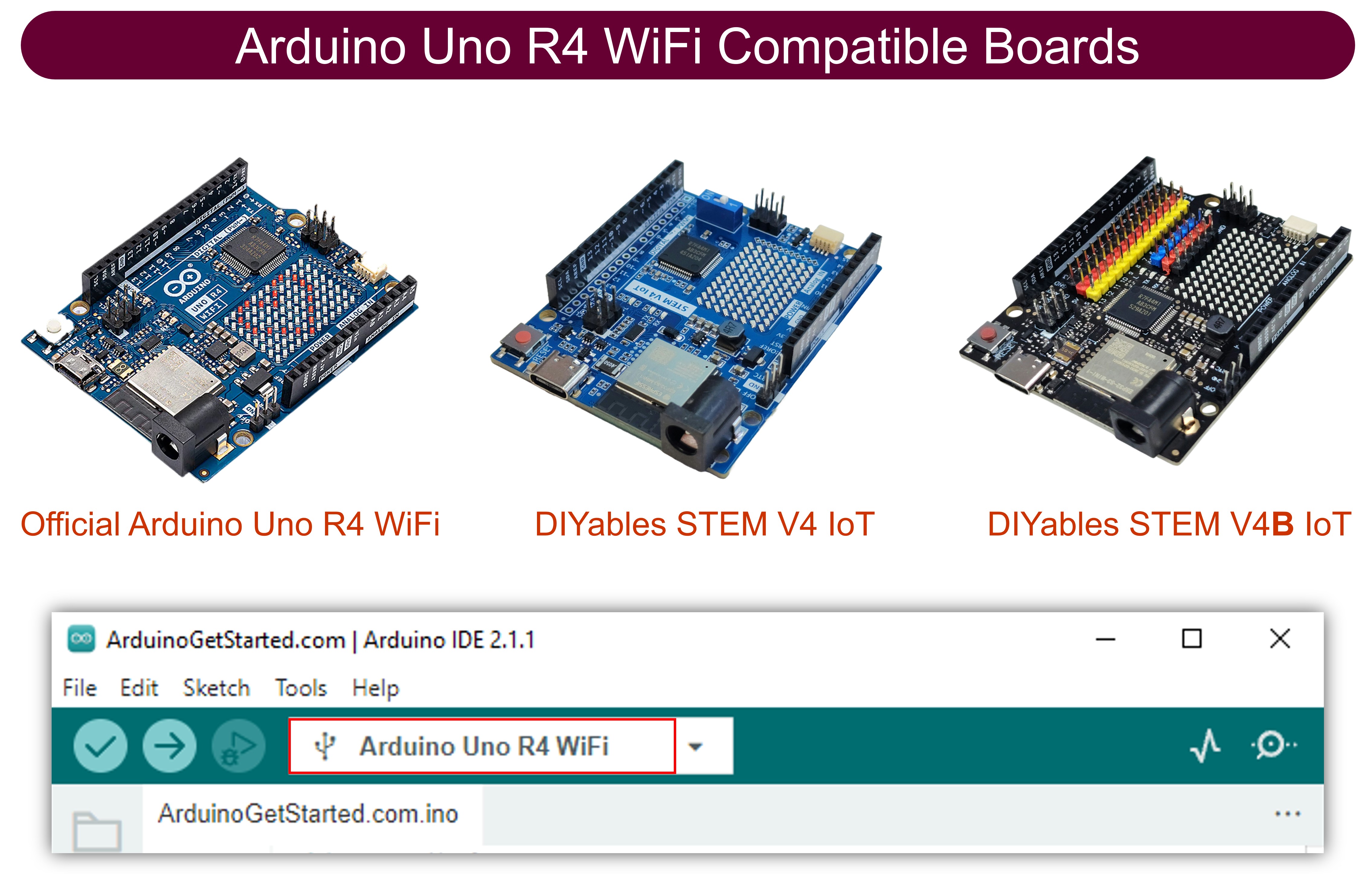
Arduino UNO R4 - Sensor de Toque

Um sensor de toque, também conhecido como botão de toque ou interruptor de toque, é muito usado para acionar dispositivos como luminárias sensíveis ao toque. Ele funciona como um botão comum. Muitos dispositivos novos usam sensores de toque em vez de botões tradicionais porque ajudam a deixar o produto com um visual mais elegante.

Neste guia, vamos aprender a usar o sensor de toque com o Arduino UNO R4.
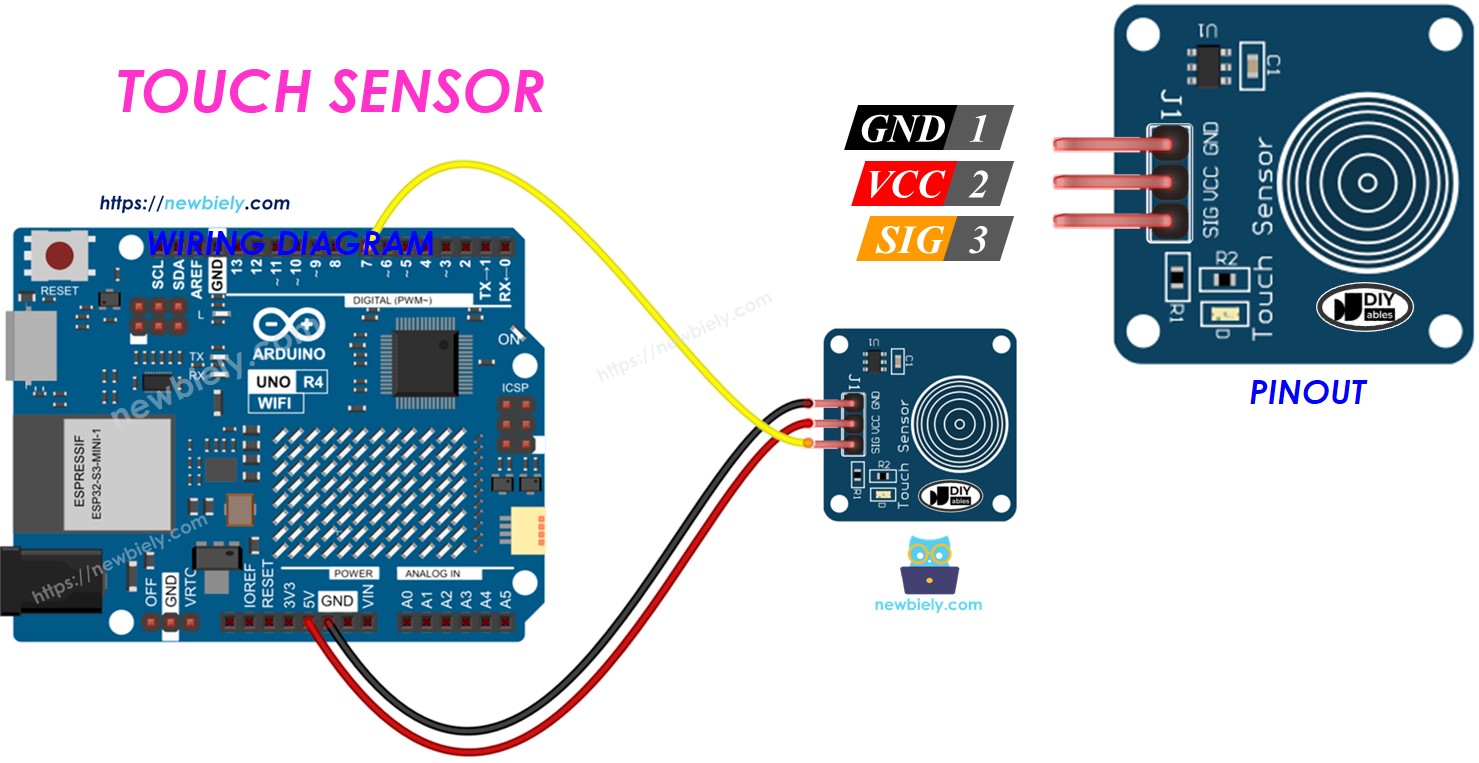
Sensor de toque no Arduino UNO R4

Sobre o Sensor de Toque

Pinagem

O sensor de toque tem três pinos:

  • Pino GND: conecte ao GND (0V)
  • Pino VCC: conecte ao VCC (5V ou 3,3V)
  • Pino SIGNAL: ele envia: LOW se não estiver tocado, HIGH se estiver tocado. Conecte este pino ao pino de entrada do Arduino UNO R4.
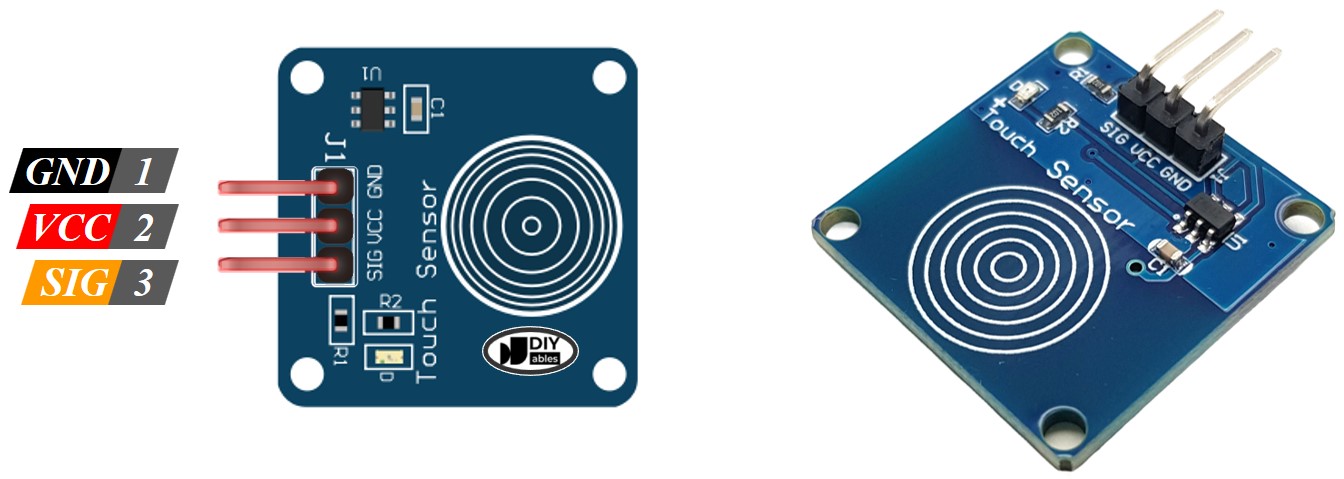
Pinagem do Sensor de Toque

Como Funciona

  • Se o sensor não estiver sendo tocado, o pino de sinal do sensor fica em LOW.
  • Se o sensor estiver sendo tocado, o pino de sinal do sensor fica em HIGH.

Arduino UNO R4 - Sensor de Toque

O pino SIGNAL do sensor de toque é ligado a um pino de entrada do Arduino UNO R4.

Você pode descobrir se o sensor de toque está sendo tocado verificando o estado de um pino do Arduino UNO R4 configurado como entrada.

Diagrama de Ligação
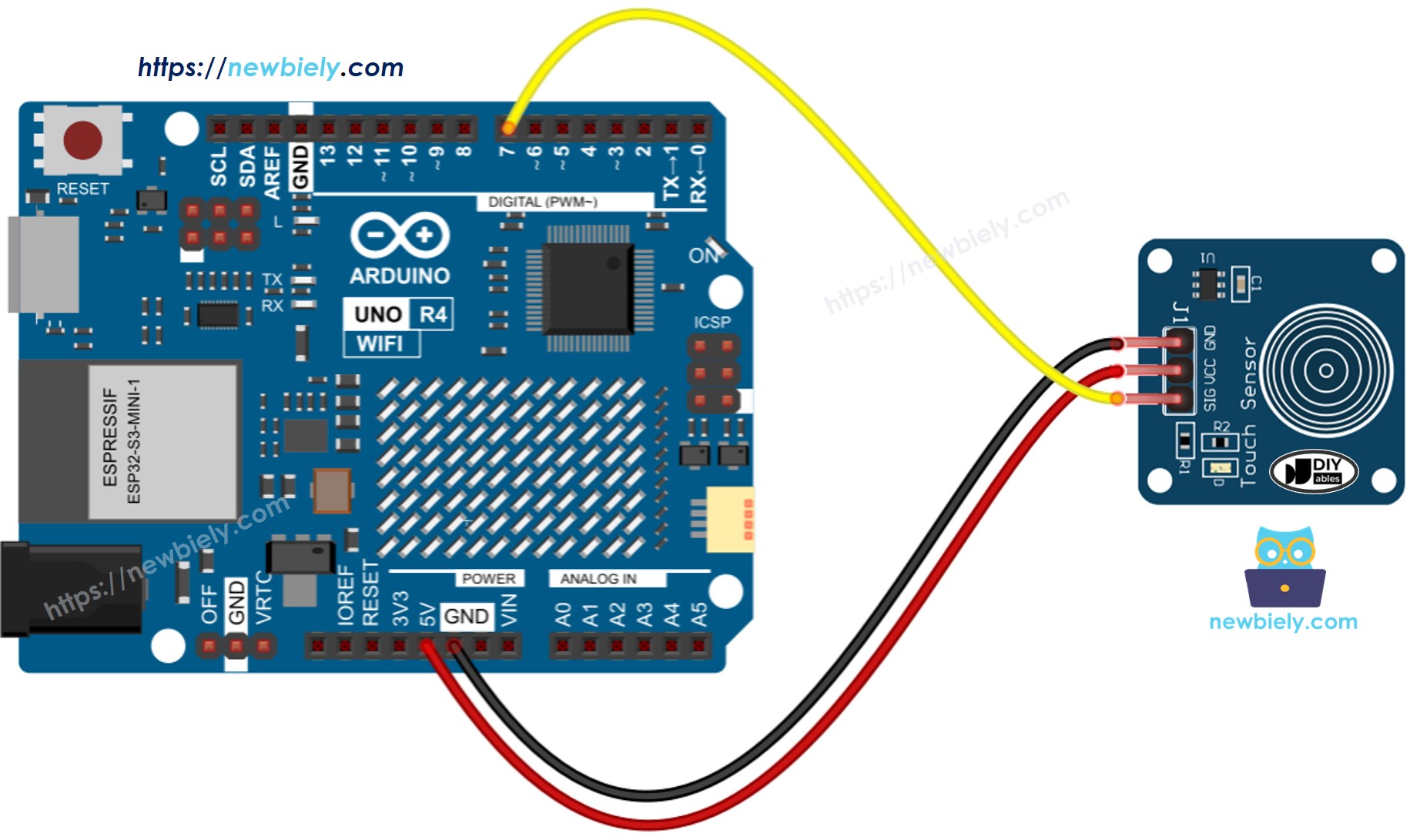
Diagrama de ligação do sensor de toque no Arduino UNO R4

This image is created using Fritzing. Click to enlarge image

Veja A melhor forma de alimentar o Arduino Uno R4 e outros componentes.

Como Programar o Sensor de Toque

  • Configura o pino do Arduino UNO R4 como entrada digital, usando a função pinSerial(). Por exemplo, para o pino 7.
pinMode(7, INPUT_PULLUP);
  • Usa a função digitalRead() para verificar a condição do pino do Arduino UNO R4.
int inputState = digitalRead(7);

※ Nota:

Existem dois cenários comuns:

  • Primeiro cenário: quando a entrada está em HIGH, execute uma ação. Quando a entrada está em LOW, execute a ação oposta.
  • Segundo cenário: quando a entrada muda de LOW para HIGH (ou de HIGH para LOW), execute uma ação.

Escolhemos o cenário adequado conforme a nossa necessidade. Por exemplo, ao usar um sensor de toque para controlar um LED:

  • Para ligar o LED quando o sensor é tocado e desligá-lo quando não é tocado, o primeiro cenário é o mais adequado.
  • Para ligar e desligar o LED a cada toque no sensor, o segundo cenário é o mais adequado.

Sensor de Toque - Código Arduino UNO R4

Lê o valor do sensor de toque e imprime no Serial Monitor

/* * Este código de Arduino UNO R4 foi desenvolvido por pt.newbiely.com * Este código de Arduino UNO R4 é disponibilizado ao público sem nenhuma restrição. * Para tutoriais completos e diagramas de ligação, visite: * https://pt.newbiely.com/tutorials/arduino-uno-r4/arduino-uno-r4-touch-sensor */ #define SENSOR_PIN 7 // The Arduino UNO R4 pin connected to the touch sensor's SIGNAL pin void setup() { // initialize serial communication at 9600 bits per second: Serial.begin(9600); // initialize the Arduino's pin as aninput pinMode(SENSOR_PIN, INPUT); } void loop() { // read the state of the the input pin: int state = digitalRead(SENSOR_PIN); // print state to Serial Monitor Serial.println(state); }

Passos Rápidos

Siga estas instruções passo a passo:

  • Se esta é a sua primeira vez usando o Arduino Uno R4 WiFi/Minima, consulte o tutorial sobre como configurar o ambiente para o Arduino Uno R4 WiFi/Minima na Arduino IDE.
  • Conecte o sensor de toque ao Arduino Uno R4 conforme o diagrama fornecido.
  • Conecte a placa Arduino Uno R4 ao seu computador usando um cabo USB.
  • Abra a Arduino IDE no seu computador.
  • Selecione a placa Arduino Uno R4 correta (por exemplo, Arduino Uno R4 WiFi) e a porta COM.
  • Copie o código acima e abra-o na Arduino IDE
  • Clique no botão Upload na Arduino IDE para enviar o código ao Arduino UNO R4
  • Coloque o dedo no sensor e depois retire-o.
  • Confira o resultado no Serial Monitor.
∞
Newbiely | Arduino IDE 2.3.8
──
☐
✕
File
Edit
Sketch
Tools
Help
Arduino Uno R4 WiFi
Newbiely.ino
···
8 Serial.println("Hello World!");
Output
Serial Monitor
Message (Enter to send message to 'Arduino Uno R4 WiFi' on 'COM15')
New Line
9600 baud
0 0 1 1 1 1 1 0 0 0 0
Ln 11, Col 1
Arduino Uno R4 WiFi on COM15
2

Detecta quando o sensor é tocado ou solto

/* * Este código de Arduino UNO R4 foi desenvolvido por pt.newbiely.com * Este código de Arduino UNO R4 é disponibilizado ao público sem nenhuma restrição. * Para tutoriais completos e diagramas de ligação, visite: * https://pt.newbiely.com/tutorials/arduino-uno-r4/arduino-uno-r4-touch-sensor */ #define SENSOR_PIN 7 // The Arduino UNO R4 pin connected to the touch sensor's SIGNAL pin int touch_state; // the current reading from the input pin int prev_touch_state = LOW; // the previous state from the input pin void setup() { // initialize serial communication at 9600 bits per second: Serial.begin(9600); // initialize the Arduino's pin as aninput pinMode(SENSOR_PIN, INPUT); } void loop() { // read the state of the the input pin: touch_state = digitalRead(SENSOR_PIN); if(prev_touch_state == LOW && touch_state == HIGH) Serial.println("The sensor is touched"); else if(prev_touch_state == HIGH && touch_state == LOW) Serial.println("The sensor is is released"); // save the the last state prev_touch_state = touch_state; }

Passos Rápidos

  • Copie o código e abra-o na Arduino IDE
  • Clique no botão Upload na Arduino IDE para enviar o código ao Arduino UNO R4
  • Coloque o dedo no sensor e mantenha-o ali.
  • Confira os resultados no Serial Monitor.
∞
Newbiely | Arduino IDE 2.3.8
──
☐
✕
File
Edit
Sketch
Tools
Help
Arduino Uno R4 WiFi
Newbiely.ino
···
8 Serial.println("Hello World!");
Output
Serial Monitor
Message (Enter to send message to 'Arduino Uno R4 WiFi' on 'COM15')
New Line
9600 baud
The sensor is touched
Ln 11, Col 1
Arduino Uno R4 WiFi on COM15
2
  • Tire o dedo do sensor.
  • Confira o resultado no Serial Monitor.
∞
Newbiely | Arduino IDE 2.3.8
──
☐
✕
File
Edit
Sketch
Tools
Help
Arduino Uno R4 WiFi
Newbiely.ino
···
8 Serial.println("Hello World!");
Output
Serial Monitor
Message (Enter to send message to 'Arduino Uno R4 WiFi' on 'COM15')
New Line
9600 baud
The sensor is touched The sensor is is released
Ln 11, Col 1
Arduino Uno R4 WiFi on COM15
2

Vídeo

O vídeo de demonstração abaixo usa o código abaixo:

/* * Este código de Arduino UNO R4 foi desenvolvido por pt.newbiely.com * Este código de Arduino UNO R4 é disponibilizado ao público sem nenhuma restrição. * Para tutoriais completos e diagramas de ligação, visite: * https://pt.newbiely.com/tutorials/arduino-uno-r4/arduino-uno-r4-touch-sensor */ // --- Hardware Pin Definitions --- #define BUZZER_PIN 8 #define TOUCH_1_PIN 2 // Happy Birthday trigger #define TOUCH_2_PIN 3 // Jingle Bells trigger #define LED_A_PIN 4 // First indicator LED (Active-Low) #define LED_B_PIN 5 // Second indicator LED (Active-Low) // --- Musical Note Frequencies (Hz) --- #define NOTE_C4 262 #define NOTE_D4 294 #define NOTE_E4 330 #define NOTE_F4 349 #define NOTE_G4 392 #define NOTE_A4 440 #define NOTE_A5 880 #define NOTE_B4 494 #define NOTE_C5 523 #define NOTE_D5 587 #define NOTE_E5 659 // --- Melody 1: Happy Birthday --- const int happyBirthdayMelody[] = { NOTE_C4, NOTE_C4, NOTE_D4, NOTE_C4, NOTE_F4, NOTE_E4, NOTE_C4, NOTE_C4, NOTE_D4, NOTE_C4, NOTE_G4, NOTE_F4, NOTE_C4, NOTE_C4, NOTE_C5, NOTE_A4, NOTE_F4, NOTE_E4, NOTE_D4, NOTE_B4, NOTE_B4, NOTE_A4, NOTE_F4, NOTE_G4, NOTE_F4 }; const int happyBirthdayDurations[] = { 8, 8, 4, 4, 4, 2, 8, 8, 4, 4, 4, 2, 8, 8, 4, 4, 4, 4, 4, 8, 8, 4, 4, 4, 2 }; const int happyBirthdayLength = sizeof(happyBirthdayMelody) / sizeof(happyBirthdayMelody[0]); // --- Melody 2: Jingle Bells --- const int jingleBellsMelody[] = { NOTE_E4, NOTE_E4, NOTE_E4, NOTE_E4, NOTE_E4, NOTE_E4, NOTE_E4, NOTE_G4, NOTE_C4, NOTE_D4, NOTE_E4, NOTE_F4, NOTE_F4, NOTE_F4, NOTE_F4, NOTE_F4, NOTE_E4, NOTE_E4, NOTE_E4, NOTE_E4, NOTE_D4, NOTE_D4, NOTE_E4, NOTE_D4, NOTE_G4 }; const int jingleBellsDurations[] = { 4, 4, 2, 4, 4, 2, 4, 4, 4, 4, 1, 4, 4, 4, 4, 4, 4, 4, 8, 8, 4, 4, 4, 4, 2 }; const int jingleBellsLength = sizeof(jingleBellsMelody) / sizeof(jingleBellsMelody[0]); // --- Function Prototypes --- void playSong(const int melody[], const int durations[], int songLength); void updateLeds(int noteIndex, bool isQuietNote); void turnOffBothLeds(); /** * @brief Initializes peripheral pins and system communication. */ void setup() { Serial.begin(115200); pinMode(TOUCH_1_PIN, INPUT); pinMode(TOUCH_2_PIN, INPUT); pinMode(BUZZER_PIN, OUTPUT); pinMode(LED_A_PIN, OUTPUT); pinMode(LED_B_PIN, OUTPUT); // For Active-Low LEDs, setting pins HIGH turns them OFF on startup turnOffBothLeds(); Serial.println(F("Active-Low LED Music Box Jukebox Ready.")); } /** * @brief Main execution loop checking for touch sensor triggers. */ void loop() { if (digitalRead(TOUCH_1_PIN) == HIGH) { Serial.println(F("Touch 1 detected: Playing Happy Birthday...")); playSong(happyBirthdayMelody, happyBirthdayDurations, happyBirthdayLength); } else if (digitalRead(TOUCH_2_PIN) == HIGH) { Serial.println(F("Touch 2 detected: Playing Jingle Bells...")); playSong(jingleBellsMelody, jingleBellsDurations, jingleBellsLength); } } /** * @brief Iterates through the provided melody arrays to play the full song with LED sync. * @param melody Array containing note frequencies. * @param durations Array containing corresponding note lengths. * @param songLength Total number of notes in the song. */ void playSong(const int melody[], const int durations[], int songLength) { for (int thisNote = 0; thisNote < songLength; thisNote++) { bool isQuietNote = (melody[thisNote] == 0); int noteDuration = 1000 / durations[thisNote]; // Trigger Active-Low LED effect updateLeds(thisNote, isQuietNote); tone(BUZZER_PIN, melody[thisNote], noteDuration); int pauseBetweenNotes = noteDuration * 1.30; delay(pauseBetweenNotes); noTone(BUZZER_PIN); turnOffBothLeds(); // Drive both pins HIGH to turn off the LEDs } Serial.println(F("Song finished. LEDs reset to standby (HIGH).")); } /** * @brief Logic switch designed for Active-Low configurations (LOW = ON, HIGH = OFF). * @param noteIndex Current position in the melody array. * @param isQuietNote Evaluation flag determining if the note produces no sound. */ void updateLeds(int noteIndex, bool isQuietNote) { if (isQuietNote) { turnOffBothLeds(); return; } // Alternating Active-Low pattern if (noteIndex % 2 == 0) { digitalWrite(LED_A_PIN, LOW); // LED A turns ON digitalWrite(LED_B_PIN, HIGH); // LED B turns OFF } else { digitalWrite(LED_A_PIN, HIGH); // LED A turns OFF digitalWrite(LED_B_PIN, LOW); // LED B turns ON } } /** * @brief Forces both LED control pins to HIGH, turning them OFF in Active-Low logic. */ void turnOffBothLeds() { digitalWrite(LED_A_PIN, HIGH); digitalWrite(LED_B_PIN, HIGH); }

Tutoriais Relacionados

※ NOSSAS MENSAGENS

  • Fique à vontade para compartilhar o link deste tutorial. Porém, por favor, não use nosso conteúdo em outros sites. Investimos muito esforço e tempo para criar este conteúdo, por favor respeite nosso trabalho!