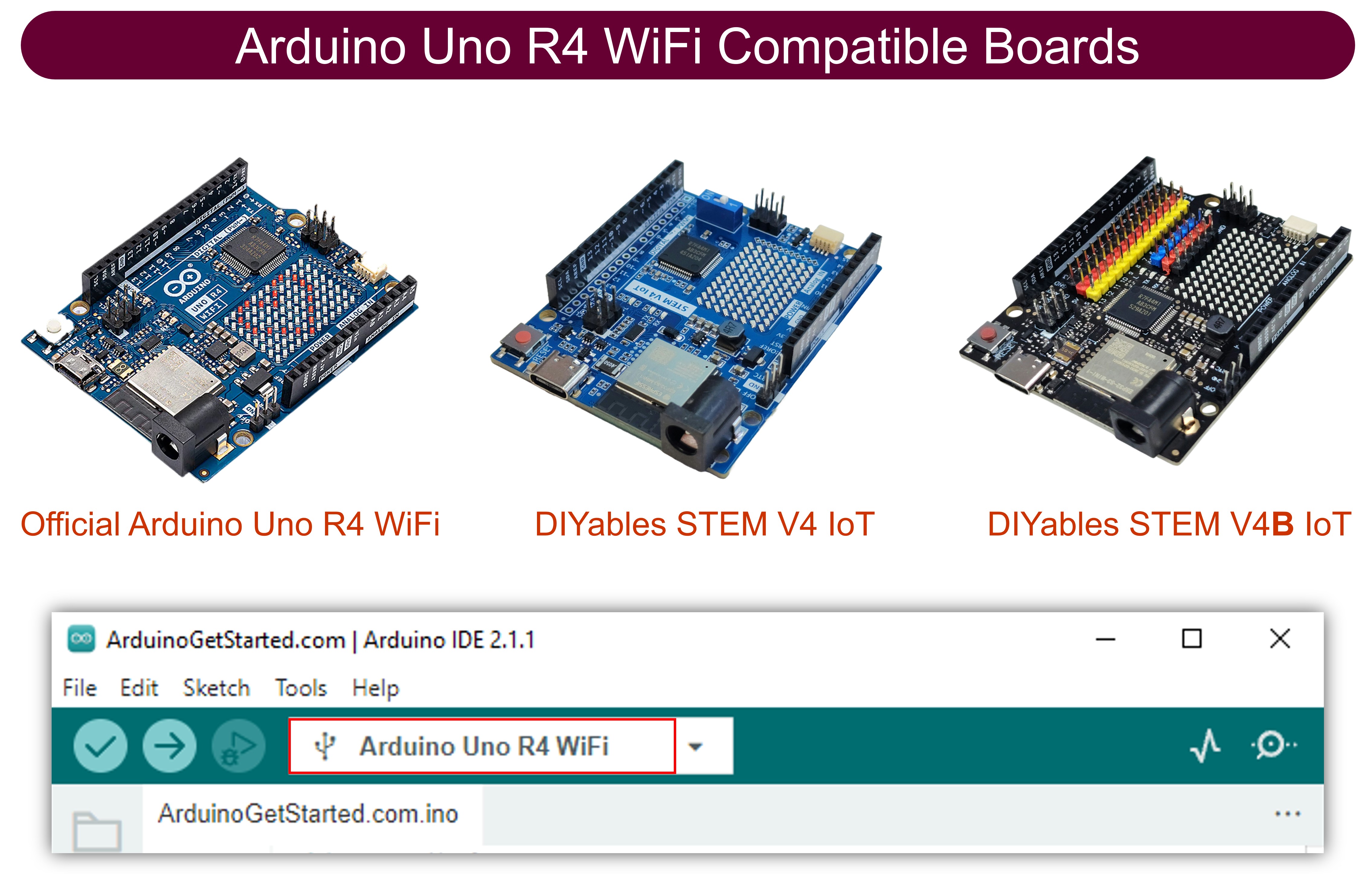
Arduino Uno R4 - Display OLED SSD1309 128x64 | Guia do OLED I2C de 2,42 polegadas

Os displays de diodo orgânico emissor de luz (OLED) têm pixels autoiluminados que produzem pretos verdadeiros, taxas de contraste superiores e excelentes ângulos de visão em todas as direções — oferecendo vantagens significativas sobre a tecnologia LCD convencional. O chip driver SSD1309 alimenta os módulos OLED monocromáticos de 128×64 de 2,42 polegadas (também vendidos como 2,4 polegadas) que usam comunicação I2C.
Arduino Uno R4 com OLED SSD1309 128x64

Este guia prático mostra como interligar o OLED SSD1309 128×64 com a sua placa Arduino Uno R4 por meio da biblioteca DIYables_OLED_SSD1309. Você vai descobrir como:

Sobre o Display OLED SSD1309 de 2,42 Polegadas

O SSD1309 é um CI driver CMOS dedicado, projetado para matrizes OLED de 128×64 pixels. O seu conjunto de registradores é compatível com o popular SSD1306, o que permite reutilizar o código com pequenos ajustes. As principais diferenças de hardware incluem:

  • Necessidade de alimentação externa — ao contrário da bomba de carga integrada do SSD1306, o SSD1309 depende de uma alimentação VCC externa. No entanto, as placas breakout disponíveis no mercado (incluindo as versões de 2,42 e 2,4 polegadas) incorporam conversores boost na própria placa, o que torna essa diferença transparente durante o uso.
  • Faixa de tensão ampliada — o SSD1309 suporta até 16 V de entrada VCC, enquanto o SSD1306 se limita a cerca de 4,2 V.

O módulo OLED de 2,42 polegadas (2,4 polegadas) normalmente usa o controlador SSD1309 e oferece um display com resolução de 128×64 que se comunica pelo protocolo I2C. A cor do display (branco, azul, amarelo, verde ou zonas bicolores) depende do substrato OLED físico e não pode ser modificada por comandos de software.

Este tutorial se comunica com o display pelo barramento I2C, que exige apenas duas linhas de sinal (SDA e SCL) e permite compartilhar o barramento com outros periféricos I2C.

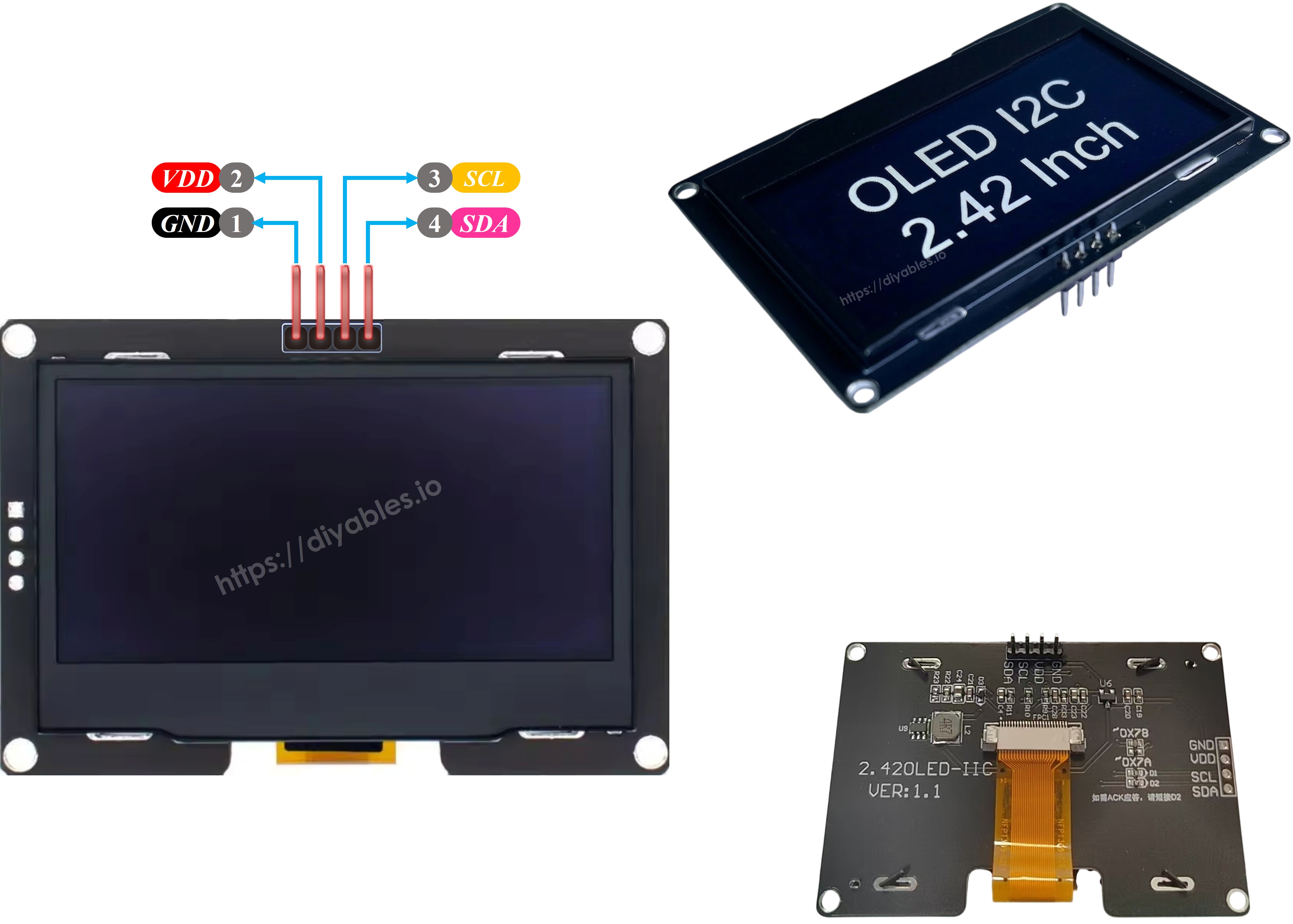
Pinagem do OLED SSD1309 (Módulo I2C)

Os módulos OLED I2C SSD1309 padrão de 2,42 polegadas têm quatro pinos de conexão:

  • GND — Conecte ao GND do Arduino Uno R4.
  • VCC — Entrada de alimentação. Ligue à saída de 5 V do Arduino Uno R4 (ou de 3,3 V, se o módulo suportar).
  • SCL — Linha do sinal de clock I2C.
  • SDA — Linha do sinal de dados I2C.
Pinagem do OLED SSD1309

※ Nota:

  • A disposição dos pinos varia de um fabricante para outro. Sempre confira os rótulos serigrafados no seu módulo específico antes de fazer as conexões.
  • Este guia foi validado com o display OLED SSD1309 de 2,42 polegadas da DIYables. Outros módulos de 2,4/2,42 polegadas baseados no SSD1309 devem funcionar de forma idêntica.

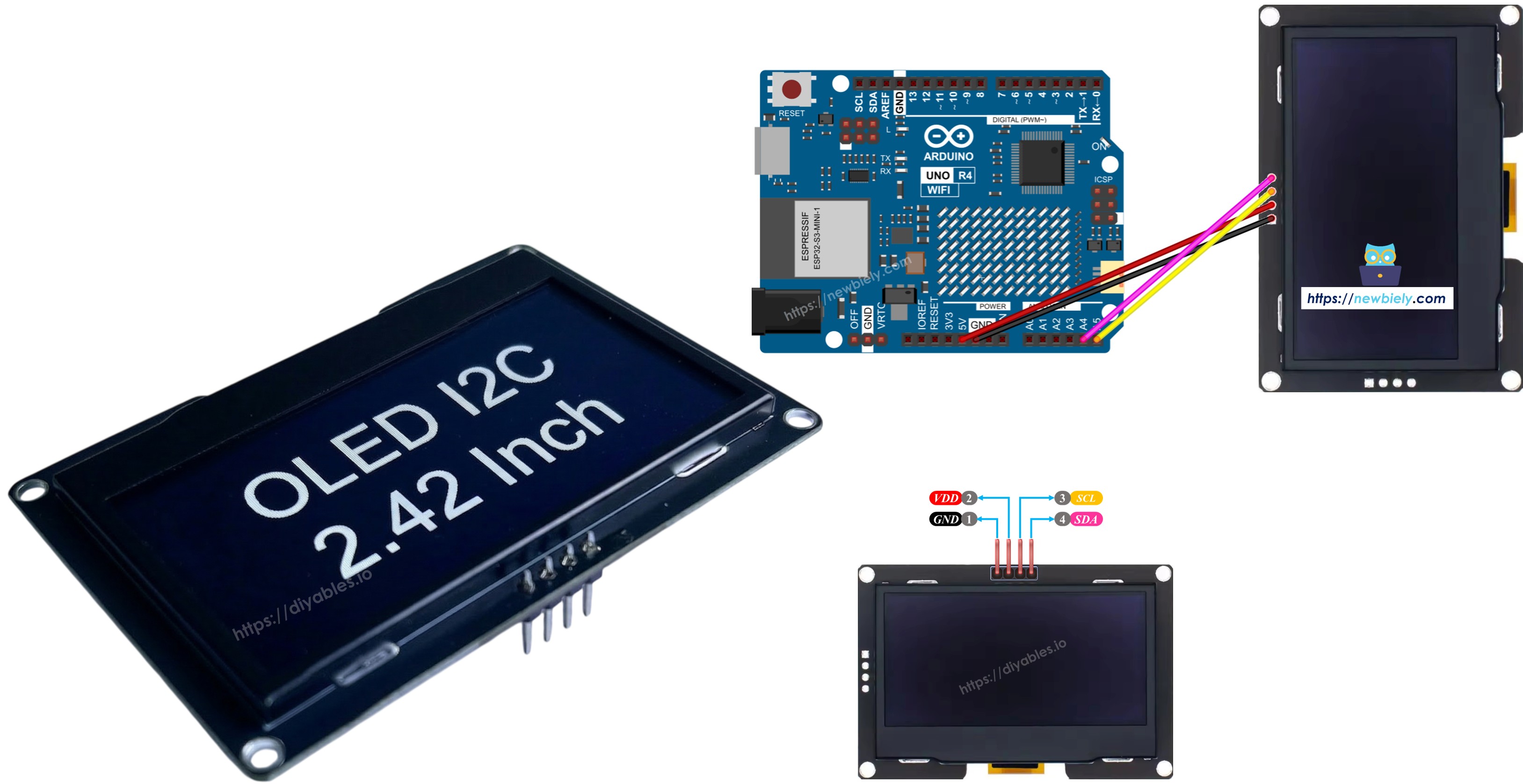
Diagrama de Ligação — Arduino Uno R4 e OLED SSD1309 128×64

  • Conexões esquemáticas entre o Arduino Uno R4 e o OLED SSD1309 128×64 de 2,42 polegadas
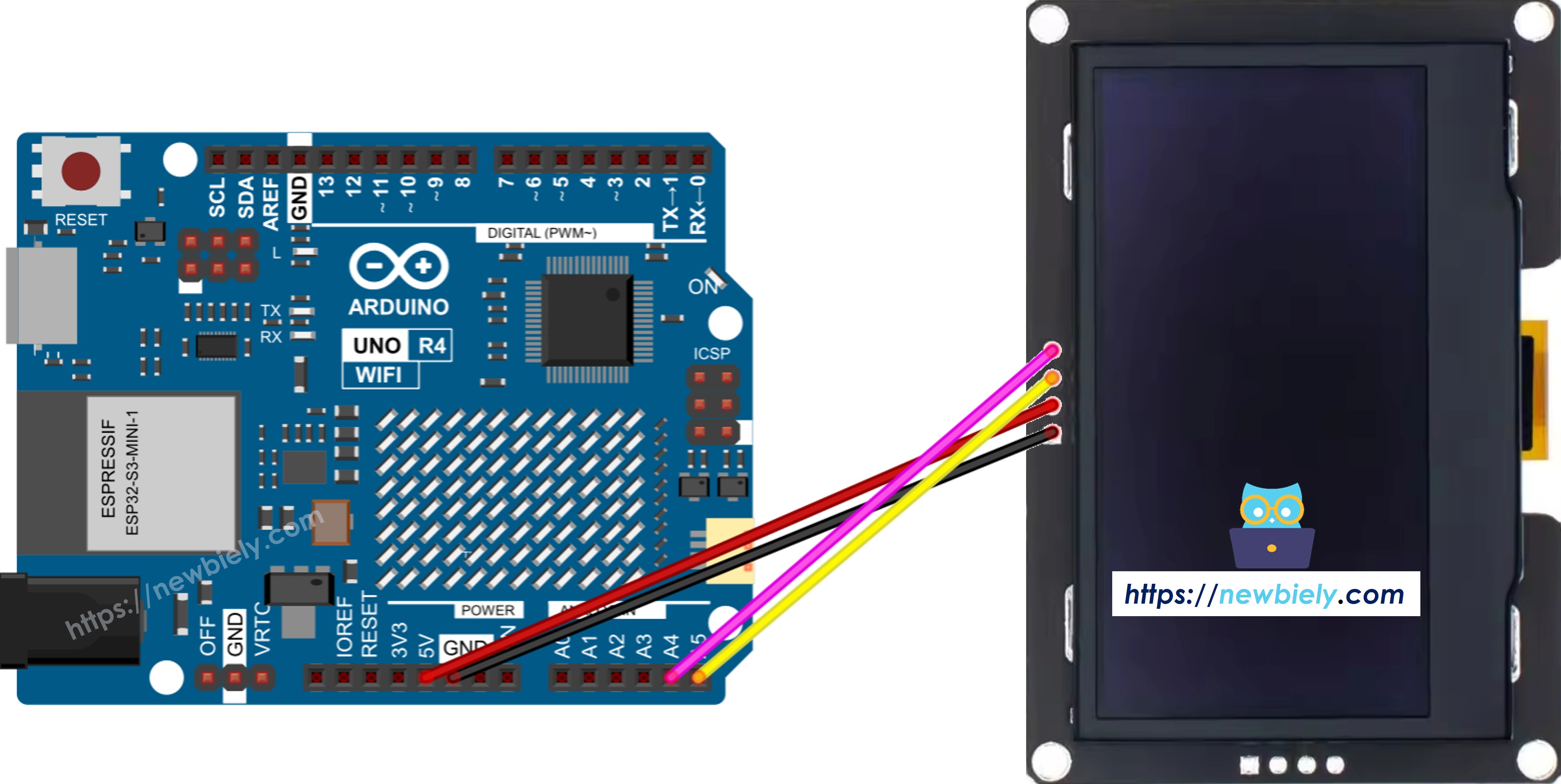
Diagrama de ligação do Arduino Uno R4 com OLED SSD1309 128x64

This image is created using Fritzing. Click to enlarge image

  • Foto da ligação física entre o Arduino Uno R4 e o OLED SSD1309 128×64
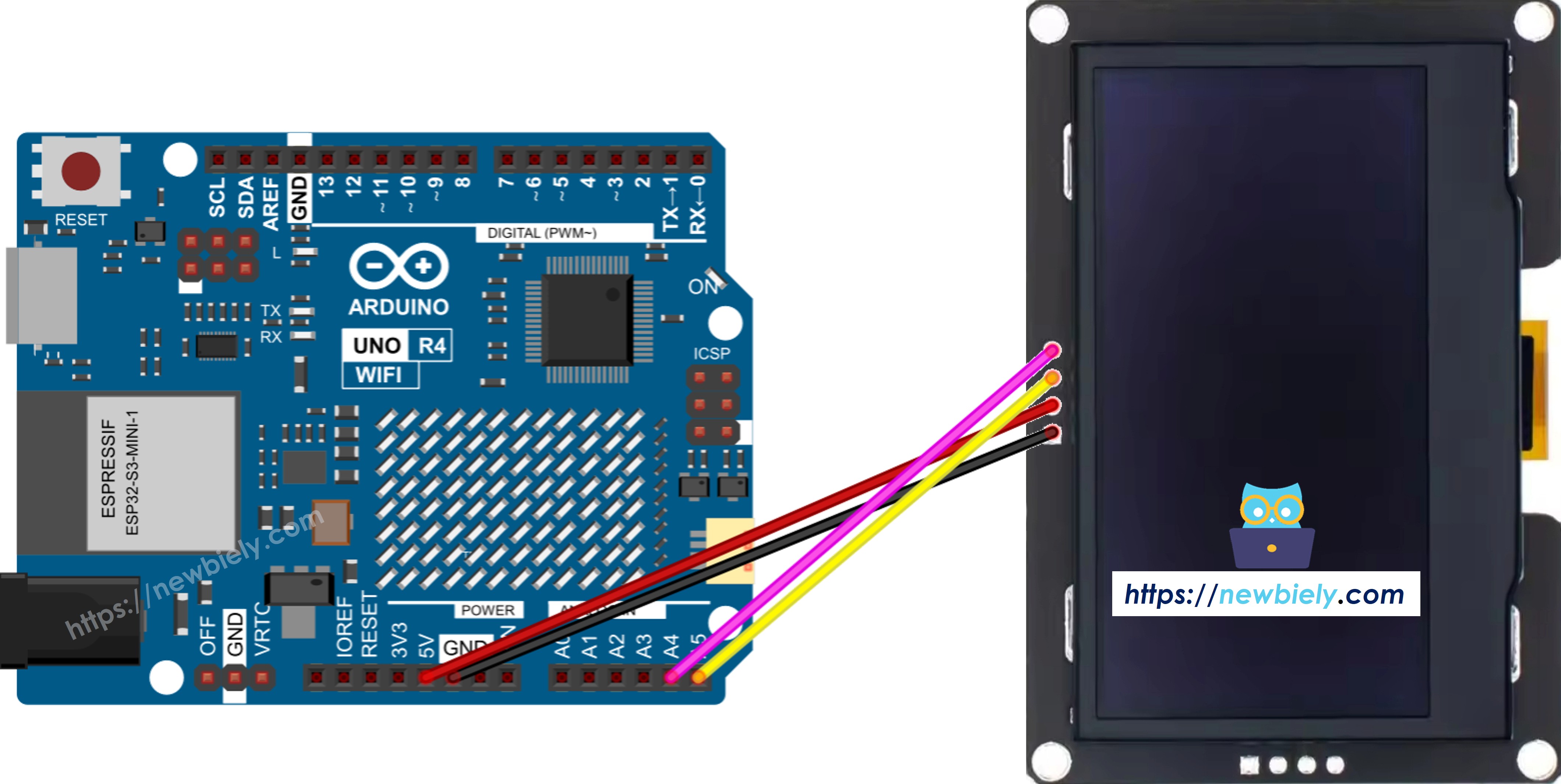
Ligação real do Arduino Uno R4 com OLED SSD1309 128x64

This image is created using Fritzing. Click to enlarge image

Veja A melhor forma de alimentar o Arduino Uno R4 e outros componentes.

O Arduino Uno R4 usa as mesmas posições dos pinos I2C que o Uno clássico. Detalhes da conexão:

Módulo OLEDArduino Uno R4
Vin5V
GNDGND
SDAA4 (ou pino SDA)
SCLA5 (ou pino SCL)

Primeiros Passos — OLED SSD1309 com Arduino Uno R4

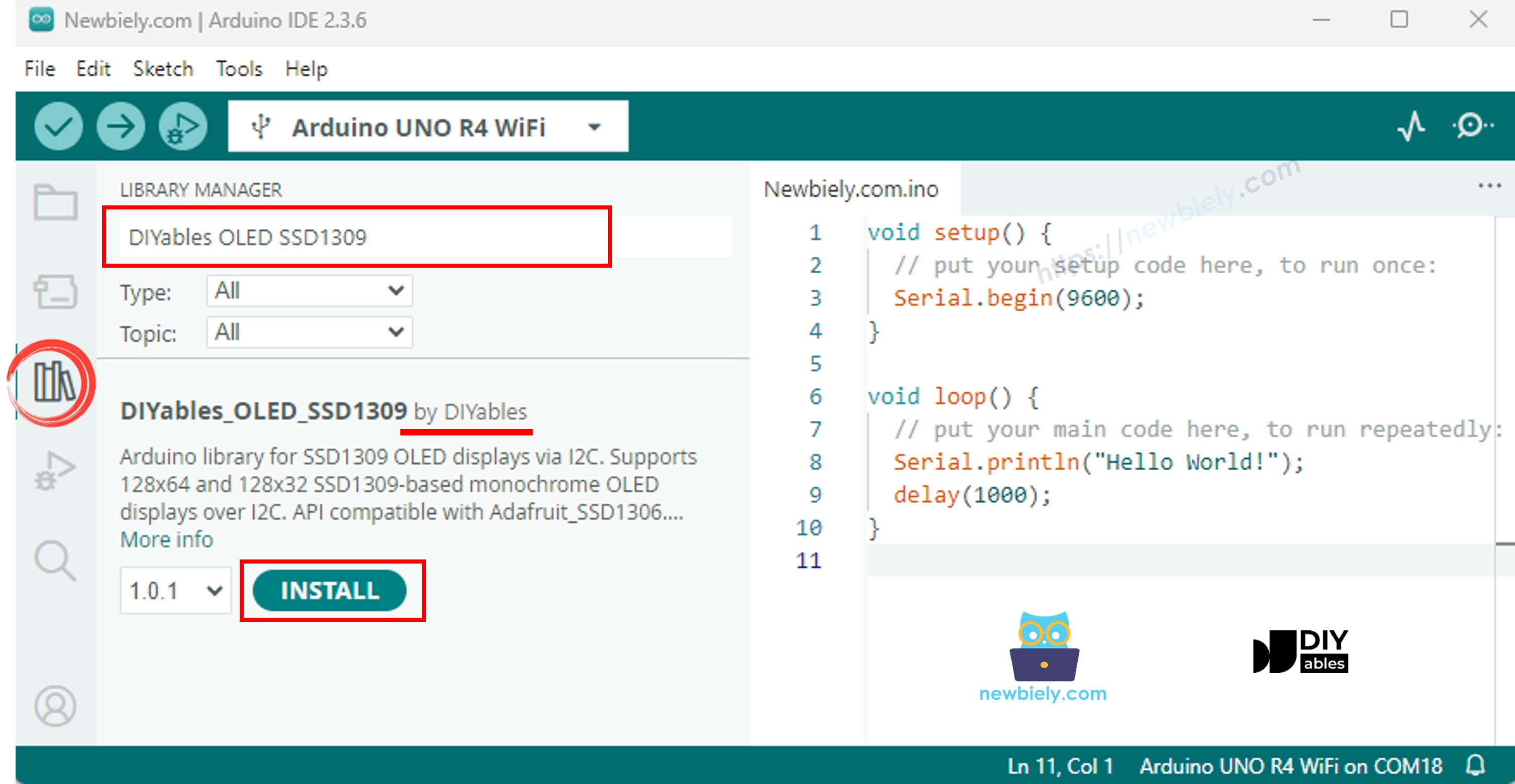
Passo 1: Instale a Biblioteca DIYables_OLED_SSD1309

  • Abra a Arduino IDE e clique no ícone Libraries na barra lateral esquerda.
  • Digite "DIYables_OLED_SSD1309" no campo de busca e encontre a biblioteca da DIYables.
  • Clique no botão Install.
Biblioteca OLED SSD1309 para Arduino
  • A IDE vai pedir para você instalar a dependência necessária (Adafruit GFX Library). Clique em Install All.
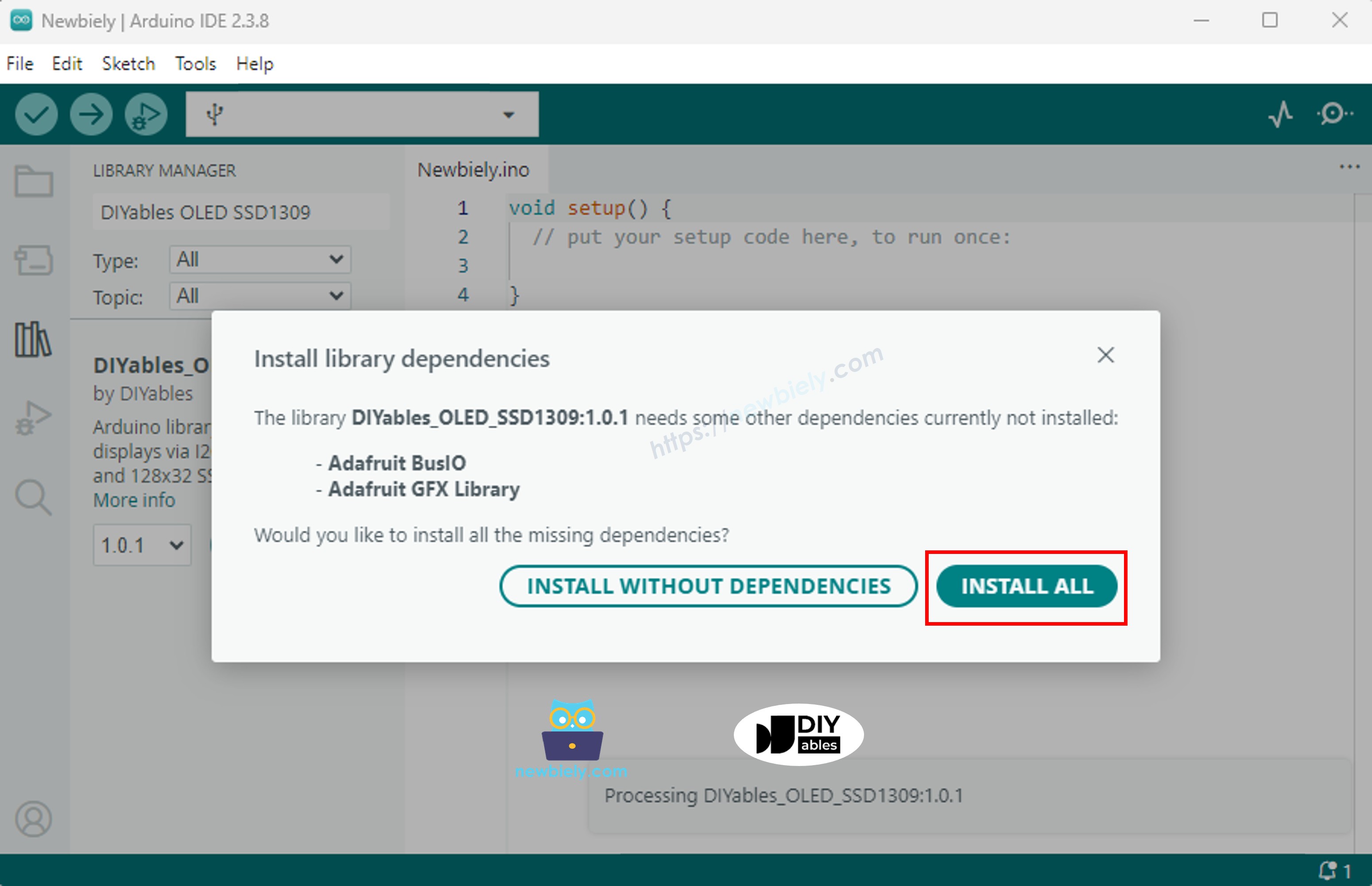
Biblioteca Adafruit GFX para Arduino

Passo 2: Estrutura Básica de Programação

Todos os sketches do SSD1309 seguem esta estrutura consistente: incluir os cabeçalhos, instanciar um objeto de display, inicializá-lo em setup(), desenhar o conteúdo no frame buffer e, por fim, transferir o buffer para a tela usando display().

  • Inclua os cabeçalhos necessários:
#include <Wire.h> #include <Adafruit_GFX.h> #include <DIYables_OLED_SSD1309.h>
  • Defina as dimensões da tela (128×64 para o módulo de 2,42 polegadas):
#define SCREEN_WIDTH 128 // OLED display width, in pixels #define SCREEN_HEIGHT 64 // OLED display height, in pixels
  • Instancie o objeto de display (use -1 quando nenhum pino de reset estiver conectado):
// Create an SSD1309 display instance on the default I2C bus DIYables_OLED_SSD1309 oled(SCREEN_WIDTH, SCREEN_HEIGHT, &Wire, -1);
  • Inicialize o display dentro de setup():
// Initialize the SSD1309 — use address 0x3C (default for most modules) if (!oled.begin(SSD1309_SWITCHCAPVCC, 0x3C)) { Serial.println(F("SSD1309 allocation failed")); while (true); }
  • Depois da inicialização, chame as funções de desenho (clearDisplay(), drawPixel(), print(), etc.) seguidas de oled.display() para atualizar a tela.

※ Nota:

Todos os exemplos de código deste guia são para o OLED SSD1309 128×64 (2,42 polegadas) e usam a biblioteca DIYables_OLED_SSD1309 com o Arduino Uno R4.

Código Arduino Uno R4 — Hello World no OLED SSD1309

A demonstração mais simples: exibir texto em vários tamanhos.

/* * Este código de Arduino UNO R4 foi desenvolvido por pt.newbiely.com * Este código de Arduino UNO R4 é disponibilizado ao público sem nenhuma restrição. * Para tutoriais completos e diagramas de ligação, visite: * https://pt.newbiely.com/tutorials/arduino-uno-r4/arduino-uno-r4-ssd1309-oled-display */ /* * DIYables OLED SSD1309 – Hello World * Prints text in two sizes on the 2.42 inch 128x64 I2C OLED. * Compatible with Arduino Uno R4 WiFi and Arduino Uno R4 Minima. */ #include <Wire.h> #include <Adafruit_GFX.h> #include <DIYables_OLED_SSD1309.h> #define SCREEN_WIDTH 128 #define SCREEN_HEIGHT 64 #define OLED_RESET -1 #define SCREEN_ADDRESS 0x3C DIYables_OLED_SSD1309 display(SCREEN_WIDTH, SCREEN_HEIGHT, &Wire, OLED_RESET); void setup() { Serial.begin(9600); if (!display.begin(SSD1309_SWITCHCAPVCC, SCREEN_ADDRESS)) { Serial.println(F("SSD1309 allocation failed")); for (;;); } display.clearDisplay(); display.setTextSize(1); // 6x8 pixels per character display.setTextColor(SSD1309_PIXEL_ON); // turn pixels on display.setCursor(0, 0); display.println(F("Hello, World!")); display.println(); display.setTextSize(2); // 12x16 pixels per character display.println(F("DIYables")); display.setTextSize(1); display.println(); display.println(F("SSD1309 OLED 128x64")); display.display(); // push buffer to screen } void loop() { }

Código Arduino Uno R4 — Exibir Texto no OLED SSD1309

Este exemplo mostra recursos avançados de texto — tamanhos variáveis, formatação numérica e a macro F() para economizar RAM.

/* * Este código de Arduino UNO R4 foi desenvolvido por pt.newbiely.com * Este código de Arduino UNO R4 é disponibilizado ao público sem nenhuma restrição. * Para tutoriais completos e diagramas de ligação, visite: * https://pt.newbiely.com/tutorials/arduino-uno-r4/arduino-uno-r4-ssd1309-oled-display */ /* * DIYables OLED SSD1309 – Display Text Demo for Arduino Uno R4 * Demonstrates text display features on 2.42" SSD1309 128x64 I2C OLED. */ #include <Wire.h> #include <Adafruit_GFX.h> #include <DIYables_OLED_SSD1309.h> #define SCREEN_WIDTH 128 #define SCREEN_HEIGHT 64 #define OLED_RESET -1 #define SCREEN_ADDRESS 0x3C DIYables_OLED_SSD1309 display(SCREEN_WIDTH, SCREEN_HEIGHT, &Wire, OLED_RESET); void setup() { Serial.begin(9600); if (!display.begin(SSD1309_SWITCHCAPVCC, SCREEN_ADDRESS)) { Serial.println(F("SSD1309 allocation failed")); for (;;); } delay(2000); // wait for initializing display.clearDisplay(); // clear display display.setTextSize(1); // text size = 1 display.setTextColor(SSD1309_PIXEL_ON); // set text color display.setCursor(0, 10); // set position to display display.println(F("Text size = 1")); // display text display.display(); // update display delay(2000); display.setTextSize(2); // text size = 2 display.setCursor(0, 30); // set position to display display.println(F("Size = 2")); // display text display.display(); // update display delay(2000); display.clearDisplay(); // clear display display.setTextSize(1); display.setCursor(0, 0); display.println(F("Display integer:")); display.println(12345); display.println(); display.println(F("Display float:")); display.println(1.2345); display.println(); display.println(F("Display HEX:")); display.println(0xABCD, HEX); display.display(); // update display } void loop() { }

Referência das Funções de Display Mais Úteis

Referência rápida das funções do OLED SSD1309 mais usadas por meio da biblioteca DIYables:

  • oled.clearDisplay() — apaga o frame buffer (todos os pixels desligados).
  • oled.display() — transfere o buffer para o OLED para tornar as alterações visíveis.
  • oled.drawPixel(x, y, color) — liga ou desliga um único pixel.
  • oled.setTextSize(n) — amplia a fonte pelo fator *n* (1 = 6×8, 2 = 12×16, …, até 8).
  • oled.setCursor(x, y) — posiciona o cursor de texto nas coordenadas de pixel *(x, y)*.
  • oled.setTextColor(SSD1309_PIXEL_ON) — apenas a cor do texto (fundo transparente).
  • oled.setTextColor(SSD1309_PIXEL_OFF, SSD1309_PIXEL_ON) — texto com cor de fundo explícita.
  • oled.println("message") — imprime uma string e passa para a próxima linha.
  • oled.println(number) — imprime um inteiro no formato decimal.
  • oled.println(number, HEX) — imprime um inteiro no formato hexadecimal.
  • oled.startscrollright(start, stop) — rolagem por hardware para a direita entre a página *start* e a página *stop*.
  • oled.startscrollleft(start, stop) — rolagem por hardware para a esquerda.
  • oled.startscrolldiagright(start, stop) — rolagem por hardware na diagonal para a direita.
  • oled.startscrolldiagleft(start, stop) — rolagem por hardware na diagonal para a esquerda.
  • oled.stopscroll() — interrompe qualquer rolagem por hardware ativa.
  • oled.setContrast(value) — ajusta o brilho do display (0–255).
  • oled.dim(true/false) — reduz rapidamente o display ao brilho mínimo ou restaura o contraste anterior.
  • oled.invertDisplay(true/false) — inversão de cores em nível de hardware (pixels ligados ↔ pixels desligados).

Como Centralizar o Texto na Vertical e na Horizontal no OLED SSD1309

Veja Como centralizar na vertical/horizontal no OLED

Código Arduino Uno R4 — Desenhar Formas no OLED SSD1309

A biblioteca DIYables_OLED_SSD1309 herda de Adafruit_GFX e oferece recursos completos de desenho de formas: pixels, linhas, retângulos, retângulos preenchidos, círculos, círculos preenchidos, triângulos, triângulos preenchidos e retângulos arredondados. O sketch a seguir demonstra todos eles com sequências animadas.

/* * Este código de Arduino UNO R4 foi desenvolvido por pt.newbiely.com * Este código de Arduino UNO R4 é disponibilizado ao público sem nenhuma restrição. * Para tutoriais completos e diagramas de ligação, visite: * https://pt.newbiely.com/tutorials/arduino-uno-r4/arduino-uno-r4-ssd1309-oled-display */ /* * DIYables OLED SSD1309 – Draw Shapes for Arduino Uno R4 * Cycles through every shape primitive on the 2.42" SSD1309 128x64 OLED. */ #include <Wire.h> #include <Adafruit_GFX.h> #include <DIYables_OLED_SSD1309.h> #define SCREEN_WIDTH 128 #define SCREEN_HEIGHT 64 #define OLED_RESET -1 #define SCREEN_ADDRESS 0x3C DIYables_OLED_SSD1309 display(SCREEN_WIDTH, SCREEN_HEIGHT, &Wire, OLED_RESET); void setup() { Serial.begin(9600); if (!display.begin(SSD1309_SWITCHCAPVCC, SCREEN_ADDRESS)) { Serial.println(F("SSD1309 allocation failed")); for (;;); } display.clearDisplay(); } void loop() { // --- Pixels --- display.clearDisplay(); for (int16_t i = 0; i < display.width(); i += 4) { display.drawPixel(i, i * display.height() / display.width(), SSD1309_PIXEL_ON); } display.display(); delay(1500); // --- Lines --- display.clearDisplay(); for (int16_t i = 0; i < display.width(); i += 8) { display.drawLine(0, 0, i, display.height() - 1, SSD1309_PIXEL_ON); } for (int16_t i = 0; i < display.height(); i += 8) { display.drawLine(0, 0, display.width() - 1, i, SSD1309_PIXEL_ON); } display.display(); delay(1500); // --- Rectangles --- display.clearDisplay(); for (int16_t i = 0; i < display.height() / 2; i += 4) { display.drawRect(i, i, display.width() - 2 * i, display.height() - 2 * i, SSD1309_PIXEL_ON); } display.display(); delay(1500); // --- Filled rectangles (inverse) --- display.clearDisplay(); for (int16_t i = 0; i < display.height() / 2; i += 6) { display.fillRect(i, i, display.width() - 2 * i, display.height() - 2 * i, SSD1309_PIXEL_INVERSE); } display.display(); delay(1500); // --- Circles --- display.clearDisplay(); for (int16_t i = max(display.width(), display.height()) / 2; i > 0; i -= 5) { display.drawCircle(display.width() / 2, display.height() / 2, i, SSD1309_PIXEL_ON); } display.display(); delay(1500); // --- Filled circles (inverse) --- display.clearDisplay(); for (int16_t i = max(display.width(), display.height()) / 2; i > 0; i -= 6) { display.fillCircle(display.width() / 2, display.height() / 2, i, SSD1309_PIXEL_INVERSE); } display.display(); delay(1500); // --- Rounded rectangles --- display.clearDisplay(); for (int16_t i = 0; i < display.height() / 2 - 2; i += 4) { display.drawRoundRect(i, i, display.width() - 2 * i, display.height() - 2 * i, display.height() / 4, SSD1309_PIXEL_ON); } display.display(); delay(1500); // --- Filled rounded rectangles (inverse) --- display.clearDisplay(); for (int16_t i = 0; i < display.height() / 2 - 2; i += 4) { display.fillRoundRect(i, i, display.width() - 2 * i, display.height() - 2 * i, display.height() / 4, SSD1309_PIXEL_INVERSE); } display.display(); delay(1500); // --- Triangles --- display.clearDisplay(); for (int16_t i = 0; i < max(display.width(), display.height()) / 2; i += 5) { display.drawTriangle( display.width() / 2, display.height() / 2 - i, display.width() / 2 - i, display.height() / 2 + i, display.width() / 2 + i, display.height() / 2 + i, SSD1309_PIXEL_ON); } display.display(); delay(1500); // --- Filled triangles (inverse) --- display.clearDisplay(); for (int16_t i = max(display.width(), display.height()) / 2; i > 0; i -= 6) { display.fillTriangle( display.width() / 2, display.height() / 2 - i, display.width() / 2 - i, display.height() / 2 + i, display.width() / 2 + i, display.height() / 2 + i, SSD1309_PIXEL_INVERSE); } display.display(); delay(1500); }

Código Arduino Uno R4 — Rolagem por Hardware no OLED SSD1309

O SSD1309 inclui um mecanismo de rolagem por hardware que move o conteúdo do display sem intervenção da CPU. A biblioteca DIYables oferece quatro modos de rolagem: direita, esquerda, diagonal para a direita e diagonal para a esquerda. Cada um aceita um parâmetro de página inicial e de página final (as páginas são faixas horizontais de 8 pixels de altura, numeradas de 0 a 7 em um display de 64 pixels de altura).

※ Nota:

Sempre chame display() para transferir o seu conteúdo para o OLED antes de iniciar uma rolagem. Evite renderizar novo conteúdo enquanto a rolagem estiver ativa — chame stopscroll() primeiro.

/* * Este código de Arduino UNO R4 foi desenvolvido por pt.newbiely.com * Este código de Arduino UNO R4 é disponibilizado ao público sem nenhuma restrição. * Para tutoriais completos e diagramas de ligação, visite: * https://pt.newbiely.com/tutorials/arduino-uno-r4/arduino-uno-r4-ssd1309-oled-display */ /* * DIYables OLED SSD1309 – Scroll Text * Demonstrates all four hardware scroll directions on the 2.42" OLED. * Compatible with Arduino Uno R4 WiFi and Arduino Uno R4 Minima. */ #include <Wire.h> #include <Adafruit_GFX.h> #include <DIYables_OLED_SSD1309.h> #define SCREEN_WIDTH 128 #define SCREEN_HEIGHT 64 #define OLED_RESET -1 #define SCREEN_ADDRESS 0x3C DIYables_OLED_SSD1309 display(SCREEN_WIDTH, SCREEN_HEIGHT, &Wire, OLED_RESET); void setup() { Serial.begin(9600); if (!display.begin(SSD1309_SWITCHCAPVCC, SCREEN_ADDRESS)) { Serial.println(F("SSD1309 allocation failed")); for (;;); } display.clearDisplay(); display.setTextSize(2); display.setTextColor(SSD1309_PIXEL_ON); display.setCursor(10, 24); display.println(F("DIYables")); display.display(); delay(2000); } void loop() { // Scroll right across all pages display.startscrollright(0x00, 0x07); delay(3000); display.stopscroll(); delay(500); // Scroll left display.startscrollleft(0x00, 0x07); delay(3000); display.stopscroll(); delay(500); // Diagonal scroll right display.startscrolldiagright(0x00, 0x07); delay(3000); display.stopscroll(); delay(500); // Diagonal scroll left display.startscrolldiagleft(0x00, 0x07); delay(3000); display.stopscroll(); delay(500); }

Código Arduino Uno R4 — Exibir Imagem Bitmap no OLED SSD1309

Para exibir um bitmap no OLED SSD1309, você precisa primeiro converter a sua imagem em um array de bytes em C. Use a ferramenta online image2cpp gratuita para essa conversão:

  1. Envie o arquivo da sua imagem (PNG, JPG, BMP, etc.).
  2. Configure o tamanho do canvas para 128×64 (ou menor).
  3. Selecione Arduino code como formato de saída.
  4. Copie o array gerado para o seu sketch.
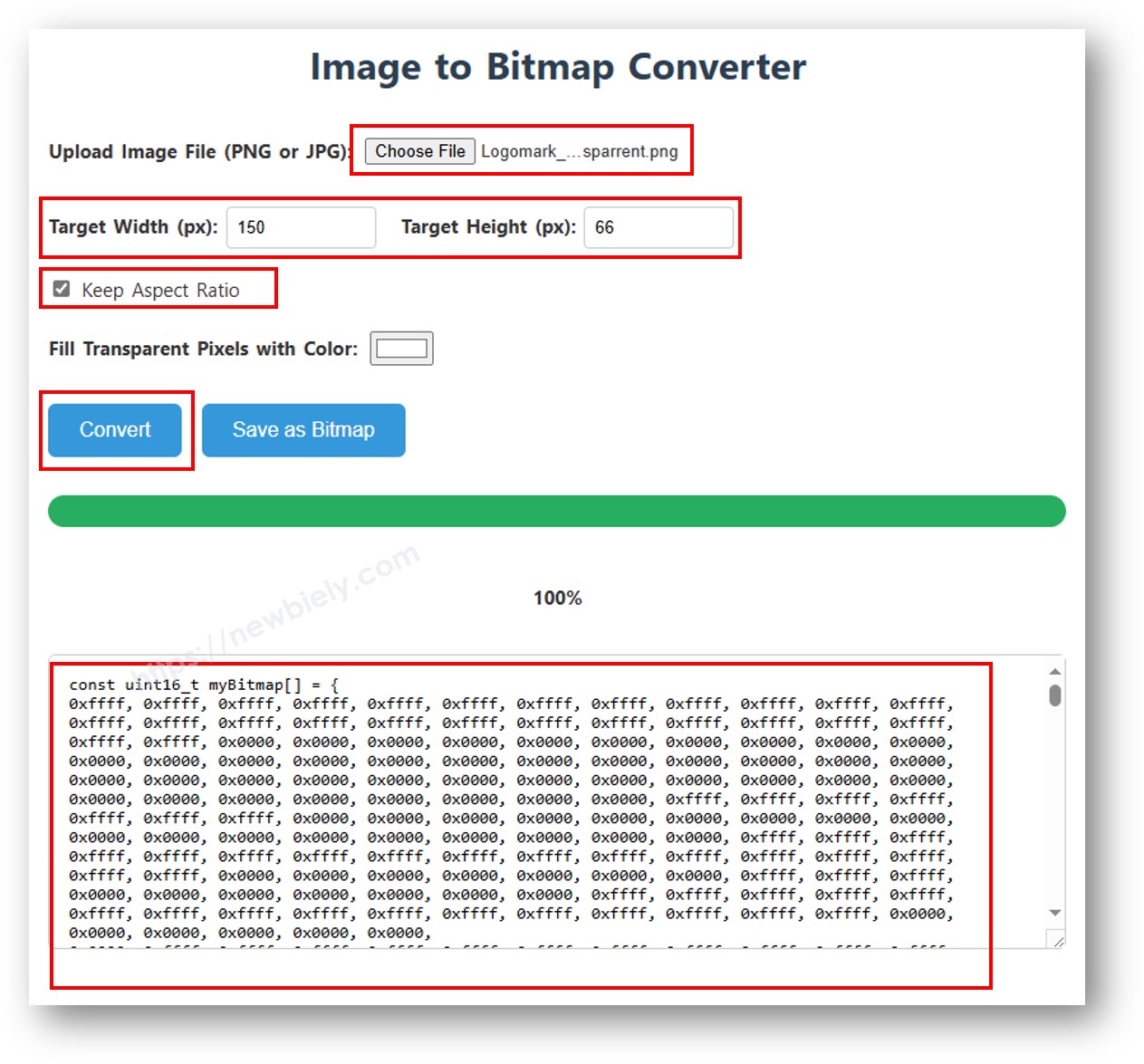
imagem para array de bitmap

O exemplo abaixo alterna entre um ícone de coração de 16×16 e um logotipo da DIYables em largura total:

/* * Este código de Arduino UNO R4 foi desenvolvido por pt.newbiely.com * Este código de Arduino UNO R4 é disponibilizado ao público sem nenhuma restrição. * Para tutoriais completos e diagramas de ligação, visite: * https://pt.newbiely.com/tutorials/arduino-uno-r4/arduino-uno-r4-ssd1309-oled-display */ /* * DIYables OLED SSD1309 – Display Image Demo for Arduino Uno R4 * Displays bitmap images on the 2.42" SSD1309 128x64 I2C OLED. */ #include <Wire.h> #include <Adafruit_GFX.h> #include <DIYables_OLED_SSD1309.h> #define SCREEN_WIDTH 128 #define SCREEN_HEIGHT 64 #define OLED_RESET -1 #define SCREEN_ADDRESS 0x3C DIYables_OLED_SSD1309 display(SCREEN_WIDTH, SCREEN_HEIGHT, &Wire, OLED_RESET); // 16x16 heart bitmap const unsigned char heart16x16[] PROGMEM = { 0x00, 0x00, 0x03, 0xc0, 0x0f, 0xf0, 0x1f, 0xf8, 0x3f, 0xfc, 0x7f, 0xfe, 0xff, 0xff, 0xff, 0xff, 0xff, 0xff, 0xff, 0xff, 0x7f, 0xfe, 0x3f, 0xfc, 0x1f, 0xf8, 0x0f, 0xf0, 0x03, 0xc0, 0x00, 0x00 }; // 128x64 DIYables logo bitmap const unsigned char diyablesLogo[] PROGMEM = { 0xff, 0xff, 0xff, 0xff, 0xff, 0xff, 0xff, 0xff, 0xff, 0xff, 0xff, 0xff, 0xff, 0xff, 0xff, 0xff, 0xff, 0xff, 0xff, 0xff, 0xff, 0xff, 0xff, 0xff, 0xff, 0xff, 0xff, 0xff, 0xff, 0xff, 0xff, 0xff, 0xff, 0xff, 0xfe, 0x00, 0x07, 0xff, 0xff, 0xff, 0xff, 0xff, 0xff, 0x80, 0x01, 0xff, 0xff, 0xff, 0xff, 0xff, 0xe0, 0x00, 0x00, 0xff, 0xff, 0xff, 0xff, 0xff, 0xfc, 0x00, 0x00, 0x3f, 0xff, 0xff, 0xff, 0xff, 0x80, 0x00, 0x00, 0x1f, 0xff, 0xff, 0xff, 0xff, 0xe0, 0x00, 0x00, 0x07, 0xff, 0xff, 0xff, 0xfe, 0x00, 0x00, 0x00, 0x07, 0xff, 0xff, 0xff, 0xff, 0x80, 0x00, 0x00, 0x01, 0xff, 0xff, 0xff, 0xfc, 0x00, 0x00, 0x00, 0x03, 0xff, 0xff, 0xff, 0xff, 0x00, 0x00, 0x00, 0x00, 0xff, 0xff, 0xff, 0xf0, 0x00, 0x00, 0x00, 0x00, 0xff, 0xff, 0xff, 0xfc, 0x00, 0x00, 0x00, 0x00, 0x3f, 0xff, 0xff, 0xe0, 0x00, 0x00, 0x00, 0x00, 0x3f, 0xff, 0xff, 0xf0, 0x00, 0x00, 0x00, 0x00, 0x1f, 0xff, 0xff, 0xc0, 0x00, 0x00, 0x00, 0x00, 0x1f, 0xff, 0xff, 0xe0, 0x00, 0x00, 0x00, 0x00, 0x0f, 0xff, 0xff, 0x80, 0x00, 0x00, 0x00, 0x00, 0x0f, 0xff, 0xff, 0xc0, 0x00, 0x00, 0x00, 0x00, 0x07, 0xff, 0xff, 0x00, 0x00, 0x00, 0x00, 0x00, 0x03, 0xff, 0xff, 0x80, 0x00, 0x00, 0x00, 0x00, 0x03, 0xff, 0xfe, 0x00, 0x00, 0x00, 0x00, 0x00, 0x01, 0xff, 0xfe, 0x00, 0x00, 0x00, 0x00, 0x00, 0x01, 0xff, 0xfc, 0x00, 0x00, 0xff, 0xf0, 0x00, 0x00, 0xff, 0xfc, 0x00, 0x00, 0x3f, 0xfc, 0x00, 0x00, 0xff, 0xfc, 0x00, 0x03, 0xff, 0xfc, 0x00, 0x00, 0x7f, 0xf8, 0x00, 0x00, 0xff, 0xff, 0x00, 0x00, 0xff, 0xf8, 0x00, 0x0f, 0xff, 0xff, 0x00, 0x00, 0x3f, 0xf0, 0x00, 0x03, 0xff, 0xff, 0xc0, 0x00, 0x7f, 0xf0, 0x00, 0x1f, 0xff, 0xff, 0xc0, 0x00, 0x1f, 0xe0, 0x00, 0x0f, 0xff, 0xff, 0xe0, 0x00, 0x7f, 0xf0, 0x00, 0x7f, 0xff, 0xff, 0xe0, 0x00, 0x0f, 0xc0, 0x00, 0x1f, 0xff, 0xff, 0xf8, 0x00, 0x3f, 0xe0, 0x00, 0xff, 0xff, 0xff, 0xf8, 0x00, 0x07, 0x80, 0x00, 0x7f, 0xff, 0xff, 0xfc, 0x00, 0x1f, 0xe0, 0x00, 0xff, 0xff, 0xff, 0xfc, 0x00, 0x03, 0x80, 0x00, 0xff, 0xff, 0xff, 0xfc, 0x00, 0x1f, 0xc0, 0x01, 0xff, 0xff, 0xff, 0xfe, 0x00, 0x03, 0x00, 0x01, 0xff, 0xff, 0xff, 0xfe, 0x00, 0x1f, 0xc0, 0x03, 0xff, 0xff, 0xff, 0xff, 0x00, 0x00, 0x00, 0x03, 0xff, 0xff, 0xff, 0xff, 0x00, 0x0f, 0xc0, 0x03, 0xff, 0xff, 0xff, 0xff, 0x80, 0x00, 0x00, 0x07, 0xff, 0xf0, 0x7f, 0xff, 0x00, 0x0f, 0xc0, 0x07, 0xff, 0xff, 0xff, 0xff, 0xc0, 0x00, 0x00, 0x0f, 0xff, 0xf0, 0x7f, 0xff, 0x80, 0x0f, 0x80, 0x07, 0xff, 0xff, 0xff, 0xff, 0xe0, 0x00, 0x00, 0x1f, 0xff, 0xf0, 0x7f, 0xff, 0x80, 0x07, 0x80, 0x0f, 0xff, 0xff, 0xff, 0xff, 0xf0, 0x00, 0x00, 0x3f, 0xff, 0xf0, 0x7f, 0xff, 0xc0, 0x07, 0x80, 0x0f, 0xff, 0xff, 0xff, 0xff, 0xf8, 0x00, 0x00, 0x7f, 0xff, 0xf0, 0x7f, 0xff, 0xc0, 0x07, 0x80, 0x0f, 0xfe, 0x00, 0x00, 0xff, 0xfc, 0x00, 0x00, 0xff, 0xfc, 0x00, 0x03, 0xff, 0xc0, 0x07, 0x80, 0x0f, 0xfe, 0x00, 0x00, 0xff, 0xfe, 0x00, 0x01, 0xff, 0xfc, 0x00, 0x01, 0xff, 0xc0, 0x07, 0x80, 0x0f, 0xfe, 0x00, 0x00, 0xff, 0xff, 0x00, 0x03, 0xff, 0xfc, 0x00, 0x01, 0xff, 0xc0, 0x07, 0x80, 0x0f, 0xfe, 0x00, 0x00, 0xff, 0xff, 0x00, 0x03, 0xff, 0xfc, 0x00, 0x01, 0xff, 0xc0, 0x07, 0x80, 0x0f, 0xfe, 0x00, 0x00, 0xff, 0xff, 0x00, 0x03, 0xff, 0xfc, 0x00, 0x01, 0xff, 0xc0, 0x07, 0x80, 0x0f, 0xff, 0xff, 0xff, 0xff, 0xfe, 0x00, 0x01, 0xff, 0xff, 0xe0, 0x7f, 0xff, 0xc0, 0x07, 0x80, 0x0f, 0xff, 0xff, 0xff, 0xff, 0xfc, 0x00, 0x00, 0xff, 0xff, 0xf0, 0x7f, 0xff, 0xc0, 0x07, 0x80, 0x0f, 0xff, 0xff, 0xff, 0xff, 0xfc, 0x00, 0x00, 0xff, 0xff, 0xf0, 0x7f, 0xff, 0xc0, 0x07, 0x80, 0x0f, 0xff, 0xff, 0xff, 0xff, 0xf8, 0x00, 0x00, 0x7f, 0xff, 0xf0, 0x7f, 0xff, 0xc0, 0x07, 0x80, 0x0f, 0xff, 0xff, 0xff, 0xff, 0xf0, 0x00, 0x00, 0x3f, 0xff, 0xf0, 0x7f, 0xff, 0x80, 0x07, 0x80, 0x07, 0xff, 0xff, 0xff, 0xff, 0xe0, 0x00, 0x00, 0x1f, 0xff, 0xf0, 0x7f, 0xff, 0x80, 0x07, 0xc0, 0x07, 0xff, 0xff, 0xff, 0xff, 0xc0, 0x00, 0x00, 0x0f, 0xff, 0xff, 0xff, 0xff, 0x80, 0x0f, 0xc0, 0x03, 0xff, 0xff, 0xff, 0xff, 0x80, 0x00, 0x00, 0x07, 0xff, 0xff, 0xff, 0xff, 0x00, 0x0f, 0xc0, 0x03, 0xff, 0xff, 0xff, 0xff, 0x00, 0x00, 0x00, 0x03, 0xff, 0xff, 0xff, 0xff, 0x00, 0x0f, 0xe0, 0x01, 0xff, 0xff, 0xff, 0xfe, 0x00, 0x03, 0x00, 0x01, 0xff, 0xff, 0xff, 0xfe, 0x00, 0x1f, 0xe0, 0x00, 0xff, 0xff, 0xff, 0xfc, 0x00, 0x07, 0x80, 0x00, 0xff, 0xff, 0xff, 0xfc, 0x00, 0x1f, 0xe0, 0x00, 0x7f, 0xff, 0xff, 0xf0, 0x00, 0x0f, 0xc0, 0x00, 0x3f, 0xff, 0xff, 0xf8, 0x00, 0x3f, 0xf0, 0x00, 0x3f, 0xff, 0xff, 0xe0, 0x00, 0x1f, 0xe0, 0x00, 0x1f, 0xff, 0xff, 0xf0, 0x00, 0x3f, 0xf8, 0x00, 0x1f, 0xff, 0xff, 0x80, 0x00, 0x3f, 0xe0, 0x00, 0x07, 0xff, 0xff, 0xe0, 0x00, 0x7f, 0xf8, 0x00, 0x0f, 0xff, 0xff, 0x00, 0x00, 0x7f, 0xf8, 0x00, 0x03, 0xff, 0xff, 0xc0, 0x00, 0x7f, 0xfc, 0x00, 0x03, 0xff, 0xf8, 0x00, 0x00, 0xff, 0xfc, 0x00, 0x00, 0xff, 0xff, 0x00, 0x00, 0xff, 0xfe, 0x00, 0x00, 0x7f, 0xe0, 0x00, 0x01, 0xff, 0xfe, 0x00, 0x00, 0x1f, 0xf8, 0x00, 0x01, 0xff, 0xfe, 0x00, 0x00, 0x00, 0x00, 0x00, 0x03, 0xff, 0xff, 0x00, 0x00, 0x00, 0x00, 0x00, 0x03, 0xff, 0xff, 0x00, 0x00, 0x00, 0x00, 0x00, 0x07, 0xff, 0xff, 0x80, 0x00, 0x00, 0x00, 0x00, 0x03, 0xff, 0xff, 0x80, 0x00, 0x00, 0x00, 0x00, 0x0f, 0xff, 0xff, 0xc0, 0x00, 0x00, 0x00, 0x00, 0x07, 0xff, 0xff, 0xc0, 0x00, 0x00, 0x00, 0x00, 0x1f, 0xff, 0xff, 0xe0, 0x00, 0x00, 0x00, 0x00, 0x0f, 0xff, 0xff, 0xe0, 0x00, 0x00, 0x00, 0x00, 0x7f, 0xff, 0xff, 0xf8, 0x00, 0x00, 0x00, 0x00, 0x3f, 0xff, 0xff, 0xf8, 0x00, 0x00, 0x00, 0x01, 0xff, 0xff, 0xff, 0xfe, 0x00, 0x00, 0x00, 0x00, 0x7f, 0xff, 0xff, 0xfc, 0x00, 0x00, 0x00, 0x03, 0xff, 0xff, 0xff, 0xff, 0x00, 0x00, 0x00, 0x00, 0xff, 0xff, 0xff, 0xff, 0x00, 0x00, 0x00, 0x0f, 0xff, 0xff, 0xff, 0xff, 0xc0, 0x00, 0x00, 0x03, 0xff, 0xff, 0xff, 0xff, 0xc0, 0x00, 0x00, 0x3f, 0xff, 0xff, 0xff, 0xff, 0xf0, 0x00, 0x00, 0x0f, 0xff, 0xff, 0xff, 0xff, 0xf0, 0x00, 0x01, 0xff, 0xff, 0xff, 0xff, 0xff, 0xfe, 0x00, 0x00, 0x3f, 0xff, 0xff, 0xff, 0xff, 0xff, 0x00, 0x0f, 0xff, 0xff, 0xff, 0xff, 0xff, 0xff, 0xc0, 0x03, 0xff, 0xff, 0xff, 0xff, 0xff, 0xff, 0xff, 0xff, 0xff, 0xff, 0xff, 0xff, 0xff, 0xff, 0xff, 0xff, 0xff, 0xff, 0xff, 0xff, 0xff, 0xff, 0xff, 0xff, 0xff, 0xff, 0xff, 0xff, 0xff, 0xff, 0xff, 0xff, 0xff, 0xff, 0xff, 0xff, 0xff, 0xff, 0xff, 0xff, 0xff, 0xff, 0xff, 0xff, 0xff, 0xff, 0xff, 0xff, 0xff, 0xff, 0xff, 0xff, 0xff, 0xff, 0xff, 0xff, 0xff, 0xff, 0xff, 0xff, 0xff, 0xff, 0xff, 0xff, 0xff, 0xff, 0xff }; void setup() { Serial.begin(9600); if (!display.begin(SSD1309_SWITCHCAPVCC, SCREEN_ADDRESS)) { Serial.println(F("SSD1309 allocation failed")); for (;;); } delay(2000); display.setCursor(0, 0); } void loop() { // Display 16x16 heart icon display.clearDisplay(); display.drawBitmap((SCREEN_WIDTH - 16) / 2, (SCREEN_HEIGHT - 16) / 2, heart16x16, 16, 16, SSD1309_PIXEL_ON); display.display(); delay(2000); // Display full-screen DIYables logo display.clearDisplay(); display.drawBitmap(0, 0, diyablesLogo, 128, 64, SSD1309_PIXEL_ON); display.display(); delay(2000); // Invert display display.invertDisplay(true); delay(2000); display.invertDisplay(false); delay(500); }

※ Nota:

  • As dimensões do bitmap não devem exceder a resolução da tela (128×64 para o módulo de 2,42 polegadas).

Código Arduino Uno R4 — Contraste e Dim no OLED SSD1309

O SSD1309 oferece 256 níveis de contraste (0–255). A biblioteca DIYables fornece setContrast() para um controle preciso e dim() para alternar rapidamente entre o brilho mínimo e o nível definido anteriormente.

/* * Este código de Arduino UNO R4 foi desenvolvido por pt.newbiely.com * Este código de Arduino UNO R4 é disponibilizado ao público sem nenhuma restrição. * Para tutoriais completos e diagramas de ligação, visite: * https://pt.newbiely.com/tutorials/arduino-uno-r4/arduino-uno-r4-ssd1309-oled-display */ /* * DIYables OLED SSD1309 – Contrast & Dim * Sweeps contrast from 0→255→0 then toggles dim mode on the 2.42" OLED. * Compatible with Arduino Uno R4 WiFi and Arduino Uno R4 Minima. */ #include <Wire.h> #include <Adafruit_GFX.h> #include <DIYables_OLED_SSD1309.h> #define SCREEN_WIDTH 128 #define SCREEN_HEIGHT 64 #define OLED_RESET -1 #define SCREEN_ADDRESS 0x3C DIYables_OLED_SSD1309 display(SCREEN_WIDTH, SCREEN_HEIGHT, &Wire, OLED_RESET); void setup() { Serial.begin(9600); if (!display.begin(SSD1309_SWITCHCAPVCC, SCREEN_ADDRESS)) { Serial.println(F("SSD1309 allocation failed")); for (;;); } // Draw a test pattern so the contrast changes are visible display.clearDisplay(); display.fillRect(0, 0, 64, 32, SSD1309_PIXEL_ON); display.fillRect(64, 32, 64, 32, SSD1309_PIXEL_ON); display.setTextSize(1); display.setTextColor(SSD1309_PIXEL_INVERSE); display.setCursor(16, 28); display.println(F("Contrast Demo")); display.display(); delay(2000); } void loop() { // Ramp up for (int c = 0; c <= 255; c += 5) { display.setContrast((uint8_t)c); delay(30); } delay(1000); // Ramp down for (int c = 255; c >= 0; c -= 5) { display.setContrast((uint8_t)c); delay(30); } delay(1000); // Quick dim toggle display.dim(true); // minimum brightness delay(2000); display.dim(false); // restore delay(2000); }

Código Arduino Uno R4 — Fontes Externas Personalizadas no OLED SSD1309

A biblioteca Adafruit GFX inclui dezenas de fontes FreeFont escaláveis (Serif, Sans, Mono — cada uma em Regular, Bold, Italic e vários tamanhos). Você pode usar qualquer uma delas no display SSD1309 incluindo o cabeçalho correspondente e chamando setFont().

※ Nota:

  • Quando uma fonte externa está ativa, a coordenada Y do cursor se refere à linha de base do texto, e não ao canto superior esquerdo. Isso é diferente do comportamento da fonte 5×7 integrada.
  • As fontes externas ficam armazenadas na flash (PROGMEM). Em placas com pouca memória, como o Uno clássico (32 KB de flash), use-as com moderação. O Arduino Uno R4 tem mais memória, o que permite mais flexibilidade.
/* * Este código de Arduino UNO R4 foi desenvolvido por pt.newbiely.com * Este código de Arduino UNO R4 é disponibilizado ao público sem nenhuma restrição. * Para tutoriais completos e diagramas de ligação, visite: * https://pt.newbiely.com/tutorials/arduino-uno-r4/arduino-uno-r4-ssd1309-oled-display */ /* * DIYables OLED SSD1309 – External Fonts * Cycles through three FreeFont typefaces on the 2.42" SSD1309 OLED. * Compatible with Arduino Uno R4 WiFi and Arduino Uno R4 Minima. */ #include <Wire.h> #include <Adafruit_GFX.h> #include <DIYables_OLED_SSD1309.h> #include <Fonts/FreeSerif9pt7b.h> #include <Fonts/FreeSansBold12pt7b.h> #include <Fonts/FreeMono9pt7b.h> #define SCREEN_WIDTH 128 #define SCREEN_HEIGHT 64 #define OLED_RESET -1 #define SCREEN_ADDRESS 0x3C DIYables_OLED_SSD1309 display(SCREEN_WIDTH, SCREEN_HEIGHT, &Wire, OLED_RESET); void setup() { Serial.begin(9600); if (!display.begin(SSD1309_SWITCHCAPVCC, SCREEN_ADDRESS)) { Serial.println(F("SSD1309 allocation failed")); for (;;); } display.clearDisplay(); display.display(); } void loop() { // ── Built-in 5×7 font ── display.clearDisplay(); display.setFont(NULL); display.setTextSize(1); display.setTextColor(SSD1309_PIXEL_ON); display.setCursor(0, 0); display.println(F("Built-in 5x7 font")); display.println(); display.setTextSize(2); display.println(F("DIYables")); display.display(); delay(3000); // ── FreeSerif 9pt ── display.clearDisplay(); display.setFont(&FreeSerif9pt7b); display.setTextSize(1); display.setTextColor(SSD1309_PIXEL_ON); display.setCursor(0, 14); // Y = baseline display.println(F("FreeSerif 9pt")); display.setCursor(0, 38); display.println(F("DIYables OLED")); display.setCursor(0, 58); display.println(F("Hello World!")); display.display(); delay(3000); // ── FreeSansBold 12pt ── display.clearDisplay(); display.setFont(&FreeSansBold12pt7b); display.setTextSize(1); display.setTextColor(SSD1309_PIXEL_ON); display.setCursor(0, 20); display.println(F("SansBold")); display.setCursor(0, 52); display.println(F("DIYables")); display.display(); delay(3000); // ── FreeMono 9pt ── display.clearDisplay(); display.setFont(&FreeMono9pt7b); display.setTextSize(1); display.setTextColor(SSD1309_PIXEL_ON); display.setCursor(0, 14); display.println(F("FreeMono 9pt")); display.setCursor(0, 34); display.println(F("0123456789")); display.setCursor(0, 54); display.println(F("!@#$%^&*()")); display.display(); delay(3000); }

Vídeo

O vídeo de demonstração abaixo usa o código abaixo:

/* * Este código de Arduino UNO R4 foi desenvolvido por pt.newbiely.com * Este código de Arduino UNO R4 é disponibilizado ao público sem nenhuma restrição. * Para tutoriais completos e diagramas de ligação, visite: * https://pt.newbiely.com/tutorials/arduino-uno-r4/arduino-uno-r4-ssd1309-oled-display */ /* * Robot Eyes v4 - Arduino UNO R4 + OLED SSD1309 2.42" (I2C) + TTP223 * Libraries: DIYables_OLED_SSD1309 and Adafruit GFX * * Design: white elliptical sclera + black pupils with highlights + angled eyelids. * All eye elements are drawn in code for smooth animation. * * Wiring: * OLED VCC -> 5V, GND -> GND, SDA -> A4/SDA, SCL -> A5/SCL * TTP223 VCC -> 5V (or 3.3V), GND -> GND, I/O -> D13 * * Behavior: * - Each tap triggers a quick blink and switches to the next expression: * NORMAL -> HAPPY -> WINK -> ANGRY -> SAD -> CRY -> STAR -> DIZZY * -> LOVE -> SURPRISED -> SUSPICIOUS -> ROLL -> SLEEPY -> (back to NORMAL) * - After RETURN_NORMAL_MS (10s) of inactivity, return to NORMAL. * - After SLEEP_MS (30s) of inactivity, enter SLEEP mode. * - Tap while sleeping to wake up and return to NORMAL. */ #include <Wire.h> #include <Adafruit_GFX.h> #include <DIYables_OLED_SSD1309.h> #define SCREEN_WIDTH 128 #define SCREEN_HEIGHT 64 #define OLED_RESET -1 #define SCREEN_ADDRESS 0x3C #define TOUCH_PIN 13 #define ON SSD1309_PIXEL_ON #define OFF SSD1309_PIXEL_OFF // Adjustable parameters const int EYE_RX = 22; // horizontal eye radius const int EYE_RY = 25; // vertical eye radius const int EYE_CY = 32; // eye center on the Y axis const int CX_L = 32; // left eye center const int CX_R = 96; // right eye center const unsigned long RETURN_NORMAL_MS = 10000; const unsigned long SLEEP_MS = 30000; //must be greater than RETURN_NORMAL_MS const unsigned long DEBOUNCE_MS = 60; const unsigned long TRANSITION_MS = 110; //transition blink duration const unsigned long FRAME_MS = 33; // ~30 FPS DIYables_OLED_SSD1309 display(SCREEN_WIDTH, SCREEN_HEIGHT, &Wire, OLED_RESET); enum Mood { NORMAL, HAPPY, WINK, ANGRY, SAD, CRY, STAR, DIZZY, LOVE, SURPRISED, SUSPICIOUS, ROLL, SLEEPY, SLEEP }; const Mood ORDER[] = { NORMAL, HAPPY, WINK, ANGRY, SAD, CRY, STAR, DIZZY, LOVE, SURPRISED, SUSPICIOUS, ROLL, SLEEPY }; const uint8_t ORDER_N = sizeof(ORDER) / sizeof(ORDER[0]); Mood mood = NORMAL; uint8_t moodIndex = 0; unsigned long moodStart = 0, transUntil = 0; // Look direction (-1..1) float curX = 0, curY = 0, tgtX = 0, tgtY = 0; unsigned long nextLook = 0; // Blinking bool blinking = false; unsigned long blinkStart = 0, nextBlink = 0; const unsigned long BLINK_MS = 170; // Touch sensor bool lastReading = false, stableState = false; unsigned long lastChange = 0, lastActivity = 0, lastFrame = 0; // Eye model struct Style { // expression parameters float lx, ly; // look direction -1..1 float pr; // pupil radius (0 = do not draw) float topIn, topOut; // upper eyelid coverage in pixels (inner / outer) float bot; // lower eyelid coverage in pixels int rx, ry, cy; // eye size and position int shake; // horizontal shake (px) }; struct Eye { // calculated geometry for each eye int cx, cy, rx, ry; float topIn, topOut, bot; int inner; // +1: left eye (inner side is right), -1: right eye }; Style baseStyle() { Style s = { 0, 0, 13, 0, 0, 0, EYE_RX, EYE_RY, EYE_CY, 0 }; return s; } Eye makeEye(int side, const Style& s) { Eye e; e.cx = (side == 0 ? CX_L : CX_R) + s.shake + (int)(s.lx * 3); // slightly offset eye toward look direction e.cy = s.cy + (int)(s.ly * 2); e.rx = s.rx; e.ry = s.ry; e.topIn = s.topIn; e.topOut = s.topOut; e.bot = s.bot; e.inner = (side == 0) ? 1 : -1; return e; } float lidTopAt(const Eye& e, float u) { // u: -1..1 across the eye width float t = (e.inner * u + 1.0) * 0.5; // 0 = outer side, 1 = inner side return e.cy - e.ry + e.topOut + (e.topIn - e.topOut) * t; } // Draw the eyeball column by column, clipped by the eyelids. void drawEyeball(const Eye& e) { for (int dx = -e.rx; dx <= e.rx; dx++) { float u = (float)dx / e.rx; float hy = e.ry * sqrt(1.0 - u * u); float y0 = e.cy - hy, y1 = e.cy + hy; float lt = lidTopAt(e, u); float lb = e.cy + e.ry - e.bot; if (y0 < lt) y0 = lt; if (y1 > lb) y1 = lb; if (y1 >= y0) display.drawFastVLine(e.cx + dx, (int)y0, (int)(y1 - y0) + 1, ON); } } // Draw the pupil and highlights. Highlights are skipped when covered by the eyelids. void drawPupil(const Eye& e, const Style& s) { int pr = (int)(s.pr + 0.5); float mx = e.rx - pr - 2; if (mx < 0) mx = 0; float my = e.ry - pr - 2; if (my < 0) my = 0; int px = e.cx + (int)(s.lx * mx); int py = e.cy + (int)(s.ly * my); display.fillCircle(px, py, pr, OFF); float lb = e.cy + e.ry - e.bot; int hr = max(2, pr / 4); int hx = px - pr / 3, hy = py - pr / 3; if (hy - hr > lidTopAt(e, (float)(hx - e.cx) / e.rx) + 1 && hy + hr < lb - 1) display.fillCircle(hx, hy, hr, ON); int h2x = px + pr / 3, h2y = py + pr / 3; if (pr >= 8 && h2y + 1 < lb - 1) display.fillCircle(h2x, h2y, 1, ON); } void drawEyeSide(int side, const Style& s) { Eye e = makeEye(side, s); drawEyeball(e); if (s.pr > 0) drawPupil(e, s); } void drawPair(const Style& s) { drawEyeSide(0, s); drawEyeSide(1, s); } // Auxiliary shapes drawn inside the eyeball void drawHeart(int cx, int cy, int r, uint16_t col) { display.fillCircle(cx - r, cy - r / 2, r, col); display.fillCircle(cx + r, cy - r / 2, r, col); display.fillTriangle(cx - 2 * r + 1, cy - r / 2 + 2, cx + 2 * r - 1, cy - r / 2 + 2, cx, cy + 2 * r + 2, col); } void drawStar(int cx, int cy, float R, float rot, uint16_t col) { float px[10], py[10]; for (int i = 0; i < 10; i++) { float ang = rot + i * PI / 5.0 - PI / 2.0; float rad = (i % 2 == 0) ? R : R * 0.45; px[i] = cx + cos(ang) * rad; py[i] = cy + sin(ang) * rad; } for (int i = 0; i < 10; i++) { int j = (i + 1) % 10; display.fillTriangle(cx, cy, (int)px[i], (int)py[i], (int)px[j], (int)py[j], col); } } void drawSpiral(int cx, int cy, float phase, int dir, uint16_t col) { float px = cx, py = cy; for (float a = 0.4; a <= 11.5; a += 0.4) { float rad = a * 1.3; float ang = dir * (a + phase); float x = cx + cos(ang) * rad, y = cy + sin(ang) * rad; display.drawLine((int)px, (int)py, (int)x, (int)y, col); display.drawLine((int)px + 1, (int)py, (int)x + 1, (int)y, col); px = x; py = y; } } void drawHappyEye(int cx, int cy) { // smiling arch eye "^" display.fillCircle(cx, cy + 10, 17, ON); display.fillCircle(cx, cy + 18, 17, OFF); } void drawClosedEye(int cx, int cy) { // Closed eye display.fillRoundRect(cx - EYE_RX, cy - 1, 2 * EYE_RX, 3, 1, ON); } // Expressions void drawNormal(unsigned long now) { float cover = 0; if (blinking) { float p = (float)(now - blinkStart) / BLINK_MS; if (p >= 1.0) { blinking = false; nextBlink = now + (random(5) == 0 ? 180 : random(2000, 5500)); // occasional double blink } else { cover = sin(p * PI) * EYE_RY * 0.96; } } else if (now >= nextBlink) { blinking = true; blinkStart = now; } Style s = baseStyle(); s.lx = curX; s.ly = curY; s.pr = 13 + sin(now / 700.0) * 0.7; // subtle pupil breathing animation s.topIn = s.topOut = s.bot = cover; drawPair(s); } void drawHappy(unsigned long now) { int bob = (int)(sin(now / 120.0) * 3); drawHappyEye(CX_L, EYE_CY - 4 + bob); drawHappyEye(CX_R, EYE_CY - 4 + bob); } void drawWink(unsigned long now) { Style s = baseStyle(); s.pr = 13 + sin(now / 700.0) * 0.7; drawEyeSide(0, s); drawHappyEye(CX_R, EYE_CY - 4); } void drawAngry() { Style s = baseStyle(); s.pr = 10; s.ly = 0.15; s.topIn = 26; s.topOut = 1; s.bot = 3; s.shake = random(-1, 2); drawPair(s); } void drawSad() { Style s = baseStyle(); s.ly = 0.6; s.topIn = 0; s.topOut = 18; drawPair(s); } void drawCry(unsigned long now) { Style s = baseStyle(); s.rx = 20; s.ry = 22; s.cy = 26; s.pr = 12; s.ly = 0.6; s.topIn = 0; s.topOut = 16; drawPair(s); int tx[2] = { CX_L - 8, CX_R + 8 }; for (int i = 0; i < 2; i++) { int ty = 44 + (int)((now / 55 + i * 9) % 19); display.fillCircle(tx[i], ty, 2, ON); display.fillTriangle(tx[i] - 2, ty, tx[i] + 2, ty, tx[i], ty - 5, ON); } } void drawStarEyes(unsigned long now) { float R = 15 + sin(now / 150.0) * 1.5; float rot = sin(now / 500.0) * 0.25; Style s = baseStyle(); for (int side = 0; side < 2; side++) { Eye e = makeEye(side, s); drawEyeball(e); drawStar(e.cx, e.cy, R, rot, OFF); } } void drawDizzy(unsigned long now) { float phase = now / 120.0; Style s = baseStyle(); for (int side = 0; side < 2; side++) { Eye e = makeEye(side, s); drawEyeball(e); drawSpiral(e.cx, e.cy, phase, side == 0 ? 1 : -1, OFF); } } void drawLove(unsigned long now) { int r = 7 + (int)(sin(now / 150.0) * 1.5); Style s = baseStyle(); for (int side = 0; side < 2; side++) { Eye e = makeEye(side, s); drawEyeball(e); drawHeart(e.cx, e.cy - 3, r, OFF); } } void drawSurprised() { Style s = baseStyle(); s.rx = 24; s.ry = 28; s.pr = 5; drawPair(s); } void drawSuspicious(unsigned long now) { Style s = baseStyle(); s.pr = 11; s.lx = sin(now / 700.0); s.ly = 0.1; s.topIn = s.topOut = 22; s.bot = 8; drawPair(s); } void drawRoll(unsigned long now) { float t = (float)((now - moodStart) % 1300) / 1300.0 * 2.0 * PI; Style s = baseStyle(); s.lx = cos(t); s.ly = sin(t) * 0.9; drawPair(s); } void drawSleepy(unsigned long now) { float k = (sin(now / 450.0) + 1.0) / 2.0; // drowsy motion Style s = baseStyle(); s.lx = curX * 0.3; s.ly = 0.5; s.topIn = s.topOut = 10 + k * 24; s.bot = 3; drawPair(s); } void drawSleep(unsigned long now) { int cx[2] = { CX_L, CX_R }; for (int i = 0; i < 2; i++) { // Closed eye cong "︶" display.fillCircle(cx[i], EYE_CY - 2, 18, ON); display.fillCircle(cx[i], EYE_CY - 5, 18, OFF); } int phase = (now / 600) % 3; display.setTextColor(ON); display.setTextSize(1 + phase); display.setCursor(104 - phase * 6, 12 - phase * 4); display.print(phase == 0 ? F("z") : F("Z")); } void updateLook(unsigned long now) { if (now >= nextLook) { if (random(4) == 0) { tgtX = 0; tgtY = 0; } else { tgtX = random(-100, 101) / 100.0; tgtY = random(-70, 71) / 100.0; } nextLook = now + random(1200, 3500); } curX += (tgtX - curX) * 0.3; curY += (tgtY - curY) * 0.3; } void setMood(Mood m) { unsigned long now = millis(); if (mood == SLEEP && m != SLEEP) display.dim(false); if (m == SLEEP && mood != SLEEP) display.dim(true); if (m == NORMAL) { blinking = false; nextBlink = now + random(1500, 4000); } mood = m; moodStart = now; } bool touchPressed(unsigned long now) { bool reading = (digitalRead(TOUCH_PIN) == HIGH); if (reading != lastReading) { lastChange = now; lastReading = reading; } if ((now - lastChange) >= DEBOUNCE_MS && reading != stableState) { stableState = reading; if (stableState) return true; } return false; } void onTap(unsigned long now) { lastActivity = now; transUntil = now + TRANSITION_MS; // quick blink during expression transition if (mood == SLEEP) { moodIndex = 0; setMood(NORMAL); return; } moodIndex = (moodIndex + 1) % ORDER_N; setMood(ORDER[moodIndex]); } void setup() { Serial.begin(9600); pinMode(TOUCH_PIN, INPUT); randomSeed(analogRead(A0)); if (!display.begin(SSD1309_SWITCHCAPVCC, SCREEN_ADDRESS)) { Serial.println(F("SSD1309 allocation failed")); for (;;); } Wire.setClock(400000); display.clearDisplay(); display.display(); unsigned long now = millis(); lastActivity = now; nextBlink = now + 2500; nextLook = now + 1500; } void loop() { unsigned long now = millis(); if (touchPressed(now)) onTap(now); if (stableState) lastActivity = now; unsigned long idle = now - lastActivity; if (mood != SLEEP) { if (idle >= SLEEP_MS) { moodIndex = 0; setMood(SLEEP); } else if (idle >= RETURN_NORMAL_MS && mood != NORMAL) { moodIndex = 0; setMood(NORMAL); } } if (now - lastFrame < FRAME_MS) return; lastFrame = now; if (mood == NORMAL || mood == SLEEPY) updateLook(now); display.clearDisplay(); if (now < transUntil) { drawClosedEye(CX_L, EYE_CY); drawClosedEye(CX_R, EYE_CY); } else { switch (mood) { case NORMAL: drawNormal(now); break; case HAPPY: drawHappy(now); break; case WINK: drawWink(now); break; case ANGRY: drawAngry(); break; case SAD: drawSad(); break; case CRY: drawCry(now); break; case STAR: drawStarEyes(now); break; case DIZZY: drawDizzy(now); break; case LOVE: drawLove(now); break; case SURPRISED: drawSurprised(); break; case SUSPICIOUS: drawSuspicious(now); break; case ROLL: drawRoll(now); break; case SLEEPY: drawSleepy(now); break; case SLEEP: drawSleep(now); break; } } display.display(); }

Solução de Problemas do OLED SSD1309 com Arduino Uno R4

Se o OLED SSD1309 de 2,42 polegadas continuar em branco depois de você carregar o sketch, siga estes passos de diagnóstico:

  • Verifique as conexões — confirme que SDA, SCL, VCC e GND estão ligados aos pinos corretos do Arduino Uno R4.
  • Confirme o chip driver — esta biblioteca foi projetada para o SSD1309. Se o seu módulo usa outro controlador (por exemplo, SH1106), ele não vai responder corretamente.
  • Verifique o endereço I2C — a maioria dos módulos SSD1309 usa 0x3C por padrão, mas alguns usam 0x3D. Execute o sketch de I2C scanner abaixo para detectar o endereço real:
// I2C address scanner — prints every detected device to the Serial Monitor #include <Wire.h> void setup() { Wire.begin(); Serial.begin(9600); Serial.println("I2C Scanner"); } void loop() { byte error, address; int nDevices = 0; Serial.println("Scanning..."); for (address = 1; address < 127; address++) { Wire.beginTransmission(address); error = Wire.endTransmission(); if (error == 0) { Serial.print("I2C device found at address 0x"); if (address < 16) Serial.print("0"); Serial.print(address, HEX); Serial.println(" !"); nDevices++; } else if (error == 4) { Serial.print("Unknown error at address 0x"); if (address < 16) Serial.print("0"); Serial.println(address, HEX); } } if (nDevices == 0) Serial.println("No I2C devices found"); else Serial.println("done"); delay(5000); }

Saída esperada no Serial Monitor quando o SSD1309 é detectado:

∞
Newbiely | Arduino IDE 2.3.8
──
☐
✕
File
Edit
Sketch
Tools
Help
Arduino Uno R4 WiFi
Newbiely.ino
···
8 Serial.println("Hello World!");
Output
Serial Monitor
Message (Enter to send message to 'Arduino Uno R4 WiFi' on 'COM15')
New Line
9600 baud
Scanning... I2C device found at address 0x3C ! done
Ln 11, Col 1
Arduino Uno R4 WiFi on COM15
2
  • Garanta que display() seja chamado — o SSD1309 usa um frame buffer. As funções de desenho só modificam o buffer na RAM; nada aparece na tela até você chamar oled.display().
  • Verifique a fonte de alimentação — o módulo de 2,42 polegadas consome mais corrente que os OLEDs menores. Garanta que a sua fonte de alimentação consiga fornecer corrente suficiente (normalmente 20–40 mA com brilho máximo).

※ NOSSAS MENSAGENS

  • Fique à vontade para compartilhar o link deste tutorial. Porém, por favor, não use nosso conteúdo em outros sites. Investimos muito esforço e tempo para criar este conteúdo, por favor respeite nosso trabalho!