Arduino UNO R4 - OLED 128x32

Este tutorial vai mostrar como usar um Arduino UNO R4 com um display OLED 128x32 I2C. Você vai aprender:

Display OLED I2C com Arduino UNO R4

Sobre o Display OLED

Pinagem do Display OLED I2C

  • Pino GND: deve ser conectado ao GND do Arduino UNO R4
  • Pino VCC: é a alimentação do display, que conectamos ao pino de 5 volts do Arduino UNO R4.
  • Pino SCL: é o pino de clock serial da interface I2C.
  • Pino SDA: é o pino de dados seriais da interface I2C.
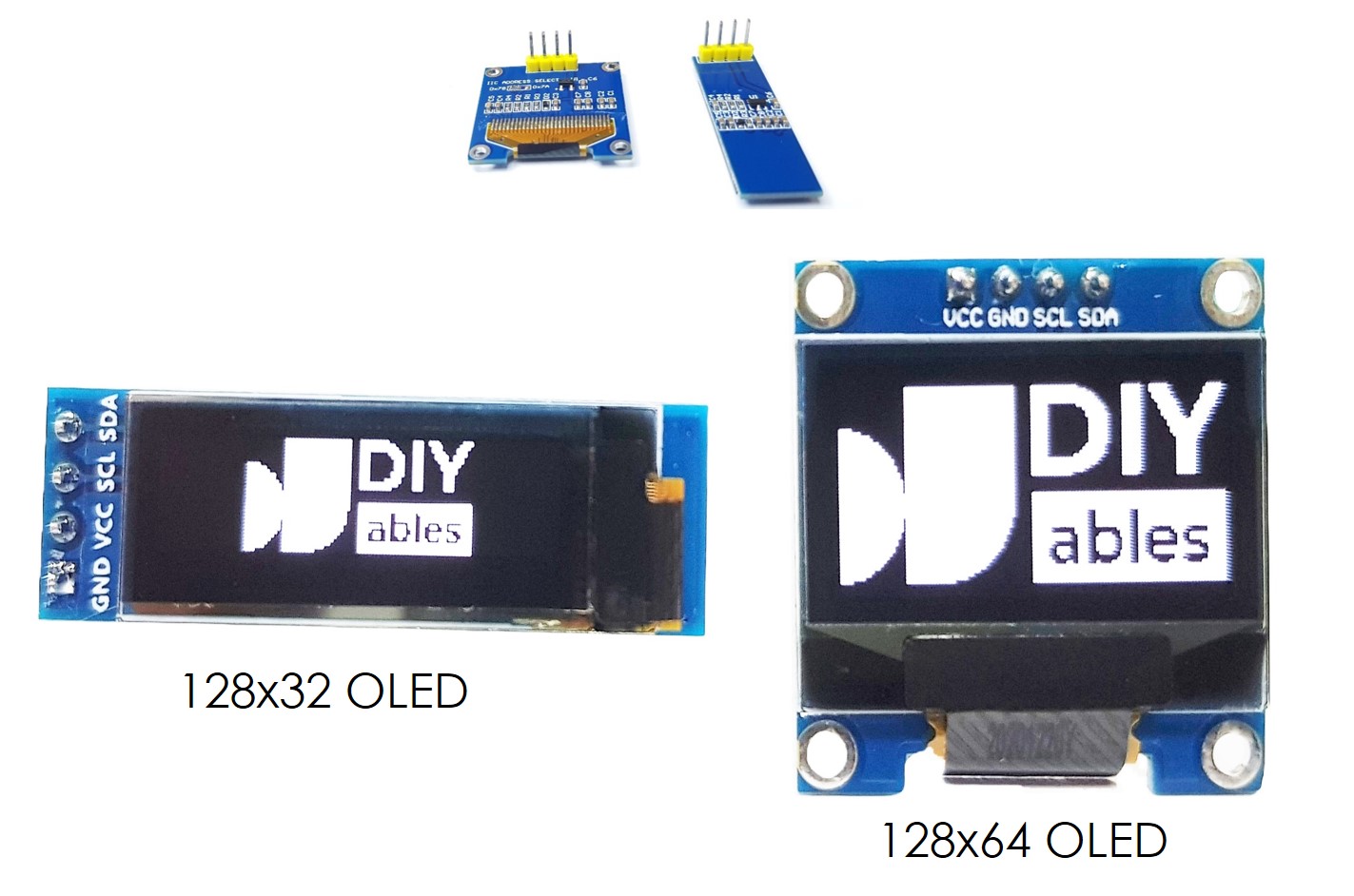
Pinagem do OLED

※ Nota:

A disposição dos pinos em um módulo OLED pode variar conforme o fabricante e o modelo do módulo. Sempre confira e siga os rótulos do módulo OLED. Fique atento!

Este guia é para um display OLED que usa o driver I2C SSD1306. Nós o testamos com um display OLED da DIYables. Ele funciona perfeitamente, sem nenhum problema.

Diagrama de Ligação
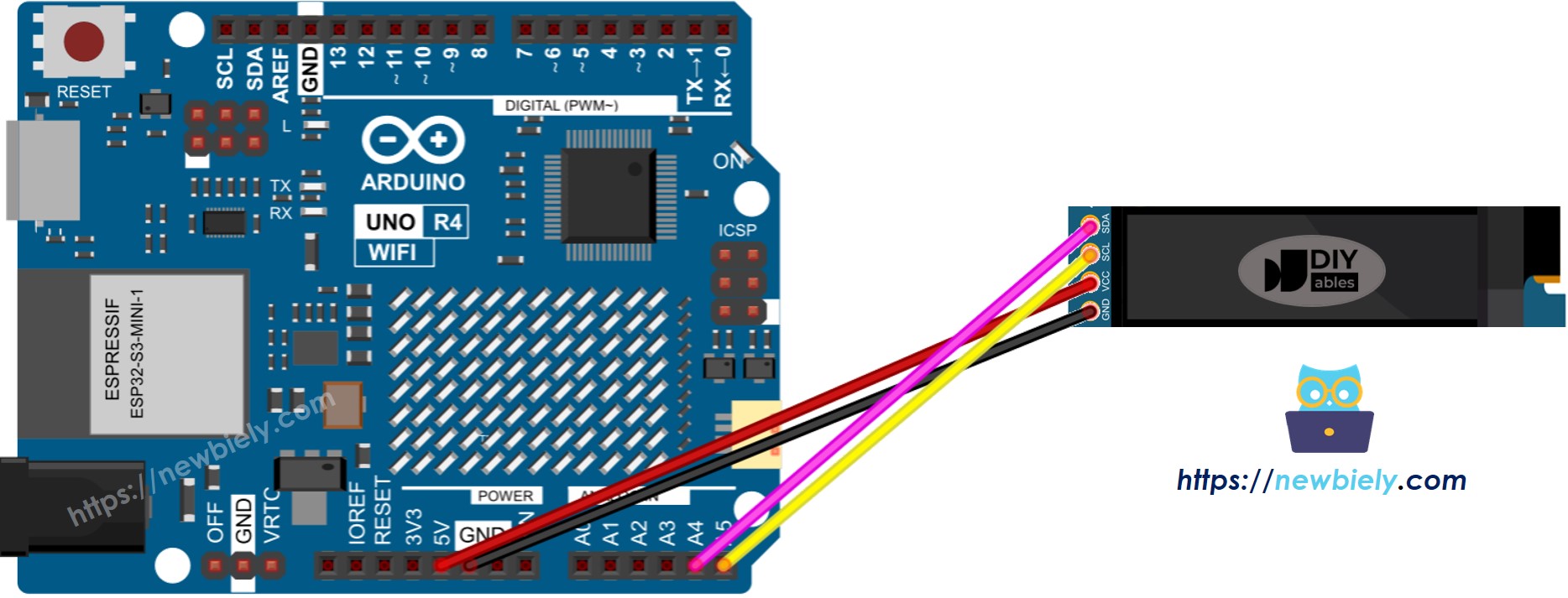
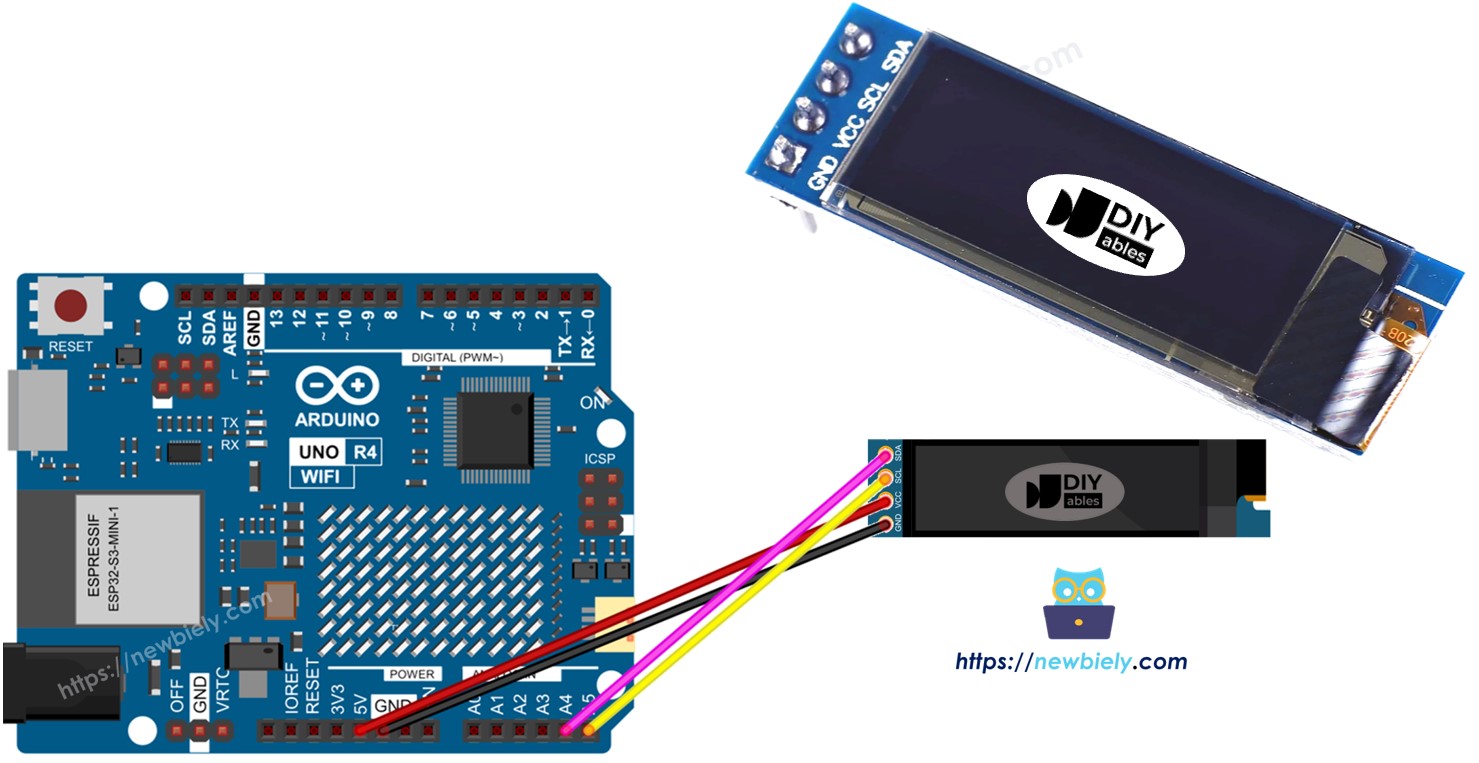
Diagrama de ligação do OLED 128x32 com Arduino UNO R4

This image is created using Fritzing. Click to enlarge image

Veja A melhor forma de alimentar o Arduino Uno R4 e outros componentes.

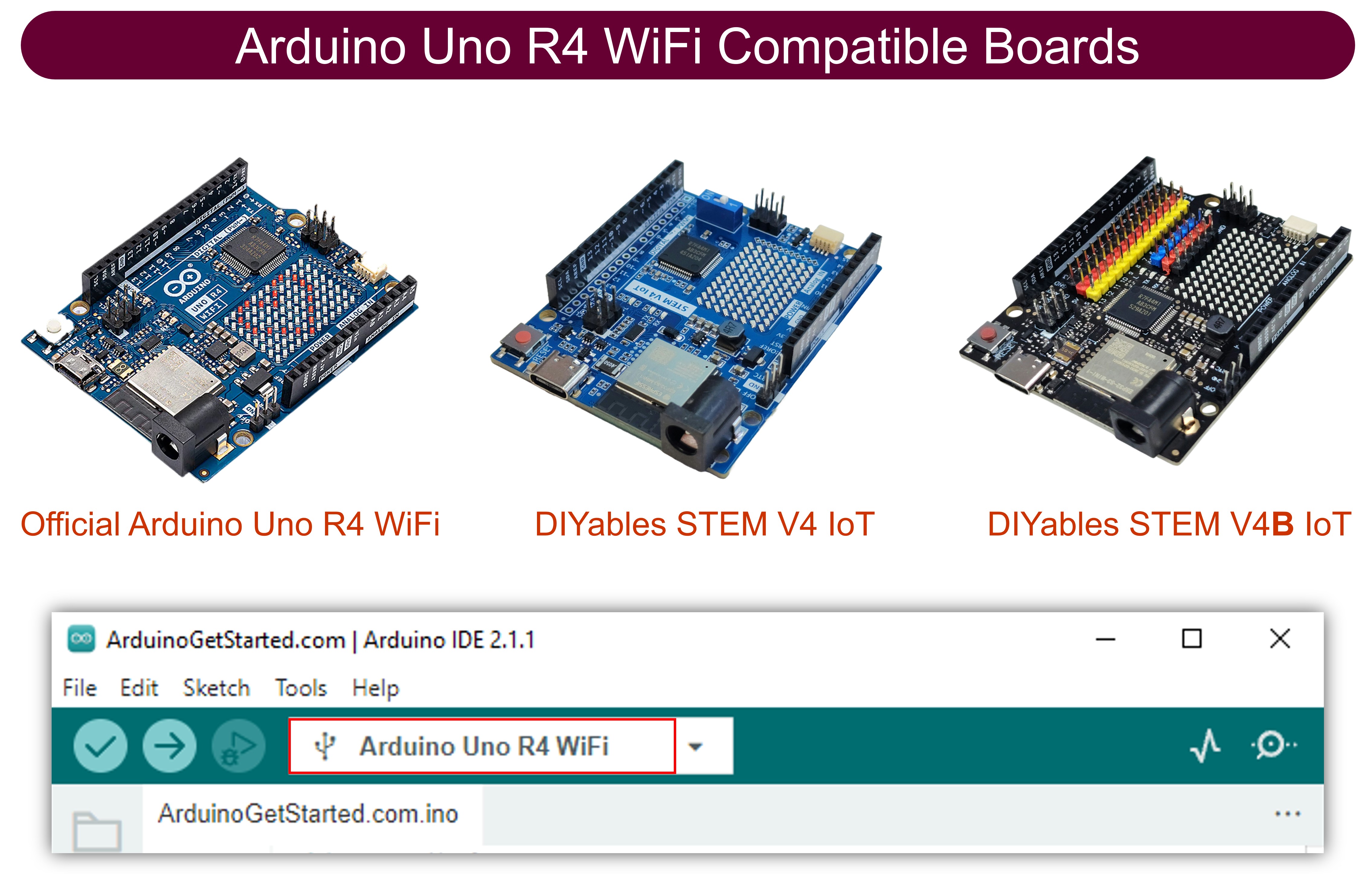
Se você usar um tipo diferente de Arduino UNO R4, a disposição dos pinos não será igual à do Uno. Veja a tabela abaixo para obter informações sobre outros modelos de Arduino UNO R4.

Módulo OLED 128x32 Arduino UNO R4
Vin 5V
GND GND
SDA A4
SCL A5

Como Usar o OLED com o Arduino UNO R4

Instale a biblioteca OLED SSD1306

  • Vá até o ícone Libraries no lado esquerdo da Arduino IDE.
  • Digite "SSD1306" na caixa de busca e procure a biblioteca SSD1306 da Adafruit.
  • Pressione o botão Install para adicionar a biblioteca.
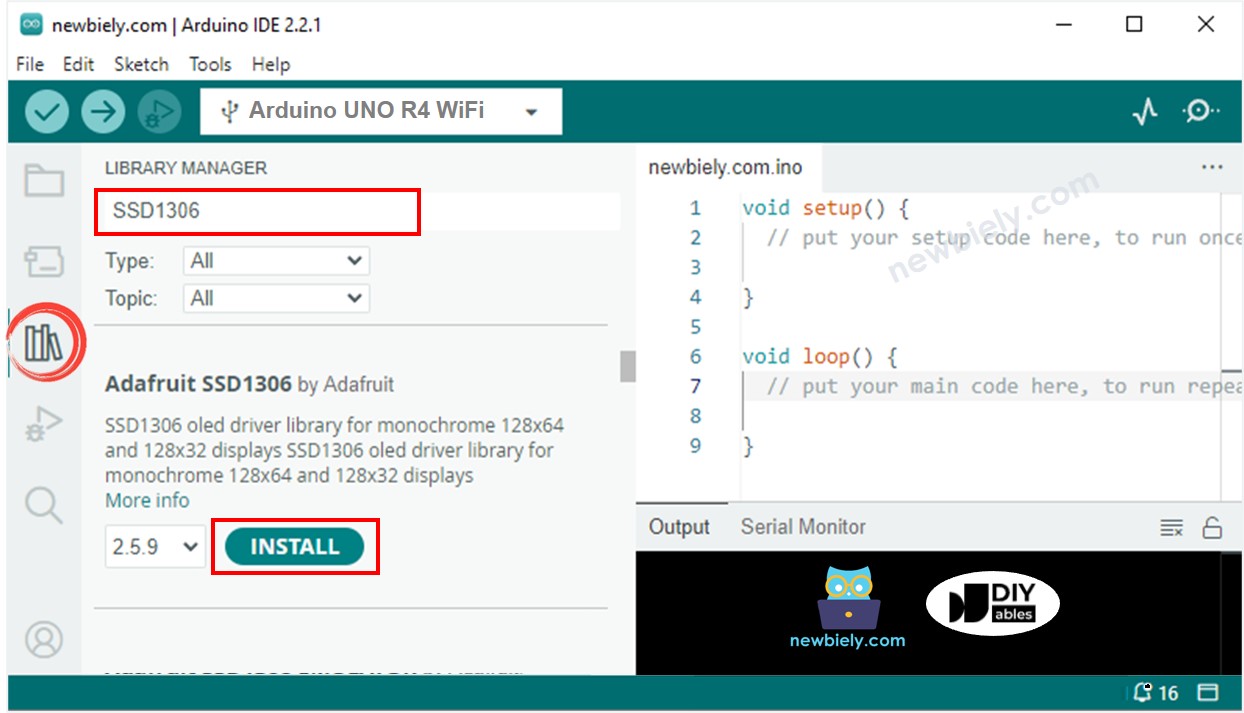
Biblioteca OLED para Arduino UNO R4
  • Você precisará instalar algumas bibliotecas adicionais.
  • Clique no botão Install All para instalar todas as bibliotecas necessárias.
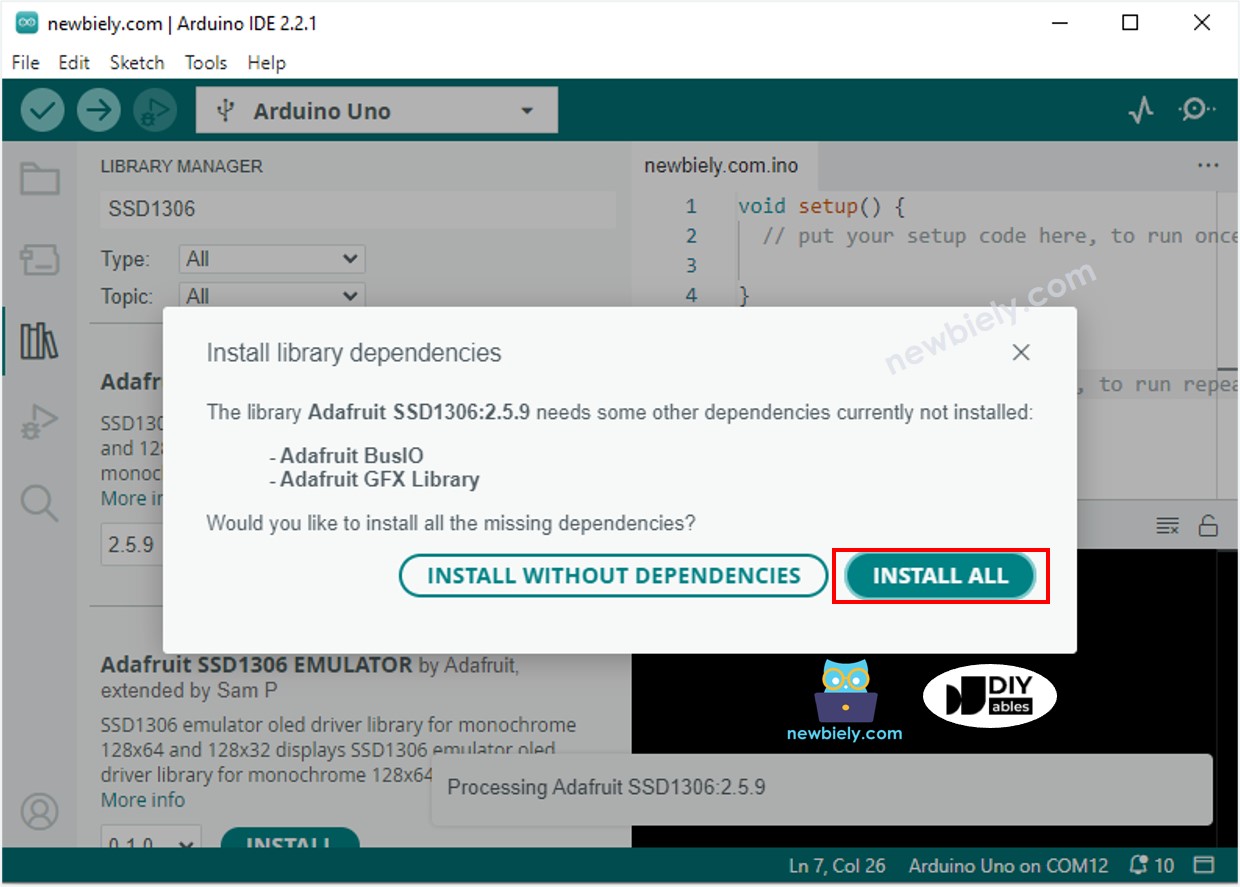
Biblioteca Adafruit GFX para Arduino UNO R4

Como programar para o OLED

  • Inclua uma biblioteca.
#include <Wire.h> #include <Adafruit_GFX.h> #include <Adafruit_SSD1306.h>
  • Defina o tamanho da tela como OLED 123x32.
#define SCREEN_WIDTH 128 // Defines the width of the OLED display in pixels #define SCREEN_HEIGHT 32 // Defines the height of the OLED display in pixels
  • Crie um objeto OLED SSD1306.
// Initialize an Adafruit SSD1306 display object for I2C communication Adafruit_SSD1306 oled(SCREEN_WIDTH, SCREEN_HEIGHT, &Wire, -1);
  • Na função setup(), configure a tela OLED.
// Start OLED display with specific I2C address (0x3C) for 128x32 resolution if (!oled.begin(SSD1306_SWITCHCAPVCC, 0x3C)) { Serial.println(F("SSD1306 allocation failed")); // Print error message if initialization fails while (true); // Enter an infinite loop to halt further execution }
  • Depois disso, você pode mostrar texto, imagens e desenhar linhas.

Código Arduino UNO R4 - Exibir Texto no OLED

/* * Este código de Arduino UNO R4 foi desenvolvido por pt.newbiely.com * Este código de Arduino UNO R4 é disponibilizado ao público sem nenhuma restrição. * Para tutoriais completos e diagramas de ligação, visite: * https://pt.newbiely.com/tutorials/arduino-uno-r4/arduino-uno-r4-oled-128x32 */ #include <Wire.h> #include <Adafruit_GFX.h> #include <Adafruit_SSD1306.h> #define SCREEN_WIDTH 128 // OLED display width, in pixels #define SCREEN_HEIGHT 32 // OLED display height, in pixels // declare an SSD1306 display object connected to I2C Adafruit_SSD1306 oled(SCREEN_WIDTH, SCREEN_HEIGHT, &Wire, -1); void setup() { Serial.begin(9600); // initialize OLED display with address 0x3C for 128x32 if (!oled.begin(SSD1306_SWITCHCAPVCC, 0x3C)) { Serial.println(F("SSD1306 allocation failed")); while (true); } delay(2000); // wait for initializing oled.clearDisplay(); // clear display oled.setTextSize(1); // text size oled.setTextColor(WHITE); // text color oled.setCursor(0, 10); // position to display oled.println("Hello World!"); // text to display oled.display(); // show on OLED } void loop() { }

Aqui estão algumas funções que você pode usar para mostrar texto no OLED:

  • oled.clearDisplay(): desliga todos os pixels.
  • oled.drawPixel(x, y, color): desenha um pixel nas coordenadas x, y.
  • oled.setTextSize(n): muda o tamanho do texto, com opções de 1 a 8.
  • oled.setCursor(x, y): define o ponto inicial do texto.
  • oled.setTextColor(WHITE): deixa a cor do texto branca.
  • oled.setTextColor(BLACK, WHITE): deixa a cor do texto preta e o fundo branco.
  • oled.println("message"): exibe texto.
  • oled.println(number): exibe um número.
  • oled.println(number, HEX): mostra um número no formato hexadecimal.
  • oled.display(): atualiza o display com as alterações.
  • oled.startscrollright(start, stop): move o texto da esquerda para a direita.
  • oled.startscrollleft(start, stop): move o texto da direita para a esquerda.
  • oled.startscrolldiagright(start, stop): move o texto na diagonal, do canto inferior esquerdo para o superior direito.
  • oled.startscrolldiagleft(start, stop): move o texto na diagonal, do canto inferior direito para o superior esquerdo.
  • oled.stopscroll(): interrompe qualquer texto em rolagem.

Código Arduino UNO R4 - Desenhar no OLED

/* * Este código de Arduino UNO R4 foi desenvolvido por pt.newbiely.com * Este código de Arduino UNO R4 é disponibilizado ao público sem nenhuma restrição. * Para tutoriais completos e diagramas de ligação, visite: * https://pt.newbiely.com/tutorials/arduino-uno-r4/arduino-uno-r4-oled-128x32 */ #include <Wire.h> #include <Adafruit_GFX.h> #include <Adafruit_SSD1306.h> #define SCREEN_WIDTH 128 // OLED display width, in pixels #define SCREEN_HEIGHT 32 // OLED display height, in pixels // declare an SSD1306 display object connected to I2C Adafruit_SSD1306 oled(SCREEN_WIDTH, SCREEN_HEIGHT, &Wire, -1); void setup() { Serial.begin(9600); // initialize OLED display with address 0x3C for 128x32 if (!oled.begin(SSD1306_SWITCHCAPVCC, 0x3C)) { Serial.println(F("SSD1306 allocation failed")); while (true); } delay(2000); // wait for initializing oled.setCursor(0, 0); } void loop() { // draw rectangle oled.clearDisplay(); oled.drawRect(0, 15, 60, 40, WHITE); oled.display(); delay(2000); // fill rectangle oled.clearDisplay(); oled.fillRect(0, 15, 60, 40, WHITE); oled.display(); delay(2000); // draw the round rectangle oled.clearDisplay(); oled.drawRoundRect(0, 15, 60, 40, 8, WHITE); oled.display(); delay(2000); // fill the round rectangle oled.clearDisplay(); oled.fillRoundRect(0, 15, 60, 40, 8, WHITE); oled.display(); delay(2000); // draw circle oled.clearDisplay(); oled.drawCircle(20, 35, 20, WHITE); oled.display(); delay(2000); // fill circle oled.clearDisplay(); oled.fillCircle(20, 35, 20, WHITE); oled.display(); delay(2000); // draw triangle oled.clearDisplay(); oled.drawTriangle(30, 15, 0, 60, 60, 60, WHITE); oled.display(); delay(2000); // fill triangle oled.clearDisplay(); oled.fillTriangle(30, 15, 0, 60, 60, 60, WHITE); oled.display(); delay(2000); }

Código Arduino UNO R4 – Exibir Imagem

Para exibir uma imagem em uma tela OLED, primeiro transforme a imagem (em qualquer formato) em um array de bitmap. Você pode usar esta ferramenta Conversor de Imagem para Bitmap para convertê-la. Veja a imagem abaixo para entender como transformar uma imagem em um array de bitmap. Eu transformei o ícone do Arduino em um array de bitmap.
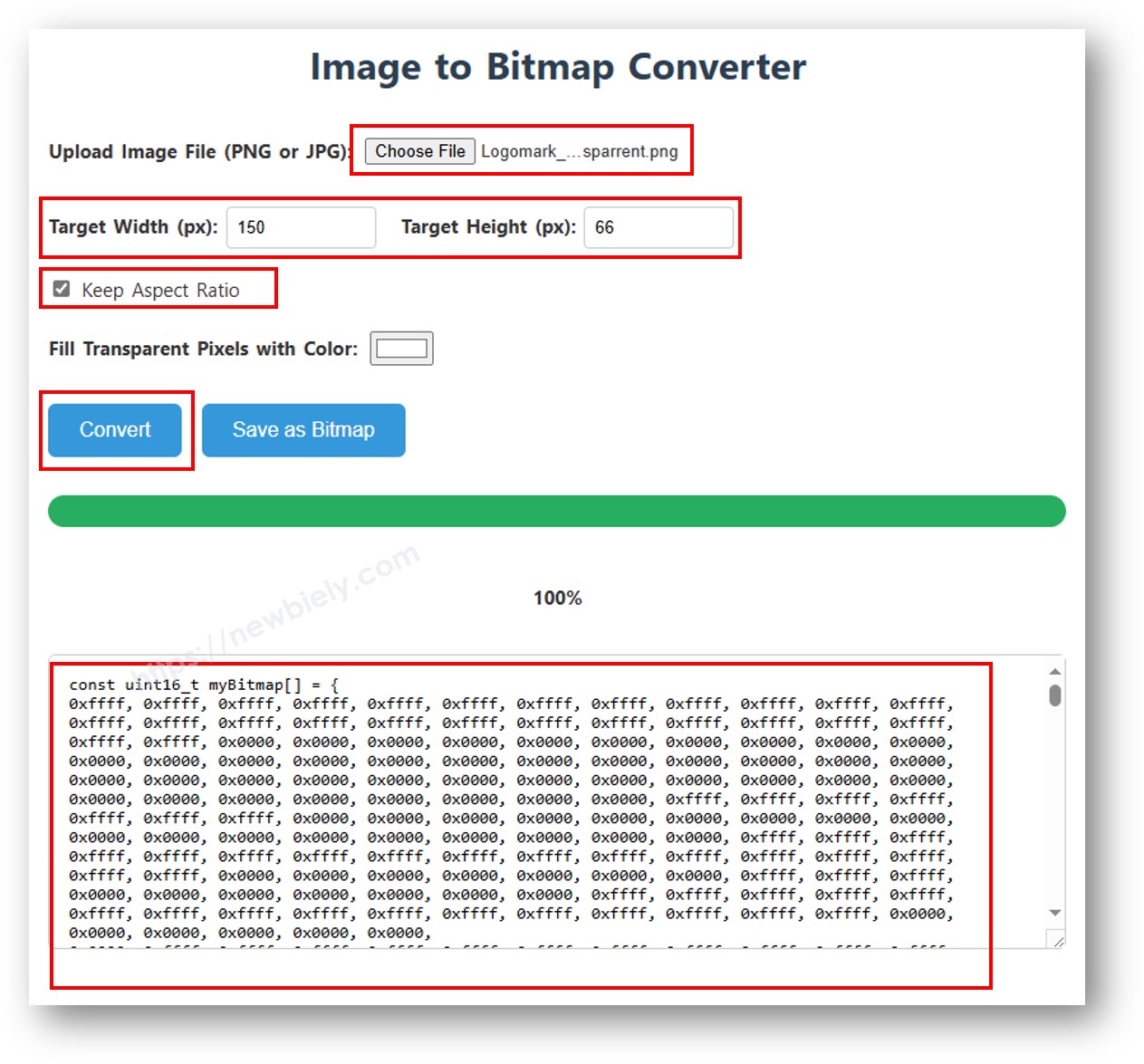
imagem para array de bitmap

Copie o código do novo array e atualize-o no array do ícone do Arduino no código abaixo.

O vídeo abaixo mostra como fazer isso com um display OLED 128x64, um Arduino Uno e o ícone do Arduino

Podemos fazer algo parecido para funcionar com o Arduino Uno R4 e o OLED 128x32. O código abaixo exibe o ícone da DIYables no OLED 128x32

/* * Este código de Arduino UNO R4 foi desenvolvido por pt.newbiely.com * Este código de Arduino UNO R4 é disponibilizado ao público sem nenhuma restrição. * Para tutoriais completos e diagramas de ligação, visite: * https://pt.newbiely.com/tutorials/arduino-uno-r4/arduino-uno-r4-oled-128x32 */ #include <Wire.h> #include <Adafruit_GFX.h> #include <Adafruit_SSD1306.h> #define SCREEN_WIDTH 128 // OLED display width, in pixels #define SCREEN_HEIGHT 32 // OLED display height, in pixels // declare an SSD1306 display object connected to I2C Adafruit_SSD1306 oled(SCREEN_WIDTH, SCREEN_HEIGHT, &Wire, -1); // bitmap of DIYable-icon image int bitmap_width = 72; // MUST match to bitmap image size int bitmap_height = 32; // MUST match to bitmap image size const unsigned char bitmap_DIYables [] PROGMEM = { // 'DIYables Icon', 72x32 0x00, 0x0f, 0xff, 0xff, 0x8f, 0xf8, 0x07, 0x38, 0x07, 0x00, 0x0f, 0xff, 0xff, 0x8f, 0xfe, 0x07, 0x1c, 0x0e, 0x00, 0x0f, 0xff, 0xff, 0x8f, 0xff, 0x07, 0x1c, 0x1c, 0x00, 0x0f, 0xff, 0xff, 0x8e, 0x07, 0x87, 0x0e, 0x1c, 0x00, 0x0f, 0xff, 0xff, 0x8e, 0x03, 0xc7, 0x0f, 0x38, 0x00, 0x0f, 0xff, 0xff, 0x8e, 0x01, 0xc7, 0x07, 0x38, 0x00, 0x0f, 0xff, 0xff, 0x8e, 0x01, 0xc7, 0x03, 0xf0, 0xf0, 0x0f, 0xff, 0xff, 0x8e, 0x01, 0xc7, 0x03, 0xe0, 0xfc, 0x0f, 0xff, 0xff, 0x8e, 0x01, 0xc7, 0x01, 0xe0, 0xfe, 0x0f, 0xff, 0xff, 0x8e, 0x03, 0xc7, 0x01, 0xc0, 0xff, 0x8f, 0xff, 0xff, 0x8e, 0x03, 0x87, 0x01, 0xc0, 0xff, 0x8f, 0xff, 0xff, 0x8e, 0x0f, 0x87, 0x01, 0xc0, 0xff, 0xcf, 0xff, 0xff, 0x8f, 0xff, 0x07, 0x01, 0xc0, 0xff, 0xef, 0xff, 0xff, 0x8f, 0xfc, 0x07, 0x01, 0xc0, 0xff, 0xef, 0xff, 0xff, 0x80, 0x00, 0x00, 0x00, 0x00, 0xff, 0xff, 0xff, 0xff, 0x80, 0x00, 0x00, 0x00, 0x00, 0xff, 0xff, 0xff, 0xff, 0x80, 0x00, 0x00, 0x00, 0x00, 0xff, 0xff, 0xff, 0xff, 0x80, 0x00, 0x00, 0x00, 0x00, 0xff, 0xff, 0xff, 0xff, 0x8f, 0xff, 0xff, 0xff, 0xff, 0xff, 0xff, 0xff, 0xff, 0x8f, 0xff, 0xff, 0xff, 0xff, 0xff, 0xff, 0xff, 0xff, 0x0f, 0xfc, 0xfd, 0xff, 0xff, 0xff, 0xff, 0xff, 0xff, 0x0f, 0xfc, 0xfc, 0xff, 0xff, 0xff, 0xff, 0xff, 0xff, 0x0f, 0xfc, 0xfc, 0xff, 0xff, 0xff, 0xef, 0xff, 0xff, 0x0e, 0x0c, 0x0c, 0xc3, 0x07, 0xff, 0xef, 0xff, 0xfe, 0x0f, 0xec, 0xec, 0x99, 0x7f, 0xff, 0xef, 0xff, 0xfe, 0x0f, 0x04, 0xe4, 0x81, 0x0f, 0xff, 0xcf, 0xff, 0xfc, 0x0e, 0x32, 0xe4, 0x9f, 0xc7, 0xff, 0x8f, 0xff, 0xf8, 0x0e, 0x32, 0x4c, 0x9b, 0x67, 0xff, 0x0f, 0xff, 0xf0, 0x0e, 0x04, 0x0c, 0xc3, 0x0f, 0xfe, 0x0f, 0xff, 0xe0, 0x0f, 0xff, 0xff, 0xff, 0xff, 0xfc, 0x0f, 0xff, 0x80, 0x0f, 0xff, 0xff, 0xff, 0xff, 0xe0, 0x0f, 0xfc, 0x00, 0x0f, 0xff, 0xff, 0xff, 0xff }; void setup() { Serial.begin(9600); // initialize OLED display with address 0x3C for 128x32 if (!oled.begin(SSD1306_SWITCHCAPVCC, 0x3C)) { Serial.println(F("SSD1306 allocation failed")); while (true); } delay(2000); // wait for initializing } void loop() { oled.clearDisplay(); // display bitmap to the center int x = (SCREEN_WIDTH - bitmap_width) / 2; int y = (SCREEN_HEIGHT - bitmap_height) / 2; oled.drawBitmap(x, y, bitmap_DIYables, bitmap_width, bitmap_height, WHITE); oled.display(); delay(2000); }

※ Nota:

  • O tamanho da imagem deve ser igual ou menor que o tamanho da tela.
  • Para usar o código fornecido em um OLED 128x32, você precisa redimensionar a imagem e ajustar a largura e a altura na função oled.drawBitmap();.

Como centralizar texto/número na vertical e na horizontal no OLED

/* * Este código de Arduino UNO R4 foi desenvolvido por pt.newbiely.com * Este código de Arduino UNO R4 é disponibilizado ao público sem nenhuma restrição. * Para tutoriais completos e diagramas de ligação, visite: * https://pt.newbiely.com/tutorials/arduino-uno-r4/arduino-uno-r4-oled-128x32 */ #include <Wire.h> #include <Adafruit_GFX.h> #include <Adafruit_SSD1306.h> #define SCREEN_WIDTH 128 // OLED display width, in pixels #define SCREEN_HEIGHT 32 // OLED display height, in pixels Adafruit_SSD1306 oled(SCREEN_WIDTH, SCREEN_HEIGHT, &Wire, -1); // // create SSD1306 display object connected to I2C void setup() { Serial.begin(9600); // initialize OLED display with address 0x3C for 128x32 if (!oled.begin(SSD1306_SWITCHCAPVCC, 0x3C)) { Serial.println(F("SSD1306 allocation failed")); while (true); } delay(2000); // wait for initializing oled.clearDisplay(); // clear display oled.setTextSize(2); // text size oled.setTextColor(WHITE); // text color oled.setCursor(0, 10); // position to display } void loop() { // display string String text = "DIYables"; oledDisplayCenter(text); delay(2000); // display number int number = 21; String str = String(number); oledDisplayCenter(str); delay(2000); } void oledDisplayCenter(String text) { int16_t x1; int16_t y1; uint16_t width; uint16_t height; oled.getTextBounds(text, 0, 0, &x1, &y1, &width, &height); // display on horizontal and vertical center oled.clearDisplay(); // clear display oled.setCursor((SCREEN_WIDTH - width) / 2, (SCREEN_HEIGHT - height) / 2); oled.println(text); // text to display oled.display(); }

Solução de Problemas do OLED

Se a tela OLED não mostrar nada, siga estes passos:

  • Certifique-se de que a ligação está feita corretamente.
  • Confirme que o seu OLED I2C possui o driver SSD1306.
  • Verifique o endereço I2C do seu OLED usando o código I2C Address Scanner a seguir no Arduino UNO R4.
// I2C address scanner program #include <Wire.h> void setup() { Wire.begin(); Serial.begin(9600); Serial.println("I2C Scanner"); } void loop() { byte error, address; int nDevices; Serial.println("Scanning..."); nDevices = 0; for(address = 1; address < 127; address++ ) { Wire.beginTransmission(address); error = Wire.endTransmission(); if (error == 0) { Serial.print("I2C device found at address 0x"); if (address < 16) Serial.print("0"); Serial.print(address,HEX); Serial.println(" !"); nDevices++; } else if (error==4) { Serial.print("Unknown error at address 0x"); if (address < 16) Serial.print("0"); Serial.println(address,HEX); } } if (nDevices == 0) Serial.println("No I2C devices found"); else Serial.println("done"); delay(5000); // wait 5 seconds for next scan }

A saída no Serial Monitor:

∞
Newbiely | Arduino IDE 2.3.8
──
☐
✕
File
Edit
Sketch
Tools
Help
Arduino Uno R4 WiFi
Newbiely.ino
···
8 Serial.println("Hello World!");
Output
Serial Monitor
Message (Enter to send message to 'Arduino Uno R4 WiFi' on 'COM15')
New Line
9600 baud
Scanning... I2C device found at address 0x3C ! done Scanning... I2C device found at address 0x3C ! done
Ln 11, Col 1
Arduino Uno R4 WiFi on COM15
2

※ NOSSAS MENSAGENS

  • Fique à vontade para compartilhar o link deste tutorial. Porém, por favor, não use nosso conteúdo em outros sites. Investimos muito esforço e tempo para criar este conteúdo, por favor respeite nosso trabalho!