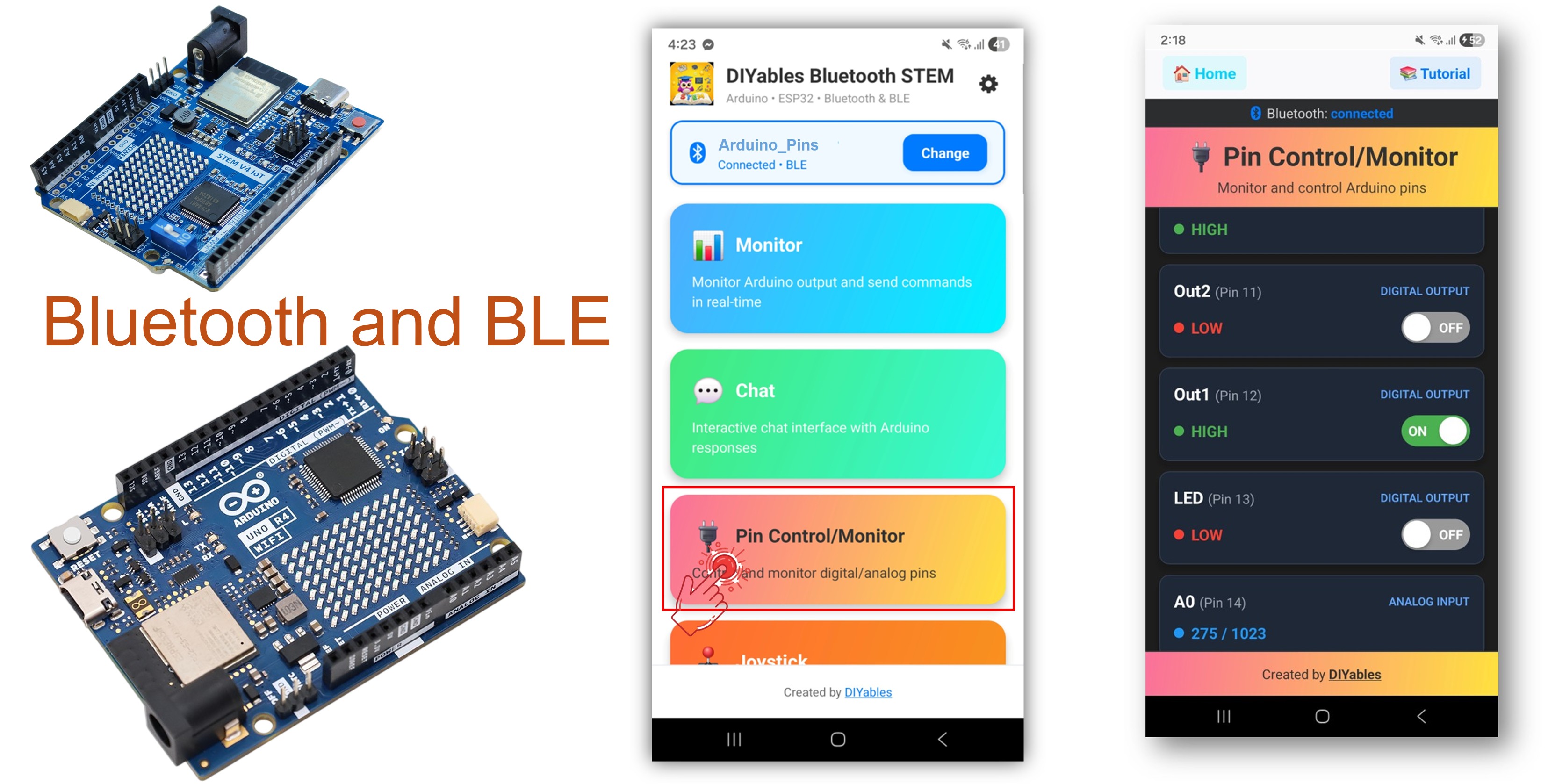
Exemplo de Pinos Digitais Bluetooth no Arduino UNO R4 WiFi - Tutorial de Controle de Pinos GPIO via BLE

Visão Geral

O exemplo de Pinos Digitais Bluetooth oferece controle e monitoramento remoto de pinos GPIO, acessíveis pelo app DIYables Bluetooth STEM. Projetado para o Arduino UNO R4 WiFi usando BLE (Bluetooth Low Energy) para controlar pinos de saída e monitorar pinos de entrada sem fio a partir do seu smartphone. Perfeito para controle de relés, monitoramento de botões, acionamento de LEDs e qualquer aplicação que exija acesso remoto aos pinos.

Observação: O Arduino UNO R4 WiFi suporta apenas BLE (Bluetooth Low Energy). Ele não suporta o Bluetooth Clássico. O DIYables Bluetooth App suporta BLE e Bluetooth Clássico no Android, e BLE no iOS. Como esta placa usa BLE, o app funciona tanto no Android quanto no iOS.

Exemplo de Pinos Digitais Bluetooth no Arduino UNO R4 WiFi - Tutorial de Controle de Pinos GPIO via BLE

Recursos

  • Controle de Saída: Defina os pinos digitais como HIGH/LOW remotamente
  • Monitoramento de Entrada: Leia o estado de pinos digitais e analógicos
  • Pinos com Nome: Atribua nomes amigáveis a cada pino (por exemplo, "LED", "Relay")
  • Atualizações em Tempo Real: Envie as mudanças de estado dos pinos para o app
  • Até 16 Pinos: Controle vários pinos simultaneamente
  • Funciona no Android e no iOS: O BLE é suportado nas duas plataformas
  • Sem Necessidade de Pareamento: O BLE conecta automaticamente, sem pareamento manual

Código do Arduino UNO R4 WiFi

Passos Rápidos

Siga estas instruções passo a passo:

  • Se esta é a sua primeira vez usando o Arduino UNO R4 WiFi, consulte o guia de primeiros passos do Arduino UNO R4 WiFi.
  • Conecte a placa Arduino UNO R4 WiFi ao seu computador usando um cabo USB.
  • Abra o Arduino IDE no seu computador.
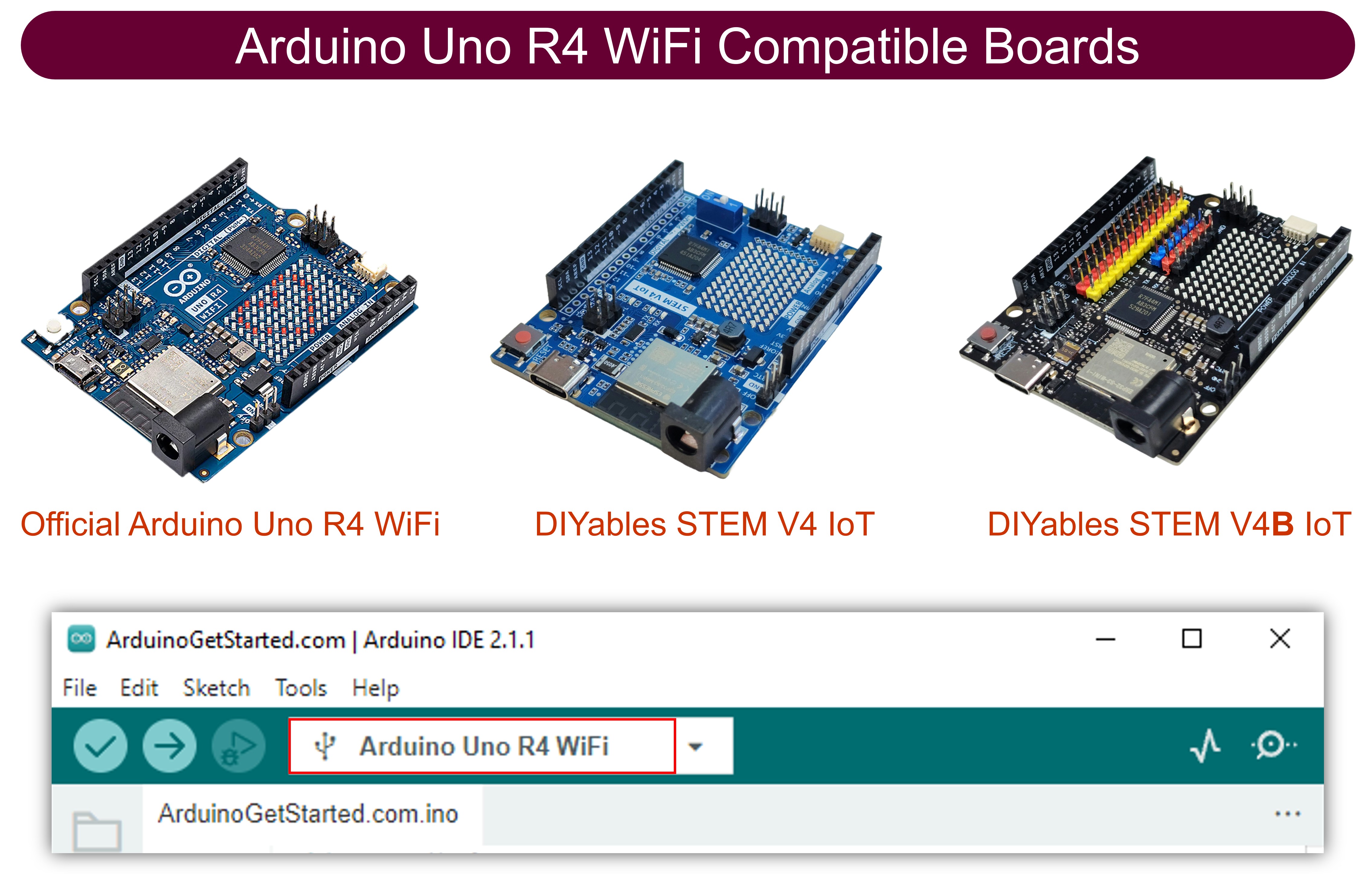
  • Selecione a placa Arduino UNO R4 WiFi e a porta COM apropriada.
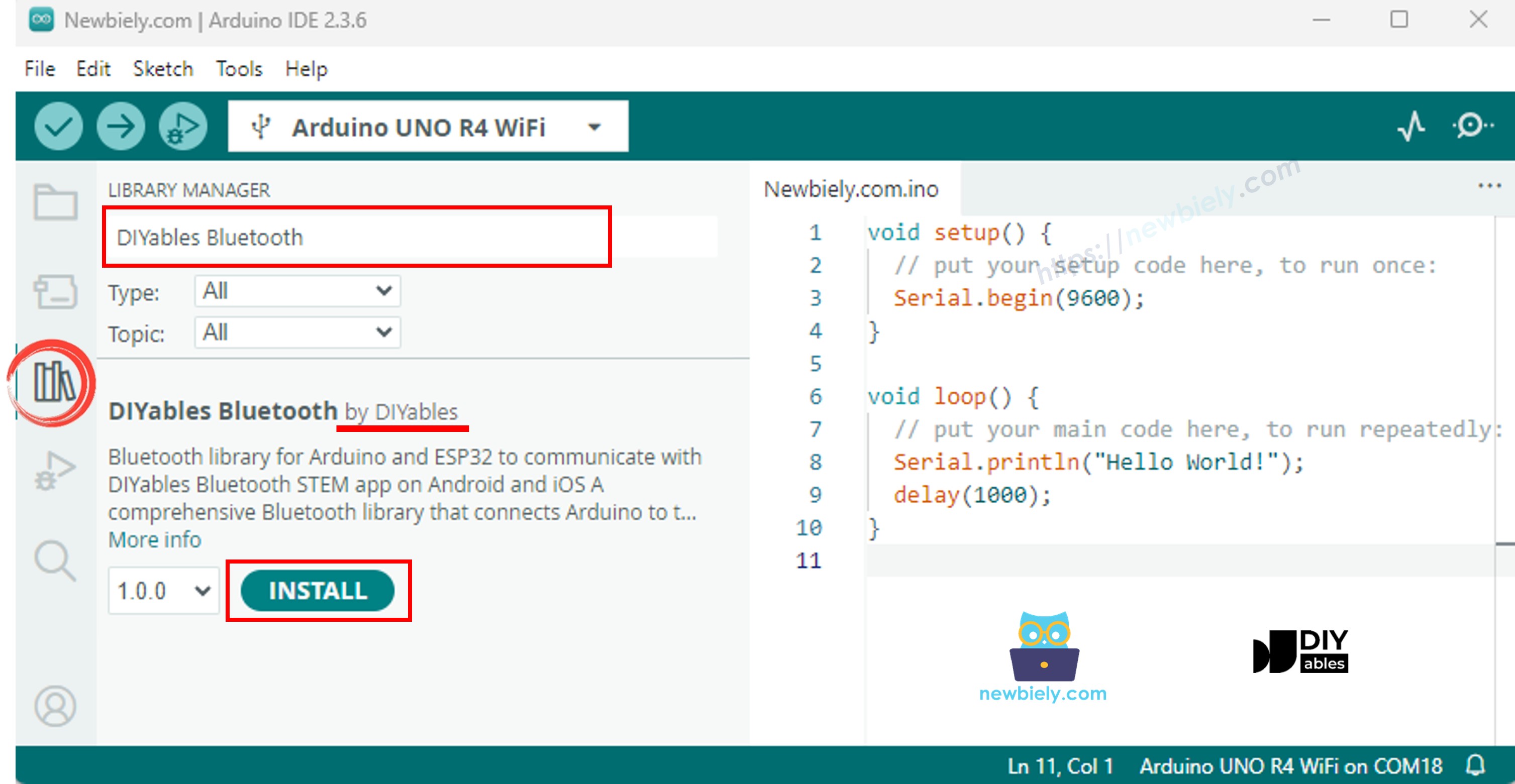
  • Vá até o ícone Libraries na barra lateral esquerda do Arduino IDE.
  • Pesquise por "DIYables Bluetooth" e encontre a biblioteca DIYables Bluetooth da DIYables
  • Clique no botão Install para instalar a biblioteca.
Biblioteca DIYables Bluetooth para Arduino UNO R4
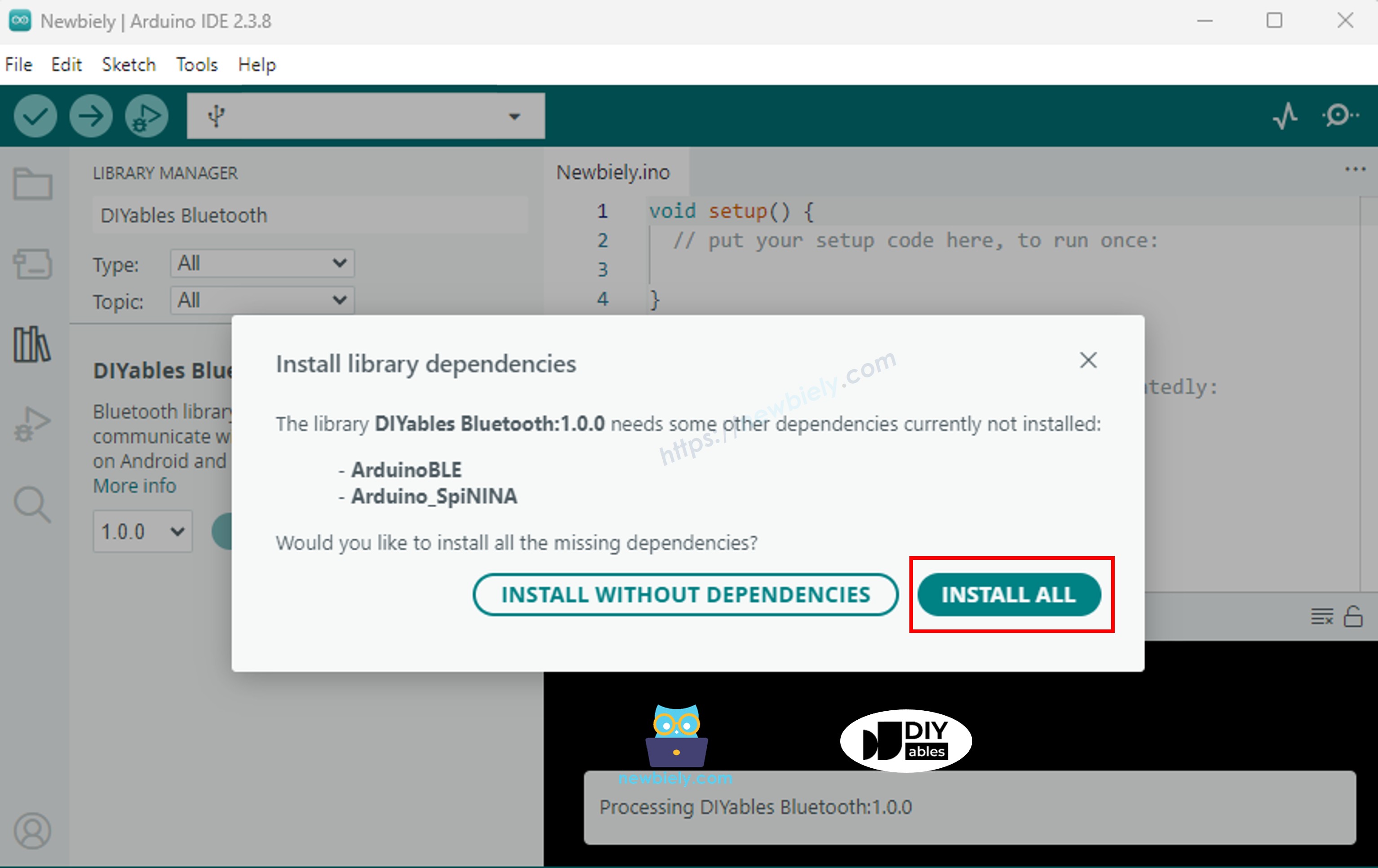
  • Será solicitado que você instale algumas outras dependências de bibliotecas
  • Clique no botão Install All para instalar todas as dependências da biblioteca.
Dependência da biblioteca DIYables Bluetooth para Arduino UNO R4

Código BLE

  • No Arduino IDE, vá em File Examples DIYables Bluetooth ArduinoBLE_PinControl, ou copie o código acima e cole no editor do Arduino IDE
/* * DIYables Bluetooth Library - Bluetooth Pin Control/Monitor Example * Works with DIYables Bluetooth STEM app on Android and iOS * * This example demonstrates the Bluetooth Pin Control/Monitor feature: * - Control digital output pins via Bluetooth * - Monitor digital input pins * - Monitor analog input pins * - Configure pin modes (INPUT/OUTPUT) * * Compatible Boards: * - Arduino UNO R4 WiFi * - Arduino Nano 33 BLE / BLE Sense * - Arduino Nano 33 IoT * - Arduino MKR WiFi 1010 * - Arduino Nano RP2040 Connect * - Any board supporting the ArduinoBLE library * * Setup: * 1. Upload the sketch to your Arduino * 2. Open Serial Monitor to see connection status * 3. Use DIYables Bluetooth App to connect and control pins * * Tutorial: https://diyables.io/bluetooth-app * Author: DIYables */ #include <DIYables_BluetoothServer.h> #include <DIYables_BluetoothPinControl.h> #include <platforms/DIYables_ArduinoBLE.h> // BLE Configuration const char* DEVICE_NAME = "Arduino_Pins"; const char* SERVICE_UUID = "19B10000-E8F2-537E-4F6C-D104768A1214"; const char* TX_UUID = "19B10001-E8F2-537E-4F6C-D104768A1214"; const char* RX_UUID = "19B10002-E8F2-537E-4F6C-D104768A1214"; // Create Bluetooth instances DIYables_ArduinoBLE bluetooth(DEVICE_NAME, SERVICE_UUID, TX_UUID, RX_UUID); DIYables_BluetoothServer bluetoothServer(bluetooth); // Create Pin Control/Monitor app instance DIYables_BluetoothPinControl bluetoothPins; // Pin configuration const int LED_PIN = 13; const int OUTPUT_PIN_1 = 12; const int OUTPUT_PIN_2 = 11; const int INPUT_PIN_1 = 7; const int INPUT_PIN_2 = 6; const int ANALOG_PIN_1 = A0; const int ANALOG_PIN_2 = A1; void setup() { Serial.begin(9600); while (!Serial); Serial.println("DIYables Bluetooth - Pin Control/Monitor Example"); // Initialize pins pinMode(LED_PIN, OUTPUT); pinMode(OUTPUT_PIN_1, OUTPUT); pinMode(OUTPUT_PIN_2, OUTPUT); pinMode(INPUT_PIN_1, INPUT_PULLUP); pinMode(INPUT_PIN_2, INPUT_PULLUP); // Initialize Bluetooth server with platform-specific implementation bluetoothServer.begin(); // Add digital pins app to server bluetoothServer.addApp(&bluetoothPins); // Configure which pins are accessible via Bluetooth with custom names bluetoothPins.enablePin(LED_PIN, BT_PIN_OUTPUT, "LED"); bluetoothPins.enablePin(OUTPUT_PIN_1, BT_PIN_OUTPUT, "Out1"); bluetoothPins.enablePin(OUTPUT_PIN_2, BT_PIN_OUTPUT, "Out2"); bluetoothPins.enablePin(INPUT_PIN_1, BT_PIN_INPUT, "Btn1"); bluetoothPins.enablePin(INPUT_PIN_2, BT_PIN_INPUT, "Btn2"); bluetoothPins.enablePin(ANALOG_PIN_1, BT_PIN_INPUT, "A0"); bluetoothPins.enablePin(ANALOG_PIN_2, BT_PIN_INPUT, "A1"); // Set up connection event callbacks bluetoothServer.setOnConnected([]() { Serial.println("Bluetooth connected!"); }); bluetoothServer.setOnDisconnected([]() { Serial.println("Bluetooth disconnected!"); }); // Set up callback for pin write commands bluetoothPins.onPinWrite([](int pin, int state) { digitalWrite(pin, state); Serial.print("Pin "); Serial.print(pin); Serial.print(" set to "); Serial.println(state ? "HIGH" : "LOW"); }); // Set up callback for pin read commands bluetoothPins.onPinRead([](int pin) -> int { // Read analog pins with analogRead, digital pins with digitalRead int state; if (pin == ANALOG_PIN_1 || pin == ANALOG_PIN_2) { state = analogRead(pin); Serial.print("Analog pin "); Serial.print(pin); Serial.print(" read: "); Serial.println(state); } else { state = digitalRead(pin); Serial.print("Digital pin "); Serial.print(pin); Serial.print(" read: "); Serial.println(state ? "HIGH" : "LOW"); } return state; }); // Set up callback for pin mode changes bluetoothPins.onPinModeChange([](int pin, int mode) { pinMode(pin, mode == BT_PIN_OUTPUT ? OUTPUT : INPUT_PULLUP); Serial.print("Pin "); Serial.print(pin); Serial.print(" mode changed to "); Serial.println(mode == BT_PIN_OUTPUT ? "OUTPUT" : "INPUT"); }); Serial.println("Waiting for Bluetooth connection..."); Serial.print("Enabled pins: "); Serial.println(bluetoothPins.getEnabledPinCount()); } void loop() { // Handle Bluetooth server communications bluetoothServer.loop(); // Optional: Monitor input pins and send updates static unsigned long lastInputCheck = 0; static int lastInputState1 = HIGH; static int lastInputState2 = HIGH; static int lastAnalogState1 = 0; static int lastAnalogState2 = 0; if (millis() - lastInputCheck >= 100) { lastInputCheck = millis(); // Check digital input pin 1 int currentState1 = digitalRead(INPUT_PIN_1); if (currentState1 != lastInputState1) { lastInputState1 = currentState1; bluetoothPins.updatePinState(INPUT_PIN_1, currentState1); Serial.print("Input pin "); Serial.print(INPUT_PIN_1); Serial.print(" changed to "); Serial.println(currentState1 ? "HIGH" : "LOW"); } // Check digital input pin 2 int currentState2 = digitalRead(INPUT_PIN_2); if (currentState2 != lastInputState2) { lastInputState2 = currentState2; bluetoothPins.updatePinState(INPUT_PIN_2, currentState2); Serial.print("Input pin "); Serial.print(INPUT_PIN_2); Serial.print(" changed to "); Serial.println(currentState2 ? "HIGH" : "LOW"); } // Check analog input 1 (send update if changed by more than 10) int currentAnalog1 = analogRead(ANALOG_PIN_1); if (abs(currentAnalog1 - lastAnalogState1) > 10) { lastAnalogState1 = currentAnalog1; bluetoothPins.updatePinState(ANALOG_PIN_1, currentAnalog1); Serial.print("Analog pin "); Serial.print(ANALOG_PIN_1); Serial.print(" changed to "); Serial.println(currentAnalog1); } // Check analog input 2 (send update if changed by more than 10) int currentAnalog2 = analogRead(ANALOG_PIN_2); if (abs(currentAnalog2 - lastAnalogState2) > 10) { lastAnalogState2 = currentAnalog2; bluetoothPins.updatePinState(ANALOG_PIN_2, currentAnalog2); Serial.print("Analog pin "); Serial.print(ANALOG_PIN_2); Serial.print(" changed to "); Serial.println(currentAnalog2); } } delay(10); }
  • Clique no botão Upload no Arduino IDE para fazer o upload do código para o Arduino UNO R4 WiFi
  • Abra o Serial Monitor
  • Confira o resultado no Serial Monitor. Ele se parece com o abaixo:
∞
Newbiely | Arduino IDE 2.3.8
──
☐
✕
File
Edit
Sketch
Tools
Help
Arduino Uno R4 WiFi
Newbiely.ino
···
8 Serial.println("Hello World!");
Output
Serial Monitor
Message (Enter to send message to 'Arduino Uno R4 WiFi' on 'COM15')
New Line
9600 baud
DIYables Bluetooth - Pin Control/Monitor Example Waiting for Bluetooth connection... Enabled pins: 7
Ln 11, Col 1
Arduino Uno R4 WiFi on COM15
2

Aplicativo para Celular

  • Instale o DIYables Bluetooth App no seu smartphone: Android | iOS

Observação: O DIYables Bluetooth App suporta BLE e Bluetooth Clássico no Android, e BLE no iOS. Como o Arduino UNO R4 WiFi usa BLE, o app funciona tanto no Android quanto no iOS. Não é necessário nenhum pareamento manual para o BLE — basta procurar e conectar.

  • Abra o DIYables Bluetooth App
  • Ao abrir o app pela primeira vez, ele pedirá algumas permissões. Conceda as seguintes:
    • Permissão de Dispositivos Próximos (Android 12+) / permissão de Bluetooth (iOS) - necessária para procurar e se conectar a dispositivos Bluetooth
    • Permissão de Localização (somente Android 11 ou anterior) - exigida pelas versões mais antigas do Android para procurar dispositivos BLE
  • Garanta que o Bluetooth esteja ligado no seu celular
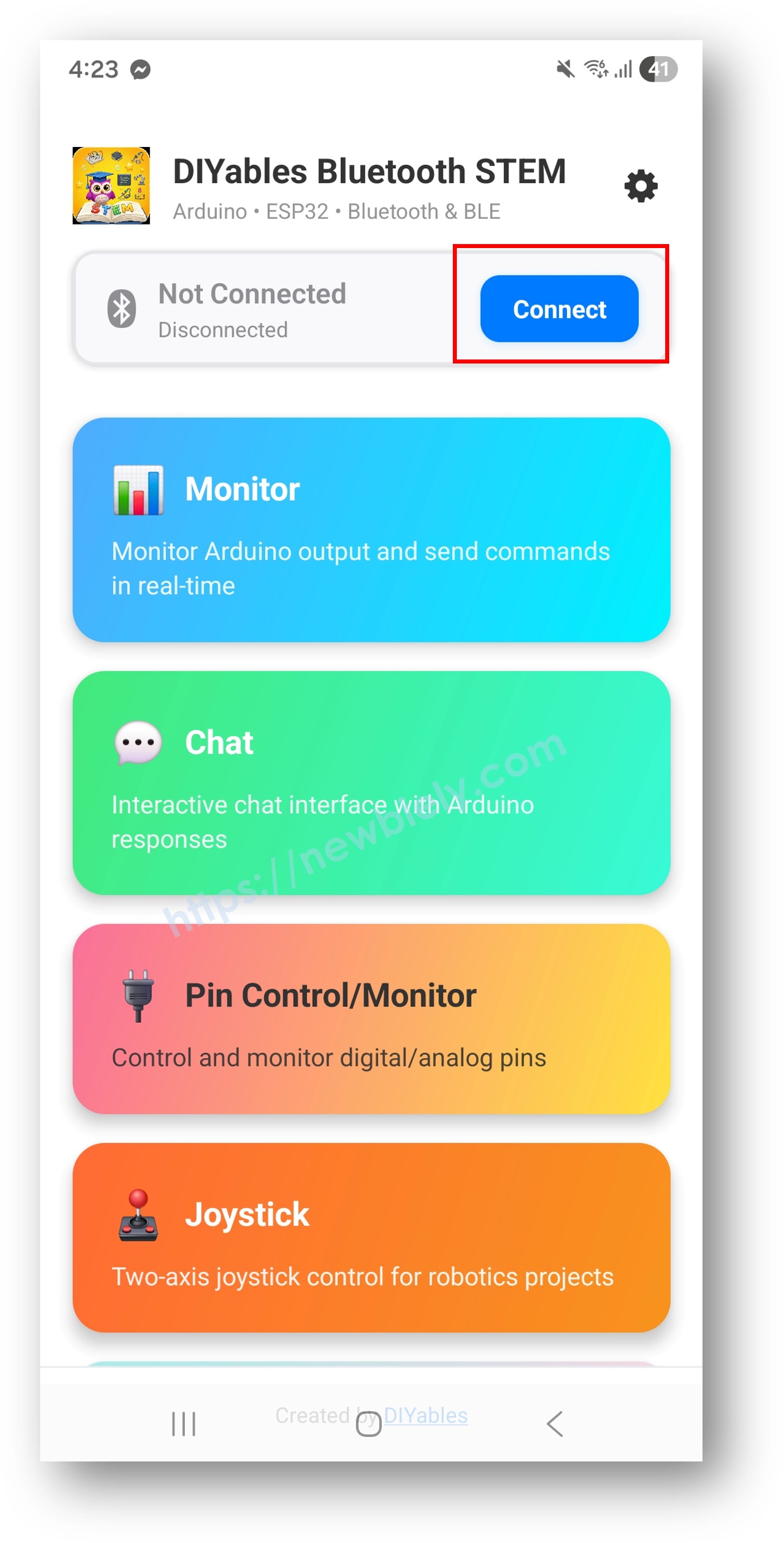
  • Na tela inicial, toque no botão Connect. O app vai procurar dispositivos BLE.
DIYables Bluetooth App - Tela Inicial com o Botão de Busca
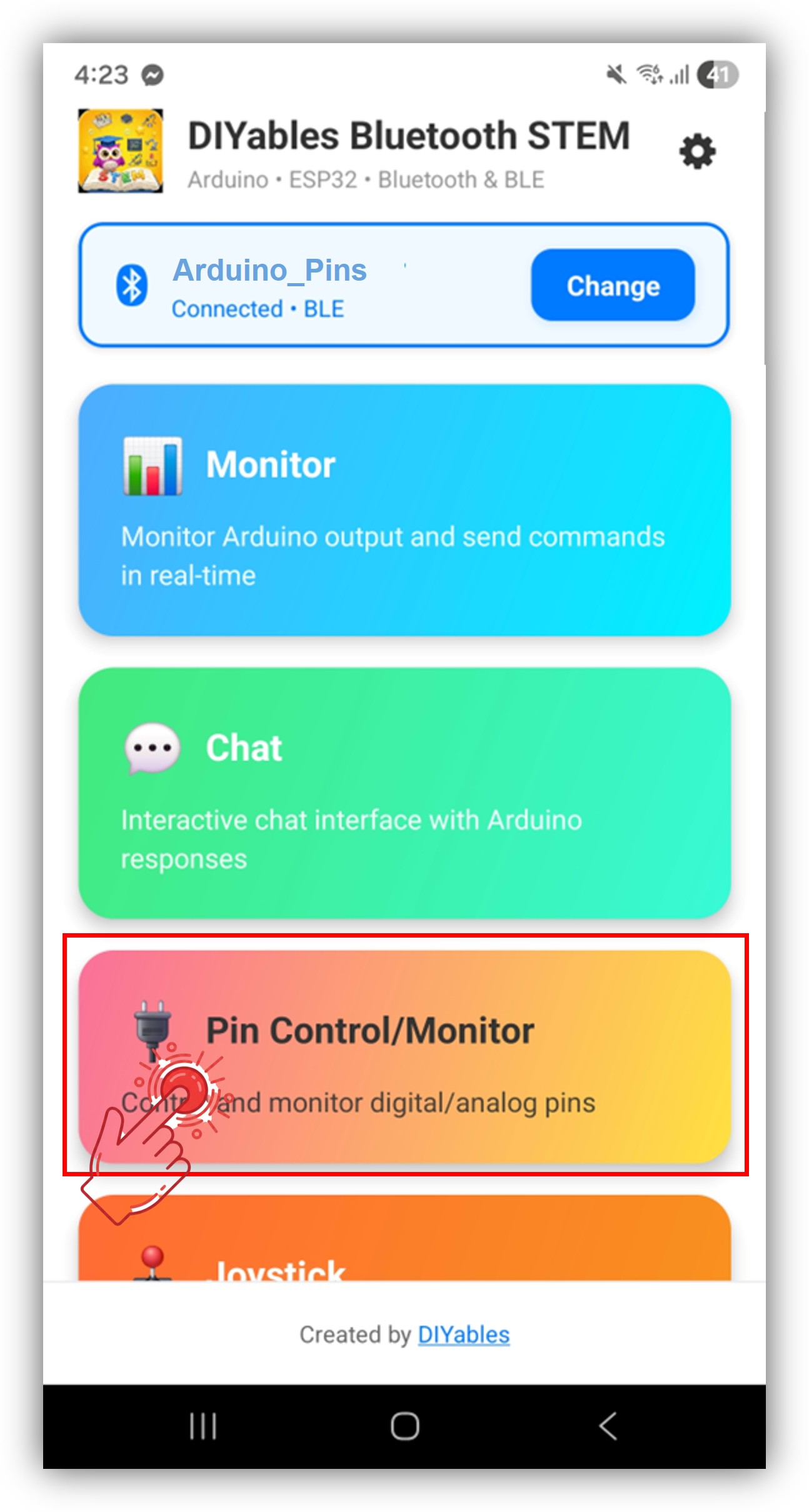
  • Encontre e toque em "Arduino_Pins" nos resultados da busca para conectar.
  • Depois de conectado, o app volta automaticamente para a tela inicial. Selecione o app Digital Pins no menu de apps.
DIYables Bluetooth App - Tela Inicial com o App de Pinos Digitais

Observação: Você pode tocar no ícone de configurações na tela inicial para ocultar/mostrar apps na tela inicial. Para mais detalhes, consulte o Manual do Usuário do DIYables Bluetooth App.

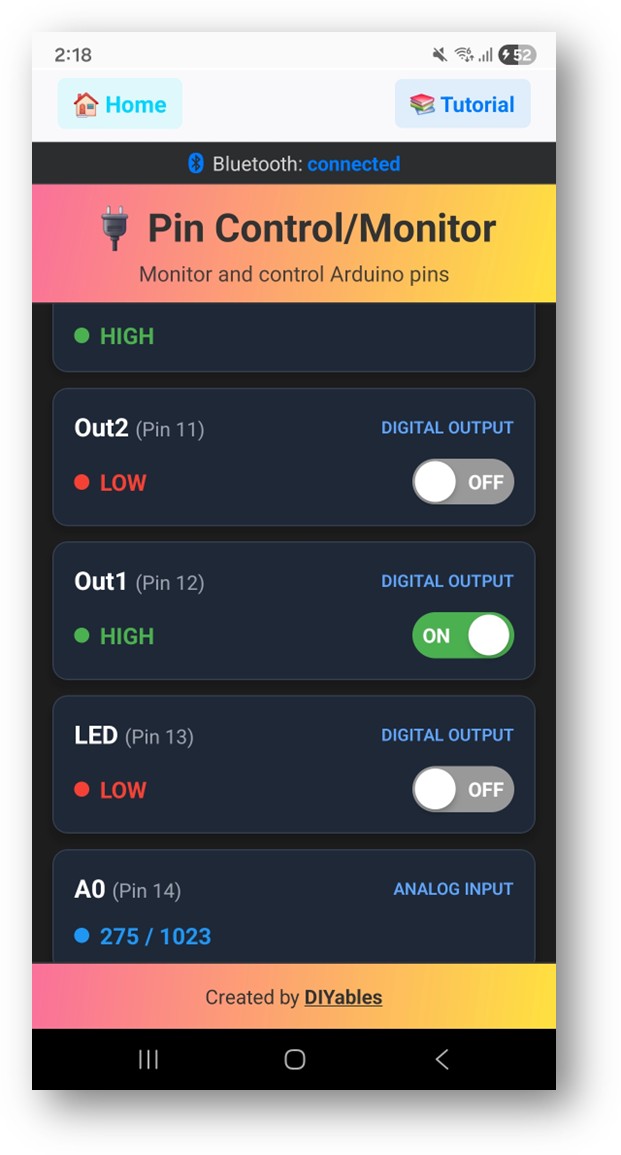
  • Você verá a lista de pinos ativados com seus nomes e estados atuais
  • Toque nos pinos de saída para alternar entre HIGH/LOW e veja os valores dos pinos de entrada serem atualizados
DIYables Bluetooth App - Tela de Pinos Digitais

Agora olhe de volta para o Serial Monitor no Arduino IDE. Você verá:

∞
Newbiely | Arduino IDE 2.3.8
──
☐
✕
File
Edit
Sketch
Tools
Help
Arduino Uno R4 WiFi
Newbiely.ino
···
8 Serial.println("Hello World!");
Output
Serial Monitor
Message (Enter to send message to 'Arduino Uno R4 WiFi' on 'COM15')
New Line
9600 baud
Bluetooth connected! Pin 13 set to HIGH Pin 13 set to LOW Digital pin 7 read: HIGH
Ln 11, Col 1
Arduino Uno R4 WiFi on COM15
2

Personalização Criativa - Adapte o Código ao Seu Projeto

Ativar Pinos

// Enable pins with mode and friendly name bluetoothPins.enablePin(13, BT_PIN_OUTPUT, "LED"); bluetoothPins.enablePin(12, BT_PIN_OUTPUT, "Relay"); bluetoothPins.enablePin(7, BT_PIN_INPUT, "Button"); bluetoothPins.enablePin(A0, BT_PIN_INPUT, "Sensor"); // Check enabled pin count int count = bluetoothPins.getEnabledPinCount();

Tratar Escrita/Leitura/Modo do Pino

bluetoothPins.onPinWrite([](int pin, int state) { digitalWrite(pin, state); Serial.print("Pin "); Serial.print(pin); Serial.println(state ? " ? HIGH" : " ? LOW"); }); bluetoothPins.onPinRead([](int pin) -> int { if (pin >= A0) { return analogRead(pin); } return digitalRead(pin); }); bluetoothPins.onPinModeChange([](int pin, int mode) { pinMode(pin, mode == BT_PIN_OUTPUT ? OUTPUT : INPUT_PULLUP); });

Enviar Mudanças de Estado

// Notify the app when a pin state changes bluetoothPins.updatePinState(7, digitalRead(7)); bluetoothPins.updatePinState(A0, analogRead(A0));

Exemplos de Programação

Controle de Relé com Monitor de Botão

const int RELAY_PIN = 12; const int BUTTON_PIN = 7; void setup() { pinMode(RELAY_PIN, OUTPUT); pinMode(BUTTON_PIN, INPUT_PULLUP); bluetoothPins.enablePin(RELAY_PIN, BT_PIN_OUTPUT, "Relay"); bluetoothPins.enablePin(BUTTON_PIN, BT_PIN_INPUT, "Button"); bluetoothPins.onPinWrite([](int pin, int state) { digitalWrite(pin, state); }); } void loop() { bluetoothServer.loop(); // Monitor button and push changes static int lastState = HIGH; int state = digitalRead(BUTTON_PIN); if (state != lastState) { lastState = state; bluetoothPins.updatePinState(BUTTON_PIN, state); } delay(10); }

Controlador de Vários LEDs

const int LED_PINS[] = {8, 9, 10, 11, 12, 13}; const char* LED_NAMES[] = {"Red", "Green", "Blue", "Yellow", "White", "Built-in"}; const int NUM_LEDS = 6; void setup() { for (int i = 0; i < NUM_LEDS; i++) { pinMode(LED_PINS[i], OUTPUT); bluetoothPins.enablePin(LED_PINS[i], BT_PIN_OUTPUT, LED_NAMES[i]); } bluetoothPins.onPinWrite([](int pin, int state) { digitalWrite(pin, state); }); }

Tutorial em Vídeo

O vídeo de demonstração abaixo usa o código abaixo:

/* * Este código de Arduino UNO R4 foi desenvolvido por pt.newbiely.com * Este código de Arduino UNO R4 é disponibilizado ao público sem nenhuma restrição. * Para tutoriais completos e diagramas de ligação, visite: * https://pt.newbiely.com/tutorials/arduino-uno-r4/arduino-uno-r4-diyables-bluetooth-app-digital-pins */ /* * DIYables Bluetooth Library - Bluetooth Pin Control/Monitor Example * Works with DIYables Bluetooth STEM app on Android and iOS * * This example demonstrates the Bluetooth Pin Control/Monitor feature: * - Control digital output pins via Bluetooth * - Monitor digital input pins * - Monitor analog input pins * - Configure pin modes (INPUT/OUTPUT) * * Compatible Boards: * - Arduino UNO R4 WiFi * - Arduino Nano 33 BLE / BLE Sense * - Arduino Nano 33 IoT * - Arduino MKR WiFi 1010 * - Arduino Nano RP2040 Connect * - Any board supporting the ArduinoBLE library * * Setup: * 1. Upload the sketch to your Arduino * 2. Open Serial Monitor to see connection status * 3. Use DIYables Bluetooth App to connect and control pins * * Tutorial: https://diyables.io/bluetooth-app * Author: DIYables */ #include <DIYables_BluetoothServer.h> #include <DIYables_BluetoothPinControl.h> #include <platforms/DIYables_ArduinoBLE.h> // BLE Configuration const char* DEVICE_NAME = "Arduino_Pins"; const char* SERVICE_UUID = "19B10000-E8F2-537E-4F6C-D104768A1214"; const char* TX_UUID = "19B10001-E8F2-537E-4F6C-D104768A1214"; const char* RX_UUID = "19B10002-E8F2-537E-4F6C-D104768A1214"; // Create Bluetooth instances DIYables_ArduinoBLE bluetooth(DEVICE_NAME, SERVICE_UUID, TX_UUID, RX_UUID); DIYables_BluetoothServer bluetoothServer(bluetooth); // Create Pin Control/Monitor app instance DIYables_BluetoothPinControl bluetoothPins; // Pin configuration const int GREEN_PIN = 9; const int YELLOW_PIN = 10; const int RED_PIN = 11; const int BUZZER_PIN = 8; bool buzzer_state = false; // const int OUTPUT_PIN_1 = 12; // const int OUTPUT_PIN_2 = 11; // const int INPUT_PIN_1 = 7; // const int INPUT_PIN_2 = 6; // const int ANALOG_PIN_1 = A0; // const int ANALOG_PIN_2 = A1; void setup() { Serial.begin(9600); while (!Serial); Serial.println("DIYables Bluetooth - Pin Control/Monitor Example"); // Initialize pins pinMode(GREEN_PIN, OUTPUT); pinMode(YELLOW_PIN, OUTPUT); pinMode(RED_PIN, OUTPUT); pinMode(BUZZER_PIN, OUTPUT); // pinMode(OUTPUT_PIN_1, OUTPUT); // pinMode(OUTPUT_PIN_2, OUTPUT); // pinMode(INPUT_PIN_1, INPUT_PULLUP); // pinMode(INPUT_PIN_2, INPUT_PULLUP); // Initialize Bluetooth server with platform-specific implementation bluetoothServer.begin(); // Add digital pins app to server bluetoothServer.addApp(&bluetoothPins); // Configure which pins are accessible via Bluetooth with custom names bluetoothPins.enablePin(GREEN_PIN, BT_PIN_OUTPUT, "GREEN LED"); bluetoothPins.enablePin(YELLOW_PIN, BT_PIN_OUTPUT, "YELLOW LED"); bluetoothPins.enablePin(RED_PIN, BT_PIN_OUTPUT, "RED LED"); bluetoothPins.enablePin(BUZZER_PIN, BT_PIN_OUTPUT, "BUZZER"); // bluetoothPins.enablePin(OUTPUT_PIN_1, BT_PIN_OUTPUT, "Out1"); // bluetoothPins.enablePin(OUTPUT_PIN_2, BT_PIN_OUTPUT, "Out2"); // bluetoothPins.enablePin(INPUT_PIN_1, BT_PIN_INPUT, "Btn1"); // bluetoothPins.enablePin(INPUT_PIN_2, BT_PIN_INPUT, "Btn2"); // bluetoothPins.enablePin(ANALOG_PIN_1, BT_PIN_INPUT, "A0"); // bluetoothPins.enablePin(ANALOG_PIN_2, BT_PIN_INPUT, "A1"); // Set up connection event callbacks bluetoothServer.setOnConnected([]() { Serial.println("Bluetooth connected!"); }); bluetoothServer.setOnDisconnected([]() { Serial.println("Bluetooth disconnected!"); }); // Set up callback for pin write commands bluetoothPins.onPinWrite([](int pin, int state) { if(pin == BUZZER_PIN){ buzzer_state = state; }else{ digitalWrite(pin, state); } Serial.print("Pin "); Serial.print(pin); Serial.print(" set to "); Serial.println(state ? "HIGH" : "LOW"); }); // Set up callback for pin read commands // bluetoothPins.onPinRead([](int pin) -> int { // // Read analog pins with analogRead, digital pins with digitalRead // int state; // if (pin == ANALOG_PIN_1 || pin == ANALOG_PIN_2) { // state = analogRead(pin); // Serial.print("Analog pin "); // Serial.print(pin); // Serial.print(" read: "); // Serial.println(state); // } else { // state = digitalRead(pin); // Serial.print("Digital pin "); // Serial.print(pin); // Serial.print(" read: "); // Serial.println(state ? "HIGH" : "LOW"); // } // return state; // }); // Set up callback for pin mode changes // bluetoothPins.onPinModeChange([](int pin, int mode) { // pinMode(pin, mode == BT_PIN_OUTPUT ? OUTPUT : INPUT_PULLUP); // Serial.print("Pin "); // Serial.print(pin); // Serial.print(" mode changed to "); // Serial.println(mode == BT_PIN_OUTPUT ? "OUTPUT" : "INPUT"); // }); Serial.println("Waiting for Bluetooth connection..."); Serial.print("Enabled pins: "); Serial.println(bluetoothPins.getEnabledPinCount()); } void loop() { // Handle Bluetooth server communications bluetoothServer.loop(); if(buzzer_state){ tone(BUZZER_PIN,5000); }else{ noTone(BUZZER_PIN); } // Optional: Monitor input pins and send updates // static unsigned long lastInputCheck = 0; // static int lastInputState1 = HIGH; // static int lastInputState2 = HIGH; // static int lastAnalogState1 = 0; // static int lastAnalogState2 = 0; // if (millis() - lastInputCheck >= 100) { // lastInputCheck = millis(); // // Check digital input pin 1 // int currentState1 = digitalRead(INPUT_PIN_1); // if (currentState1 != lastInputState1) { // lastInputState1 = currentState1; // bluetoothPins.updatePinState(INPUT_PIN_1, currentState1); // Serial.print("Input pin "); // Serial.print(INPUT_PIN_1); // Serial.print(" changed to "); // Serial.println(currentState1 ? "HIGH" : "LOW"); // } // // Check digital input pin 2 // int currentState2 = digitalRead(INPUT_PIN_2); // if (currentState2 != lastInputState2) { // lastInputState2 = currentState2; // bluetoothPins.updatePinState(INPUT_PIN_2, currentState2); // Serial.print("Input pin "); // Serial.print(INPUT_PIN_2); // Serial.print(" changed to "); // Serial.println(currentState2 ? "HIGH" : "LOW"); // } // // Check analog input 1 (send update if changed by more than 10) // int currentAnalog1 = analogRead(ANALOG_PIN_1); // if (abs(currentAnalog1 - lastAnalogState1) > 10) { // lastAnalogState1 = currentAnalog1; // bluetoothPins.updatePinState(ANALOG_PIN_1, currentAnalog1); // Serial.print("Analog pin "); // Serial.print(ANALOG_PIN_1); // Serial.print(" changed to "); // Serial.println(currentAnalog1); // } // // Check analog input 2 (send update if changed by more than 10) // int currentAnalog2 = analogRead(ANALOG_PIN_2); // if (abs(currentAnalog2 - lastAnalogState2) > 10) { // lastAnalogState2 = currentAnalog2; // bluetoothPins.updatePinState(ANALOG_PIN_2, currentAnalog2); // Serial.print("Analog pin "); // Serial.print(ANALOG_PIN_2); // Serial.print(" changed to "); // Serial.println(currentAnalog2); // } // } delay(10); }

Solução de Problemas

Problemas Comuns

1. Não encontro o dispositivo no app

  • Garanta que o Arduino UNO R4 WiFi esteja ligado e que o sketch tenha sido carregado
  • Garanta que o Bluetooth do seu celular esteja ativado
  • No Android 11 ou anterior, ative também os serviços de localização

2. A alternância do pino não funciona

  • Verifique se o pino está ativado com o modo BT_PIN_OUTPUT
  • Verifique se o callback onPinWrite está configurado
  • Verifique as conexões de ligação

3. Os pinos de entrada não atualizam

  • Garanta que updatePinState() seja chamado quando o estado do pino mudar
  • Verifique a frequência de polling no loop

4. Os valores analógicos não aparecem

  • Use analogRead() no callback onPinRead para pinos analógicos
  • Os pinos analógicos retornam valores de 0-1023

5. A conexão cai com frequência

  • Aproxime-se do Arduino (reduza a distância)
  • Garanta uma fonte de alimentação USB estável

6. O upload falha ou a placa não é reconhecida

  • Instale o pacote de placas Arduino UNO R4 mais recente pelo Board Manager
  • Tente outro cabo USB ou outra porta

Ideias de Projetos

  • Painel de controle com vários relés
  • Monitor de botões e interruptores
  • Controlador de iluminação LED
  • Painel de interruptores para automação residencial
  • Painel de entradas de sensores

Próximos Passos

Depois de dominar o exemplo de Pinos Digitais Bluetooth, experimente:

  1. Bluetooth Slider - Para controle de valores analógicos
  2. Bluetooth Monitor - Para retorno de status em texto
  3. Bluetooth Table - Para exibição estruturada do status dos pinos
  4. Multiple Bluetooth Apps - Combinando o controle de pinos com outros apps

Suporte

Para obter ajuda adicional:

  • Consulte a documentação de referência da API
  • Fóruns da comunidade Arduino

※ NOSSAS MENSAGENS

  • Fique à vontade para compartilhar o link deste tutorial. Porém, por favor, não use nosso conteúdo em outros sites. Investimos muito esforço e tempo para criar este conteúdo, por favor respeite nosso trabalho!