Exemplo de Chat Bluetooth no Arduino UNO R4 WiFi - Tutorial de Mensagens Bidirecionais via BLE
Visão Geral
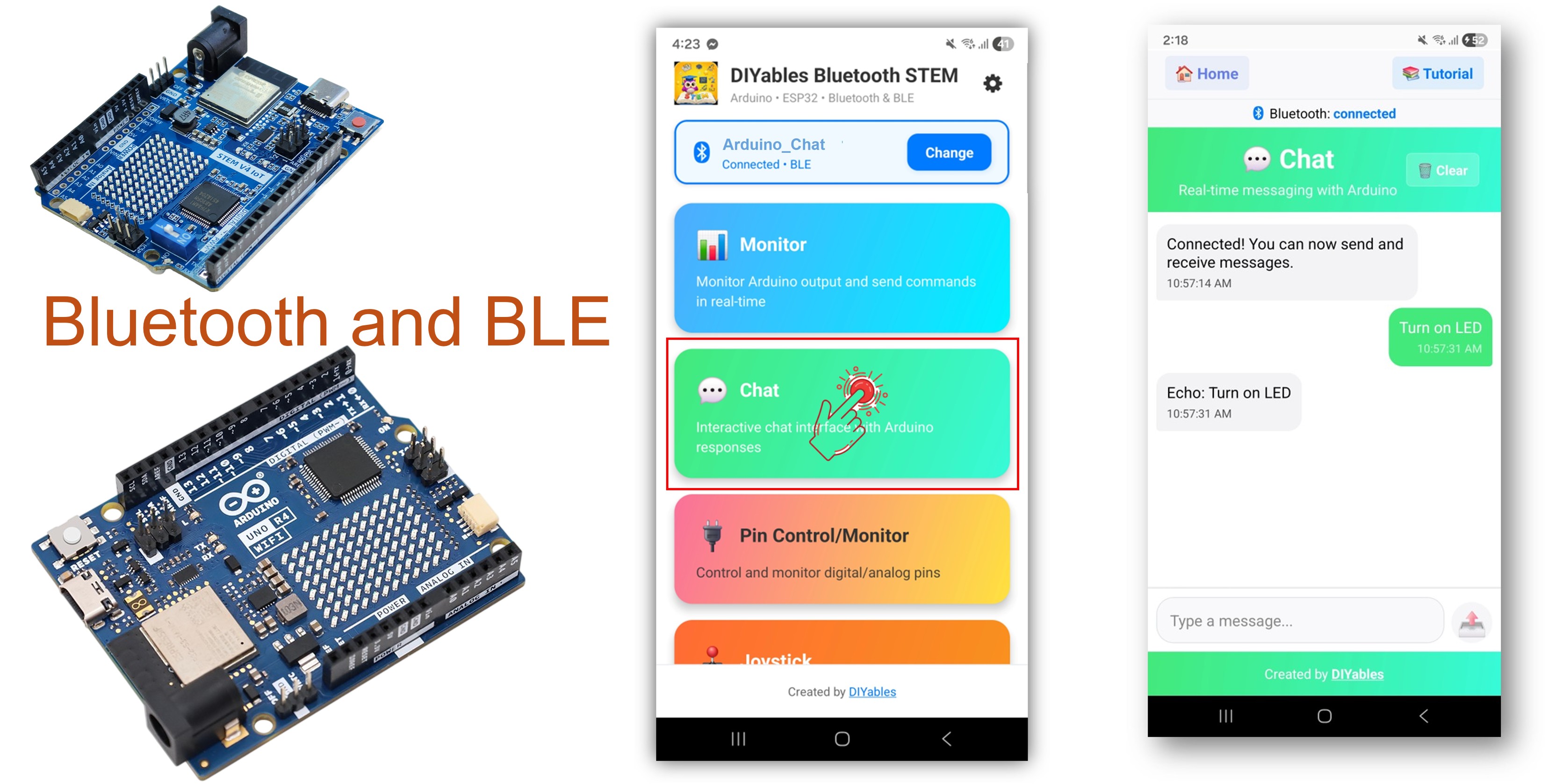
O exemplo de Chat Bluetooth oferece uma interface de mensagens de texto bidirecional, acessível pelo app DIYables Bluetooth STEM. Projetado para o Arduino UNO R4 WiFi usando BLE (Bluetooth Low Energy) para enviar e receber mensagens de texto entre o seu Arduino e o smartphone em tempo real. Perfeito para interfaces de linha de comando, controle remoto por comandos de texto, pontes seriais e depuração interativa.
Observação: O Arduino UNO R4 WiFi suporta apenas BLE (Bluetooth Low Energy). Ele não suporta o Bluetooth Clássico. O DIYables Bluetooth App suporta BLE e Bluetooth Clássico no Android, e BLE no iOS. Como esta placa usa BLE, o app funciona tanto no Android quanto no iOS.
Recursos
Mensagens Bidirecionais: Envie e receba mensagens de texto em tempo real
Tratamento de Comandos: Processe comandos de texto vindos do aplicativo móvel
Ponte Serial: Encaminhe mensagens entre o Serial Monitor e o Bluetooth
Respostas Personalizadas: Responda automaticamente com ecos ou dados processados
Funciona no Android e no iOS: O BLE é suportado nas duas plataformas
Sem Necessidade de Pareamento: O BLE conecta automaticamente, sem pareamento manual
Baixo Consumo de Energia: O BLE consome menos energia que o Bluetooth Clássico
Divulgação: Alguns dos links desta seção são links de afiliado da Amazon. Podemos receber uma comissão pelas compras feitas por meio desses links, sem custo adicional para você. Agradecemos o seu apoio.
Conecte a placa Arduino UNO R4 WiFi ao seu computador usando um cabo USB.
Abra o Arduino IDE no seu computador.
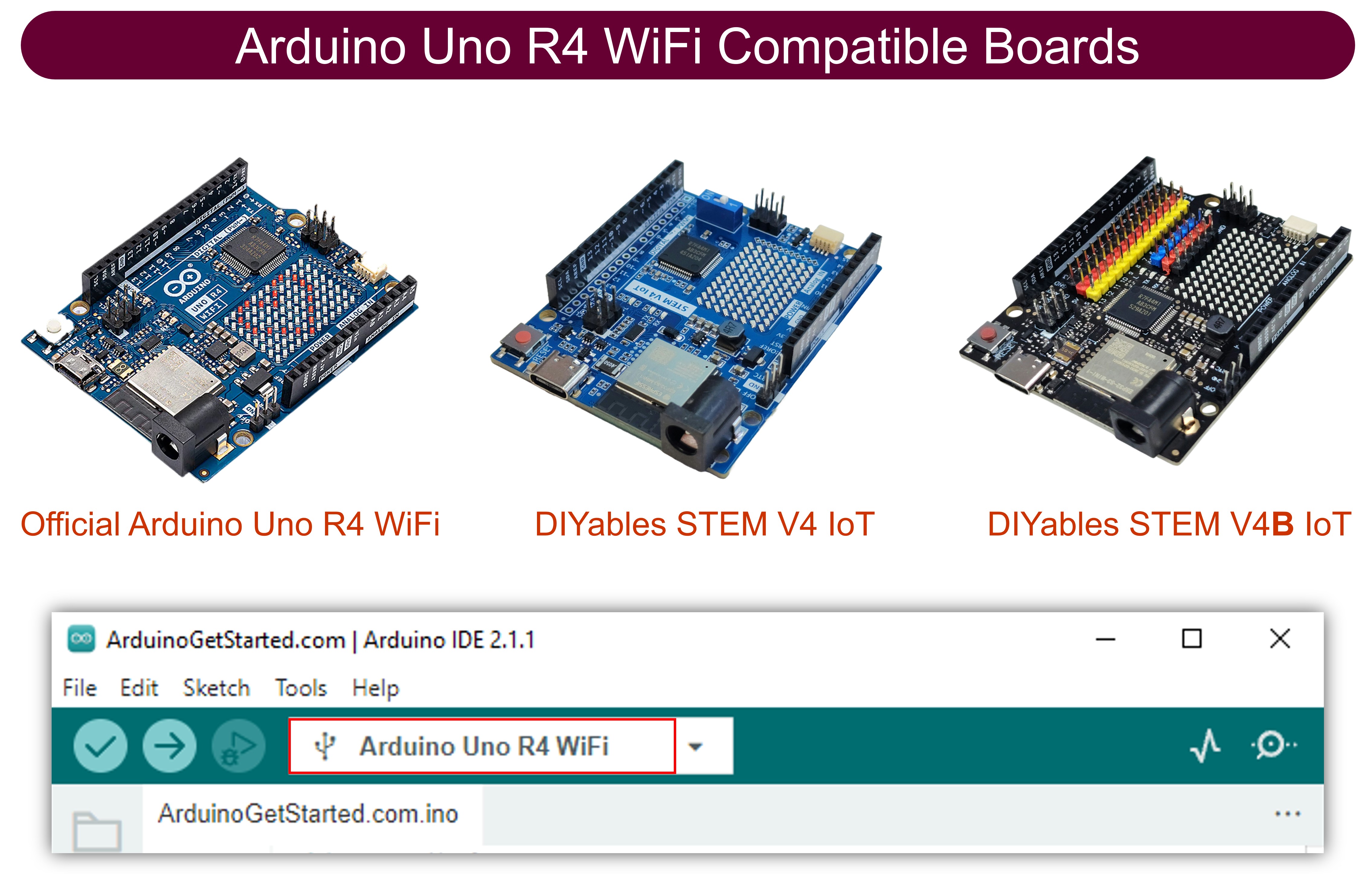
Selecione a placa Arduino UNO R4 WiFi e a porta COM apropriada.
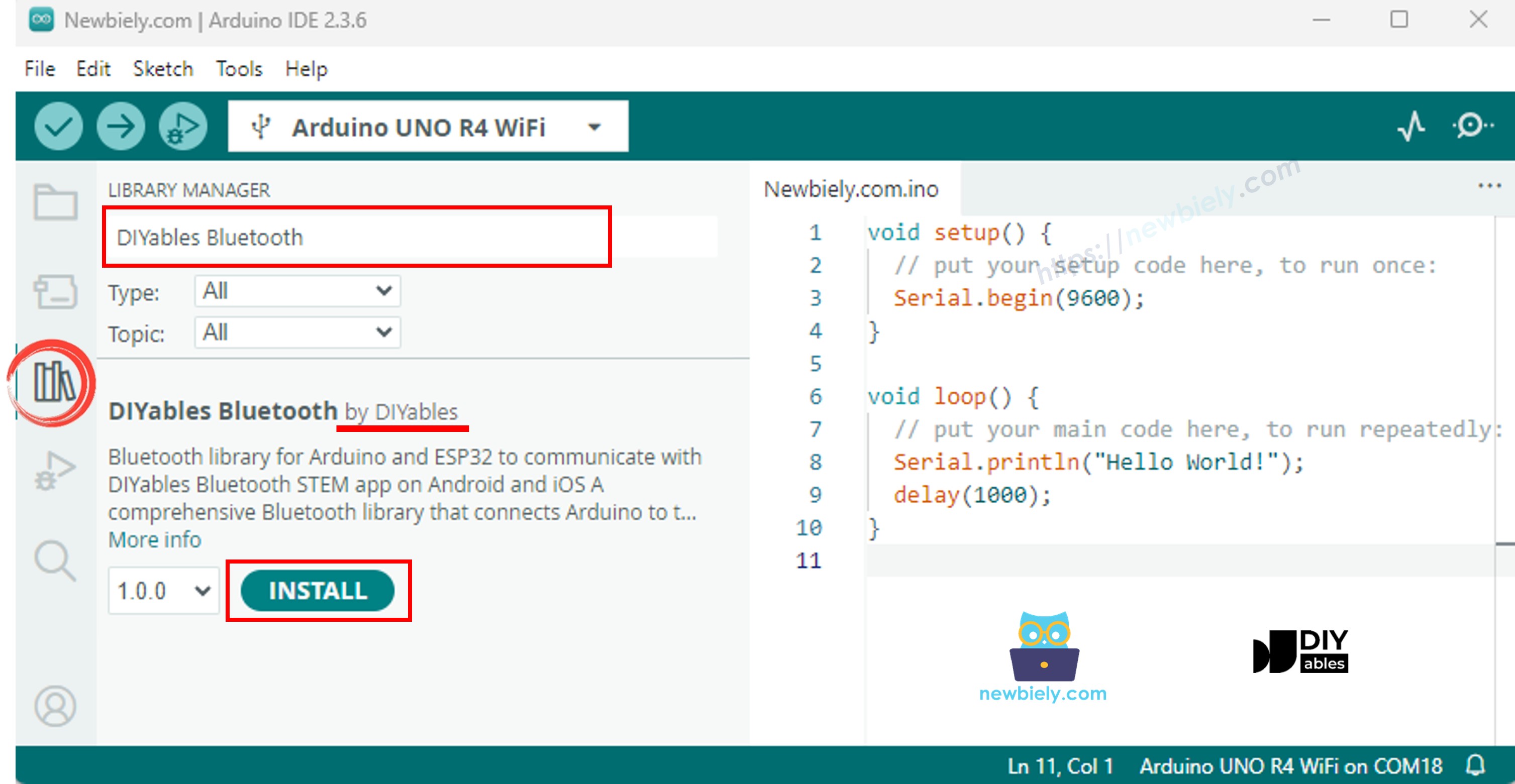
Vá até o ícone Libraries na barra lateral esquerda do Arduino IDE.
Pesquise por "DIYables Bluetooth" e encontre a biblioteca DIYables Bluetooth da DIYables
Clique no botão Install para instalar a biblioteca.
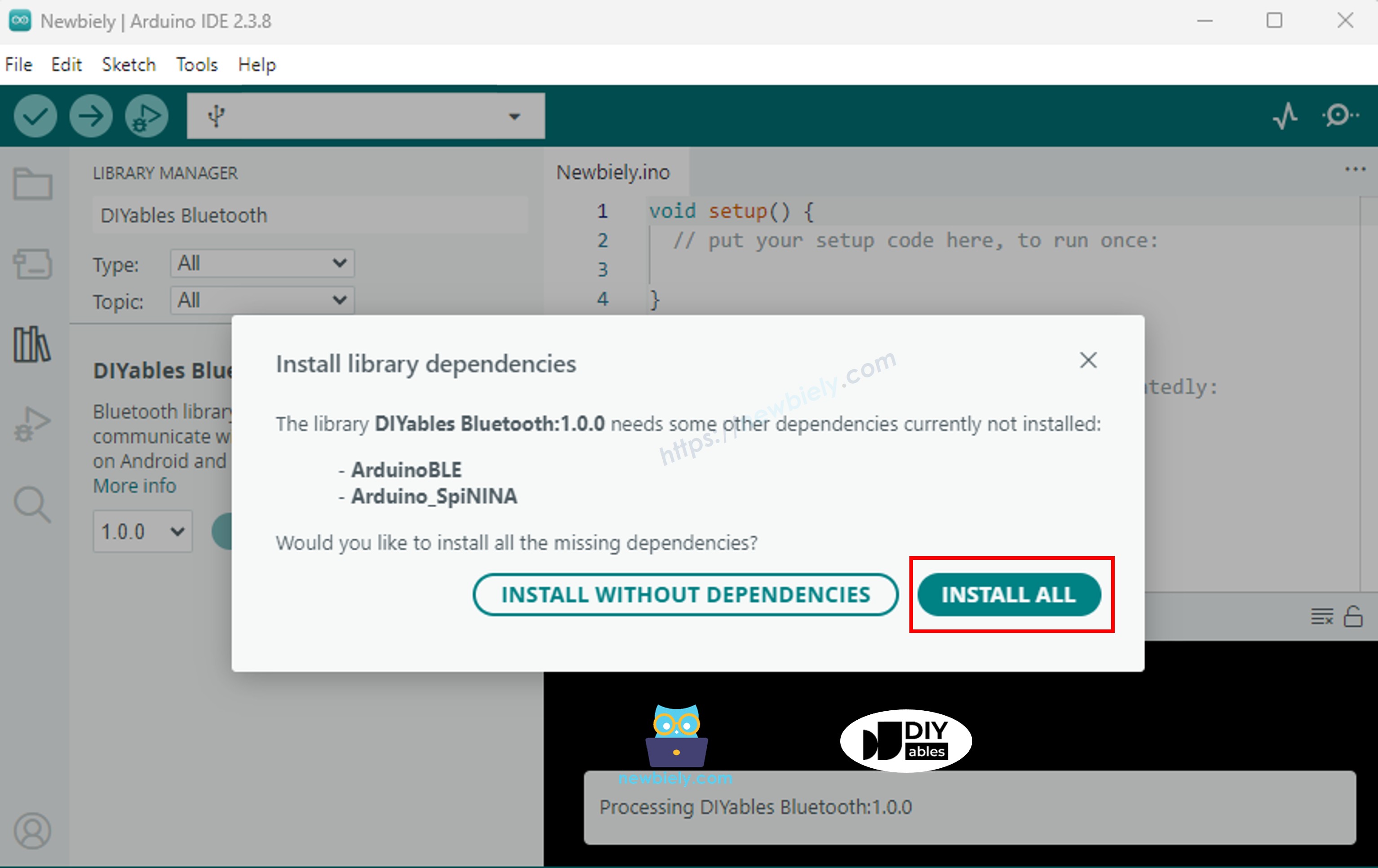
Será solicitado que você instale algumas outras dependências de bibliotecas
Clique no botão Install All para instalar todas as dependências da biblioteca.
Código BLE
No Arduino IDE, vá em File Examples DIYables Bluetooth ArduinoBLE_Chat, ou copie o código acima e cole no editor do Arduino IDE
/* * DIYables Bluetooth Library - Bluetooth Chat Example * Works with DIYables Bluetooth STEM app on Android and iOS * * This example demonstrates the Bluetooth Chat feature: * - Two-way text messaging via Bluetooth * - Receive messages from mobile app * - Send messages to mobile app * * Compatible Boards: * - Arduino UNO R4 WiFi * - Arduino Nano 33 BLE / BLE Sense * - Arduino Nano 33 IoT * - Arduino MKR WiFi 1010 * - Arduino Nano RP2040 Connect * - Any board supporting the ArduinoBLE library * * Setup: * 1. Upload the sketch to your Arduino * 2. Open Serial Monitor to see connection status and messages * 3. Use DIYables Bluetooth App to connect and chat * * Tutorial: https://diyables.io/bluetooth-app * Author: DIYables */#include <DIYables_BluetoothServer.h>#include <DIYables_BluetoothChat.h>#include <platforms/DIYables_ArduinoBLE.h>// BLE Configurationconst char* DEVICE_NAME = "Arduino_Chat";const char* SERVICE_UUID = "19B10000-E8F2-537E-4F6C-D104768A1214";const char* TX_UUID = "19B10001-E8F2-537E-4F6C-D104768A1214";const char* RX_UUID = "19B10002-E8F2-537E-4F6C-D104768A1214";// Create Bluetooth instancesDIYables_ArduinoBLE bluetooth(DEVICE_NAME, SERVICE_UUID, TX_UUID, RX_UUID);DIYables_BluetoothServer bluetoothServer(bluetooth);// Create Chat app instanceDIYables_BluetoothChat bluetoothChat;// Variables for periodic messagesunsignedlong lastMessageTime = 0;constunsignedlong MESSAGE_INTERVAL = 10000; // Send message every 10 secondsint messageCount = 0;voidsetup() {Serial.begin(9600);while (!Serial);Serial.println("DIYables Bluetooth - Chat Example");// Initialize Bluetooth server with platform-specific implementation bluetoothServer.begin();// Add chat app to server bluetoothServer.addApp(&bluetoothChat);// Set up connection event callbacks bluetoothServer.setOnConnected([]() {Serial.println("Bluetooth connected!"); bluetoothChat.send("Hello! Arduino is ready to chat."); }); bluetoothServer.setOnDisconnected([]() {Serial.println("Bluetooth disconnected!"); messageCount = 0; });// Set up callback for received chat messages bluetoothChat.onChatMessage([](const String& message) {Serial.print("Received: ");Serial.println(message);// Echo the message backString response = "Echo: "; response += message; bluetoothChat.send(response);// You can add custom command handling hereif (message.equalsIgnoreCase("ping")) { bluetoothChat.send("pong!"); } elseif (message.equalsIgnoreCase("status")) { bluetoothChat.send("Arduino is running normally"); } elseif (message.equalsIgnoreCase("time")) {String timeMsg = "Uptime: "; timeMsg += String(millis() / 1000); timeMsg += " seconds"; bluetoothChat.send(timeMsg); } });Serial.println("Waiting for Bluetooth connection..."); Serial.println("Type 'ping', 'status', or'time' in the app to test commands");}void loop() {// Handle Bluetooth server communications bluetoothServer.loop();// Send periodic status message (only when connected)if (bluetooth.isConnected() && millis() - lastMessageTime >= MESSAGE_INTERVAL) { lastMessageTime = millis(); messageCount++;String statusMsg = "Status update #"; statusMsg += String(messageCount); statusMsg += " - All systems operational"; bluetoothChat.send(statusMsg);Serial.print("Sent: ");Serial.println(statusMsg); }// Optional: Read from Serial and send to Bluetoothif (Serial.available()) {String serialMsg = Serial.readStringUntil('\n'); serialMsg.trim();if (serialMsg.length() > 0 && bluetooth.isConnected()) { bluetoothChat.send(serialMsg);Serial.print("Sent from Serial: ");Serial.println(serialMsg); } }delay(10);}
Clique no botão Upload no Arduino IDE para fazer o upload do código para o Arduino UNO R4 WiFi
Abra o Serial Monitor
Confira o resultado no Serial Monitor. Ele se parece com o abaixo:
Newbiely | Arduino IDE 2.3.8
──
☐
✕
File
Edit
Sketch
Tools
Help
Arduino Uno R4 WiFi
Newbiely.ino
···
8Serial.println("Hello World!");
Output
Serial Monitor
Message (Enter to send message to 'Arduino Uno R4 WiFi' on 'COM15')
New Line
9600 baud
DIYables Bluetooth - Chat Example
Waiting for Bluetooth connection...
Ln 11, Col 1
Arduino Uno R4 WiFi on COM15
2
Aplicativo para Celular
Instale o DIYables Bluetooth App no seu smartphone: Android | iOS
Observação: O DIYables Bluetooth App suporta BLE e Bluetooth Clássico no Android, e BLE no iOS. Como o Arduino UNO R4 WiFi usa BLE, o app funciona tanto no Android quanto no iOS. Não é necessário nenhum pareamento manual para o BLE — basta procurar e conectar.
Abra o DIYables Bluetooth App
Ao abrir o app pela primeira vez, ele pedirá algumas permissões. Conceda as seguintes:
Permissão de Dispositivos Próximos (Android 12+) / permissão de Bluetooth (iOS) - necessária para procurar e se conectar a dispositivos Bluetooth
Permissão de Localização (somente Android 11 ou anterior) - exigida pelas versões mais antigas do Android para procurar dispositivos BLE
Garanta que o Bluetooth esteja ligado no seu celular
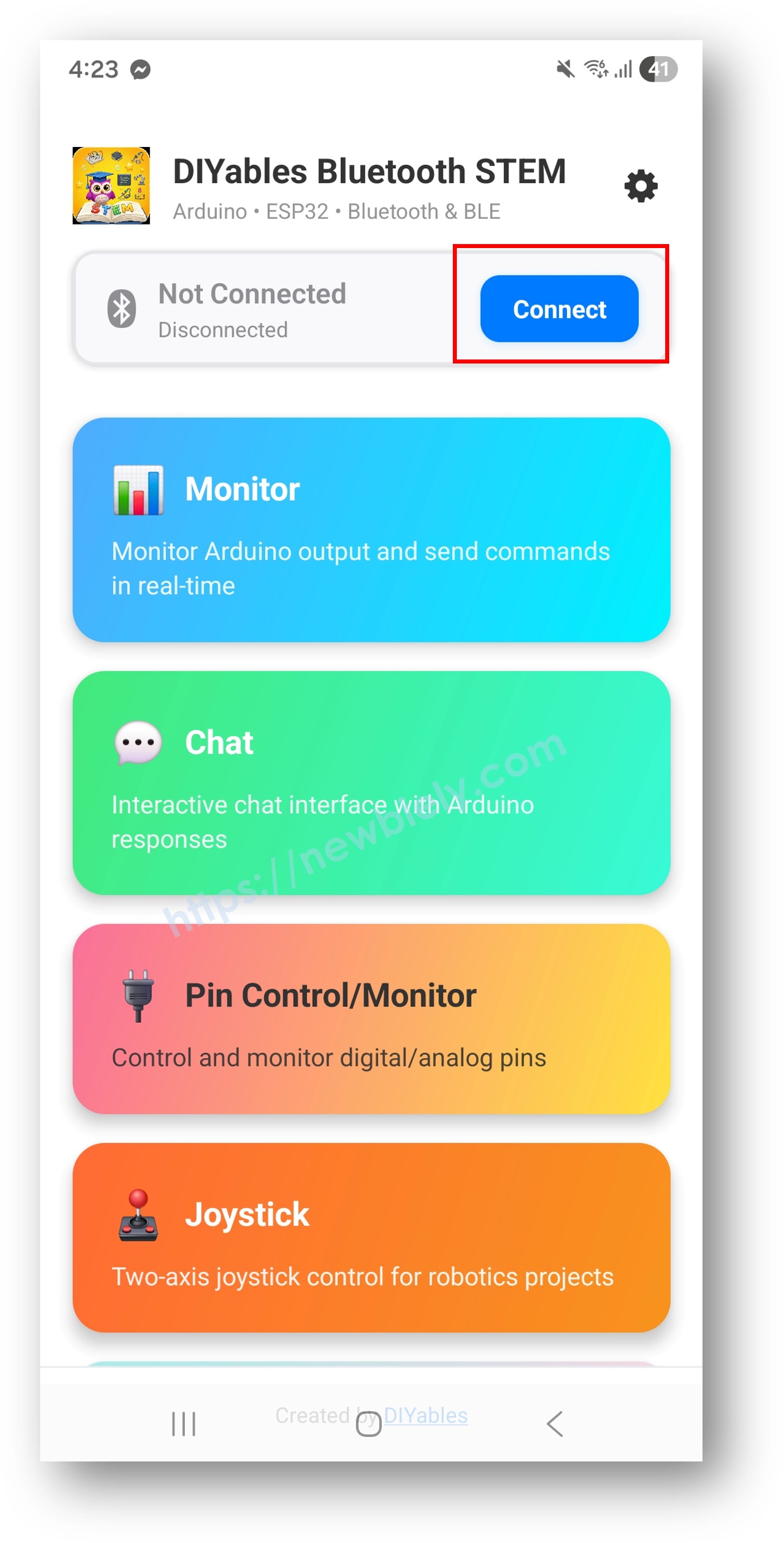
Na tela inicial, toque no botão Connect. O app vai procurar dispositivos BLE.
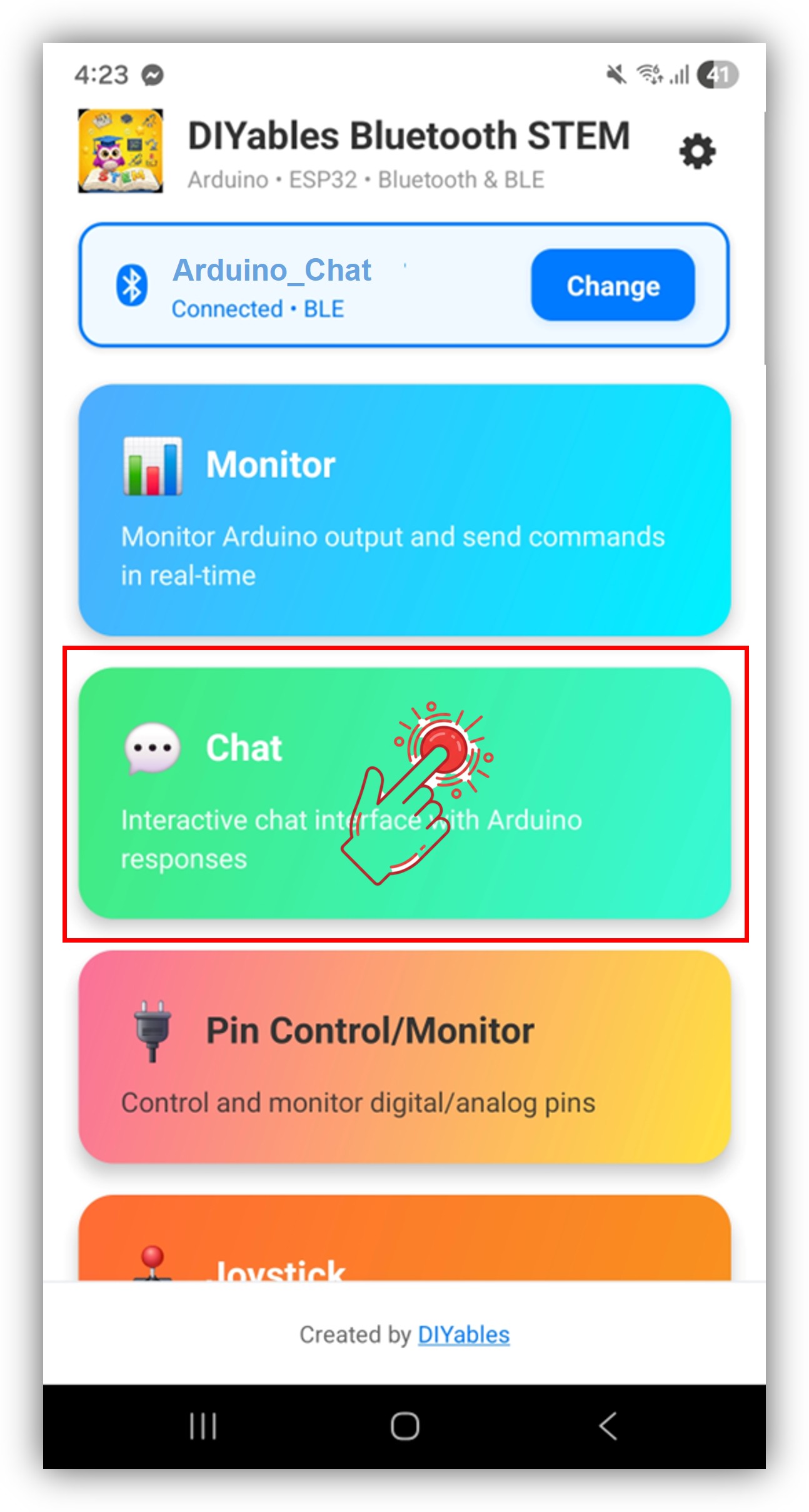
Encontre e toque em "Arduino_Chat" nos resultados da busca para conectar.
Depois de conectado, o app volta automaticamente para a tela inicial. Selecione o app Chat no menu de apps.
Observação: Você pode tocar no ícone de configurações na tela inicial para ocultar/mostrar apps na tela inicial. Para mais detalhes, consulte o Manual do Usuário do DIYables Bluetooth App.
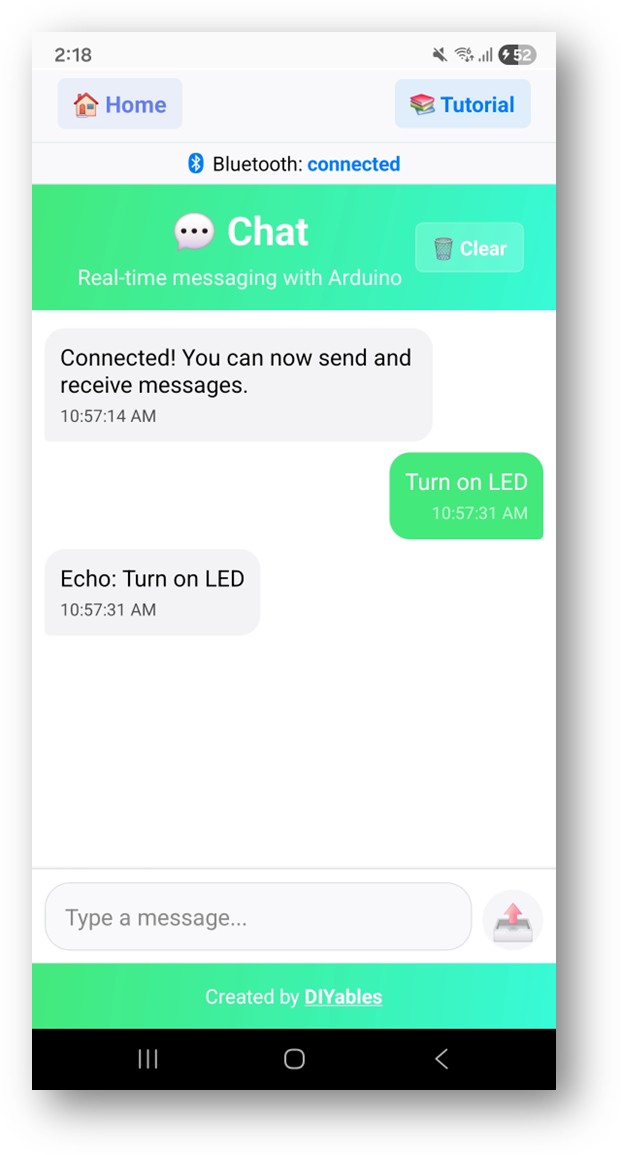
Digite uma mensagem no campo de entrada do chat e toque em enviar
Agora olhe de volta para o Serial Monitor no Arduino IDE. Você verá:
Newbiely | Arduino IDE 2.3.8
──
☐
✕
File
Edit
Sketch
Tools
Help
Arduino Uno R4 WiFi
Newbiely.ino
···
8Serial.println("Hello World!");
Output
Serial Monitor
Message (Enter to send message to 'Arduino Uno R4 WiFi' on 'COM15')
New Line
9600 baud
Bluetooth connected!
Received: Hello
Ln 11, Col 1
Arduino Uno R4 WiFi on COM15
2
O Arduino devolve a sua mensagem como eco, e você pode ver a resposta no chat do app
Personalização Criativa - Adapte o Código ao Seu Projeto
Tratar Mensagens do Chat
Use o callback onChatMessage() para receber e processar as mensagens digitadas no app. Você pode definir qualquer palavra de comando personalizada que faça sentido para o seu projeto — o Arduino reagirá de acordo:
Você pode adicionar quantos comandos personalizados precisar, adicionando mais blocos elseif. Por exemplo, adicione LED_ON / LED_OFF para controlar um pino, ou READ para acionar uma leitura de sensor — qualquer palavra que você digitar no app se torna um comando.
Enviar Mensagens a Partir do Arduino
// Send a text message to the appbluetoothChat.send("Hello from Arduino!");// Send sensor readingfloat temp = readTemperature();bluetoothChat.send("Temperature: " + String(temp, 1) + " °C");
Ponte Serial-Bluetooth
Encaminhe mensagens entre o Serial Monitor e o Bluetooth:
// In loop():if (Serial.available()) {String serialMsg = Serial.readStringUntil('\n'); serialMsg.trim();if (serialMsg.length() > 0 && bluetooth.isConnected()) { bluetoothChat.send(serialMsg);Serial.print("Sent from Serial: ");Serial.println(serialMsg); }}
Tratar Eventos de Conexão
bluetoothServer.setOnConnected([]() {Serial.println("Bluetooth connected!"); bluetoothChat.send("Hello! Arduino is ready to chat.");});bluetoothServer.setOnDisconnected([]() {Serial.println("Bluetooth disconnected!");});
Como Usar o Chat
Interface do App
A interface de chat do DIYables Bluetooth App oferece:
Lista de Mensagens: Mostra as mensagens enviadas e recebidas com marcação de horário
Entrada de Texto: Digite as mensagens a serem enviadas ao Arduino
Botão de Enviar: Toque para enviar a mensagem
Fluxo de Comunicação
Digite uma mensagem no app ? O Arduino a recebe pelo callback onChatMessage()
O Arduino processa a mensagem e, opcionalmente, envia uma resposta via bluetoothChat.send()
O vídeo de demonstração abaixo usa o código abaixo:
/* * Este código de Arduino UNO R4 foi desenvolvido por pt.newbiely.com * Este código de Arduino UNO R4 é disponibilizado ao público sem nenhuma restrição. * Para tutoriais completos e diagramas de ligação, visite: * https://pt.newbiely.com/tutorials/arduino-uno-r4/arduino-uno-r4-diyables-bluetooth-app-chat*//* * DIYables Bluetooth Library - Bluetooth Chat Example * Works with DIYables Bluetooth STEM app on Android and iOS * * This example demonstrates the Bluetooth Chat feature: * - Two-way text messaging via Bluetooth * - Receive messages from mobile app * - Send messages to mobile app * * Compatible Boards: * - Arduino UNO R4 WiFi * - Arduino Nano 33 BLE / BLE Sense * - Arduino Nano 33 IoT * - Arduino MKR WiFi 1010 * - Arduino Nano RP2040 Connect * - Any board supporting the ArduinoBLE library * * Setup: * 1. Upload the sketch to your Arduino * 2. Open Serial Monitor to see connection status and messages * 3. Use DIYables Bluetooth App to connect and chat * * Tutorial: https://diyables.io/bluetooth-app * Author: DIYables */#include <DIYables_BluetoothServer.h>#include <DIYables_BluetoothChat.h>#include <platforms/DIYables_ArduinoBLE.h>// BLE Configurationconst char* DEVICE_NAME = "Arduino_Chat";const char* SERVICE_UUID = "19B10000-E8F2-537E-4F6C-D104768A1214";const char* TX_UUID = "19B10001-E8F2-537E-4F6C-D104768A1214";const char* RX_UUID = "19B10002-E8F2-537E-4F6C-D104768A1214";// Create Bluetooth instancesDIYables_ArduinoBLE bluetooth(DEVICE_NAME, SERVICE_UUID, TX_UUID, RX_UUID);DIYables_BluetoothServer bluetoothServer(bluetooth);// Create Chat app instanceDIYables_BluetoothChat bluetoothChat;// Variables for periodic messagesunsignedlong lastMessageTime = 0;constunsignedlong MESSAGE_INTERVAL = 10000; // Send message every 10 secondsint messageCount = 0;voidsetup() {Serial.begin(9600);while (!Serial);pinMode(LED_BUILTIN,OUTPUT);digitalWrite(LED_BUILTIN,LOW);Serial.println("DIYables Bluetooth - Chat Example");// Initialize Bluetooth server with platform-specific implementation bluetoothServer.begin();// Add chat app to server bluetoothServer.addApp(&bluetoothChat);// Set up connection event callbacks bluetoothServer.setOnConnected([]() {Serial.println("Bluetooth connected!");delay(500); bluetoothChat.send("Hello! Arduino is ready to chat."); }); bluetoothServer.setOnDisconnected([]() {Serial.println("Bluetooth disconnected!"); messageCount = 0; });// Set up callback for received chat messages bluetoothChat.onChatMessage([](const String& message) {Serial.print("Received: ");Serial.println(message);String cmd = message; cmd.toUpperCase(); cmd.trim(); if (cmd == "LED ON") {digitalWrite(LED_BUILTIN, HIGH); bluetoothChat.send("LED is now: ON"); Serial.println("LED turned ON"); } elseif (cmd == "LED OFF") {digitalWrite(LED_BUILTIN, LOW); bluetoothChat.send("LED is now: OFF"); Serial.println("LED turned OFF"); }elseif (cmd == "UPTIME") {unsignedlong sec = millis() / 1000;intmin = sec / 60; sec %= 60;String uptimeMsg = "System Uptime: " + String(min) + "m " + String(sec) + "s"; bluetoothChat.send(uptimeMsg); }elseif (cmd == "BLINK") { bluetoothChat.send("Blinking LED 3 times...");for(int i=0; i<3; i++) {digitalWrite(LED_BUILTIN, HIGH); delay(200);digitalWrite(LED_BUILTIN, LOW); delay(200); } bluetoothChat.send("Done!"); }elseif (cmd == "STATUS") {int state = digitalRead(LED_BUILTIN);String statusMsg = "Current LED Status: "; statusMsg += (state == HIGH) ? "ON" : "OFF"; bluetoothChat.send(statusMsg); }elseif (cmd == "HELP") {String help = "Available CMDs:\n- LED ON/OFF: Control LED\n- STATUS: Check LED state\n- UPTIME: Check time\n- BLINK: Blink LED\n"; bluetoothChat.send(help); } else { bluetoothChat.send("Invalid CMD. Type 'HELP' to see list."); } }); Serial.println("Waiting for Bluetooth connection...");}void loop() {// Handle Bluetooth server communications bluetoothServer.loop();// Optional: Read from Serial and send to Bluetoothif (Serial.available()) {String serialMsg = Serial.readStringUntil('\n'); serialMsg.trim();if (serialMsg.length() > 0 && bluetooth.isConnected()) { bluetoothChat.send(serialMsg);Serial.print("Sent from Serial: ");Serial.println(serialMsg); } }delay(10);}
Solução de Problemas
Problemas Comuns
1. Não encontro o dispositivo no app
Garanta que o Arduino UNO R4 WiFi esteja ligado e que o sketch tenha sido carregado
Garanta que o Bluetooth do seu celular esteja ativado
No Android 11 ou anterior, ative também os serviços de localização
Tente reiniciar o Bluetooth no seu celular
2. As mensagens não são recebidas pelo Arduino
Verifique o status da conexão Bluetooth no app
Verifique se o callback onChatMessage está configurado corretamente
Verifique se há mensagens de erro no Serial Monitor
3. As respostas do Arduino não aparecem no app
Garanta que bluetoothChat.send() esteja sendo chamado
Verifique se bluetoothServer.loop() é chamado no loop principal
Verifique se a conexão ainda está ativa com bluetooth.isConnected()
4. O Serial Monitor mostra texto ilegível
Garanta que a taxa de baud no Serial Monitor corresponda a Serial.begin(9600)
Verifique se a placa correta está selecionada no Arduino IDE
5. A conexão cai com frequência
Aproxime-se do Arduino (reduza a distância)
Verifique se há interferência de outros dispositivos BLE
Garanta uma fonte de alimentação USB estável
6. O upload falha ou a placa não é reconhecida
Instale o pacote de placas Arduino UNO R4 mais recente pelo Board Manager
Tente outro cabo USB ou outra porta
Pressione o botão de reset da placa antes de fazer o upload
Ideias de Projetos
Comunicação
Interface de comandos de texto para automação residencial
Ponte serial-Bluetooth para depuração sem fio
Sistema remoto de consulta de sensores
Quiz ou jogo de perguntas interativo
Sistemas de Controle
Controle de relé por conversão de voz em texto
Roteador de comandos para vários dispositivos
Gerenciador de configuração por comandos de chat
Relator da versão do firmware
Registro e Monitoramento
Registro de eventos com timestamps
Sistema de notificação de alarme
Gerador de relatório de status
Chatbot de diagnóstico
Integração com Outros Apps Bluetooth
Combinar com o Bluetooth Monitor
Use o chat para comandos e o monitor para a saída contínua:
Fique à vontade para compartilhar o link deste tutorial. Porém, por favor, não use nosso conteúdo em outros sites. Investimos muito esforço e tempo para criar este conteúdo, por favor respeite nosso trabalho!