Exemplo Arduino MultipleWebApps - Tutorial de Dashboard IoT Completo
Visão Geral
Este exemplo mostra como usar várias aplicações web ao mesmo tempo com a biblioteca DIYables WebApps. Ele demonstra a integração de várias interfaces web interativas - como monitoramento, controle e comunicação - em um único projeto. Projetado para o Arduino Uno R4 WiFi e a plataforma DIYables STEM V4 IoT, este exemplo é ideal para aprender a combinar e gerenciar vários recursos baseados em web ao mesmo tempo, oferecendo uma base sólida para projetos IoT avançados.
Recursos
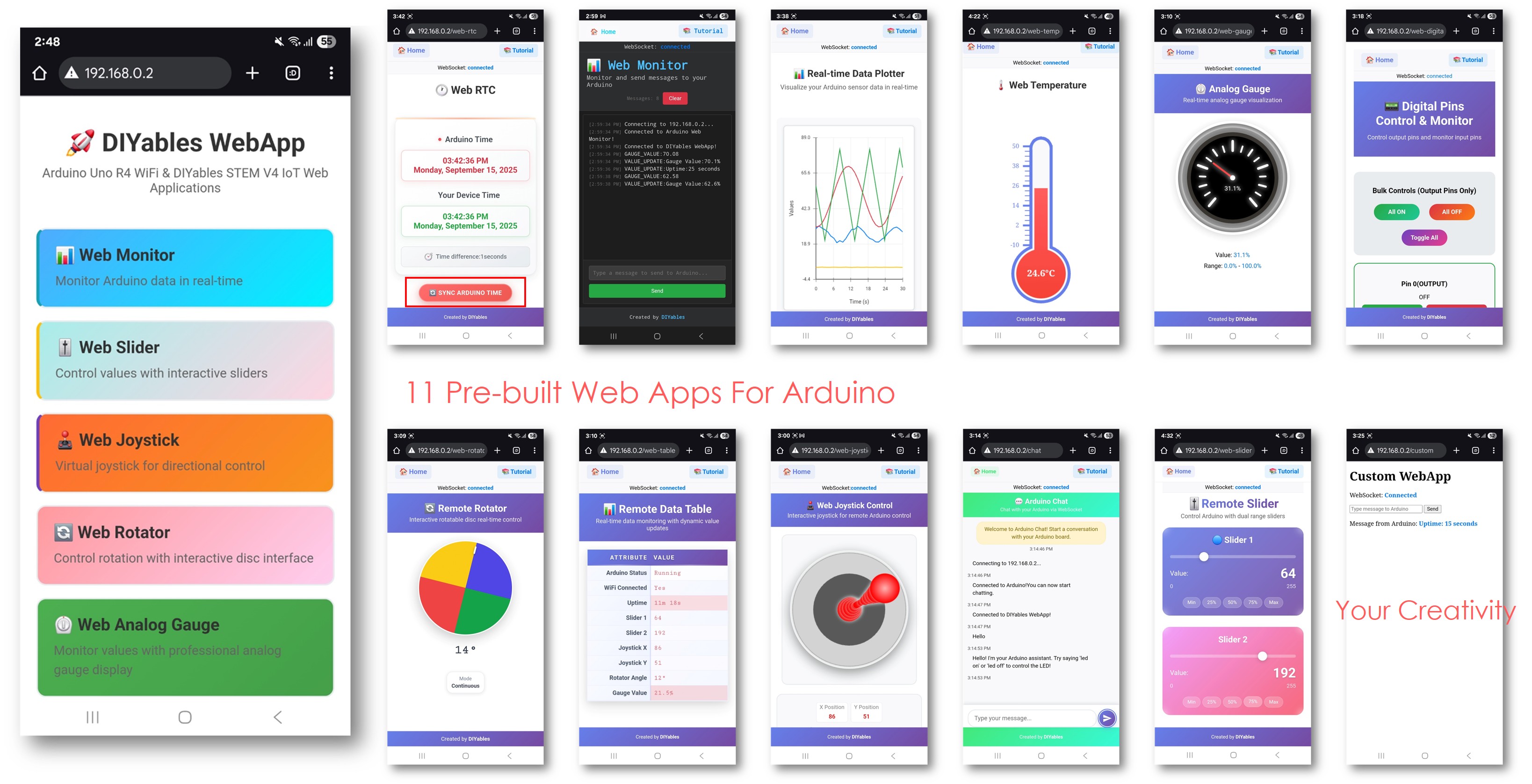
Home Page: Central de navegação com links para todas as aplicações web
Web Monitor: Interface de comunicação serial e depuração em tempo real
Interface de Chat: Sistema de chat interativo com capacidade de resposta do Arduino
Controle de Pinos Digitais: Controle e monitoramento de todos os pinos digitais pela web
Controle com Dois Sliders: Dois sliders independentes para controle de valores analógicos
Joystick Virtual: Controle de posição 2D para aplicações direcionais
Gerenciamento de Estado Unificado: Todas as interfaces compartilham informações de estado sincronizadas
Atualizações em Tempo Real: Comunicação WebSocket para resposta instantânea
Estrutura de Template: Base pronta para personalizar em projetos complexos
Plataforma Extensível: Atualmente implementada para o Arduino Uno R4 WiFi, mas pode ser estendida para outras plataformas de hardware. Veja DIYables_WebApps_ESP32
Divulgação: Alguns dos links desta seção são links de afiliado da Amazon. Podemos receber uma comissão pelas compras feitas por meio desses links, sem custo adicional para você. Agradecemos o seu apoio.
Conecte a placa Arduino Uno R4/DIYables STEM V4 IoT ao seu computador usando um cabo USB.
Abra o Arduino IDE no seu computador.
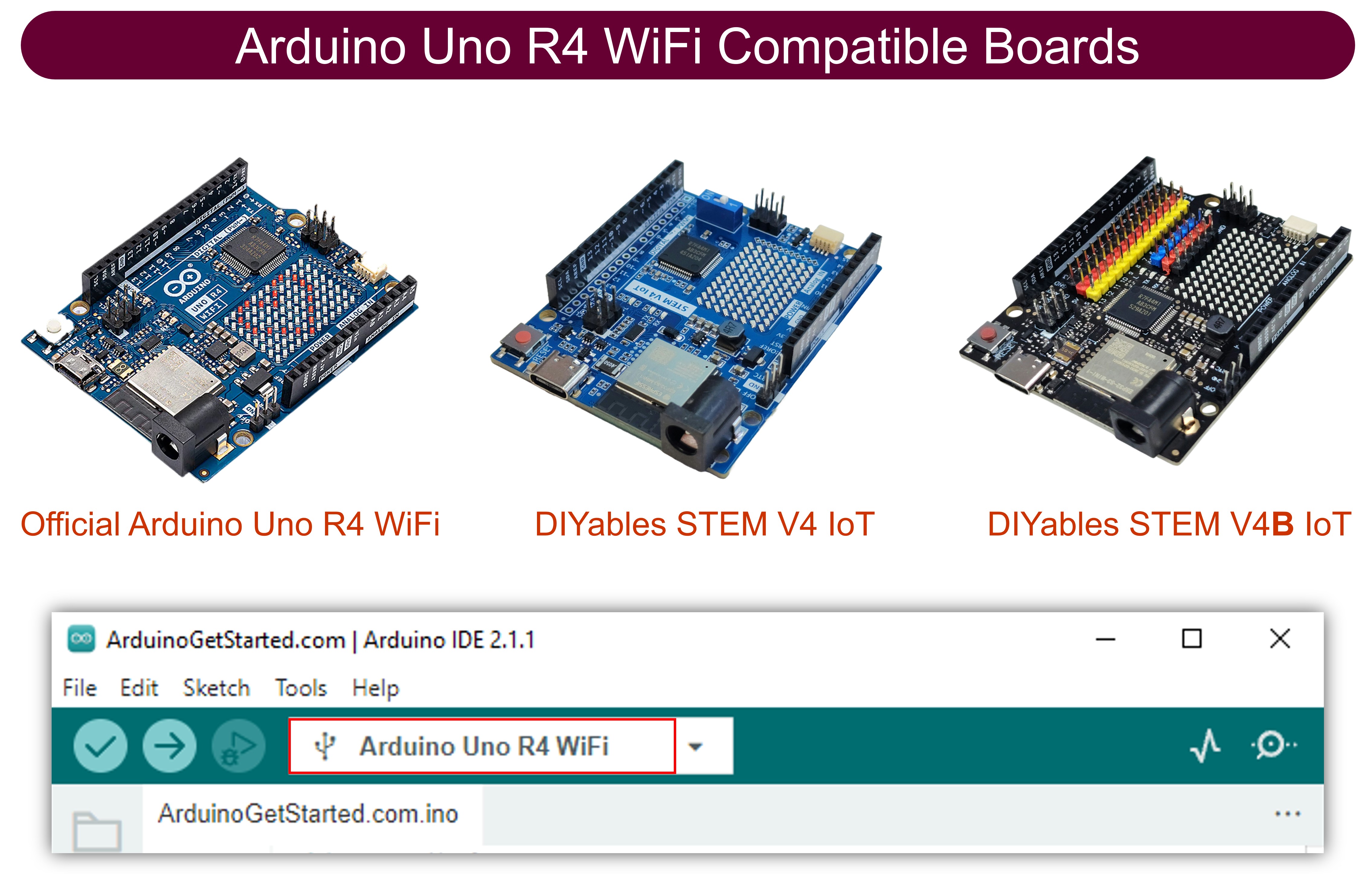
Selecione a placa Arduino Uno R4 apropriada (por exemplo, Arduino Uno R4 WiFi) e a porta COM.
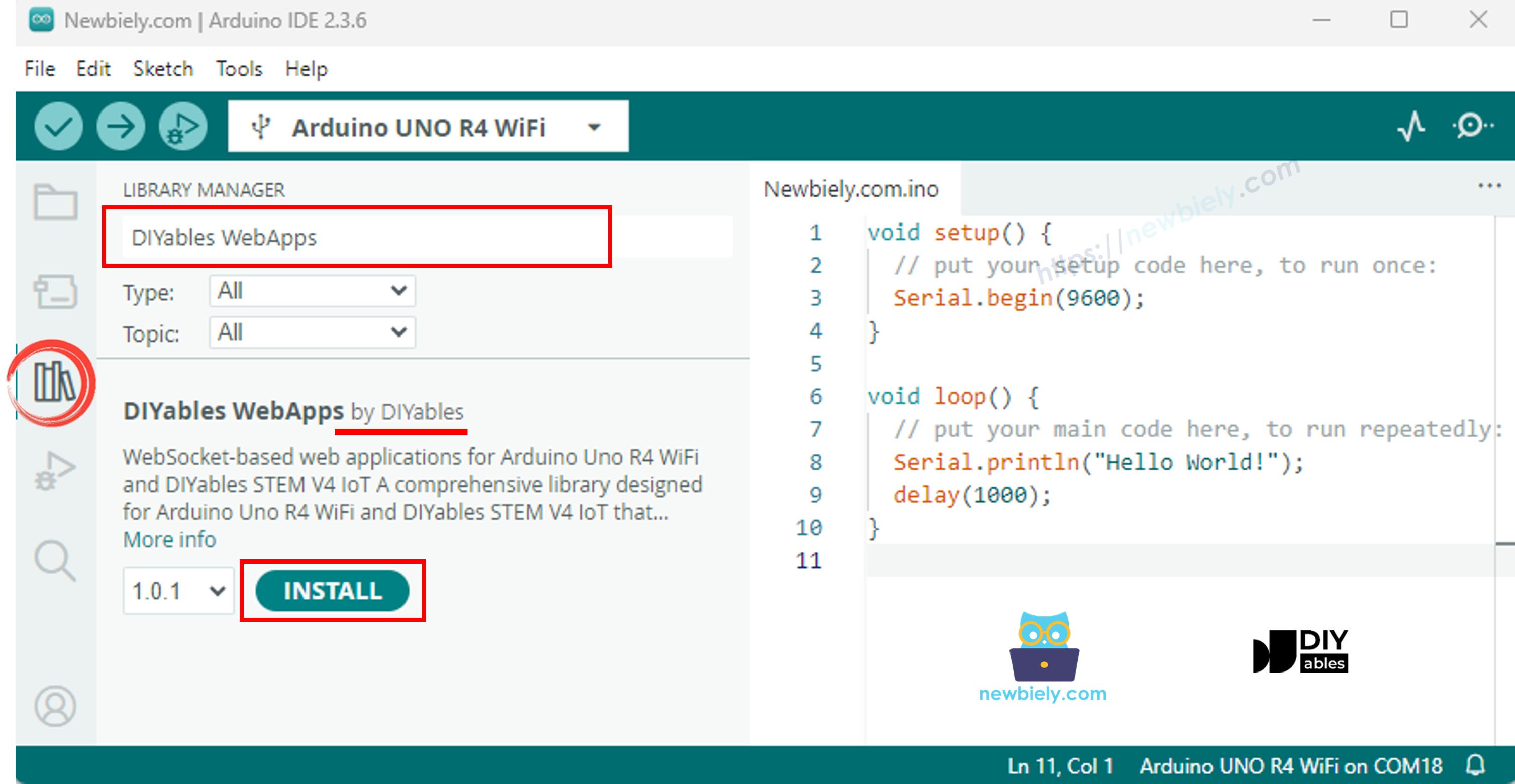
Navegue até o ícone Libraries na barra esquerda do Arduino IDE.
Pesquise "DIYables WebApps" e encontre a biblioteca DIYables WebApps, da DIYables
Clique no botão Install para instalar a biblioteca.
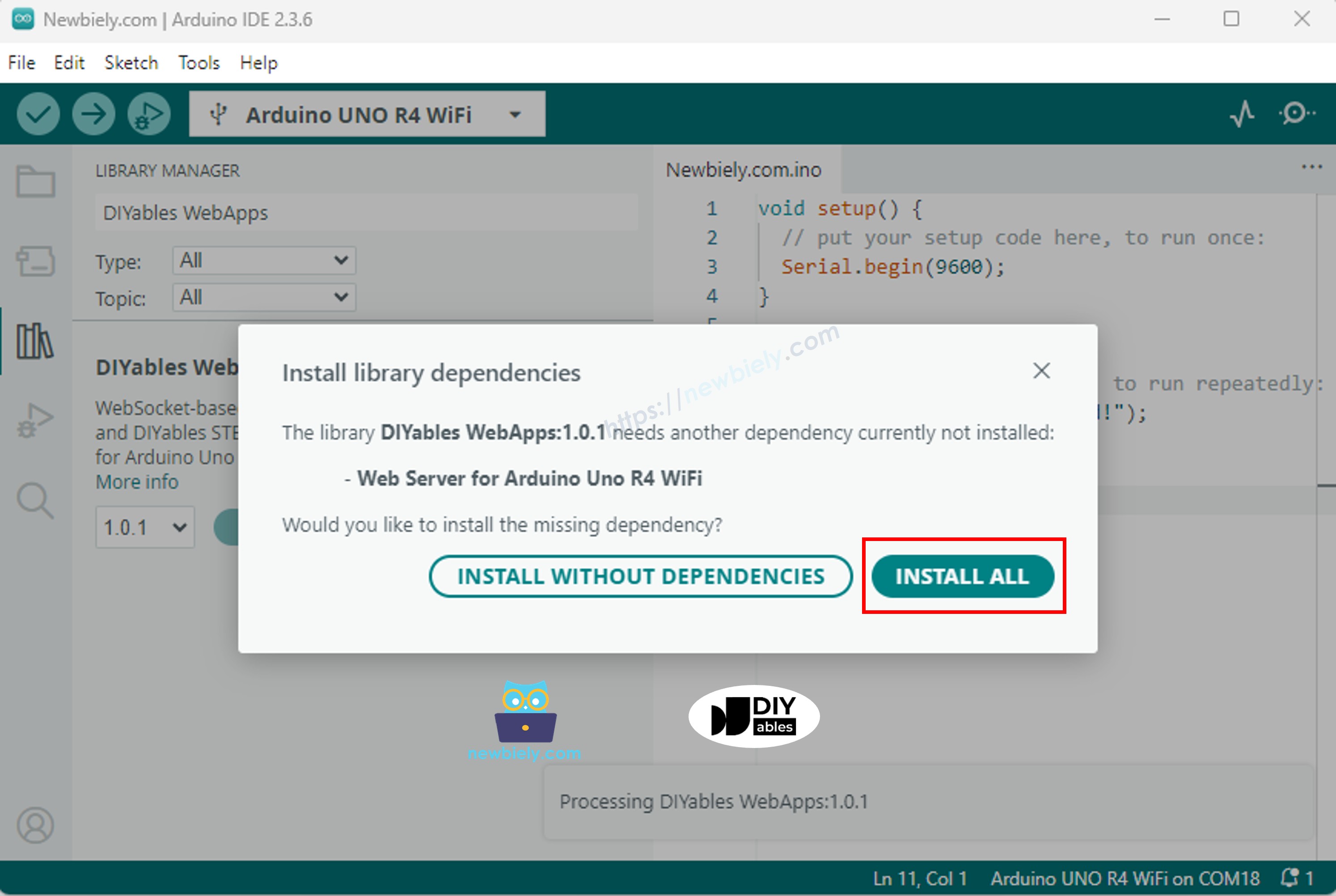
Você será perguntado se quer instalar outras bibliotecas das quais ela depende
Clique no botão Install All para instalar todas as dependências da biblioteca.
No Arduino IDE, vá em File Examples DIYables WebApps MultipleWebApps para abrir o exemplo, ou copie o código acima e cole no editor do Arduino IDE
/* * DIYables WebApp Library - Multiple WebApps Example * * This example demonstrates multiple web apps of the DIYables WebApp library: * - Home page with links to multiple web apps * - Web Monitor: Real-time serial monitoring via WebSocket * - Web Slider: Dual slider control * - Web Joystick: Interactive joystick control * - Web Rotator: Interactive rotatable disc control * - Web Analog Gauge: Professional circular gauge for sensor monitoring * - Web Table: Two-column data table with real-time updates * - Web Plotter: See WebPlotter example for real-time data visualization * * Features: * - Simplified callback system - no manual command parsing needed * - Automatic state synchronization and JSON handling * - All protocol details handled by the library * - Template for hardware control * * Hardware: Arduino Uno R4 WiFi or DIYables STEM V4 IoT * * Setup: * 1. Update WiFi credentials below * 2. Upload the sketch to your Arduino * 3. Open Serial Monitor to see the IP address * 4. Navigate to the IP address in your web browser */#include <DIYablesWebApps.h>// WiFi credentials - UPDATE THESE WITH YOUR NETWORKconstchar WIFI_SSID[] = "YOUR_WIFI_SSID";constchar WIFI_PASSWORD[] = "YOUR_WIFI_PASSWORD";// Create WebApp server and page instancesUnoR4ServerFactory factory;DIYablesWebAppServerwebAppsServer(factory, 80, 81);DIYablesHomePage homePage;DIYablesWebMonitorPage webMonitorPage;DIYablesWebSliderPage webSliderPage;DIYablesWebJoystickPage webJoystickPage(false, 5); // autoReturn=false, sensitivity=5DIYablesWebRotatorPage webRotatorPage(ROTATOR_MODE_CONTINUOUS); // Continuous rotation mode (0-360°)DIYablesWebAnalogGaugePage webAnalogGaugePage(0.0, 100.0, "%"); // Range: 0-100%, units: %DIYablesWebTablePage webTablePage;// Variables to track statesint currentSlider1 = 64; // Slider 1 value (0-255)int currentSlider2 = 128; // Slider 2 value (0-255)int currentJoystickX = 0; // Current joystick X value (-100 to 100)int currentJoystickY = 0; // Current joystick Y value (-100 to 100)int currentRotatorAngle = 0; // Current rotator angle (0-360°)float currentGaugeValue = 50.0; // Current gauge value (0.0-100.0)voidsetup() {Serial.begin(9600);delay(1000);// TODO: Initialize your hardware pins hereSerial.println("DIYables WebApp - Multiple Apps Example");// Add all web applications to the serverwebAppsServer.addApp(&homePage);webAppsServer.addApp(&webMonitorPage);webAppsServer.addApp(&webSliderPage);webAppsServer.addApp(&webJoystickPage);webAppsServer.addApp(&webRotatorPage);webAppsServer.addApp(&webAnalogGaugePage);webAppsServer.addApp(&webTablePage);// Add more web apps here (e.g., WebPlotter)// Set 404 Not Found page (optional - for better user experience)webAppsServer.setNotFoundPage(DIYablesNotFoundPage());// Configure table structure (only attribute names, values will be updated dynamically) webTablePage.addRow("Arduino Status"); webTablePage.addRow("WiFi Connected"); webTablePage.addRow("Uptime"); webTablePage.addRow("Slider 1"); webTablePage.addRow("Slider 2"); webTablePage.addRow("Joystick X"); webTablePage.addRow("Joystick Y"); webTablePage.addRow("Rotator Angle"); webTablePage.addRow("Gauge Value");// Start the WebApp serverif (!webAppsServer.begin(WIFI_SSID, WIFI_PASSWORD)) {while (1) {Serial.println("Failed to start WebApp server!");delay(1000); } } setupCallbacks();}void setupCallbacks() {// Web Monitor callback - echo messages back webMonitorPage.onWebMonitorMessage([](const String& message) {Serial.println("Web Monitor: " + message); webMonitorPage.sendToWebMonitor("Arduino received: " + message); });// Web Slider callback - handle slider values webSliderPage.onSliderValueFromWeb([](int slider1, int slider2) {// Store the received values currentSlider1 = slider1; currentSlider2 = slider2;// Print slider values (0-255) without String concatenationSerial.print("Slider 1: ");Serial.print(slider1);Serial.print(", Slider 2: ");Serial.println(slider2);// Update table with new slider values using String() conversion webTablePage.sendValueUpdate("Slider 1", String(slider1)); webTablePage.sendValueUpdate("Slider 2", String(slider2));// TODO: Add your control logic here based on slider values// Examples:// - Control PWM: analogWrite(LED_PIN, slider1);// - Control servos: servo.write(map(slider1, 0, 255, 0, 180));// - Control motor speed: analogWrite(MOTOR_PIN, slider2);// Update gauge based on slider1 value (map 0-255 to 0-100) currentGaugeValue = map(slider1, 0, 255, 0, 100); webAnalogGaugePage.sendToWebAnalogGauge(currentGaugeValue);char gaugeStr[16]; snprintf(gaugeStr, sizeof(gaugeStr), "%.1f%%", currentGaugeValue); webTablePage.sendValueUpdate("Gauge Value", String(gaugeStr)); });// Handle slider value requests webSliderPage.onSliderValueToWeb([]() { webSliderPage.sendToWebSlider(currentSlider1, currentSlider2); });// Web Joystick callback - handle joystick movement webJoystickPage.onJoystickValueFromWeb([](int x, int y) {// Store the received values currentJoystickX = x; currentJoystickY = y;// Print joystick position values (-100 to +100)Serial.print("Joystick - X: ");Serial.print(x);Serial.print(", Y: ");Serial.println(y);Serial.print(x);Serial.print(", Y: ");Serial.println(y);// Update table with new joystick values webTablePage.sendValueUpdate("Joystick X", String(x)); webTablePage.sendValueUpdate("Joystick Y", String(y));// TODO: Add your control logic here based on joystick position// Examples:// - Control motors: if (x > 50) { /* move right */ }// - Control servos: servo.write(map(y, -100, 100, 0, 180));// - Control LEDs: analogWrite(LED_PIN, map(abs(x), 0, 100, 0, 255)); });// Handle joystick values requests (when web page loads/reconnects) webJoystickPage.onJoystickValueToWeb([]() { webJoystickPage.sendToWebJoystick(currentJoystickX, currentJoystickY); });// Web Rotator callback - handle rotation angle changes webRotatorPage.onRotatorAngleFromWeb([](float angle) {// Store the received angle currentRotatorAngle = (int)angle;// Print rotator angle (0-360°)Serial.println("Rotator angle: " + String(angle) + "°");// Update table with new rotator angle webTablePage.sendValueUpdate("Rotator Angle", String(angle, 0) + "°");// TODO: Add your control logic here based on rotator angle// Examples:// - Control servo: servo.write(map(angle, 0, 360, 0, 180));// - Control stepper motor: stepper.moveTo(angle);// - Control directional LED strip: setLEDDirection(angle); });// Handle analog gauge value requests (when web page loads/reconnects) webAnalogGaugePage.onGaugeValueRequest([]() { webAnalogGaugePage.sendToWebAnalogGauge(currentGaugeValue); });// Handle table data requests (when web page loads/reconnects) webTablePage.onTableValueRequest([]() {// Send initial values to the table webTablePage.sendValueUpdate("Arduino Status", "Running"); webTablePage.sendValueUpdate("WiFi Connected", "Yes"); webTablePage.sendValueUpdate("Uptime", "0 seconds"); webTablePage.sendValueUpdate("Slider 1", String(currentSlider1)); webTablePage.sendValueUpdate("Slider 2", String(currentSlider2)); webTablePage.sendValueUpdate("Joystick X", String(currentJoystickX)); webTablePage.sendValueUpdate("Joystick Y", String(currentJoystickY)); webTablePage.sendValueUpdate("Rotator Angle", String(currentRotatorAngle) + "°"); webTablePage.sendValueUpdate("Gauge Value", String(currentGaugeValue, 1) + "%"); });}voidloop() {// Handle WebApp server communicationswebAppsServer.loop();// Update table with current uptime every 5 secondsstaticunsignedlong lastUptimeUpdate = 0;if (millis() - lastUptimeUpdate > 5000) { lastUptimeUpdate = millis();unsignedlong uptimeSeconds = millis() / 1000;String uptimeStr = String(uptimeSeconds) + " seconds";if (uptimeSeconds >= 60) { uptimeStr = String(uptimeSeconds / 60) + "m " + String(uptimeSeconds % 60) + "s"; } webTablePage.sendValueUpdate("Uptime", uptimeStr); }// Simulate sensor data updates every 3 secondsstaticunsignedlong lastSensorUpdate = 0;if (millis() - lastSensorUpdate > 3000) { lastSensorUpdate = millis();// Simulate a sensor reading that varies over timefloat sensorValue = 50.0 + 30.0 * sin(millis() / 10000.0); // Oscillates between 20-80 currentGaugeValue = sensorValue;// Update gauge and table webAnalogGaugePage.sendToWebAnalogGauge(currentGaugeValue); webTablePage.sendValueUpdate("Gauge Value", String(currentGaugeValue, 1) + "%"); }// TODO: Add your main application code heredelay(10);}
Configure as credenciais do WiFi no código atualizando estas linhas:
Clique no botão Upload no Arduino IDE para carregar o código no Arduino UNO R4/DIYables STEM V4 IoT
Abra o Serial Monitor
Veja o resultado no Serial Monitor. Ele deve ficar parecido com o abaixo
Newbiely | Arduino IDE 2.3.8
──
☐
✕
File
Edit
Sketch
Tools
Help
Arduino Uno R4 WiFi
Newbiely.ino
···
8Serial.println("Hello World!");
Output
Serial Monitor
Message (Enter to send message to 'Arduino Uno R4 WiFi' on 'COM15')
New Line
9600 baud
DIYables WebApp - Multiple Apps Example
INFO: Added app /
INFO: Added app /web-monitor
INFO: Added app /web-slider
INFO: Added app /web-joystick
INFO: Added app /web-rotator
INFO: Added app /web-gauge
INFO: Added app /web-table
DIYables WebApp Library
Platform: Arduino Uno R4 WiFi
Network connected!
IP address: 192.168.0.2
HTTP server started on port 80
Configuring WebSocket server callbacks...
WebSocket server started on port 81
WebSocket URL: ws://192.168.0.2:81
WebSocket server started on port 81
==========================================
DIYables WebApp Ready!
==========================================
📱 Web Interface: http://192.168.0.2
🔗 WebSocket: ws://192.168.0.2:81
📋 Available Applications:
🏠 Home Page: http://192.168.0.2/
📊 Web Monitor: http://192.168.0.2/web-monitor
🎚️ Web Slider: http://192.168.0.2/web-slider
🕹️ Web Joystick: http://192.168.0.2/web-joystick
🔄 Web Rotator: http://192.168.0.2/web-rotator
⏲️ Web Analog Gauge: http://192.168.0.2/web-gauge
📊 Web Table: http://192.168.0.2/web-table
==========================================
Ln 11, Col 1
Arduino Uno R4 WiFi on COM15
2
Se você não vir nada, reinicie a placa Arduino.
Anote o endereço IP exibido e digite esse endereço na barra de endereços de um navegador web no seu celular ou PC.
Exemplo: http://192.168.0.2
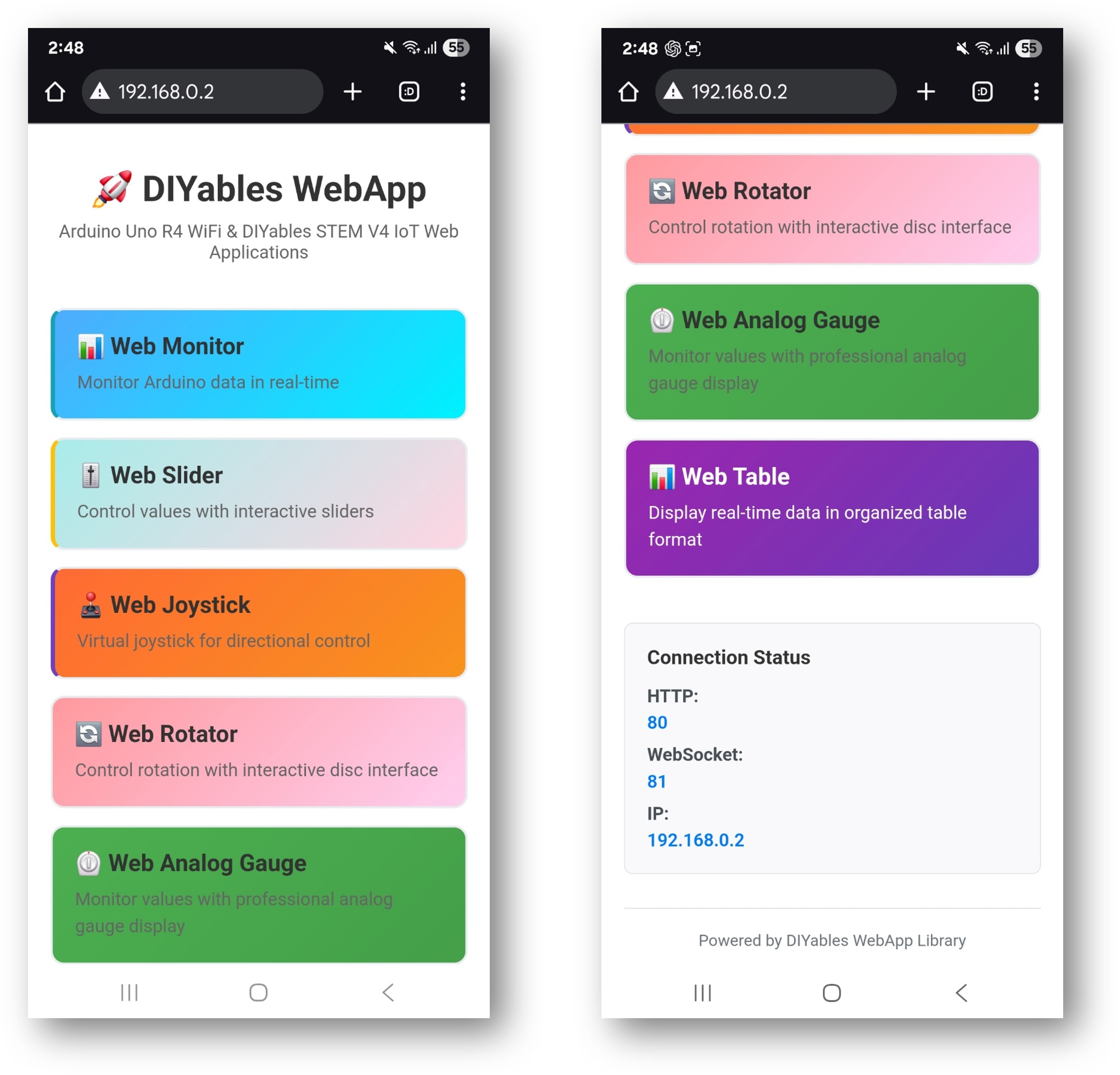
Você verá a home page com todas as aplicações web como na imagem abaixo:
Clique em qualquer link de aplicação web (Chat, Web Monitor, Web Digital Pins, Web Slider, Web Joystick, etc.) e você verá a interface do web app correspondente.
Você também pode acessar cada página diretamente pelo endereço IP seguido do caminho do app. Por exemplo: http://192.168.0.2/chat, http://192.168.0.2/web-monitor, etc.
Explore todas as aplicações web: converse com o Arduino, monitore a saída serial, controle os pinos digitais, ajuste os sliders e use o joystick virtual para experimentar todos os recursos da interface web integrada.
Navegação pela Interface Web
Dashboard da Home Page
A home page funciona como o seu centro de controle, com links para todas as aplicações:
Web Monitor: /webmonitor - Interface de comunicação serial
Chat: /chat - Troca de mensagens interativa com o Arduino
Digital Pins: /digital-pins - Controle e monitoramento de pinos
Web Slider: /webslider - Sliders duplos de controle analógico
Web Joystick: /webjoystick - Interface de controle de posição 2D
URLs das Aplicações
Acesse cada interface diretamente:
http://[ARDUINO_IP]/ # Home page
http://[ARDUINO_IP]/webmonitor # Serial monitor interface
http://[ARDUINO_IP]/chat # Chat interface
http://[ARDUINO_IP]/digital-pins # Pin control
http://[ARDUINO_IP]/webslider # Slider controls
http://[ARDUINO_IP]/webjoystick # Joystick control
Personalização Criativa - Libere a Sua Inovação
Este exemplo completo oferece uma base para os seus projetos criativos. Modifique e adapte as configurações abaixo para criar aplicações IoT incríveis que combinem com a sua visão única.
Configuração dos Pinos Digitais
O exemplo pré-configura pinos específicos para finalidades diferentes:
Pinos de Saída (Controláveis pela Web)
webDigitalPinsPage.enablePin(2, WEB_PIN_OUTPUT); // General purpose outputwebDigitalPinsPage.enablePin(3, WEB_PIN_OUTPUT); // General purpose outputwebDigitalPinsPage.enablePin(4, WEB_PIN_OUTPUT); // General purpose outputwebDigitalPinsPage.enablePin(13, WEB_PIN_OUTPUT); // Built-in LED
// Create joystick with custom settings// autoReturn=false: Joystick stays at last position when released// sensitivity=5: Only send updates when movement > 5%DIYablesWebJoystickPage webJoystickPage(false, 5);
Variáveis de Estado
O exemplo mantém o estado sincronizado entre todas as interfaces:
int pinStates[16] = { LOW }; // Track pin states (pins 0-13)int currentSlider1 = 64; // Slider 1 value (0-255) - 25%int currentSlider2 = 128; // Slider 2 value (0-255) - 50%int currentJoystickX = 0; // Joystick X value (-100 to 100)int currentJoystickY = 0; // Joystick Y value (-100 to 100)
Comandos de Chat Integrados
A interface de chat inclui vários comandos pré-programados:
Comandos Básicos
hello - Resposta de saudação amigável
time - Mostra o tempo de atividade do Arduino em segundos
status - Informa o status do Arduino e o estado do LED
help - Lista os comandos disponíveis
Comandos de Controle
led on - Liga o LED integrado
led off - Desliga o LED integrado
Exemplo de Sessão de Chat
User: hello
Arduino: Hello! I'm your Arduino. How can I help you?
User: led on
Arduino: Built-in LED is now ON!
User: time
Arduino: I've been running for 1245 seconds.
User: status
Arduino: Status: Running smoothly! LED is ON
// Science experiment control systemconstint HEATING_ELEMENT = 9;constint COOLING_FAN = 10;constint STIRRER_MOTOR = 11;constint TEMP_SENSOR_PIN = A0;constint PH_SENSOR_PIN = A1;void setupScienceExperiment() {// Sliders for temperature and stirring control webSliderPage.onSliderValueFromWeb([](int slider1, int slider2) {// Slider 1 controls target temperature (mapped to heating/cooling)int targetTemp = map(slider1, 0, 255, 20, 80); // 20-80°C range// Slider 2 controls stirrer speedanalogWrite(STIRRER_MOTOR, slider2);// Simple temperature control logicint currentTemp = readTemperature();if (currentTemp < targetTemp) {analogWrite(HEATING_ELEMENT, 200); // Heat onanalogWrite(COOLING_FAN, 0); // Fan off } elseif (currentTemp > targetTemp + 2) {analogWrite(HEATING_ELEMENT, 0); // Heat offanalogWrite(COOLING_FAN, 255); // Fan on } else {analogWrite(HEATING_ELEMENT, 0); // Both off (maintain)analogWrite(COOLING_FAN, 0); }Serial.println("Target: " + String(targetTemp) + "°C, Current: " + String(currentTemp) + "°C"); });// Chat interface for experiment control and data chatPage.onChatMessage([](constString& message) {String msg = message; msg.toLowerCase();if (msg.indexOf("data") >= 0) {int temp = readTemperature();float ph = readPH();String data = "Temperature: " + String(temp) + "°C, pH: " + String(ph, 2); chatPage.sendToChat(data);return; }if (msg.indexOf("start") >= 0) {// Begin experiment sequence chatPage.sendToChat("🔬 Experiment started! Monitoring conditions...");return; }if (msg.indexOf("stop") >= 0) {// Emergency stopanalogWrite(HEATING_ELEMENT, 0);analogWrite(COOLING_FAN, 0);analogWrite(STIRRER_MOTOR, 0); chatPage.sendToChat("⚠️ Experiment stopped - all systems OFF");return; } chatPage.sendToChat("Science commands: data, start, stop"); });// Monitor for automatic data logging webMonitorPage.onWebMonitorMessage([](const String& message) {if (message == "log") {int temp = readTemperature();float ph = readPH();String logEntry = String(millis()) + "," + String(temp) + "," + String(ph, 2); webMonitorPage.sendToWebMonitor(logEntry); } });}intreadTemperature() {// Read temperature sensor (example implementation)int sensorValue = analogRead(TEMP_SENSOR_PIN);returnmap(sensorValue, 0, 1023, 0, 100); // Convert to temperature}float readPH() {// Read pH sensor (example implementation)int sensorValue = analogRead(PH_SENSOR_PIN);returnmap(sensorValue, 0, 1023, 0, 14) / 10.0; // Convert to pH}
Técnicas Avançadas de Integração
Sincronização de Estado
void synchronizeAllStates() {// Ensure all interfaces show current state webSliderPage.sendToWebSlider(currentSlider1, currentSlider2); webJoystickPage.sendToWebJoystick(currentJoystickX, currentJoystickY);// Update all pin statesfor (int pin = 0; pin <= 13; pin++) {if (webDigitalPinsPage.isPinEnabled(pin)) { webDigitalPinsPage.updatePinState(pin, pinStates[pin]); } }Serial.println("All interface states synchronized");}
Comunicação Entre Interfaces
void setupCrossInterfaceCommunication() {// Joystick position affects slider maximum values webJoystickPage.onJoystickValueFromWeb([](int x, int y) {// Calculate distance from centerfloat distance = sqrt(x*x + y*y);// Limit slider maximum based on joystick distanceif (distance > 50) {// Reduce maximum slider values when joystick is far from centerint maxValue = map(distance, 50, 100, 255, 128);// You could implement dynamic slider limiting here } });// Pin states affect available chat commands webDigitalPinsPage.onPinWrite([](int pin, int state) {if (pin == 2 && state == HIGH) { chatPage.sendToChat("📢 System armed - additional commands available"); } elseif (pin == 2 && state == LOW) { chatPage.sendToChat("📢 System disarmed - limited commands only"); } });}
Solução de Problemas
Problemas Comuns
1. Algumas interfaces não carregam
Verifique se todas as aplicações foram adicionadas ao servidor no setup()
Confirme as conexões WebSocket no console do navegador
Garanta memória suficiente para todas as interfaces
2. Inconsistências de estado entre as interfaces
Implemente callbacks de sincronização de estado
Use variáveis globais compartilhadas para acompanhar o estado
Chame as funções de sincronização após mudanças de estado importantes
3. Problemas de desempenho com várias interfaces
Reduza a frequência de atualização das interfaces não críticas
Implemente atualizações seletivas com base na interface ativa
Considere desativar as interfaces não usadas em projetos específicos
4. Limitações de memória
Monitore a RAM disponível com Serial.print(freeMemory())
Desative as interfaces não usadas se a memória estiver apertada
Otimize as funções de callback para minimizar o uso de memória
Pinos digitais para controle de iluminação/eletrodomésticos
Sliders para dimmer e controle de clima
Monitoramento de segurança por pinos de entrada
Chat para comandos semelhantes a comandos de voz
Monitor para registro do status do sistema
Template de Desenvolvimento de Robótica
Joystick para controle de movimento
Sliders para velocidade e posicionamento de servo
Pinos digitais para entradas de sensores
Chat como interface de comandos
Monitor para depuração e telemetria
Otimização de Desempenho
Gerenciamento de Memória
void optimizeMemoryUsage() {// Disable unused interfaces to save memory// server.addApp(&homePage); // Always keep home page// server.addApp(&webMonitorPage); // Keep for debugging// server.addApp(&chatPage); // Optional// server.addApp(&webDigitalPinsPage); // Based on project needs// server.addApp(&webSliderPage); // Based on project needs// server.addApp(&webJoystickPage); // Based on project needs}
Controle da Frequência de Atualização
void controlUpdateFrequency() {staticunsignedlong lastSlowUpdate = 0;staticunsignedlong lastFastUpdate = 0;// Fast updates for critical controls (10ms)if (millis() - lastFastUpdate > 10) {// Update joystick and emergency controls lastFastUpdate = millis(); }// Slow updates for monitoring (1000ms)if (millis() - lastSlowUpdate > 1000) {// Update sensor readings and status lastSlowUpdate = millis(); }}
Próximos Passos
Depois de dominar o exemplo MultipleWebApps:
Personalize para o Seu Projeto: Remova as interfaces não usadas e adicione a lógica específica do seu projeto
Adicione Sensores: Integre leituras reais de sensores para monitorar as entradas
Implemente Segurança: Adicione paradas de emergência e intertravamentos de segurança
Crie Comandos Personalizados: Estenda a interface de chat com comandos específicos do projeto
Adicione Registro de Dados: Use o web monitor para armazenamento permanente de dados
Otimização para Celular: Teste e otimize para o uso em dispositivos móveis
Suporte
Para obter mais ajuda:
Consulte a documentação de cada exemplo (Chat_Example.txt, WebMonitor_Example.txt, etc.)
Revise a documentação de Referência da API
Visite os tutoriais da DIYables: https://newbiely.com/tutorials/arduino-uno-r4/arduino-uno-r4-diyables-webapps
Fóruns da comunidade Arduino
Este exemplo completo oferece a base para praticamente qualquer projeto Arduino controlado pela web. Comece com este template e personalize-o para as suas necessidades específicas!
Fique à vontade para compartilhar o link deste tutorial. Porém, por favor, não use nosso conteúdo em outros sites. Investimos muito esforço e tempo para criar este conteúdo, por favor respeite nosso trabalho!