Neste guia, vamos mostrar como programar uma placa Arduino Nano com um módulo Ethernet para atuar como um servidor web. Você poderá ver dados e controlar o Arduino Nano por páginas web acessíveis do seu computador ou celular. Vamos começar com tarefas simples e avançar para as mais complexas, como descrito abaixo:
Servidor Web Arduino Nano - Olá, Mundo!
Servidor Web Arduino Nano - Monitorando valores de sensor por uma página web.
Servidor Web Arduino Nano - Atualizando Valores Automaticamente na Página Web.
Servidor Web Arduino Nano - Separando HTML, CSS e JavaScript do código Arduino.
Servidor Web Arduino Nano - Controlando o Arduino Nano por uma página web.
Divulgação: Alguns dos links desta seção são links de afiliado da Amazon. Podemos receber uma comissão pelas compras feitas por meio desses links, sem custo adicional para você. Agradecemos o seu apoio.
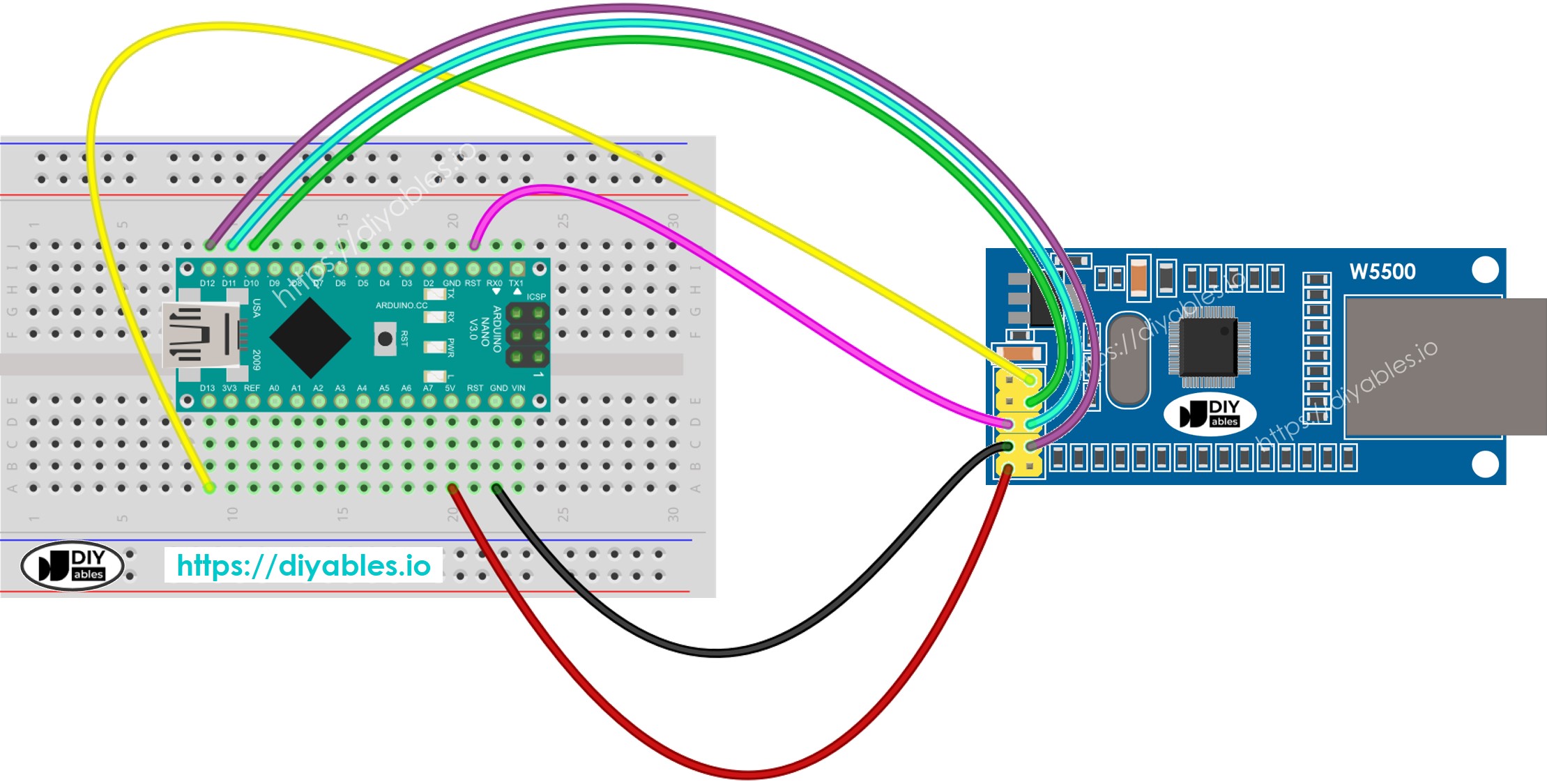
Diagrama de Ligação entre o Arduino Nano e o módulo Ethernet W5500
This image is created using Fritzing. Click to enlarge image
Isto é relativamente simples. O código do Arduino Nano faz as seguintes tarefas:
Cria um servidor web que escuta requisições HTTP de um navegador web.
Ao receber uma requisição de um navegador web, o Arduino Nano responde com as seguintes informações:
Cabeçalho HTTP
Corpo HTTP: inclui "Hello World!".
Abaixo está o código do Arduino Nano que realiza as tarefas acima:
/* * Este código de Arduino Nano foi desenvolvido por pt.newbiely.com * Este código de Arduino Nano é disponibilizado ao público sem nenhuma restrição. * Para tutoriais completos e diagramas de ligação, visite: * https://pt.newbiely.com/tutorials/arduino-nano/arduino-nano-web-server*/#include <SPI.h>#include <Ethernet.h>// MAC address for the Ethernet module, you can modify it as neededbyte mac[] = { 0xDE, 0xAD, 0xBE, 0xEF, 0xFE, 0xED }; IPAddress ip(192, 168, 1, 177); // Set a static IP addressEthernetServer server(80); // Create an Ethernet server that listens on port 80voidsetup() {//Initialize serial communication:Serial.begin(9600);// Start the Ethernet connection:if (Ethernet.begin(mac) == 0) {Serial.println(F("Failed to configure Ethernet using DHCP"));// Try with a static IP:Ethernet.begin(mac, ip); }// Start the server: server.begin();// Print the Ethernet board's IP address: Serial.print(F("Arduino Nano Web Server's IP address: ")); Serial.println(Ethernet.localIP());}void loop() {// Listen for incoming clientsEthernetClient client = server.available();if (client) {// read the HTTP request header line by linewhile (client.connected()) {if (client.available()) {String HTTP_header = client.readStringUntil('\n'); // read the header line of HTTP requestif (HTTP_header.equals("\r")) // the end of HTTP requestbreak;Serial.print(F("<< "));Serial.println(HTTP_header); // print HTTP request to Serial Monitor } }// send the HTTP response// send the HTTP response header client.println(F("HTTP/1.1 200 OK")); client.println(F("Content-Type: text/html")); client.println(F("Connection: close")); // the connection will be closed after completion of the response client.println(); // the separator between HTTP header and body// send the HTTP response body client.println(F("<!DOCTYPE HTML>")); client.println(F("<html>")); client.println(F("<head>")); client.println(F("<link rel=\"icon\" href=\"data:,\">")); client.println(F("</head>")); client.println(F("<p>")); client.println(F("Hello World!")); client.println(F("</p>")); client.println(F("</html>")); client.flush();// give the web browser time to receive the datadelay(10);// close the connection: client.stop(); }}
Passos Rápidos
Conecte o Arduino Nano ao módulo Ethernet de acordo com o diagrama de ligação acima.
Conecte um cabo Ethernet ao módulo Ethernet.
Conecte o Arduino Nano a um PC usando um cabo USB.
Abra a Arduino IDE no seu PC.
Selecione a placa Arduino Nano e a porta COM correspondente
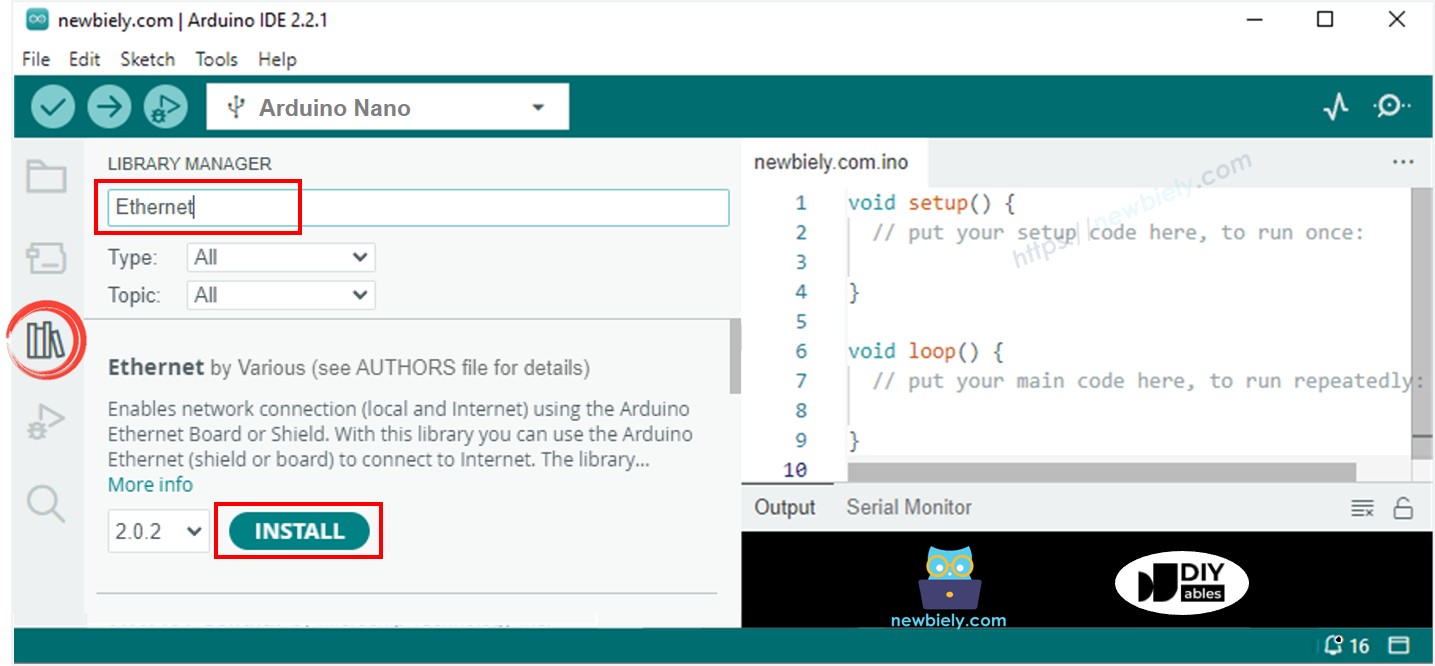
Clique no ícone Libraries na barra à esquerda da Arduino IDE.
Pesquise “Ethernet”, depois encontre a biblioteca Ethernet de Various
Clique no botão Install para instalar a biblioteca Ethernet.
Copie o código acima e abra com a Arduino IDE
Clique no botão Upload na Arduino IDE para fazer upload do código para o Arduino Nano
Abra o Serial Monitor
Confira o resultado no Serial Monitor.
Newbiely | Arduino IDE 2.3.8
──
☐
✕
File
Edit
Sketch
Tools
Help
Arduino Nano
Newbiely.ino
···
8Serial.println("Hello World!");
Output
Serial Monitor
Message (Enter to send message to 'Arduino Nano' on 'COM15')
New Line
9600 baud
Arduino Nano Web Server's IP address: 192.168.0.3
Ln 11, Col 1
Arduino Nano on COM15
2
Anote o endereço IP exibido e digite-o na barra de endereços de um navegador web no seu celular ou PC.
Você verá então a seguinte saída no Serial Monitor.
Newbiely | Arduino IDE 2.3.8
──
☐
✕
File
Edit
Sketch
Tools
Help
Arduino Nano
Newbiely.ino
···
8Serial.println("Hello World!");
Output
Serial Monitor
Message (Enter to send message to 'Arduino Nano' on 'COM15')
New Line
9600 baud
Arduino Nano Web Server's IP address: 192.168.0.3
<< GET / HTTP/1.1
<< Host: 192.168.0.3
<< Connection: keep-alive
<< Upgrade-Insecure-Requests: 1
<< User-Agent: Mozilla/5.0 (Windows NT 10.0; Win64; x64) AppleWebKit/537.36 (KHTML, like Gecko) Chrome/129.0.0.0 Safari/537.36 Edg/129.0.0.0
<< Accept: text/html,application/xhtml+xml,application/xml;q=0.9,image/avif,image/webp,image/apng,*/*;q=0.8,application/signed-exchange;v=b3;q=0.7
<< Accept-Encoding: gzip, deflate
<< Accept-Language: en-US,en;q=0.9,ko;q=0.8
Ln 11, Col 1
Arduino Nano on COM15
2
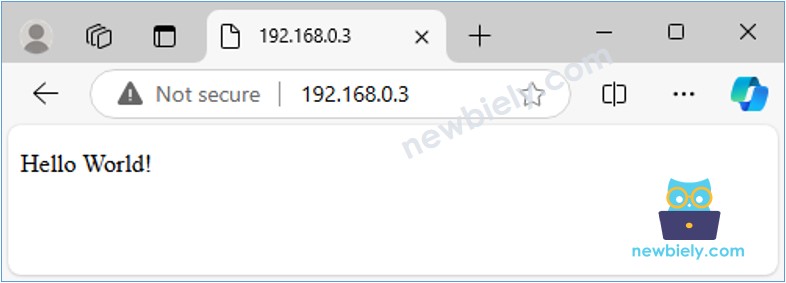
Quando você acessar o navegador web usando o endereço IP, verá uma página web simples exibindo "Hello World!". A página ficará assim:
Servidor Web Arduino Nano - Monitorando valores de sensor por uma página web.
O código do Arduino Nano abaixo faz as seguintes tarefas:
Cria um servidor web que escuta requisições HTTP de um navegador web.
Ao receber uma requisição de um navegador web, o Arduino Nano responde com as seguintes informações:
Cabeçalho HTTP
Corpo HTTP: Inclui conteúdo HTML, CSS e o valor lido do sensor.
/* * Este código de Arduino Nano foi desenvolvido por pt.newbiely.com * Este código de Arduino Nano é disponibilizado ao público sem nenhuma restrição. * Para tutoriais completos e diagramas de ligação, visite: * https://pt.newbiely.com/tutorials/arduino-nano/arduino-nano-web-server*/#include <SPI.h>#include <Ethernet.h>// MAC address for the Ethernet module, you can modify it as neededbyte mac[] = { 0xDE, 0xAD, 0xBE, 0xEF, 0xFE, 0xED }; IPAddress ip(192, 168, 1, 177); // Set a static IP addressEthernetServer server(80); // Create an Ethernet server that listens on port 80floatgetTemperature() {// YOUR SENSOR IMPLEMENTATION HERE// simulate the temperature valuefloat temp_x100 = random(0, 10000); // a random value from 0 to 10000return temp_x100 / 100; // return the simulated temperature value from 0 to 100 in float}voidsetup() {//Initialize serial communication:Serial.begin(9600);// Start the Ethernet connection:if (Ethernet.begin(mac) == 0) {Serial.println(F("Failed to configure Ethernet using DHCP"));// Try with a static IP:Ethernet.begin(mac, ip); }// Start the server: server.begin();// Print the Ethernet board's IP address:Serial.print(F("Server is at: "));Serial.println(Ethernet.localIP());}voidloop() {// Listen for incoming clientsEthernetClient client = server.available();if (client) {// read the HTTP request header line by linewhile (client.connected()) {if (client.available()) {String HTTP_header = client.readStringUntil('\n'); // read the header line of HTTP requestif (HTTP_header.equals("\r")) // the end of HTTP requestbreak;Serial.print(F("<< "));Serial.println(HTTP_header); // print HTTP request to Serial Monitor } }// send the HTTP response// send the HTTP response header client.println(F("HTTP/1.1 200 OK")); client.println(F("Content-Type: text/html")); client.println(F("Connection: close")); // the connection will be closed after completion of the response client.println(); // the separator between HTTP header and body// send the HTTP response body client.println(F("<!DOCTYPE HTML>")); client.println(F("<html>")); client.println(F("<head>")); client.println(F("<link rel=\"icon\" href=\"data:,\">")); client.println(F("</head>")); client.println(F("<p>")); client.print(F("Temperature: <span style=\"color: red;\">"));float temperature = getTemperature(); client.print(temperature, 2); client.println(F("°C</span>")); client.println(F("</p>")); client.println(F("</html>")); client.flush();// give the web browser time to receive the datadelay(10);// close the connection: client.stop(); }}
Passos Rápidos
Copie o código acima e abra-o na Arduino IDE.
Clique no botão Upload na Arduino IDE para fazer upload do código para o Arduino Nano.
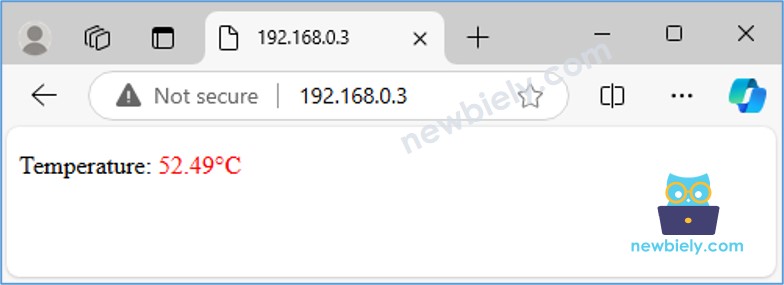
Recarregue a página web anterior (Ctrl + F5), e você a verá como mostrado abaixo:
Com o código fornecido, para atualizar a temperatura, você precisa recarregar a página no navegador web. Na próxima seção, vamos aprender como fazer a página web atualizar automaticamente o valor da temperatura em segundo plano, sem recarregar.
Servidor Web Arduino Nano - Atualizando Valores Automaticamente na Página Web
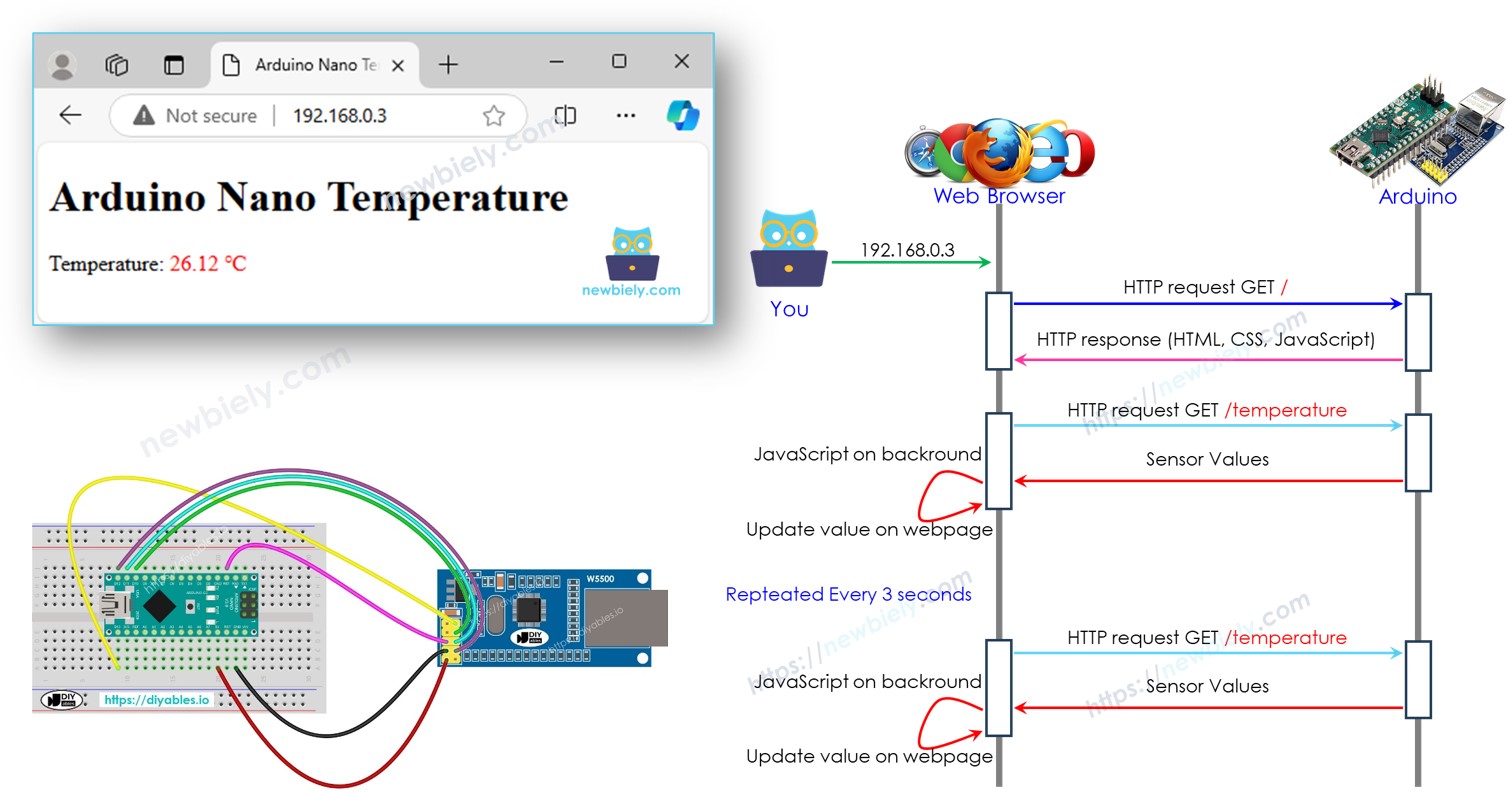
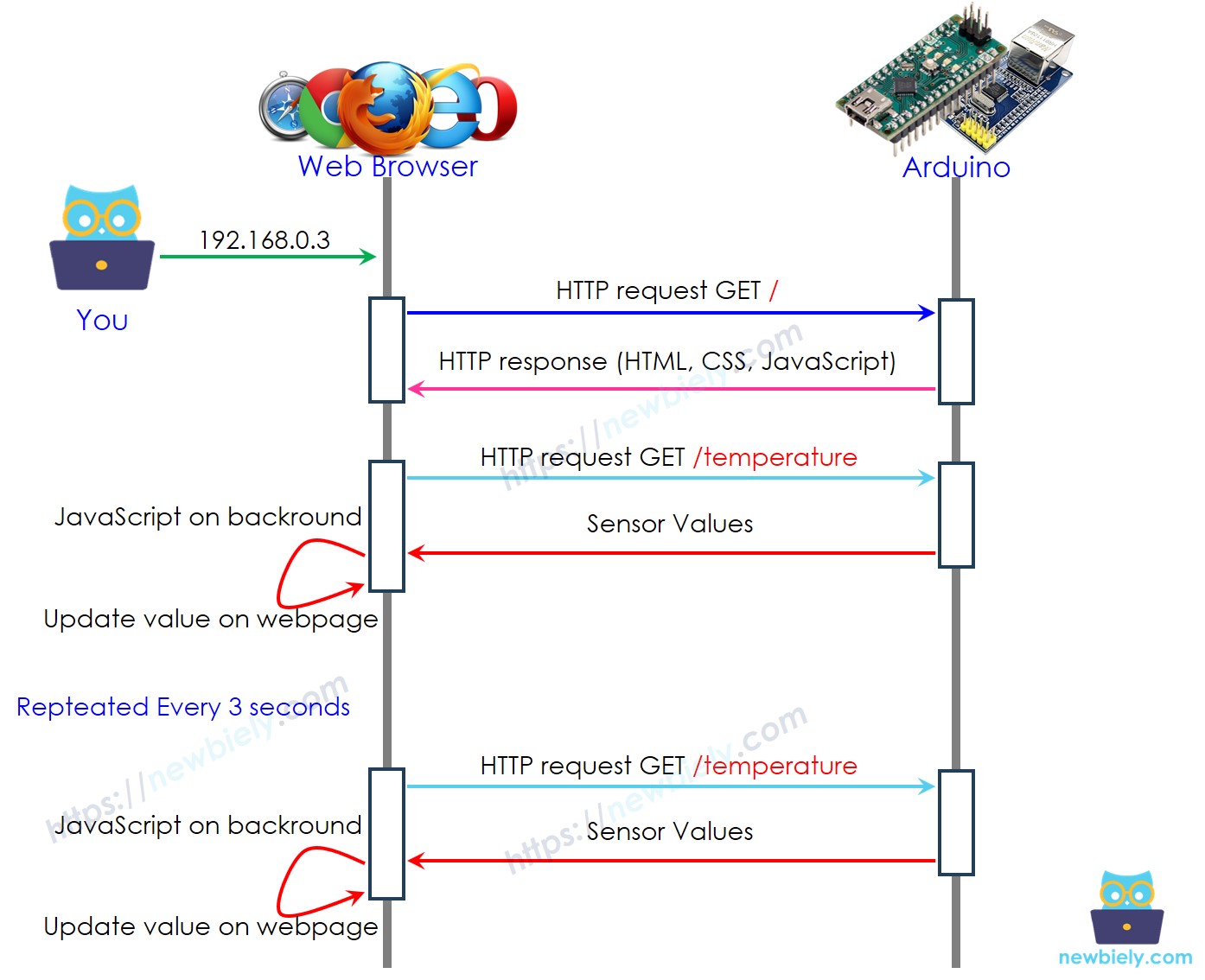
Como Funciona a Atualização Automática
O usuário digita o endereço IP do Arduino Nano no navegador web.
O navegador web envia uma requisição HTTP para a página inicial (/) do Arduino Nano.
O Arduino responde com HTML, CSS e JavaScript.
O navegador web exibe a página web usando o HTML e o CSS recebidos.
A cada 3 segundos, o navegador web executa o código JavaScript, que faz uma requisição HTTP ao endpoint /temperature.
O Arduino lê o valor do sensor e o envia de volta como resposta.
O navegador web recebe o valor do sensor e atualiza a página web de acordo.
Abaixo está o código do Arduino Nano que realiza as tarefas acima:
/* * Este código de Arduino Nano foi desenvolvido por pt.newbiely.com * Este código de Arduino Nano é disponibilizado ao público sem nenhuma restrição. * Para tutoriais completos e diagramas de ligação, visite: * https://pt.newbiely.com/tutorials/arduino-nano/arduino-nano-web-server*/#include <SPI.h>#include <Ethernet.h>// MAC address and IP address for the Ethernet module (modify if necessary)byte mac[] = { 0xDE, 0xAD, 0xBE, 0xEF, 0xFE, 0xED }; IPAddress ip(192, 168, 1, 177); // Static IP address for the Arduino NanoEthernetServer server(80); // Set up the Ethernet server to listen on port 80const char* HTML_CONTENT = R"=====(<!DOCTYPE html><html><head> <title>Arduino Nano Temperature</title></head><body> <h1>Arduino Nano Temperature</h1> <p>Temperature: <span style="color: red;"><span id="temperature">Loading...</span> ℃</span></p> <script> function fetchTemperature() { fetch("/temperature") .then(response => response.text()) .then(data => { document.getElementById("temperature").textContent = data; }); } fetchTemperature(); setInterval(fetchTemperature, 3000); // Update temperature every 3 seconds </script></body></html>)=====";float getTemperature() {// YOUR SENSOR IMPLEMENTATION HERE// simulate the temperature valuefloat temp_x100 = random(0, 10000); // a random value from 0 to 10000return temp_x100 / 100; // return the simulated temperature value from 0 to 100 in float}voidsetup() {// Start serial communicationSerial.begin(9600);// Start Ethernet connectionif (Ethernet.begin(mac) == 0) {Serial.println(F("Failed to configure Ethernet using DHCP"));// Try with a static IP address if DHCP failsEthernet.begin(mac, ip); }// Start the server server.begin();// Print the Arduino Nano's IP address Serial.print(F("Arduino Nano Web Server's IP address: ")); Serial.println(Ethernet.localIP());}void loop() {// Listen for incoming clientsEthernetClient client = server.available();if (client) {Serial.println(F("Client connected"));// Wait until the client sends some datawhile (client.connected()) {if (client.available()) {// Read the first line of the HTTP requestString request = client.readStringUntil('\r');Serial.print(F("Request: "));Serial.println(request); client.flush();// Serve the HTML page from the index.h file if the request is "/"if (request.indexOf("GET / ") >= 0) { client.println(F("HTTP/1.1 200 OK")); client.println(F("Content-Type: text/html")); client.println(F("Connection: close")); // Connection will be closed after the response client.println(); client.println(HTML_CONTENT); // Send the HTML page from index.h }// Serve the temperature data if the request is "/temperature"elseif (request.indexOf("GET /temperature") >= 0) {float temperature = getTemperature(); client.println(F("HTTP/1.1 200 OK")); client.println(F("Content-Type: text/plain")); client.println(F("Connection: close")); // Connection will be closed after the response client.println(); client.print(temperature, 2); // Send the temperature as plain text }// Close the connection client.stop();Serial.println(F("Client disconnected")); } } }}
Passos Rápidos
Copie o código acima e abra-o na Arduino IDE.
Clique no botão Upload na Arduino IDE para fazer upload do código para o Arduino Nano.
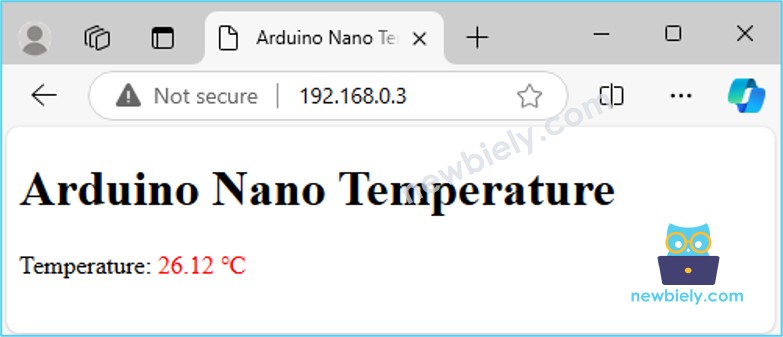
Recarregue a página web anterior (Ctrl + F5), e você a verá como mostrado abaixo:
Você verá que o valor é atualizado automaticamente a cada 3 segundos.
Separando o conteúdo HTML em outro arquivo na Arduino IDE
Se você quiser criar uma página web simples com conteúdo mínimo, pode incorporar o HTML diretamente no código do Arduino Nano, como explicado anteriormente.
No entanto, para páginas web mais complexas e ricas em recursos, incorporar todo o HTML, CSS e JavaScript diretamente no código do Arduino Nano pode se tornar trabalhoso. Nesses casos, é melhor usar uma abordagem diferente para gerenciar o código:
O código do Arduino Nano continuará armazenado em um arquivo .ino, como de costume.
O conteúdo da página web (HTML, CSS, JavaScript) será colocado em um arquivo .h separado. Essa separação facilita o gerenciamento e a atualização da página web sem poluir o código do Arduino.
Passos Rápidos
Abra a Arduino IDE e crie um novo sketch. Dê um nome a ele, por exemplo, newbiely.com.ino.
Copie o código fornecido abaixo e cole no arquivo criado.
/* * Este código de Arduino Nano foi desenvolvido por pt.newbiely.com * Este código de Arduino Nano é disponibilizado ao público sem nenhuma restrição. * Para tutoriais completos e diagramas de ligação, visite: * https://pt.newbiely.com/tutorials/arduino-nano/arduino-nano-web-server*/#include <SPI.h>#include <Ethernet.h>#include"index.h"// Include the index.h file// MAC address and IP address for the Ethernet module (modify if necessary)byte mac[] = { 0xDE, 0xAD, 0xBE, 0xEF, 0xFE, 0xED }; IPAddress ip(192, 168, 1, 177); // Static IP address for the Arduino NanoEthernetServer server(80); // Set up the Ethernet server to listen on port 80floatgetTemperature() {// YOUR SENSOR IMPLEMENTATION HERE// simulate the temperature valuefloat temp_x100 = random(0, 10000); // a random value from 0 to 10000return temp_x100 / 100; // return the simulated temperature value from 0 to 100 in float}voidsetup() {// Start serial communicationSerial.begin(9600);// Start Ethernet connectionif (Ethernet.begin(mac) == 0) {Serial.println(F("Failed to configure Ethernet using DHCP"));// Try with a static IP address if DHCP failsEthernet.begin(mac, ip); }// Start the server server.begin();// Print the Arduino Nano's IP address Serial.print(F("Arduino Nano Web Server's IP address: ")); Serial.println(Ethernet.localIP());}void loop() {// Listen for incoming clientsEthernetClient client = server.available();if (client) {Serial.println(F("Client connected"));// Wait until the client sends some datawhile (client.connected()) {if (client.available()) {// Read the first line of the HTTP requestString request = client.readStringUntil('\r');Serial.print(F("Request: "));Serial.println(request); client.flush();// Serve the HTML page from the index.h file if the request is "/"if (request.indexOf("GET / ") >= 0) { client.println(F("HTTP/1.1 200 OK")); client.println(F("Content-Type: text/html")); client.println(F("Connection: close")); // Connection will be closed after the response client.println(); client.println(HTML_CONTENT); // Send the HTML page from index.h }// Serve the temperature data if the request is "/temperature"elseif (request.indexOf("GET /temperature") >= 0) {float temperature = getTemperature(); client.println(F("HTTP/1.1 200 OK")); client.println(F("Content-Type: text/plain")); client.println(F("Connection: close")); // Connection will be closed after the response client.println(); client.print(temperature, 2); // Send the temperature as plain text }// Close the connection client.stop();Serial.println(F("Client disconnected")); } } }}
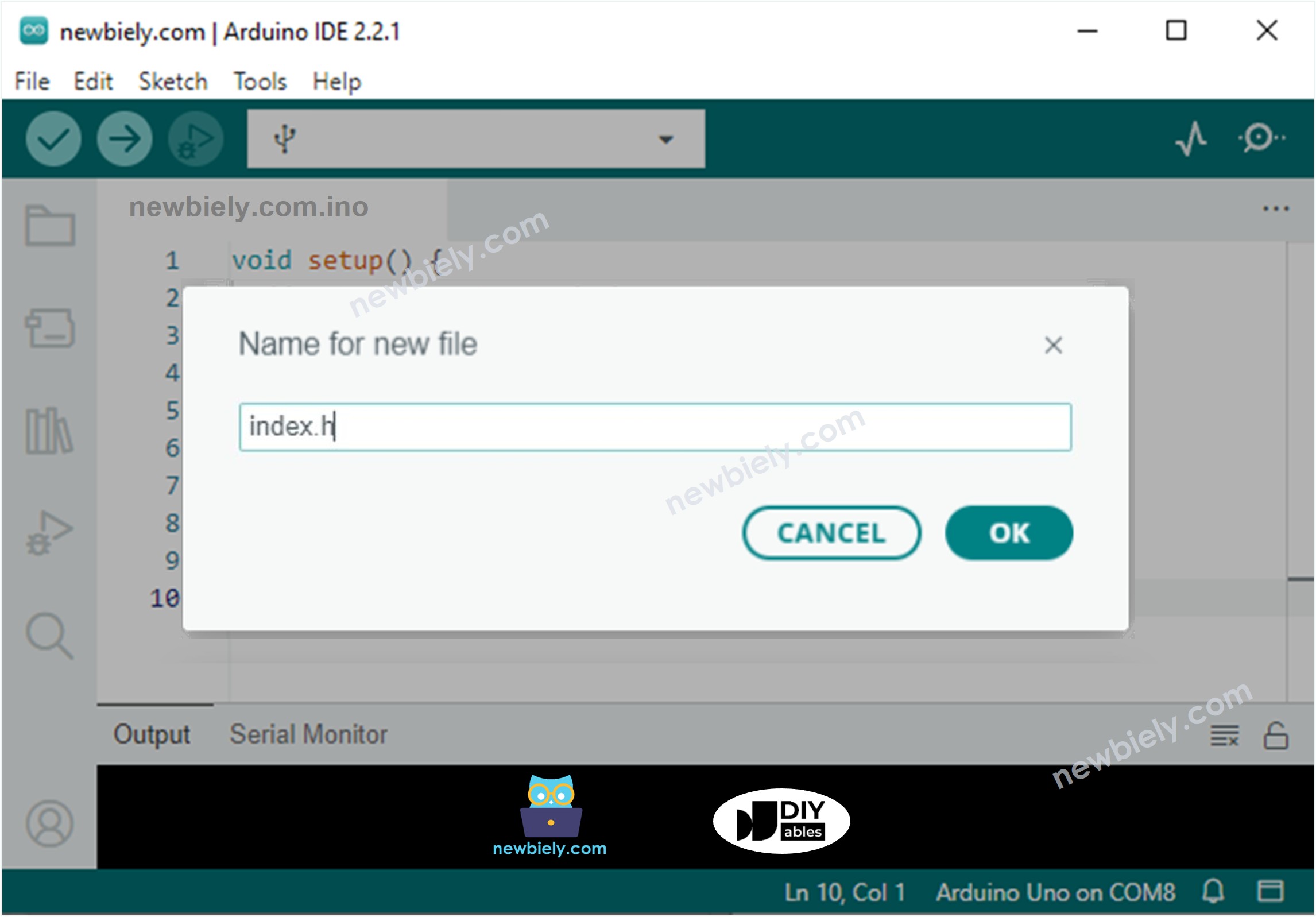
Crie o arquivo index.h na Arduino IDE da seguinte forma:
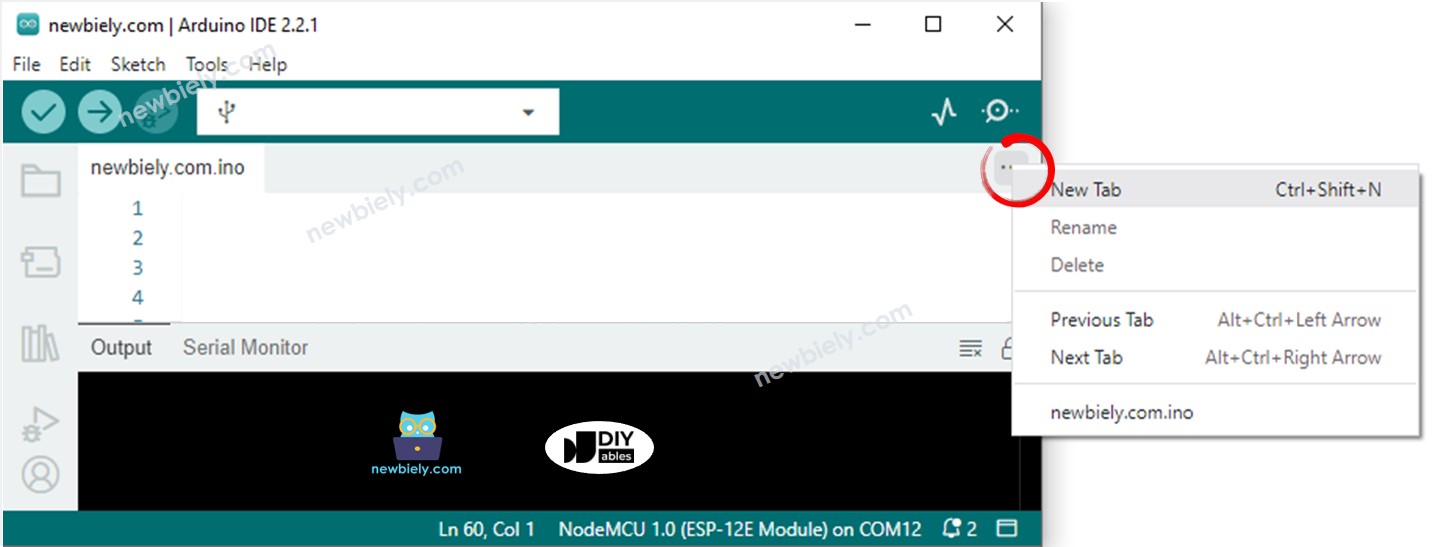
Clique no botão logo abaixo do ícone do Serial Monitor e escolha New Tab, ou use as teclas Ctrl+Shift+N.
Dê ao arquivo o nome index.h e clique no botão OK
Copie o código abaixo e cole no index.h.
/* * Este código de Arduino Nano foi desenvolvido por pt.newbiely.com * Este código de Arduino Nano é disponibilizado ao público sem nenhuma restrição. * Para tutoriais completos e diagramas de ligação, visite: * https://pt.newbiely.com/tutorials/arduino-nano/arduino-nano-web-server*//* * This Arduino Nano code was developed by newbiely.com * * This Arduino Nano code is made available for public use without any restriction * * For comprehensive instructions and wiring diagrams, please visit: * http://localhost/web/newbiely.com/public/tutorials/arduino-nano-esp32/arduino-nano-esp32-web-server */#ifndef WEBPAGE_H#define WEBPAGE_Hconst char* HTML_CONTENT = R"=====(<!DOCTYPE html><html><head> <title>Arduino Nano Temperature</title></head><body> <h1>Arduino Nano Temperature</h1> <p>Temperature: <span style="color: red;"><span id="temperature">Loading...</span> ℃</span></p> <script> function fetchTemperature() { fetch("/temperature") .then(response => response.text()) .then(data => { document.getElementById("temperature").textContent = data; }); } fetchTemperature(); setInterval(fetchTemperature, 3000); // Update temperature every 3 seconds </script></body></html>)=====";#endif
Agora você tem o código em dois arquivos: newbiely.com.ino e index.h
Clique no botão Upload na Arduino IDE para fazer upload do código para o Arduino Nano
Recarregue a página web (usando Ctrl + F5), e ela aparecerá igual a antes
※ Nota:
Se você atualizar o conteúdo HTML no arquivo index.h sem alterar nada no arquivo newbiely.com.ino, a Arduino IDE não vai atualizar nem incluir o conteúdo HTML novo quando você compilar e fizer upload do código para o Arduino Nano.
Para garantir que a Arduino IDE atualize o conteúdo HTML, você precisa fazer uma pequena alteração no arquivo newbiely.com.ino, como adicionar uma linha em branco ou um comentário. Isso força a IDE a detectar mudanças, garantindo que o conteúdo HTML atualizado seja incluído no upload.
Controlando o Arduino Nano pela Web
Controlar algo conectado ao Arduino Nano é um pouco mais desafiador do que apenas ler um valor. Isso porque o Arduino Nano precisa entender a requisição que recebe do navegador web para saber qual ação tomar.
Para um exemplo mais completo e detalhado, recomendo conferir os tutoriais listados abaixo:
Fique à vontade para compartilhar o link deste tutorial. Porém, por favor, não use nosso conteúdo em outros sites. Investimos muito esforço e tempo para criar este conteúdo, por favor respeite nosso trabalho!