
Arduino Nano - LED - Piscar Sem Delay

Vamos imaginar que o Arduino Nano tenha duas tarefas a cumprir: piscar um LED e monitorar o estado de um botão que pode ser pressionado a qualquer momento. Se usarmos a função delay() (como vimos em um tutorial anterior), o Arduino Nano pode deixar passar alguns dos acionamentos do botão. Em outras palavras, o Arduino Nano não consegue concluir totalmente a segunda tarefa.

Este tutorial ensina você a fazer o Arduino Nano piscar um LED e detectar o estado de um botão sem perder nenhum acionamento.

Vamos ver três exemplos e comparar as diferenças entre eles:

Esse método não se limita a piscar um LED e verificar o estado do botão. Em geral, ele permite que o Arduino Nano execute várias tarefas ao mesmo tempo, sem que uma bloqueie a outra.

Hardware Necessário

1×Official Arduino Nano
1×Alternatively, DIYables Nano V3.0 Development Board
1×Cabo USB A para Mini-B
1×LED Kit
1×LED (red)
1×LED Module
1×(Alternativa) Button and LED Kit
1×220Ω Resistor
1×Botão para Protoboard com Capa
1×Kit de Botões para Protoboard
1×Botão de Pressão para Painel
1×Módulo de Botão
1×Protoboard
1×Fios Jumper
1×(Recomendado) Placa de Expansão com Bornes de Parafuso para Arduino Nano
1×(Recomendado) Placa de Expansão Breakout para Arduino Nano
1×(Recomendado) Divisor de Alimentação para Arduino Nano

Or you can buy the following kits:

1×DIYables Sensor Kit (18 sensors/displays)
Divulgação: Alguns dos links desta seção são links de afiliado da Amazon. Podemos receber uma comissão pelas compras feitas por meio desses links, sem custo adicional para você. Agradecemos o seu apoio.

Buy Note: Use the LED Module for easier wiring. It includes an integrated resistor.

Sobre o LED e o Botão

Se você não conhece o LED e o botão (incluindo pinagem, funcionamento e programação), os tutoriais a seguir podem ajudar:

Diagrama de Ligação
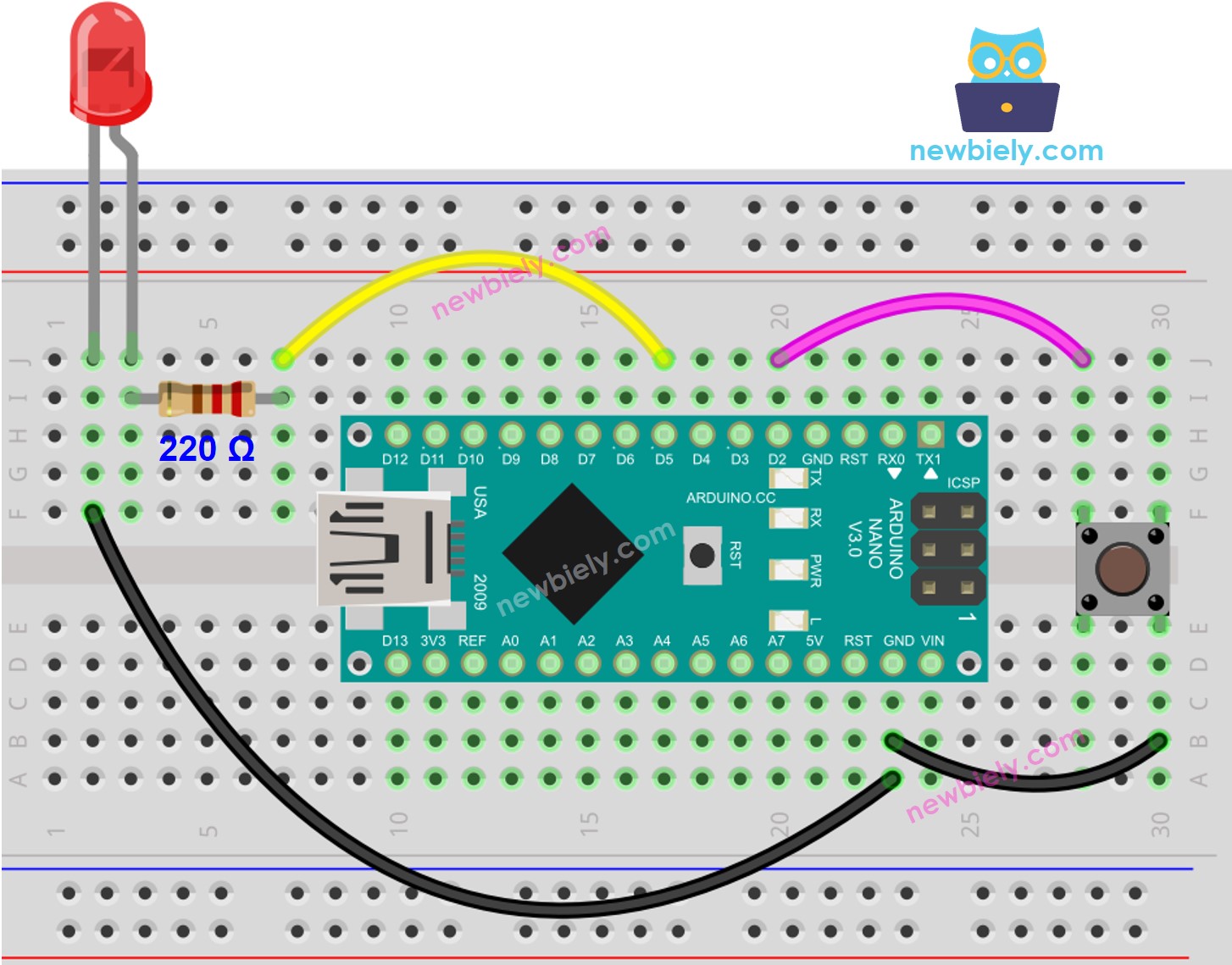
Diagrama de ligação do LED com Arduino Nano

This image is created using Fritzing. Click to enlarge image

Veja A melhor forma de alimentar o Arduino Nano e outros componentes.

Código Arduino Nano - Com Delay

/* * Este código de Arduino Nano foi desenvolvido por pt.newbiely.com * Este código de Arduino Nano é disponibilizado ao público sem nenhuma restrição. * Para tutoriais completos e diagramas de ligação, visite: * https://pt.newbiely.com/tutorials/arduino-nano/arduino-nano-led-blink-without-delay */ const int LED_PIN = 5; // The number of the LED pin const int BUTTON_PIN = 2; // The number of the button pin const long BLINK_INTERVAL = 1000; // interval at which to blink LED (milliseconds) int led_state = LOW; // led_state used to set the LED int prev_button_state = LOW; // will store last time button was updated void setup() { Serial.begin(9600); // set the digital pin as output: pinMode(LED_PIN, OUTPUT); // set the digital pin as an input: pinMode(BUTTON_PIN, INPUT); } void loop() { // if the LED is off turn it on and vice-versa: led_state = (led_state == LOW) ? HIGH : LOW; // set the LED with the led_state of the variable: digitalWrite(LED_PIN, led_state); delay(BLINK_INTERVAL); // If button is pressed during this time, Arduino CANNOT detect int button_state = digitalRead(BUTTON_PIN); if(button_state != prev_button_state) { // print out the state of the button: Serial.println(button_state); // save the last state of button prev_button_state = button_state; } // DO OTHER WORKS HERE }

Passos Rápidos

  • Conecte o seu Arduino Nano ao computador usando um cabo USB.
  • Abra o Arduino IDE e selecione a placa e a porta corretas.
  • Copie o código e abra-o no Arduino IDE.
  • Clique no botão Upload do Arduino IDE para compilar e fazer o upload do código para o Arduino Nano.
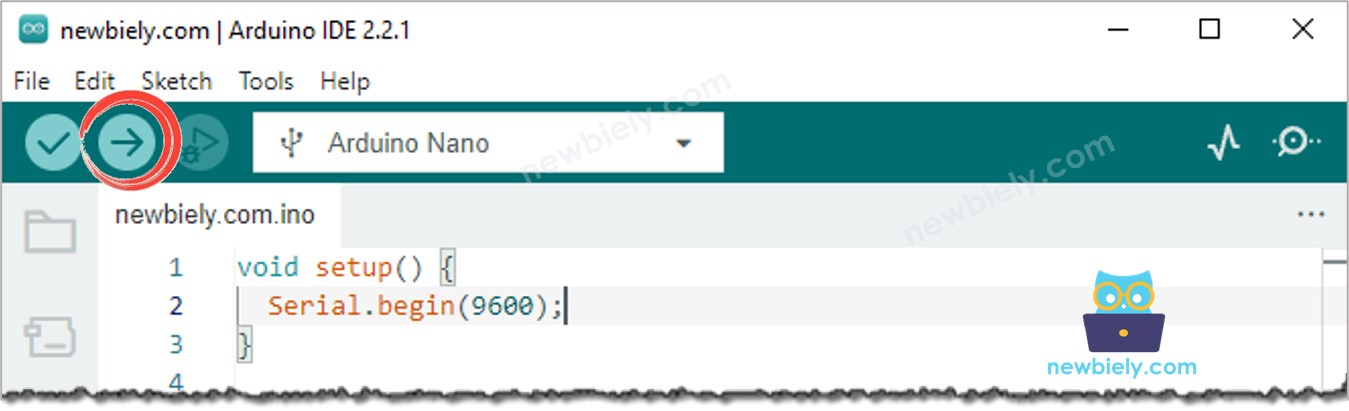
Como fazer upload do código para o Arduino Nano
  • Abra o Serial Monitor.
  • Pressione o botão quatro vezes.
  • Veja o LED; ele vai alternar entre ligado e desligado a cada segundo.
  • Confira a saída no Serial Monitor.
∞
Newbiely | Arduino IDE 2.3.8
──
☐
✕
File
Edit
Sketch
Tools
Help
Arduino Nano
Newbiely.ino
···
8 Serial.println("Hello World!");
Output
Serial Monitor
Message (Enter to send message to 'Arduino Nano' on 'COM15')
New Line
9600 baud
1 0
Ln 11, Col 1
Arduino Nano on COM15
2
  • No Serial Monitor, alguns acionamentos não foram registrados. Isso acontece porque, durante o tempo de delay, o Arduino Nano não consegue executar nenhuma ação. Por isso, ele não consegue detectar o evento de pressionamento.

Código Arduino Nano - Sem Delay

/* * Este código de Arduino Nano foi desenvolvido por pt.newbiely.com * Este código de Arduino Nano é disponibilizado ao público sem nenhuma restrição. * Para tutoriais completos e diagramas de ligação, visite: * https://pt.newbiely.com/tutorials/arduino-nano/arduino-nano-led-blink-without-delay */ const int LED_PIN = 5; // The number of the LED pin const int BUTTON_PIN = 2; // The number of the button pin const long BLINK_INTERVAL = 1000; // interval at which to blink LED (milliseconds) int led_state = LOW; // led_state used to set the LED int prev_button_state = LOW; // will store last time button was updated unsigned long prev_time_ms = 0; // will store last time LED was updated void setup() { Serial.begin(9600); // set the digital pin as output: pinMode(LED_PIN, OUTPUT); // set the digital pin as an input: pinMode(BUTTON_PIN, INPUT); } void loop() { // check to see if it's time to blink the LED; that is, if the difference // between the current time and last time you blinked the LED is bigger than // The interval at which you want to blink the LED. unsigned long time_ms = millis(); if (time_ms - prev_time_ms >= BLINK_INTERVAL) { // if the LED is off turn it on and vice-versa: led_state = (led_state == LOW) ? HIGH : LOW; // set the LED with the led_state of the variable: digitalWrite(LED_PIN, led_state); // save the last time you blinked the LED prev_time_ms = time_ms; } // check button state's change int button_state = digitalRead(BUTTON_PIN); if(button_state != prev_button_state) { // print out the state of the button: Serial.println(button_state); // save the last state of button prev_button_state = button_state; } // DO OTHER WORKS HERE }

Passos Rápidos

  • Execute o código e pressione o botão quatro vezes.
  • Veja o LED; ele vai alternar entre LIGADO e DESLIGADO em intervalos de um segundo.
  • Confira a saída no Serial Monitor.
∞
Newbiely | Arduino IDE 2.3.8
──
☐
✕
File
Edit
Sketch
Tools
Help
Arduino Nano
Newbiely.ino
···
8 Serial.println("Hello World!");
Output
Serial Monitor
Message (Enter to send message to 'Arduino Nano' on 'COM15')
New Line
9600 baud
1 0 1 0 1 0 1 0
Ln 11, Col 1
Arduino Nano on COM15
2
  • Todas as ocorrências urgentes foram identificadas.

Explicação do Código

Confira a explicação linha por linha contida nos comentários do código-fonte!

Adicionando Mais Tarefas

O código do Arduino Nano abaixo faz:

  • Pisca dois LEDs com intervalos diferentes.
  • Verifica o estado do botão
/* * Este código de Arduino Nano foi desenvolvido por pt.newbiely.com * Este código de Arduino Nano é disponibilizado ao público sem nenhuma restrição. * Para tutoriais completos e diagramas de ligação, visite: * https://pt.newbiely.com/tutorials/arduino-nano/arduino-nano-led-blink-without-delay */ const int LED_PIN_1 = 5; // The number of the LED 1 pin const int LED_PIN_2 = LED_BUILTIN; // The number of the LED 2 pin const int BUTTON_PIN = 2; // The number of the button pin const long BLINK_INTERVAL_1 = 1000; // interval at which to blink LED 1 (milliseconds) const long BLINK_INTERVAL_2 = 500; // interval at which to blink LED 2 (milliseconds) int led_state_1 = LOW; // led_state used to set the LED 1 int led_state_2 = LOW; // led_state used to set the LED 2 int prev_button_state = LOW; // will store last time button was updated unsigned long prev_time_ms_1 = 0; // will store last time LED 1 was updated unsigned long prev_time_ms_2 = 0; // will store last time LED 2 was updated void setup() { Serial.begin(9600); // set the digital pin as output: pinMode(LED_PIN_1, OUTPUT); pinMode(LED_PIN_2, OUTPUT); // set the digital pin as an input: pinMode(BUTTON_PIN, INPUT); } void loop() { unsigned long time_ms = millis(); // check to see if it's time to blink the LED 1 if (time_ms - prev_time_ms_1 >= BLINK_INTERVAL_1) { // if the LED is off turn it on and vice-versa: led_state_1 = (led_state_1 == LOW) ? HIGH : LOW; // set the LED with the led_state of the variable: digitalWrite(LED_PIN_1, led_state_1); // save the last time you blinked the LED prev_time_ms_1 = time_ms; } // check to see if it's time to blink the LED 2 if (time_ms - prev_time_ms_2 >= BLINK_INTERVAL_2) { // if the LED is off turn it on and vice-versa: led_state_2 = (led_state_2 == LOW) ? HIGH : LOW; // set the LED with the led_state of the variable: digitalWrite(LED_PIN_2, led_state_2); // save the last time you blinked the LED prev_time_ms_2 = time_ms; } // check button state's change int button_state = digitalRead(BUTTON_PIN); if(button_state != prev_button_state) { // print out the state of the button: Serial.println(button_state); // save the last state of button prev_button_state = button_state; } // DO OTHER WORKS HERE }

Vídeo

Extensibilidade

Esse método pode ser usado para permitir que o Arduino Nano execute várias tarefas ao mesmo tempo, sem que uma tarefa bloqueie o progresso da outra. Por exemplo, enviar uma requisição para a Internet e esperar a resposta, enquanto pisca alguns LEDs indicadores e monitora o botão de cancelar.

Referências de Funções

※ NOSSAS MENSAGENS

  • Fique à vontade para compartilhar o link deste tutorial. Porém, por favor, não use nosso conteúdo em outros sites. Investimos muito esforço e tempo para criar este conteúdo, por favor respeite nosso trabalho!