
Arduino Nano - Botão - Piezo Buzzer
Neste tutorial, vamos ver como usar um Arduino Nano e um botão para controlar um piezo buzzer. O tutorial vai detalhar as seguintes ações:
- O piezo buzzer vai emitir som ao detectar o pressionamento do botão.
- A emissão de som vai parar quando o botão deixar de ser pressionado.
- Uma melodia será gerada quando o botão for pressionado.
Hardware Necessário
Or you can buy the following kits:
| 1 | × | DIYables Sensor Kit (18 sensors/displays) |
Divulgação: Alguns dos links desta seção são links de afiliado da Amazon. Podemos receber uma comissão pelas compras feitas por meio desses links, sem custo adicional para você. Agradecemos o seu apoio.
Sobre o Piezo Buzzer e o Botão
Se você não conhece o piezo buzzer e o botão (incluindo pinagem, como funcionam e como programá-los), os tutoriais a seguir podem ajudar:
Diagrama de Ligação
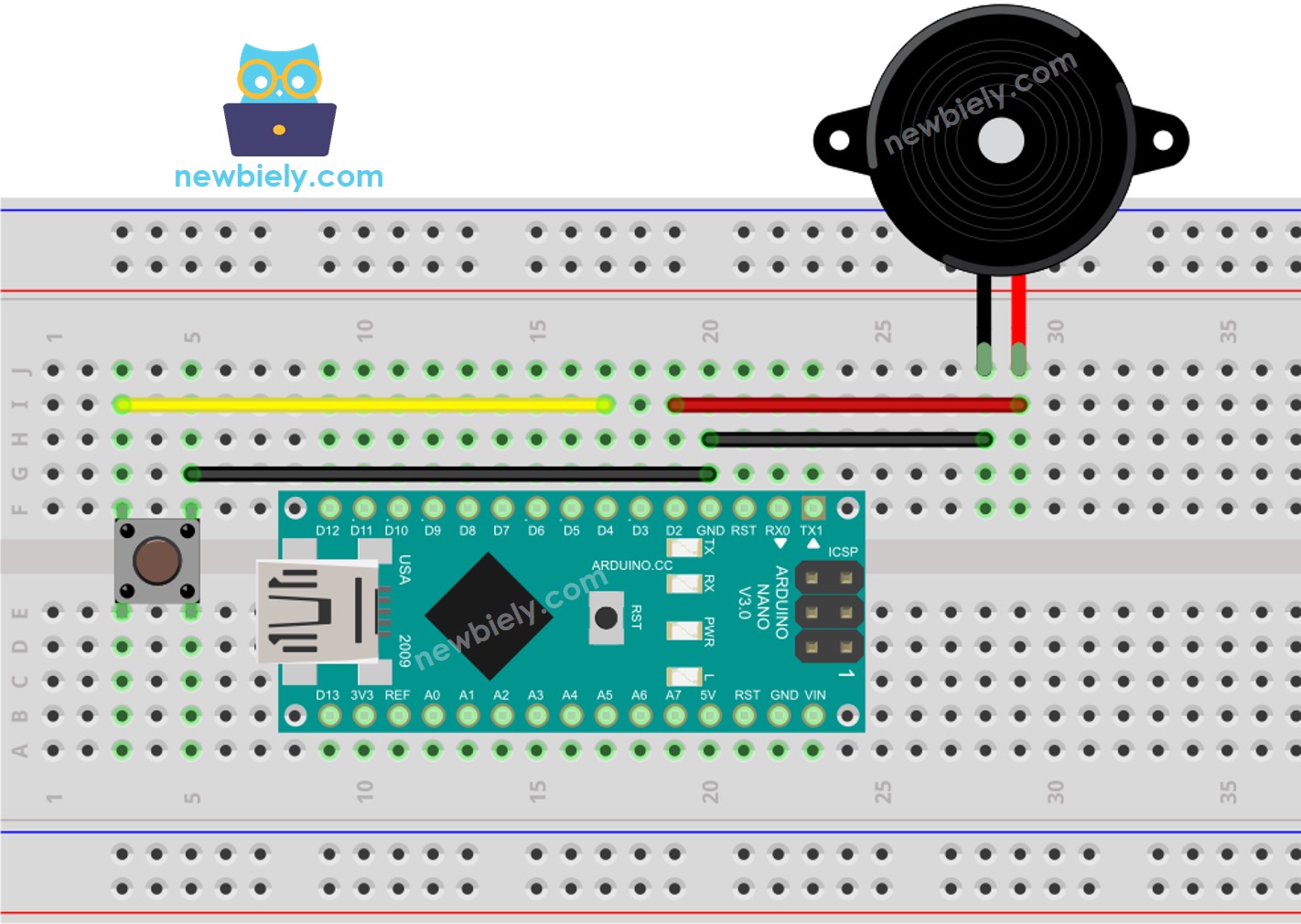
This image is created using Fritzing. Click to enlarge image
Veja A melhor forma de alimentar o Arduino Nano e outros componentes.
Código Arduino Nano - Som Simples
/*
* Este código de Arduino Nano foi desenvolvido por pt.newbiely.com
* Este código de Arduino Nano é disponibilizado ao público sem nenhuma restrição.
* Para tutoriais completos e diagramas de ligação, visite:
* https://pt.newbiely.com/tutorials/arduino-nano/arduino-nano-button-piezo-buzzer
*/
const int BUTTON_PIN = 4; // The Arduino Nano pin connected to button's pin
const int BUZZER_PIN = 2; // The Arduino Nano pin connected to Buzzer's pin
void setup() {
Serial.begin(9600); // Initialize the Serial to communicate with the Serial Monitor.
pinMode(BUTTON_PIN, INPUT_PULLUP); // set arduino pin to input pull-up mode
pinMode(BUZZER_PIN, OUTPUT); // set arduino pin to output mode
}
void loop() {
int button_state = digitalRead(BUTTON_PIN); // read new state
if (button_state == LOW) {
Serial.println("The button is being pressed");
digitalWrite(BUZZER_PIN, HIGH); // turn on
}
else
if (button_state == HIGH) {
Serial.println("The button is unpressed");
digitalWrite(BUZZER_PIN, LOW); // turn off
}
}
Passos Rápidos
- Conecte seu Arduino Nano ao computador com um cabo USB.
- Abra o Arduino IDE e selecione a placa e a porta apropriadas.
- Copie o código acima e abra-o no Arduino IDE.
- Clique no botão Upload do Arduino IDE para enviar o código para o Arduino Nano.
- Mantenha o botão pressionado por alguns segundos.
- Ouça o som do piezo buzzer.
Explicação do Código
Veja a explicação linha por linha contida nos comentários do código-fonte!
Código Arduino Nano - Melodia
/*
* Este código de Arduino Nano foi desenvolvido por pt.newbiely.com
* Este código de Arduino Nano é disponibilizado ao público sem nenhuma restrição.
* Para tutoriais completos e diagramas de ligação, visite:
* https://pt.newbiely.com/tutorials/arduino-nano/arduino-nano-button-piezo-buzzer
*/
#include "pitches.h"
const int BUTTON_PIN = 4; // The Arduino Nano pin connected to button's pin
const int BUZZER_PIN = 2; // The Arduino Nano pin connected to Buzzer's pin
// notes in the melody:
int melody[] = {
NOTE_E5, NOTE_E5, NOTE_E5,
NOTE_E5, NOTE_E5, NOTE_E5,
NOTE_E5, NOTE_G5, NOTE_C5, NOTE_D5,
NOTE_E5,
NOTE_F5, NOTE_F5, NOTE_F5, NOTE_F5,
NOTE_F5, NOTE_E5, NOTE_E5, NOTE_E5, NOTE_E5,
NOTE_E5, NOTE_D5, NOTE_D5, NOTE_E5,
NOTE_D5, NOTE_G5
};
// note durations: 4 = quarter note, 8 = eighth note, etc, also called tempo:
int noteDurations[] = {
8, 8, 4,
8, 8, 4,
8, 8, 8, 8,
2,
8, 8, 8, 8,
8, 8, 8, 16, 16,
8, 8, 8, 8,
4, 4
};
void setup() {
Serial.begin(9600); // Initialize the Serial to communicate with the Serial Monitor.
pinMode(BUTTON_PIN, INPUT_PULLUP); // set arduino pin to input pull-up mode
}
void loop() {
int button_state = digitalRead(BUTTON_PIN); // read new state
if (button_state == LOW) { // button is pressed
Serial.println("The button is being pressed");
buzzer();
}
}
void buzzer() {
// iterate over the notes of the melody:
int size = sizeof(noteDurations) / sizeof(int);
for (int thisNote = 0; thisNote < size; thisNote++) {
// to calculate the note duration, take one second divided by the note type.
//e.g. quarter note = 1000 / 4, eighth note = 1000/8, etc.
int noteDuration = 1000 / noteDurations[thisNote];
tone(BUZZER_PIN, melody[thisNote], noteDuration);
// to distinguish the notes, set a minimum time between them.
// The note's duration + 30% seems to work well:
int pauseBetweenNotes = noteDuration * 1.30;
delay(pauseBetweenNotes);
// stop the tone playing:
noTone(BUZZER_PIN);
}
}
Passos Rápidos
- Copie o código e abra-o com o Arduino IDE.
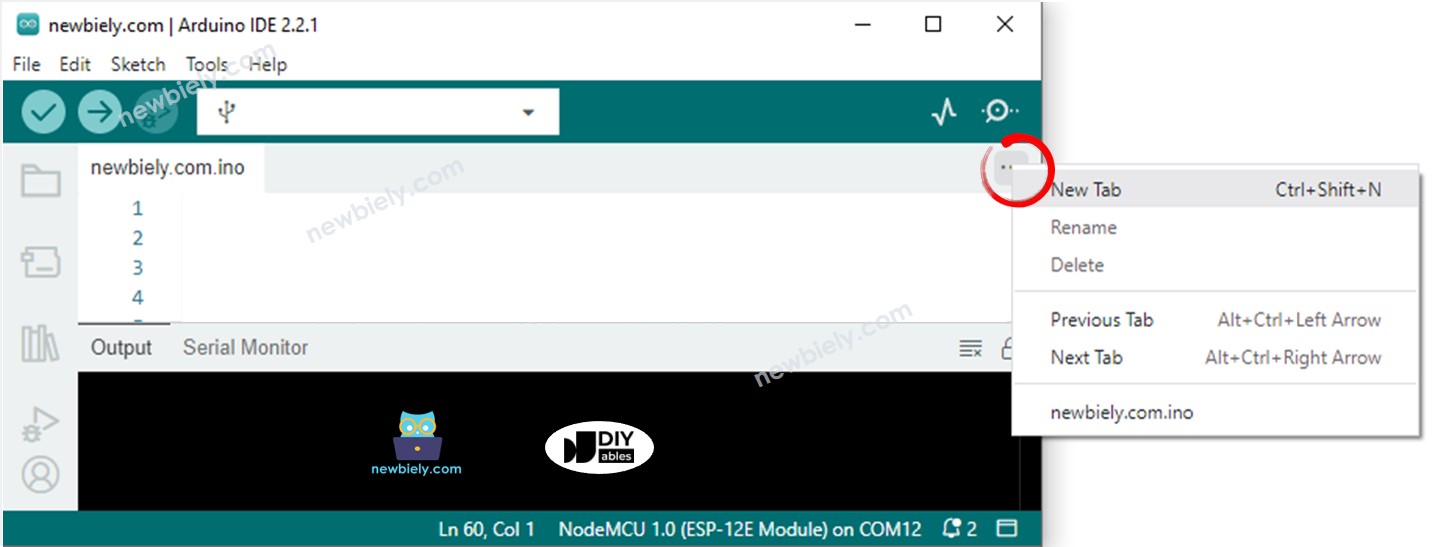
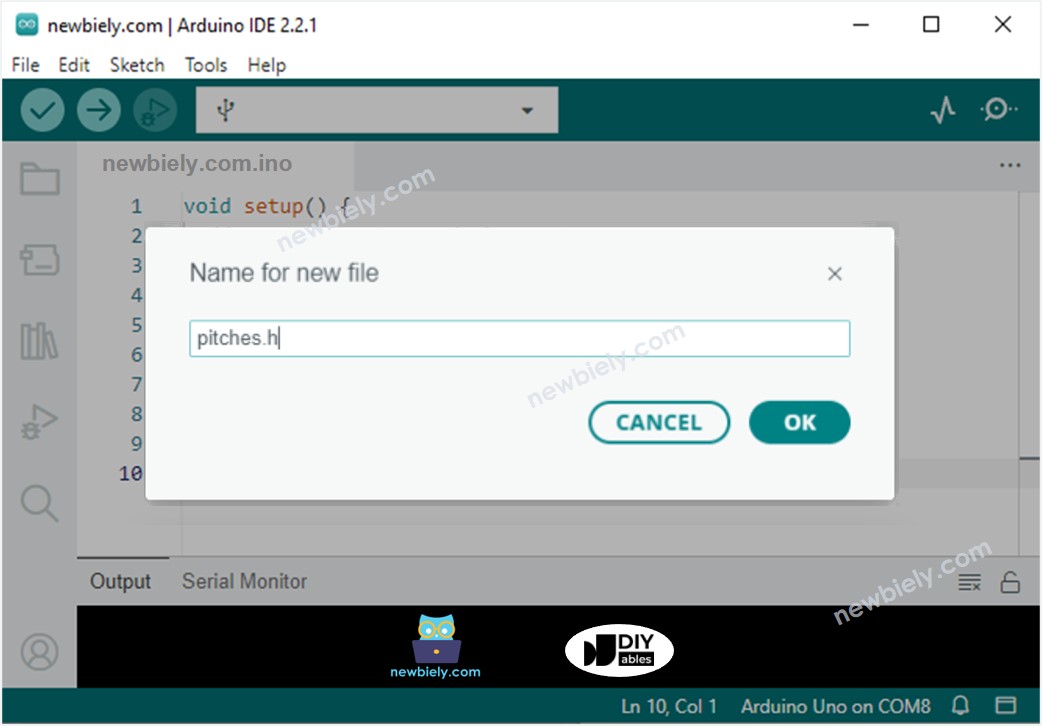
- Crie o arquivo pitches.h no Arduino IDE da seguinte forma:
- Clique no botão logo abaixo do ícone do Serial Monitor e escolha New Tab, ou use as teclas Ctrl+Shift+N.
- Dê ao arquivo o nome pitches.h e clique no botão OK
- Copie o código abaixo e cole-o no arquivo pitches.h criado.
- Clique no botão Upload do Arduino IDE para compilar e fazer o upload do código para o Arduino Nano
- Acione o botão
- Ouça a melodia do piezo buzzer
/*************************************************
* Public Constants
*************************************************/
#define NOTE_B0 31
#define NOTE_C1 33
#define NOTE_CS1 35
#define NOTE_D1 37
#define NOTE_DS1 39
#define NOTE_E1 41
#define NOTE_F1 44
#define NOTE_FS1 46
#define NOTE_G1 49
#define NOTE_GS1 52
#define NOTE_A1 55
#define NOTE_AS1 58
#define NOTE_B1 62
#define NOTE_C2 65
#define NOTE_CS2 69
#define NOTE_D2 73
#define NOTE_DS2 78
#define NOTE_E2 82
#define NOTE_F2 87
#define NOTE_FS2 93
#define NOTE_G2 98
#define NOTE_GS2 104
#define NOTE_A2 110
#define NOTE_AS2 117
#define NOTE_B2 123
#define NOTE_C3 131
#define NOTE_CS3 139
#define NOTE_D3 147
#define NOTE_DS3 156
#define NOTE_E3 165
#define NOTE_F3 175
#define NOTE_FS3 185
#define NOTE_G3 196
#define NOTE_GS3 208
#define NOTE_A3 220
#define NOTE_AS3 233
#define NOTE_B3 247
#define NOTE_C4 262
#define NOTE_CS4 277
#define NOTE_D4 294
#define NOTE_DS4 311
#define NOTE_E4 330
#define NOTE_F4 349
#define NOTE_FS4 370
#define NOTE_G4 392
#define NOTE_GS4 415
#define NOTE_A4 440
#define NOTE_AS4 466
#define NOTE_B4 494
#define NOTE_C5 523
#define NOTE_CS5 554
#define NOTE_D5 587
#define NOTE_DS5 622
#define NOTE_E5 659
#define NOTE_F5 698
#define NOTE_FS5 740
#define NOTE_G5 784
#define NOTE_GS5 831
#define NOTE_A5 880
#define NOTE_AS5 932
#define NOTE_B5 988
#define NOTE_C6 1047
#define NOTE_CS6 1109
#define NOTE_D6 1175
#define NOTE_DS6 1245
#define NOTE_E6 1319
#define NOTE_F6 1397
#define NOTE_FS6 1480
#define NOTE_G6 1568
#define NOTE_GS6 1661
#define NOTE_A6 1760
#define NOTE_AS6 1865
#define NOTE_B6 1976
#define NOTE_C7 2093
#define NOTE_CS7 2217
#define NOTE_D7 2349
#define NOTE_DS7 2489
#define NOTE_E7 2637
#define NOTE_F7 2794
#define NOTE_FS7 2960
#define NOTE_G7 3136
#define NOTE_GS7 3322
#define NOTE_A7 3520
#define NOTE_AS7 3729
#define NOTE_B7 3951
#define NOTE_C8 4186
#define NOTE_CS8 4435
#define NOTE_D8 4699
#define NOTE_DS8 4978
Explicação do Código
Veja a descrição linha por linha contida nos comentários do código-fonte!