Arduino Nano - Ethernet
Este guia mostra como conectar o Arduino Nano à internet ou à sua rede local usando o módulo Ethernet W5500. Vamos aprender os seguintes detalhes:
- Conectando o Arduino Nano ao Módulo Ethernet W5500
- Escrevendo o Código para o Arduino Nano Fazer Requisições HTTP via Ethernet
- Criando um Servidor Web simples no Arduino Nano com Ethernet
Hardware Necessário
Or you can buy the following kits:
| 1 | × | DIYables Sensor Kit (18 sensors/displays) |
Divulgação: Alguns dos links desta seção são links de afiliado da Amazon. Podemos receber uma comissão pelas compras feitas por meio desses links, sem custo adicional para você. Agradecemos o seu apoio.
Sobre o módulo Ethernet W5500
O módulo Ethernet W5500 oferece dois tipos de conexão:
- Interface RJ45: Use esta para se conectar a um roteador ou switch com um cabo Ethernet.
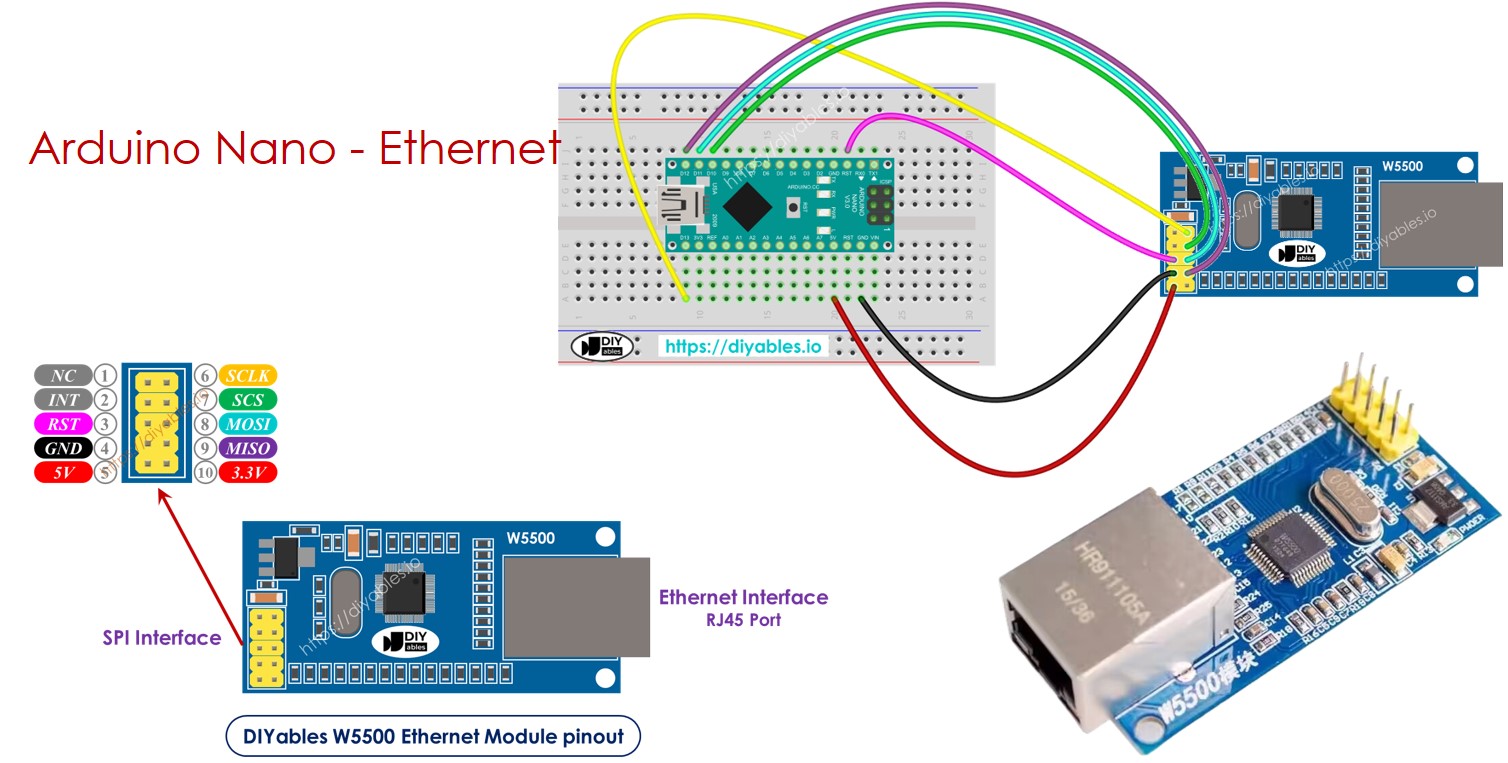
- Interface SPI: Use esta para conectar a uma placa Arduino Nano. Ela inclui 10 pinos:
- Pino NC: Deixe este pino sem conexão.
- Pino INT: Deixe este pino sem conexão.
- Pino RST: Este é o pino de reset. Conecte-o ao pino RST do Arduino Nano.
- Pino GND: Conecte este pino ao pino GND do Arduino Nano.
- Pino 5V: Conecte este pino ao pino 5V do Arduino Nano.
- Pino 3.3V: Deixe este pino sem conexão.
- Pino MISO: Conecte este pino ao pino SPI MISO do Arduino Nano.
- Pino MOSI: Conecte este pino ao pino SPI MOSI do Arduino Nano.
- Pino SCS: Conecte este pino ao pino SPI CS do Arduino Nano.
- Pino SCLK: Conecte este pino ao pino SPI SCK do Arduino Nano.
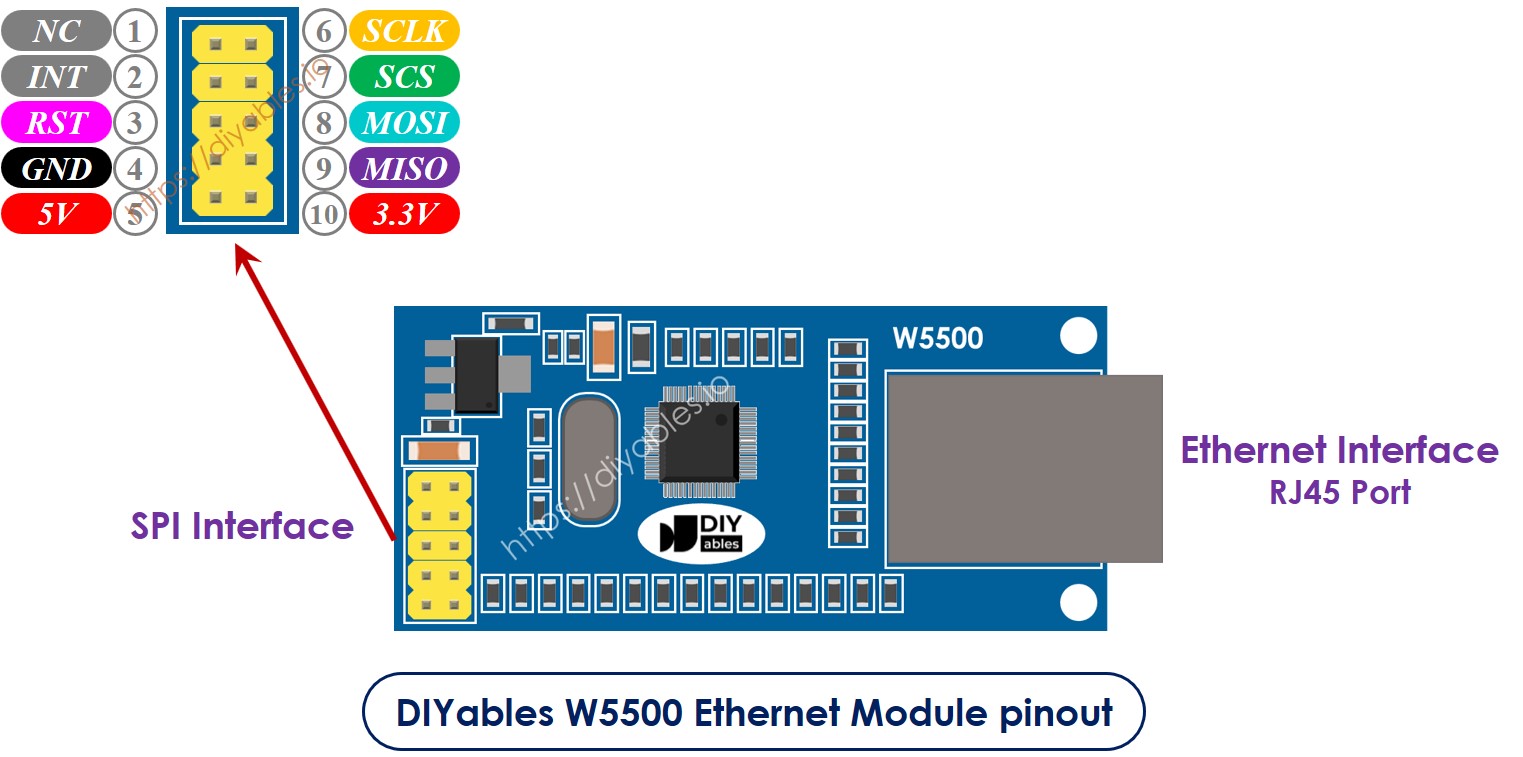
image source: diyables.io
Diagrama de Ligação entre o Arduino Nano e o módulo Ethernet W5500
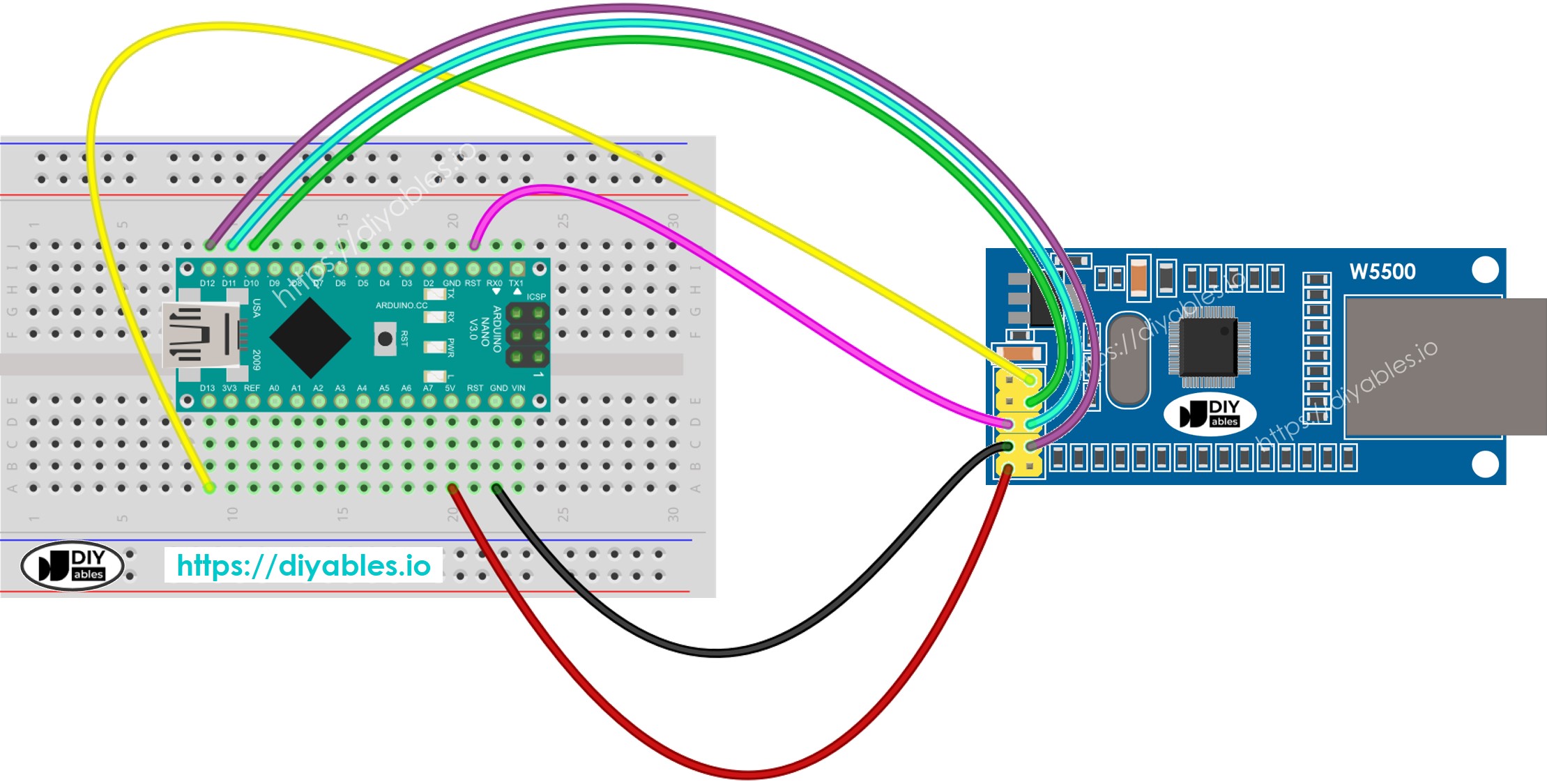
This image is created using Fritzing. Click to enlarge image
Veja A melhor forma de alimentar o Arduino Nano e outros componentes.
image source: diyables.io
Código Arduino Nano para o Módulo Ethernet - Fazendo requisição HTTP via Ethernet
Este código funciona como um cliente web. Ele envia requisições HTTP ao servidor web encontrado em http://example.com/.
/*
* Este código de Arduino Nano foi desenvolvido por pt.newbiely.com
* Este código de Arduino Nano é disponibilizado ao público sem nenhuma restrição.
* Para tutoriais completos e diagramas de ligação, visite:
* https://pt.newbiely.com/tutorials/arduino-nano/arduino-nano-ethernet
*/
#include <SPI.h>
#include <Ethernet.h>
// replace the MAC address below by the MAC address printed on a sticker on the Arduino Shield 2
byte mac[] = { 0xDE, 0xAD, 0xBE, 0xEF, 0xFE, 0xEF };
EthernetClient client;
int HTTP_PORT = 80;
String HTTP_METHOD = "GET"; // or POST
char HOST_NAME[] = "example.com";
String PATH_NAME = "/";
void setup() {
Serial.begin(9600);
delay(1000);
Serial.println("Arduino Nano - Ethernet Tutorial");
// initialize the Ethernet shield using DHCP:
if (Ethernet.begin(mac) == 0) {
Serial.println("Failed to obtaining an IP address");
// check for Ethernet hardware present
if (Ethernet.hardwareStatus() == EthernetNoHardware)
Serial.println("Ethernet shield was not found");
// check for Ethernet cable
if (Ethernet.linkStatus() == LinkOFF)
Serial.println("Ethernet cable is not connected.");
while (true)
;
}
// connect to web server on port 80:
if (client.connect(HOST_NAME, HTTP_PORT)) {
// if connected:
Serial.println("Connected to server");
// make a HTTP request:
// send HTTP header
client.println(HTTP_METHOD + " " + PATH_NAME + " HTTP/1.1");
client.println("Host: " + String(HOST_NAME));
client.println("Connection: close");
client.println(); // end HTTP header
while (client.connected()) {
if (client.available()) {
// read an incoming byte from the server and print it to serial monitor:
char c = client.read();
Serial.print(c);
}
}
// the server's disconnected, stop the client:
client.stop();
Serial.println();
Serial.println("disconnected");
} else { // if not connected:
Serial.println("connection failed");
}
}
void loop() {
}
Passos Rápidos
- Conecte o módulo Ethernet ao Arduino Nano como mostrado no diagrama de ligação.
- Conecte o Arduino Nano ao seu computador com um cabo USB.
- Use um cabo Ethernet para conectar o módulo Ethernet ao seu roteador ou switch.
- Abra a Arduino IDE no seu computador.
- Selecione a placa Arduino Nano correta e a porta COM.
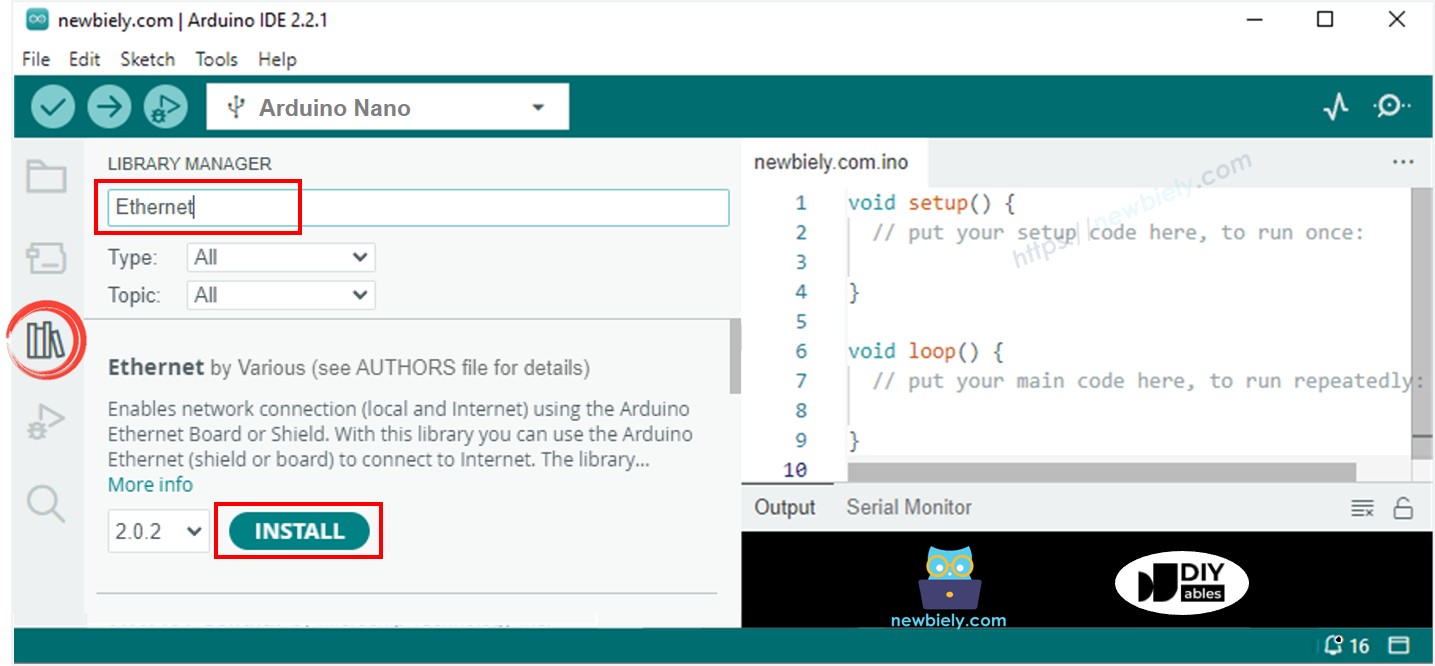
- Clique no ícone Libraries na barra à esquerda da Arduino IDE.
- Pesquise “Ethernet”, depois encontre a biblioteca Ethernet de Various
- Clique no botão Install para instalar a biblioteca Ethernet.
- Abra o Serial Monitor na Arduino IDE.
- Copie o código fornecido e cole na Arduino IDE.
- Pressione o botão Upload na Arduino IDE para enviar o código ao Arduino Nano.
- Olhe o Serial Monitor para ver a saída, que deve mostrar o resultado como indicado.
8
Serial.println("Hello World!");
Message (Enter to send message to 'Arduino Nano' on 'COM15')
New Line
9600 baud
Arduino Nano - Ethernet Tutorial
Connected to server
HTTP/1.1 200 OK
Accept-Ranges: bytes
Age: 208425
Cache-Control: max-age=604800
Content-Type: text/html; charset=UTF-8
Date: Fri, 12 Jul 2024 07:08:42 GMT
Etag: "3147526947"
Expires: Fri, 19 Jul 2024 07:08:42 GMT
Last-Modified: Thu, 17 Oct 2019 07:18:26 GMT
Server: ECAcc (lac/55B8)
Vary: Accept-Encoding
X-Cache: HIT
Content-Length: 1256
Connection: close
<!doctype html>
<html>
<head>
<title>Example Domain</title>
<meta charset="utf-8" />
<meta http-equiv="Content-type" content="text/html; charset=utf-8" />
<meta name="viewport" content="width=device-width, initial-scale=1" />
</head>
<body>
<div>
<h1>Example Domain</h1>
<p>This domain is for use in illustrative examples in documents. You may use this
domain in literature without prior coordination or asking for permission.</p>
<p><a href="https://www.iana.org/domains/example">More information...</a></p>
</div>
</body>
</html>
disconnected
※ Nota:
Se outro dispositivo na mesma rede usar o mesmo endereço MAC, ele pode não funcionar corretamente.
Código Arduino Nano para o Módulo Ethernet - Servidor Web
O código abaixo transforma o Arduino Nano em um servidor web. Esse servidor entrega uma página web simples para navegadores da internet.
/*
* Este código de Arduino Nano foi desenvolvido por pt.newbiely.com
* Este código de Arduino Nano é disponibilizado ao público sem nenhuma restrição.
* Para tutoriais completos e diagramas de ligação, visite:
* https://pt.newbiely.com/tutorials/arduino-nano/arduino-nano-ethernet
*/
#include <SPI.h>
#include <Ethernet.h>
// replace the MAC address below by the MAC address printed on a sticker on the Arduino Shield 2
byte mac[] = { 0xDE, 0xAD, 0xBE, 0xEF, 0xFE, 0xEF };
EthernetServer server(80);
void setup() {
Serial.begin(9600);
delay(1000);
Serial.println("Arduino Nano - Ethernet Tutorial");
// initialize the Ethernet shield using DHCP:
if (Ethernet.begin(mac) == 0) {
Serial.println("Failed to obtaining an IP address");
// check for Ethernet hardware present
if (Ethernet.hardwareStatus() == EthernetNoHardware)
Serial.println("Ethernet shield was not found");
// check for Ethernet cable
if (Ethernet.linkStatus() == LinkOFF)
Serial.println("Ethernet cable is not connected.");
while (true)
;
}
server.begin();
Serial.print("Arduino Nano - Web Server IP Address: ");
Serial.println(Ethernet.localIP());
}
void loop() {
// listen for incoming clients
EthernetClient client = server.available();
if (client) {
Serial.println("new client");
// an HTTP request ends with a blank line
bool currentLineIsBlank = true;
while (client.connected()) {
if (client.available()) {
char c = client.read();
Serial.write(c);
// if you've gotten to the end of the line (received a newline
// character) and the line is blank, the HTTP request has ended,
// so you can send a reply
if (c == '\n' && currentLineIsBlank) {
// send a standard HTTP response header
client.println("HTTP/1.1 200 OK");
client.println("Content-Type: text/html");
client.println("Connection: close"); // the connection will be closed after completion of the response
client.println();
client.println("<!DOCTYPE HTML>");
client.println("<html>");
client.println("<body>");
client.println("<h1>Arduino Nano - Web Server with Ethernet</h1>");
client.println("</body>");
client.println("</html>");
break;
}
if (c == '\n') {
// you're starting a new line
currentLineIsBlank = true;
} else if (c != '\r') {
// you've gotten a character on the current line
currentLineIsBlank = false;
}
}
}
// give the web browser time to receive the data
delay(1);
// close the connection:
client.stop();
Serial.println("client disconnected");
}
}
Passos Rápidos
- Copie o código acima e cole na Arduino IDE
- Clique no botão Upload na Arduino IDE para enviar o código ao seu Arduino Nano
- Confira os resultados no Serial Monitor, que será exibido da seguinte forma:
8
Serial.println("Hello World!");
Message (Enter to send message to 'Arduino Nano' on 'COM15')
New Line
9600 baud
Arduino Nano - Ethernet Tutorial
Arduino Nano - Web Server IP Address: 192.168.0.2
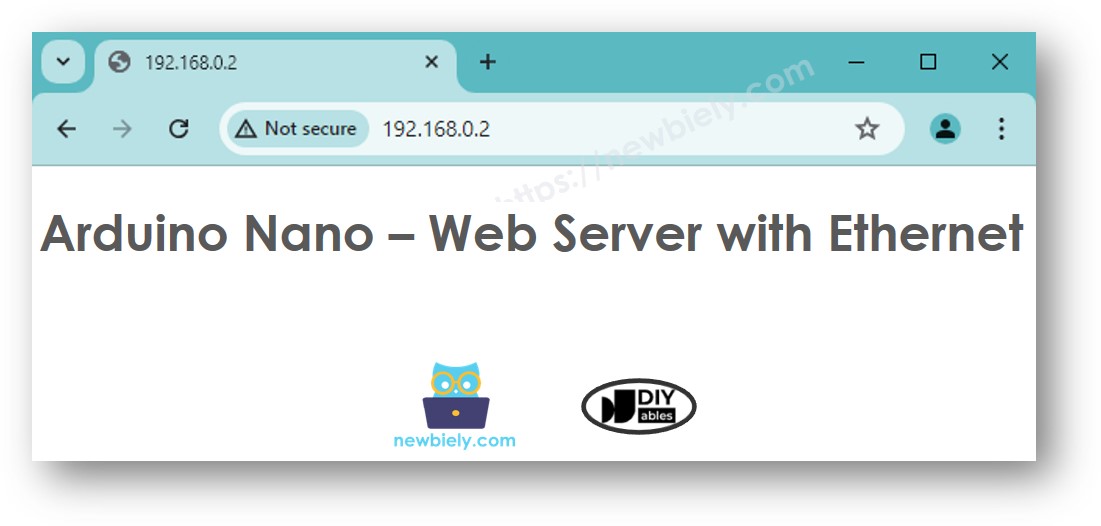
- Copie o endereço IP acima e cole na barra de endereços do seu navegador. Você verá uma página web simples exibida pelo Arduino Nano.