Arduino Nano ESP32 - Servidor Web com Várias Páginas
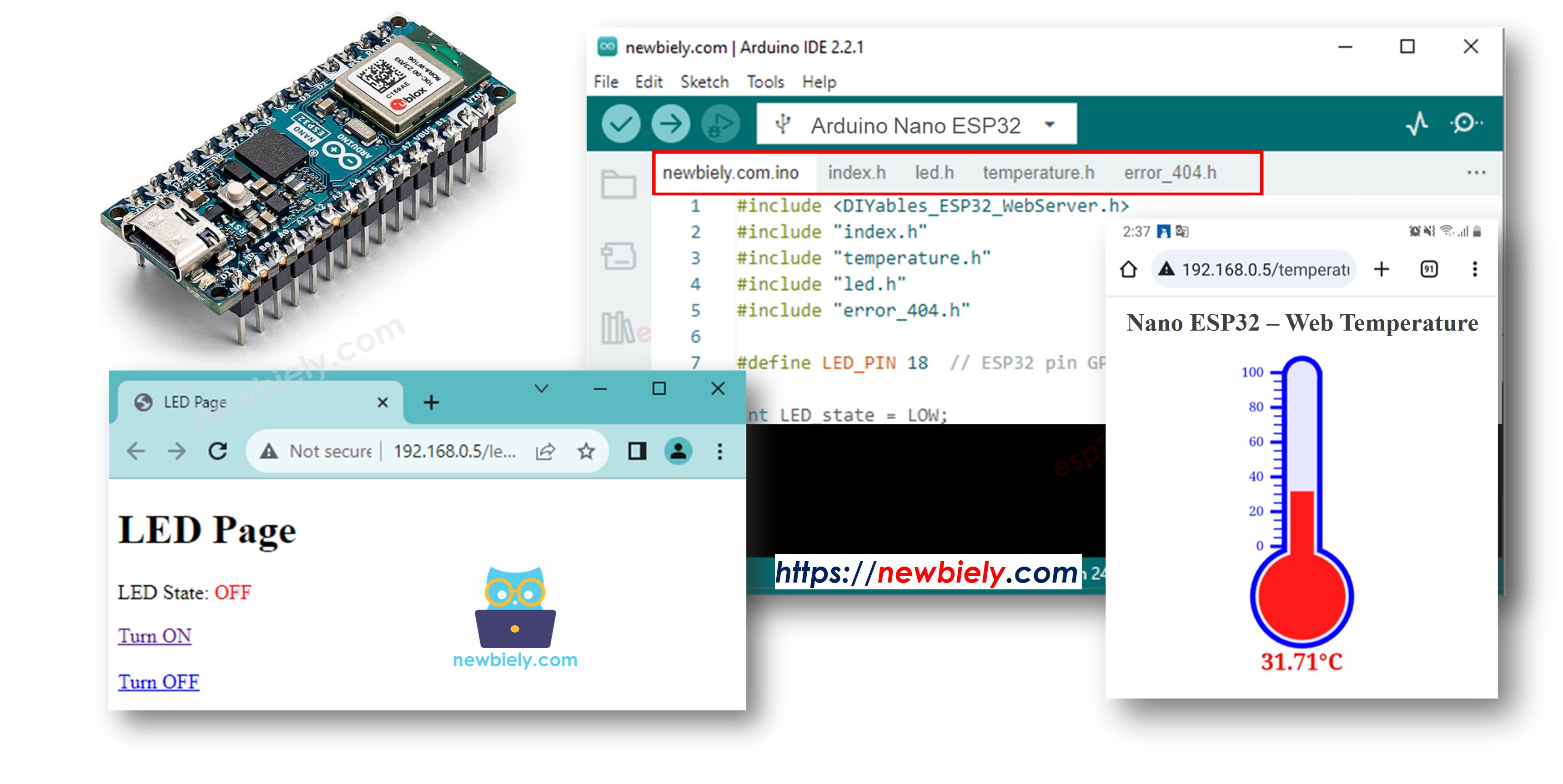
Neste tutorial, vamos descobrir como transformar um Arduino Nano ESP32 em um servidor web que consegue lidar com várias páginas ao mesmo tempo, como index.html, temperature.html, led.html, error_404.html e error_405.html...
Seguindo este tutorial, você poderá transformar seu Arduino Nano ESP32 em um servidor web com alguns recursos bem legais:
Várias páginas web ativas simultaneamente.
O conteúdo HTML (incluindo HTML, CSS e Javascript) de cada página é mantido separadamente em seu próprio arquivo na Arduino IDE.
O conteúdo HTML pode ser atualizado dinamicamente com valores de sensores em tempo real, tornando as páginas web dinâmicas e responsivas.
O servidor web permite controlar algo conectado ao Arduino Nano ESP32 pela web.
O servidor web trata códigos de erro HTTP como 404 Not Found
Pode parecer complicado, mas não se preocupe! Este tutorial oferece orientação passo a passo, e o código foi projetado para ser amigável a iniciantes, garantindo que você possa entender e criar facilmente o seu próprio servidor web com Arduino Nano ESP32.
Divulgação: Alguns dos links desta seção são links de afiliado da Amazon. Podemos receber uma comissão pelas compras feitas por meio desses links, sem custo adicional para você. Agradecemos o seu apoio.
Sobre o Arduino Nano ESP32 e o Servidor Web
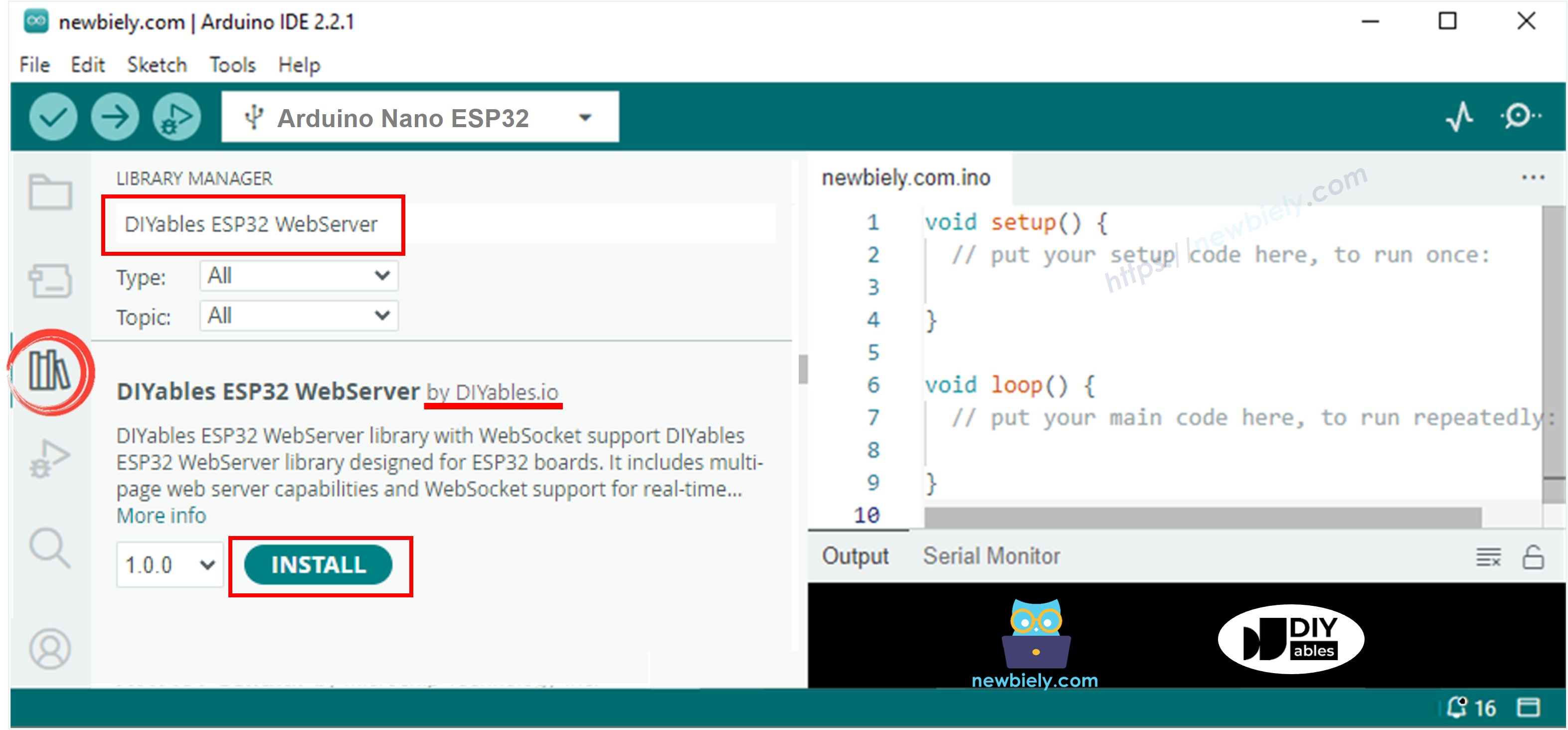
Se você não está familiarizado com o Arduino Nano ESP32 e o Servidor Web (incluindo pinagem, como funciona e programação), você pode aprender sobre eles nos seguintes tutoriais:
Código Arduino Nano ESP32 - Servidor Web de várias páginas
Abaixo está o código completo do Arduino Nano ESP32 que cria um servidor web com várias páginas. Para simplificar, o conteúdo HTML de cada página é bem simples e incorporado diretamente no código do Arduino Nano ESP32. Em outra parte, vamos aprender como separar o conteúdo HTML de cada página em arquivos separados, deixando o código mais organizado e fácil de gerenciar.
/* * Este código de Arduino Nano ESP32 foi desenvolvido por pt.newbiely.com * Este código de Arduino Nano ESP32 é disponibilizado ao público sem nenhuma restrição. * Para tutoriais completos e diagramas de ligação, visite: * https://pt.newbiely.com/tutorials/arduino-nano-esp32/arduino-nano-esp32-web-server-multiple-pages*/#include <DIYables_ESP32_WebServer.h>#define LED_PIN D5 // The Arduino Nano ESP32 pin connected to LEDint LED_state = LOW;floatgetTemperature() {// YOUR SENSOR IMPLEMENTATION HERE// simulate the temperature valuefloat temp_x100 = random(0, 10000); // a ramdom value from 0 to 10000return temp_x100 / 100; // return the simulated temperature value from 0 to 100 in float}// WiFi credentialsconstchar WIFI_SSID[] = "YOUR_WIFI_SSID";constchar WIFI_PASSWORD[] = "YOUR_WIFI_PASSWORD";// Create web server instanceDIYables_ESP32_WebServer server;// Page handlersvoid handleHome(WiFiClient& client, const String& method, const String& request, const QueryParams& params, const String& jsonData) {Serial.println("Arduino Nano ESP32 Web Server: home page"); server.sendResponse(client, "This is the ESP32 home page");}void handleTemperature(WiFiClient& client, const String& method, const String& request, const QueryParams& params, const String& jsonData) {Serial.println("Arduino Nano ESP32 Web Server: temperature page");float temperature = getTemperature();String reponse = "Temperature: " + String(temperature); server.sendResponse(client, reponse.c_str());}void handleLed(WiFiClient& client, constString& method, constString& request, const QueryParams& params, constString& jsonData) {Serial.println("Arduino Nano ESP32 Web Server: LED page");// Check for the 'state' parameter in the query stringString state = "";for (int i = 0; i < params.count; i++) {if (String(params.params[i].key) == "state") { state = params.params[i].value;if (state == "on") { LED_state = HIGH; } elseif (state == "off") { LED_state = LOW; }// control LED heredigitalWrite(LED_PIN, LED_state);Serial.print(" => turning LED to ");Serial.print(state);Serial.println();break; } }String reponse = "LED state: " + String(LED_state); server.sendResponse(client, reponse.c_str());}void handleNotFound(WiFiClient& client, constString& method, constString& request, const QueryParams& params, constString& jsonData) {String response = "<!DOCTYPE html><html><head><meta charset=\"UTF-8\"><title>404 Not Found</title></head><body>"; response += "<h1>404 - Page Not Found</h1>"; response += "<p>Sorry, we couldn't find that page!</p>"; response += "<a href=\"/\">Return to Home</a></body></html>"; server.sendResponse(client, response.c_str());}voidsetup() {Serial.begin(9600);delay(1000);pinMode(LED_PIN, OUTPUT);Serial.println("ESP32 Web Server");// Configure routes server.addRoute("/", handleHome); server.addRoute("/temperature.html", handleTemperature); server.addRoute("/led.html", handleLed);// Set custom 404 handler server.setNotFoundHandler(handleNotFound);// Start web server with WiFi connection server.begin(WIFI_SSID, WIFI_PASSWORD);}voidloop() { server.handleClient();}
Passos Rápidos
Para começar com o Arduino Nano ESP32, siga estes passos:
Observe que você precisa trocar o 192.168.0.2 pelo endereço IP que você obteve no Serial Monitor.
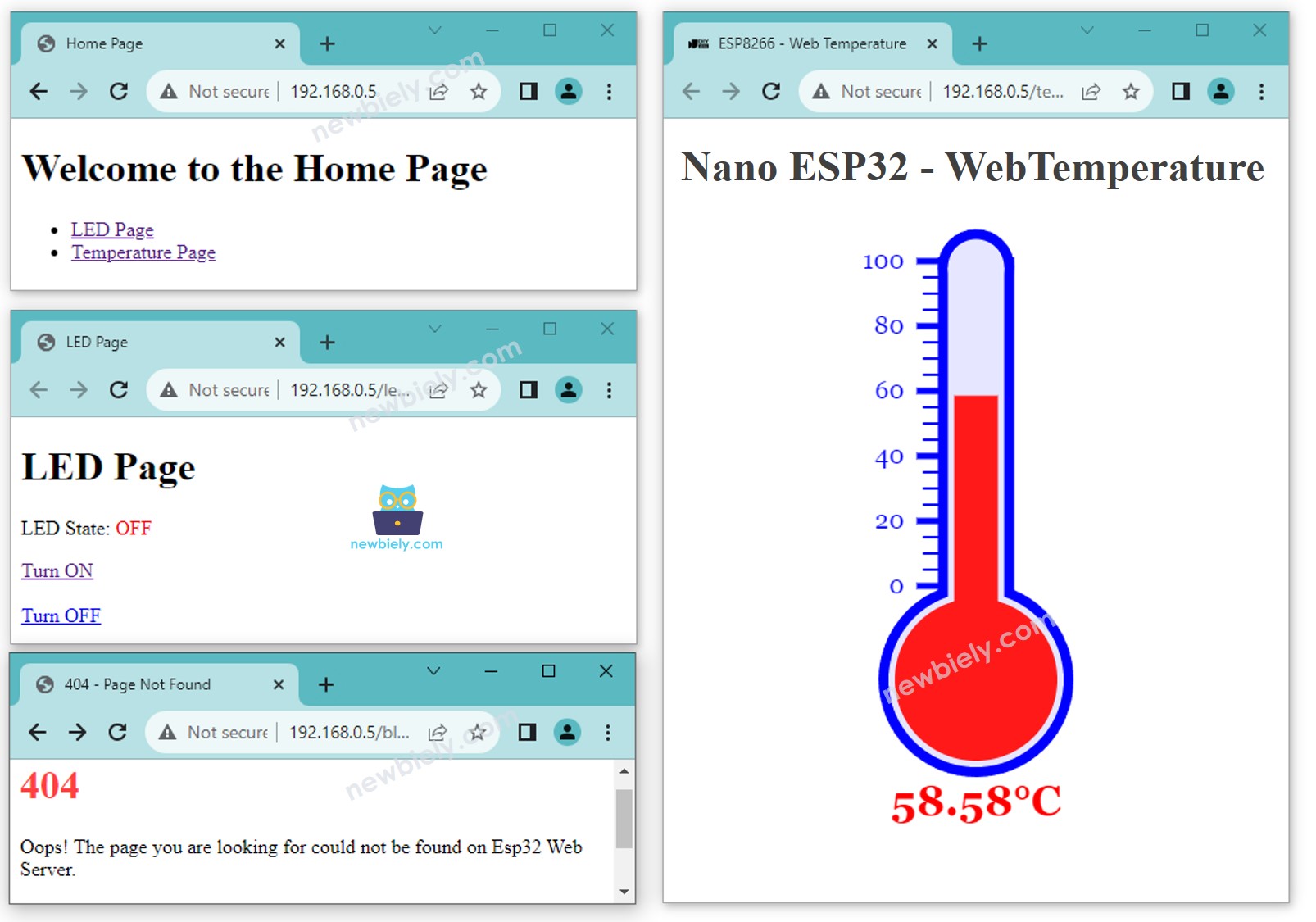
Você verá as seguintes páginas: página inicial, página do led, página da temperatura e página Not Found
Você também pode conferir a saída no Serial Monitor
Newbiely | Arduino IDE 2.3.8
──
☐
✕
File
Edit
Sketch
Tools
Help
Arduino Nano ESP32
Newbiely.ino
···
8Serial.println("Hello World!");
Output
Serial Monitor
Message (Enter to send message to 'Arduino Nano ESP32' on 'COM15')
New Line
9600 baud
Connecting to WiFi...
Connected to WiFi
Arduino Nano ESP32 Web Server's IP address: 192.168.0.2
Arduino Nano ESP32 Web server started
Web Server: home page
Web Server: LED page
Web Server: LED page => turning LED to on
Web Server: LED page => turning LED to off
Web Server: temperature page
Web Server: Not Found
Ln 11, Col 1
Arduino Nano ESP32 on COM15
2
O código anterior tem um conteúdo HTML muito simples para cada página. Mas se quisermos fazer uma interface sofisticada com muito HTML, o código pode ficar grande e bagunçado. Para simplificar, vamos aprender como separar o HTML do código do Arduino Nano ESP32. Isso nos permite manter o HTML em arquivos separados, facilitando o gerenciamento e o trabalho com ele.
Código Arduino Nano ESP32 - Servidor Web completo de várias páginas
Abra a Arduino IDE.
Crie um novo sketch e dê um nome a ele, por exemplo, ESP32WebServer.ino.
Copie o código fornecido e cole-o nesse arquivo.
/* * Este código de Arduino Nano ESP32 foi desenvolvido por pt.newbiely.com * Este código de Arduino Nano ESP32 é disponibilizado ao público sem nenhuma restrição. * Para tutoriais completos e diagramas de ligação, visite: * https://pt.newbiely.com/tutorials/arduino-nano-esp32/arduino-nano-esp32-web-server-multiple-pages*/#include <DIYables_ESP32_WebServer.h>#include"index.h"#include"temperature.h"#include"led.h"#include"error_404.h"#define LED_PIN D5 // The Arduino Nano ESP32 pin connected to LEDint LED_state = LOW;floatgetTemperature() {// YOUR SENSOR IMPLEMENTATION HERE// simulate the temperature valuefloat temp_x100 = random(0, 10000); // a ramdom value from 0 to 10000return temp_x100 / 100; // return the simulated temperature value from 0 to 100 in float}// WiFi credentialsconstchar WIFI_SSID[] = "YOUR_WIFI_SSID";constchar WIFI_PASSWORD[] = "YOUR_WIFI_PASSWORD";// Create web server instanceDIYables_ESP32_WebServer server;// Page handlersvoid handleHome(WiFiClient& client, const String& method, const String& request, const QueryParams& params, const String& jsonData) {Serial.println("Arduino Nano ESP32 Web Server: home page"); server.sendResponse(client, HTML_CONTENT_HOME);}void handleTemperature(WiFiClient& client, const String& method, const String& request, const QueryParams& params, const String& jsonData) {Serial.println("Arduino Nano ESP32 Web Server: temperature page");float temperature = getTemperature();String html = HTML_CONTENT_TEMPERATURE; // Use the HTML content from the temperature.h file html.replace("%TEMPERATURE_VALUE%", String(temperature)); // update the temperature value server.sendResponse(client, html.c_str());}void handleLed(WiFiClient& client, const String& method, const String& request, const QueryParams& params, const String& jsonData) {Serial.println("Arduino Nano ESP32 Web Server: LED page");// Check for the 'state' parameter in the query stringString state = "";for (int i = 0; i < params.count; i++) {if (String(params.params[i].key) == "state") { state = params.params[i].value;if (state == "on") { LED_state = HIGH; } elseif (state == "off") { LED_state = LOW; }// control LED heredigitalWrite(LED_PIN, LED_state);Serial.print(" => turning LED to ");Serial.print(state);Serial.println();break; } }String html = HTML_CONTENT_LED; // Use the HTML content from the led.h file html.replace("%LED_STATE%", LED_state ? "ON" : "OFF"); // update the LED state server.sendResponse(client, html.c_str());}void handleNotFound(WiFiClient& client, const String& method, const String& request, const QueryParams& params, const String& jsonData) {// Handle 404 Not Found errorSerial.println("Arduino Nano ESP32 Web Server: Not Found");// Use the HTML content from the error_404.h file server.sendResponse(client, HTML_CONTENT_404);}voidsetup() {Serial.begin(9600);delay(1000);pinMode(LED_PIN, OUTPUT);Serial.println("Arduino Nano ESP32 Web Server");// Configure routes server.addRoute("/", handleHome); server.addRoute("/temperature.html", handleTemperature); server.addRoute("/led.html", handleLed);// Set custom 404 handler server.setNotFoundHandler(handleNotFound);// Start web server with WiFi connection server.begin(WIFI_SSID, WIFI_PASSWORD);}voidloop() { server.handleClient();}
Altere as informações de WiFi (SSID e senha) no código para as suas
Crie o arquivo index.h na Arduino IDE da seguinte forma:
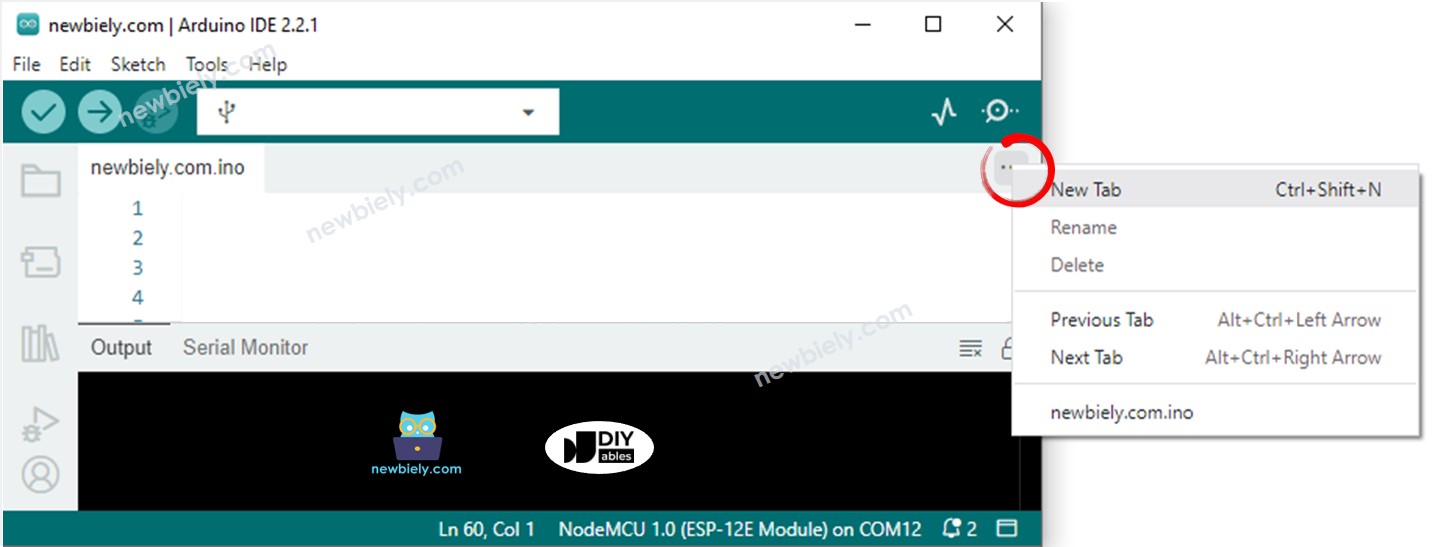
Clique no botão logo abaixo do ícone do serial monitor e escolha New Tab, ou use as teclas Ctrl+Shift+N.
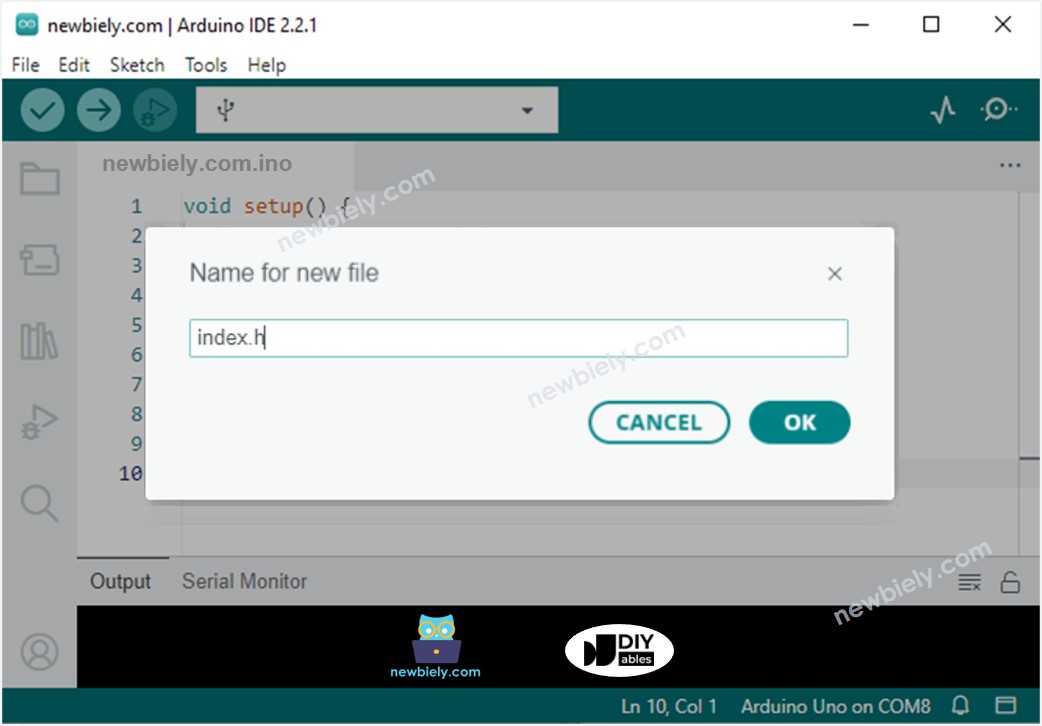
Dê ao arquivo o nome index.h e clique no botão OK
Copie o código abaixo e cole-o no arquivo index.h.
/* * Este código de Arduino Nano ESP32 foi desenvolvido por pt.newbiely.com * Este código de Arduino Nano ESP32 é disponibilizado ao público sem nenhuma restrição. * Para tutoriais completos e diagramas de ligação, visite: * https://pt.newbiely.com/tutorials/arduino-nano-esp32/arduino-nano-esp32-web-server-multiple-pages*/constchar *HTML_CONTENT_HOME = R"=====(<!DOCTYPE html><html lang="en"><head> <meta charset="UTF-8"> <meta name="viewport" content="width=device-width, initial-scale=1.0"> <link rel="icon" href="data:,"> <title>Home Page</title></head><body> <h1>Welcome to the Home Page</h1> <ul> <li><a href="/led.html">LED Page</a></li> <li><a href="/temperature.html">Temperature Page</a></li> </ul></body></html>)=====";
Da mesma forma, crie o arquivo led.h na Arduino IDE com o seguinte conteúdo.
/* * Este código de Arduino Nano ESP32 foi desenvolvido por pt.newbiely.com * Este código de Arduino Nano ESP32 é disponibilizado ao público sem nenhuma restrição. * Para tutoriais completos e diagramas de ligação, visite: * https://pt.newbiely.com/tutorials/arduino-nano-esp32/arduino-nano-esp32-web-server-multiple-pages*/constchar *HTML_CONTENT_LED = R"=====(<!DOCTYPE html><html lang="en"><head> <meta charset="UTF-8"> <meta name="viewport" content="width=device-width, initial-scale=1.0"> <link rel="icon" href="data:,"> <title>LED Page</title></head><body> <h1>LED Page</h1> <p>LED State: <span style="color: red;">%LED_STATE%</span></p> <a href='/led.html?state=on'>Turn ON</a> <br><br> <a href='/led.html?state=off'>Turn OFF</a></body></html>)=====";
Da mesma forma, crie o arquivo temperature.h na Arduino IDE com o seguinte conteúdo.
/* * Este código de Arduino Nano ESP32 foi desenvolvido por pt.newbiely.com * Este código de Arduino Nano ESP32 é disponibilizado ao público sem nenhuma restrição. * Para tutoriais completos e diagramas de ligação, visite: * https://pt.newbiely.com/tutorials/arduino-nano-esp32/arduino-nano-esp32-web-server-multiple-pages*/constchar *HTML_CONTENT_TEMPERATURE = R"=====(<!DOCTYPE html><html><head><title>Arduino Nano ESP32 - Web Temperature</title><meta name="viewport" content="width=device-width, initial-scale=0.7, maximum-scale=0.7"><meta charset="utf-8"><link rel="icon" href="https://diyables.io/images/page/diyables.svg"><style>body { font-family: "Georgia"; text-align: center; font-size: width/2pt;}h1 { font-weight: bold; font-size: width/2pt;}h2 { font-weight: bold; font-size: width/2pt;}button { font-weight: bold; font-size: width/2pt;}</style><script>var cvs_width = 200, cvs_height = 450;function init() { var canvas = document.getElementById("cvs"); canvas.width = cvs_width; canvas.height = cvs_height + 50; var ctx = canvas.getContext("2d"); ctx.translate(cvs_width/2, cvs_height - 80); update_view(%TEMPERATURE_VALUE%);}function update_view(temp) { var canvas = document.getElementById("cvs"); var ctx = canvas.getContext("2d"); var radius = 70; var offset = 5; var width = 45; var height = 330; ctx.clearRect(-cvs_width/2, -350, cvs_width, cvs_height); ctx.strokeStyle="blue"; ctx.fillStyle="blue";//5-step Degree var x = -width/2; ctx.lineWidth=2;for (var i = 0; i <= 100; i+=5) { var y = -(height - radius)*i/100 - radius - 5; ctx.beginPath(); ctx.lineTo(x, y); ctx.lineTo(x - 20, y); ctx.stroke(); }//20-step Degree ctx.lineWidth=5;for (var i = 0; i <= 100; i+=20) { var y = -(height - radius)*i/100 - radius - 5; ctx.beginPath(); ctx.lineTo(x, y); ctx.lineTo(x - 25, y); ctx.stroke(); ctx.font="20px Georgia"; ctx.textBaseline="middle"; ctx.textAlign="right"; ctx.fillText(i.toString(), x - 35, y); }// shape ctx.lineWidth=16; ctx.beginPath(); ctx.arc(0, 0, radius, 0, 2 * Math.PI); ctx.stroke(); ctx.beginPath(); ctx.rect(-width/2, -height, width, height); ctx.stroke(); ctx.beginPath(); ctx.arc(0, -height, width/2, 0, 2 * Math.PI); ctx.stroke(); ctx.fillStyle="#e6e6ff"; ctx.beginPath(); ctx.arc(0, 0, radius, 0, 2 * Math.PI); ctx.fill(); ctx.beginPath(); ctx.rect(-width/2, -height, width, height); ctx.fill(); ctx.beginPath(); ctx.arc(0, -height, width/2, 0, 2 * Math.PI); ctx.fill(); ctx.fillStyle="#ff1a1a"; ctx.beginPath(); ctx.arc(0, 0, radius - offset, 0, 2 * Math.PI); ctx.fill(); temp = Math.round(temp * 100) / 100; var y = (height - radius)*temp/100.0 + radius + 5; ctx.beginPath(); ctx.rect(-width/2 + offset, -y, width - 2*offset, y); ctx.fill(); ctx.fillStyle="red"; ctx.font="bold 34px Georgia"; ctx.textBaseline="middle"; ctx.textAlign="center"; ctx.fillText(temp.toString() + "°C", 0, 100);}window.onload = init;</script></head><body><h1>Arduino Nano ESP32 - Web Temperature</h1><canvas id="cvs"></canvas></body></html>)=====";
Da mesma forma, crie o arquivo error_404.h na Arduino IDE com o seguinte conteúdo.
/* * Este código de Arduino Nano ESP32 foi desenvolvido por pt.newbiely.com * Este código de Arduino Nano ESP32 é disponibilizado ao público sem nenhuma restrição. * Para tutoriais completos e diagramas de ligação, visite: * https://pt.newbiely.com/tutorials/arduino-nano-esp32/arduino-nano-esp32-web-server-multiple-pages*/constchar *HTML_CONTENT_404 = R"=====(<!DOCTYPE html><html lang="en"><head> <meta charset="UTF-8"> <meta name="viewport" content="width=device-width, initial-scale=1.0"> <link rel="icon" href="data:,"> <title>404 - Page Not Found</title> <style> h1 {color: #ff4040;} </style></head><body> <h1>404</h1> <p>Oops! The page you are looking for could not be found on Esp32 Web Server.</p> <p>Please check the URL or go back to the <a href="/">homepage</a>.</p> <p>Or check <a href="https://esp32io.com/tutorials/esp32-web-server-multiple-pages"> Esp32 Web Server</a> tutorial.</p></body></html>)=====";
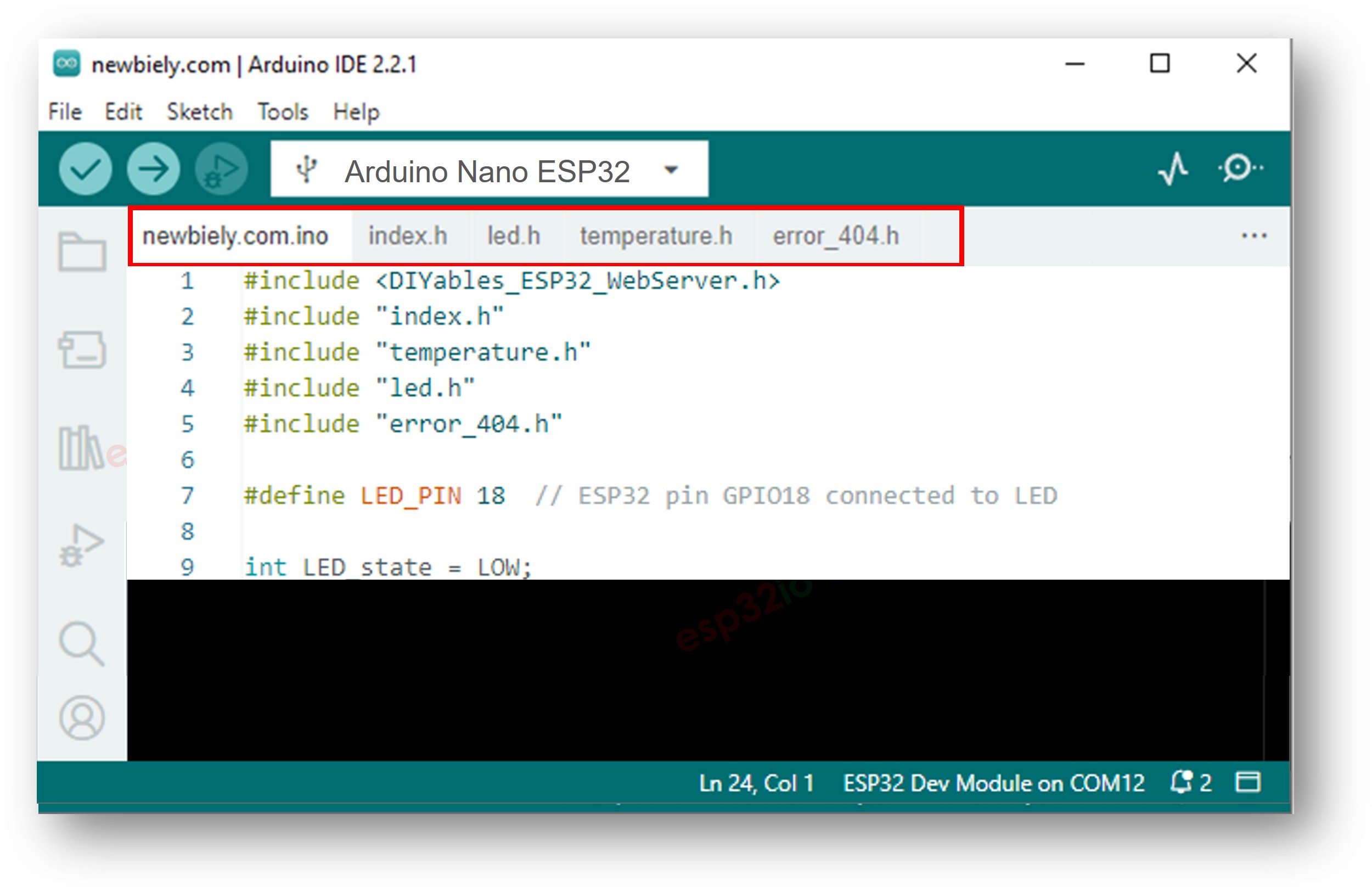
Agora você tem vários arquivos na Arduino IDE como abaixo:
Clique no botão Upload na Arduino IDE para enviar o código ao Arduino Nano ESP32
Acesse as páginas web da placa Arduino Nano ESP32 pelo navegador, uma por uma, como antes. Você verá todas as páginas web como abaixo:
Fique à vontade para compartilhar o link deste tutorial. Porém, por favor, não use nosso conteúdo em outros sites. Investimos muito esforço e tempo para criar este conteúdo, por favor respeite nosso trabalho!