Web RTC com Arduino Nano ESP32 e a Biblioteca DIYables ESP32 WebApps

Visão Geral

Este tutorial aborda a classe DIYablesWebRTCPage da Biblioteca DIYables ESP32 WebApps. A página do navegador exibe a hora atual do RTC do Arduino Nano ESP32 ao lado da hora local do navegador e calcula o desvio entre as duas. Um único botão envia a hora local do navegador para a placa, que atualiza o módulo RTC.

A placa precisa de um módulo RTC de hardware DS3231 conectado por I2C. A biblioteca RTClib da Adafruit cuida da leitura e da escrita da hora do lado da placa.
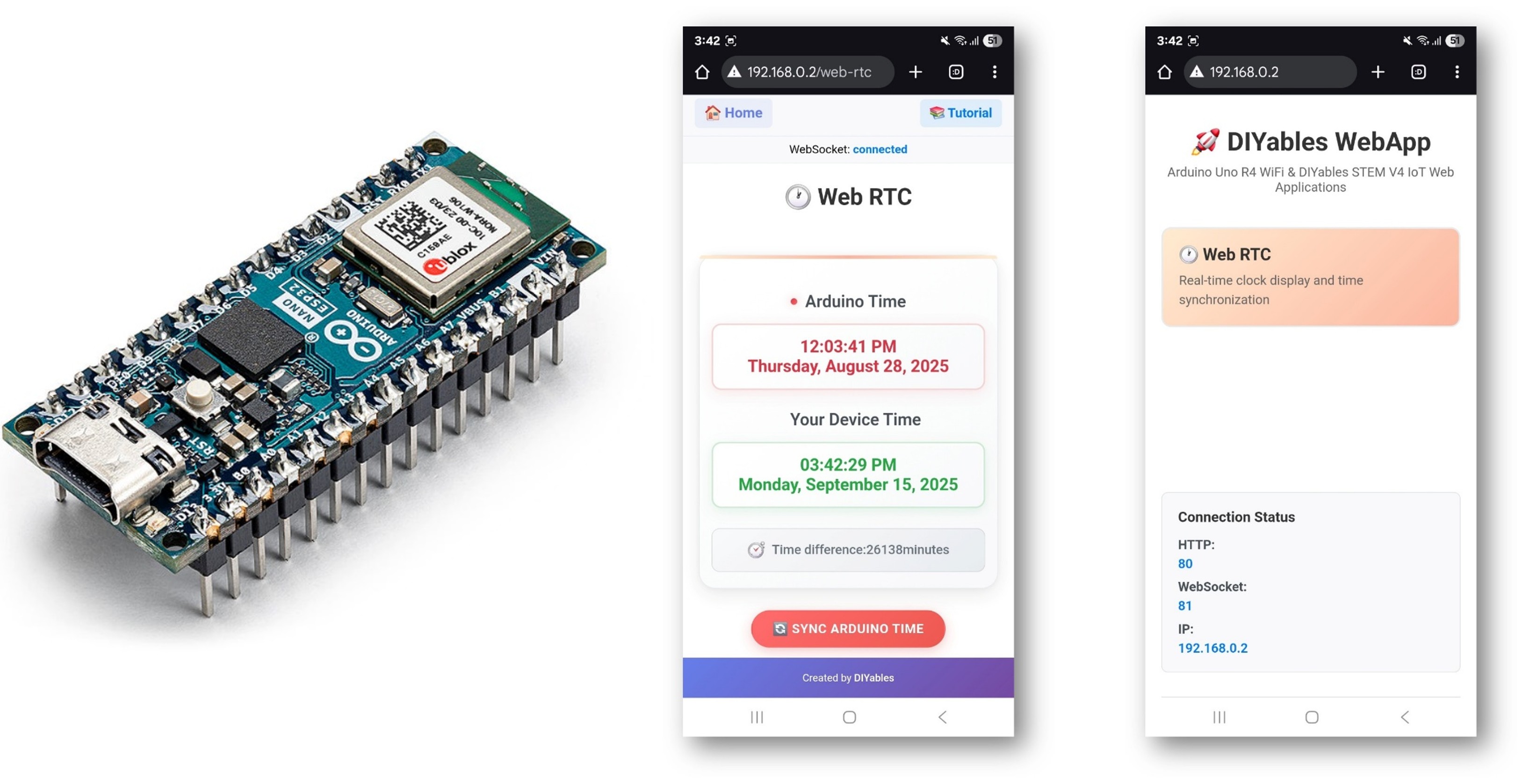
Web RTC do Arduino Nano ESP32

O Que Este Tutorial Aborda

  • Ligar um módulo RTC DS3231 ao Arduino Nano ESP32
  • Instalar a dependência RTClib
  • Ler e exibir a hora do RTC no navegador
  • Sincronizar o RTC da placa a partir do navegador com o toque de um botão

Hardware Necessário

1×Arduino Nano ESP32
1×Cabo USB Tipo-A para Tipo-C (para PC com USB-A)
1×Cabo USB Tipo-C para Tipo-C (para PC com USB-C)
1×Módulo Relógio de Tempo Real (RTC) DS3231
1×Bateria CR2032
1×Fios Jumper
1×Protoboard
1×(Recomendado) Placa de Expansão com Bornes de Parafuso para Arduino Nano
1×(Recomendado) Placa de Expansão Breakout para Arduino Nano
1×(Recomendado) Divisor de Alimentação para Arduino Nano ESP32

Or you can buy the following kits:

1×DIYables Sensor Kit (18 sensors/displays)
Divulgação: Alguns dos links desta seção são links de afiliado da Amazon. Podemos receber uma comissão pelas compras feitas por meio desses links, sem custo adicional para você. Agradecemos o seu apoio.

Diagrama de Ligação

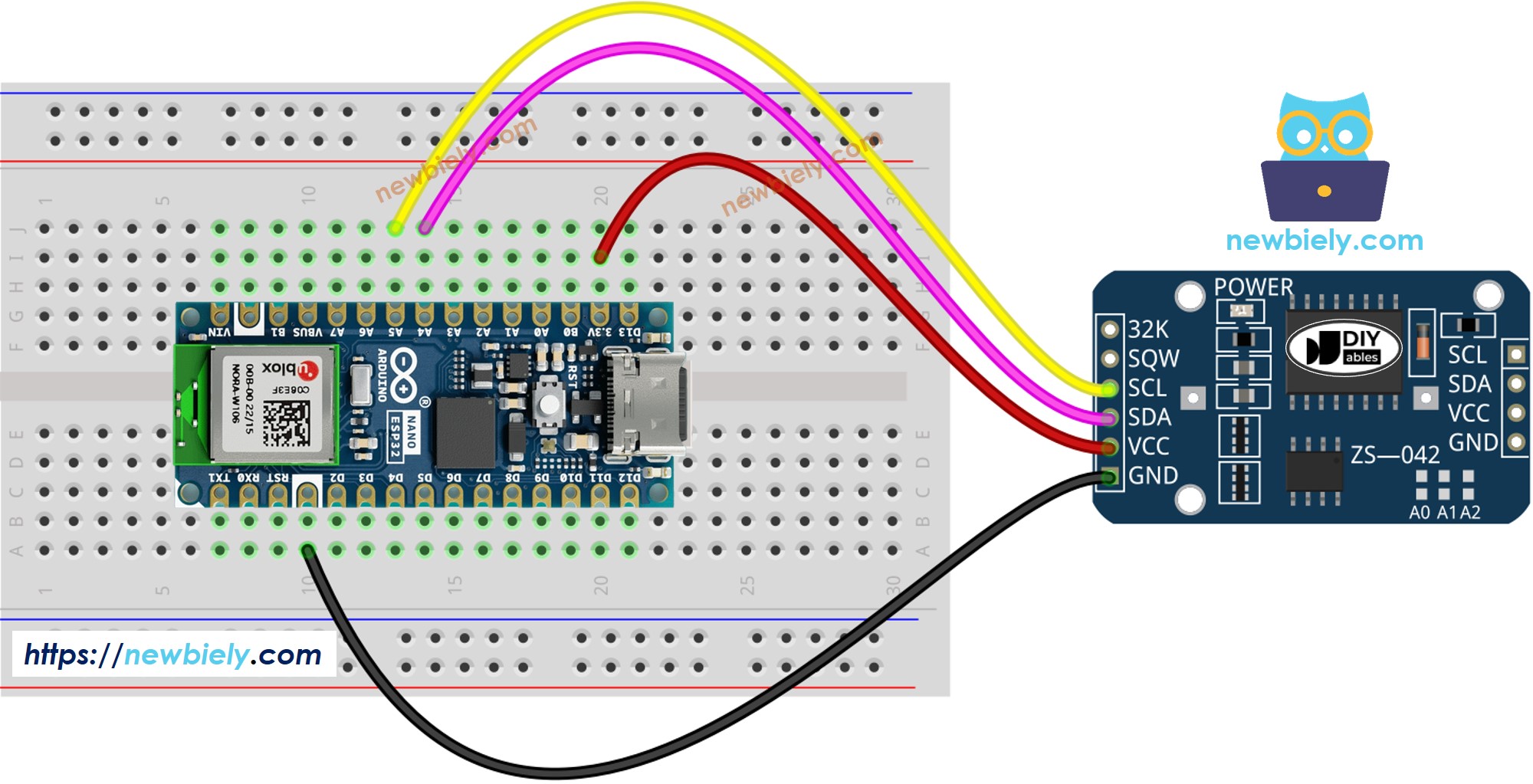
Diagrama de Ligação do Relógio de Tempo Real DS3231 com o Arduino Nano ESP32

This image is created using Fritzing. Click to enlarge image

Arduino Nano ESP32 - Módulo RTC DS3231

Módulo RTC DS1307 Arduino Nano ESP32
Vin 3.3V
GND GND
SDA GPIO21
SCL GPIO22

Passos

Siga estas instruções passo a passo:

  • Se esta é a primeira vez que você usa o Arduino Nano ESP32, consulte o tutorial sobre como configurar o ambiente de desenvolvimento do Arduino Nano ESP32.
  • Conecte a placa Arduino Nano ESP32 ao seu computador usando um cabo USB.
  • Abra o Arduino IDE no seu computador.
  • Selecione a placa apropriada (por exemplo, Arduino Nano ESP32) e a porta COM.
  • Vá até o ícone Libraries na barra à esquerda do Arduino IDE.
  • Pesquise "DIYables ESP32 WebApps" e encontre a Biblioteca DIYables ESP32 WebApps da DIYables
  • Clique no botão Install para instalar a biblioteca.
  • Search for DIYables ESP32 WebApps created by DIYables and click the Install button.
∞
Newbiely | Arduino IDE 2.3.8
──
☐
✕
File
Edit
Sketch
Tools
Help
Arduino Nano ESP32
Library Manager
Type:
All
Topic:
All
DIYables ESP32 WebApps by DIYables
A comprehensive library designed for ESP32 that provides multiple professional web applications including Web Monitor, Chat, Digital Pin Control, Sliders, Joystick, Analog Gauge, Rotator Control, and Temperature Display via WebSocket communication. Features modular architecture for memory efficiency, automatic config handling, and perfect for IoT projects, robotics, sensor monitoring, servo/stepper control, temperature monitoring, and remote ESP32 control. More info
1.0.1
INSTALL
Newbiely.ino
···
1 void setup() {
Output
Serial Monitor
Ln 1, Col 1
Arduino Nano ESP32 on COM15
1
  • Você será solicitado a instalar algumas outras dependências da biblioteca
  • Clique no botão Install All para instalar todas as dependências da biblioteca.
  • Pesquise "RTClib" e encontre a biblioteca RTC da Adafruit
  • Clique no botão Install para instalar a biblioteca RTC.
  • Search for RTClib created by Adafruit and click the Install button.
∞
Newbiely | Arduino IDE 2.3.8
──
☐
✕
File
Edit
Sketch
Tools
Help
Arduino Nano ESP32
Library Manager
Type:
All
Topic:
All
RTClib by Adafruit
Works with DS1307, DS3231, PCF8523, PCF8563 on multiple architectures More info
2.1.3
INSTALL
Newbiely.ino
···
1 void setup() {
Output
Serial Monitor
Ln 1, Col 1
Arduino Nano ESP32 on COM15
1
  • Você pode ser solicitado a instalar dependências da biblioteca
  • Instale todas as dependências da biblioteca clicando no botão Install All.
  • No Arduino IDE, vá até o exemplo File Examples DIYables ESP32 WebApps WebRTC, ou copie o código acima e cole no editor do Arduino IDE
/* * DIYables WebApp Library - Web RTC Example * * This example demonstrates the Web RTC feature: * - Real-time clock display for both ESP32 and client device * - One-click time synchronization from web browser to ESP32 * - Hardware RTC integration for persistent timekeeping * - Visual time difference monitoring * * Hardware Required: * - ESP32 development board * - DS3231 RTC module (connected via I2C) * * Required Libraries: * - RTClib library (install via Library Manager) * * Setup: * 1. Connect DS3231 RTC module to ESP32 I2C pins (SDA/SCL) * 2. Install RTClib library in Arduino IDE * 3. Update WiFi credentials below * 4. Upload the sketch to your ESP32 * 5. Open Serial Monitor to see the IP address * 6. Navigate to http://[IP_ADDRESS]/web-rtc */ #include <DIYables_ESP32_Platform.h> #include <DIYablesWebApps.h> #include <RTClib.h> // RTC object RTC_DS3231 rtc; char daysOfWeek[7][12] = { "Sunday", "Monday", "Tuesday", "Wednesday", "Thursday", "Friday", "Saturday" }; // WiFi credentials - UPDATE THESE WITH YOUR NETWORK const char WIFI_SSID[] = "YOUR_WIFI_SSID"; const char WIFI_PASSWORD[] = "YOUR_WIFI_PASSWORD"; // Create WebApp server and page instances ESP32ServerFactory serverFactory; DIYablesWebAppServer webAppsServer(serverFactory, 80, 81); DIYablesHomePage homePage; DIYablesWebRTCPage webRTCPage; void setup() { Serial.begin(9600); delay(1000); Serial.println("DIYables ESP32 WebApp - Web RTC Example"); // Initialize RTC if (!rtc.begin()) { Serial.println("RTC module is NOT found"); Serial.flush(); while (1); } // Check if RTC lost power and if so, set the time if (rtc.lostPower()) { Serial.println("RTC lost power, setting time!"); // When time needs to be set on a new device, or after a power loss, the // following line sets the RTC to the date & time this sketch was compiled rtc.adjust(DateTime(F(__DATE__), F(__TIME__))); // This line sets the RTC with an explicit date & time, for example to set // January 21, 2021 at 3am you would call: // rtc.adjust(DateTime(2021, 1, 21, 3, 0, 0)); } // Print initial RTC time DateTime initialTime = rtc.now(); Serial.print("Initial RTC Time: "); Serial.print(initialTime.year(), DEC); Serial.print("/"); Serial.print(initialTime.month(), DEC); Serial.print("/"); Serial.print(initialTime.day(), DEC); Serial.print(" ("); Serial.print(daysOfWeek[initialTime.dayOfTheWeek()]); Serial.print(") "); if (initialTime.hour() < 10) Serial.print("0"); Serial.print(initialTime.hour(), DEC); Serial.print(":"); if (initialTime.minute() < 10) Serial.print("0"); Serial.print(initialTime.minute(), DEC); Serial.print(":"); if (initialTime.second() < 10) Serial.print("0"); Serial.print(initialTime.second(), DEC); Serial.println(); // Add pages to server webAppsServer.addApp(&homePage); webAppsServer.addApp(&webRTCPage); // Optional: Add 404 page for better user experience webAppsServer.setNotFoundPage(DIYablesNotFoundPage()); // Set callback for time sync from web webRTCPage.onTimeSyncFromWeb(onTimeSyncReceived); // Set callback for time request from web webRTCPage.onTimeRequestToWeb(onTimeRequested); // Start the WebApp server if (!webAppsServer.begin(WIFI_SSID, WIFI_PASSWORD)) { while (1) { Serial.println("Failed to connect to WiFi"); delay(1000); } } } void loop() { // Handle web server webAppsServer.loop(); // Send current time to web clients and print to Serial every 1 second static unsigned long lastUpdate = 0; if (millis() - lastUpdate >= 1000) { lastUpdate = millis(); // Get current RTC time DateTime currentTime = rtc.now(); // Send time to web clients in human readable format webRTCPage.sendTimeToWeb(currentTime.year(), currentTime.month(), currentTime.day(), currentTime.hour(), currentTime.minute(), currentTime.second()); // Print time to Serial Monitor Serial.print("RTC Time: "); Serial.print(currentTime.year(), DEC); Serial.print("/"); Serial.print(currentTime.month(), DEC); Serial.print("/"); Serial.print(currentTime.day(), DEC); Serial.print(" ("); Serial.print(daysOfWeek[currentTime.dayOfTheWeek()]); Serial.print(") "); if (currentTime.hour() < 10) Serial.print("0"); Serial.print(currentTime.hour(), DEC); Serial.print(":"); if (currentTime.minute() < 10) Serial.print("0"); Serial.print(currentTime.minute(), DEC); Serial.print(":"); if (currentTime.second() < 10) Serial.print("0"); Serial.print(currentTime.second(), DEC); Serial.println(); } delay(10); } // Callback function called when web client sends time sync command void onTimeSyncReceived(unsigned long unixTimestamp) { Serial.print("Time sync received: "); Serial.println(unixTimestamp); // Convert Unix timestamp to DateTime and set RTC time DateTime newTime(unixTimestamp); rtc.adjust(newTime); Serial.println("ESP32 RTC synchronized!"); } // Callback function called when web client requests current ESP32 time void onTimeRequested() { // Get current RTC time and send to web in human readable format DateTime currentTime = rtc.now(); webRTCPage.sendTimeToWeb(currentTime.year(), currentTime.month(), currentTime.day(), currentTime.hour(), currentTime.minute(), currentTime.second()); }
  • Atualize as credenciais de WiFi no sketch:
const char WIFI_SSID[] = "YOUR_WIFI_NETWORK"; const char WIFI_PASSWORD[] = "YOUR_WIFI_PASSWORD";
  • Clique no botão Upload no Arduino IDE para fazer o upload do código para o Arduino Nano ESP32
  • Abra o Serial Monitor
  • A saída do Serial Monitor deve ser parecida com esta:
∞
Newbiely | Arduino IDE 2.3.8
──
☐
✕
File
Edit
Sketch
Tools
Help
Arduino Nano ESP32
Newbiely.ino
···
8 Serial.println("Hello World!");
Output
Serial Monitor
Message (Enter to send message to 'Arduino Nano ESP32' on 'COM15')
New Line
9600 baud
DIYables ESP32 WebApp - Web RTC Example Initial RTC Time: 2025/8/28 (Thursday) 12:00:08 INFO: Added app / INFO: Added app /web-rtc DIYables WebApp Library Platform: Arduino Nano ESP32 Network connected! IP address: 192.168.0.2 HTTP server started on port 80 Configuring WebSocket server callbacks... WebSocket server started on port 81 WebSocket URL: ws://192.168.0.2:81 WebSocket server started on port 81 ========================================== DIYables WebApp Ready! ========================================== Web Interface: http://192.168.0.2 WebSocket: ws://192.168.0.2:81 Available Applications: Home Page: http://192.168.0.2/ Web RTC: http://192.168.0.2/web-rtc ==========================================
Ln 11, Col 1
Arduino Nano ESP32 on COM15
2
  • Se nada aparecer, pressione o botão de reset da placa.
  • Digite o endereço IP exibido no Serial Monitor em um navegador na mesma rede.
  • Exemplo: http://192.168.0.2
  • A página inicial mostra um card para o aplicativo RTC:
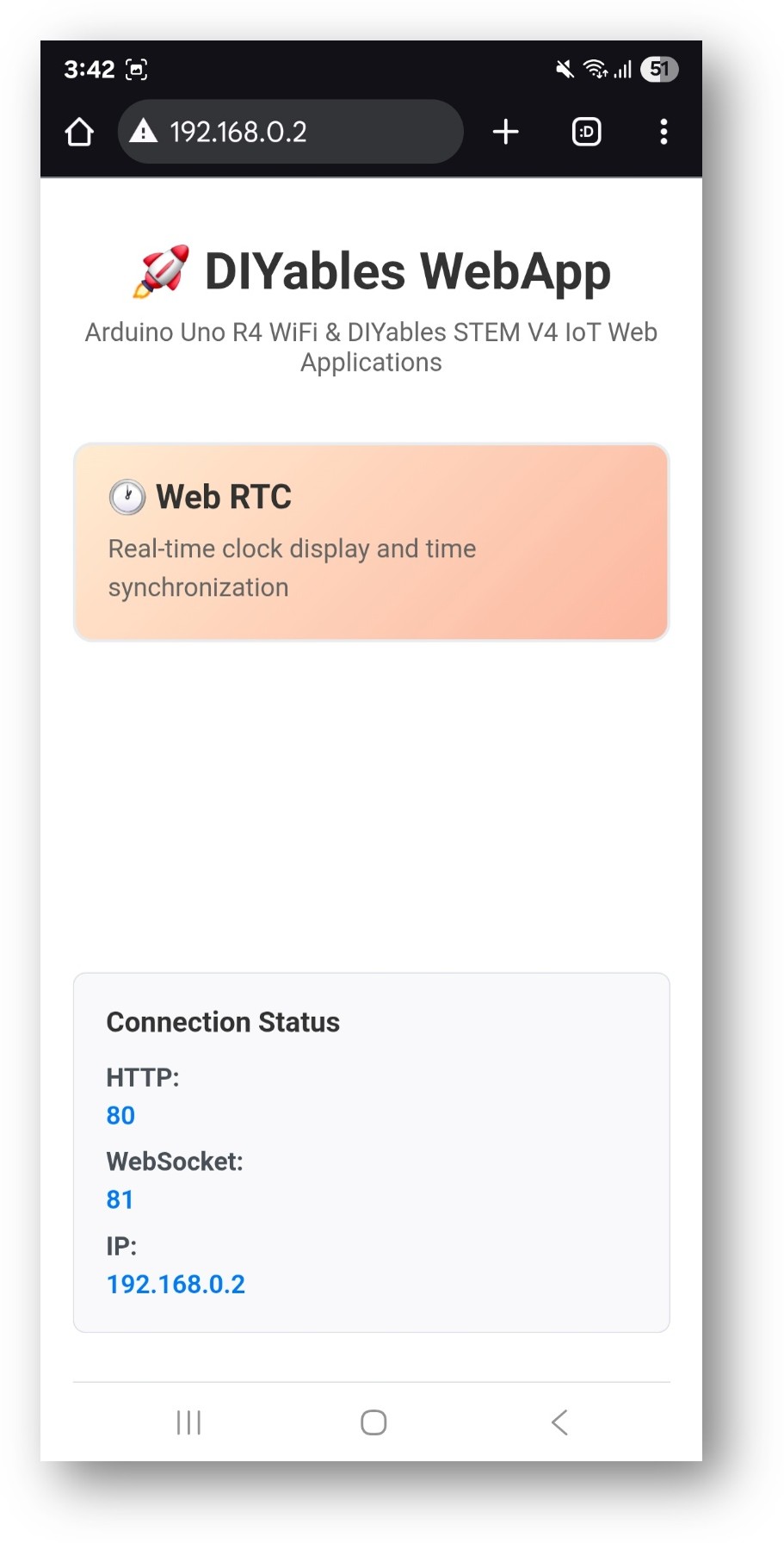
Página inicial do DIYables WebApp do Arduino Nano ESP32 com o app Web RTC
  • Selecione o card Web RTC para abrir a interface do relógio:
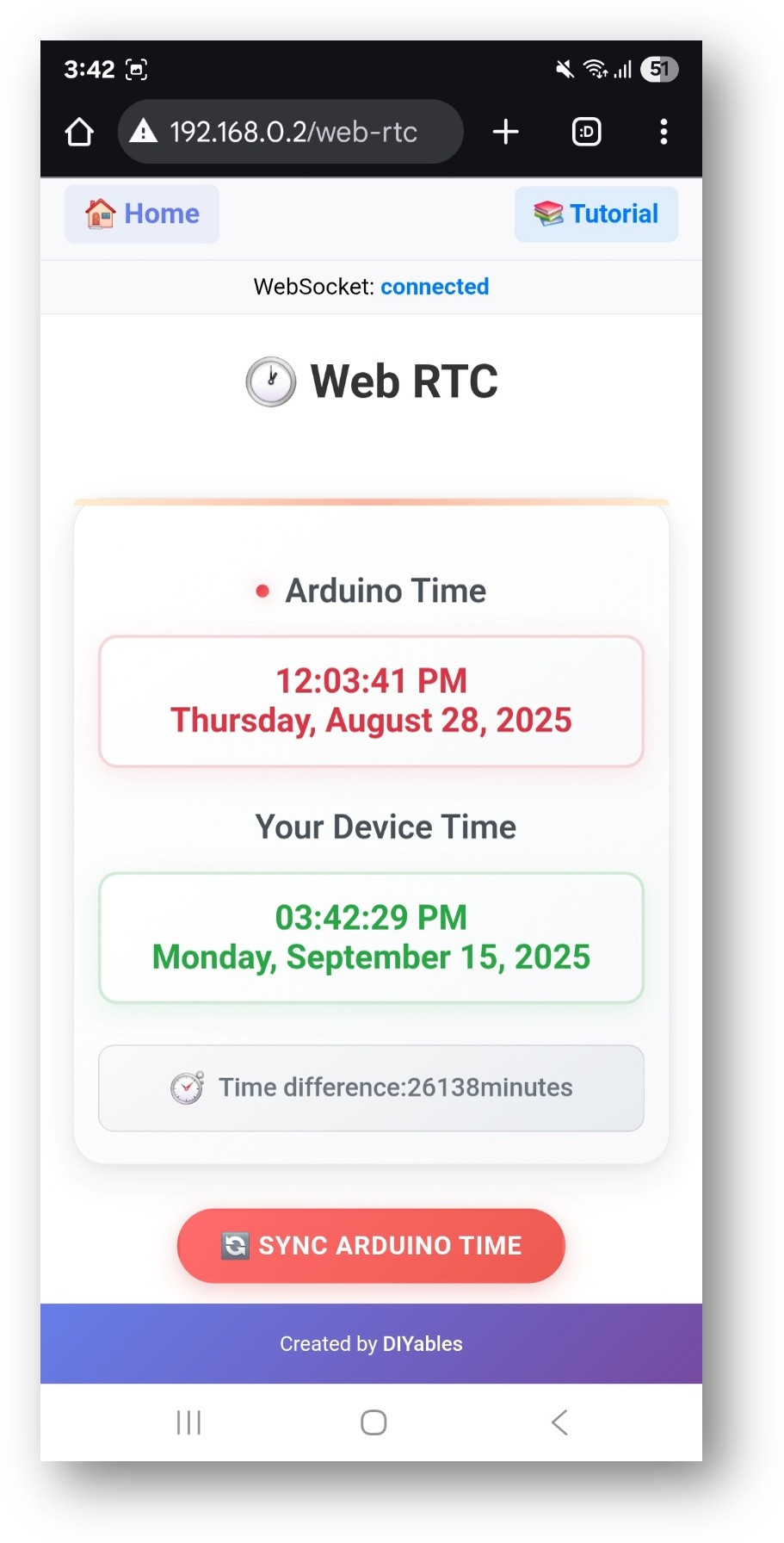
App Web RTC do DIYables WebApp do Arduino Nano ESP32
  • A página também pode ser acessada diretamente em http://192.168.0.2/web-rtc.

Usando a Interface Web

A página do RTC exibe três seções:

  • Arduino Time — a hora atual do módulo DS3231 da placa
  • Your Device Time — a hora local atual informada pelo navegador
  • Time Difference — a diferença entre as duas, em minutos

Sincronizando a Hora

Clique no botão Sync ESP32 Time para transferir a hora local do navegador para a placa:
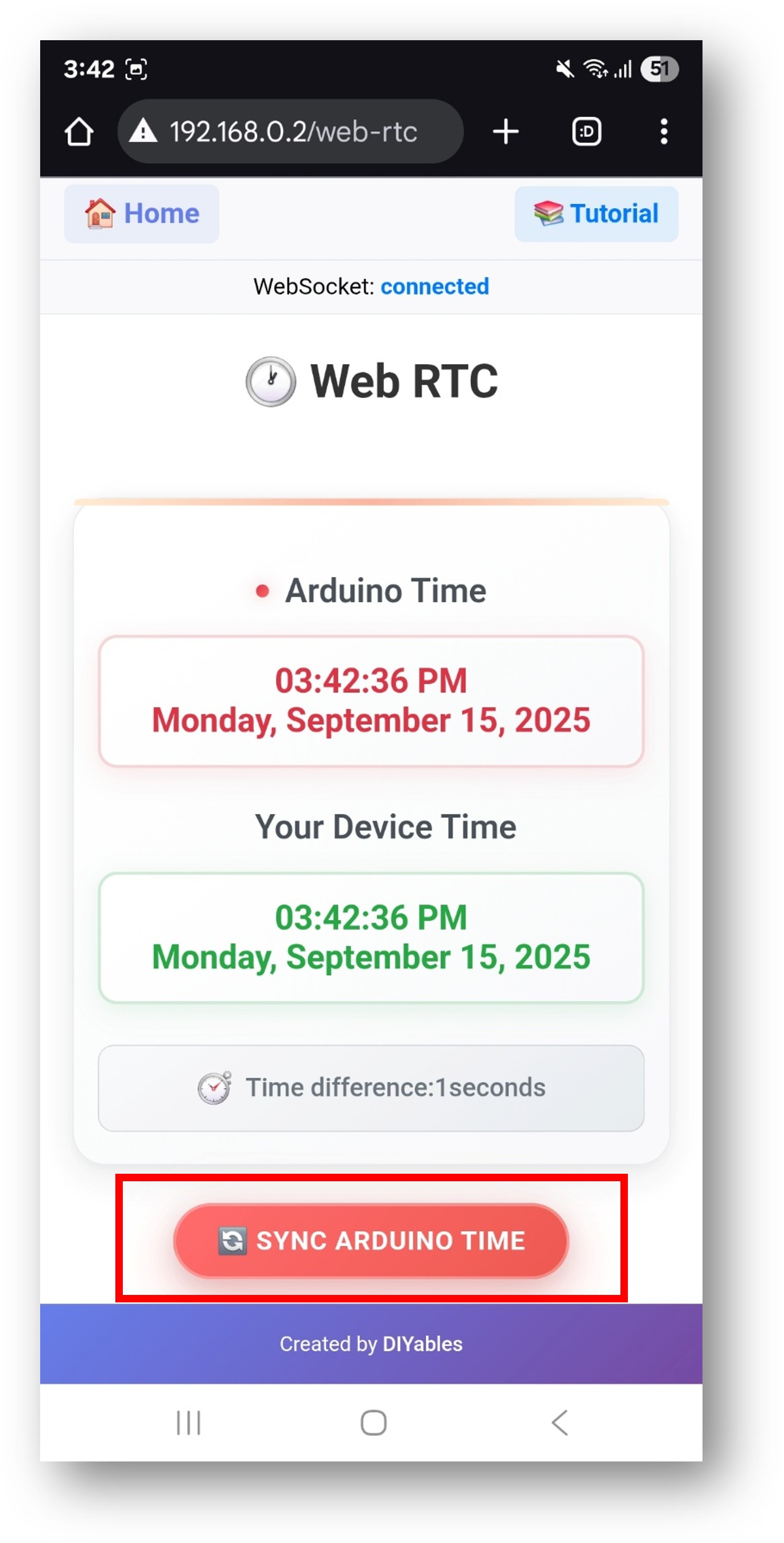
Sincronização do Web RTC do DIYables WebApp do Arduino Nano ESP32

O processo de sincronização:

  1. O navegador lê sua hora local (considerando o deslocamento do fuso horário local)
  2. O timestamp é enviado à placa por WebSocket
  3. O sketch grava a hora recebida no DS3231
  4. A página é atualizada para exibir a nova hora da placa

Após a sincronização, a diferença de tempo normalmente é de 0 a 1 minuto.

Solução de Problemas

A hora do RTC mostra um valor errado

  • O DS3231 mantém a hora pela bateria mesmo quando a placa está desligada
  • Faça uma sincronização pelo navegador para definir a hora correta
  • Verifique se a bateria CR2032 está instalada no módulo RTC

I2C não detectado

  • Verifique se a ligação de SDA e SCL corresponde à tabela acima
  • Confirme que o VCC do DS3231 está conectado a 3.3 V, não a 5 V
  • Adicione uma verificação Serial.println(rtc.isrunning()) no setup

O WebSocket cai com frequência

  • Confirme que webAppsServer.loop() é chamado a cada iteração de loop()
  • Evite atrasos longos que bloqueiem o código depois que o servidor é iniciado

Não consigo acessar a página

  • Verifique o endereço IP no Serial Monitor
  • Verifique se o dispositivo com o navegador e a placa estão na mesma rede WiFi de 2.4 GHz

※ NOSSAS MENSAGENS

  • Fique à vontade para compartilhar o link deste tutorial. Porém, por favor, não use nosso conteúdo em outros sites. Investimos muito esforço e tempo para criar este conteúdo, por favor respeite nosso trabalho!