Arduino Nano ESP32 - Botão - Debounce

Quando um botão é pressionado/solto ou quando uma chave é alternada entre ON e OFF, o estado dele muda de LOW para HIGH (ou de HIGH para LOW) uma única vez. Isso está correto?

⇒ Não, não está. Isso acontece porque, no mundo físico, quando você pressiona o botão uma única vez, o estado do botão alterna rapidamente entre LOW e HIGH várias vezes em vez de apenas uma. Essa é uma característica mecânica e física. Esse fenômeno tem um nome: chattering. O fenômeno de chattering faz o MCU (por exemplo, o ESP32) ler vários pressionamentos do botão em resposta a um único pressionamento real. Isso resulta em mau funcionamento. O processo para eliminar esse fenômeno se chama debounce. Este tutorial mostra como fazer isso.
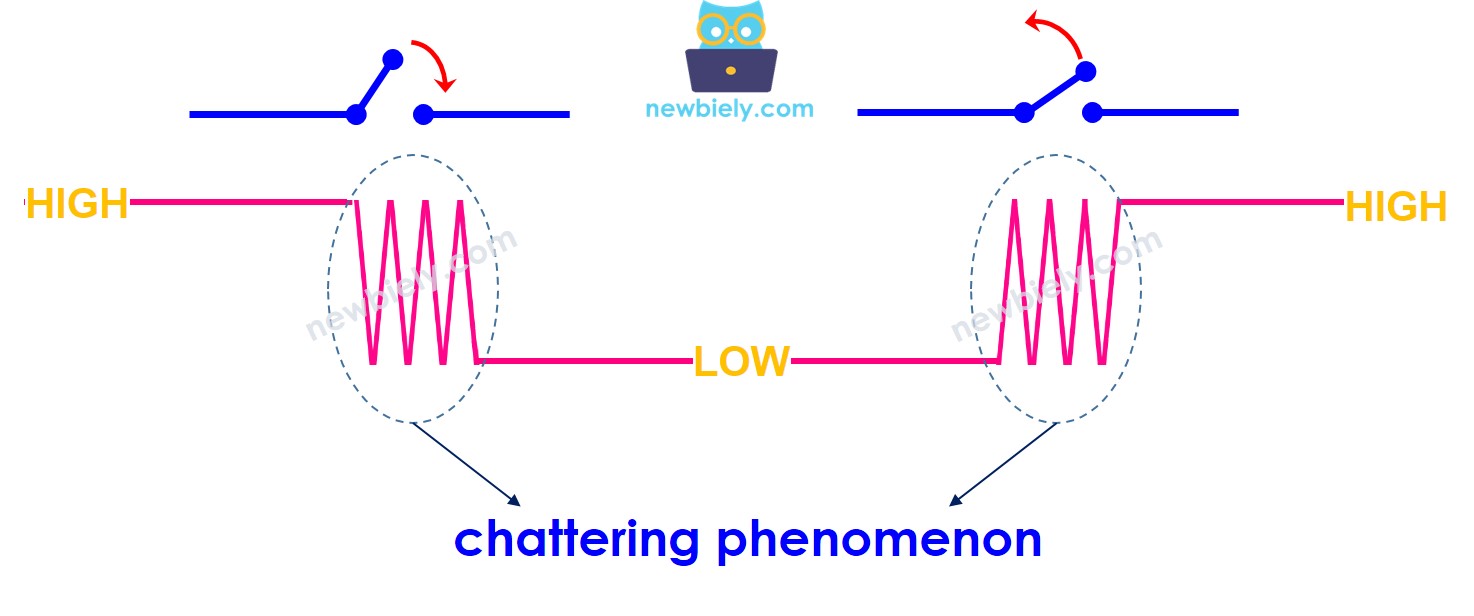
Fenômeno de chattering no Arduino Nano ESP32

Este tutorial apresenta:

Sobre o Botão

Temos tutoriais específicos sobre o botão. O tutorial contém informações detalhadas e instruções passo a passo sobre a pinagem do hardware, o princípio de funcionamento, a ligação ao ESP32, o código do Arduino Nano ESP32... Saiba mais sobre eles nos links a seguir:

Diagrama de Ligação
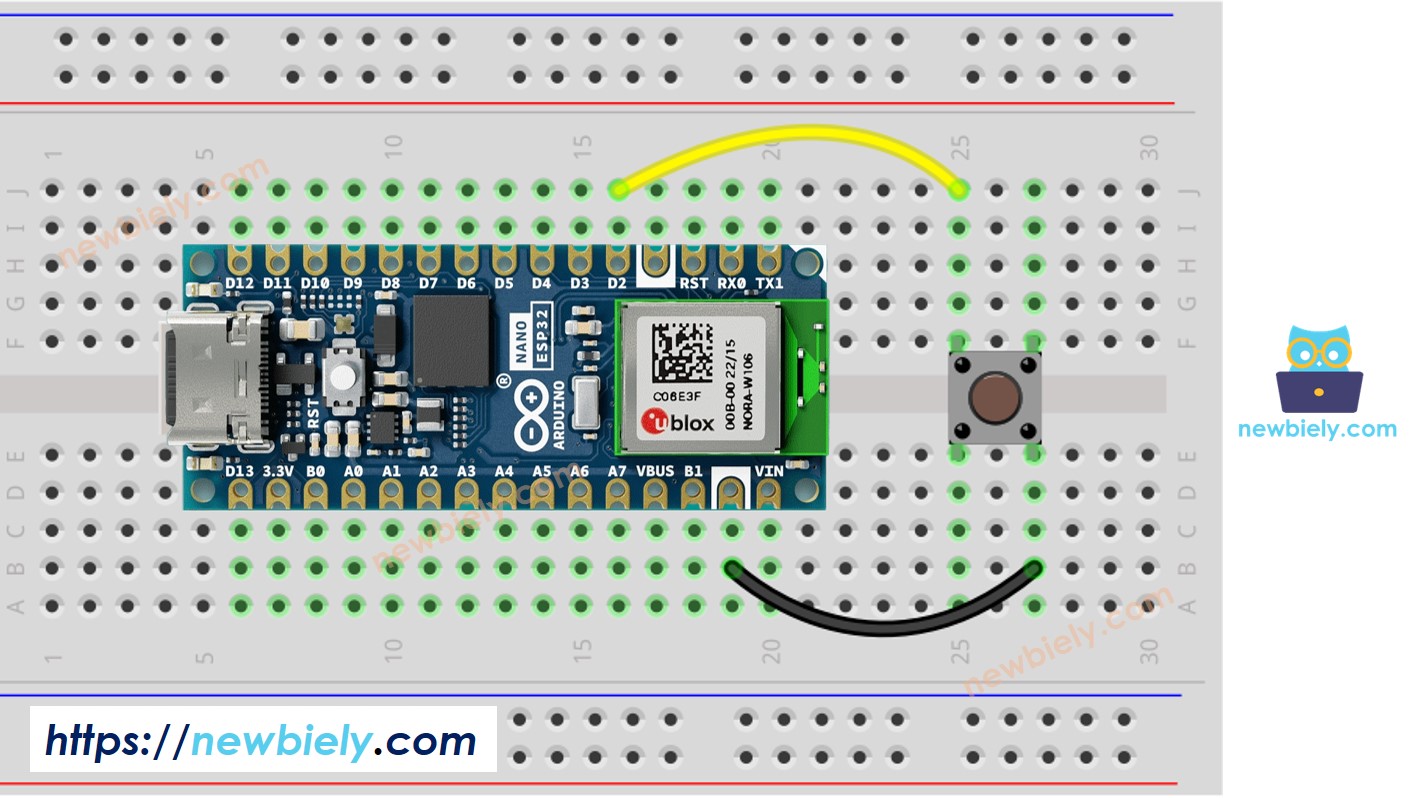
Diagrama de Ligação do Botão com o Arduino Nano ESP32

This image is created using Fritzing. Click to enlarge image

Para deixar tudo claro, vamos executar o código do Arduino Nano ESP32 SEM e COM debounce, e comparar os resultados

Lendo o Botão sem Debounce

Passos Rápidos

Para começar com o Arduino Nano ESP32, siga estes passos:

  • Se você é novo no Arduino Nano ESP32, consulte o tutorial sobre como configurar o ambiente do Arduino Nano ESP32 na Arduino IDE.
  • Ligue os componentes conforme o diagrama fornecido.
  • Conecte a placa Arduino Nano ESP32 ao seu computador usando um cabo USB.
  • Abra a Arduino IDE no seu computador.
  • Selecione a placa Arduino Nano ESP32 e a porta COM correspondente.
  • Copie o código abaixo e cole na Arduino IDE.
/* * Este código de Arduino Nano ESP32 foi desenvolvido por pt.newbiely.com * Este código de Arduino Nano ESP32 é disponibilizado ao público sem nenhuma restrição. * Para tutoriais completos e diagramas de ligação, visite: * https://pt.newbiely.com/tutorials/arduino-nano-esp32/arduino-nano-esp32-button-debounce */ #define BUTTON_PIN D2 // Arduino Nano ESP32 pin D2 pin connected to button int prev_state = LOW; // The previous state from the input pin int button_state; // The current reading from the input pin void setup() { // Initialize the Serial to communicate with the Serial Monitor. Serial.begin(9600); // initialize the button pin as an pull-up input (HIGH when the switch is open and LOW when the switch is closed) pinMode(BUTTON_PIN, INPUT_PULLUP); } void loop() { // read the state of the switch/button: button_state = digitalRead(BUTTON_PIN); if (prev_state == HIGH && button_state == LOW) Serial.println("The button is pressed"); else if (prev_state == LOW && button_state == HIGH) Serial.println("The button is released"); // save the the last state prev_state = button_state; }
  • Compile e faça o upload do código para a placa Arduino Nano ESP32 clicando no botão Upload da Arduino IDE
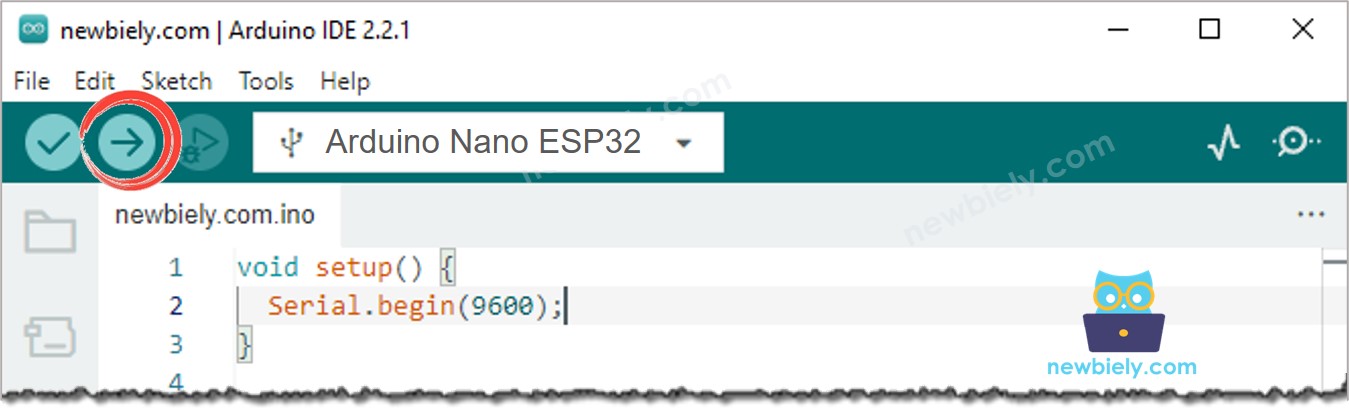
Upload de código na Arduino IDE
  • Abra o Serial Monitor na Arduino IDE
Como abrir o Serial Monitor na Arduino IDE
  • Pressione o botão uma vez, mas mantenha-o pressionado por alguns segundos, e depois solte.
  • Veja o resultado no Serial Monitor. Ele se parece com o abaixo:
∞
Newbiely | Arduino IDE 2.3.8
──
☐
✕
File
Edit
Sketch
Tools
Help
Arduino Nano ESP32
Newbiely.ino
···
8 Serial.println("Hello World!");
Output
Serial Monitor
Message (Enter to send message to 'Arduino Nano ESP32' on 'COM15')
New Line
9600 baud
The button is pressed The button is pressed The button is pressed The button is released The button is released
Ln 11, Col 1
Arduino Nano ESP32 on COM15
2

⇒ Como você pode ver, você fez apenas um pressionamento e uma soltura, mas o Arduino Nano ESP32 leu vários pressionamentos e solturas.

※ Nota:

O fenômeno de chattering não acontece sempre. Se ele não acontecer, tente o teste acima várias vezes.

Lendo o Botão com Debounce

Passos Rápidos

/* * Este código de Arduino Nano ESP32 foi desenvolvido por pt.newbiely.com * Este código de Arduino Nano ESP32 é disponibilizado ao público sem nenhuma restrição. * Para tutoriais completos e diagramas de ligação, visite: * https://pt.newbiely.com/tutorials/arduino-nano-esp32/arduino-nano-esp32-button-debounce */ #define BUTTON_PIN D2 // Arduino Nano ESP32 pin D2 pin connected to button #define DEBOUNCE_TIME 50 // The debounce time in millisecond, increase this time if it still chatters int prev_state_steady = LOW; // The previous steady state from the input pin int prev_state_flick = LOW; // The previous flickerable state from the input pin int button_state; // The current reading from the input pin unsigned long last_debounce_time = 0; // The last time the output pin was toggled void setup() { // Initialize the Serial to communicate with the Serial Monitor. Serial.begin(9600); // initialize the button pin as an pull-up input (HIGH when the switch is open and LOW when the switch is closed) pinMode(BUTTON_PIN, INPUT_PULLUP); } void loop() { // read the state of the switch/button: button_state = digitalRead(BUTTON_PIN); // check to see if you just pressed the button // (i.e. the input went from LOW to HIGH), and you've waited long enough // since the last press to ignore any noise: // If the switch/button changed, due to noise or pressing: if (button_state != prev_state_flick) { // reset the debouncing timer last_debounce_time = millis(); // save the the last flickerable state prev_state_flick = button_state; } if ((millis() - last_debounce_time) > DEBOUNCE_TIME) { // whatever the reading is at, it's been there for longer than the debounce // delay, so take it as the actual current state: // if the button state has changed: if(prev_state_steady == HIGH && button_state == LOW) Serial.println("The button is pressed"); else if(prev_state_steady == LOW && button_state == HIGH) Serial.println("The button is released"); // save the the last steady state prev_state_steady = button_state; } }
  • Compile e faça o upload do código para a placa Arduino Nano ESP32 clicando no botão Upload da Arduino IDE
  • Abra o Serial Monitor na Arduino IDE
  • Mantenha o botão pressionado por alguns segundos e depois solte.
  • Veja o resultado no Serial Monitor. Ele se parece com o abaixo:
∞
Newbiely | Arduino IDE 2.3.8
──
☐
✕
File
Edit
Sketch
Tools
Help
Arduino Nano ESP32
Newbiely.ino
···
8 Serial.println("Hello World!");
Output
Serial Monitor
Message (Enter to send message to 'Arduino Nano ESP32' on 'COM15')
New Line
9600 baud
The button is pressed The button is released
Ln 11, Col 1
Arduino Nano ESP32 on COM15
2

⇒ Como você pode ver, você fez um pressionamento e uma soltura, e o Arduino Nano ESP32 leu um pressionamento e uma soltura. O chattering foi eliminado.

Facilitamos - Código de Debounce de Botão para Arduino Nano ESP32 com Biblioteca

Para facilitar para os iniciantes, especialmente ao fazer debounce de vários botões, criamos uma biblioteca de botão chamada ezButton. Você pode saber mais sobre a biblioteca ezButton aqui.

Código de Debounce de Botão para Arduino Nano ESP32 com um Único Botão

/* * Este código de Arduino Nano ESP32 foi desenvolvido por pt.newbiely.com * Este código de Arduino Nano ESP32 é disponibilizado ao público sem nenhuma restrição. * Para tutoriais completos e diagramas de ligação, visite: * https://pt.newbiely.com/tutorials/arduino-nano-esp32/arduino-nano-esp32-button-debounce */ #include <ezButton.h> #define DEBOUNCE_TIME 50 // the debounce time in millisecond, increase this time if it still chatters ezButton button(D2); // create ezButton object for pin D2 void setup() { Serial.begin(9600); button.setDebounceTime(DEBOUNCE_TIME); // set debounce time to 50 milliseconds } void loop() { button.loop(); // MUST call the loop() function first if (button.isPressed()) Serial.println("The button is pressed"); if (button.isReleased()) Serial.println("The button is released"); }

Código de Debounce de Botão para Arduino Nano ESP32 com Vários Botões

Vamos escrever o código de debounce para três botões.

O diagrama de ligação
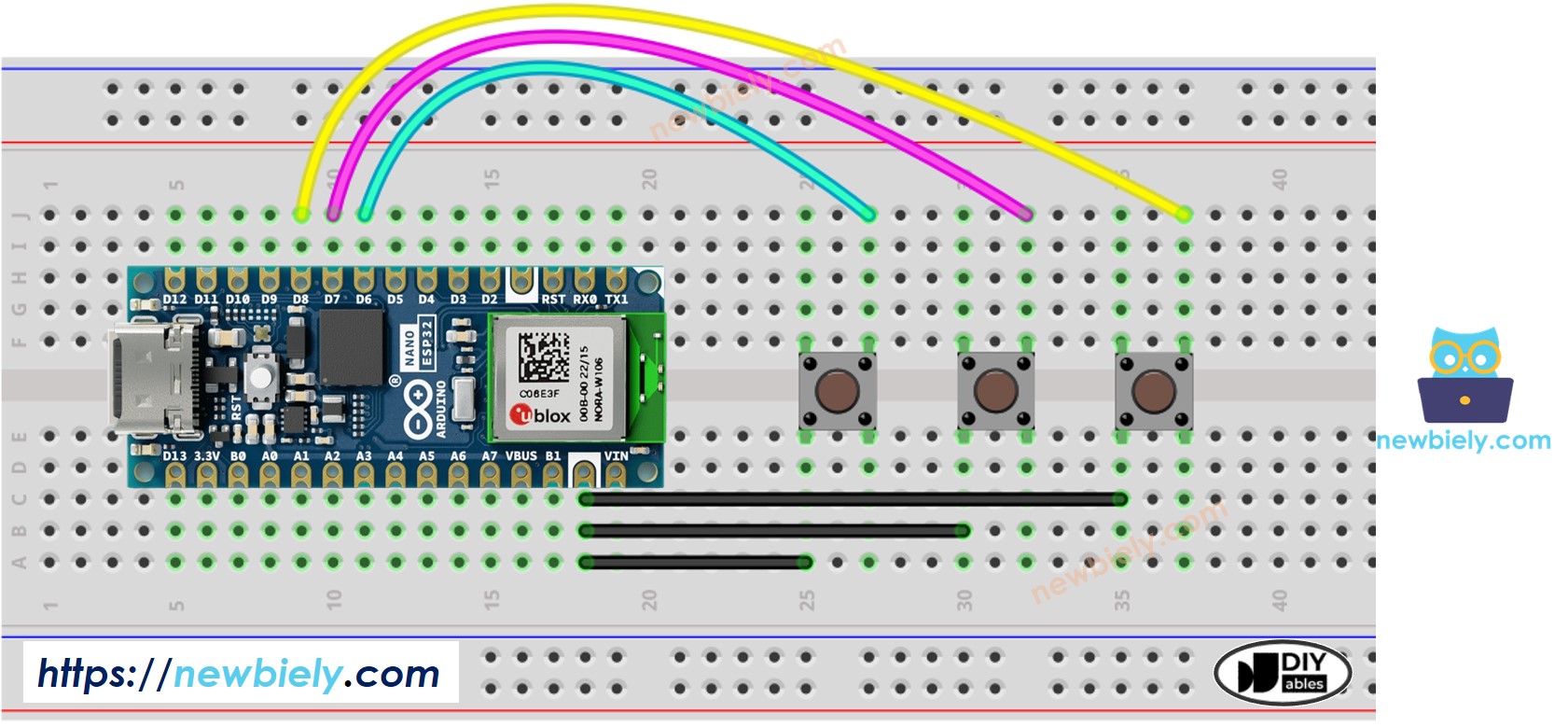
Diagrama de Ligação da Biblioteca de Botão com o Arduino Nano ESP32

This image is created using Fritzing. Click to enlarge image

/* * Este código de Arduino Nano ESP32 foi desenvolvido por pt.newbiely.com * Este código de Arduino Nano ESP32 é disponibilizado ao público sem nenhuma restrição. * Para tutoriais completos e diagramas de ligação, visite: * https://pt.newbiely.com/tutorials/arduino-nano-esp32/arduino-nano-esp32-button-debounce */ #include <ezButton.h> #define DEBOUNCE_TIME 50 // the debounce time in millisecond, increase this time if it still chatters ezButton button1(D6); // create ezButton object for pin D6 ezButton button2(D7); // create ezButton object for pin D7 ezButton button3(D8); // create ezButton object for pin D8 void setup() { Serial.begin(9600); button1.setDebounceTime(DEBOUNCE_TIME); // set debounce time to 50 milliseconds button2.setDebounceTime(DEBOUNCE_TIME); // set debounce time to 50 milliseconds button3.setDebounceTime(DEBOUNCE_TIME); // set debounce time to 50 milliseconds } void loop() { button1.loop(); // MUST call the loop() function first button2.loop(); // MUST call the loop() function first button3.loop(); // MUST call the loop() function first if (button1.isPressed()) Serial.println("The button 1 is pressed"); if (button1.isReleased()) Serial.println("The button 1 is released"); if (button2.isPressed()) Serial.println("The button 2 is pressed"); if (button2.isReleased()) Serial.println("The button 2 is released"); if (button3.isPressed()) Serial.println("The button 3 is pressed"); if (button3.isReleased()) Serial.println("The button 3 is released"); }

Vídeo

Conhecimento Adicional

  • O valor de DEBOUNCE_TIME depende do hardware. Hardwares diferentes podem usar valores diferentes.
  • O debounce também deve ser aplicado a chave liga/desliga, chave de fim de curso, chave reed, sensor de toque ...

※ NOSSAS MENSAGENS

  • Fique à vontade para compartilhar o link deste tutorial. Porém, por favor, não use nosso conteúdo em outros sites. Investimos muito esforço e tempo para criar este conteúdo, por favor respeite nosso trabalho!