Web Table com Arduino Nano ESP32 e a Biblioteca DIYables ESP32 WebApps
Visão Geral
Este tutorial aborda a classe DIYablesWebTablePage da Biblioteca DIYables ESP32 WebApps. A página exibe no navegador uma tabela de atributo-valor com duas colunas. As linhas são definidas uma única vez no Arduino Nano ESP32, na inicialização, usando addRow(). Durante o funcionamento, os valores individuais são atualizados por WebSocket chamando updateValue(). O navegador destaca automaticamente os valores que estão mudando ativamente (vermelho) em relação aos valores que se estabilizaram (azul), sem nenhum código adicional no sketch.
O Que Este Tutorial Aborda
Definir as linhas da tabela com nomes de atributos em setup()
Enviar atualizações de valores em tempo de execução
Entender o destaque automático de detecção de mudanças do navegador
Divulgação: Alguns dos links desta seção são links de afiliado da Amazon. Podemos receber uma comissão pelas compras feitas por meio desses links, sem custo adicional para você. Agradecemos o seu apoio.
Conecte a placa Arduino Nano ESP32 ao seu computador usando um cabo USB.
Abra o Arduino IDE no seu computador.
Selecione a placa apropriada (por exemplo, Arduino Nano ESP32) e a porta COM.
Vá até o ícone Libraries na barra à esquerda do Arduino IDE.
Pesquise "DIYables ESP32 WebApps" e encontre a Biblioteca DIYables ESP32 WebApps da DIYables
Clique no botão Install para instalar a biblioteca.
Search for DIYables ESP32 WebApps created by DIYables and click the Install button.
Newbiely | Arduino IDE 2.3.8
──
☐
✕
File
Edit
Sketch
Tools
Help
Arduino Nano ESP32
Library Manager
DIYables ESP32 WebApps
Type:
All
Topic:
All
DIYables ESP32 WebAppsby DIYables
A comprehensive library designed for ESP32 that provides multiple professional web applications including Web Monitor, Chat, Digital Pin Control, Sliders, Joystick, Analog Gauge, Rotator Control, and Temperature Display via WebSocket communication. Features modular architecture for memory efficiency, automatic config handling, and perfect for IoT projects, robotics, sensor monitoring, servo/stepper control, temperature monitoring, and remote ESP32 control.
More info
1.0.1
INSTALL
Newbiely.ino
···
1
voidsetup() {
Output
Serial Monitor
Ln 1, Col 1
Arduino Nano ESP32 on COM15
1
Você será solicitado a instalar algumas outras dependências da biblioteca
Clique no botão Install All para instalar todas as dependências da biblioteca.
No Arduino IDE, vá até o exemplo File Examples DIYables ESP32 WebApps WebTable, ou copie o código acima e cole no editor do Arduino IDE
/* * DIYables ESP32 WebApps Library - WebTable Example * * This example demonstrates how to create a web-based table interface * that displays real-time data in a two-column format (attribute-value pairs). * * Features: * - Two-column table with attributes and real-time values * - WebSocket-based real-time updates * - Configurable table rows in setup() * - Dynamic value updates during runtime * - Modern responsive web interface * * Hardware: ESP32 Boards * * Instructions: * 1. Update WiFi credentials below * 2. Upload the code to your Arduino * 3. Open Serial Monitor to get the IP address * 4. Open web browser and go to: * - Home page: http://[ARDUINO_IP]/ * - WebTable: http://[ARDUINO_IP]/web-table * 5. Watch real-time data updates in the table * * Created by DIYables * Visit: https://diyables.com for more tutorials and projects */#include <DIYables_ESP32_Platform.h>#include <DIYablesWebApps.h>// WiFi credentials - Update these with your network detailsconstchar WIFI_SSID[] = "YOUR_WIFI_SSID";constchar WIFI_PASSWORD[] = "YOUR_WIFI_PASSWORD";// Initialize web server and pagesESP32ServerFactory serverFactory;DIYablesWebAppServer server(serverFactory, 80, 81);DIYablesHomePage homePage;DIYablesWebTablePage tablePage;// Variables to simulate sensor datafloat temperature = 20.5;float humidity = 65.0;int lightLevel = 512;unsignedlong uptime = 0;bool ledState = false;int counter = 0;voidsetup() {Serial.begin(9600);Serial.println("DIYables ESP32 WebApp - Web Table Example");// Initialize built-in LEDpinMode(LED_BUILTIN, OUTPUT);// Add web apps server.addApp(&homePage); server.addApp(&tablePage);// Optional: Add 404 page for better user experience server.setNotFoundPage(DIYablesNotFoundPage());// Start the WebApp server server.begin(WIFI_SSID, WIFI_PASSWORD);// Set up callback for data requests tablePage.onTableValueRequest(onDataRequested);// Configure table structure in setup - attributes are set once setupTableStructure();Serial.println("WebTable Server started!");}voidloop() { server.loop();// Update sensor values every 2 secondsstaticunsignedlong lastUpdate = 0;if (millis() - lastUpdate > 2000) { updateSensorValues(); sendRealTimeUpdates(); lastUpdate = millis(); }// Toggle LED every 5 secondsstaticunsignedlong lastLedToggle = 0;if (millis() - lastLedToggle > 5000) { ledState = !ledState;digitalWrite(LED_BUILTIN, ledState);// Send LED status update to web interface tablePage.sendValueUpdate("LED Status", ledState ? "ON" : "OFF"); lastLedToggle = millis(); }delay(10);}// Setup table structure - called once in setup()void setupTableStructure() {Serial.println("Setting up table structure...");// Add table rows with attributes only (no values stored) tablePage.addRow("Device Name"); tablePage.addRow("Temperature"); tablePage.addRow("Humidity"); tablePage.addRow("Light Level"); tablePage.addRow("Uptime"); tablePage.addRow("LED Status"); tablePage.addRow("Counter"); tablePage.addRow("WiFi SSID"); tablePage.addRow("IP Address"); tablePage.addRow("Free Memory");Serial.println("Table structure configured with " + String(tablePage.getRowCount()) + " rows");}// Simulate sensor readings and send values to web interfacevoid updateSensorValues() {// Simulate temperature sensor (20-30°C range) temperature = 20.0 + (sin(millis() / 10000.0) * 5.0) + random(-10, 10) / 10.0;// Simulate humidity sensor (40-80% range) humidity = 60.0 + (cos(millis() / 8000.0) * 15.0) + random(-20, 20) / 10.0;// Simulate light sensor (0-1023 range) lightLevel = 512 + (sin(millis() / 5000.0) * 400) + random(-50, 50);if (lightLevel < 0) lightLevel = 0;if (lightLevel > 1023) lightLevel = 1023;// Update uptime uptime = millis() / 1000;// Increment counter counter++;}// Send real-time updates to web interfacevoid sendRealTimeUpdates() {// Send individual value updates to web clients tablePage.sendValueUpdate("Temperature", String(temperature, 1) + "°C"); tablePage.sendValueUpdate("Humidity", String(humidity, 1) + "%"); tablePage.sendValueUpdate("Light Level", String(lightLevel)); tablePage.sendValueUpdate("Uptime", formatUptime(uptime)); tablePage.sendValueUpdate("Counter", String(counter)); tablePage.sendValueUpdate("Free Memory", String(getFreeMemory()) + " bytes");}// Callback function called when web client requests table datavoid onDataRequested() {Serial.println("Web client requested table data");// Send all current values to web interface tablePage.sendValueUpdate("Device Name", "ESP32"); tablePage.sendValueUpdate("Temperature", String(temperature, 1) + "°C"); tablePage.sendValueUpdate("Humidity", String(humidity, 1) + "%"); tablePage.sendValueUpdate("Light Level", String(lightLevel)); tablePage.sendValueUpdate("Uptime", formatUptime(uptime)); tablePage.sendValueUpdate("LED Status", ledState ? "ON" : "OFF"); tablePage.sendValueUpdate("Counter", String(counter)); tablePage.sendValueUpdate("WiFi SSID", WIFI_SSID); tablePage.sendValueUpdate("IP Address", WiFi.localIP().toString()); tablePage.sendValueUpdate("Free Memory", String(getFreeMemory()) + " bytes");}// Format uptime in human-readable formatString formatUptime(unsignedlongseconds) {unsignedlongdays = seconds / 86400;unsignedlonghours = (seconds % 86400) / 3600;unsignedlongminutes = (seconds % 3600) / 60;unsignedlong secs = seconds % 60;String result = "";if (days > 0) result += String(days) + "d ";if (hours > 0) result += String(hours) + "h ";if (minutes > 0) result += String(minutes) + "m "; result += String(secs) + "s";return result;}// Get approximate free memoryint getFreeMemory() {// Simple approximation for demonstration// In a real application, you might use a more accurate methodreturn 2048 - (counter % 1024);}
Clique no botão Upload no Arduino IDE para fazer o upload do código para o Arduino Nano ESP32
Abra o Serial Monitor
A saída do Serial Monitor deve ser parecida com esta:
Newbiely | Arduino IDE 2.3.8
──
☐
✕
File
Edit
Sketch
Tools
Help
Arduino Nano ESP32
Newbiely.ino
···
8Serial.println("Hello World!");
Output
Serial Monitor
Message (Enter to send message to 'Arduino Nano ESP32' on 'COM15')
New Line
9600 baud
DIYables WebApp - Web Table Example
INFO: Added app /
INFO: Added app /web-table
DIYables WebApp Library
Platform: Arduino Nano ESP32
Network connected!
IP address: 192.168.0.2
HTTP server started on port 80
Configuring WebSocket server callbacks...
WebSocket server started on port 81
WebSocket URL: ws://192.168.0.2:81
WebSocket server started on port 81
==========================================
DIYables WebApp Ready!
==========================================
Web Interface: http://192.168.0.2
WebSocket: ws://192.168.0.2:81
Available Applications:
Home Page: http://192.168.0.2/
Web Table: http://192.168.0.2/web-table
==========================================
Ln 11, Col 1
Arduino Nano ESP32 on COM15
2
Se nada aparecer, pressione o botão de reset da placa.
Digite o endereço IP exibido no Serial Monitor em um navegador na mesma rede.
Exemplo: http://192.168.0.2
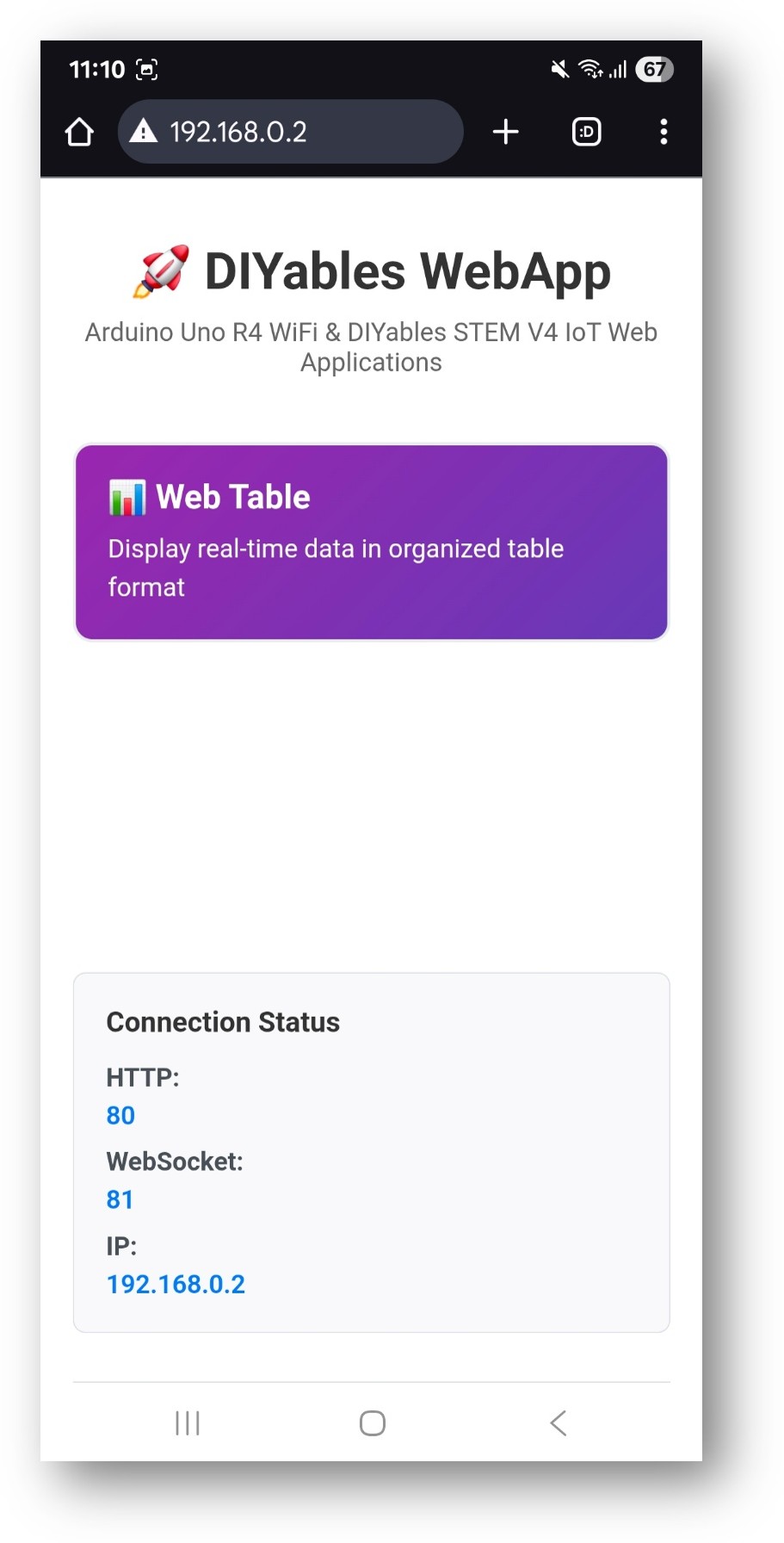
A página inicial mostra um card para o aplicativo table:
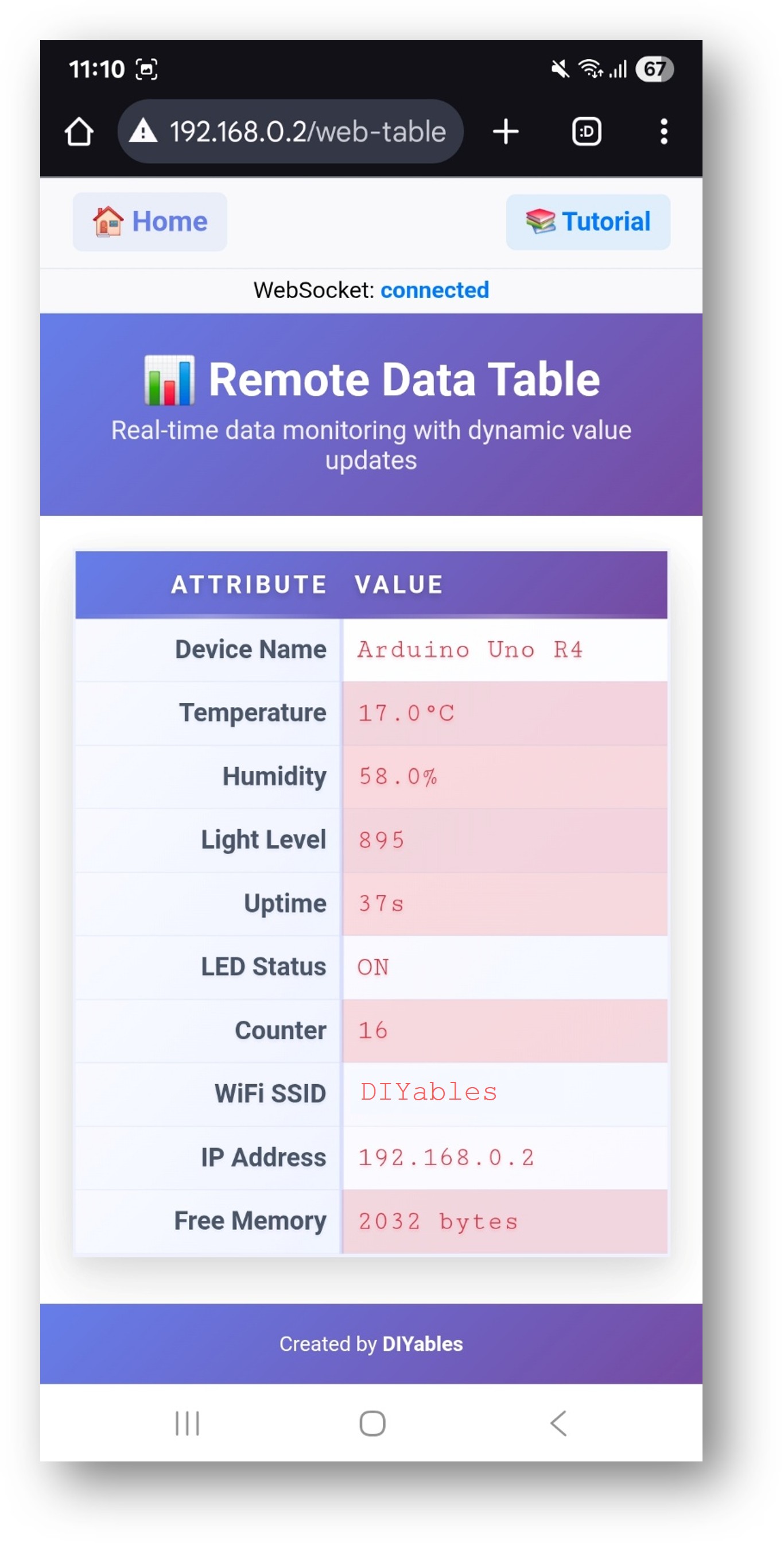
Selecione o card Web Table para abrir a página da tabela de dados:
A página também pode ser acessada diretamente em http://192.168.0.2/web-table.
Definindo a Estrutura da Tabela
Chame addRow() dentro de setupTableStructure() para definir o nome de cada atributo. A ordem das chamadas de addRow() determina a ordem de exibição no navegador.
Fique à vontade para compartilhar o link deste tutorial. Porém, por favor, não use nosso conteúdo em outros sites. Investimos muito esforço e tempo para criar este conteúdo, por favor respeite nosso trabalho!