Exemplo de Pinos Digitais Bluetooth para Arduino Nano ESP32 - Tutorial de Controle de Pinos GPIO via BLE
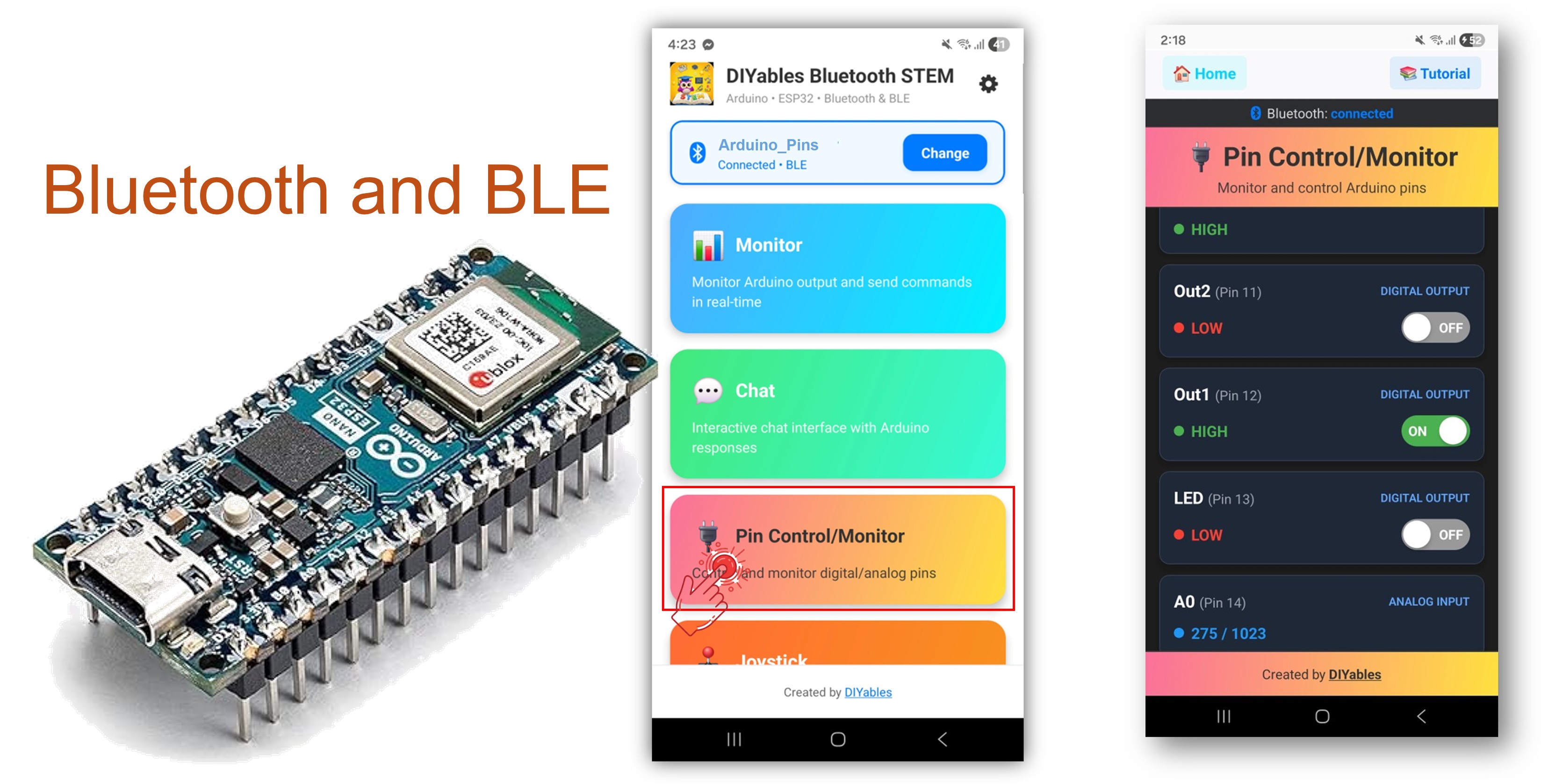
Este exemplo oferece controle e monitoramento remoto de pinos GPIO no Arduino Nano ESP32 usando BLE (Bluetooth Low Energy) por meio do aplicativo DIYables Bluetooth STEM. Controle pinos de saída e monitore pinos de entrada sem fio a partir de um smartphone. Adequado para controle de relé, monitoramento de botões, acionamento de LEDs e qualquer aplicação que exija acesso remoto a pinos.
Observação: O Arduino Nano ESP32 suporta apenas BLE — o Bluetooth Clássico não é suportado. O DIYables Bluetooth App funciona em Android e iOS com BLE.
Controle de Saída : Defina pinos digitais como HIGH ou LOW remotamente
Monitoramento de Entrada : Leia o estado de pinos digitais e analógicos
Pinos com Nome : Atribua rótulos descritivos a cada pino (por exemplo, "LED", "Relay")
Atualizações em Tempo Real : Envie as mudanças de estado dos pinos para o aplicativo
Até 16 Pinos : Controle vários pinos ao mesmo tempo
Suporte a Android e iOS : O BLE é compatível com as duas plataformas
Sem Necessidade de Pareamento : O BLE conecta sem pareamento manual
Or you can buy the following kits:
Divulgação: Alguns dos links desta seção são links de afiliado da Amazon. Podemos receber uma comissão pelas compras feitas por meio desses links, sem custo adicional para você. Agradecemos o seu apoio.
Conecte o Arduino Nano ESP32 ao seu computador via USB.
Abra a Arduino IDE.
Selecione a placa Arduino Nano ESP32 e a porta COM correta.
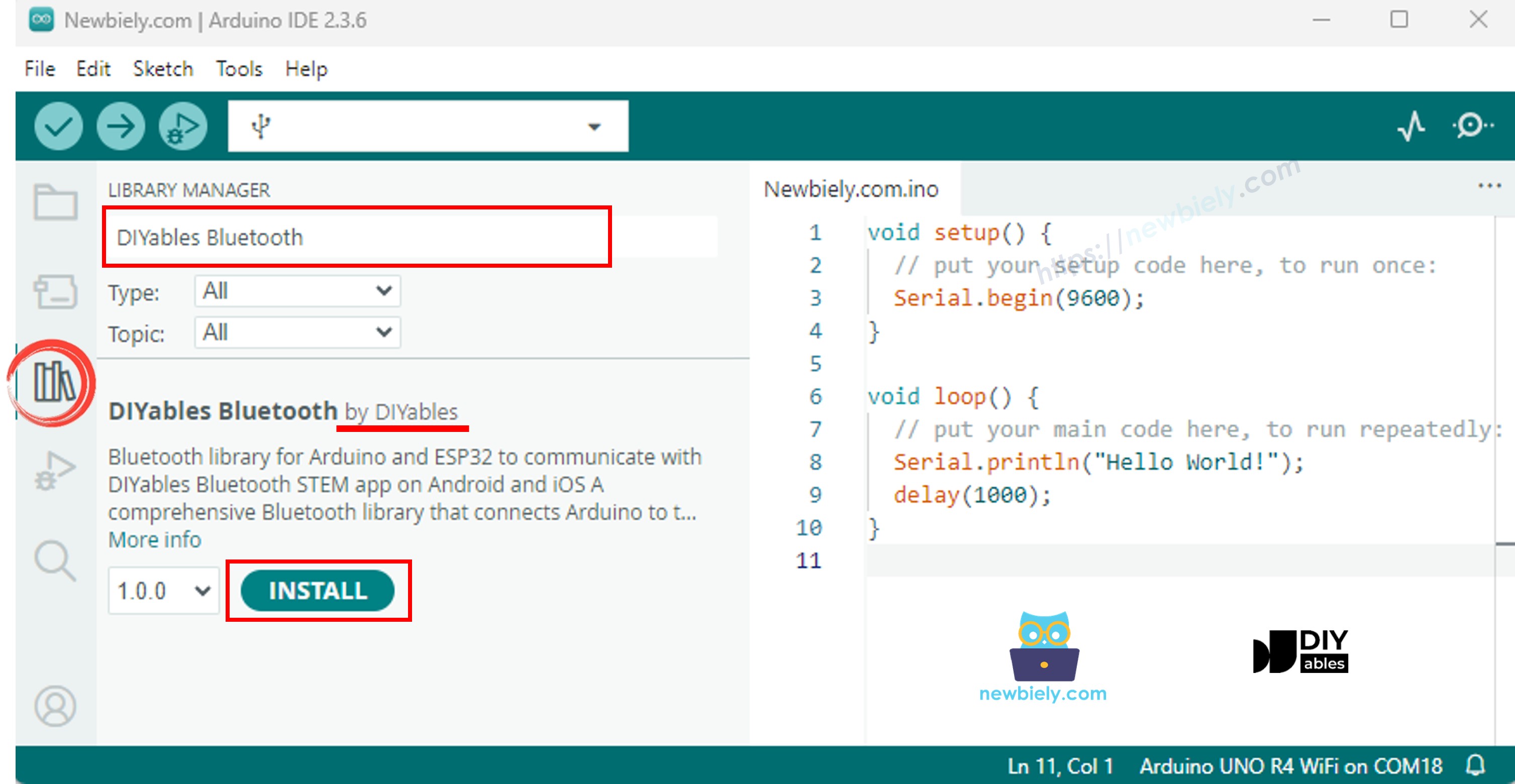
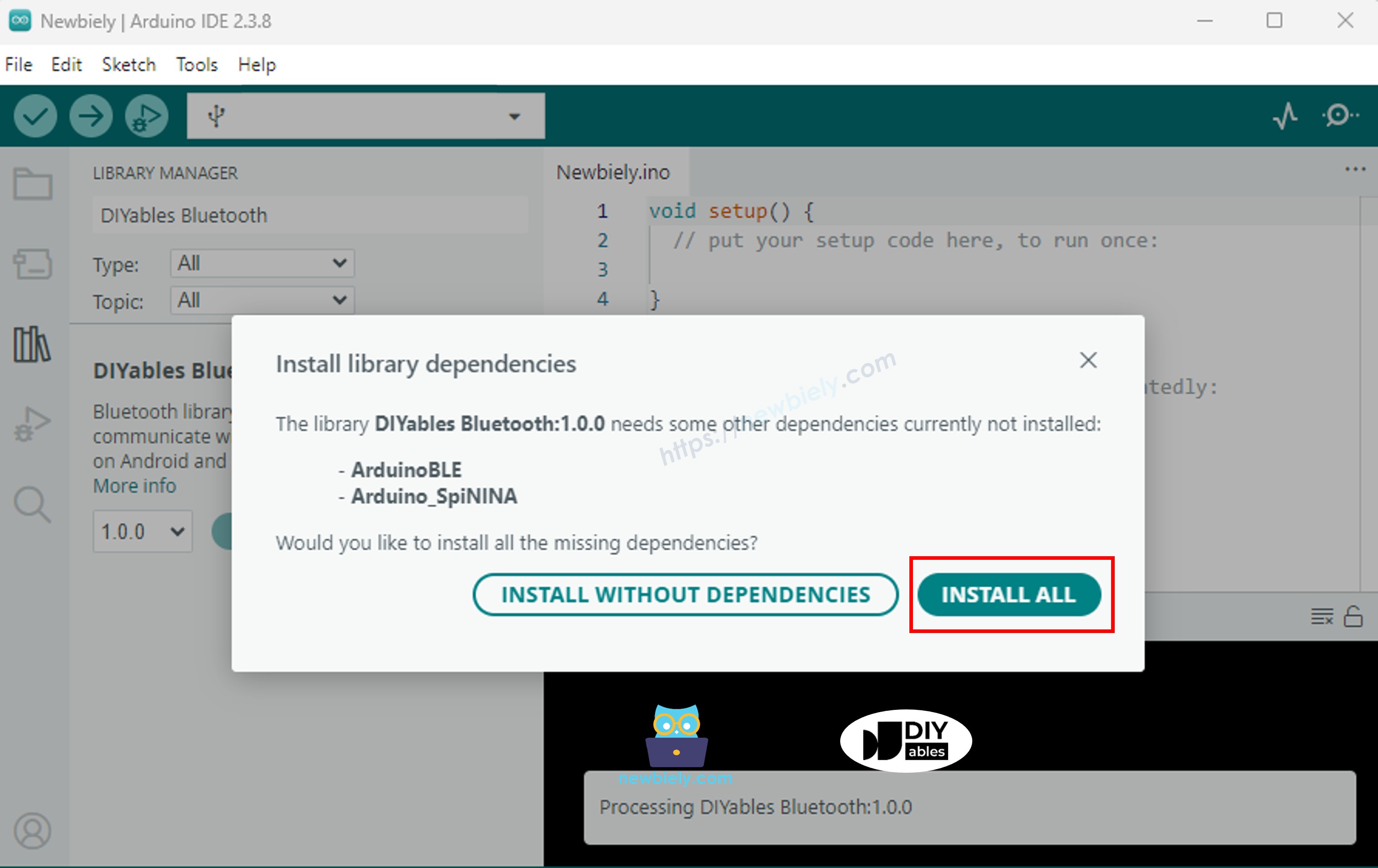
Clique no ícone Libraries na barra lateral esquerda.
Pesquise por "DIYables Bluetooth" e selecione a biblioteca DIYables Bluetooth da DIYables.
Clique em Install .
#include <DIYables_BluetoothServer .h>
#include <DIYables_BluetoothPinControl .h>
#include <platforms/DIYables_Esp32BLE.h>
const char* DEVICE_NAME = "ESP32BLE_Pins" ;const char* SERVICE_UUID = "19B10000-E8F2-537E-4F6C-D104768A1214" ;const char* TX_UUID = "19B10001-E8F2-537E-4F6C-D104768A1214" ;const char* RX_UUID = "19B10002-E8F2-537E-4F6C-D104768A1214" ;DIYables_Esp32BLE bluetooth(DEVICE_NAME, SERVICE_UUID, TX_UUID, RX_UUID);DIYables_BluetoothServer bluetoothServer(bluetooth);DIYables_BluetoothPinControl bluetoothPins;const int LED_PIN = LED_BUILTIN ; const int OUTPUT_PIN_1 = D6;const int OUTPUT_PIN_2 = D7;const int INPUT_PIN_1 = D4;const int INPUT_PIN_2 = D5;const int ANALOG_PIN_1 = A0; const int ANALOG_PIN_2 = A1; void setup () { Serial .begin (115200);
delay (1000);
Serial .println ("DIYables Bluetooth - ESP32 BLE Pin Control/Monitor Example" );
pinMode (LED_PIN, OUTPUT );
pinMode (OUTPUT_PIN_1, OUTPUT );
pinMode (OUTPUT_PIN_2, OUTPUT );
pinMode (INPUT_PIN_1, INPUT_PULLUP );
pinMode (INPUT_PIN_2, INPUT_PULLUP );
bluetoothServer.begin ();
bluetoothServer.addApp (&bluetoothPins);
bluetoothPins.enablePin (LED_PIN, BT_PIN_OUTPUT , "LED" );
bluetoothPins.enablePin (OUTPUT_PIN_1, BT_PIN_OUTPUT , "Out1" );
bluetoothPins.enablePin (OUTPUT_PIN_2, BT_PIN_OUTPUT , "Out2" );
bluetoothPins.enablePin (INPUT_PIN_1, BT_PIN_INPUT , "Btn1" );
bluetoothPins.enablePin (INPUT_PIN_2, BT_PIN_INPUT , "Btn2" );
bluetoothPins.enablePin (ANALOG_PIN_1, BT_PIN_INPUT , "A34" );
bluetoothPins.enablePin (ANALOG_PIN_2, BT_PIN_INPUT , "A35" );
bluetoothServer.setOnConnected ([]() {
Serial .println ("Bluetooth connected!" );
});
bluetoothServer.setOnDisconnected ([]() {
Serial .println ("Bluetooth disconnected!" );
});
bluetoothPins.onPinWrite ([](int pin, int state) {
digitalWrite (pin, state);
Serial .print ("Pin " );
Serial .print (pin);
Serial .print (" set to " );
Serial .println (state ? "HIGH" : "LOW" );
});
bluetoothPins.onPinRead ([](int pin) -> int {
int state;
if (pin == ANALOG_PIN_1 || pin == ANALOG_PIN_2) {
state = analogRead (pin);
Serial .print ("Analog pin " );
Serial .print (pin);
Serial .print (" read: " );
Serial .println (state);
} else {
state = digitalRead (pin);
Serial .print ("Digital pin " );
Serial .print (pin);
Serial .print (" read: " );
Serial .println (state ? "HIGH" : "LOW" );
}
return state;
});
bluetoothPins.onPinModeChange ([](int pin, int mode) {
pinMode (pin, mode == BT_PIN_OUTPUT ? OUTPUT : INPUT_PULLUP );
Serial .print ("Pin " );
Serial .print (pin);
Serial .print (" mode changed to " );
Serial .println (mode == BT_PIN_OUTPUT ? "OUTPUT" : "INPUT" );
});
Serial .println ("Waiting for Bluetooth connection..." );
Serial .print ("Enabled pins: " );
Serial .println (bluetoothPins.getEnabledPinCount ());
}
void loop () { bluetoothServer.loop ();
static unsigned long lastInputCheck = 0;
static int lastInputState1 = HIGH ;
static int lastInputState2 = HIGH ;
static int lastAnalogState1 = 0;
static int lastAnalogState2 = 0;
if (millis () - lastInputCheck >= 100) {
lastInputCheck = millis ();
int currentState1 = digitalRead (INPUT_PIN_1);
if (currentState1 != lastInputState1) {
lastInputState1 = currentState1;
bluetoothPins.updatePinState (INPUT_PIN_1, currentState1);
Serial .print ("Input pin " );
Serial .print (INPUT_PIN_1);
Serial .print (" changed to " );
Serial .println (currentState1 ? "HIGH" : "LOW" );
}
int currentState2 = digitalRead (INPUT_PIN_2);
if (currentState2 != lastInputState2) {
lastInputState2 = currentState2;
bluetoothPins.updatePinState (INPUT_PIN_2, currentState2);
Serial .print ("Input pin " );
Serial .print (INPUT_PIN_2);
Serial .print (" changed to " );
Serial .println (currentState2 ? "HIGH" : "LOW" );
}
int currentAnalog1 = analogRead (ANALOG_PIN_1);
if (abs (currentAnalog1 - lastAnalogState1) > 40) {
lastAnalogState1 = currentAnalog1;
bluetoothPins.updatePinState (ANALOG_PIN_1, currentAnalog1);
Serial .print ("Analog pin " );
Serial .print (ANALOG_PIN_1);
Serial .print (" changed to " );
Serial .println (currentAnalog1);
}
int currentAnalog2 = analogRead (ANALOG_PIN_2);
if (abs (currentAnalog2 - lastAnalogState2) > 40) {
lastAnalogState2 = currentAnalog2;
bluetoothPins.updatePinState (ANALOG_PIN_2, currentAnalog2);
Serial .print ("Analog pin " );
Serial .print (ANALOG_PIN_2);
Serial .print (" changed to " );
Serial .println (currentAnalog2);
}
}
delay (10);
}
∞
Newbiely | Arduino IDE 2.3.8
8
Serial .println ("Hello World!" );
Message (Enter to send message to 'Arduino Nano ESP32' on 'COM15')
DIYables Bluetooth - Pin Control/Monitor Example
Waiting for Bluetooth connection...
Enabled pins: 7
Ln 11, Col 1
Arduino Nano ESP32 on COM15
2
Instale o DIYables Bluetooth App no seu smartphone:
Android |
iOS
Observação: O DIYables Bluetooth App funciona em Android e iOS com BLE. Não é necessário fazer pareamento manual.
Abra o DIYables Bluetooth App.
Na primeira abertura, conceda as seguintes permissões:
Dispositivos Próximos (Android 12+) / Bluetooth (iOS) — necessário para procurar e conectar a dispositivos Bluetooth
Localização (somente Android 11 e anteriores) — exigida pelas versões mais antigas do Android para procurar dispositivos BLE
Verifique se o Bluetooth está ativado no seu dispositivo.
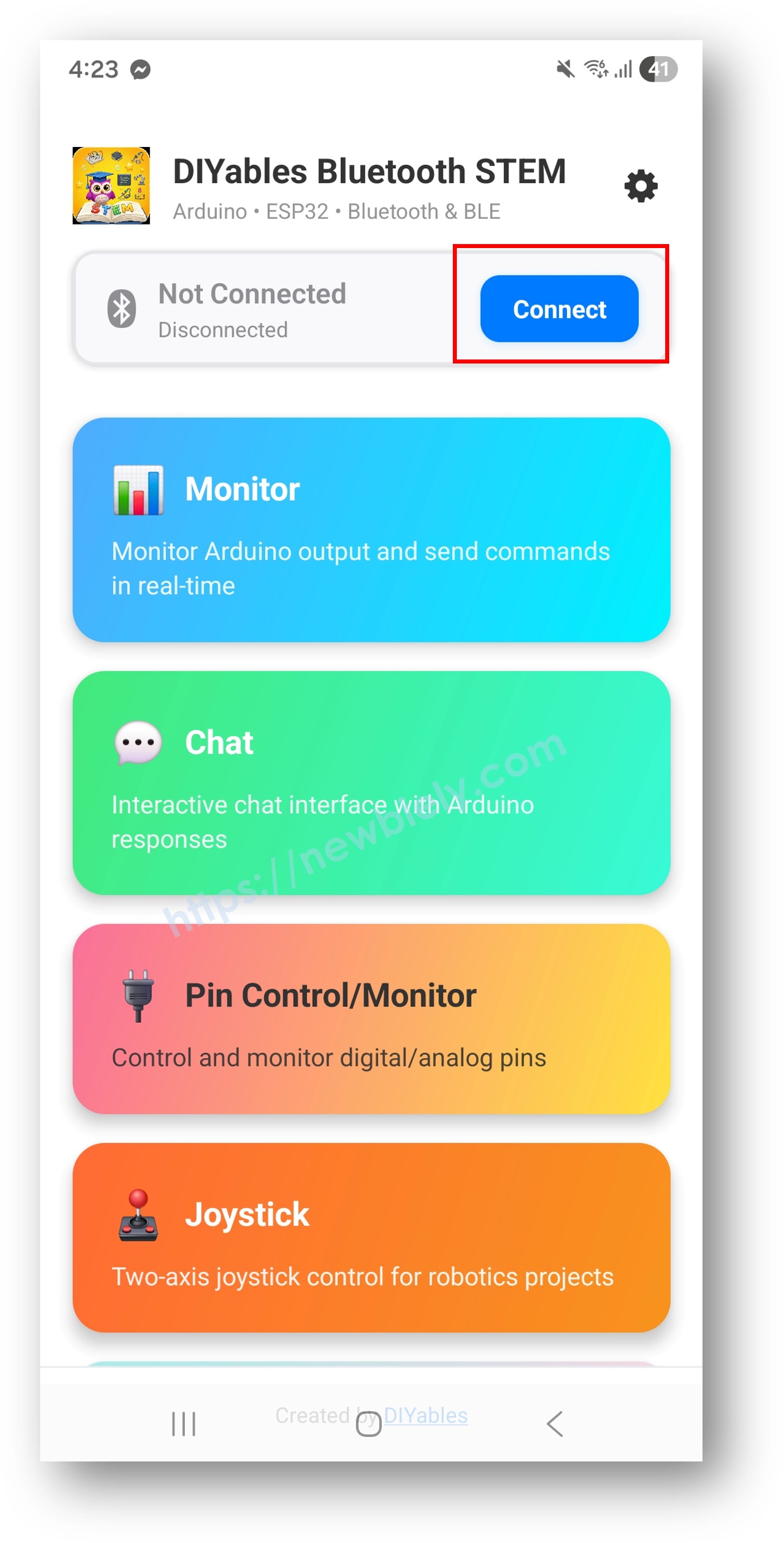
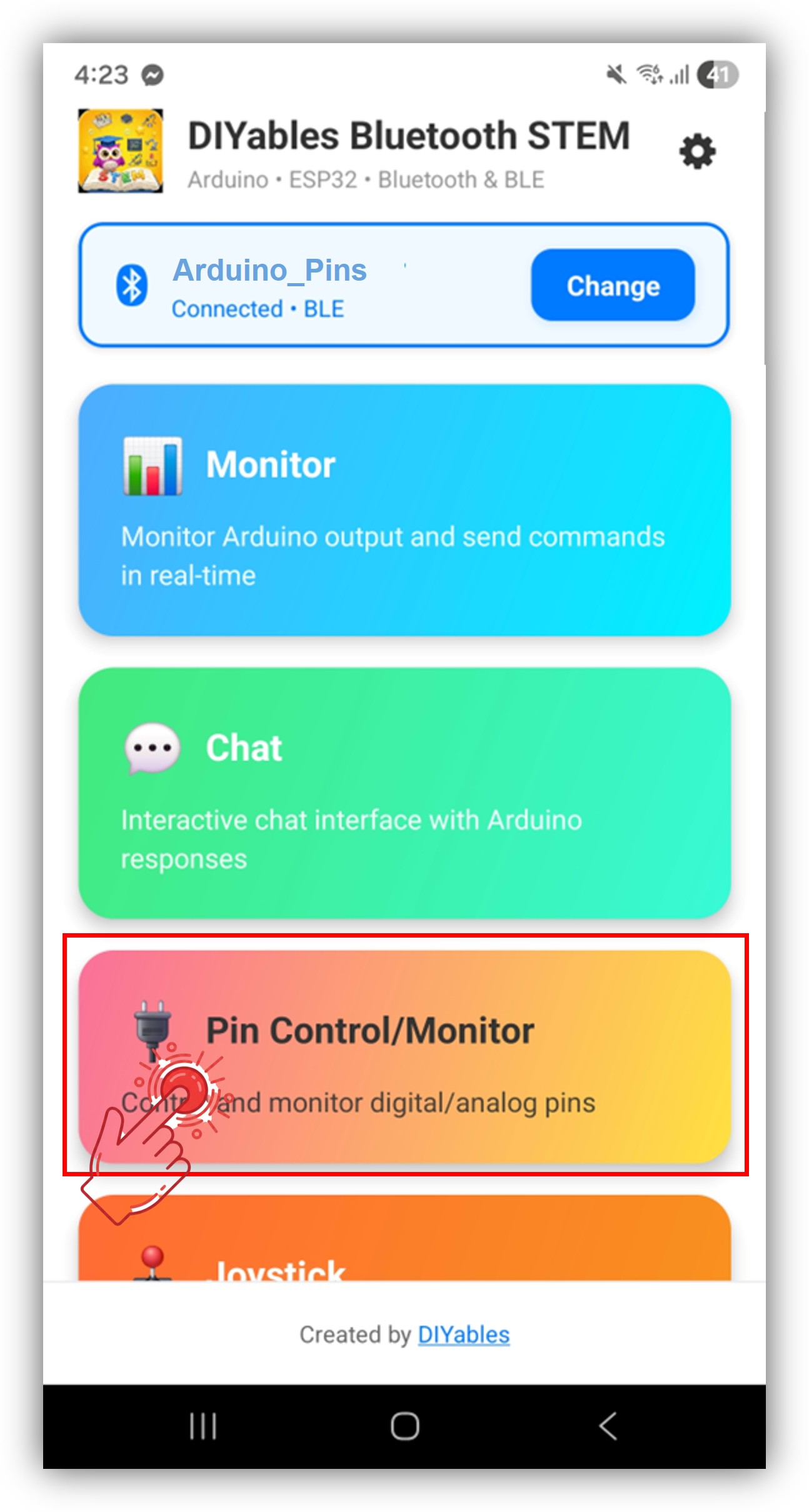
Toque em Connect na tela inicial. O aplicativo vai procurar dispositivos BLE.
Toque em "Arduino_Pins" nos resultados da busca.
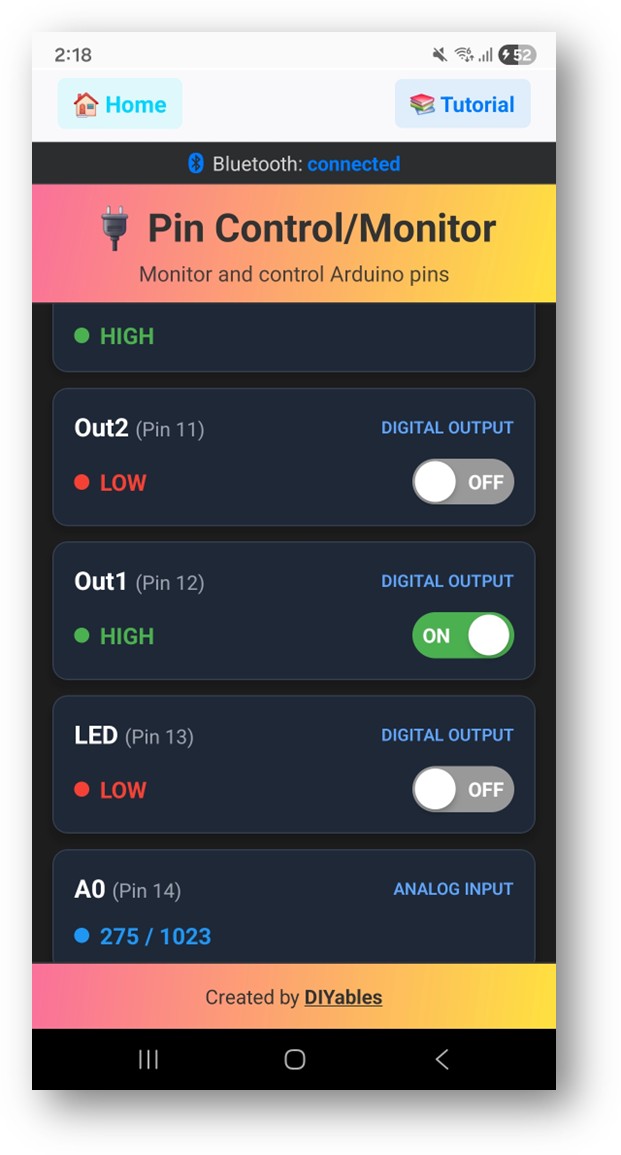
Depois de conectar, volte à tela inicial e abra o aplicativo Digital Pins .
Toque no ícone de configurações na tela inicial para mostrar ou ocultar aplicativos. Veja o Manual do Usuário do DIYables Bluetooth App para mais detalhes.
Agora volte ao Serial Monitor na Arduino IDE. Você verá:
∞
Newbiely | Arduino IDE 2.3.8
8
Serial .println ("Hello World!" );
Message (Enter to send message to 'Arduino Nano ESP32' on 'COM15')
Bluetooth connected!
Pin 13 set to HIGH
Pin 13 set to LOW
Digital pin 7 read: HIGH
Ln 11, Col 1
Arduino Nano ESP32 on COM15
2
bluetoothPins.enablePin (13, BT_PIN_OUTPUT , "LED" );
bluetoothPins.enablePin (12, BT_PIN_OUTPUT , "Relay" );
bluetoothPins.enablePin (7, BT_PIN_INPUT , "Button" );
bluetoothPins.enablePin (A0, BT_PIN_INPUT , "Sensor" );
int count = bluetoothPins.getEnabledPinCount ();
bluetoothPins.onPinWrite ([](int pin, int state) {
digitalWrite (pin, state);
Serial .print ("Pin " );
Serial .print (pin);
Serial .println (state ? " ? HIGH" : " ? LOW" );
});
bluetoothPins.onPinRead ([](int pin) -> int {
if (pin >= A0) {
return analogRead (pin);
}
return digitalRead (pin);
});
bluetoothPins.onPinModeChange ([](int pin, int mode) {
pinMode (pin, mode == BT_PIN_OUTPUT ? OUTPUT : INPUT_PULLUP );
});
bluetoothPins.updatePinState (7, digitalRead (7));
bluetoothPins.updatePinState (A0, analogRead (A0));
const int RELAY_PIN = 12;const int BUTTON_PIN = 7;void setup () { pinMode (RELAY_PIN, OUTPUT );
pinMode (BUTTON_PIN, INPUT_PULLUP );
bluetoothPins.enablePin (RELAY_PIN, BT_PIN_OUTPUT , "Relay" );
bluetoothPins.enablePin (BUTTON_PIN, BT_PIN_INPUT , "Button" );
bluetoothPins.onPinWrite ([](int pin, int state) {
digitalWrite (pin, state);
});
}
void loop () { bluetoothServer.loop ();
static int lastState = HIGH ;
int state = digitalRead (BUTTON_PIN);
if (state != lastState) {
lastState = state;
bluetoothPins.updatePinState (BUTTON_PIN, state);
}
delay (10);
}
const int LED_PINS[] = {8, 9, 10, 11, 12, 13};const char* LED_NAMES[] = {"Red" , "Green" , "Blue" , "Yellow" , "White" , "Built-in" };const int NUM_LEDS = 6;void setup () { for (int i = 0; i < NUM_LEDS; i++) {
pinMode (LED_PINS[i], OUTPUT );
bluetoothPins.enablePin (LED_PINS[i], BT_PIN_OUTPUT , LED_NAMES[i]);
}
bluetoothPins.onPinWrite ([](int pin, int state) {
digitalWrite (pin, state);
});
}
1. Dispositivo não aparece no aplicativo
Confirme que a placa está ligada e que o sketch foi carregado
Verifique se o Bluetooth está ativado no seu celular
No Android 11 e anteriores, ative também os serviços de localização
2. A alternância do pino não funciona
Confirme que o pino está habilitado no modo BT_PIN_OUTPUT
Verifique se o callback onPinWrite
Verifique as conexões da ligação
3. Os pinos de entrada não são atualizados
4. Os valores analógicos não aparecem
5. A conexão cai com frequência
6. O upload falha ou a placa não é reconhecida
Painel de controle de vários relés
Monitor de botões e interruptores
Controlador de iluminação LED
Painel de interruptores para automação residencial
Painel de entradas de sensores
Depois de concluir o exemplo do Bluetooth Digital Pins, explore:
Bluetooth Slider — Controle de valores analógicos
Bluetooth Monitor — Retorno de status em texto
Bluetooth Table — Exibição estruturada do status dos pinos
Multiple Bluetooth Apps — Combine o controle de pinos com outros widgets do aplicativo
※ NOSSAS MENSAGENS
Fique à vontade para compartilhar o link deste tutorial. Porém, por favor, não use nosso conteúdo em outros sites. Investimos muito esforço e tempo para criar este conteúdo, por favor respeite nosso trabalho!