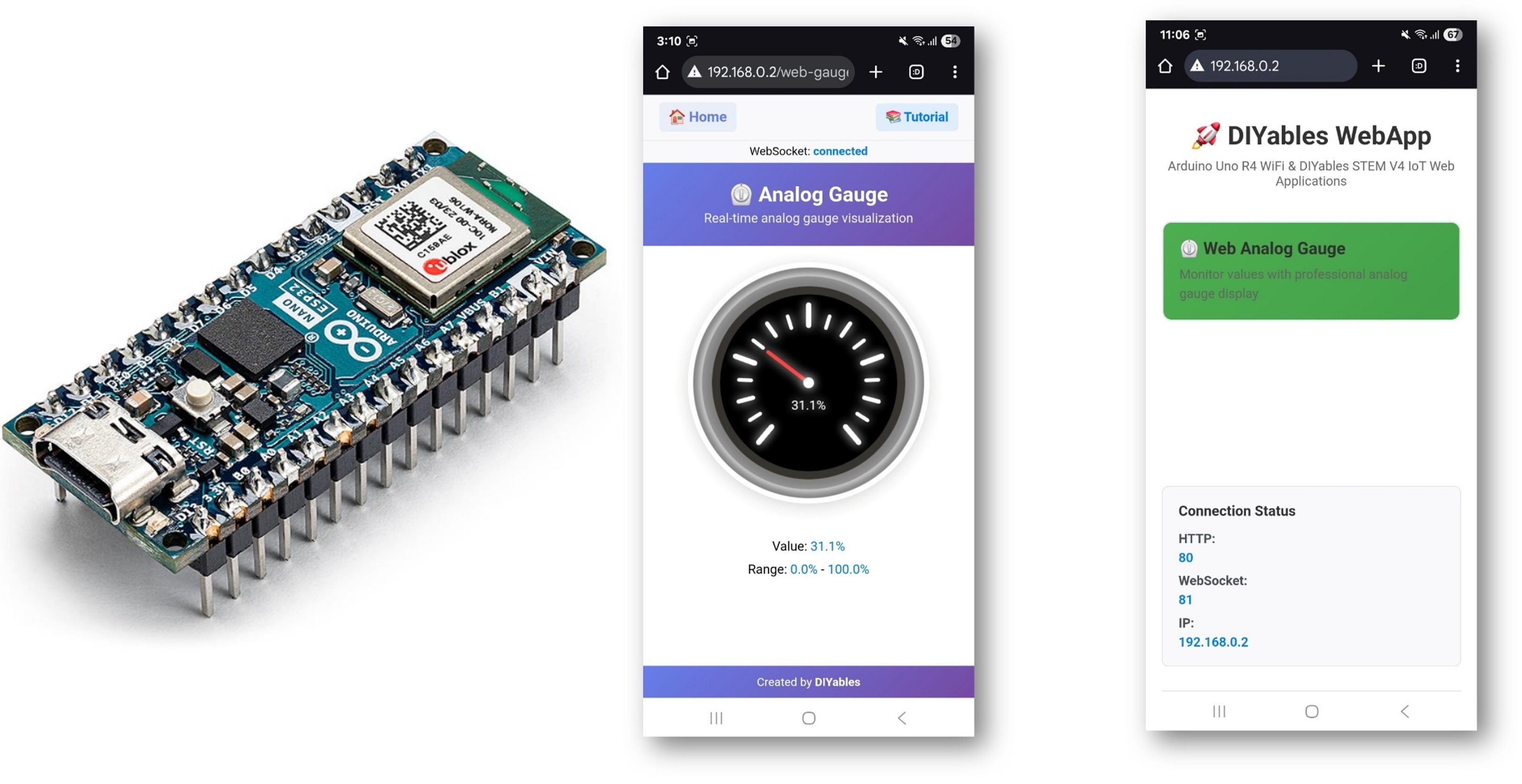
Arduino Nano ESP32 Web Analog Gauge com a Biblioteca DIYables ESP32 WebApps
Visão Geral
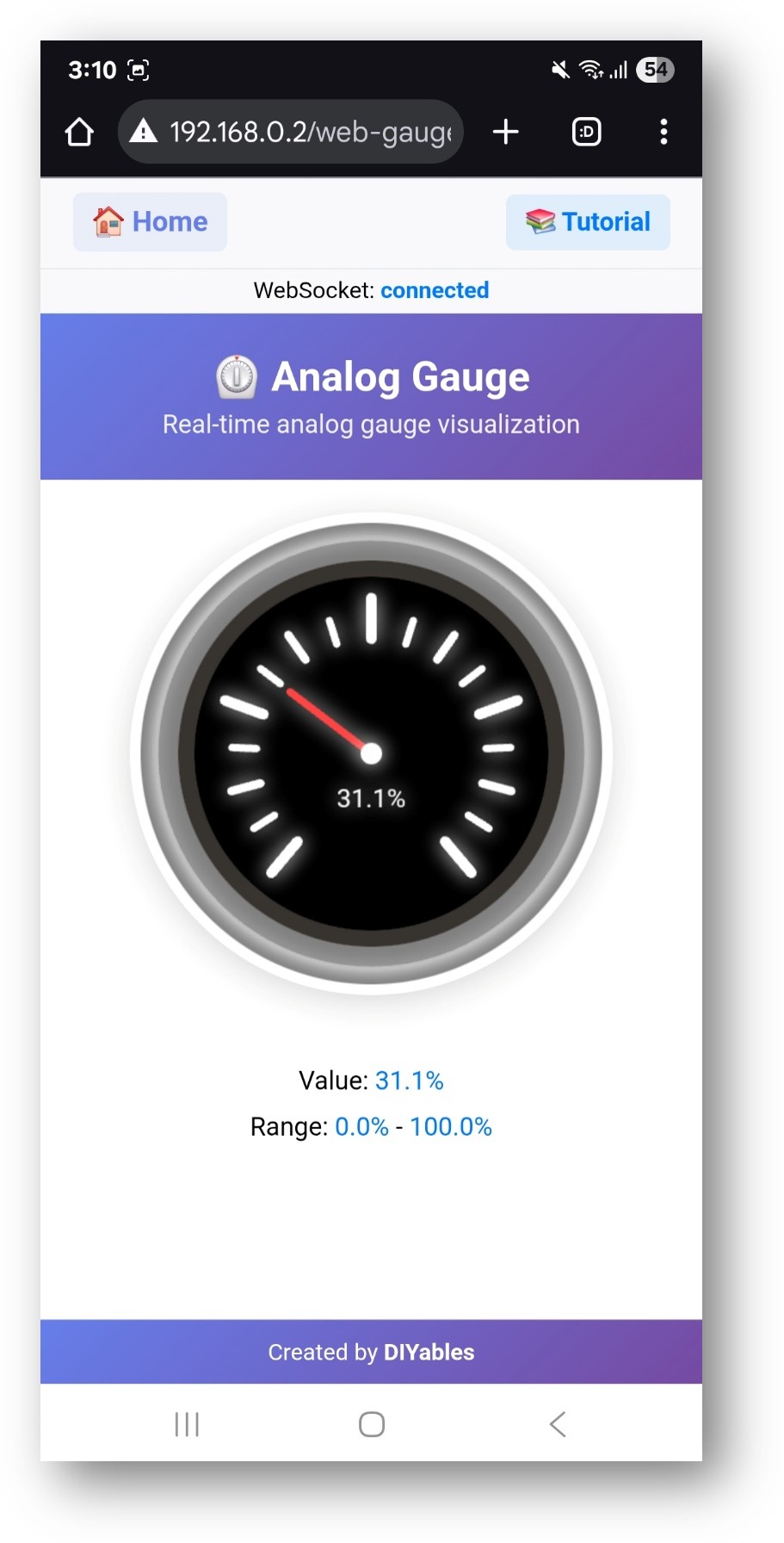
Este tutorial aborda a classe DIYablesWebAnalogGaugePage da Biblioteca DIYables ESP32 WebApps. A página renderiza um medidor circular no navegador e recebe atualizações de valor do Arduino Nano ESP32 via WebSocket. A faixa do medidor, as unidades e a precisão decimal são definidas no construtor — o navegador lê essa configuração automaticamente.
Assista a este tutorial em vídeo passo a passo, que demonstra como usar um potenciômetro com o app Web Analog Gauge:
O Que Este Tutorial Aborda
Configurar uma página de medidor com uma faixa personalizada e um rótulo de unidade
Enviar leituras do sensor ao navegador sob demanda usando um callback
Transmitir atualizações contínuas do medidor a partir do loop principal
Integrar um potenciômetro como fonte de entrada analógica
Divulgação: Alguns dos links desta seção são links de afiliado da Amazon. Podemos receber uma comissão pelas compras feitas por meio desses links, sem custo adicional para você. Agradecemos o seu apoio.
Conecte a placa Arduino Nano ESP32 ao seu computador usando um cabo USB.
Abra a Arduino IDE no seu computador.
Selecione a placa apropriada (por exemplo, Arduino Nano ESP32) e a porta COM.
Vá até o ícone Libraries na barra à esquerda da Arduino IDE.
Pesquise por "DIYables ESP32 WebApps" e encontre a DIYables ESP32 WebApps Library, de DIYables
Clique no botão Install para instalar a biblioteca.
Search for DIYables ESP32 WebApps created by DIYables and click the Install button.
Newbiely | Arduino IDE 2.3.8
──
☐
✕
File
Edit
Sketch
Tools
Help
Arduino Nano ESP32
Library Manager
DIYables ESP32 WebApps
Type:
All
Topic:
All
DIYables ESP32 WebAppsby DIYables
A comprehensive library designed for ESP32 that provides multiple professional web applications including Web Monitor, Chat, Digital Pin Control, Sliders, Joystick, Analog Gauge, Rotator Control, and Temperature Display via WebSocket communication. Features modular architecture for memory efficiency, automatic config handling, and perfect for IoT projects, robotics, sensor monitoring, servo/stepper control, temperature monitoring, and remote ESP32 control.
More info
1.0.1
INSTALL
Newbiely.ino
···
1
voidsetup() {
Output
Serial Monitor
Ln 1, Col 1
Arduino Nano ESP32 on COM15
1
Será solicitado que você instale algumas outras dependências da biblioteca
Clique no botão Install All para instalar todas as dependências da biblioteca.
Na Arduino IDE, vá até File Examples DIYables ESP32 WebApps WebAnalogGauge, ou copie o código acima e cole-o no editor da Arduino IDE
/* * DIYables WebApp Library - Web Analog Gauge Example * * This Serial.println("\nWebAnalogGauge is ready!"); Serial.print("IP Address: "); Serial.println(webAppsServer.getLocalIP()); Serial.println("Open your web browser and navigate to:"); Serial.print("1. http://"); Serial.print(webAppsServer.getLocalIP()); Serial.println("/ (Home page)"); Serial.print("2. http://"); Serial.print(webAppsServer.getLocalIP()); Serial.println("/webanalogGauge (Analog Gauge)"); Serial.println("\nSimulating sensor data...");monstrates the Web Analog Gauge application: * - Real-time analog gauge visualization * - Simulated sensor data with smooth animation * - WebSocket communication for live updates * - Beautiful analog gauge with tick marks and smooth pointer movement * * Features: * - Automatic gauge value simulation * - Smooth animation between values * - Range: 0° to 280° (customizable) * - Real-time WebSocket updates * - Professional analog gauge appearance * * Hardware: ESP32 Boards * * Setup: * 1. Update WiFi credentials below * 2. Upload the sketch to your Arduino * 3. Open Serial Monitor to see the IP address * 4. Navigate to http://[esp32-ip]/web-gauge in your web browser */#include <DIYables_ESP32_Platform.h>#include <DIYablesWebApps.h>// WiFi credentials - UPDATE THESE WITH YOUR NETWORKconstchar WIFI_SSID[] = "YOUR_WIFI_SSID";constchar WIFI_PASSWORD[] = "YOUR_WIFI_PASSWORD";// Create WebApp server and page instancesESP32ServerFactory serverFactory;DIYablesWebAppServerwebAppsServer(serverFactory, 80, 81);DIYablesHomePage homePage;// Gauge configuration constantsconstfloat GAUGE_MIN_VALUE = 0.0;constfloat GAUGE_MAX_VALUE = 100.0;constString GAUGE_UNIT = "%";DIYablesWebAnalogGaugePage webAnalogGaugePage(GAUGE_MIN_VALUE, GAUGE_MAX_VALUE, GAUGE_UNIT); // Range: 0-100%// Other examples:// DIYablesWebAnalogGaugePage webAnalogGaugePage(-50.0, 150.0, "°C"); // Temperature: -50°C to 150°C// DIYablesWebAnalogGaugePage webAnalogGaugePage(0.0, 1023.0, ""); // Analog sensor: 0-1023 (no unit)// DIYablesWebAnalogGaugePage webAnalogGaugePage(0.0, 5.0, "V"); // Voltage: 0-5V// Simulation variablesunsignedlong lastUpdateTime = 0;constunsignedlong UPDATE_INTERVAL = 500; // Update every 500ms (0.5 second)constfloat STEP_SIZE = 1.0; // Step size for simulationfloat currentGaugeValue = GAUGE_MIN_VALUE; // Start at minimum valuefloatstep = STEP_SIZE; // Positive step means increasing, negative means decreasingvoidsetup() {Serial.begin(9600);delay(1000);Serial.println("DIYables ESP32 WebApp - Web Analog Gauge Example");// Add web applications to the serverwebAppsServer.addApp(&homePage);webAppsServer.addApp(&webAnalogGaugePage);// Optional: Add 404 page for better user experiencewebAppsServer.setNotFoundPage(DIYablesNotFoundPage());// Start the WebApp serverif (!webAppsServer.begin(WIFI_SSID, WIFI_PASSWORD)) {while (1) {Serial.println("Failed to start WebApp server!");delay(1000); } } setupCallbacks();}void setupCallbacks() {// Handle gauge value requests (when web page loads/reconnects) webAnalogGaugePage.onGaugeValueRequest([]() { webAnalogGaugePage.sendToWebAnalogGauge(currentGaugeValue);Serial.println("Web client requested gauge value - Sent: " + String(currentGaugeValue, 1) + GAUGE_UNIT); });}voidloop() {// Handle WebApp server communicationswebAppsServer.loop();// Update gauge with simulated sensor dataif (millis() - lastUpdateTime >= UPDATE_INTERVAL) { lastUpdateTime = millis();Serial.println("Updating gauge value..."); // Debug message// Simple linear simulation: step changes direction at boundaries currentGaugeValue += step;// Change direction when reaching boundariesif (currentGaugeValue >= GAUGE_MAX_VALUE || currentGaugeValue <= GAUGE_MIN_VALUE) {step *= -1; // Reverse direction }// Ensure value stays within bounds (safety check)if (currentGaugeValue < GAUGE_MIN_VALUE) currentGaugeValue = GAUGE_MIN_VALUE;if (currentGaugeValue > GAUGE_MAX_VALUE) currentGaugeValue = GAUGE_MAX_VALUE;// Send the new value to all connected web clients webAnalogGaugePage.sendToWebAnalogGauge(currentGaugeValue);// Print to serial for debuggingSerial.println("Gauge: " + String(currentGaugeValue, 1) + GAUGE_UNIT + " (" + (step > 0 ? "↑" : "↓") + ")"); }delay(10);}
Clique no botão Upload na Arduino IDE para fazer o upload do código para o Arduino Nano ESP32
Abra o Serial Monitor
A saída do Serial Monitor deve ser parecida com esta:
Newbiely | Arduino IDE 2.3.8
──
☐
✕
File
Edit
Sketch
Tools
Help
Arduino Nano ESP32
Newbiely.ino
···
8Serial.println("Hello World!");
Output
Serial Monitor
Message (Enter to send message to 'Arduino Nano ESP32' on 'COM15')
New Line
9600 baud
DIYables WebApp - Web Analog Gauge Example
INFO: Added app /
INFO: Added app /web-gauge
DIYables WebApp Library
Platform: Arduino Nano ESP32
Network connected!
IP address: 192.168.0.2
HTTP server started on port 80
Configuring WebSocket server callbacks...
WebSocket server started on port 81
WebSocket URL: ws://192.168.0.2:81
WebSocket server started on port 81
==========================================
DIYables WebApp Ready!
==========================================
Web Interface: http://192.168.0.2
WebSocket: ws://192.168.0.2:81
Available Applications:
Home Page: http://192.168.0.2/
Web Analog Gauge: http://192.168.0.2/web-gauge
==========================================
Ln 11, Col 1
Arduino Nano ESP32 on COM15
2
Se nada aparecer, pressione o botão de reset da placa.
Digite o endereço IP mostrado no Serial Monitor em um navegador em um dispositivo na mesma rede.
Exemplo: http://192.168.0.2
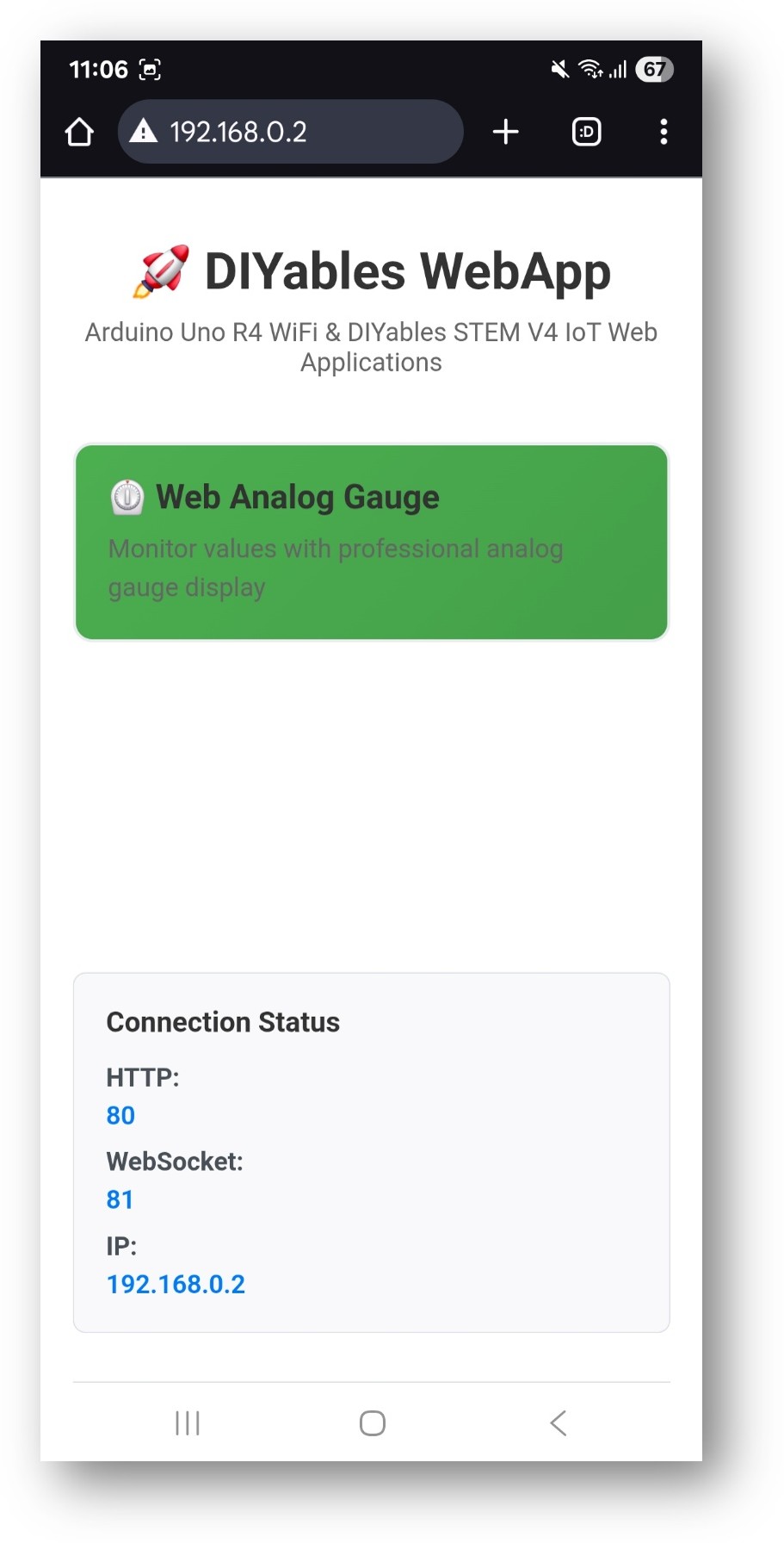
A página inicial exibe um card para o aplicativo de medidor:
Selecione o card Web Analog Gauge para abrir a página do medidor:
O medidor também pode ser acessado diretamente em http://192.168.0.2/web-gauge.
Configuração do Medidor
A faixa e as unidades são definidas no construtor e enviadas ao navegador uma vez, na conexão:
// Parameters: minimum, maximum, unit stringDIYablesWebAnalogGaugePage gaugePage(0.0, 100.0, "V");
O callback de solicitação de valor é chamado toda vez que um navegador se conecta e solicita a leitura atual:
Fique à vontade para compartilhar o link deste tutorial. Porém, por favor, não use nosso conteúdo em outros sites. Investimos muito esforço e tempo para criar este conteúdo, por favor respeite nosso trabalho!