Exemplo de Tabela Bluetooth para Arduino Nano ESP32 - Tutorial de Exibição de Dados Estruturados via BLE

Visão Geral

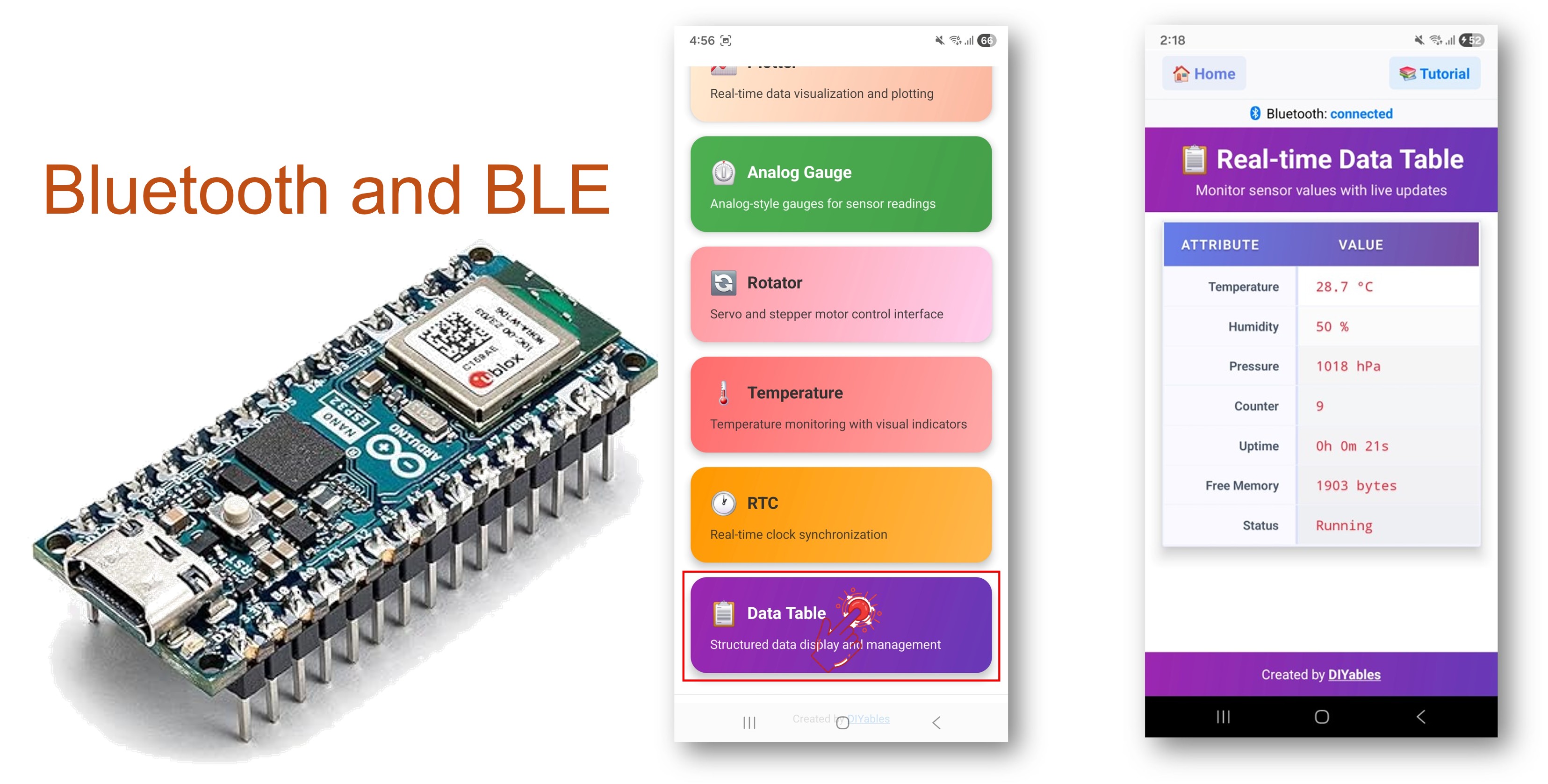
Este exemplo implementa a exibição de dados estruturados no Arduino Nano ESP32 usando BLE (Bluetooth Low Energy) por meio do aplicativo DIYables Bluetooth STEM. Exiba leituras de sensores, o status do sistema e quaisquer dados em um formato de tabela limpo em um smartphone, com linhas nomeadas e atualizações de valores em tempo real. Adequado para painéis, monitoramento de sistemas e displays com vários sensores.

Observação: O Arduino Nano ESP32 suporta apenas BLE — o Bluetooth Clássico não é suportado. O DIYables Bluetooth App funciona em Android e iOS com BLE.
Exemplo de Tabela Bluetooth para Arduino Nano ESP32 - Tutorial de Exibição de Dados Estruturados via BLE

Recursos

  • Linhas Nomeadas: Defina linhas com rótulos (por exemplo, "Temperature", "Humidity")
  • Atualizações em Tempo Real: Envie atualizações de valores individuais de forma eficiente
  • Sincronização da Estrutura: Envie a estrutura da tabela automaticamente ao conectar
  • Dados Flexíveis: Exiba qualquer dado de texto ou numérico
  • Até 20 Linhas: Suporte a vários campos de dados
  • Suporte a Android e iOS: O BLE é compatível com as duas plataformas
  • Sem Necessidade de Pareamento: O BLE conecta sem pareamento manual

Hardware Necessário

1×Arduino Nano ESP32
1×Cabo USB Tipo-A para Tipo-C (para PC com USB-A)
1×Cabo USB Tipo-C para Tipo-C (para PC com USB-C)
1×(Recomendado) Placa de Expansão com Bornes de Parafuso para Arduino Nano
1×(Recomendado) Placa de Expansão Breakout para Arduino Nano
1×(Recomendado) Divisor de Alimentação para Arduino Nano ESP32

Or you can buy the following kits:

1×DIYables Sensor Kit (18 sensors/displays)
Divulgação: Alguns dos links desta seção são links de afiliado da Amazon. Podemos receber uma comissão pelas compras feitas por meio desses links, sem custo adicional para você. Agradecemos o seu apoio.

Código Arduino Nano ESP32

Passos Rápidos

  • Novo no Arduino Nano ESP32? Comece pelo guia de primeiros passos do Arduino Nano ESP32.
  • Conecte o Arduino Nano ESP32 ao seu computador via USB.
  • Abra a Arduino IDE.
  • Selecione a placa Arduino Nano ESP32 e a porta COM correta.
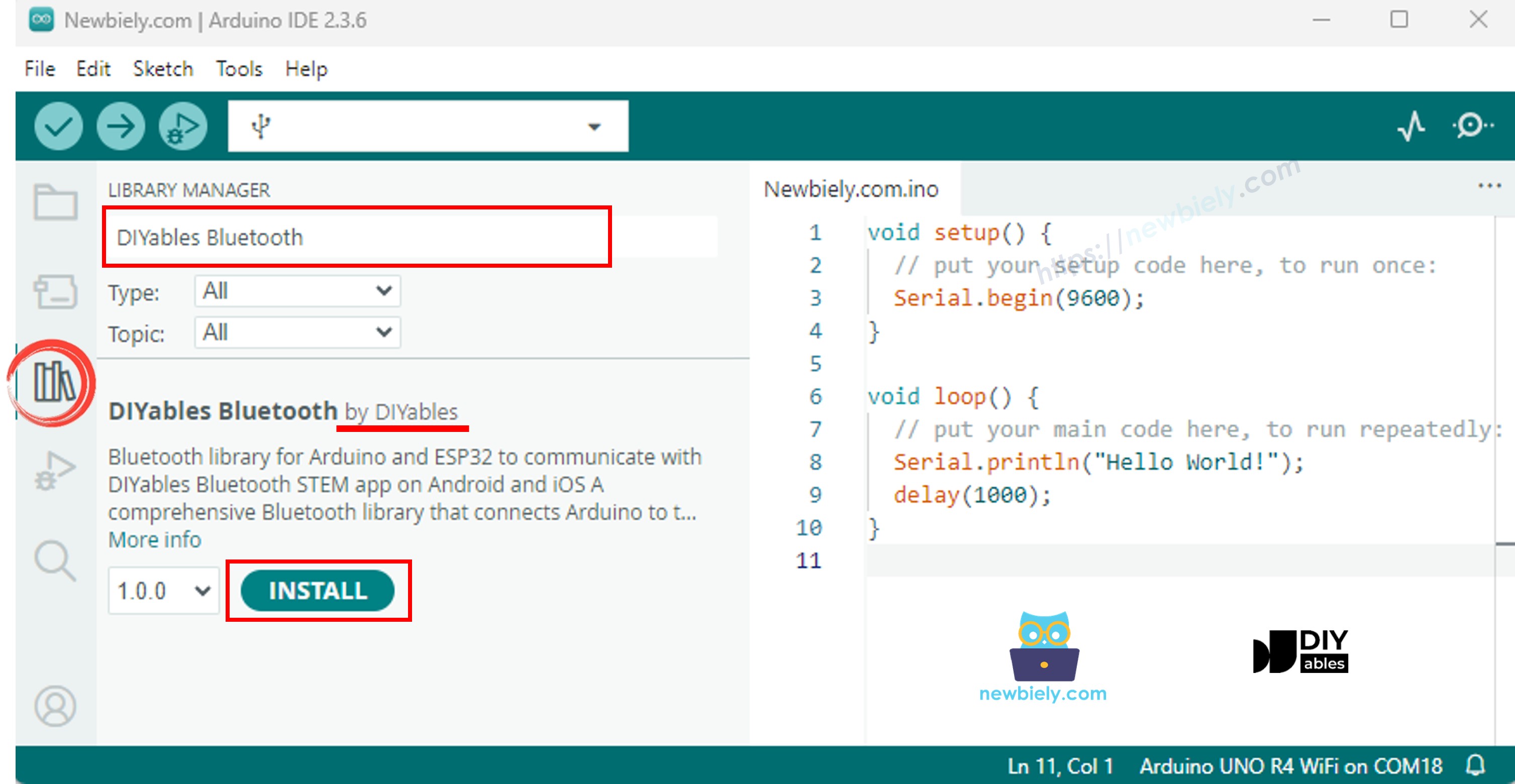
  • Clique no ícone Libraries na barra lateral esquerda.
  • Pesquise por "DIYables Bluetooth" e selecione a biblioteca DIYables Bluetooth da DIYables.
  • Clique em Install.
Biblioteca DIYables Bluetooth para Arduino Nano ESP32
  • Quando for solicitado a instalar as dependências, clique em Install All.
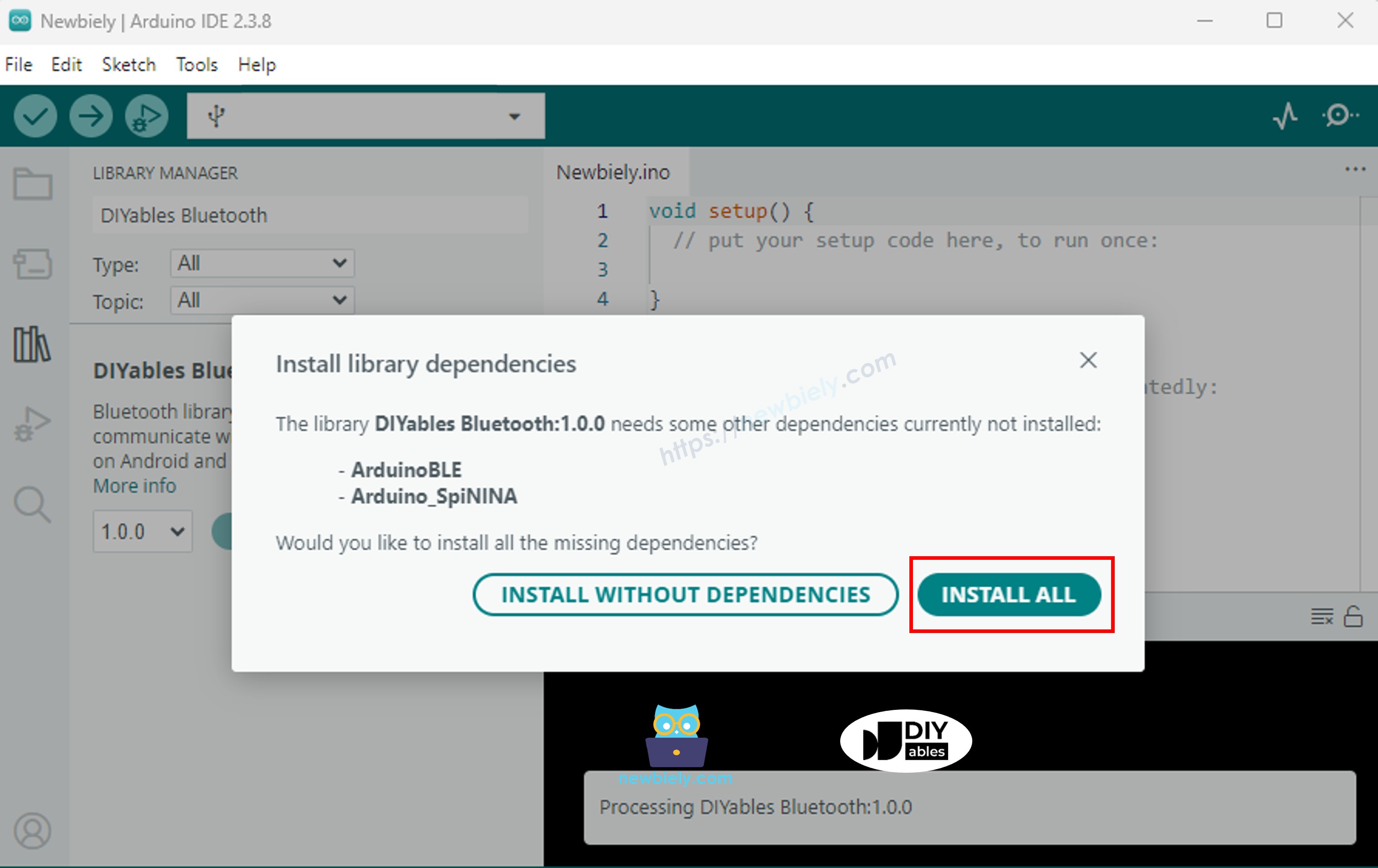
Dependência do DIYables Bluetooth para Arduino Nano ESP32

Código BLE

  • Na Arduino IDE, abra File Examples DIYables Bluetooth ArduinoBLE_Table, ou cole o código no editor.
/* * DIYables Bluetooth Library - ESP32 BLE Table Example * Works with DIYables Bluetooth STEM app on Android and iOS * * This example demonstrates the Bluetooth Table feature: * - Display structured data in a two-column table * - Real-time value updates for each row * - Perfect for sensor dashboards and status displays * * Tutorial: https://diyables.io/bluetooth-app * Author: DIYables */ #include <DIYables_BluetoothServer.h> #include <DIYables_BluetoothTable.h> #include <platforms/DIYables_Esp32BLE.h> // BLE Configuration const char* DEVICE_NAME = "ESP32BLE_Table"; const char* SERVICE_UUID = "19B10000-E8F2-537E-4F6C-D104768A1214"; const char* TX_UUID = "19B10001-E8F2-537E-4F6C-D104768A1214"; const char* RX_UUID = "19B10002-E8F2-537E-4F6C-D104768A1214"; // Create Bluetooth instances DIYables_Esp32BLE bluetooth(DEVICE_NAME, SERVICE_UUID, TX_UUID, RX_UUID); DIYables_BluetoothServer bluetoothServer(bluetooth); // Create Table app instance DIYables_BluetoothTable bluetoothTable; // Variables for demo data unsigned long lastUpdate = 0; const unsigned long UPDATE_INTERVAL = 1000; int counter = 0; void setup() { Serial.begin(115200); delay(1000); Serial.println("DIYables Bluetooth - ESP32 BLE Table Example"); // Initialize Bluetooth server with platform-specific implementation bluetoothServer.begin(); // Add table app to server bluetoothServer.addApp(&bluetoothTable); // Define table structure bluetoothTable.addRow("Temperature"); bluetoothTable.addRow("Humidity"); bluetoothTable.addRow("Pressure"); bluetoothTable.addRow("Counter"); bluetoothTable.addRow("Uptime"); bluetoothTable.addRow("Free Heap"); bluetoothTable.addRow("Status"); Serial.print("Table rows defined: "); Serial.println(bluetoothTable.getRowCount()); // Set up connection event callbacks bluetoothServer.setOnConnected([]() { Serial.println("Bluetooth connected!"); bluetoothTable.sendTableStructure(); updateTableValues(); }); bluetoothServer.setOnDisconnected([]() { Serial.println("Bluetooth disconnected!"); }); bluetoothTable.onDataRequest([]() { Serial.println("App requested table data"); bluetoothTable.sendTableStructure(); updateTableValues(); }); Serial.println("Waiting for Bluetooth connection..."); } void updateTableValues() { float temperature = 20.0 + random(0, 100) / 10.0; bluetoothTable.sendValueUpdate("Temperature", String(temperature, 1) + " °C"); int humidity = 40 + random(0, 21); bluetoothTable.sendValueUpdate("Humidity", String(humidity) + " %"); int pressure = 1000 + random(0, 21); bluetoothTable.sendValueUpdate("Pressure", String(pressure) + " hPa"); bluetoothTable.sendValueUpdate("Counter", String(counter)); counter++; unsigned long uptime = millis() / 1000; String uptimeStr = String(uptime / 3600) + "h " + String((uptime % 3600) / 60) + "m " + String(uptime % 60) + "s"; bluetoothTable.sendValueUpdate("Uptime", uptimeStr); bluetoothTable.sendValueUpdate("Free Heap", String(ESP.getFreeHeap()) + " bytes"); bluetoothTable.sendValueUpdate("Status", counter % 2 == 0 ? "Running" : "Active"); Serial.println("Table values updated"); } void loop() { bluetoothServer.loop(); if (bluetooth.isConnected() && millis() - lastUpdate >= UPDATE_INTERVAL) { lastUpdate = millis(); updateTableValues(); } delay(10); }
  • Clique em Upload para gravar o sketch na placa.
  • Abra o Serial Monitor.
  • A saída do Serial Monitor deve ficar assim:
∞
Newbiely | Arduino IDE 2.3.8
──
☐
✕
File
Edit
Sketch
Tools
Help
Arduino Nano ESP32
Newbiely.ino
···
8 Serial.println("Hello World!");
Output
Serial Monitor
Message (Enter to send message to 'Arduino Nano ESP32' on 'COM15')
New Line
9600 baud
DIYables Bluetooth - Table Example Waiting for Bluetooth connection...
Ln 11, Col 1
Arduino Nano ESP32 on COM15
2

Aplicativo Móvel

  • Instale o DIYables Bluetooth App no seu smartphone: Android | iOS

Observação: O DIYables Bluetooth App funciona em Android e iOS com BLE. Não é necessário fazer pareamento manual.

  • Abra o DIYables Bluetooth App.
  • Na primeira abertura, conceda as seguintes permissões:
    • Dispositivos Próximos (Android 12+) / Bluetooth (iOS) — necessário para procurar e conectar a dispositivos Bluetooth
    • Localização (somente Android 11 e anteriores) — exigida pelas versões mais antigas do Android para procurar dispositivos BLE
  • Verifique se o Bluetooth está ativado no seu dispositivo.
  • Toque em Connect na tela inicial. O aplicativo vai procurar dispositivos BLE.
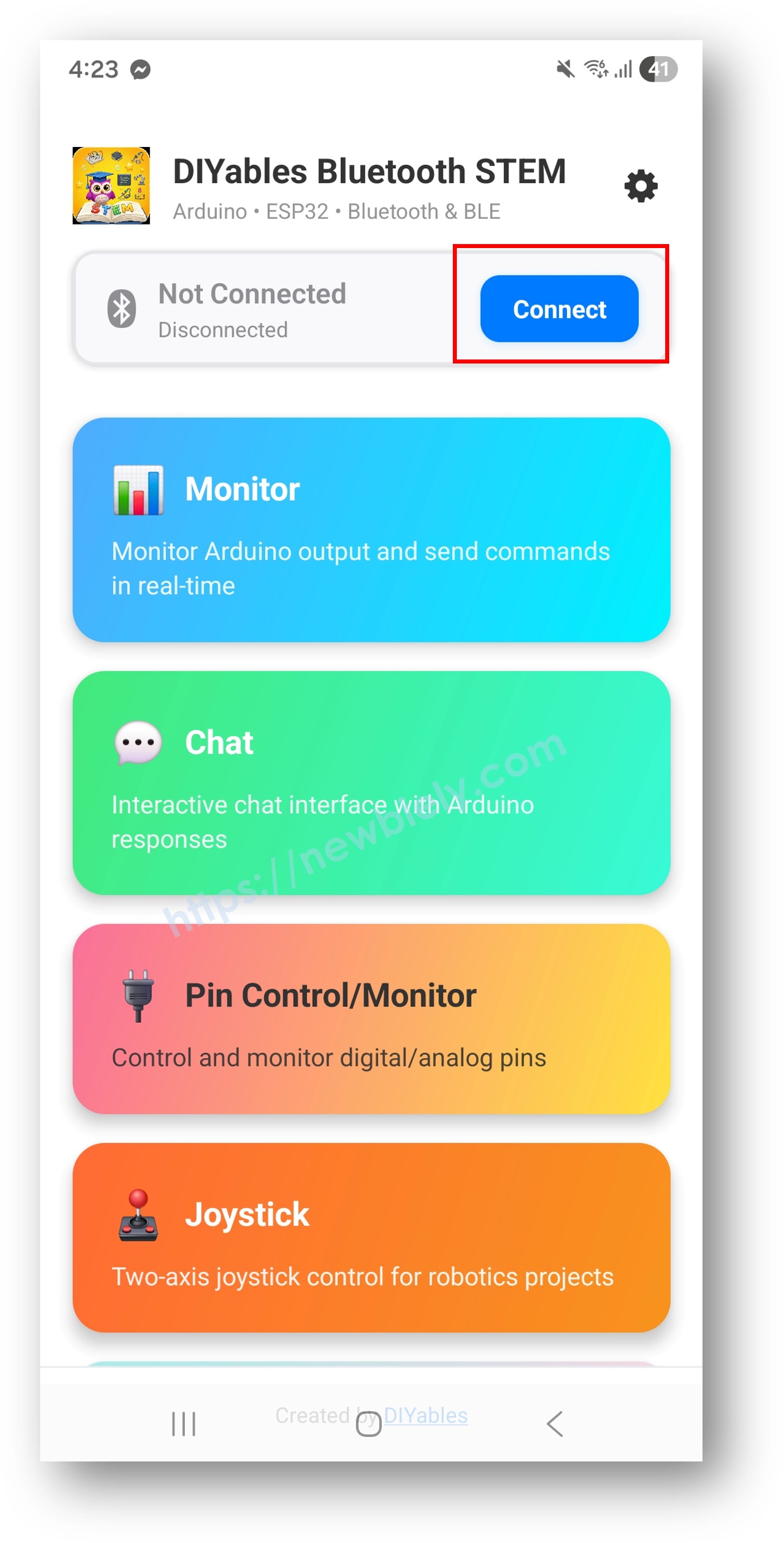
DIYables Bluetooth App - Tela Inicial com Botão de Busca
  • Toque em "Arduino_Table" nos resultados da busca.
  • Depois de conectar, volte à tela inicial e abra o aplicativo Table.
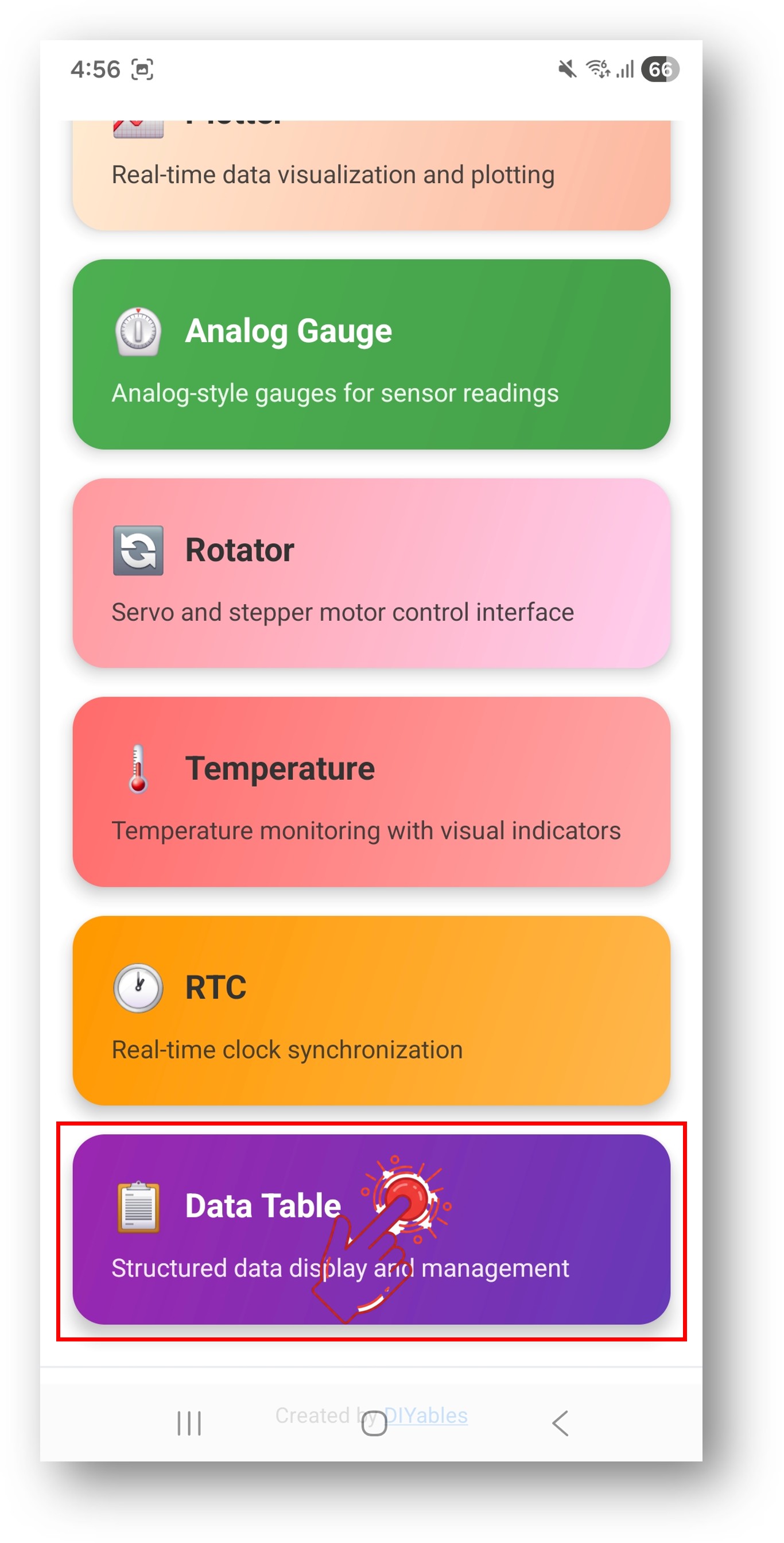
DIYables Bluetooth App - Tela Inicial com o Aplicativo Table

Toque no ícone de configurações na tela inicial para mostrar ou ocultar aplicativos. Veja o Manual do Usuário do DIYables Bluetooth App para mais detalhes.

  • Uma tabela exibe as linhas Temperature, Humidity, Pressure, Counter, Uptime, Free Memory e Status — todas sendo atualizadas em tempo real.
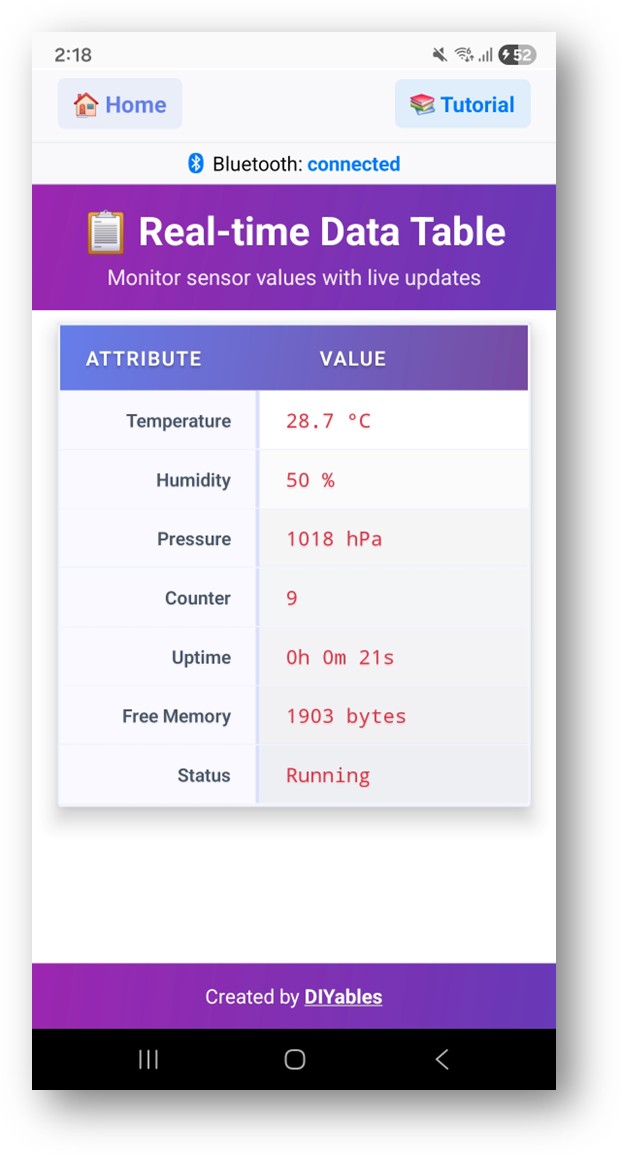
DIYables Bluetooth App - Tela do Table

Agora olhe para o Serial Monitor. A saída vai mostrar:

∞
Newbiely | Arduino IDE 2.3.8
──
☐
✕
File
Edit
Sketch
Tools
Help
Arduino Nano ESP32
Newbiely.ino
···
8 Serial.println("Hello World!");
Output
Serial Monitor
Message (Enter to send message to 'Arduino Nano ESP32' on 'COM15')
New Line
9600 baud
Bluetooth connected! Sending table updates... Temperature: 25.30 °C Humidity: 55.70 %
Ln 11, Col 1
Arduino Nano ESP32 on COM15
2

Personalização Criativa - Adapte o Código ao Seu Projeto

Definir a Estrutura da Tabela

// Add rows during setup bluetoothTable.addRow("Temperature", "-- °C"); bluetoothTable.addRow("Humidity", "-- %"); bluetoothTable.addRow("Pressure", "-- hPa"); bluetoothTable.addRow("Status", "Initializing...");

Atualizar Valores

// Update by row name bluetoothTable.sendValueUpdate("Temperature", "25.5 °C"); bluetoothTable.sendValueUpdate("Status", "Running"); // Update by row index (0-based) bluetoothTable.sendValueUpdate(0, "25.5 °C"); bluetoothTable.sendValueUpdate(3, "Running");

Enviar a Estrutura da Tabela

// Re-send the full table structure to the app bluetoothTable.sendTableStructure(); // Handle data request from app bluetoothTable.onDataRequest([]() { bluetoothTable.sendTableStructure(); });

Exemplos de Programação

Painel de Estação Meteorológica

DIYables_BluetoothTable bluetoothTable(bluetoothServer); void setup() { bluetoothTable.addRow("Temperature", "-- °C"); bluetoothTable.addRow("Humidity", "-- %"); bluetoothTable.addRow("Pressure", "-- hPa"); bluetoothTable.addRow("Wind Speed", "-- m/s"); bluetoothTable.addRow("Rain", "None"); bluetoothTable.onDataRequest([]() { bluetoothTable.sendTableStructure(); }); } void loop() { bluetoothServer.loop(); static unsigned long lastTime = 0; if (millis() - lastTime >= 2000) { lastTime = millis(); bluetoothTable.sendValueUpdate("Temperature", String(readTemp(), 1) + " °C"); bluetoothTable.sendValueUpdate("Humidity", String(readHumidity(), 1) + " %"); bluetoothTable.sendValueUpdate("Pressure", String(readPressure(), 0) + " hPa"); } }

Monitor de Status do Sistema

void setup() { bluetoothTable.addRow("Uptime", "0s"); bluetoothTable.addRow("Free RAM", "-- bytes"); bluetoothTable.addRow("WiFi RSSI", "-- dBm"); bluetoothTable.addRow("IP Address", "N/A"); bluetoothTable.addRow("Status", "Starting..."); } void loop() { bluetoothServer.loop(); static unsigned long lastTime = 0; if (millis() - lastTime >= 1000) { lastTime = millis(); unsigned long uptime = millis() / 1000; String uptimeStr = String(uptime / 3600) + "h " + String((uptime % 3600) / 60) + "m " + String(uptime % 60) + "s"; bluetoothTable.sendValueUpdate("Uptime", uptimeStr); bluetoothTable.sendValueUpdate("Status", "Running"); } }

Solução de Problemas

Problemas Comuns

1. Dispositivo não aparece no aplicativo

  • Confirme que a placa está ligada e que o sketch foi carregado
  • Verifique se o Bluetooth está ativado no seu celular
  • No Android 11 e anteriores, ative também os serviços de localização

2. A tabela está vazia ou as linhas não aparecem

  • Garanta que addRow() seja chamado em setup() antes de conectar
  • Implemente o callback onDataRequest para reenviar a estrutura
  • Verifique se sendTableStructure() é chamado

3. Os valores não são atualizados

  • Verifique se sendValueUpdate() está sendo chamado no loop
  • Verifique se o nome da linha coincide exatamente (diferencia maiúsculas de minúsculas)
  • Garanta que bluetoothServer.loop() seja chamado a cada iteração do loop

4. Os nomes das linhas não coincidem

  • Os nomes das linhas diferenciam maiúsculas de minúsculas — "Temperature" ≠ "temperature"
  • Use o índice da linha (começando em 0) como alternativa aos nomes das linhas

5. O upload falha ou a placa não é reconhecida

  • Instale o pacote de placa Arduino Nano ESP32 mais recente pelo Board Manager
  • Tente outro cabo ou outra porta USB

Ideias de Projetos

  • Painel de estação meteorológica
  • Monitor de recursos do sistema
  • Exibição de dados de vários sensores
  • Painel de configuração de dispositivos
  • Quadro de status de dispositivos IoT

Próximos Passos

Depois de concluir o exemplo do Bluetooth Table, explore:

  1. Bluetooth Plotter — Visualização gráfica de dados
  2. Bluetooth Monitor — Interação em texto
  3. Bluetooth Temperature — Exibição em estilo de medidor
  4. Multiple Bluetooth Apps — Combine a tabela com outros widgets do aplicativo

Suporte

Para obter mais ajuda:

  • Consulte a documentação de referência da API
  • Fóruns da comunidade Arduino

※ NOSSAS MENSAGENS

  • Fique à vontade para compartilhar o link deste tutorial. Porém, por favor, não use nosso conteúdo em outros sites. Investimos muito esforço e tempo para criar este conteúdo, por favor respeite nosso trabalho!